¶ Main Menu
¶ Overview
When you open a convention, you land on its . The main menu down the left lists every section of the convention, grouped and color coded by what it is for. The dashboard uses the same groups and colors, showing the key numbers for each section and anything that needs your attention.
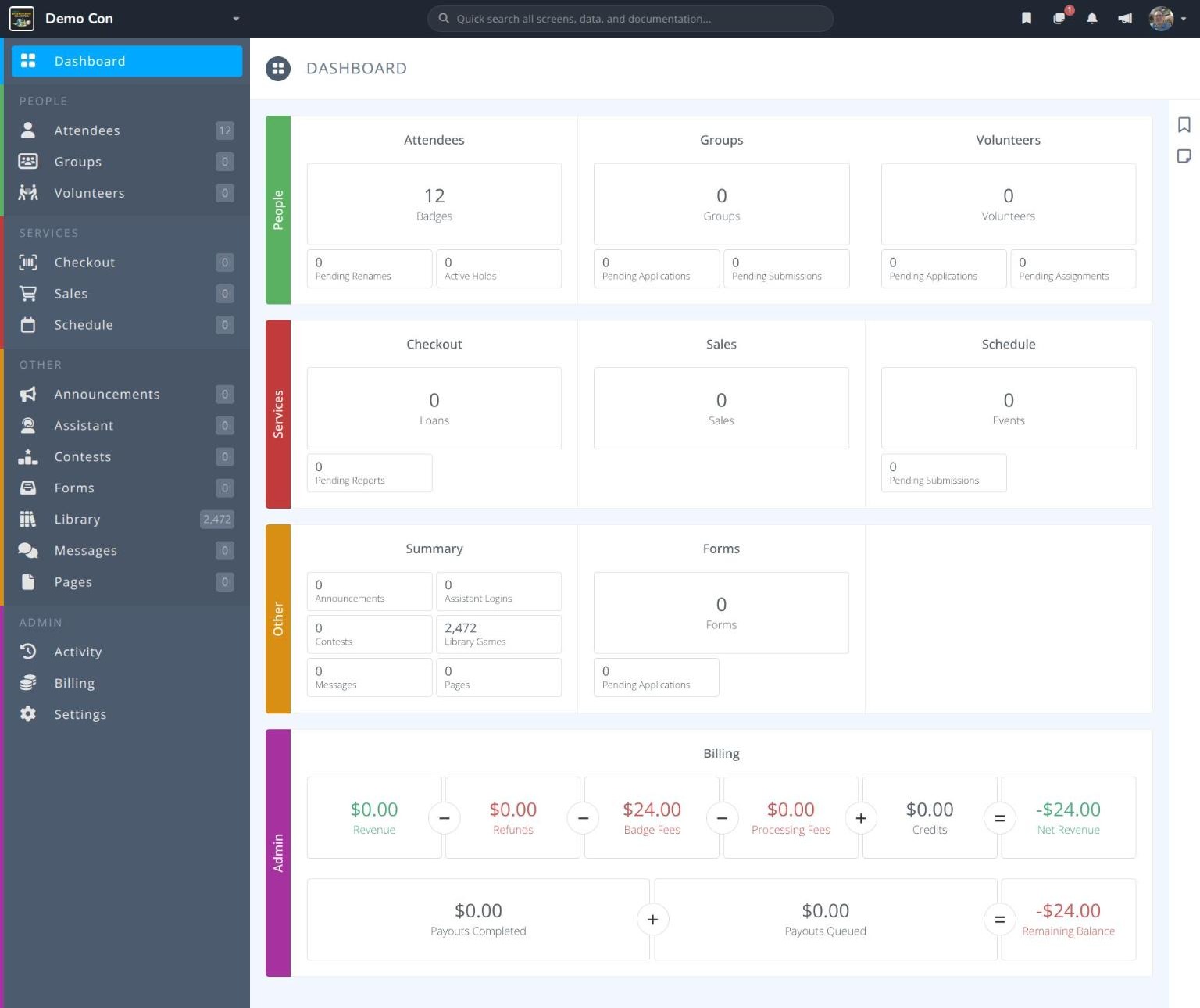
Note: The menu and dashboard only show the sections you have permission to use. If you cannot see a section, such as Billing, ask an organization admin to check your permissions.
¶ Menu Groups
| Group | Color | Sections |
|---|---|---|
| (top) | Blue | Dashboard |
| PEOPLE | Green | Attendees · Groups · Volunteers |
| SERVICES | Red | Checkout · Sales · Schedule |
| OTHER | Orange | Announcements · Assistant · Contests · Forms · Library · Messages · Pages |
| ADMIN | Purple | Activity · Billing · Settings |
The documentation follows the same structure, so each section's help pages are found under its group, such as Conventions / People / Attendees.
¶ Menu Breakdown
¶ People
-
Attendees- Badges, badge types and categories, holds, renames, tickets and transfers -
Groups- Vendors, exhibitors, publishers and other groups, with their leads, members and allocated badges -
Volunteers- Volunteer roles, applications, assignments and access
¶ Services
¶ Other
-
Announcements- Live and scheduled announcements to attendees, optionally sent by email -
Assistant- Login codes for the Assistant apps used for registration, ticket validation and the library -
Contests- QR code scavenger hunts and giveaways -
Forms- Forms that collect information from attendees, volunteers and groups -
Library- Your game library, including imports, exports and labels -
Messages- Messages sent in events, lobbies, contests, volunteer roles and Play to Win -
Pages- Registration and information pages
¶ The Icon Bar
Once you open a section, the main menu shrinks to a narrow icon bar on the far left, and the section's own menu appears beside it. The icons stay in the same order, and a colored stripe beside each group matches the colors above:
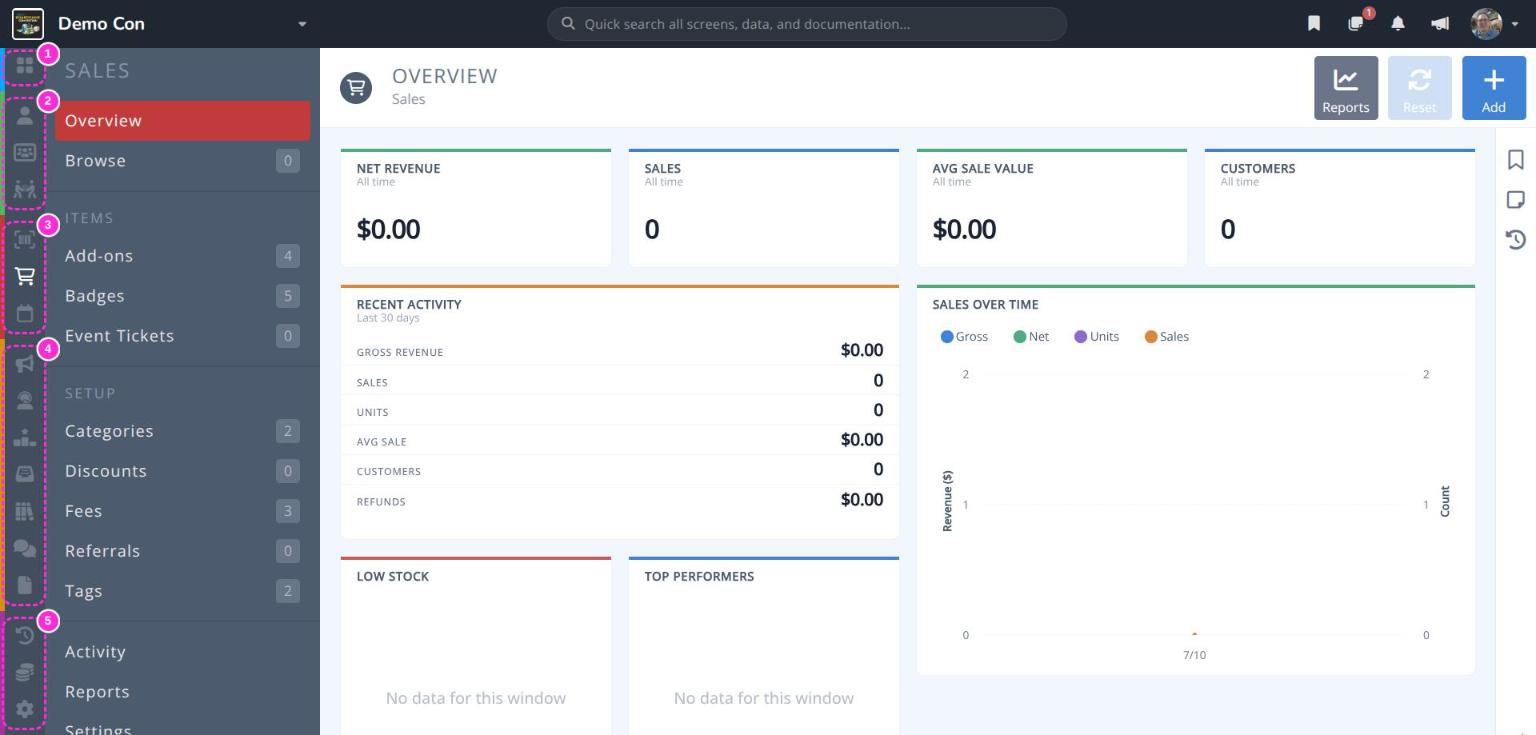
- Dashboard (blue)
- People (green)
- Services (red)
- Other (orange)
- Admin (purple)
Hover over an icon to see the section's name, and click it to jump straight to that section. Click the top icon to return to the dashboard.
Tip: The dashboard is a quick daily check-in. Numbers in the smaller boxes, such as Pending Applications or Pending Renames, show work waiting for you, and clicking a box takes you straight to it.