¶ Forms
¶ Overview
Forms are the questions people answer when they register for a badge, apply to volunteer or exhibit, or fill in a survey. You build a form once, then use it on one or more Pages or attach it to an announcement. From here you can:
- Create forms and add their questions (inputs)
- Show some questions only when an earlier answer matches (e.g. only ask about kids activities if the attendee is 12 or under)
- See what people answered, and pin charts of the answers to the Overview
- Review and approve applications
- Reuse the same questions and answer lists across many forms
Note: Every form starts with First Name, Last Name and E-mail inputs. They cannot be removed, but you can change their order.
¶ Menu Breakdown
¶ Forms
¶ Review - See What People Submitted
Applications- Approve, reject or convert applications (e.g. volunteers, exhibitors)Submissions- Every response submitted through a form
¶ Setup - Reusable Questions and Answers
Common Inputs- Questions you can add to many formsOption Sets- Lists of answers you can reuse (e.g. age ranges, T-shirt sizes)
¶ Admin - Administrate Forms
Activity- View Forms activity (redirects to general information on Activity pages)Settings- Forms settings
¶ Common Procedures
Create a FormAdd an Input to a FormShow an Input Only for Certain AnswersPin a Chart to the OverviewDelete a FormReview an ApplicationCreate an Option SetCreate a Common Input
¶ Overview Screen
From the menu click .
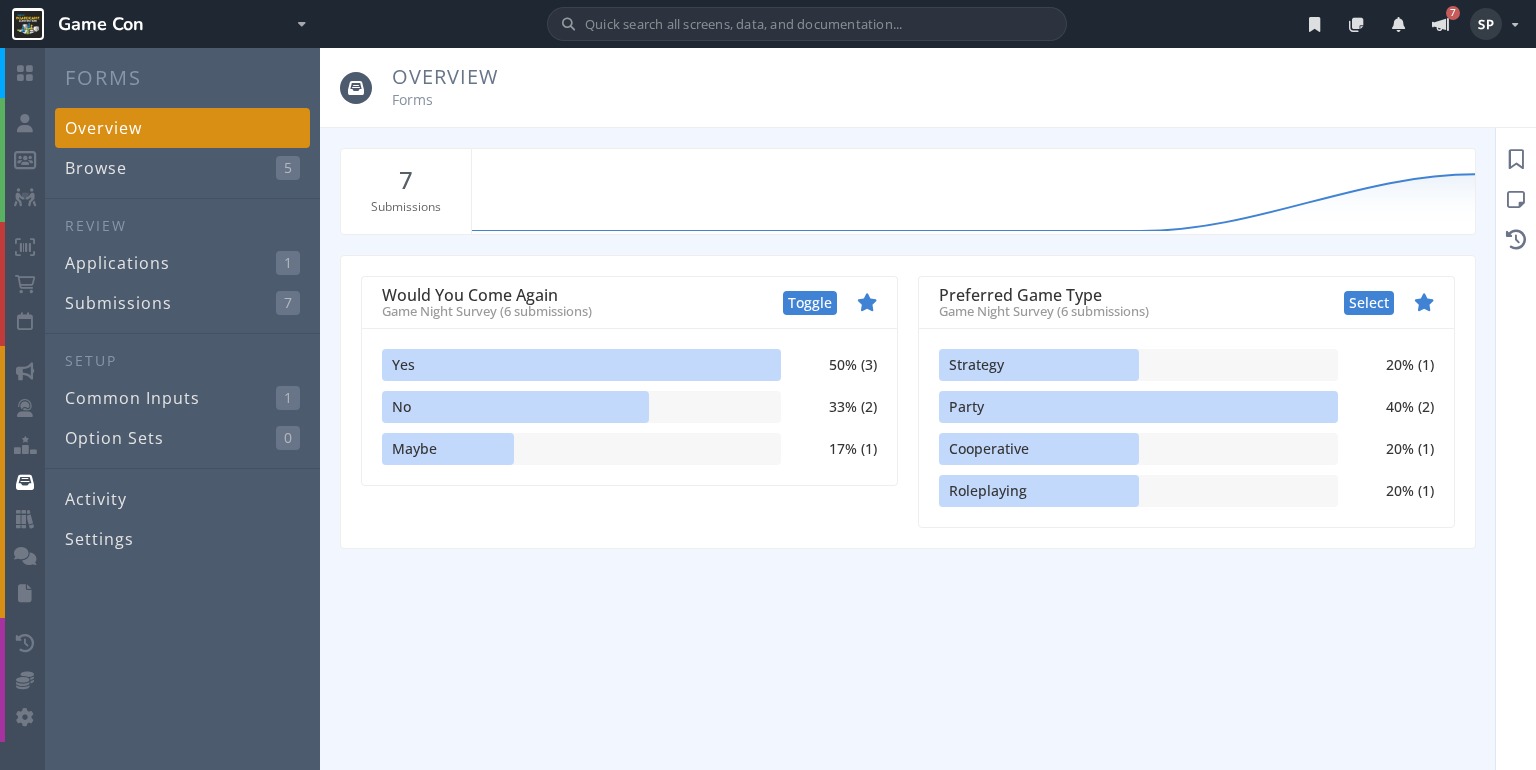
- Submissions - The total number of form submissions, with a chart of when they came in.
- Pinned charts - The answers to any inputs you have pinned. Like the Summary tab, each option shows its percentage and how many people chose it, e.g. 33% (2). See
Pin a Chart to the Overview. Click on a chart to unpin it.
¶ Browse
From the menu click .
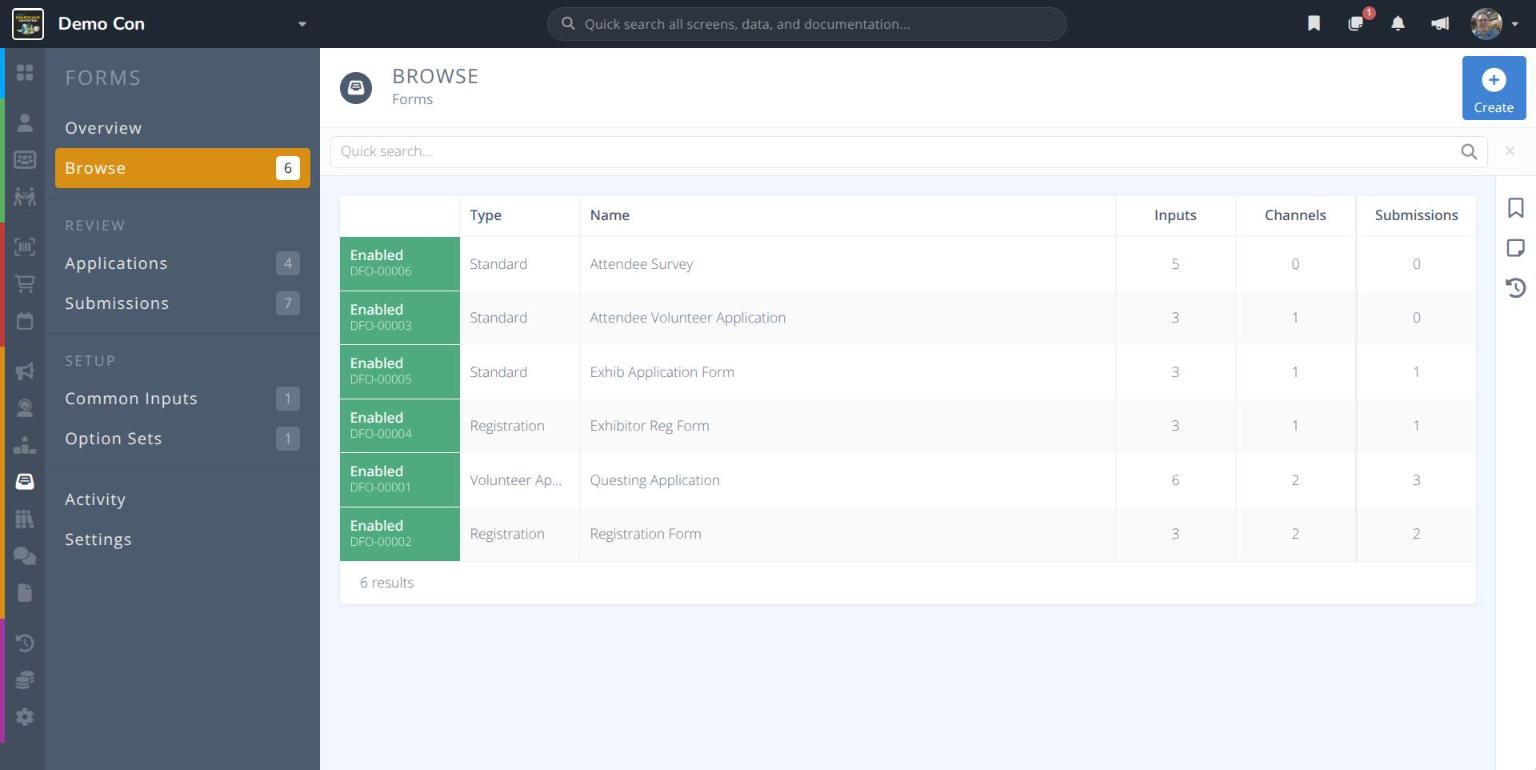
Each row shows the form's status and reference (e.g. DFO-00006), its Type, Name, and how many Inputs, Channels (pages using it) and Submissions it has. Use the Quick search... box to find a form, and click to create one.
¶ Form
Click a form to open it. The top of the screen shows its status, reference, name and number of submissions. Click on the submissions count to see them.
The form has four tabs:
¶ Summary
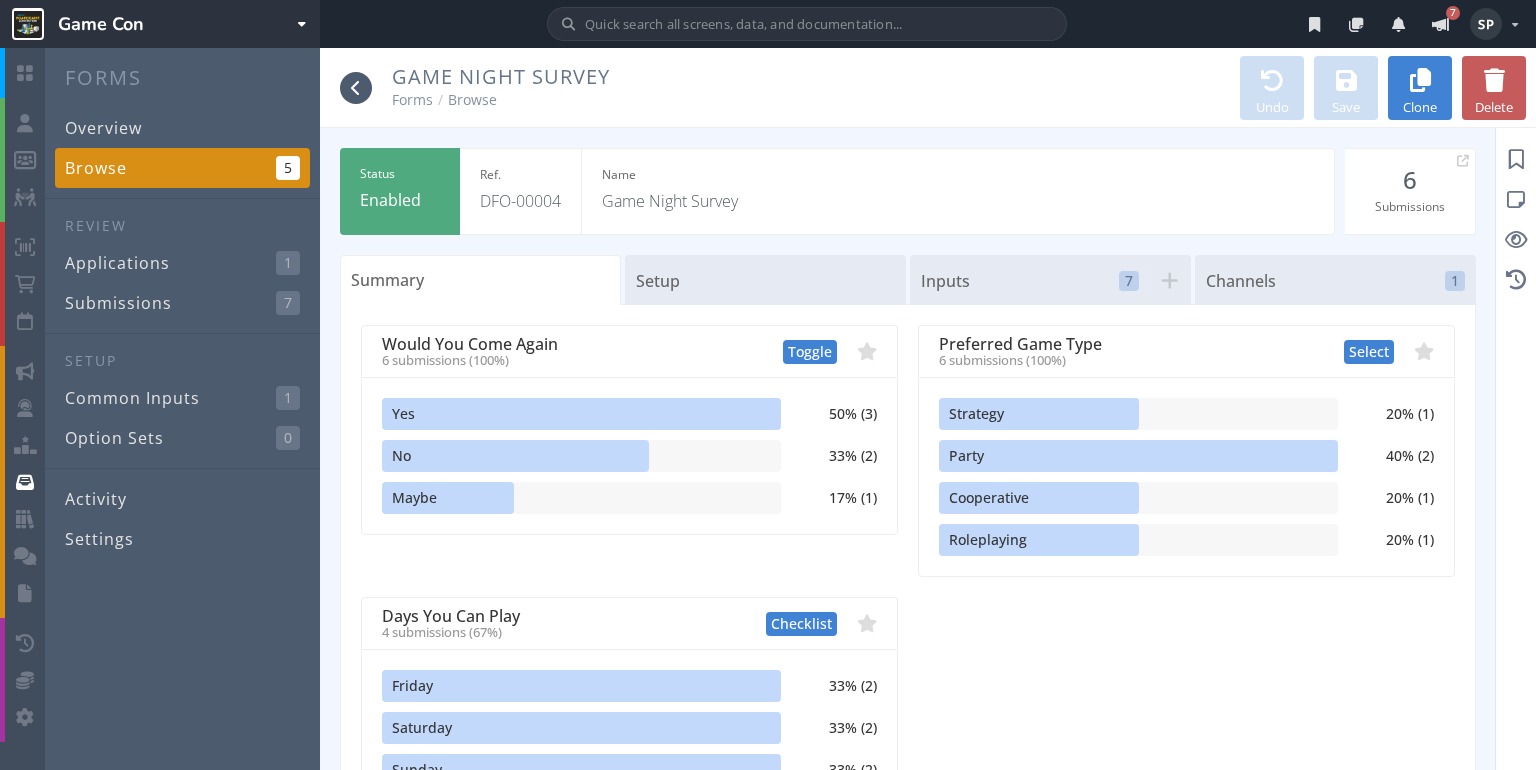
A chart of the answers to each input that can be summarized, such as Toggle, Select and Checklist inputs. Each chart shows how many people answered and what they chose. Each option shows its percentage and its count, e.g. 33% (2). Click to pin the chart to the Overview.
- Long option names are cut off with "...". Hover over one to see its full name.
- Click an option to filter the other charts to just the submissions that chose it. Their percentages and counts update to match.
¶ Setup
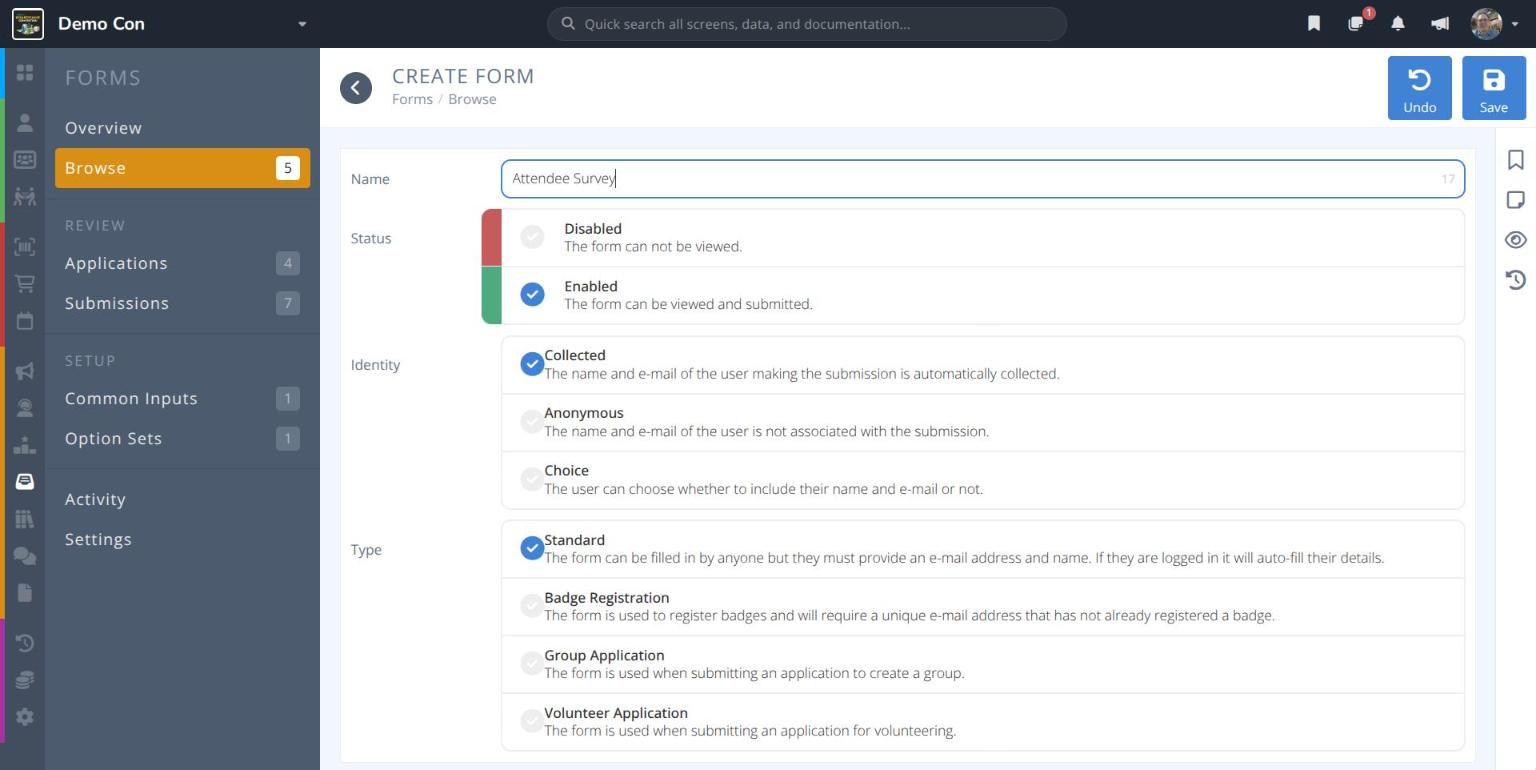
Name- The name of the form. Only staff see this.Status- Enabled forms can be viewed and submitted. Disabled forms cannot be viewed.Identity- Whether the submitter's name and e-mail are recorded:- Collected - The name and e-mail of the person submitting are recorded automatically.
- Anonymous - The name and e-mail are not linked to the submission.
- Choice - The person submitting chooses whether to include their name and e-mail.
Type- What the form is used for. It cannot be changed after the form is saved :- Standard - Anyone can fill it in, but they must give a name and e-mail address. If they are logged in, their details are filled in for them. Use it for surveys and general applications.
- Badge Registration - Used to register badges. Each submission needs an e-mail address that has not already registered a badge.
- Group Application - Used when applying to create a group.
- Volunteer Application - Used when applying to volunteer. It can include Volunteer Slots inputs.
¶ Inputs
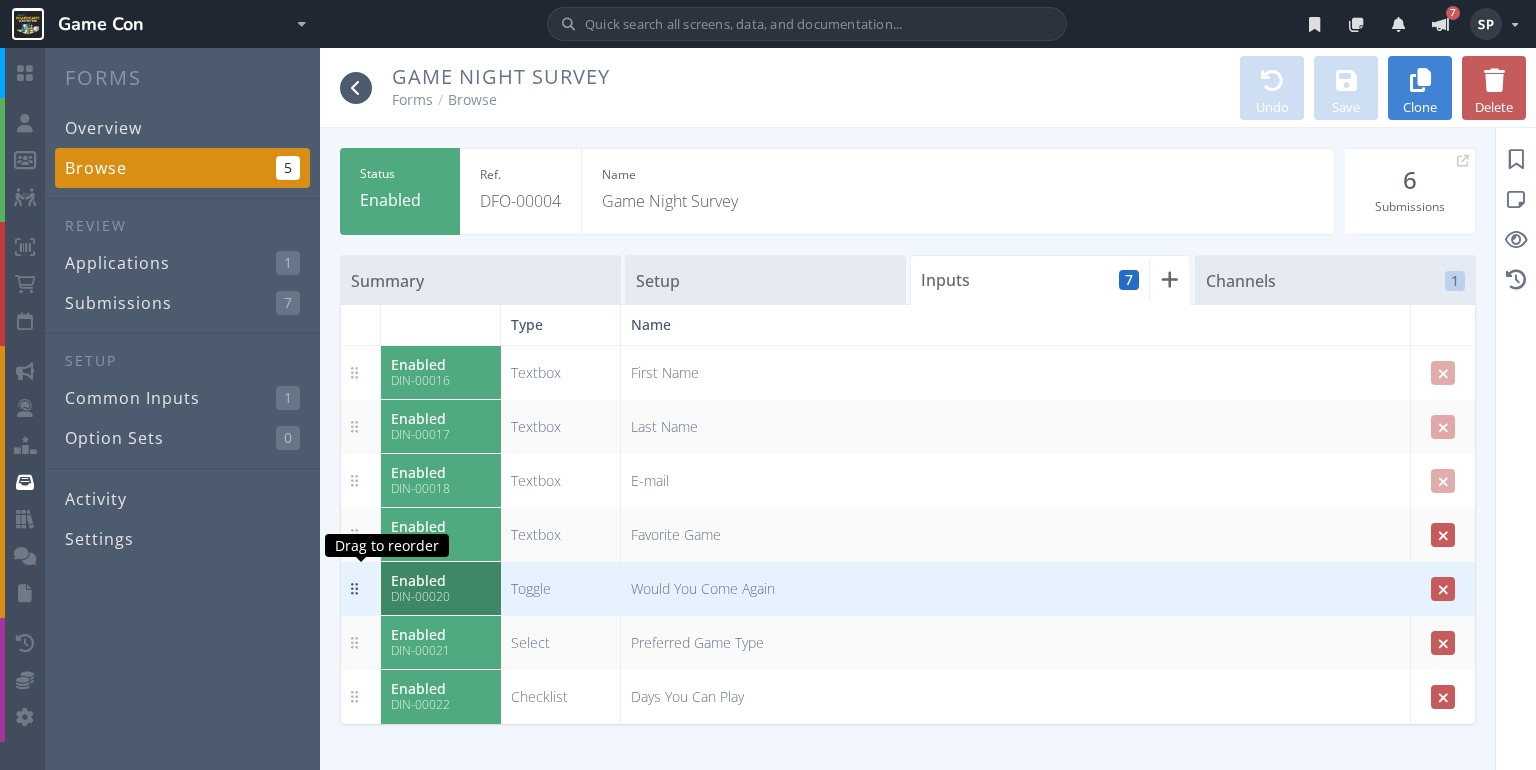
The questions on the form, in the order they appear. Each row shows the input's status, reference, Type and Name.
- - The drag handle at the left of each row (hover to see Drag to reorder). Drag an input to its new place, then click . Undo returns the saved order.
- is greyed out until you save the new order, and you are asked about unsaved changes if you leave first.
- People with read-only access to Forms don't see the drag handles.
- - Remove the input. The default name and e-mail inputs cannot be removed.
- Click + on the tab to add an input. See
Add an Input to a Form.
¶ Channels
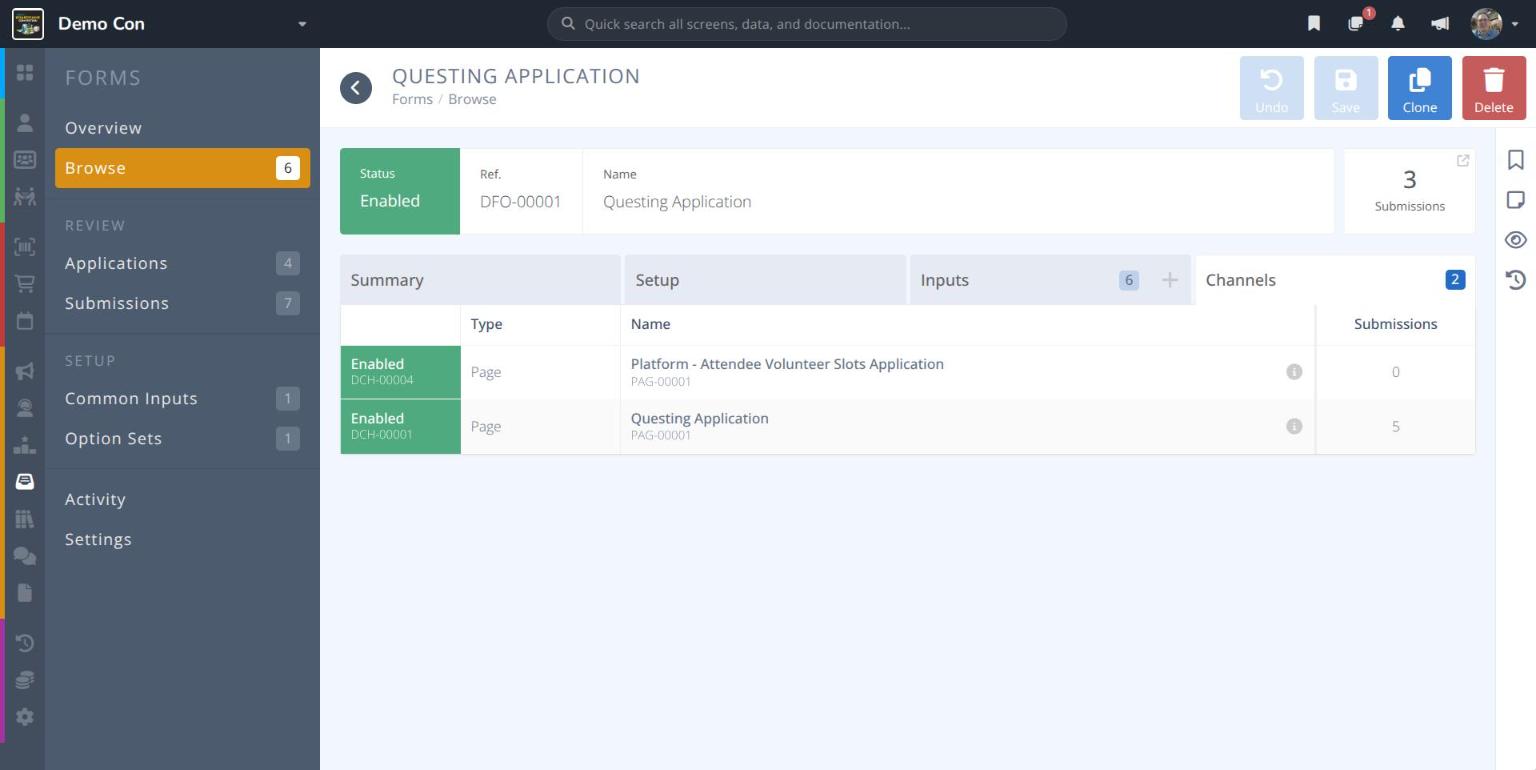
The pages that use this form, with each page's status and how many Submissions came through it. Click to quick-view a page.
¶ Input Fields
When you add an input with Create new input, it has two tabs.
Setup tab:
Name- The name of the input. Only staff see this.Status- Enabled inputs are shown on the form. Disabled inputs are hidden.Type- What kind of answer is collected:
| Type | What the person does | Extra settings |
|---|---|---|
Textbox |
Types a single line of text. | Validation rules, Analysis |
Toggle |
Chooses one option from a few buttons. | Options |
Select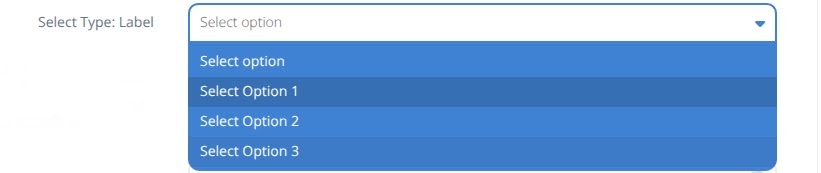 |
Chooses one option from a dropdown list. | Options |
Checklist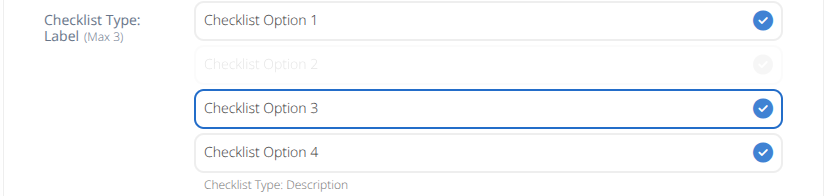 |
Chooses one or more options. | Options, Min. and Max. Selected |
Image |
Uploads an image. | |
Event Suggestion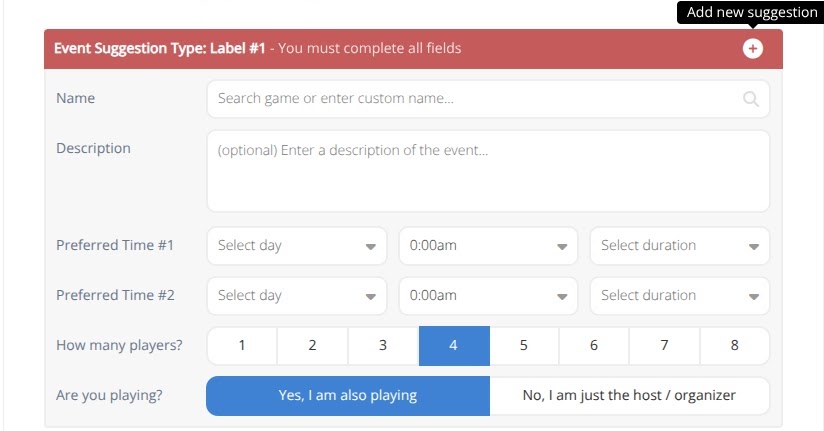 |
Suggests one or more events for the schedule. Click to add more, up to the Limit.Each suggestion is numbered (e.g. Game to be Hosted #2) and has an in the header to remove it. Name, Times, and Type are required fields. |
Limit, Times, Room |
Textarea |
Types several lines of text. | Validation rules, Analysis |
| Volunteer Slots | Chooses the volunteer slots they want to do. Only on Volunteer Application forms. |
Options- For Toggle, Select and Checklist inputs: Define custom options to type the answers just for this input, or Use existing option set to choose anOption Set.Validation- Not required or Required. For text inputs, addRulessuch as Min. Length or Max. Length.Visibility- Always visible, or Conditional visibility to show the input only when other answers match. SeeShow an Input Only for Certain Answers.Analysis- For text inputs: No analysis for facts such as names, or Sentiment analysis for opinions, so you can see whether feedback is positive or negative.
Appearance tab:
Label- The question shown next to the input.Placeholder- For text inputs, the hint shown inside the box before anything is typed.Description(optional) - Extra text explaining the question.
¶ Procedures
¶ Create a Form
- From the menu click , then click .
- Enter a
Name, e.g. Attendee Survey. - Choose the
Identityand theType. The type cannot be changed later. - Click . The form opens with the default First Name, Last Name and E-mail inputs.
- Add your own questions. See
Add an Input to a Form. - Add the form to a page so people can fill it in. See
Pages.
¶ Add an Input to a Form
- Open the form from the list, click the Inputs tab, then click +.
- Choose how to add the question:
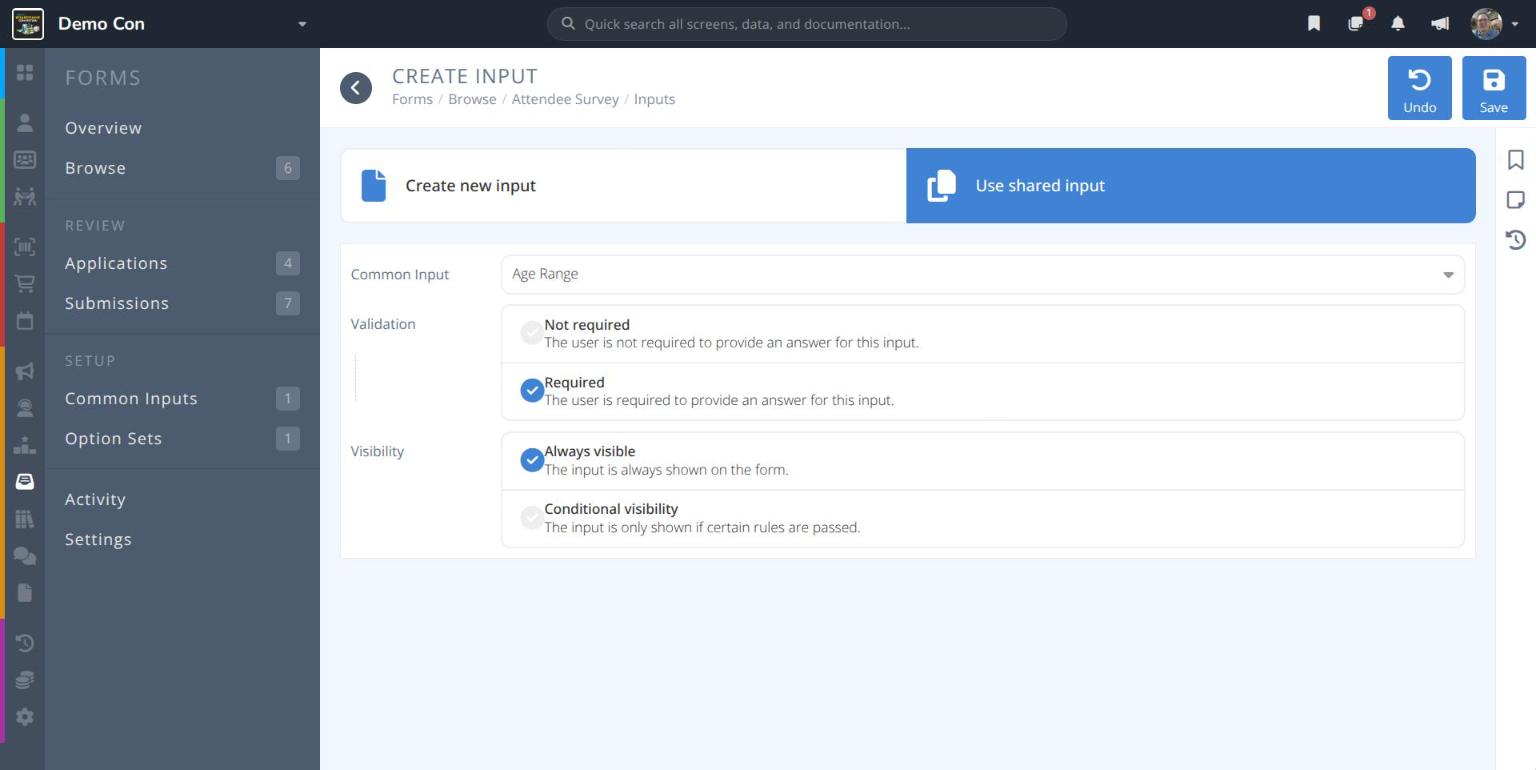
- Use shared input - Choose a
Common Inputfrom theCommon Inputlist. Then setValidationandVisibilityfor this form. - Create new input - Enter a
Name, choose theType, and set theOptions,Validation,VisibilityandAnalysisas needed. Then fill in the Appearance tab. SeeInput Fields.
- Use shared input - Choose a
- Click .
- Back on the Inputs tab, drag each row by its handle to put the inputs in order, then click .
¶ Show an Input Only for Certain Answers
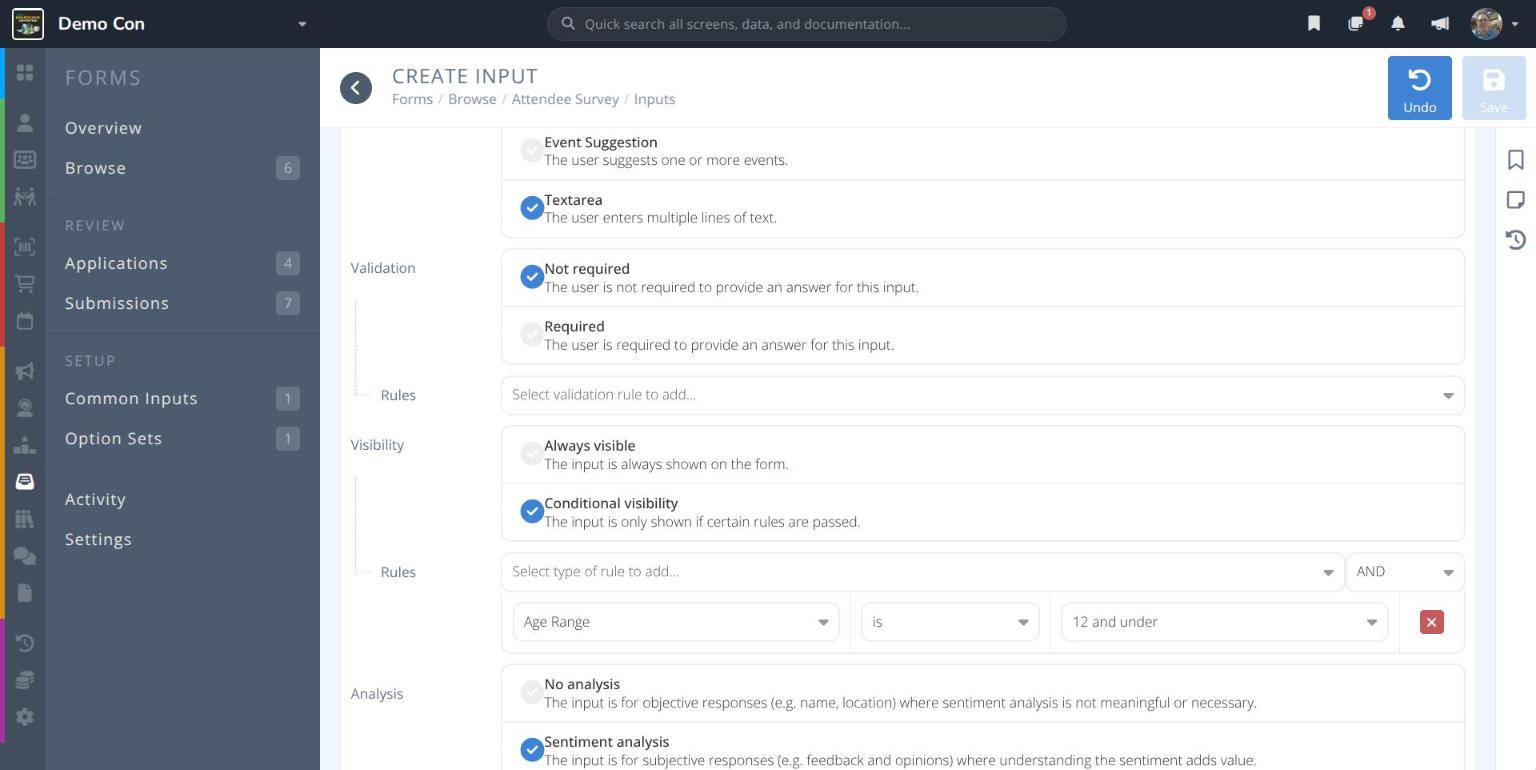
For example, only ask attendees aged 12 and under about kids activities.
- Create or open the input that should be hidden until the rule is met.
- Under
Visibility, choose Conditional visibility. - In
Rules, choose Input. A new rule row appears. - Choose the input to check (e.g. Age Range), then is or is not, then the answer (e.g. 12 and under).
- To add more rules, choose Input again. Use the AND / OR list to decide whether all rules or any rule must match. Click to remove a rule.
- Click .
¶ Pin a Chart to the Overview
- Open the form from the list. The Summary tab opens.
- Click on the chart you want. It turns blue and the chart appears on the Overview.
To unpin it, click again, here or on the Overview.
¶ Delete a Form
Warning: Only delete a form when its Channels count is 0. Otherwise pages are still using it. Use the Channels tab to find those pages and give them a different form first. Deleting cannot be undone.
- Open the form from the list.
- Click , then click .
Tip: To make a similar form, open an existing one and click .
¶ Next Steps
Pages- Put a form on a registration or application page.Applications- Review the applications people send.Submissions- See every answer and export them.