¶ Common Inputs
¶ Overview
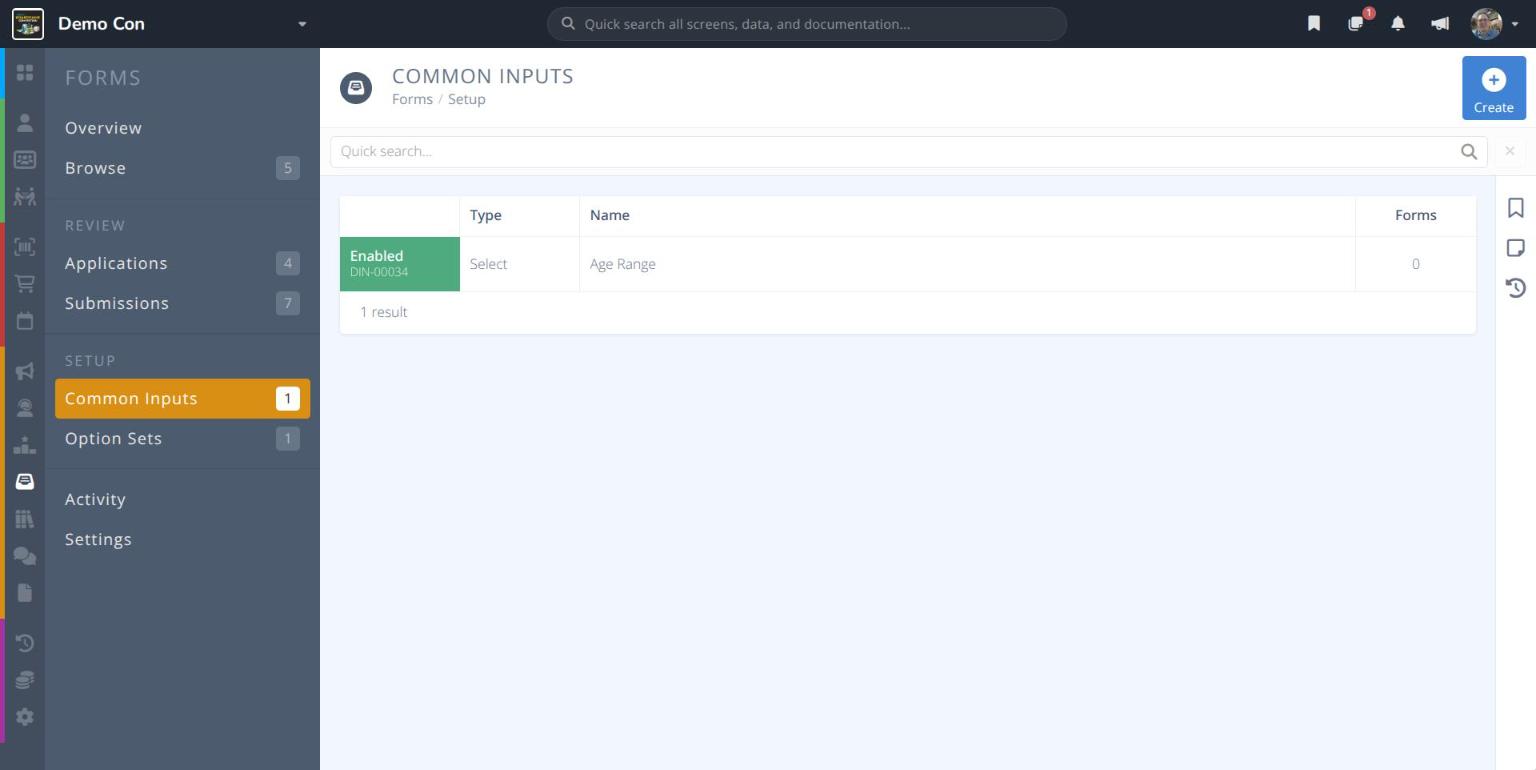
A Common Input is a question you set up once and add to as many forms as you like, such as an Age Range question for demographics. On each form you then choose whether it is required and when it is shown.
From the menu click in the SETUP group. Each row shows the input's status and reference (e.g. DIN-00034), its Type, Name, and how many Forms use it.
Note: First Name, Last Name, E-mail and Group Name are built-in common inputs. They are always available when you add a shared input to a form.
¶ Common Procedures
¶ Fields
Setup tab:
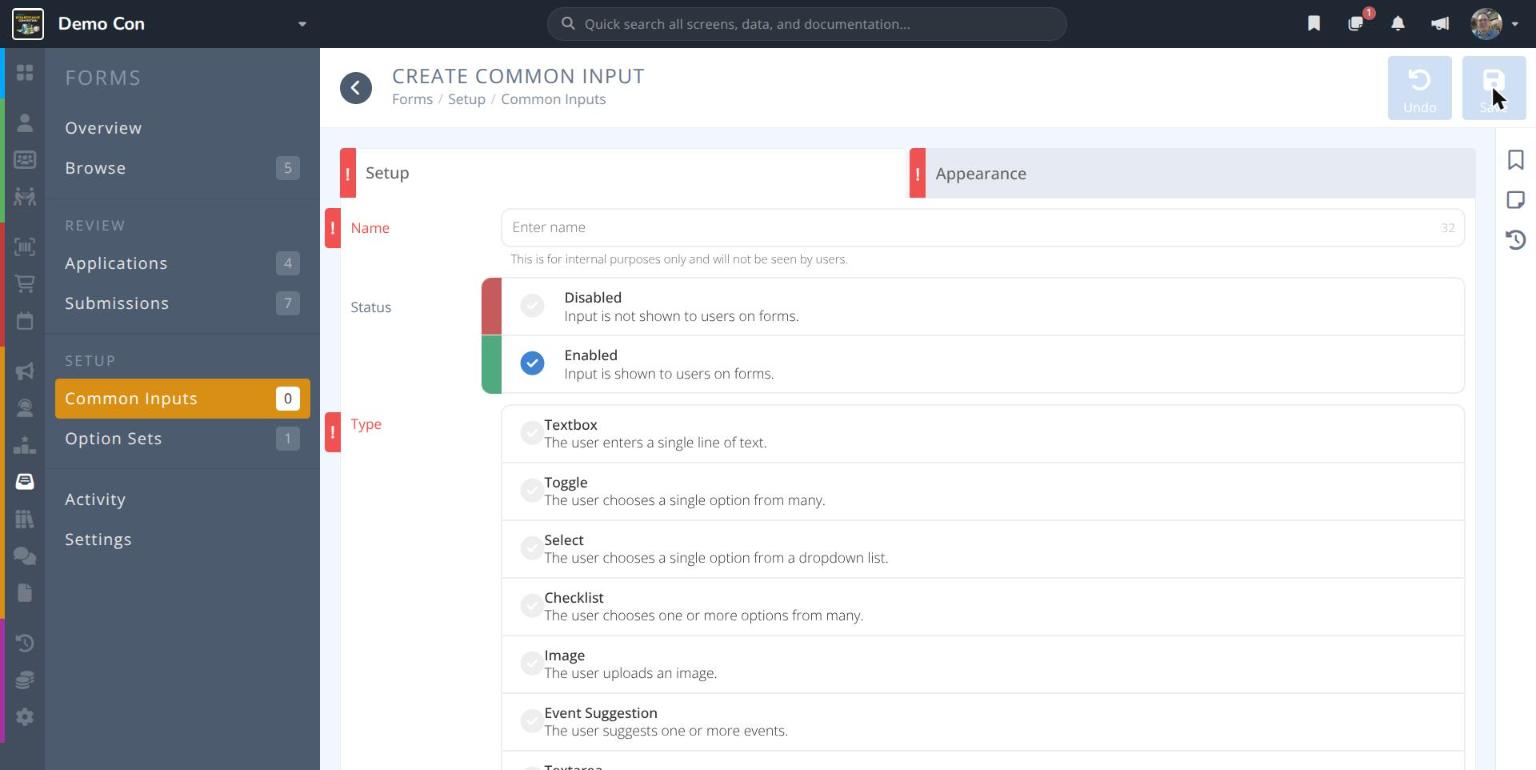
Name- The name of the input. Only staff see this.Status- Enabled inputs are shown on forms. Disabled inputs are hidden.Type- What kind of answer is collected: Textbox, Toggle, Select, Checklist, Image, Event Suggestion, Textarea or Volunteer Slots. SeeInput Fields. The type cannot be changed after saving.Options- For Toggle, Select and Checklist inputs: Define custom options to type the answers, or Use existing option set.Existing Set- TheOption Setto use.
Appearance tab:
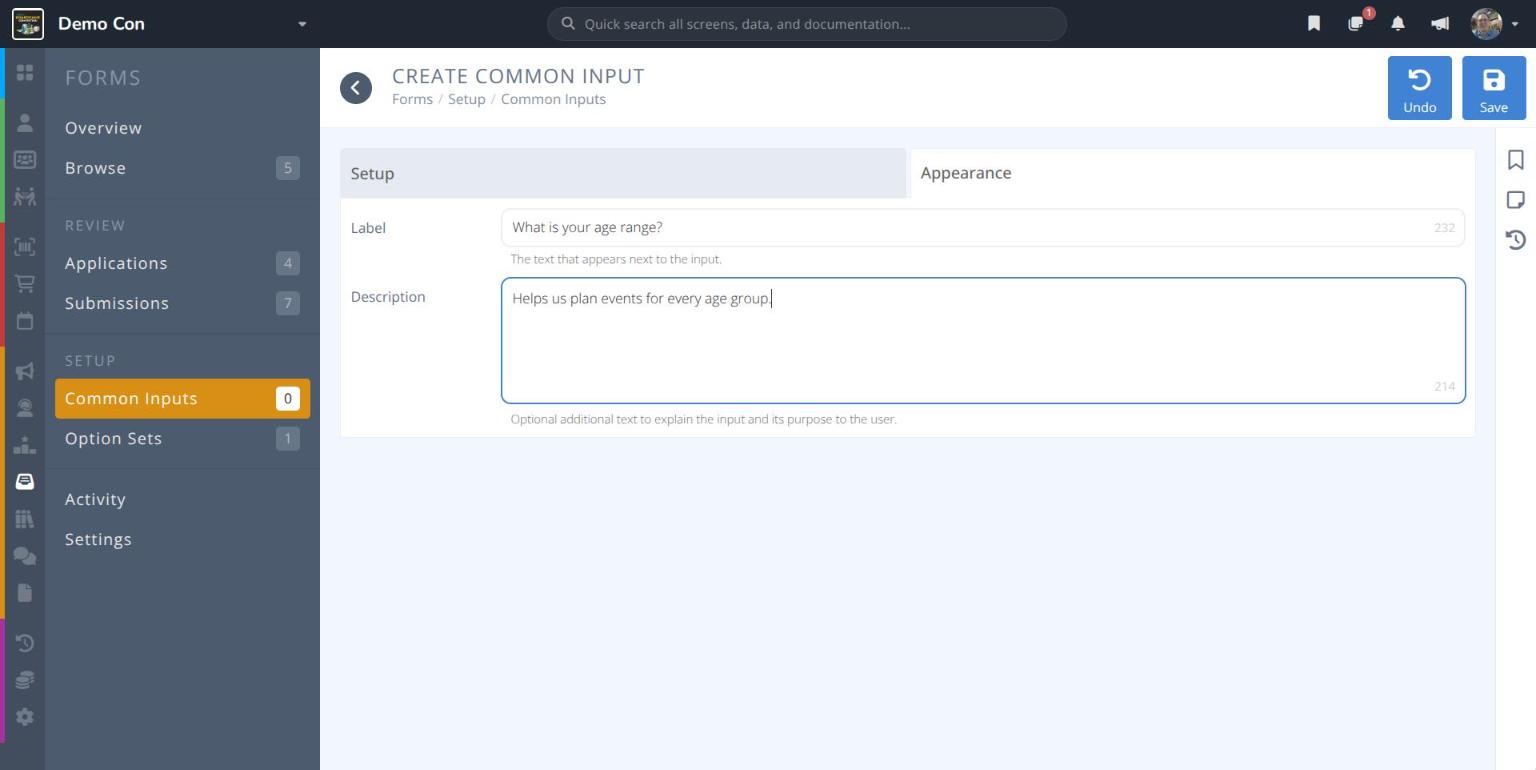
Label- The question shown next to the input (up to 255 characters).Placeholder- For text inputs, the hint shown inside the box (up to 32 characters).Description(optional) - Extra text explaining the question (up to 255 characters).
Options tab: Only shown for Define custom options. Add, order and remove answers the same way as in an Option Set.
Validation(required or not) andVisibilityare set on each form that uses the input, not here.
¶ Procedures
¶ Create a Common Input
- From the menu click , then click .
- Enter a
Name, e.g. Age Range, and leaveStatusas Enabled. - Choose the
Type, e.g. Select. - For an option type, choose Use existing option set and pick the
Existing Set(e.g. Age Ranges), or choose Define custom options and add the answers on the Options tab. - Click the Appearance tab and enter the
Label, e.g. What is your age range?, and aDescriptionif needed. - Click .
Add it to a form with Use shared input. See Add an Input to a Form.
¶ Change a Common Input
- From the menu click , then click the input.
- Make your changes and click .
¶ Delete a Common Input
Warning: Only delete a common input when its Forms count is 0. Otherwise forms are still using it and may not work as expected. Deleting cannot be undone.
- From the menu click , then click the input.
- Click , then click .
¶ Next Steps
Option Sets- Create the answer lists your inputs use.Forms- Build forms with your common inputs.