¶ Applications
¶ Overview
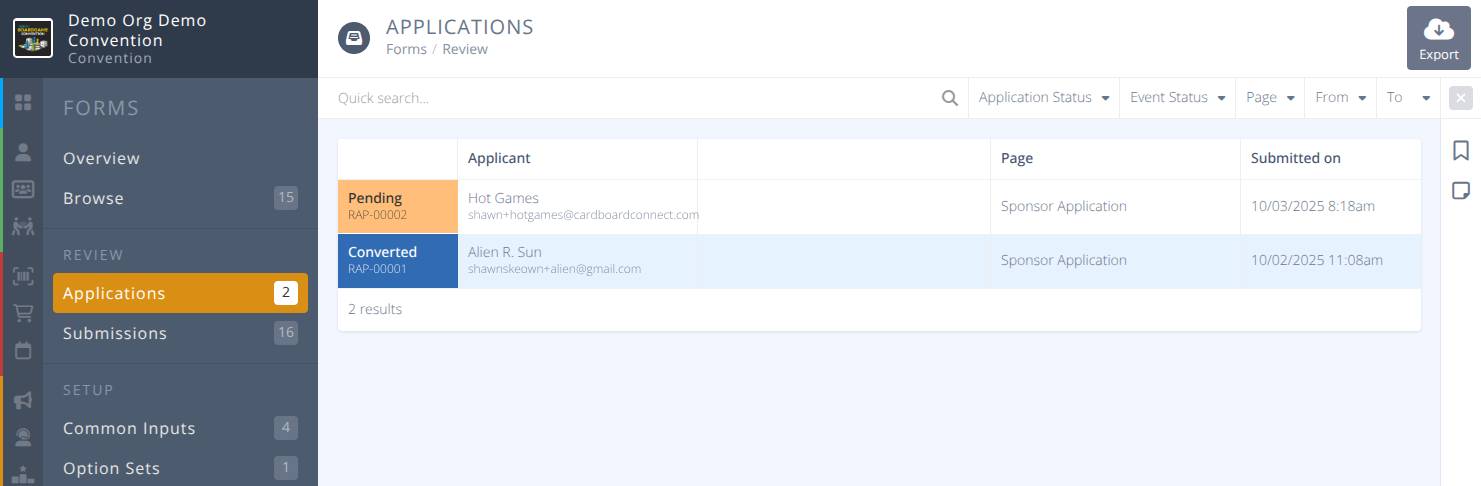
Applications are where you will find the submitted forms for any Application page. You can review the applications, accept them, reject them, make private notes and convert them into a new or existing badge.
In most conventions applications will be how volunteers, exhibitors, sponsors, and groups apply to be part of the convention.
The quick search bar can be used to filter the applications by applicant name and/or email address to quickly find the application you are looking for.
¶ Common Procedures
Create a Form for an Application- This will redirect you to the Forms page
Create an Application Page- This will redirect you to the Pages page
Review an ApplicationAccept an ApplicationReject an ApplicationRetract an Approved/Rejected ApplicationConvert an Application to a Badge
¶ Fields
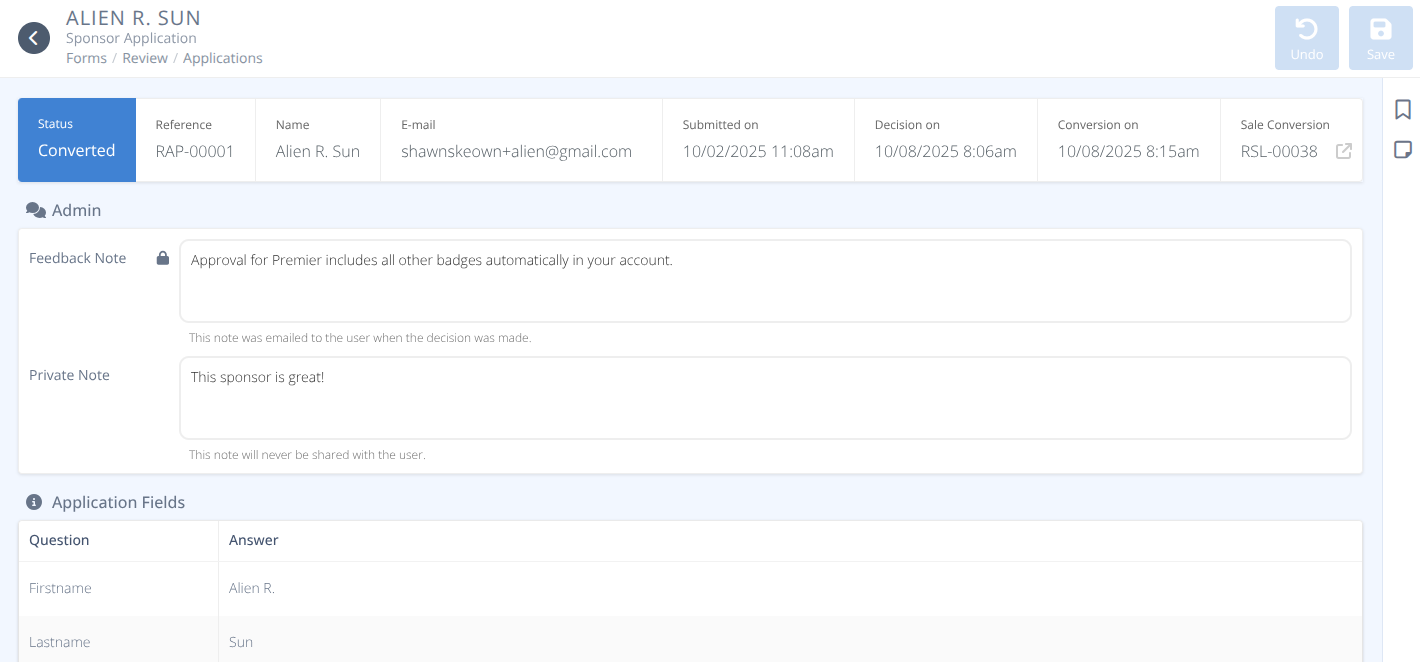
Status- THe current status of the application either:- Pending - The application has been received but no action has been taken yet.
- Reviewing - The application has been marked as for review. It is recommended to put notes in the Admin section whenever an application is marked for review.
- Converted - The application has been converted to a badge. The registration process is skipped when an application is converted.
- Rejected - The application has been rejected. The applicant will have been notified of the rejection.
- Archived - The application has been archived and is read-only.
Applicant- The name and email address of the applicantPage- The page the form was submitted fromSubmitted on- The date and time of the application (The time displayed is in the timezone of the convention)Decision on- This field is only visible when an application has been accepted/rejected/converted. (The time displayed is in the timezone of the convention)Conversion on- This field is only visible when an application has been converted (The time displayed is in the timezone of the convention)Sale Conversion- This field is only visible when an application has been converted. It displays the reference number of the sale and a link to the sales record.
¶ Admin
Feedback Note- The note sent to the applicant when an application is accepted/rejected/converted.
Note: This field is read-only.Approved Badges- This field is only visible after an application has been accepted. It displays a list of badges that the applicant can purchase during registration and can be modified.Registration URL- This field is only visible after an applicaiton has been accepted. It displayes the specific URL sent to the applicant to complete registration. It can be copied or opened with the supplied buttons.Private Note- These are notes you can make on the application for yourself and other admins. These notes are never shared with the applicant.
¶ Application Fields (Read-only)
QuestionColumn - This is a list of labels for the inputs used on the Application.AnswerColumn - This is a list of responses entered for the inputs used on the Application.
¶ Procedures
¶ Review an Application
- From the menu click the row of the application you wish to review.
- Click to change the status to Reviewing.
- Add any admin comments about what needs to be reviewed.
- Click Save
¶ Accept an Application
-
From the menu click the row of the application you wish to accept.
-
Review any notes left previously and the content of the application.
-
Click .
-
Select the Badge Sales Item(s) that you would like to make available to applicant to purchase during the registration process.
-
Enter any Feedback for the applicant.
-
Click Confirm
Applicant Experience:
An email with a link to the registration page specific to this application will be sent to the applicant along with any Feedback provided. This same information will be stored in the application entry for admins.
When the applicant clicks on the link in the email they will be taken to the Registration Form for completion. It will only allow purchase of the badges selected in step 4.
Sample email: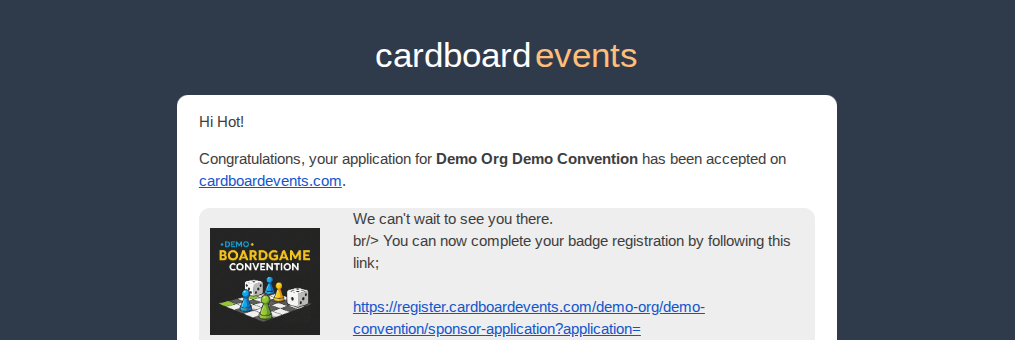
¶ Reject an Application
-
From the menu click the row of the application you wish to reject.
-
Review any notes left previously and the content of the application.
-
Click .
-
Click .
-
Enter any Feedback that will be added to the email sent to the applicant with their rejection and added to the application.
-
Click Confirm
Applicant Experience:
An email with the rejection response will be sent to the applicant. This same information will be stored in the application entry for admins.
Sample email: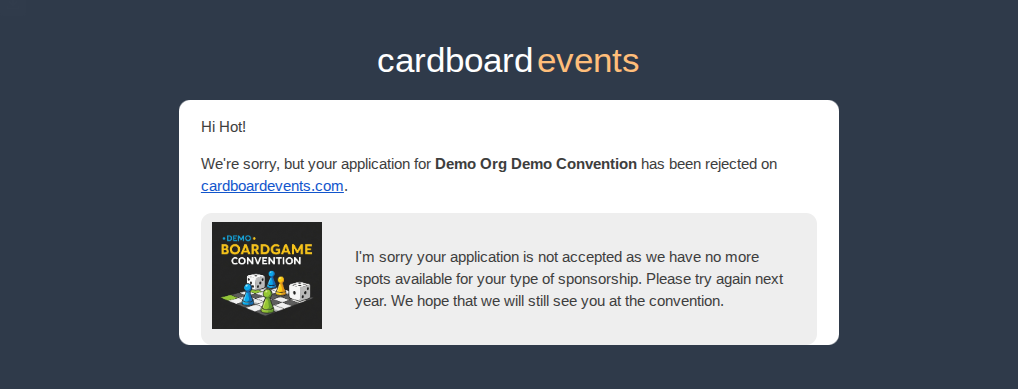
¶ Retract an Approved/Rejected Application
-
From the menu click the row of the application you wish to reverse the approve/rejection on.
-
Review any notes left previously and the content of the application.
-
Click .
-
Click the button.
Note: Any previously approved/rejected game submissions connected to this application will be reset to pending.
-
Click
Applicant Experience:
No emails are sent on the retraction to an approval/rejection action.
¶ Convert an Application to a Badge
-
From the menu click the row of the application you wish to convert to a badge.
-
Review any notes left previously and the content of the application.
-
Click .
-
Click .
-
Select either New badge or Existing badge and enter the email address of the person who will receive the badge.
Note: Application conversions can be converted to any email address, not just the applicants.
-
Enter the name and Select the Badge type from the droplist.
Note: There are no restrictions on which badge an application can be converted to unlike during the approval process.
 Warning: Converted applications cannot be retracted.
 -
Click Confirm
Applicant Experience:
No emails are sent regarding the conversion of an application to a badge. However, emails are received as per normal for receiving a badge, and for logins being created if applicable.