¶ Activity
¶ Overview
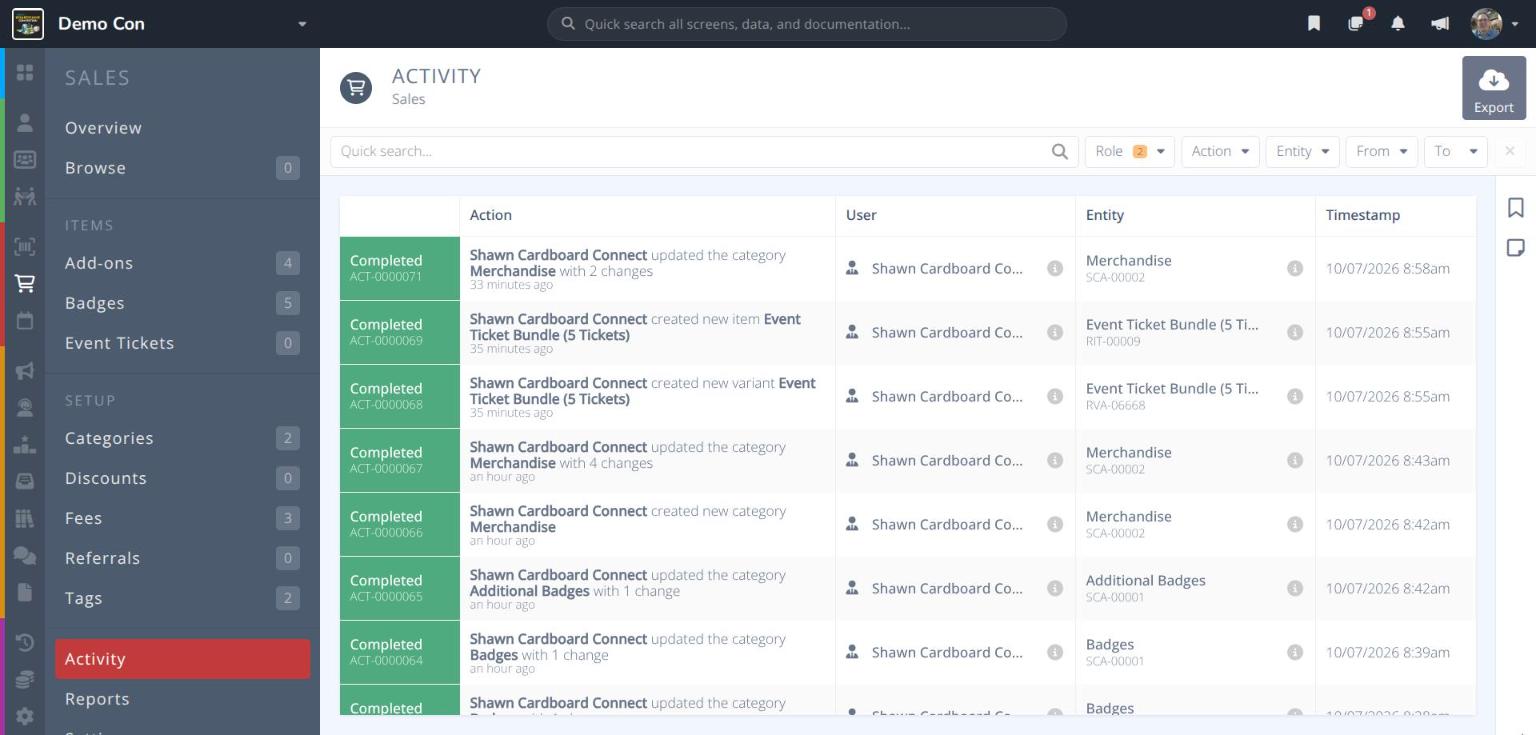
Each section of Manage, such as or , has its own Activity page. It lists every change made in that section: who made it, what changed, and when.
Use it to answer questions like "Who changed this price?" or "What did we set up last week?"
From any section's side menu, click near the bottom.
Note: The Activity page covers a whole section. To see the history of just one page or record, use the
Activity Login the workbar instead.
¶ Common Procedures
¶ Activity Grid
Each row in the grid shows:
Status / Ref.- Whether the action finished (e.g. Completed) and its activity reference number (e.g. ACT-0000071)Action- A sentence describing the change (e.g. updated the category Merchandise with 2 changes) and how long ago it happenedUser- Who made the change. Click to preview their details.Entity- The record that was changed and its reference number (e.g. SCA-00002). Click to preview it.Timestamp- The date and time of the change
The following button appears in the actions area at the top right:
- - Downloads the activity list
¶ Find a Change
Use the Quick search... box and the filters above the grid. See Filter a Grid for how filters work.
| Filter | Options |
|---|---|
| Role | Who made the change: Admin, Attendee, Assistant or System. Admin and Assistant are ticked by default. |
| Action | A list of actions present in the data is presented. For example: Created or Edited |
| Entity | The kind of record that changed. The list depends on the section; in Sales it includes Item, Variant, Tag, Category, Discount, Referral, Fee, Sale, Report and Report schedule. |
| From / To | Only show changes made between these dates |
Tip: Tick Attendee under Role to include changes attendees made themselves, or System to include changes Manage made automatically.
¶ View the Details of a Change
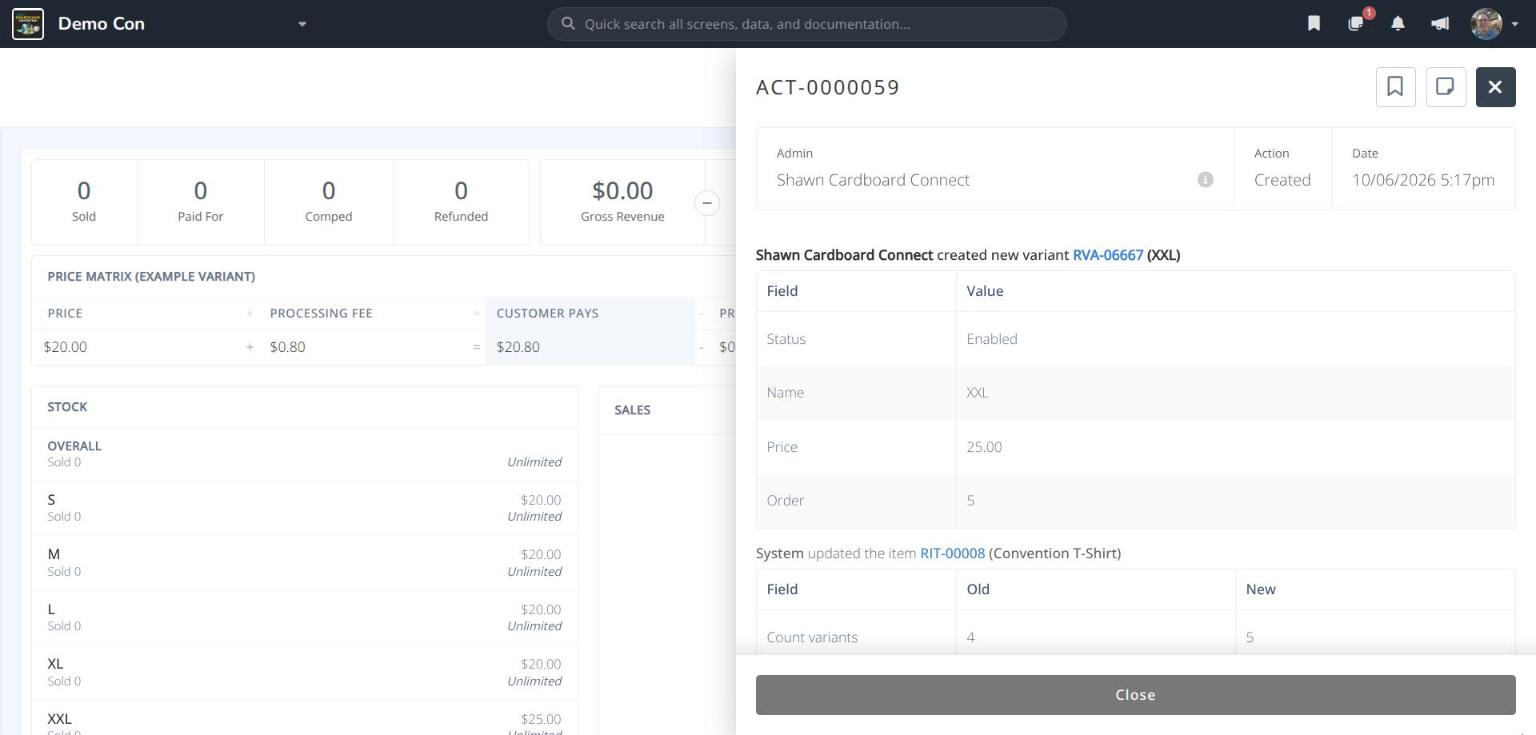
Click a row to open the activity record (e.g. ACT-0000071). It shows:
- Admin, Action and Date
- A table of each field that changed, with its Old and New value (or its Value, for new records)
- Any related changes triggered by the primary action.
Click a blue reference number to open the record that changed.
¶ Export Activity
- Click .
- Follow the steps in
Export a Grid.