¶ Grids
¶ Overview
Most pages in Manage open to a grid: a list of records, such as badge types, sales items or attendees. Every grid works in a similar way.
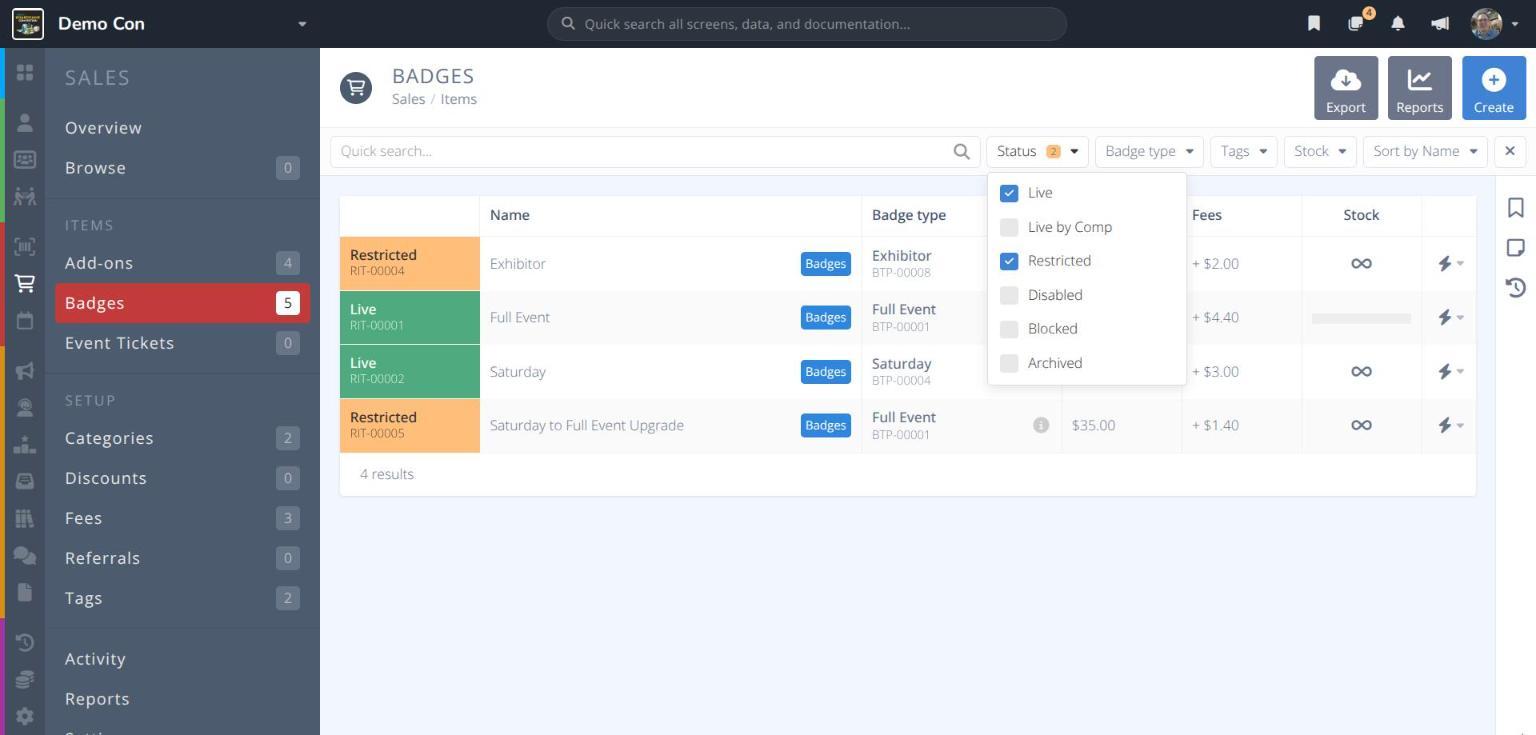
- Rows - Each row is one record. Click anywhere on a row to open it.
- Status / Ref. - The colored first column shows the record's status (e.g. Live, Blocked) and its reference number (e.g. RIT-00001).
- Count - The number of results is shown below the grid (e.g. 4 results).
¶ Common Procedures
¶ Search a Grid
Type in the Quick search... box above the grid. The grid updates as you type to show only matching records. Clear the box to see everything again.
Note: This box only searches the grid on the current page. To search everything in the convention, use the
Quick Searchin the navigation bar.
¶ Filter a Grid
Each grid has its own filters beside the search box, such as Status, Badge type or Tags.
- Click a filter to open its list.
- Tick one or more options. The grid updates to display the filtered records.
- Click on the filter again to close the list.
When a filter is in use, it shows the number of options ticked (e.g. Status 2), and the at the end of the filter bar turns dark.
Ticking several options in one filter shows records that match any of them. For example, ticking Live and Restricted shows both live and restricted items.
Click the at the end of the filter bar to clear all filters and return to the default sort.
¶ Sort a Grid
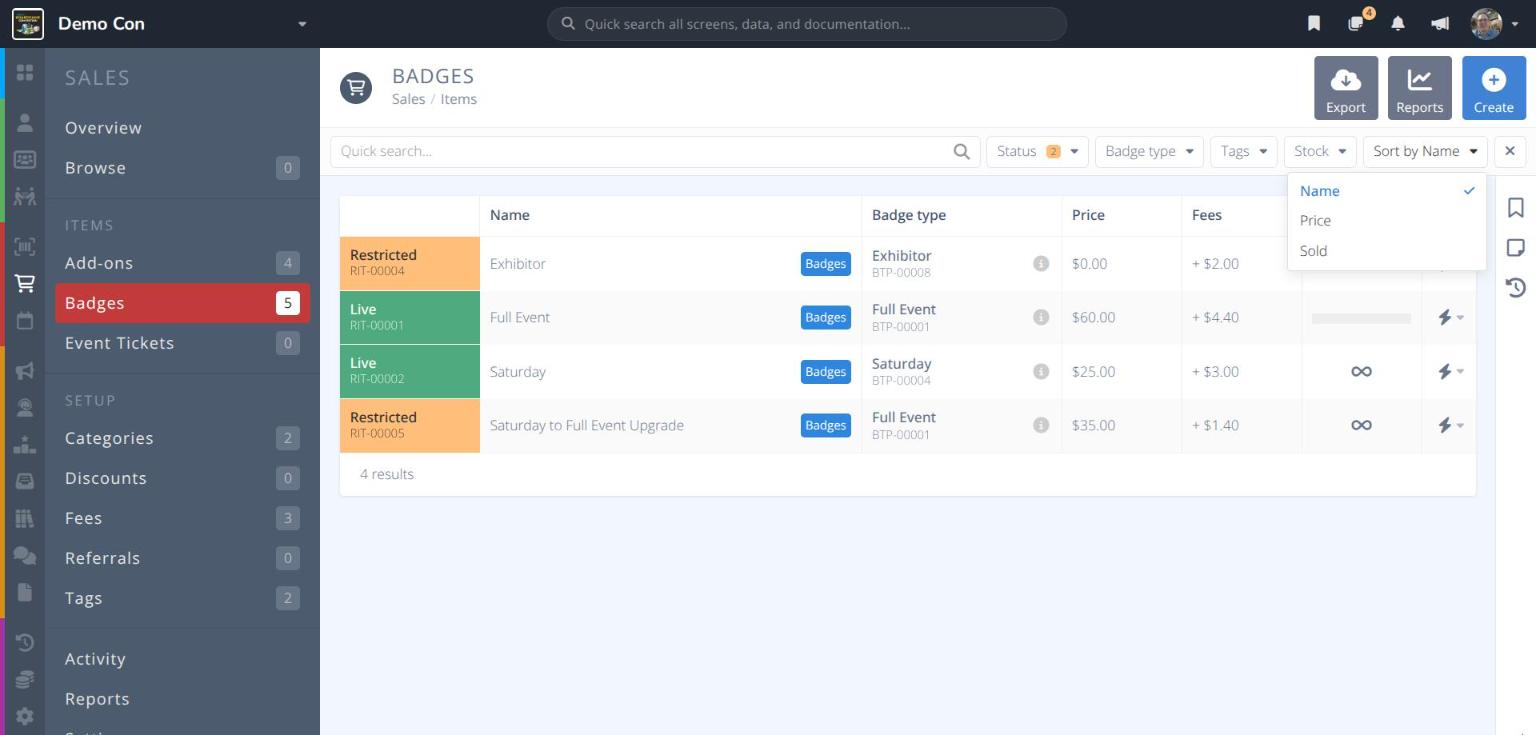
Click Sort by at the end of the filter bar and choose how to order the grid. The current choice has a beside it. The options depend on the grid; for example, sales items can be sorted by Name, Price or Sold.
¶ Preview a Linked Record
Some columns show a related record, such as the badge type a sales item is linked to. Click the beside it to open a preview of that record on the left of the screen, without leaving the grid.
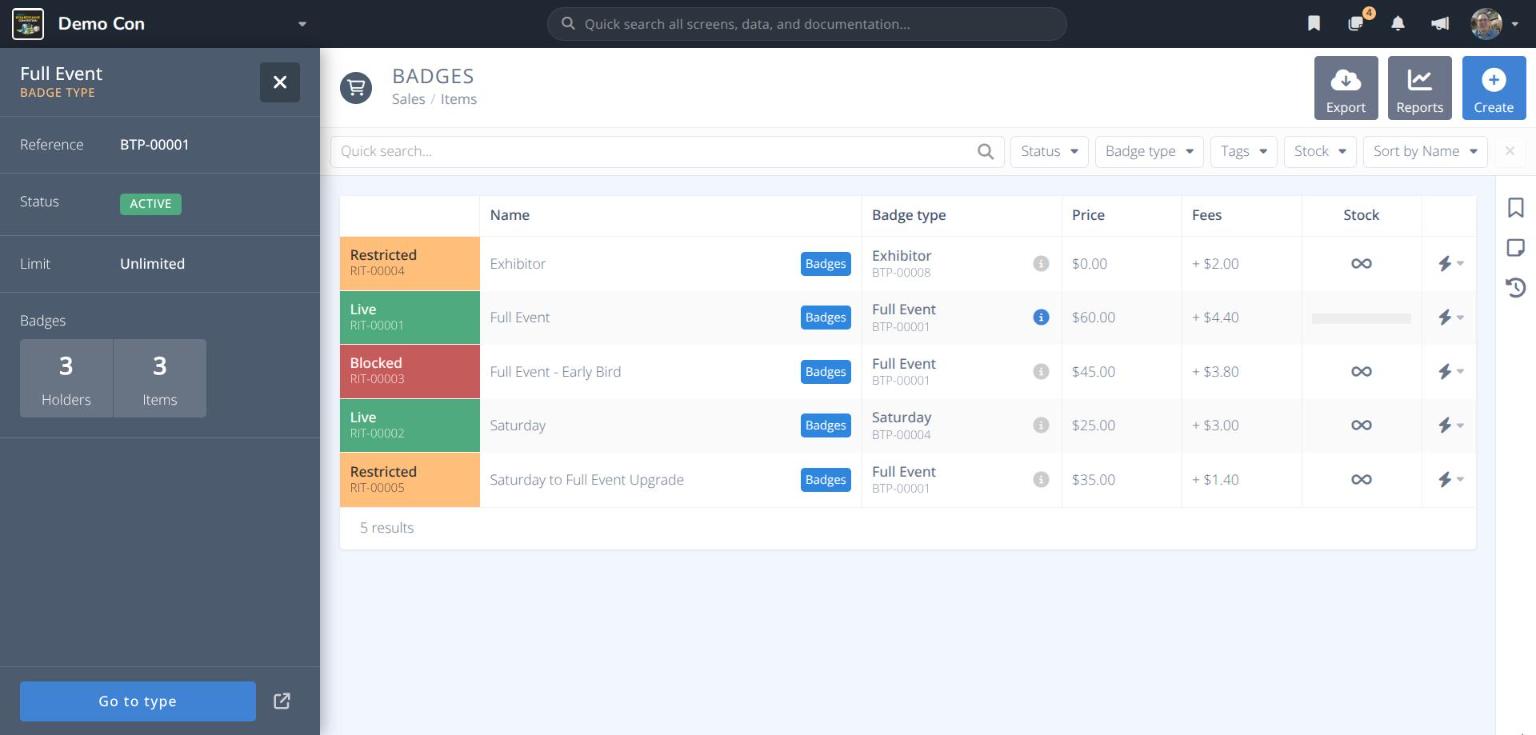
From the preview you can:
- Click the blue Go to button (e.g. Go to type) to open the record.
- Click to open the record in a new browser tab.
- Click to close the preview.
¶ Use Row Quick Actions
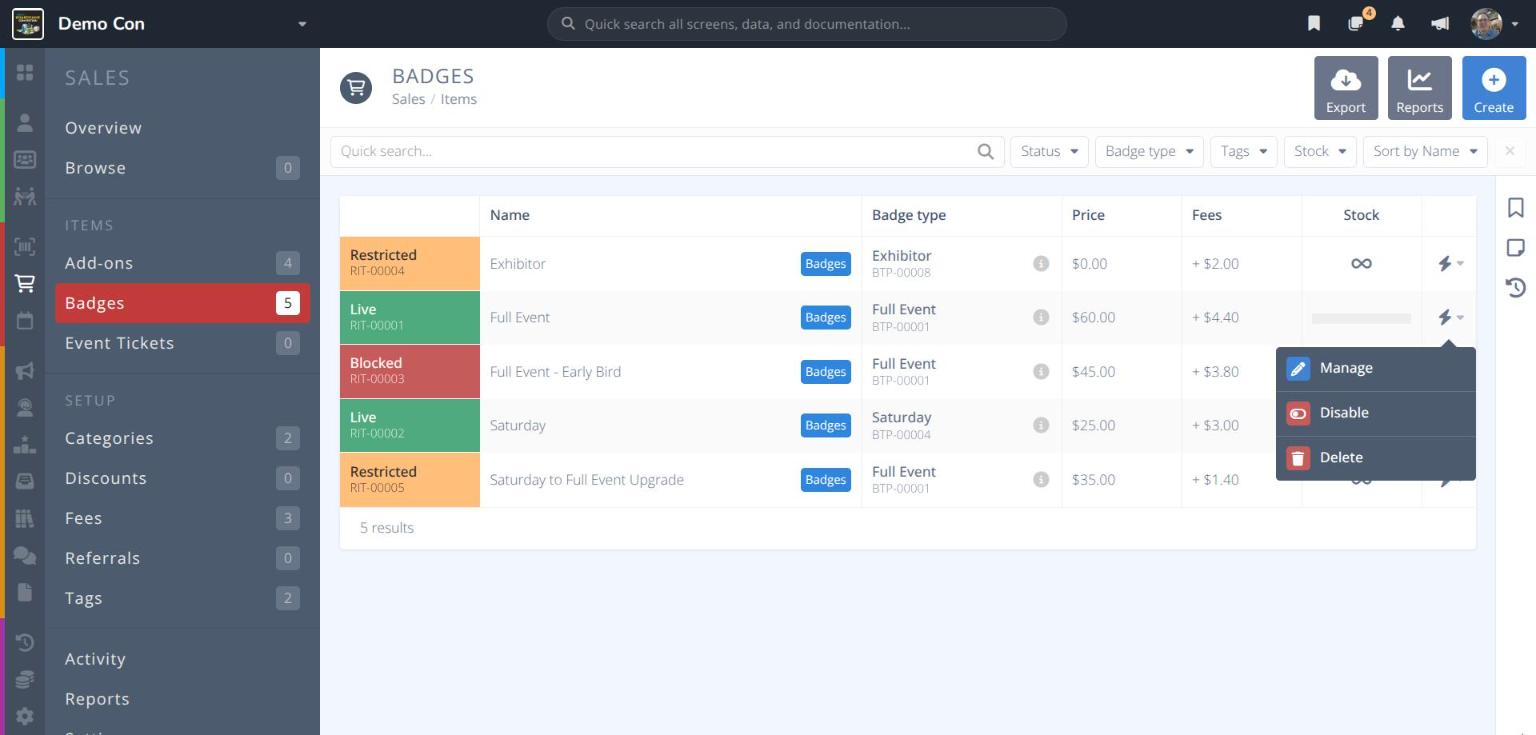
Click the at the end of a row to act on that record without opening it. The actions depend on the grid; for sales items they are Manage, Disable and Delete.
Caution: Delete actions cannot be undone and should be exercised with care. Use Disable when available if you might need the record, or its history, later.
¶ Export a Grid
- Click in the actions area. The export panel opens.
- Select Columns - Untick any columns you do not want in the file. The count at the bottom (e.g. 16 / 16) shows how many are selected. Click .
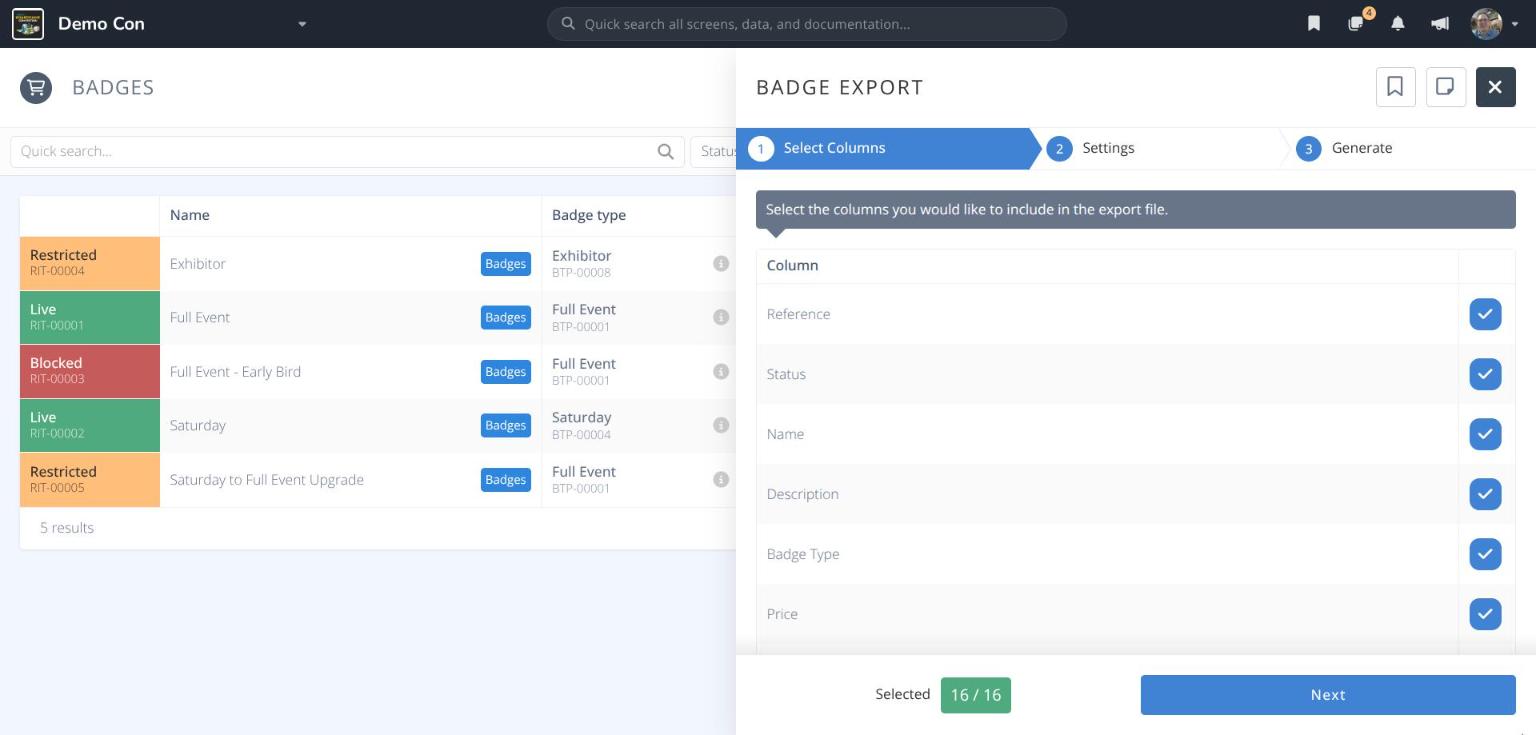
- Settings - Choose whether to Include Column Headers. Click .
- Generate - Create and download the csv file.