¶ Navigation Bar
¶ Overview
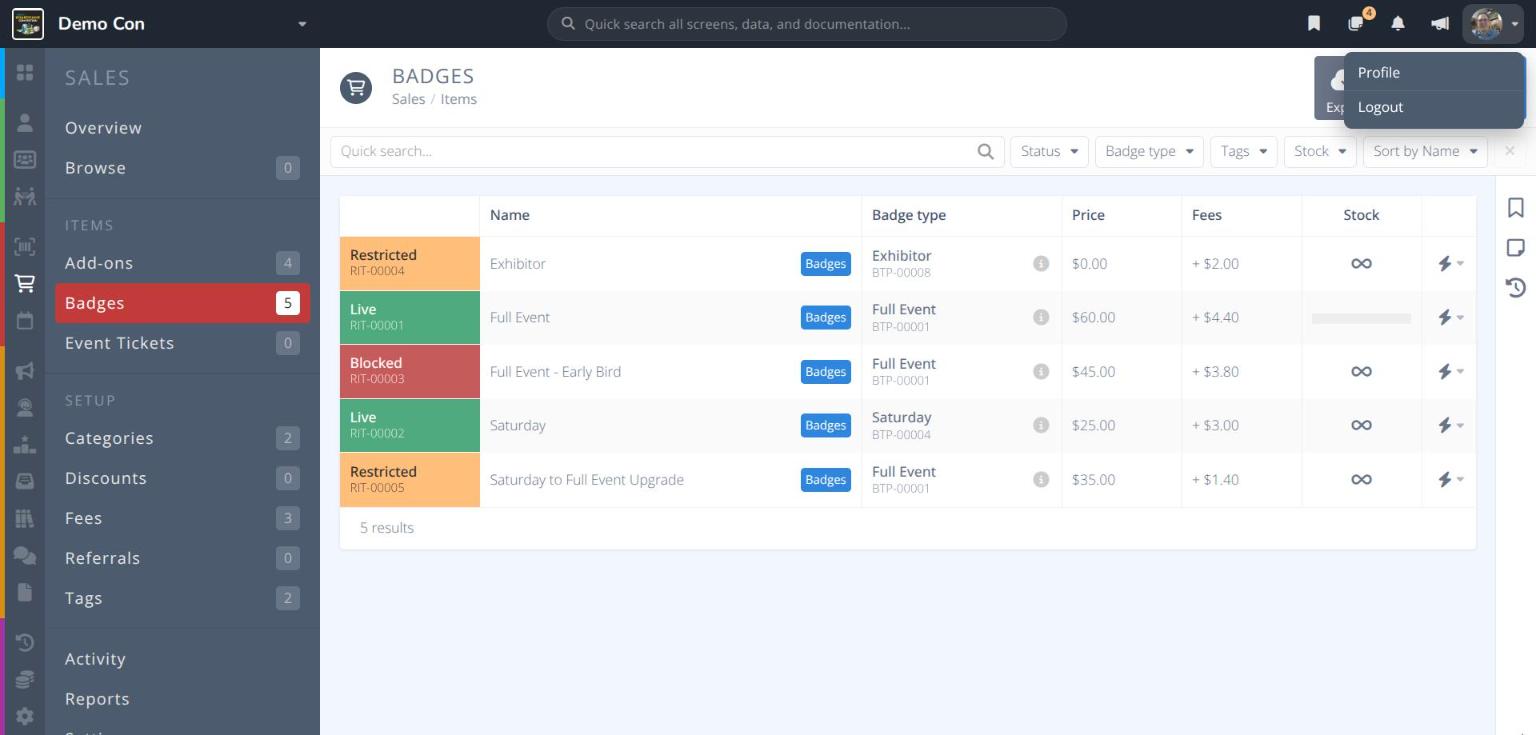
The dark bar across the top of every screen holds tools you can use from anywhere in Manage. From left to right:
| Tool | What it does |
|---|---|
| Name | Switch to another organization, property, convention, or return Home |
| Quick search | Find records, screens and documentation |
| Bookmarks | Jump to pages you have bookmarked |
| Notes | See admin notes that need your attention |
| Notifications | See notifications sent to you |
| Platform Updates | Read about new features |
| Account menu | View your profile or log out |
¶ Switch Contexts
Click the Name at the far left of the bar. A list of the conventions, properties, and organizations you can manage opens. Click on an item to switch to it, or click Home to return to your start page.
¶ Quick Search
Click the Quick search all screens, data, and documentation... box in the middle of the bar and start typing. Results appear as you type, in two groups:
- MATCHES - Records in the current convention, such as sales items, badge types and attendees. Each match shows its type (e.g. Sales Item), its status (e.g. Enabled) and its reference number (e.g. RIT-00001).
- DOCUMENTATION - Pages from this documentation site that match your search.
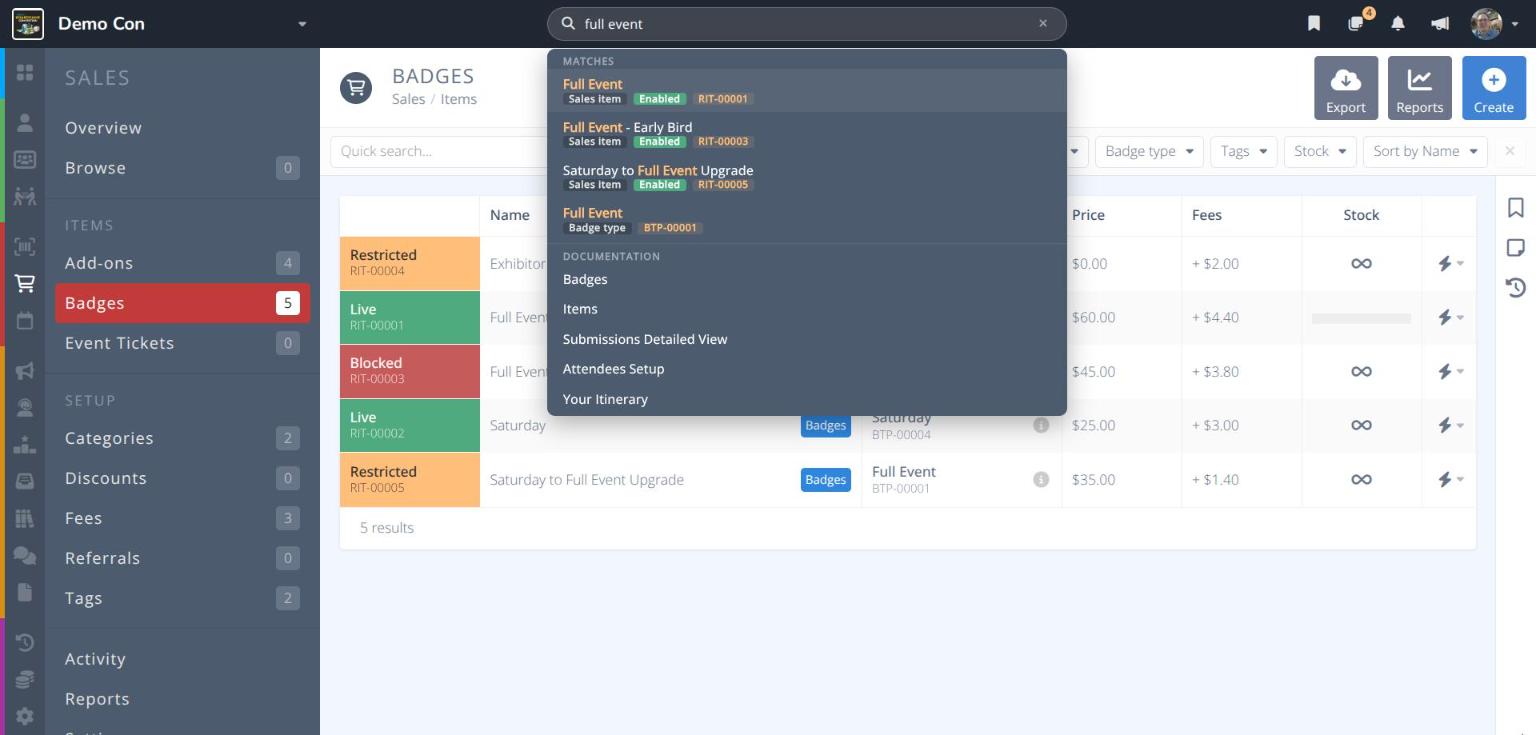
Click a result to go straight to it. Click the at the end of the box to clear your search.
Tip: Search by reference number (e.g. RIT-00001) to find an exact record, or by part of a name (e.g. full event) to see every related record and help page.
¶ Bookmarks
Click to see the pages you have bookmarked. Each bookmark shows the page name and where it is (e.g. Demo Con / Sales / Items). Click a bookmark to go to that page.
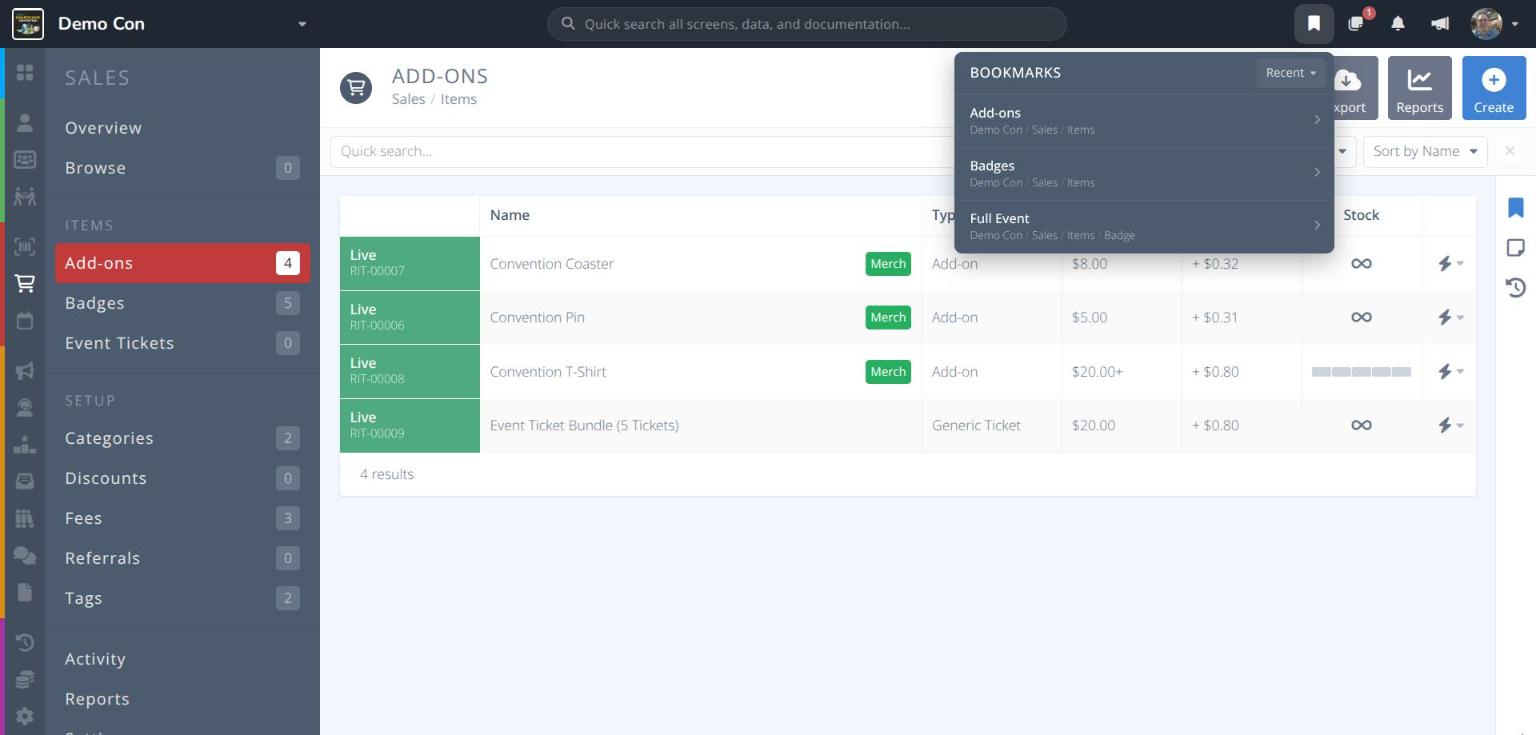
Use the menu at the top right of the list to filter your bookmarks by Recent, Last visited or Name.
To add or remove a bookmark, use the button in the workbar on the page itself. See Bookmarks.
Note: Bookmarks are personal. Other admins do not see your bookmarks.
¶ Notes
Click to see the admin notes that need your attention. The number on the icon shows how many notes are waiting for review. When any are urgent, it turns red and shows the number of urgent notes. Each note shows a colored dot for its type, its text, and where it was left. Click a note to go to that page.
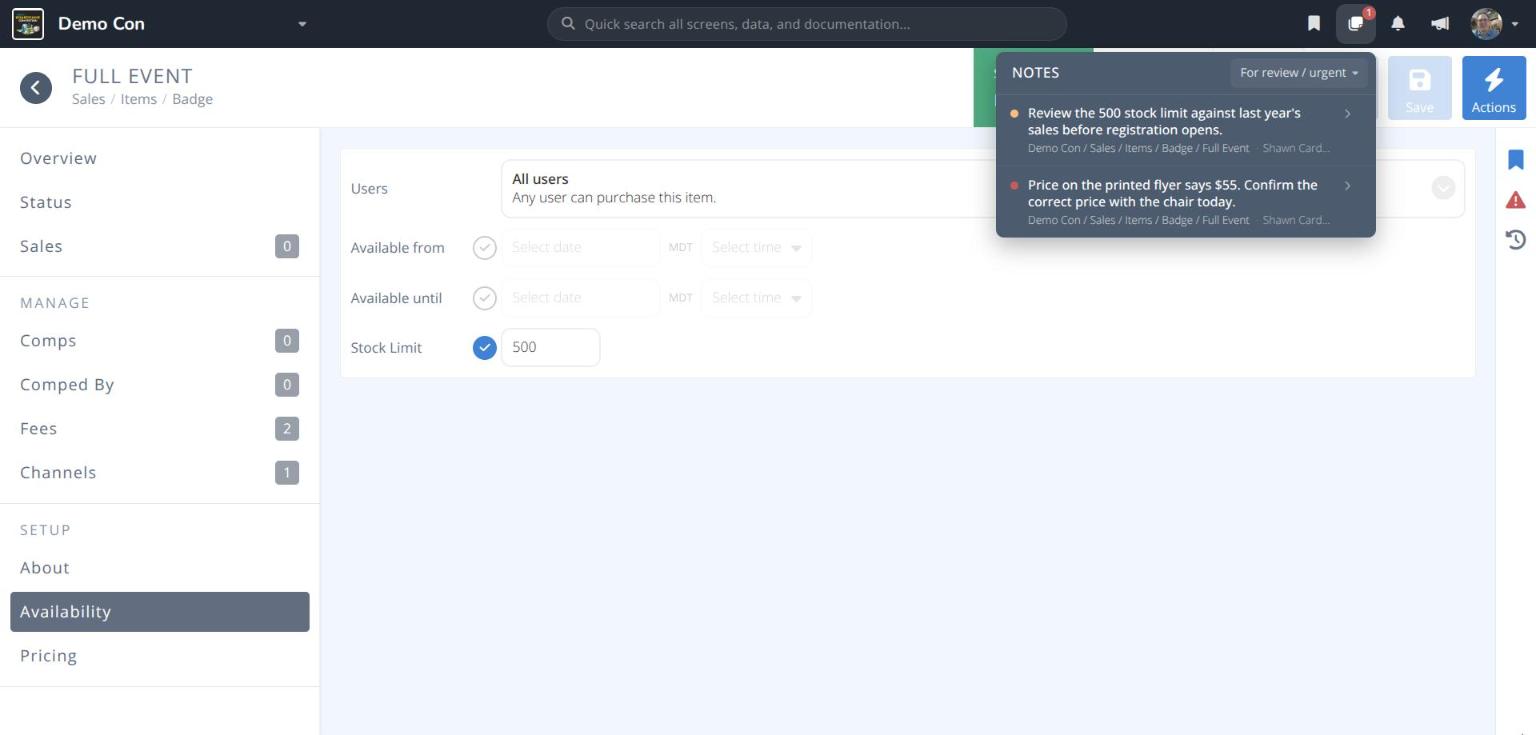
Use the menu at the top right of the list to choose which notes to show:
- For review / urgent - Review and Urgent notes that are still open
- Recently closed - Notes that have been resolved
- My notes - Notes you wrote
- My mentions - Notes that mention you
To add a note, use the button in the workbar on the page itself. See Admin Notes.
¶ Notifications
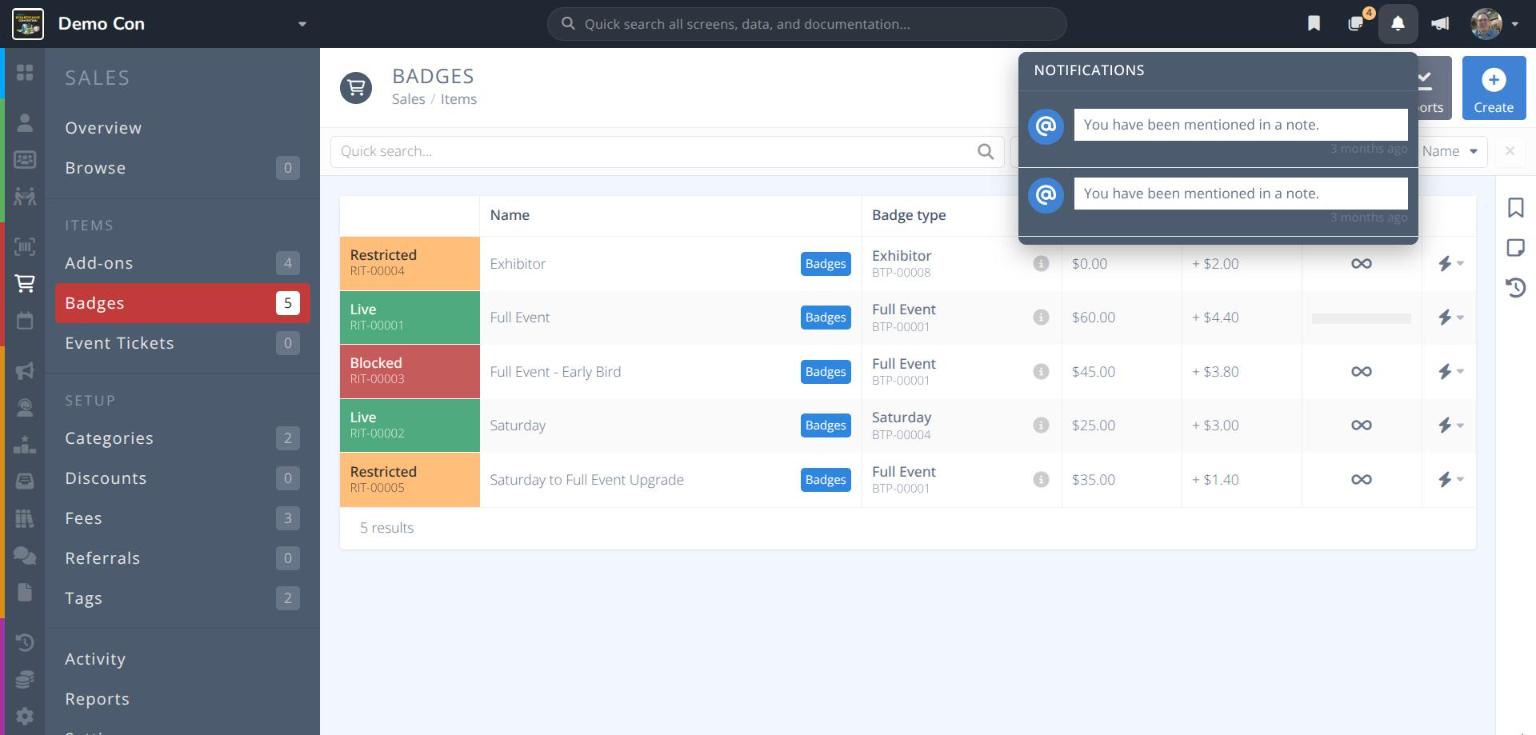
Click to see notifications sent to you, such as when another admin mentions you in a note.
¶ Platform Updates
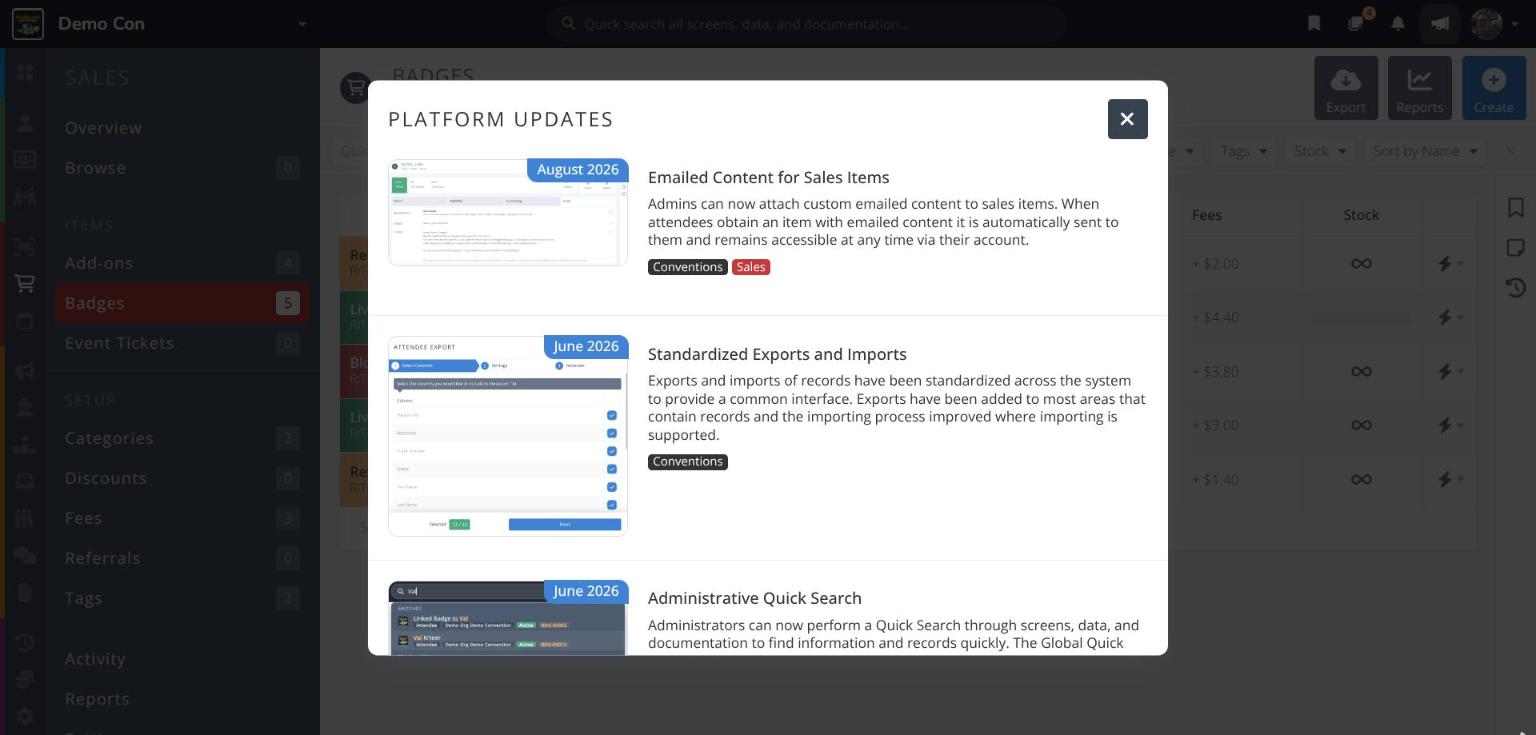
Click to read about new features in Cardboard Connect. Each update shows when it was released, a short summary, and tags for the areas of Manage it affects. The icon is highlighted when there are updates you have not seen.
¶ Account Menu
Click your picture or initials at the far right of the bar to open the account menu:
- Profile - View and update your administrator profile
- Logout - Sign out of Manage