¶ Workbar
¶ Overview
The workbar is the narrow strip of icons on the right edge of most screens. Its tools work on the page you are currently viewing.
| Icon | Tool | What it does |
|---|---|---|
| Bookmark | Save this page so you can jump back to it | |
| Admin Notes | Read or leave notes about this page | |
| Activity Log | See the history of changes to this page |
The workbar also appears at the top of most side panels, so you can bookmark or leave a note on a panel, such as an export, as well as on a page.
¶ Common Procedures
¶ Bookmarks
A bookmark saves the exact page you are on, such as one sales item, so you can return to it from anywhere using the Bookmarks list in the Navigation Bar.
¶ Bookmark a Page
- Go to the page you want to bookmark.
- Click in the workbar. The icon turns solid blue and the page is added to your bookmarks.
To remove the bookmark, click the blue again.
¶ Admin Notes
Admin notes let you leave a reminder on a page for yourself, or a message for other admins. Notes stay with the page, so anyone who opens it later can see them.
Each note has a type, shown by a colored dot:
| Type | Dot | Use for |
|---|---|---|
| General | Grey | A general note without any specific follow-up action needed |
| Review | ● Orange | A note that requires a review and possibly action to be taken |
| Urgent | ● Red | An urgent note that requires action to be taken soon |
The workbar icon changes to show the most important note on the page:
| Icon | Meaning |
|---|---|
| No notes | |
| General notes only | |
| At least one Review note | |
| At least one Urgent note |
¶ Leave an Admin Note
- Go to the page the note is about.
- Click the notes icon in the workbar. If the page already has notes, click . The Compose window opens.
- Type your message.
- Under Who can see this note?, choose:
- All admins - Everyone can see this note. Mentions will trigger a notification.
- Just me - Only you can see this note. Mentions will not trigger a notification.
- Under What type of note is this?, choose General, Review or Urgent.
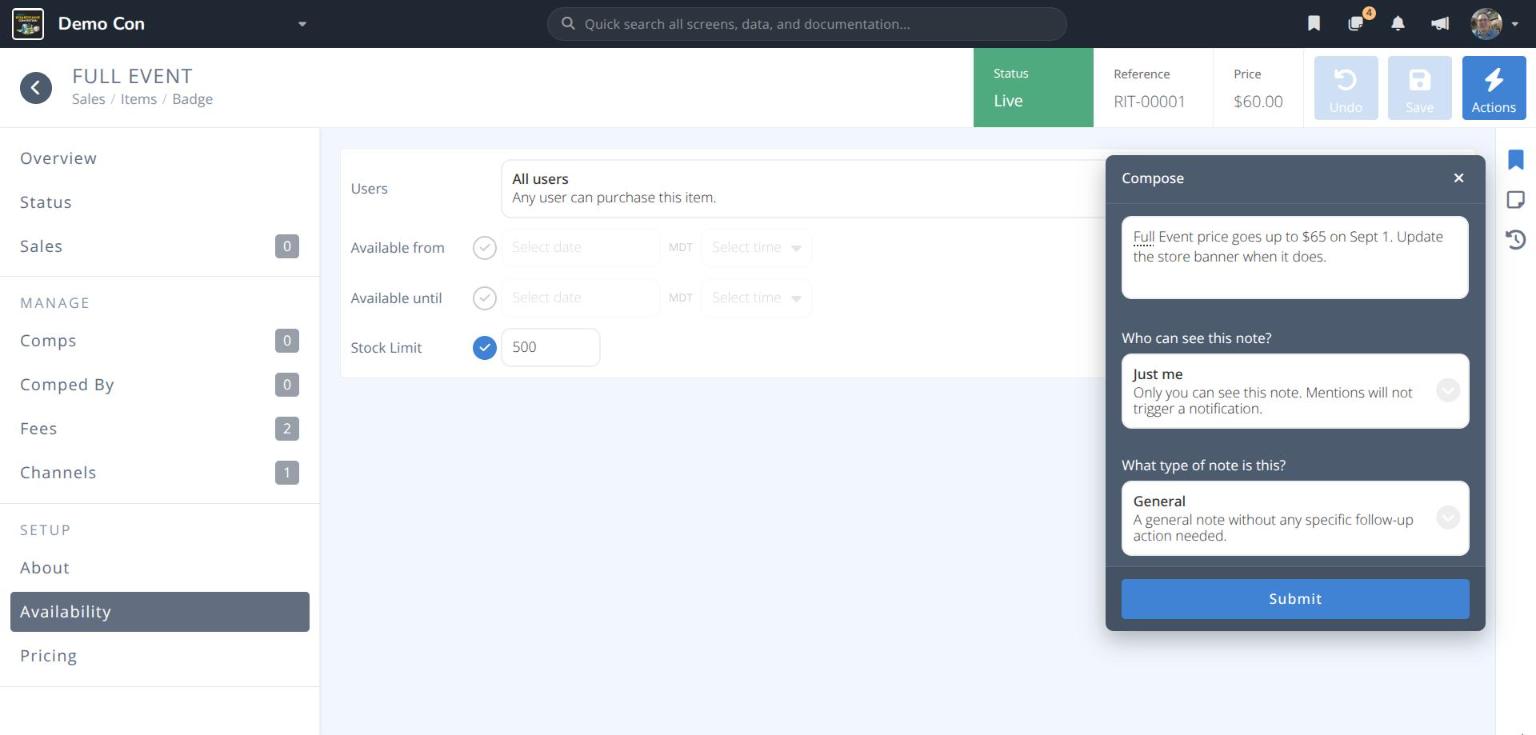
- Click . The note appears in the Notes window.
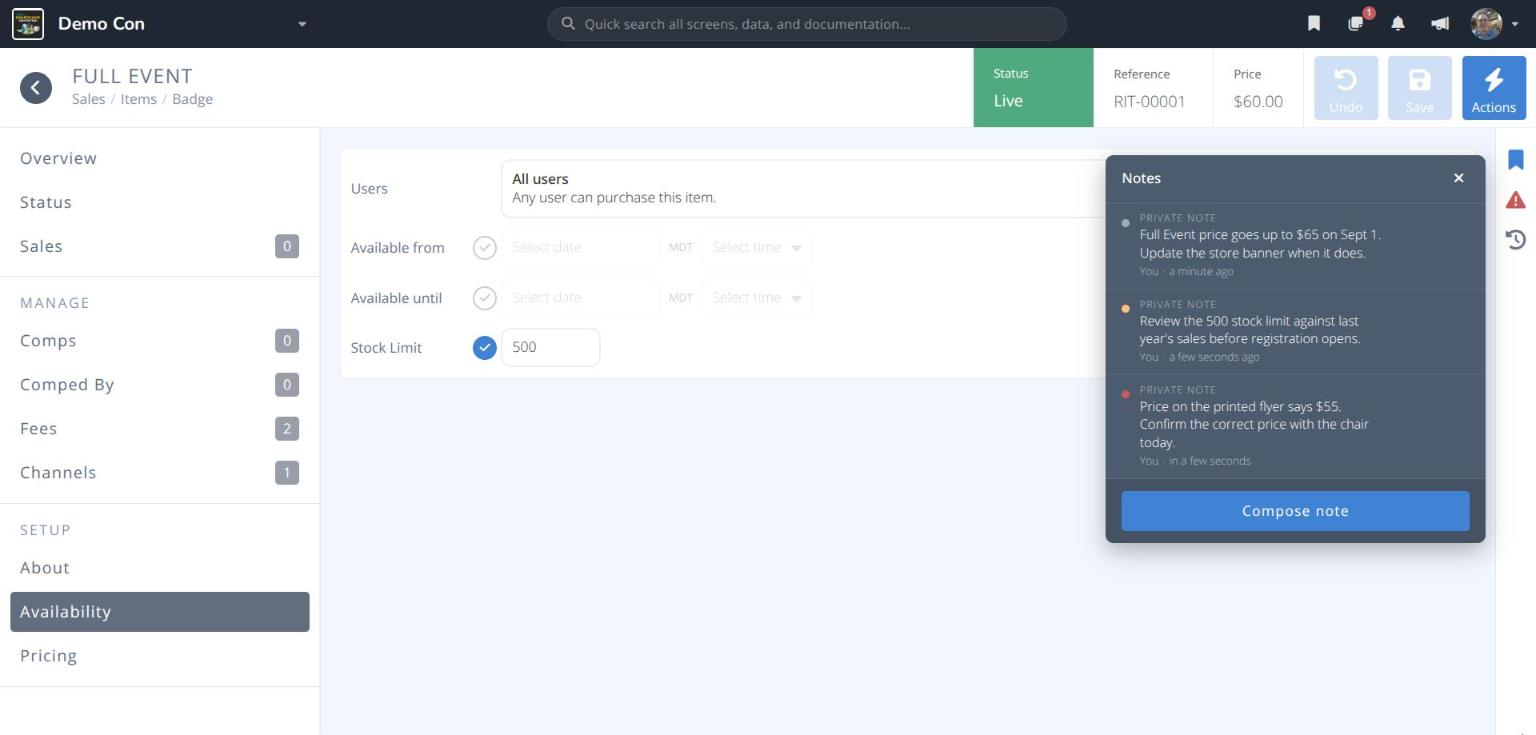
Note: Who can see this note? resets to All admins for each new note. Notes visible only to you are labelled PRIVATE NOTE.
Tip: Notes are also accessible from the Notes list in the
Navigation Bar, so they are easy to follow up from anywhere.
¶ Resolve, Edit or Delete a Note
- Open the notes window from the workbar.
- Hover over the note. Three buttons appear at its top right:
- Resolve - Close the note once it has been dealt with. Resolved notes appear under Recently closed in the navigation bar Notes list.
- Edit - Change the note
- Delete - Remove the note
¶ Activity Log
The Activity Log shows every change made to the page you are viewing: who made it, what they changed and when. On a record it shows changes to that record only. On a grid it shows recent changes across that section.
¶ View the Activity Log
- Go to the page or record.
- Click in the workbar. The ACTIVITY LOG panel opens.
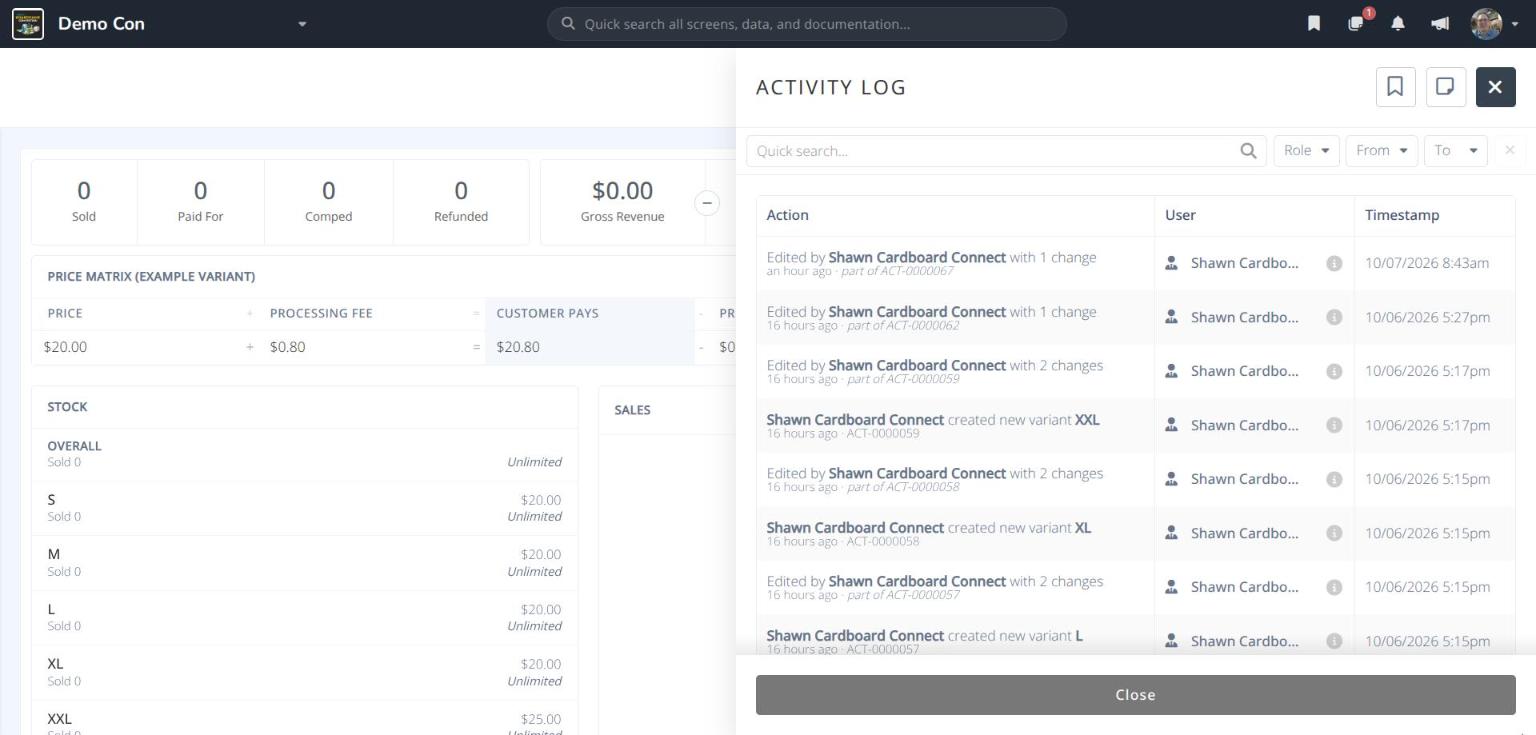
Each row shows the Action (e.g. created new variant XXL), the User who made it and the Timestamp. Use the Quick search... box and the Role, From and To filters to narrow the list.
- Click a row to see the details of that change. The activity record (e.g. ACT-0000059) shows the Admin, the Action (e.g. Created or Edited) and the Date, followed by each field that changed:
- For new records, each field and its Value.
- For edits, each field's Old and New value.
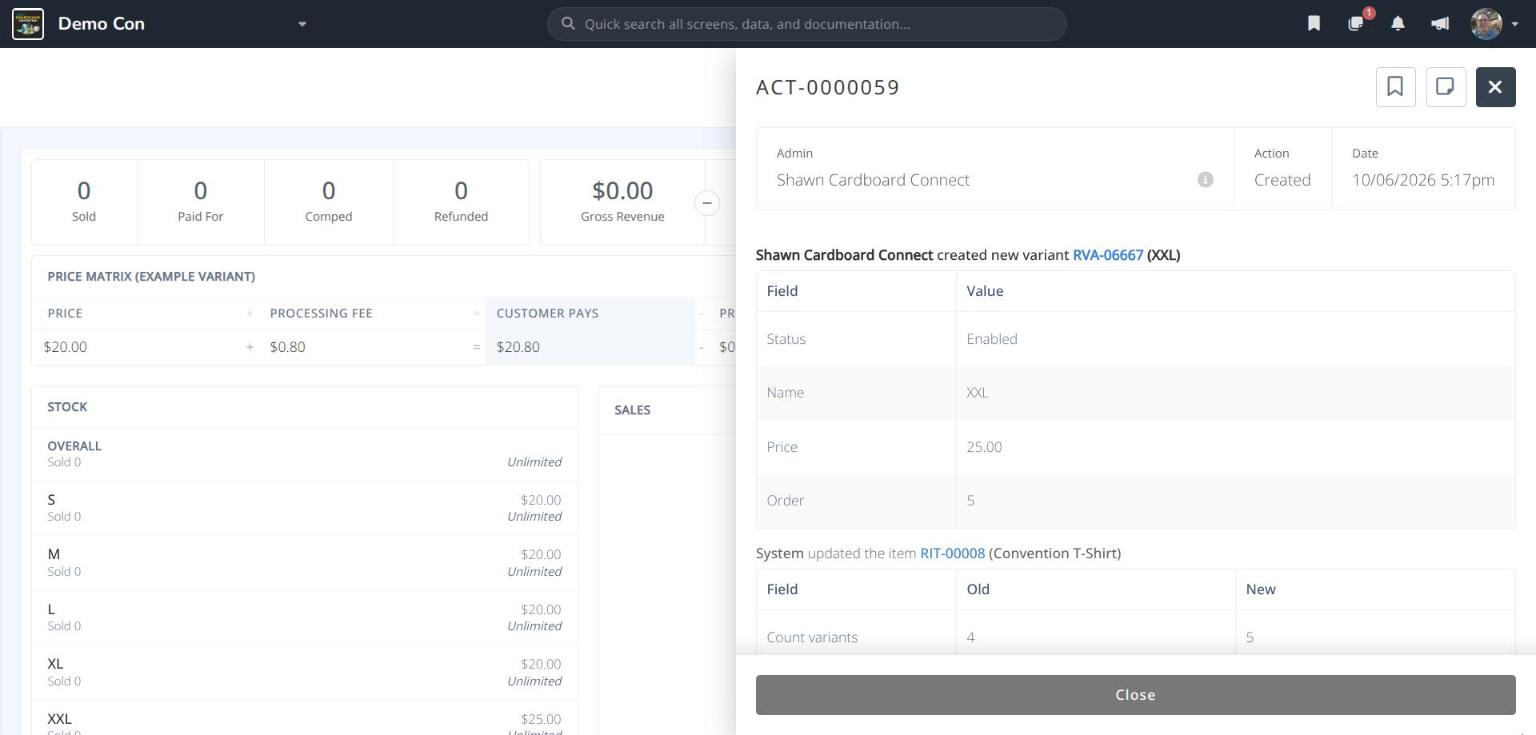
Changes the system makes as a result, such as updating a count, are listed underneath and labelled System. Click a blue reference number (e.g. RVA-06667) to open that record.
- Click to go back to the list, and again to close the panel.
Activitypage in that section's side menu.