¶ Announcements
¶ Overview
Announcements let you send news to the people at your convention, such as opening times, schedule changes or reminders. Every announcement appears in its recipients' notification feed on the website and app. You can also:
- E-mail it to every recipient
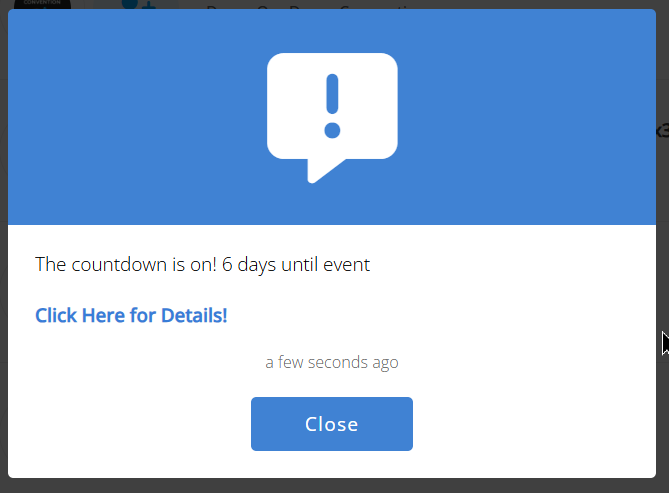
- Show it as a pop-up the next time recipients visit the website or open the app
- Attach a form, such as a survey, for recipients to fill in
- Make it act as a button that opens a link
- Schedule it to publish later, and set it to expire so it disappears from feeds
An announcement moves through four stages, each with its own menu item: Drafted, Scheduled, Published and Expired. The number next to each shows how many announcements are at that stage.
¶ Common Procedures
Create an AnnouncementSend an Announcement to Specific PeoplePublish an AnnouncementSchedule an AnnouncementExpire an AnnouncementReuse an Announcement
¶ Announcements Screens
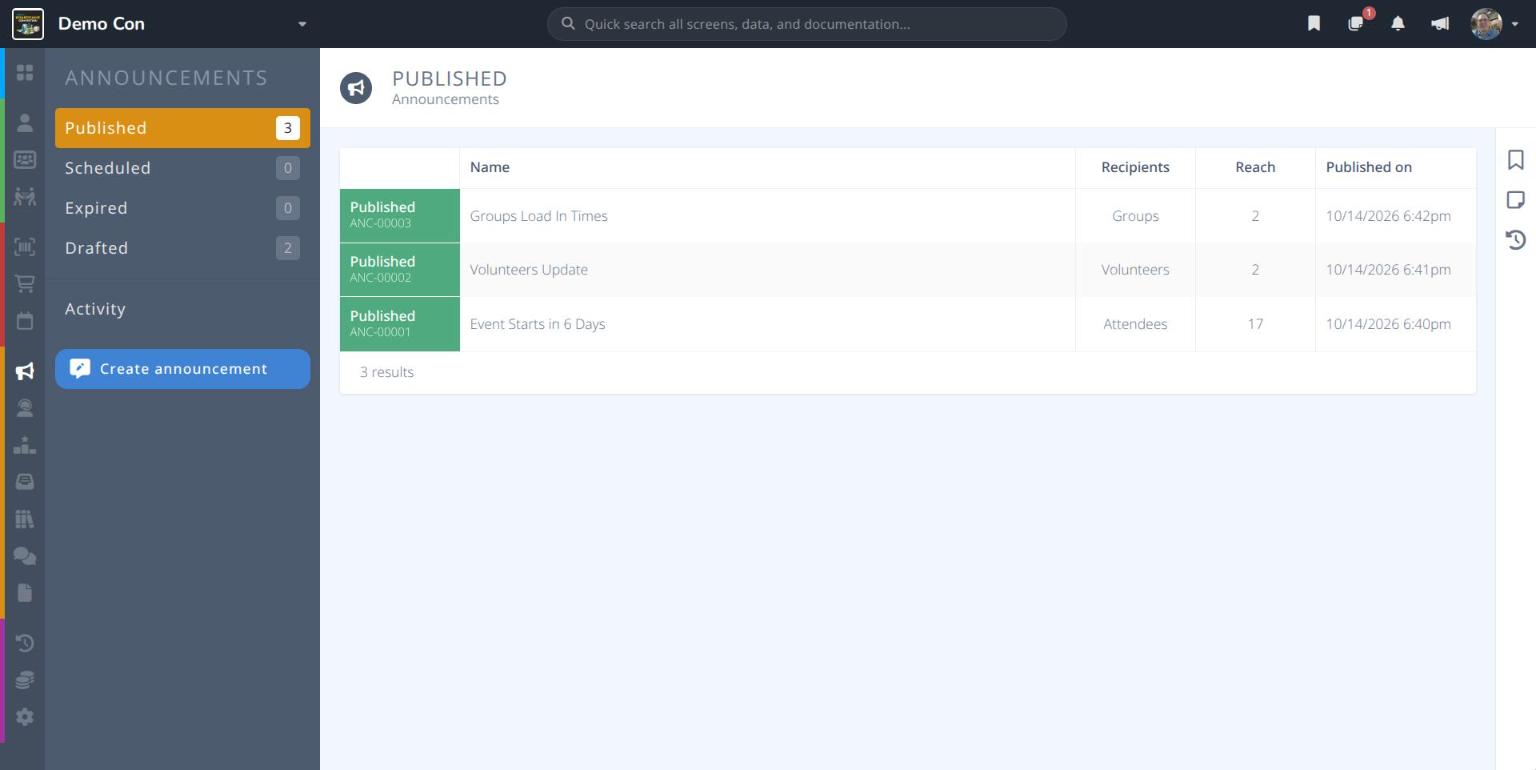
From the menu, click the stage you want to see: , , or .
Each row shows the announcement's status and reference (e.g. ANC-00001), its Name, the Recipients it was sent to, its Reach (how many people it went to), and when it was published.
To start a new announcement, click at the bottom of the menu.
¶ Announcement
Click an announcement to open it. It has two tabs, plus a third when it goes to specific people:
- Message - The text of the announcement. Use the toolbar to add bold, italic or underlined text, links, headings (Format) and alignment.
- Settings - Who receives it and how it is delivered. See
Fields. - Recipients - Only shown when
Recipientsis Specific. SeeSend an Announcement to Specific People.
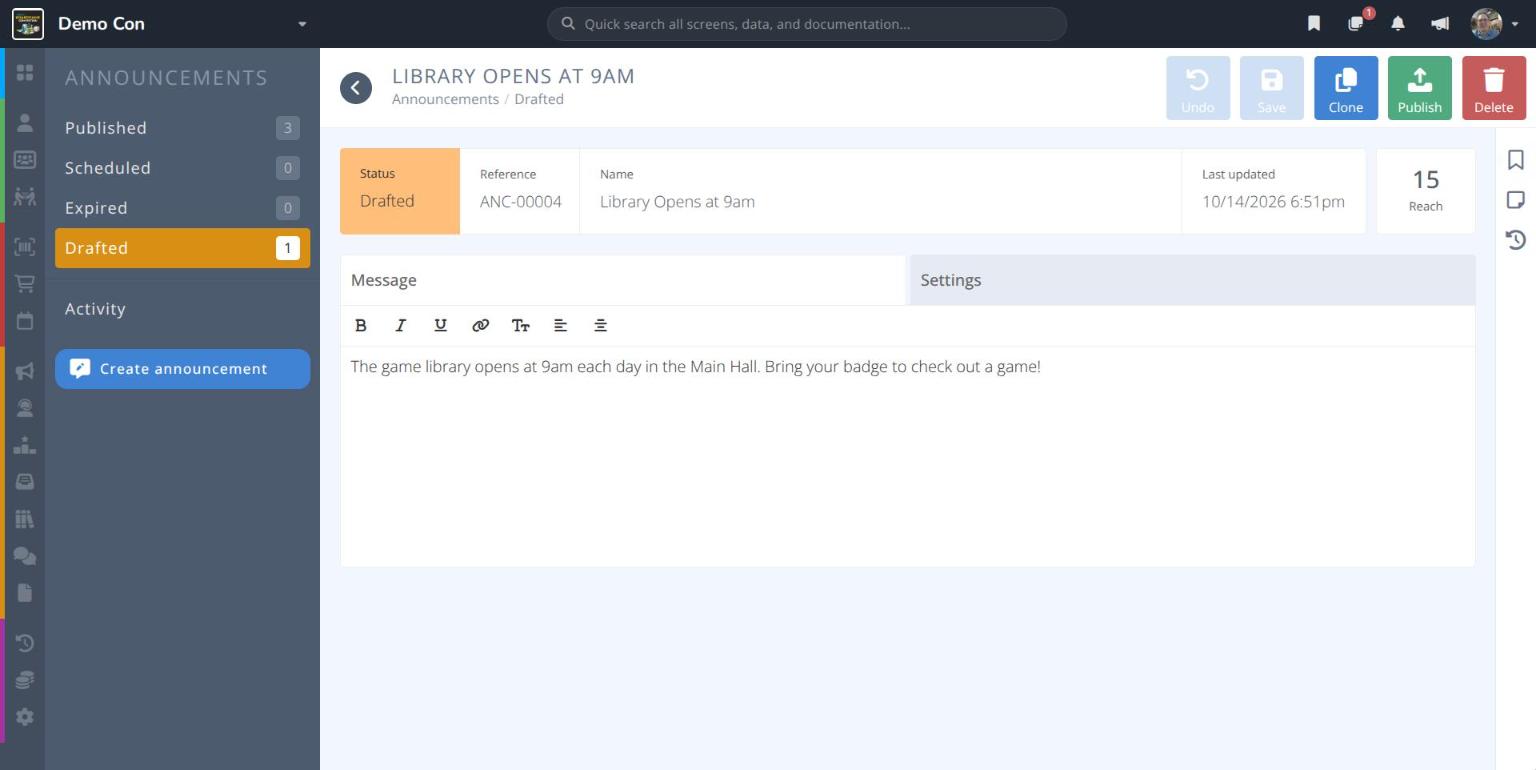
The buttons at the top of the screen depend on the announcement's stage:
- - Copy the announcement into a new draft.
- - Send a draft now, or at its
Publishes ontime. Only shown on drafts. - - Delete a draft. Only shown on drafts.
- - Remove a published announcement from notification feeds. Only shown on published announcements.
Note: Once an announcement is published, its
Recipients,Send as Email,Show as Pop-up,Attach FormandAct as Buttonsettings are locked , because it has already been delivered. To send a corrected version,clone it.
¶ Fields
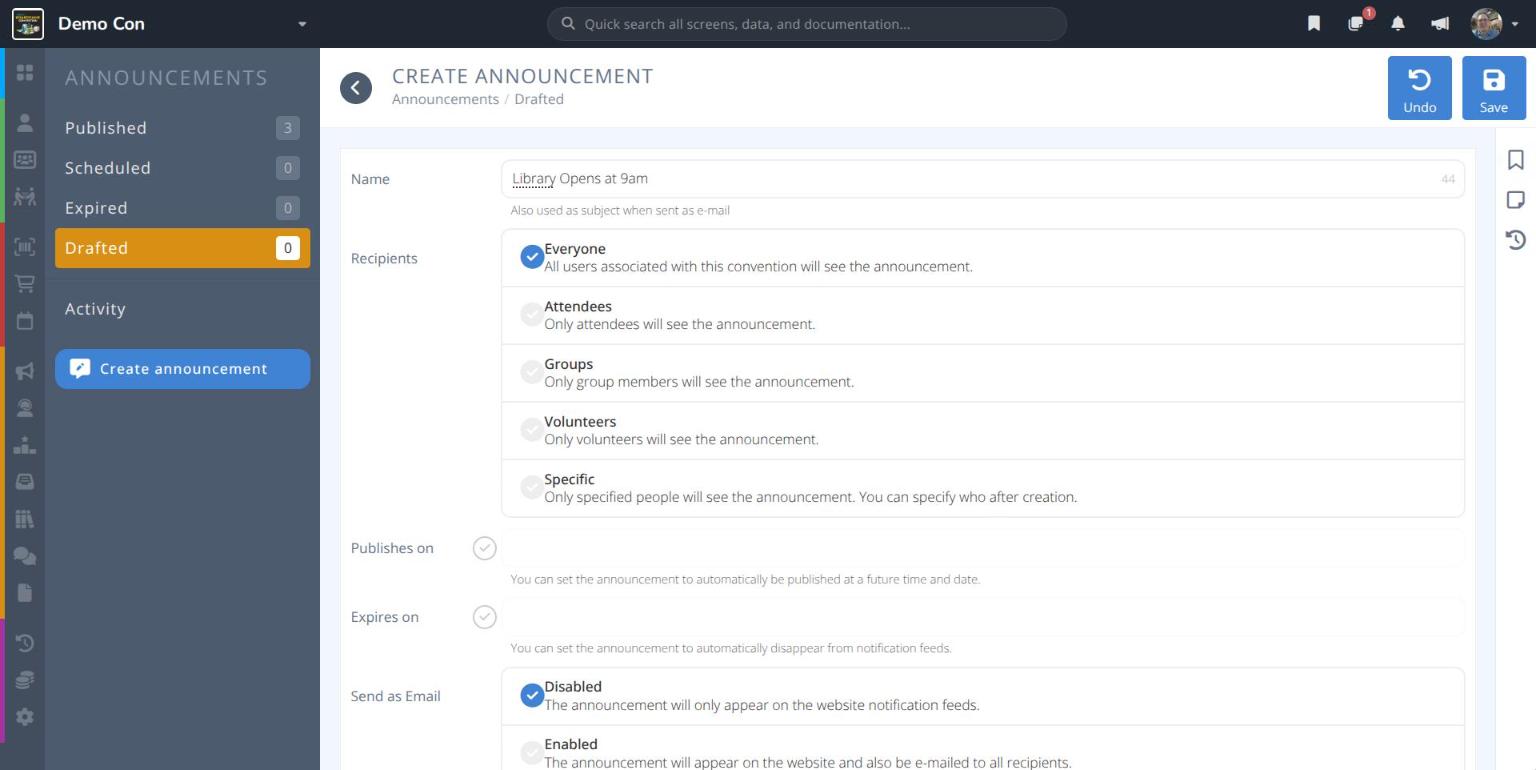
Name- The title of the announcement. It is also the subject line when the announcement is e-mailed.Recipients- Who receives the announcement:- Everyone - Everyone associated with the convention.
- Attendees - Only attendees.
- Groups - Only group members.
- Volunteers - Only volunteers.
- Specific - Only the people you choose on the Recipients tab after you save the announcement.
Publishes on(optional) - The date and time to publish the announcement automatically. Leave it off to publish when you click Publish.Expires on(optional) - The date and time the announcement disappears from notification feeds. Leave it off to keep it in feeds.Send as Email- Enabled also e-mails the announcement to every recipient. Disabled only shows it in notification feeds.Show as Pop-up- Enabled also shows the announcement as a pop-up the next time recipients visit the website or open the app.Attach Form- Enabled attaches a form, such as a survey, that recipients can fill in:Form- The form to attach. It must already exist inForms.Button- The label on the button that opens the form (e.g. Open form).Name(optional) - The name of the form shown to recipients (e.g. Attendee Survey).Intro(optional) - Text shown before the form's questions.Success- The text shown after the form is submitted.
Act as Button- Enabled makes the whole announcement a button that opens a link:URL- The full web address the button opens.
Act as Buttonis hidden whileAttach Formis Enabled. An announcement can either open a form or open a link, not both.
¶ Procedures
¶ Create an Announcement
New announcements are saved as drafts, so nothing is sent until you publish.
- From the menu click .
- Enter the
Name, e.g. Library Opens at 9am. - Choose the
Recipients. - Choose how it is delivered: turn on
Send as EmailandShow as Pop-upif needed. With both off, it only appears in notification feeds. - If needed, turn on
Attach FormorAct as Buttonand fill in their fields. - Click . The announcement opens as a draft.
- On the Message tab, write the announcement, then click .
¶ Send an Announcement to Specific People
- Create the announcement with
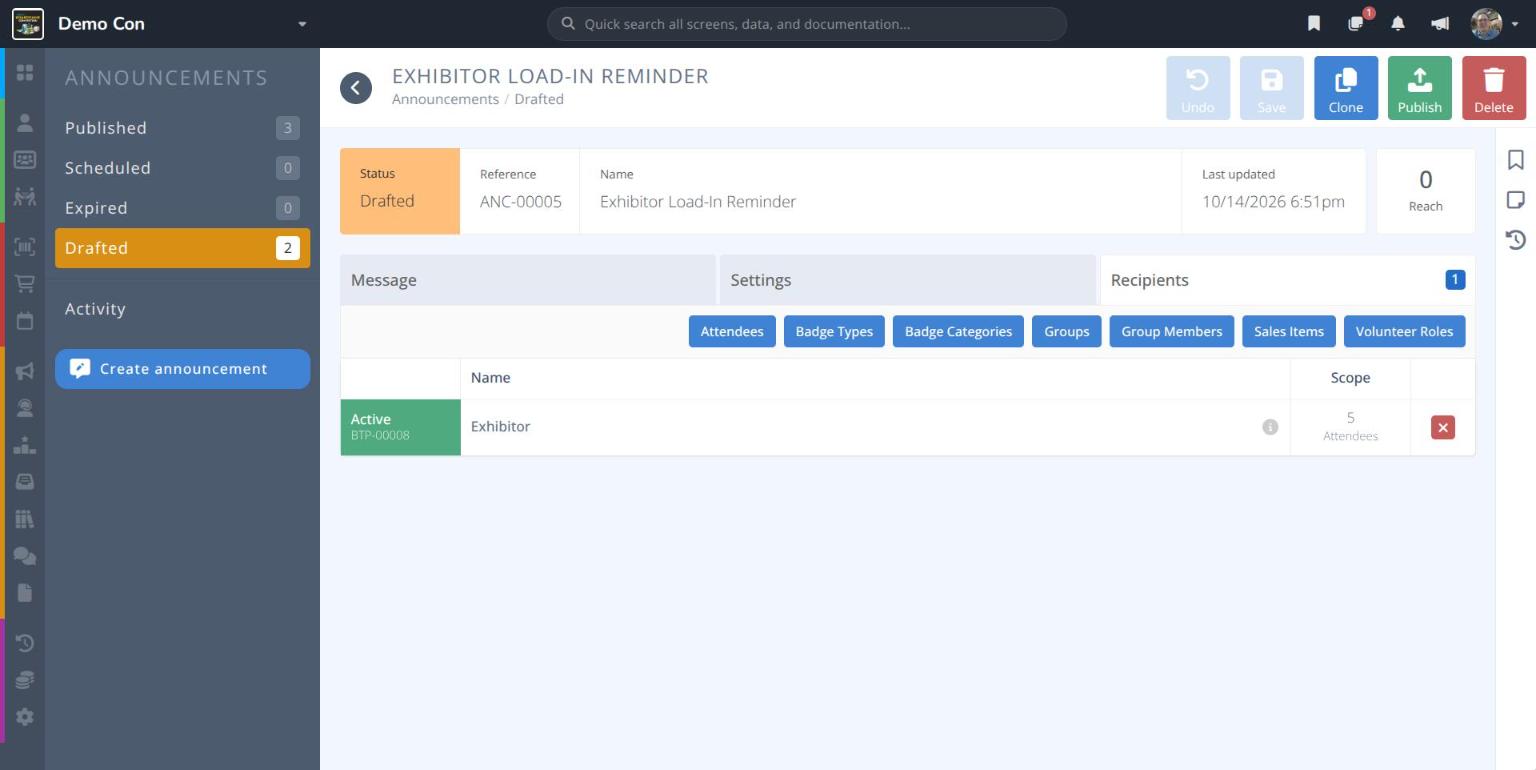
Recipientsset to Specific, and save it. SeeCreate an Announcement. - Click the Recipients tab.
- Click the kind of recipient to add: , , , , , or .
- Tick each one to include, e.g. the Exhibitor badge type, then click .
- Repeat for any other kinds of recipient, then click .
The Scope column shows how many attendees each rule includes. Click to remove a rule.
¶ Publish an Announcement
- From the menu click , then click the announcement.
- Check the Message, Settings and, if shown, Recipients tabs.
- Click .
Warning: Publishing sends the announcement to every recipient straight away, including any e-mails and pop-ups. Check the recipients and message carefully first.
¶ Schedule an Announcement
- Create or open a draft.
- On the Settings tab, click the check circle next to
Publishes onand choose the date and time. - Click , then click . The announcement moves to and is sent at that time.
Tip: You can schedule your announcements for the whole convention ahead of time, such as daily opening times or last-chance reminders.
¶ Expire an Announcement
- From the menu click , then click the announcement.
- Click . It is removed from notification feeds and moves to .
To expire an announcement automatically, set Expires on before you publish it.
¶ Reuse an Announcement
- Open the announcement you want to copy.
- Click . A new draft is created with the same message and settings.
- Make your changes, then save and publish it.
¶ What Recipients See
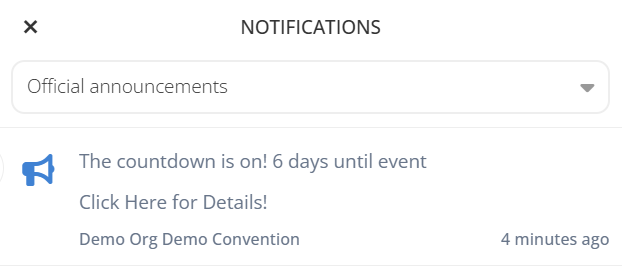
-
Notification feed:
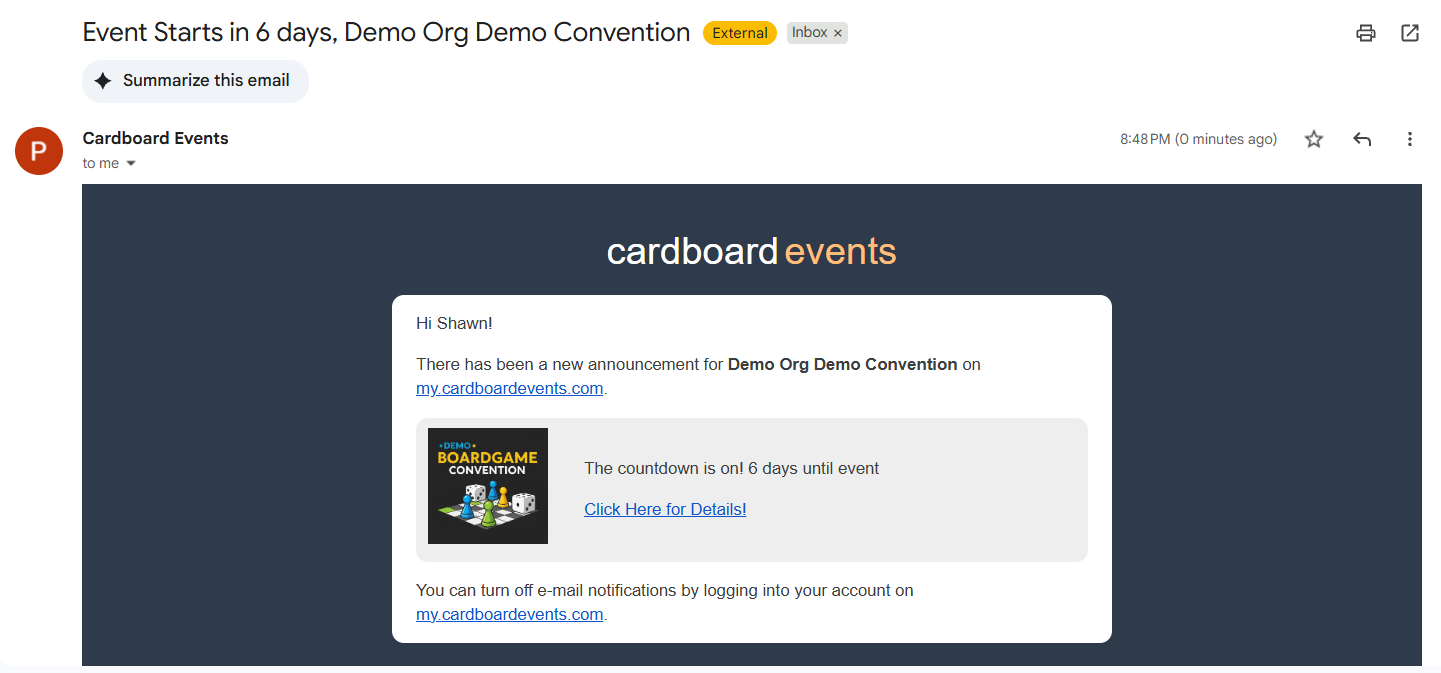
-
E-mail:
-
Pop-up: