¶ Messages
¶ Overview
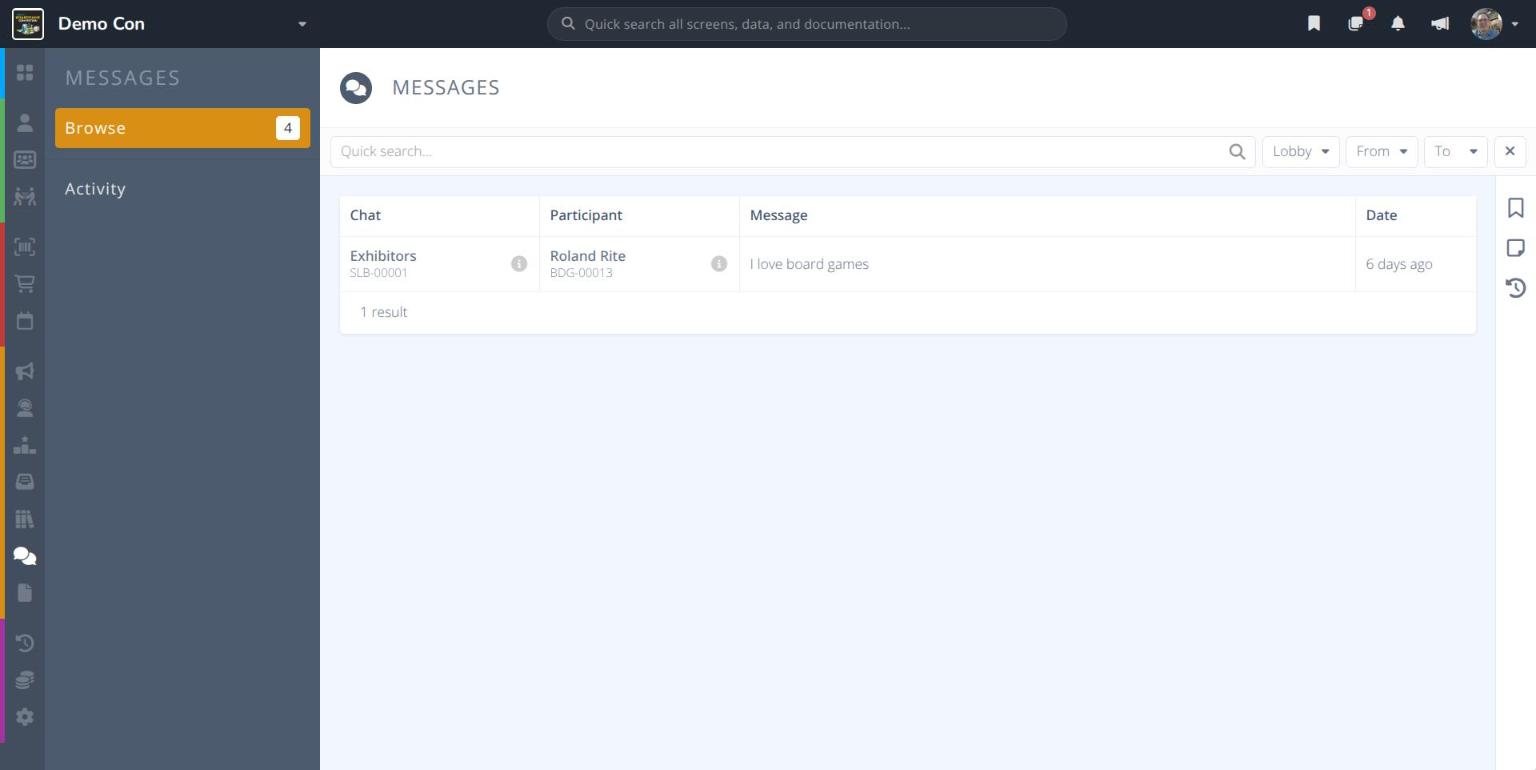
Messages brings together every chat message sent at your convention, so you can read them, reply, and remove anything that should not be there. It includes messages in:
- Events and event submissions
- Lobbies
- Contests
- Volunteer roles
- Play to Win games
You can open any message to see the whole conversation around it, and reply without leaving Manage.
¶ Common Procedures
¶ Browse
From the menu click .
Each row is one message:
- Chat - Where the message was sent, such as an event or lobby. Click to quick-view it.
- Participant - Who sent it. Click to quick-view their badge. Messages from admins show Admin instead of a badge reference.
- Message - The text of the message.
- Date - When it was sent.
To find messages, use the Quick search... box to search the text and sender, Type to show one kind of chat (Lobby, Event, Play to Win, Contest or Volunteer Role), and From and To to choose a date range.
¶ Conversation
Click a message to open its conversation.
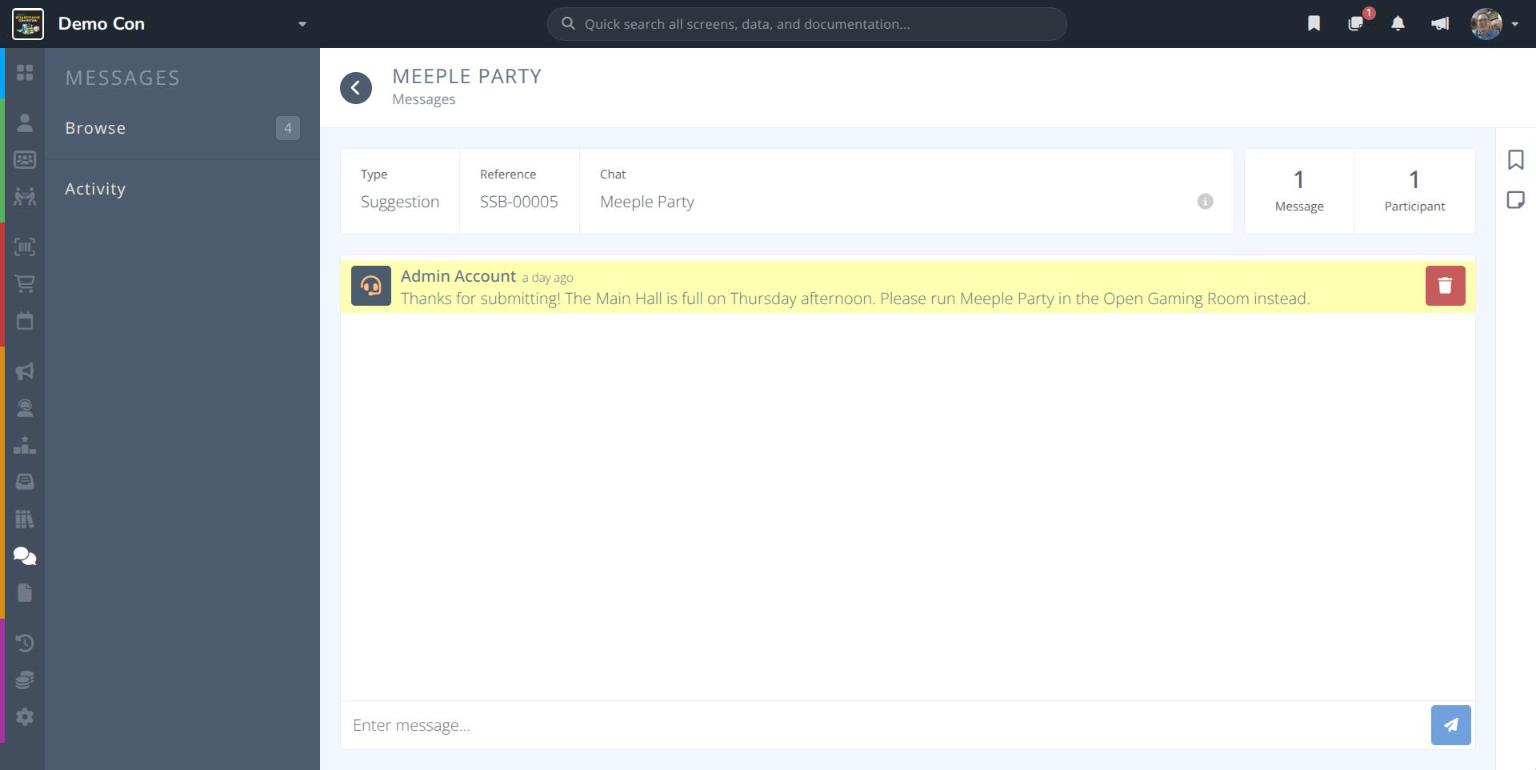
- The top of the screen shows the chat's Type, Reference and name, with the number of messages and participants. Click to quick-view the chat's details.
- The message you opened is highlighted in yellow, within the rest of the conversation.
- Messages sent by admins show a headset icon .
- Each message has a button to delete it.
- Use Enter message... at the bottom to reply.
¶ Procedures
¶ Find a Message
- From the menu click .
- Type a word from the message, or the sender's name, in the Quick search... box.
- To narrow the list, choose a Type, or a From and To date. Click to clear the filters.
- Click the message to open the conversation.
¶ Reply to a Conversation
- Find the message and open its conversation. See
Find a Message. - Type your reply in Enter message....
- Press Enter or click .
Your reply appears in the chat with a headset icon , so everyone in the chat can see it came from the convention.
¶ Delete a Message
- Find the message and open its conversation. See
Find a Message. - Click next to the message.
Warning: The message is deleted straight away. There is no confirmation step, and a deleted message cannot be recovered.
¶ Release Notes Links
¶ Next Steps
Activity- See who sent or deleted a message, from Activity in the Messages menu.Announcements- Send news to everyone, rather than replying in a chat.