¶ Assistant
¶ Overview
The Assistant is a separate app your volunteers and staff use on a phone, tablet or laptop to help run the convention, without giving them access to Manage. With it they can:
- Create, print and check in badges at registration
- Check library games in and out, and report problems with games
- Check attendees' tickets at the door of ticketed events
In Manage you create logins for the Assistant. Each login has a code that opens the app, and a scope that controls which of these tasks it can do. For example, give the library desk a login that can only check games in and out.
¶ Common Procedures
Create an Assistant Login- Create a login code with only the tasks a team needs.Disable an Assistant Login- Stop a code from being used.Open the Assistant- Sign in to the Assistant app with a code.Badge Creation- Create a badge at the door, without the registration form or payment.Badge Printing- Print an attendee's badge on a local printer.Badge Checkin- Check in an attendee and hand over their items.Library Checkout- Check library games in and out.Report Game Issue- Report a problem with a library game.Event Tickets- Check tickets at a ticketed event.
¶ Logins Screen
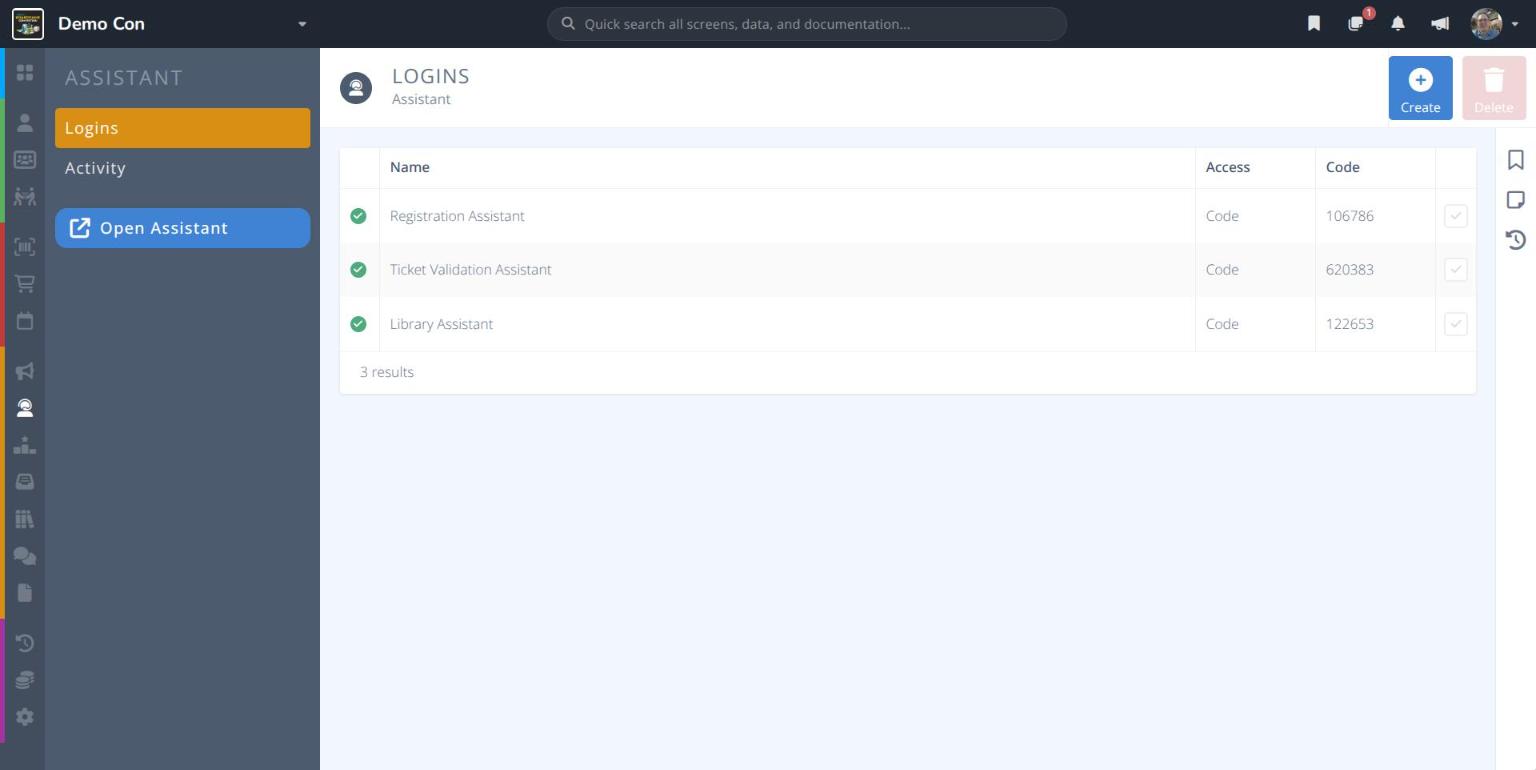
From the menu click .
Each row shows whether the login is enabled (), its Name, its Access type and its Code.
- - Create a new login.
- - Delete the ticked logins.
- (in the menu) - Open the Assistant app in a new browser tab.
¶ Fields
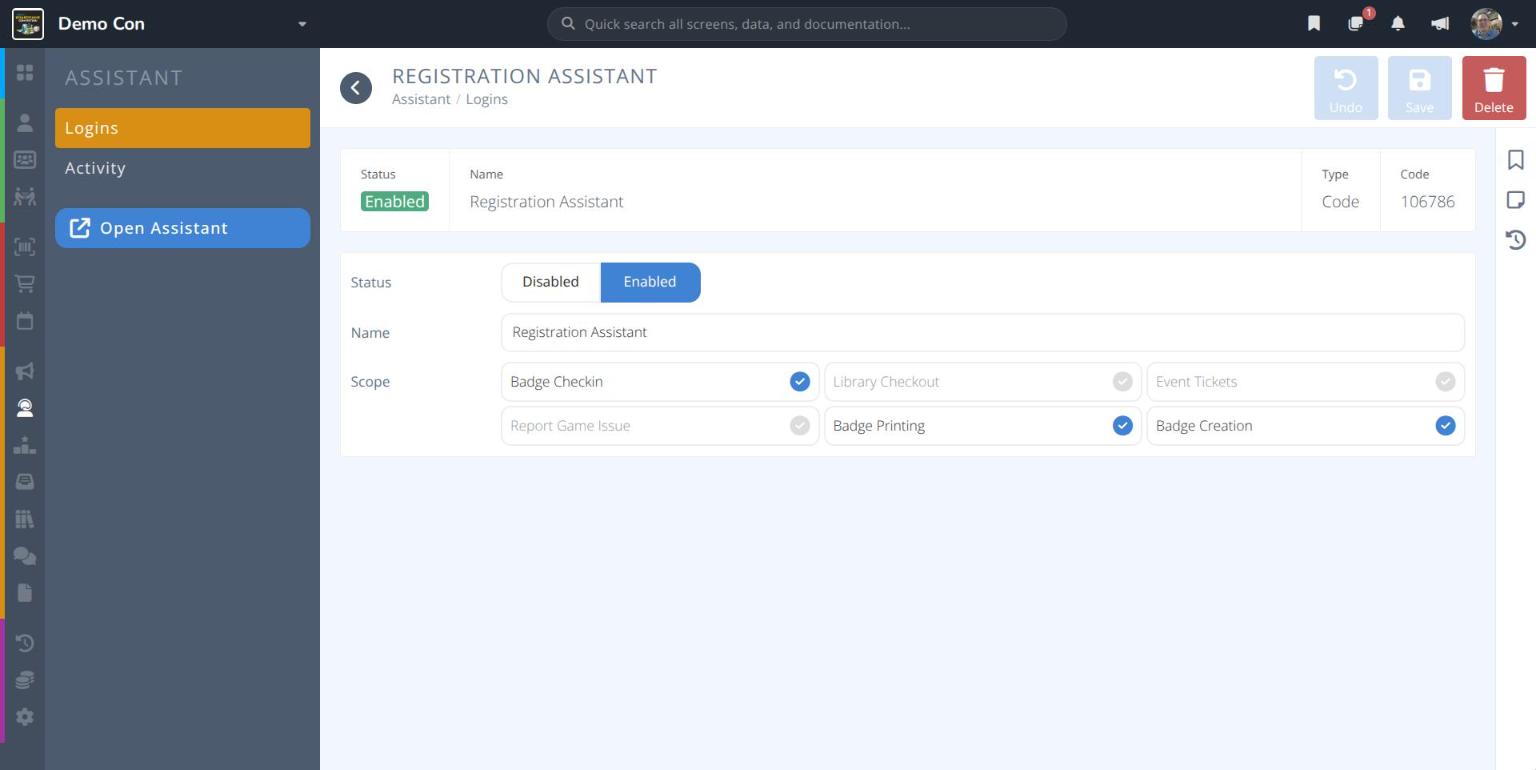
Status- Whether the login can be used:- Enabled - The code can be used to open the Assistant.
- Disabled - The code can no longer be used to sign in.
Name- The name of the login, e.g. Registration Assistant. Only staff see this.Type- How the login signs in. Currently this is always Code.Code- The code used to open the Assistant. It is created for you when you save the login.Scope- The tasks this login can do. Tick one or more:
¶ Scopes
| Scope | What it allows |
|---|---|
| Badge Checkin | Check in attendees at registration and record the items they collect. |
| Badge Printing | Show and print an attendee's badge on a local printer. |
| Badge Creation | Create badges directly, without the registration form or payment. |
| Library Checkout | Check games in and out of the library. |
| Report Game Issue | Report problems with library games (e.g. missing rules). |
| Event Tickets | Scan and check tickets for ticketed events. |
¶ One Pagers
Printable one-page guides you can hand to volunteers.
¶ Registration One Pagers
¶ Library One Pagers
¶ Event Tickets One Pager
¶ Procedures
¶ Create an Assistant Login
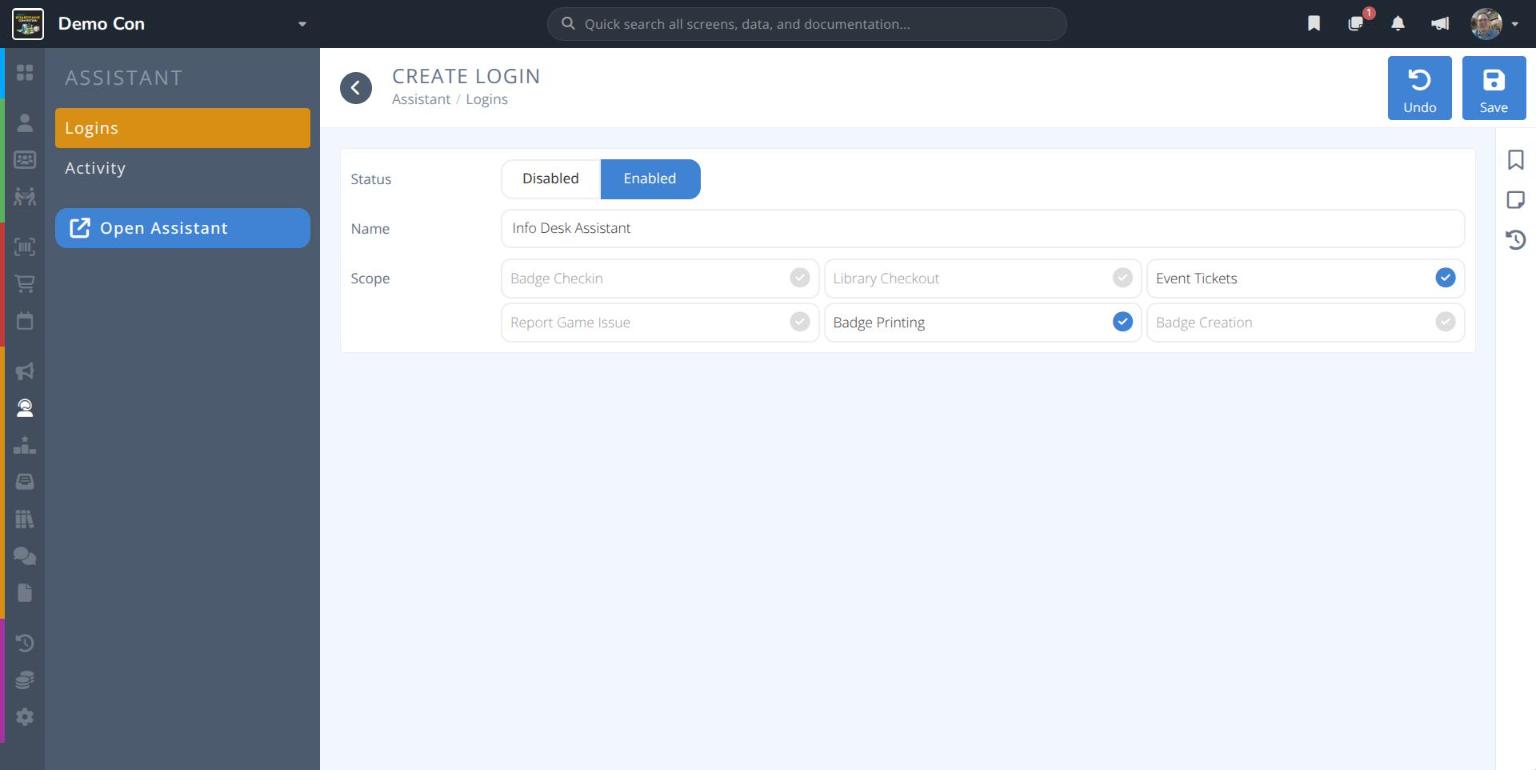
- From the menu click , then click .
- Leave
Statusas Enabled. - Enter a
Namethat says who will use it, e.g. Info Desk Assistant. - Tick each task the login needs under
Scope. SeeScopes. - Click . The login's
Codeis shown at the top of the screen.
Tip: Create a separate login for each team, such as registration, the library desk and event doors, with only the tasks that team needs. You can then disable one team's code without affecting the others.
¶ Disable an Assistant Login
Use this when a code should no longer work, for example at the end of the convention or if a code has been shared too widely.
- From the menu click , then click the login.
- Set
Statusto Disabled. - Click .
¶ Open the Assistant
- From the menu click , and note the
Codeof the login to use. - Click , or go to assistant.cardboardconnect.com in a supported browser on the device.
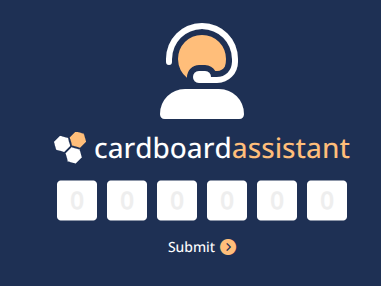
- On the Cardboard Assistant sign-in screen, enter the code.
Compatibility Note: The Silk browser on Amazon Fire tablets does not work with the Assistant. Installing Firefox has worked on some of these devices, but that process is not covered here.
¶ Badge Creation
Create a single badge, ready to print. This is most useful for walk-up badge sales or comping a badge at the door.

Note: This skips your registration page's form and payment. No sales record is created for badges made this way, but badge fees still apply.
Open the Assistantwith a login that includes Badge Creation, and tap Badge Creation.- Fill in the required fields for the badge.
- Enter an e-mail address that is not already used by an attendee. A valid e-mail is required.
Note: If someone else will manage the badge (e.g. a parent), either send them to the normal registration page, where managed badges can be bought, or use + addressing for an attendee without their own e-mail address. For example, parentname+childname@emailaddress.com creates a new account, and the login details go to parentname@emailaddress.com.
- Choose the badge type for the attendee.
Note: This is not the same as buying a badge sales item. It creates a badge of that type directly, so any items comped with the badge sales item are not given. To include them, send the attendee to the normal registration page, or comp the badge sales item or items in Manage.
- Carefully check the spelling and details.
- Tap . The
Badge Printingscreen opens for the new badge, ready to download and print.
¶ Badge Printing

Open the Assistantwith a login that includes Badge Printing, and tap Badge Printing.- Scan the attendee's QR code, or search for their name or badge reference and select them.
- The attendee's badge is shown. Check their identity using the details on screen.
- To print only the QR code and name rather than the full badge, tap the tab.
- Tap to download the badge or label as an image for printing.
- Tap to return to the Badge Printing screen.
¶ Badge Checkin
Check in attendees when they pick up their badge and any items at registration.
Open the Assistantwith a login that includes Badge Checkin, and tap Badge Checkin.- Scan the attendee's QR code, or search for their name or badge reference and select them.
- Check that the attendee is the person shown on screen.
- A list of items to collect is shown. Gather the items.
- Tick each item as you hand it over, and check the list again.
- Tap .
- Tap to return to the Badge Checkin screen.
Known Issue: Items that do not need collecting currently show as not picked up on the summary screen, but not on the detailed screen.
¶ Library Checkout

-
Open the Assistantwith a login that includes Library Checkout, and tap Library Checkout. -
The Library Checkout screen lists all active loans and how long each game has been out. Overdue games are highlighted.
Note: A hand scanner is easier than a device's built-in camera. With most scanners, the app moves on to the next step automatically.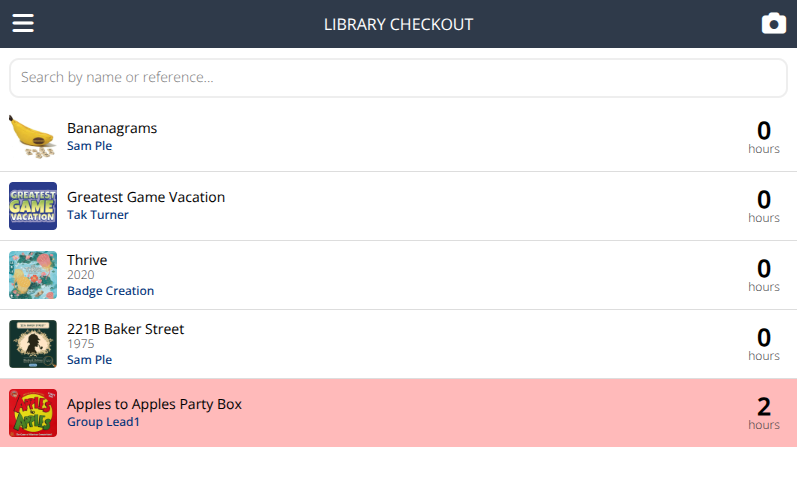
-
Scan the game, or search for it. When checking a game in, you can also select it from the list.
Note: A device's built-in camera cannot currently scan UPC codes. Enter them by hand or use a barcode scanner.
If the game is checked out, check it in:
- The current loan is shown.
- If the attendee reports a problem with the game, tick Report issue with game and describe it. This creates a
game report. - To log the loan as an anonymous play, tick Log as anonymous play.
- Once the game has been checked, tap .
If the game is not checked out, check it out:
- Scan the badge of the attendee borrowing the game. With a built-in camera, or to enter the badge by hand, tap the scan badge button first.
- If the attendee already has as many games as the
Active Loan Limitallows, Too many active loans is shown. To allow the loan anyway, tick Ignore checkout limit and scan again. - Scan any other players. This is important for
Play to Wingames, so every player is entered into the draw. Attendees can also add players at the table using their app. - If your convention uses
Verification, enter the value to check when the game comes back. - Check the loan details and tap . The game is added to the list of checked-out games.
¶ Report Game Issue

Open the Assistantwith a login that includes Report Game Issue, and tap Report Game Issue.- A list of reported games is shown, with when each was reported and its current status.
- Tap to create a new report, or tap a report to view and update it.
To create a report:
- Scan or search for the game.
- Choose the report's status and describe the problem.
- Tap .
To update a report:
- Type the new details in the message box and tap . The message is logged under the name of the Assistant login.
- When finished, tap .
Reports can also be fully managed in Manage. See Checkout: Reports.
¶ Event Tickets

Open the Assistantwith a login that includes Event Tickets, and tap Event Tickets.- Find the event you are checking tickets for. Carefully check its name, date and time, then select it.
- The event is shown. For a ticketed event, everyone who has a ticket is listed.
- Tap the camera to scan an attendee's badge, or tap their name in the list.
- If they have a valid ticket, it is confirmed, the attendee is admitted and the ticket is marked as used. If you selected the name by hand, choose Admit, or close without making changes.
- Admitted attendees have a green check mark next to their name.
¶ Next Steps
Checkout Settings- Set loan limits, overdue time and verification for the library.Event Tickets- See and manage tickets for ticketed events.Attendees- Manage badges in Manage.