¶ Checkout: Reports
¶ Overview
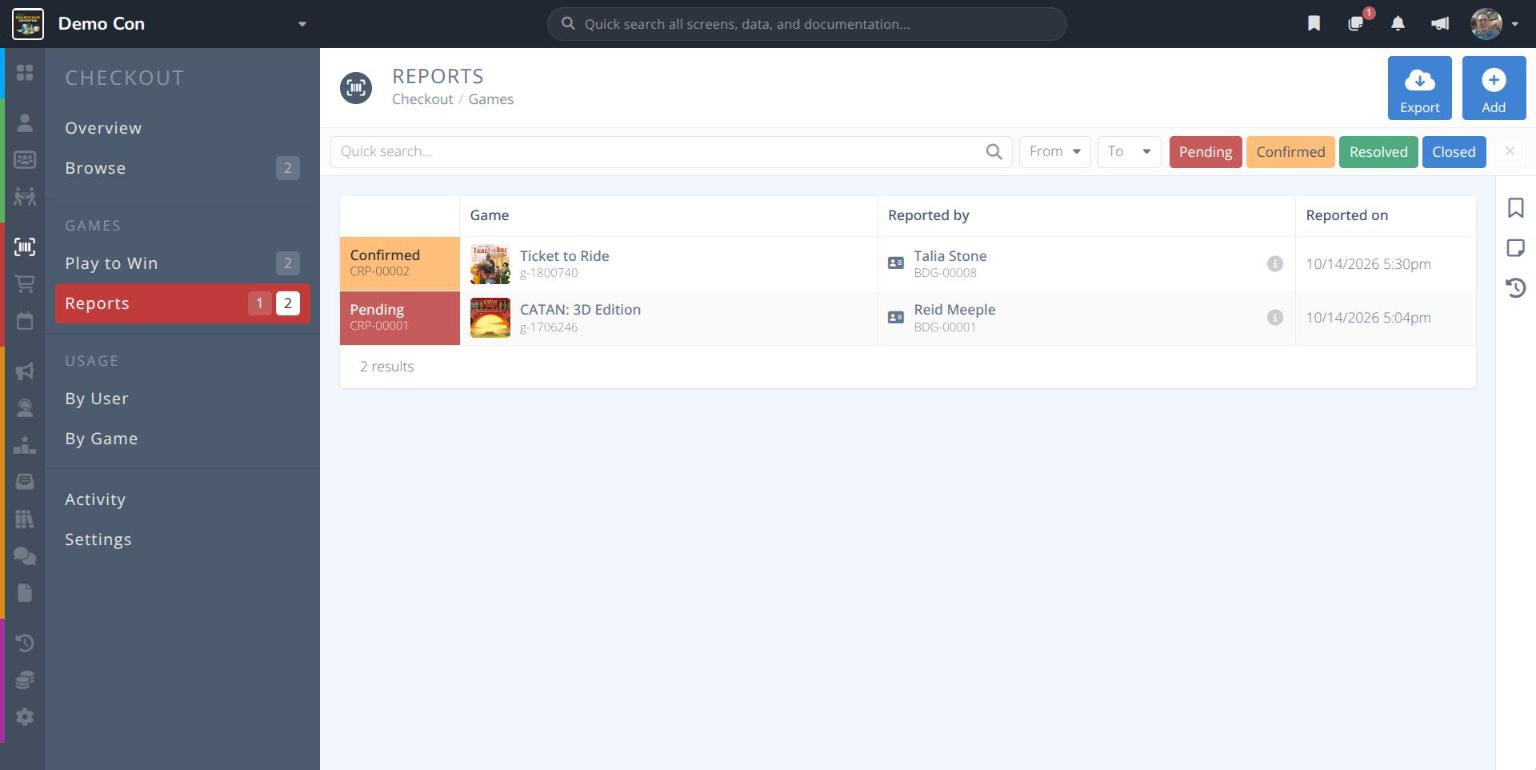
Reports track problems with the games in your library, such as missing pieces, a torn box or damaged cards. Each report keeps a history of messages, so your library team can see what was found and what was done about it.
Reports are usually created at the library desk with the Library Assistant, when a game is checked in or with Report Game Issue. See Assistant. You can also create and update them here in Manage.
A report moves through four statuses:
- Pending - The problem has been reported but not checked yet.
- Confirmed - Someone has checked the game and confirmed the problem.
- Resolved - The problem has been fixed, e.g. replacement pieces added.
- Closed - A second person has checked the fix and the report is finished.
The red number next to in the menu shows how many reports are still Pending.
¶ Common Procedures
¶ Reports Screen
From the menu click in the GAMES group.
Each row shows the report's status and reference (e.g. CRP-00002), the Game, who it was Reported by, and when it was Reported on.
To find a report, use the Quick search... box, the From and To dates, or click a status filter: , , or .
Buttons at the top of the screen:
- - Download the list as a CSV file.
- - Create a new report.
¶ Report
Click a report in the list to open it.
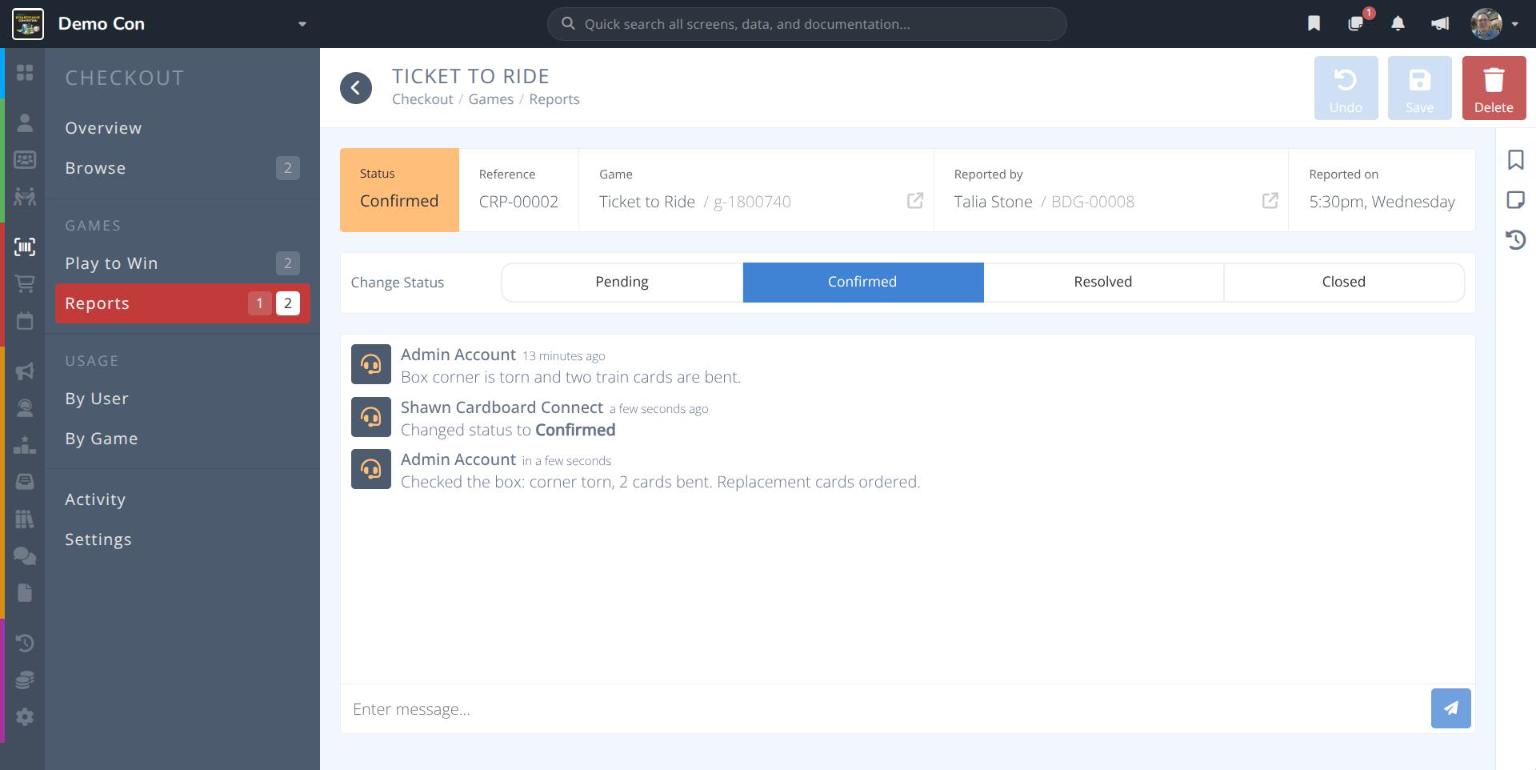
- The top of the screen shows the report's status, reference, game, who reported it, and when. Click next to the game or badge to open that record.
Change Status- Click a status, then click . A Changed status to entry is added to the history.- Messages - The history of the report: the original report, each status change, and every message added.
- Enter message... - Type a note and click to add it to the history.
¶ Procedures
¶ Report a Problem With a Game
- From the menu click .
- Click .
- In
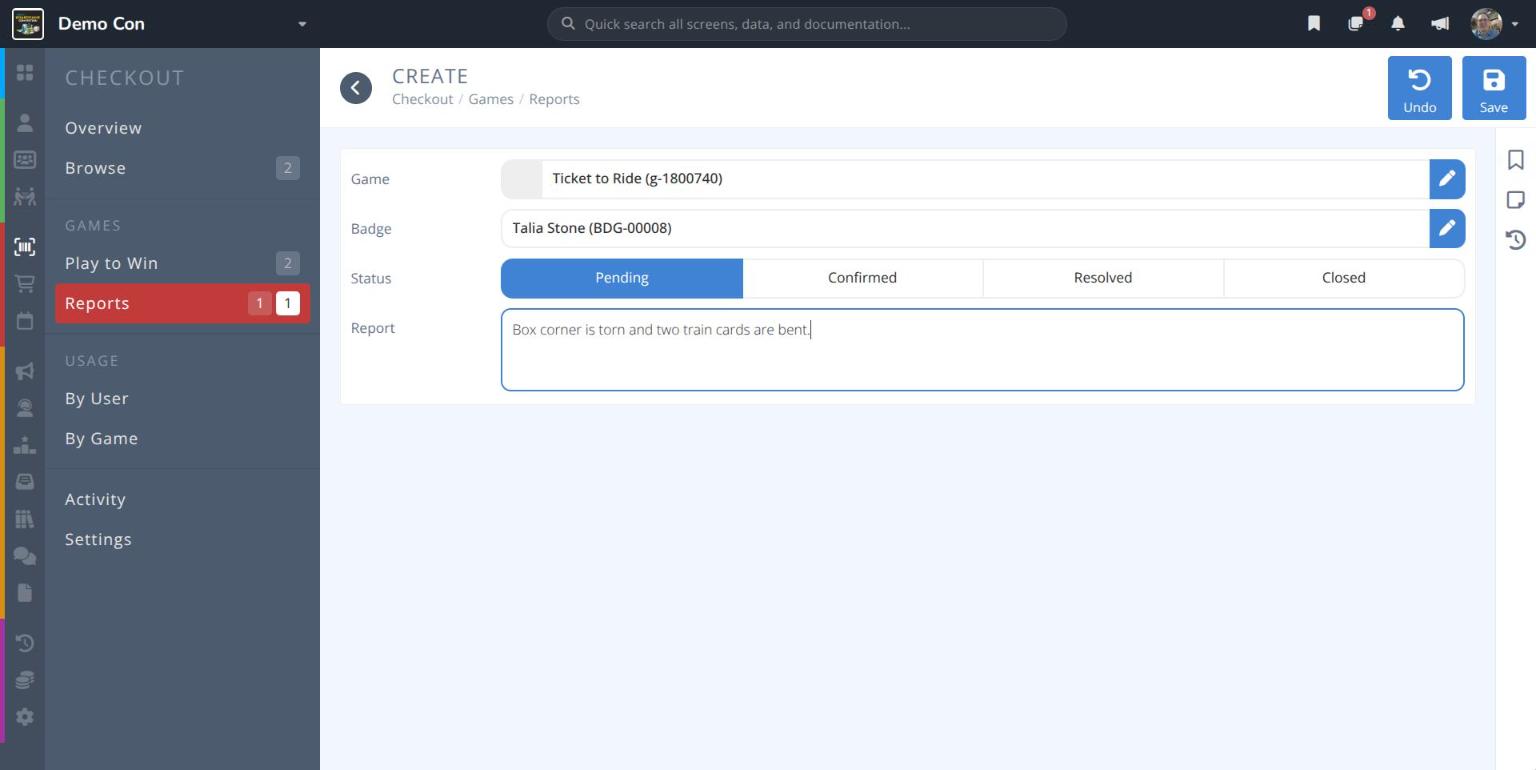
Game, start typing the name of the game and select it from your library. - In
Badge, search for and select the attendee who reported the problem. - Leave
Statusas Pending, unless the problem has already been checked. - Describe the problem in
Report, e.g. Box corner is torn and two train cards are bent. - Click .
¶ Update a Report
Each time someone works on the problem, move the report on and leave a note about what they did.
- From the menu click , then click the report.
- Under
Change Status, click the new status:- Confirmed - after checking that the problem is real.
- Resolved - after fixing it.
- Closed - after a second person has checked the fix.
- Click .
- Type what was found or done in Enter message..., e.g. Checked the box: corner torn, 2 cards bent. Replacement cards ordered.
- Click to add the message.
Note: Saving a status change does not send the text in the message box. Click to add your message.
¶ Next Steps
Assistant- Report and update game problems at the library desk.Checkout Settings- Have librarians record a value, such as weight, to spot missing pieces at check-in.