¶ Checkout: Settings
¶ Overview
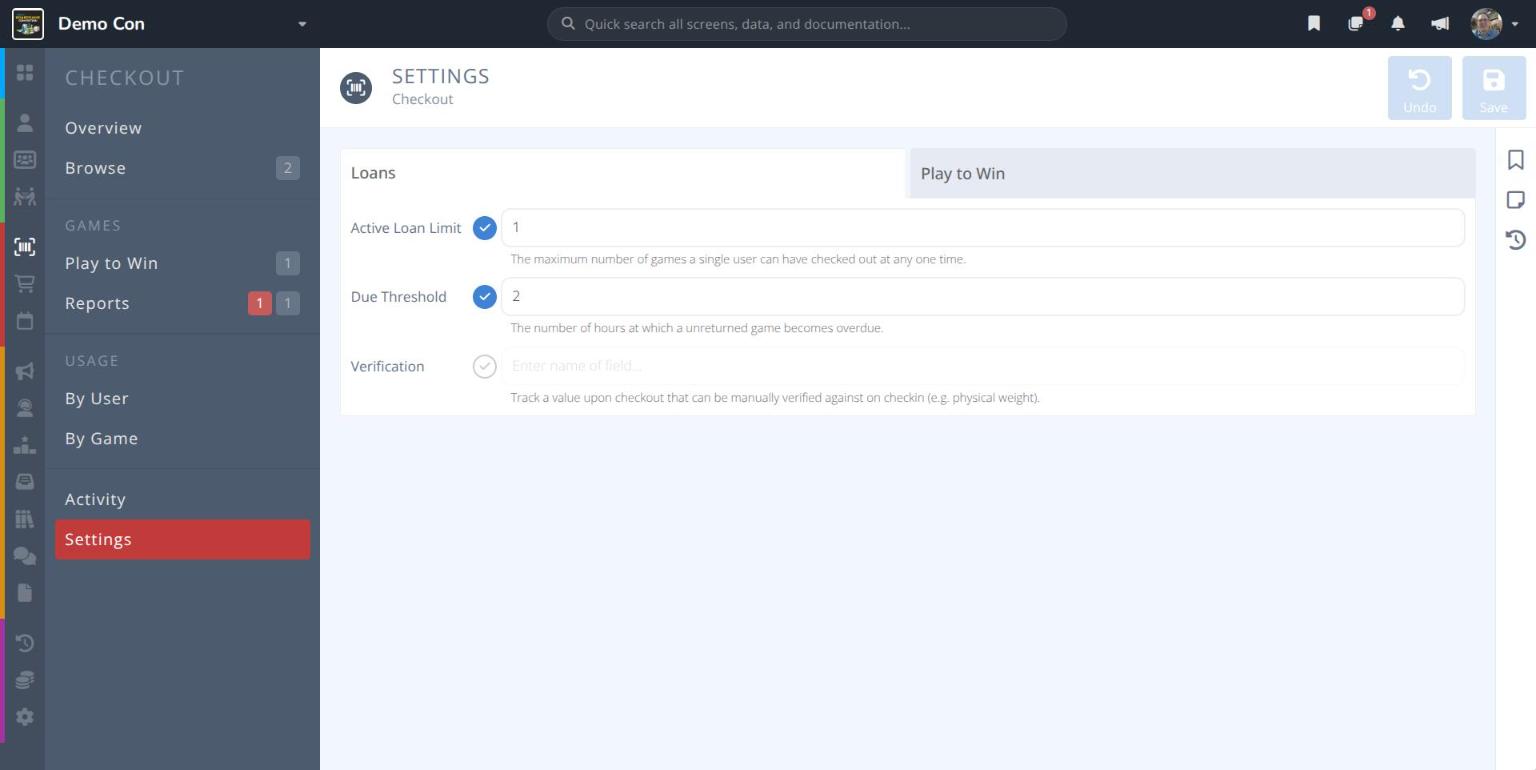
Checkout Settings set the rules for borrowing games from your library:
- Loans - How many games an attendee can borrow at once, when a loan becomes overdue, and whether librarians record a value to check when the game comes back
- Play to Win - The description attendees see, and whether attendees can win more than one game
These apply to every loan at your convention, whether a game is checked out in Manage or with the Library Assistant. Most conventions set them once before the library opens.
¶ Common Procedures
Limit How Many Games an Attendee Can BorrowSet When a Loan Becomes OverdueRecord a Value to Check at Check-inSet Up Play to Win Rules
¶ Settings Screen
From the menu click at the bottom of the menu.
The screen has two tabs: Loans and Play to Win. After changing a setting, click , or to discard the change.
Some settings have a check circle next to them. Click the circle to turn the setting on (blue) and enter a value. Click it again to turn the setting off.
Click each tab to see the information for that section:
¶ Loans
Active Loan Limit(optional) - The most games one attendee can have checked out at the same time. When it is off, there is no limit. Note: This limit can be overridden when checking a game out with the Library Assistant.
Due Threshold(optional) - The number of hours a game can be checked out before the loan becomes overdue. Overdue loans show an status on the screen, are counted in Currently overdue on the screen, and are easy to spot in the Library Assistant. Note: Attendees are not currently notified when their loan is overdue.Verification(optional) - The name of a value your librarians record when a game is checked out, so they can compare it when the game is checked in (e.g. Weight). SeeRecord a Value to Check at Check-in.
¶ Play to Win
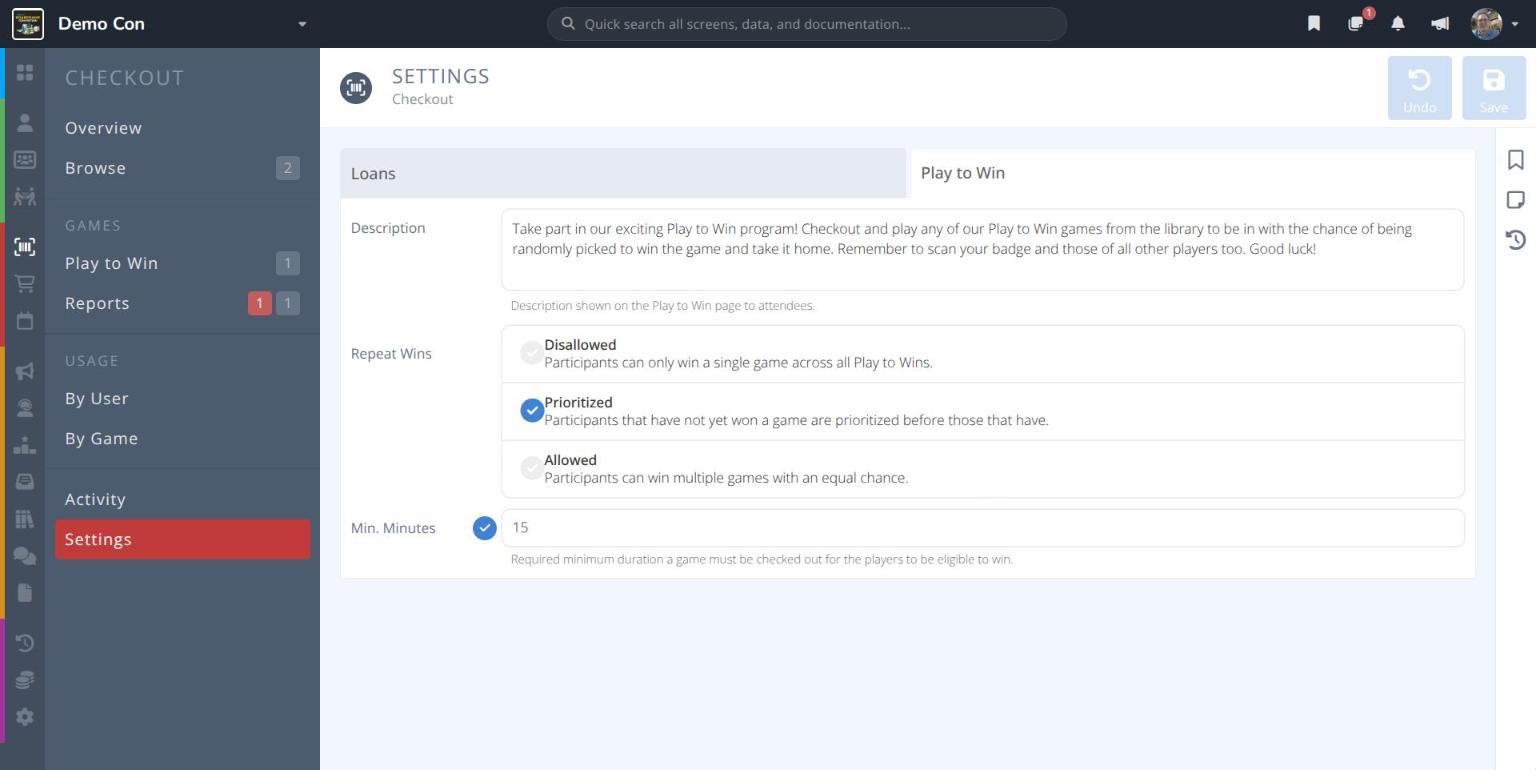
Description- The text attendees see on the Play to Win page of the attendee site. Use it to explain how Play to Win works at your convention.Repeat Wins- What happens when an attendee has already won a Play to Win game:- Disallowed - Attendees can only win one game across all Play to Win games.
- Prioritized Default - Attendees who have not won yet are picked before those who have, but more than one win is possible.
- Allowed - Attendees can win more than one game, with an equal chance each time.
Note: Winning a contest does not change an attendee's chance of winning a Play to Win game, and winning a Play to Win game does not change their chance in a contest.Min. Minutes(optional) - How many minutes a game must be checked out before its players are added as participants in that game's Play to Win. Note: Participants you add by hand are not affected by this setting.
¶ Procedures
¶ Limit How Many Games an Attendee Can Borrow
- From the menu click . The Loans tab opens.
- Click the check circle next to
Active Loan Limitso it turns blue. - Enter the most games one attendee can have checked out at the same time, e.g. 1.
- Click .
¶ Set When a Loan Becomes Overdue
- From the menu click . The Loans tab opens.
- Click the check circle next to
Due Thresholdso it turns blue. - Enter the number of hours a game can be out before it is overdue, e.g. 2.
- Click .
To find overdue games during the convention, click in the menu, then click the filter.
¶ Record a Value to Check at Check-in
Use this when you want librarians to confirm a game comes back complete, for example by weighing the box when it goes out and again when it comes back.
- From the menu click . The Loans tab opens.
- Click the check circle next to
Verificationso it turns blue. - Enter the name of the value librarians should record, e.g. Weight. This becomes the label of the field librarians see.
- Click .
When a game is checked out, the librarian enters the value. When the game is checked in, the same field shows the value from checkout so the librarian can compare it.
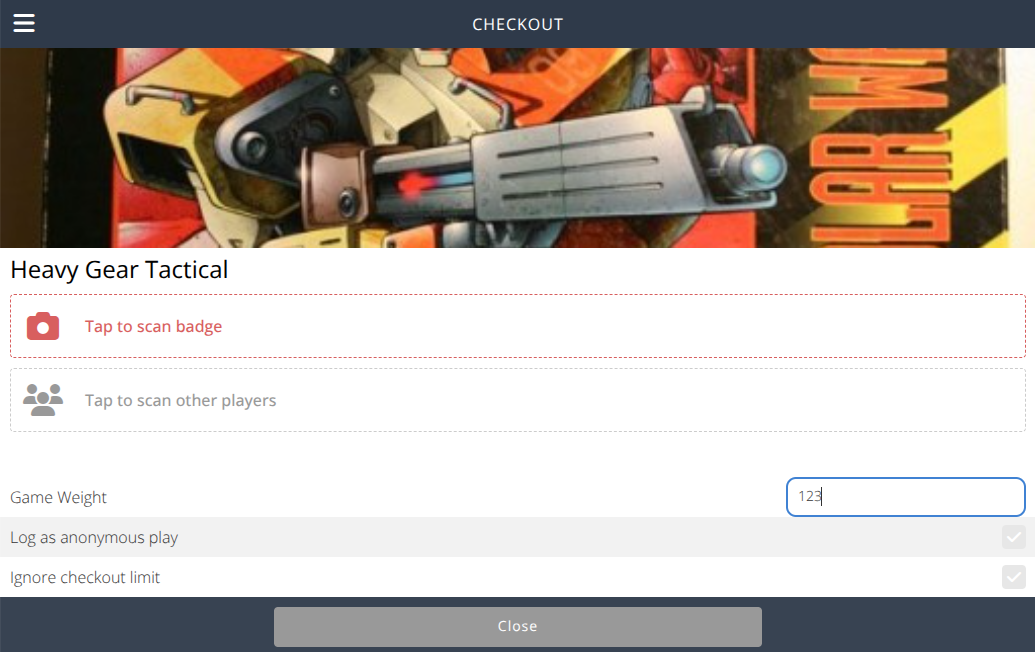
- It is only shown during check-out and check-in, and is not kept after the game is checked in.
- The system does not currently compare the values for you. The librarian checks that they match.
¶ Set Up Play to Win Rules
- From the menu click , then click the Play to Win tab.
- Edit the
Descriptionattendees see on the Play to Win page. Remind them to scan every player's badge when they check out a game. - Choose how
Repeat Winsare handled. Prioritized (the default) spreads wins across more attendees while still allowing a second win. - To stop quick check-outs from counting as a play, click the check circle next to
Min. Minutesand enter the minutes a game must be out, e.g. 15. - Click .
Warning: Changing
Min. Minutesafter participants have been added re-checks every loan of your Play to Win games:
- If you lower or remove it, more attendees may be added as participants.
- If you raise it, some attendees may be removed because their loans are now too short.
¶ Next Steps
Play to Win- Set up your Play to Win games and pick the winners.Activity- See who changed a setting, and when.