¶ Play to Win
¶ Overview
Play to Win games are library games that attendees can win just by playing them. When a Play to Win game is checked out, every player scanned in with the loan becomes a participant in that game's draw. When the game is awarded, one eligible participant is picked at random to take it home.
How it works:
- Add the game - Choose a game from your library and decide how it will be awarded.
- Attendees play - Each time the game is checked out, the players on the loan are added as participants. If
Min. Minutesis set inCheckout Settings, the game must be out for at least that long. - Award the game - The system picks a winner at random, on a date or once enough people have played, or you award it yourself.
Winners are notified in their notifications, and are shown as the winners on the Play to Win page of the attendee site.
Note: A game must be in your convention's
Librarybefore it can be added as a Play to Win game.
¶ Common Procedures
Add a Play to Win GameAdd a Participant by HandAward a Play to Win GameRemove a Participant From the Draw
¶ Play to Win Screen
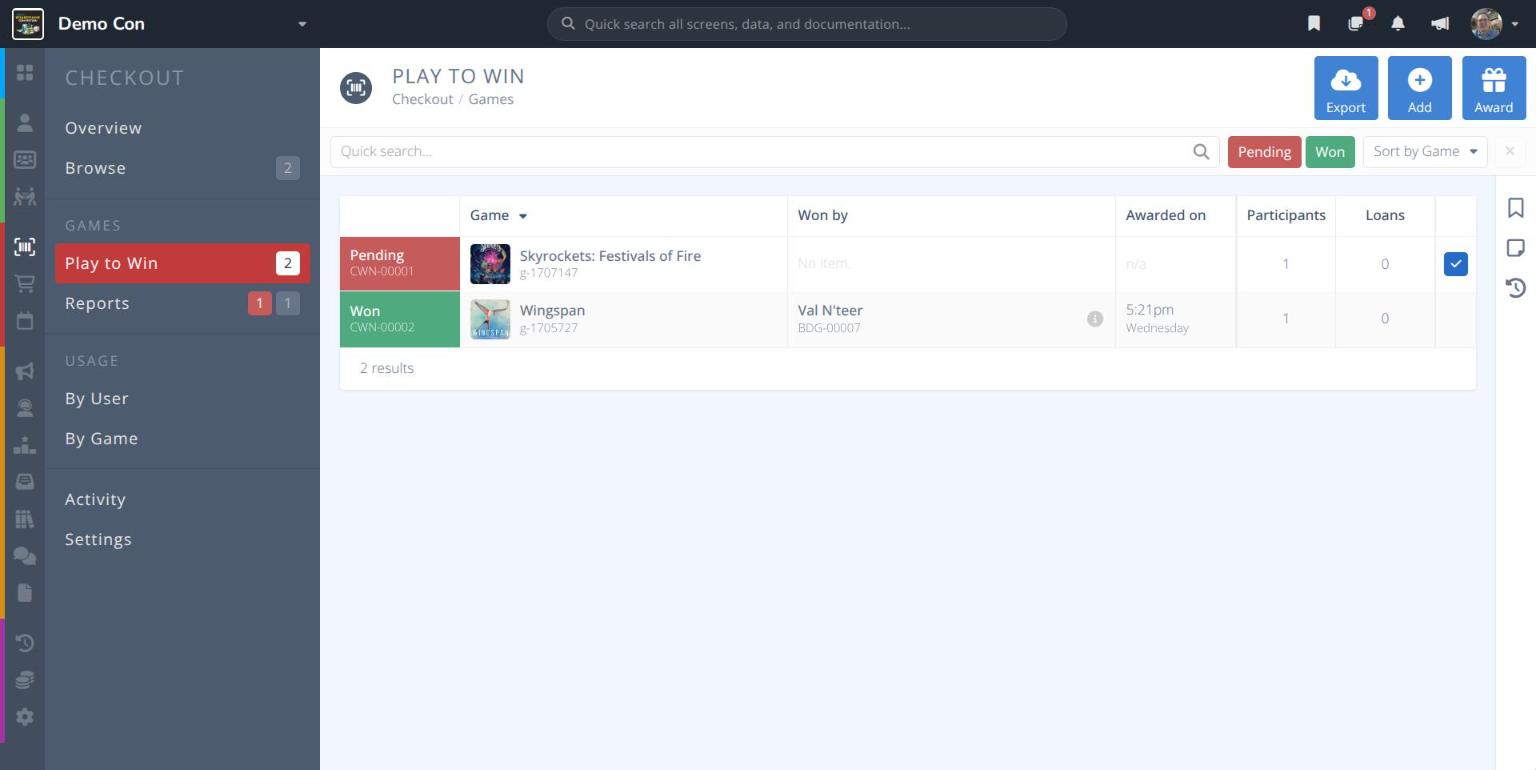
From the menu click in the GAMES group.
Each row shows:
- Status - Pending until the game is awarded, then Won, with the reference number (e.g. CWN-00002).
- Game - The library game and its reference.
- Won by - The winner's badge, once the game is awarded.
- Awarded on - When the game was awarded.
- Participants - How many attendees are in the draw.
- Loans - How many times the game has been checked out.
Use the Quick search... box, or click the and filters, to find a game.
Buttons at the top of the screen:
- - Download the list as a CSV file.
- - Add a library game as a Play to Win game.
- - Randomly award each game you have ticked in the list. It is greyed out until at least one game is ticked.
¶ Play to Win Game
Click a game in the list to open it.
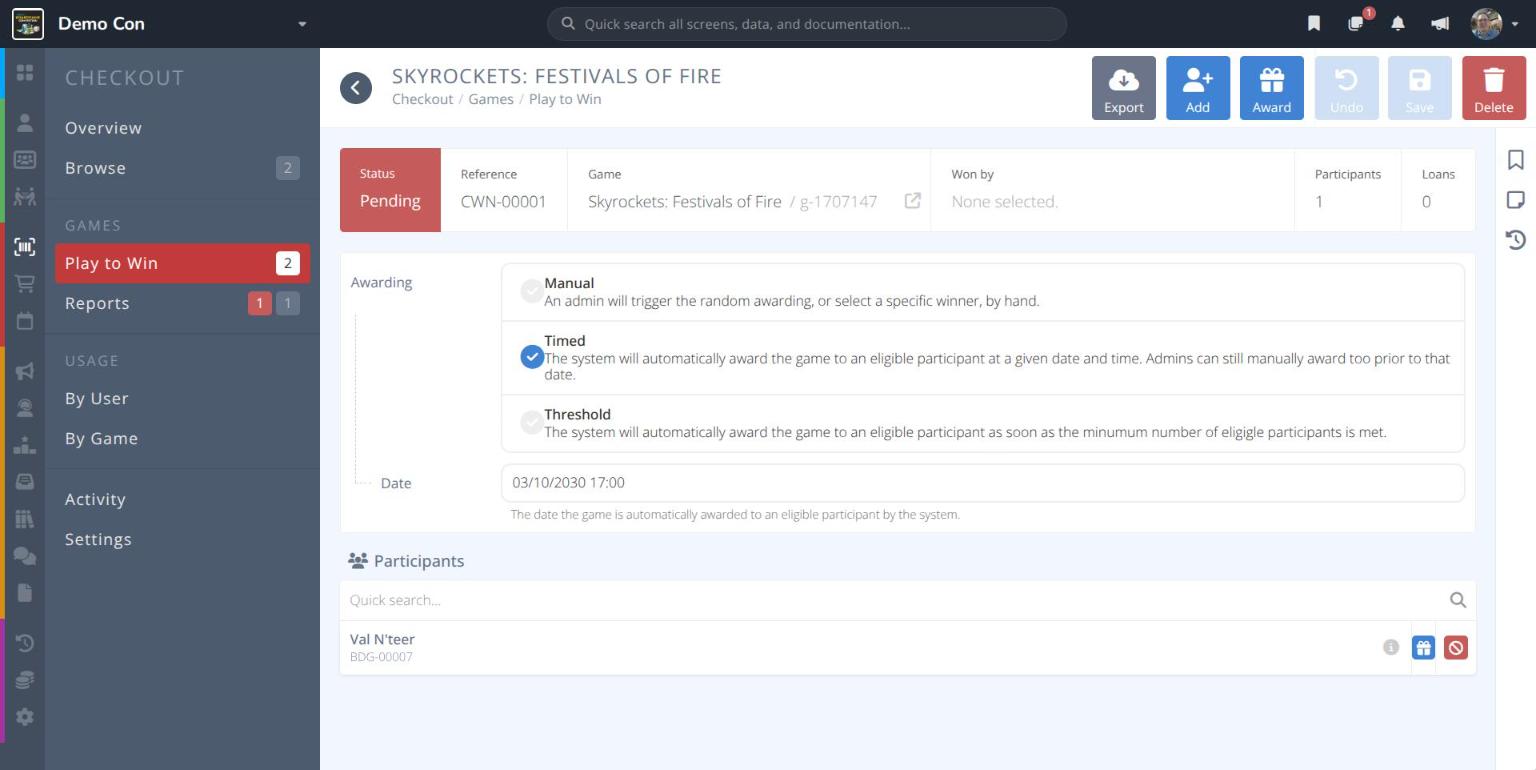
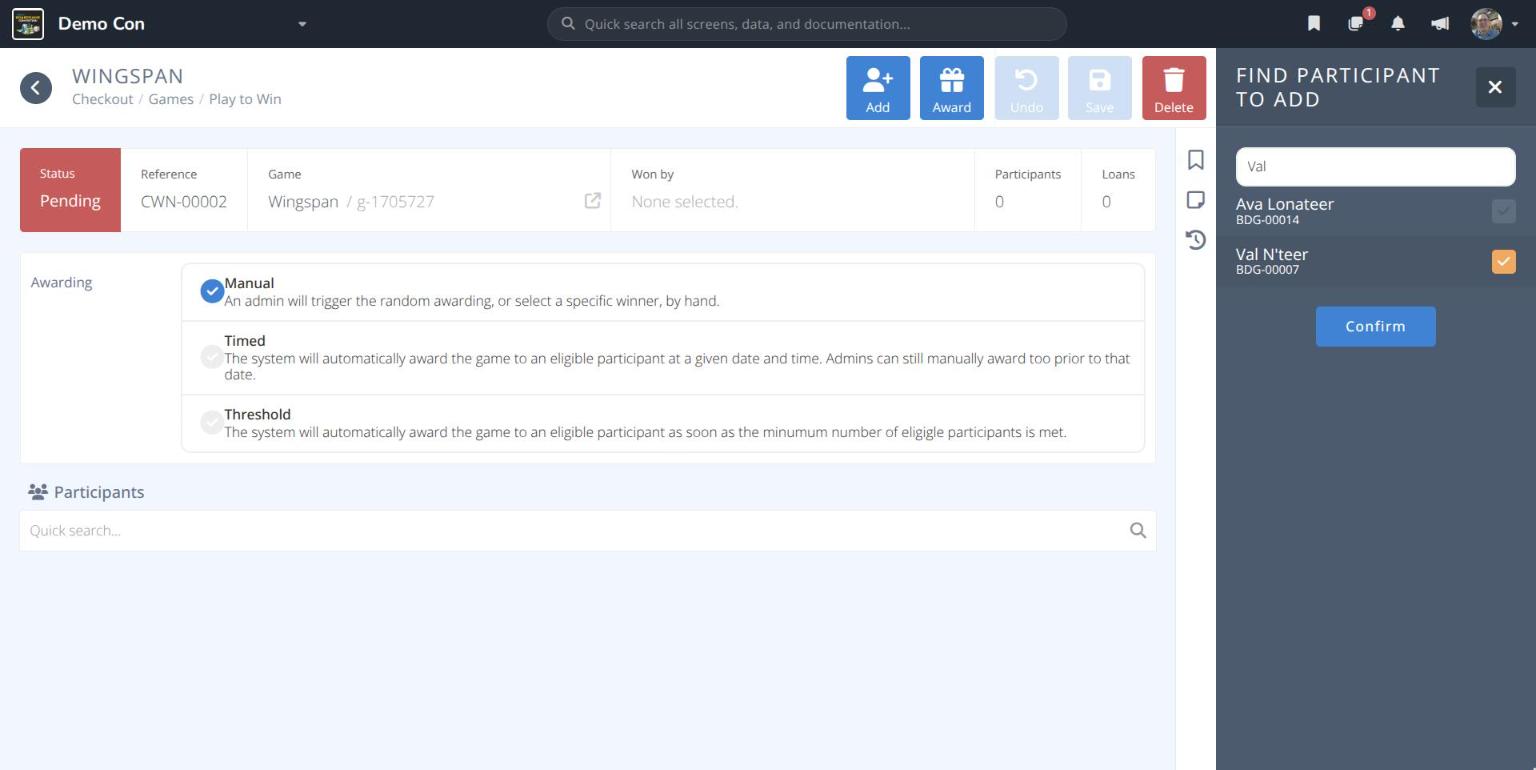
The top of the screen shows the game's status, reference, game, winner, number of participants and number of loans. Click next to the game or winner to open that record.
Awarding- How the game is awarded:- Manual Default - An admin awards the game, either to a random participant or to a chosen participant.
- Timed - The system awards the game to a random eligible participant at the
Dateyou set. You can still award it by hand before then. - Threshold - The system awards the game to a random eligible participant as soon as the number of eligible participants reaches the
Thresholdyou set.
The Participants list shows everyone in the draw. Each row has three icons:
- - Quick-view the attendee's badge details.
- - Award the game to this participant.
- - Exclude the participant from the draw.
Buttons at the top of the screen:
- - Download the list of eligible participants as a CSV file.
- - Add an eligible participant by hand.
- - Randomly award the game to an eligible participant.
- - Remove the game from Play to Win.
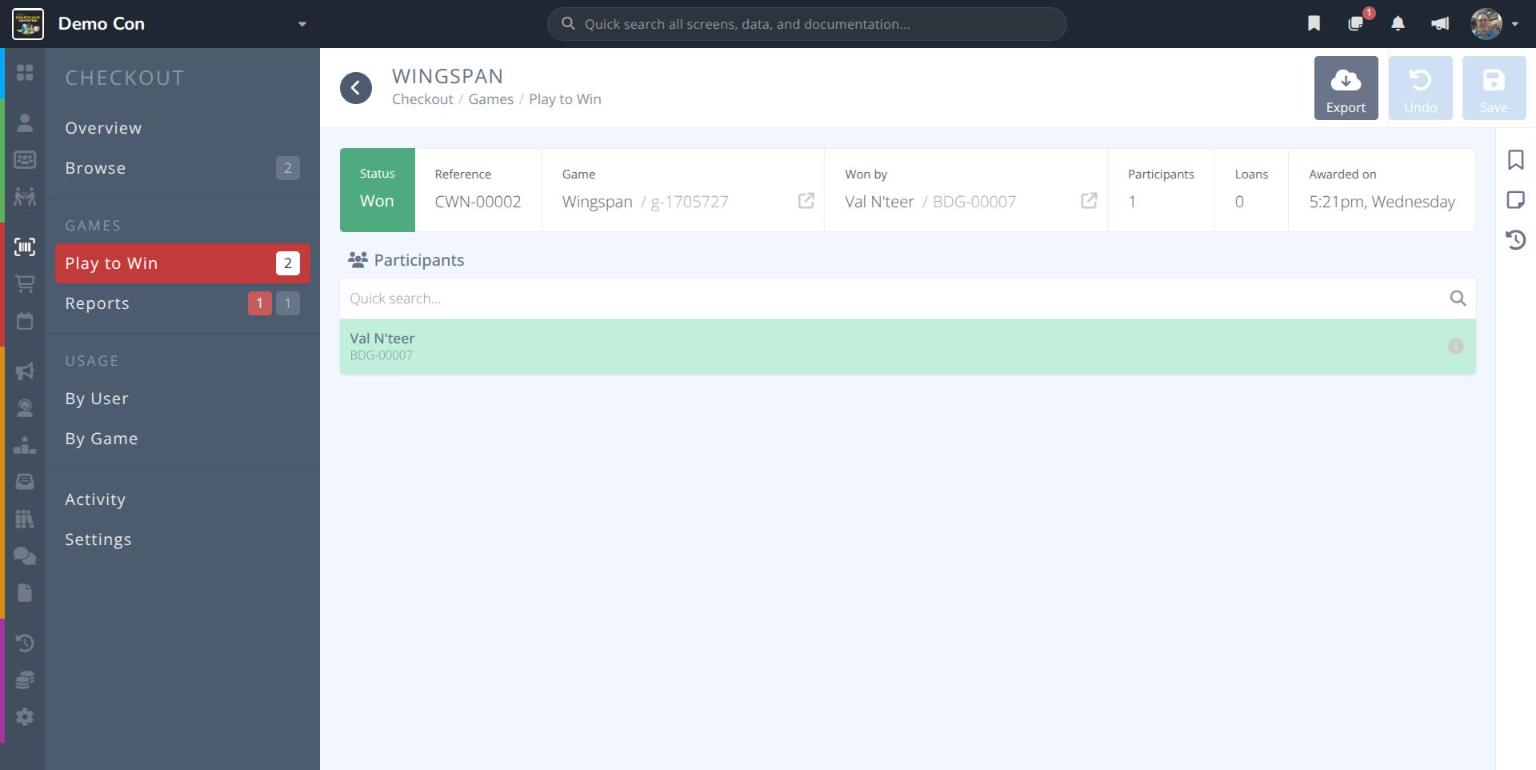
Once a game has been won, the winner is highlighted in green and the Awarding options and the Add, Award and Delete buttons are no longer shown.
¶ Procedures
¶ Add a Play to Win Game
- From the menu click .
- Click .
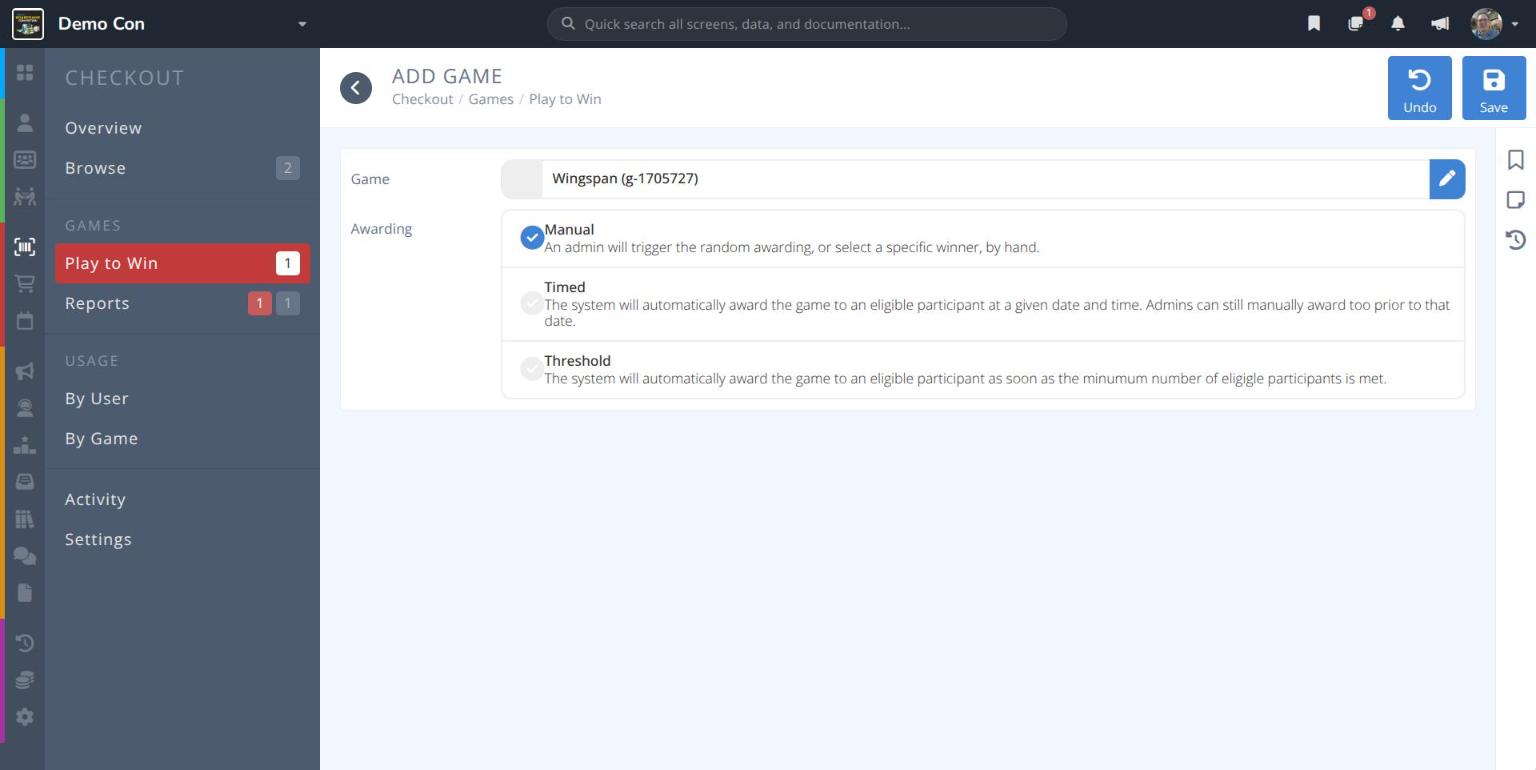
- In
Game, start typing the name of the game and select it from your library. - Choose how the game is awarded under
Awarding:- Manual - You will award it yourself.
- Timed - Enter the
Dateand time it is awarded automatically, e.g. the last afternoon of the convention. - Threshold - Enter the number of eligible participants that triggers the award.
- Click .
Tip: Write a short
Descriptionfor attendees inCheckout Settings, and remind them to scan every player's badge when they check out a game.
¶ Add a Participant by Hand
Use this when an attendee played the game but was not scanned in with the loan.
- From the menu click , then click the game.
- Click . The Find Participant to Add panel opens.
- Search by badge name or reference, and tick each attendee to add.
- Click .
Min. Minutessetting.
¶ Award a Play to Win Game
Games set to Timed or Threshold are awarded automatically, but you can award any pending game yourself at any time. You can award games all at once or a few at a time, for example some on Saturday and the rest on Sunday.
To pick a random winner:
- From the menu click .
- Tick the box at the end of each game's row that you are ready to award. Click the filter first to see only games that have not been won.
- Click . A winner is picked at random from each game's eligible participants.
To award a single game at random, open it and click at the top of the screen instead.
To choose the winner yourself:
- Open the game from the list.
- In the Participants list, click on the winner's row.
Warning: The game is awarded as soon as you click. There is no confirmation step, and the winner is notified.
How winners are picked also depends on the Repeat Wins setting, which decides whether attendees who have already won can win again. See Checkout Settings.
¶ Remove a Participant From the Draw
- Open the game from the list.
- In the Participants list, click on the attendee's row. They are excluded from the draw for this game.
¶ Next Steps
Checkout Settings- Set the Play to Win description, repeat wins and minimum play time.Assistant- Check games out and scan in every player with the Library Assistant.Library- Add games to your convention's library.