¶ Library
¶ Overview
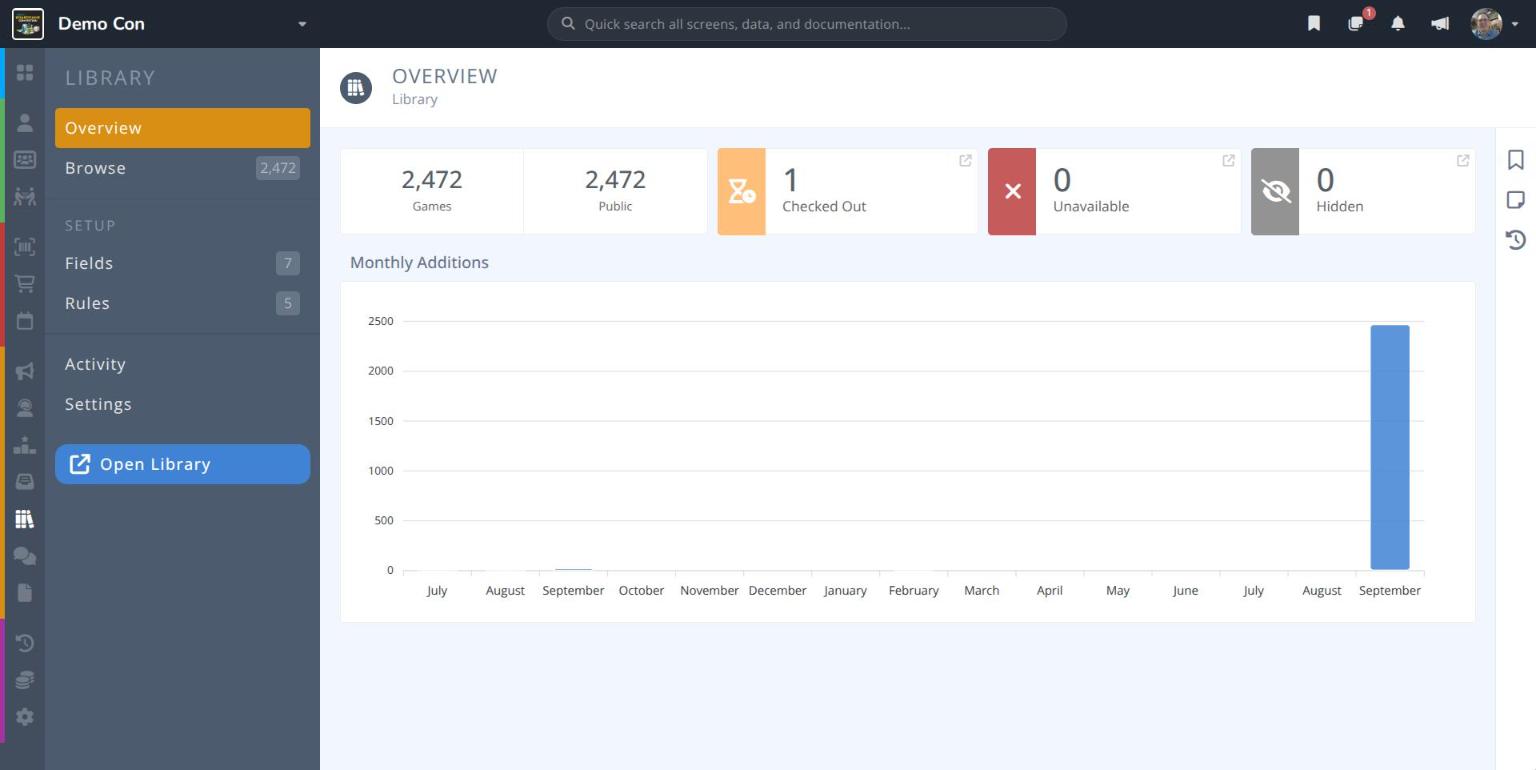
The Library holds every game your convention lends out. It is used by Checkout when games are borrowed, and attendees can browse it to find games they want to play. From here you can:
- Add games one at a time, or import your whole collection from a CSV file
- Add your own fields, such as who donated a game
- Use rules to hide games, mark them unavailable, or label them
- Print QR code labels to stick on the game boxes
- Export your library as a CSV file
Note: The library belongs to your organization and is shared by all of its conventions. Games you add here are available to your future conventions too.
¶ Menu Breakdown
¶ Library
Overview- Totals, checked-out games, and games added each monthBrowse- Add, import, export and label games
¶ Setup - Set Up Your Library
Fields- Your own fields for library gamesRules- Hide, mark unavailable, or label games automatically
¶ Admin - Administrate the Library
Activity- View Library activity (redirects to general information on Activity pages)Settings- References, QR codes, label sheet and resetting the library
¶ Open Library
Opens the library as attendees see it, in a new browser tab.
¶ Common Procedures
¶ Overview Screen
From the menu click .
- Games and Public - How many games are in the library, and how many attendees can see.
- Checked Out, Unavailable and Hidden - How many games have each status. Click on a tile to see those games.
- Monthly Additions - How many games were added each month.
¶ Browse
From the menu click .
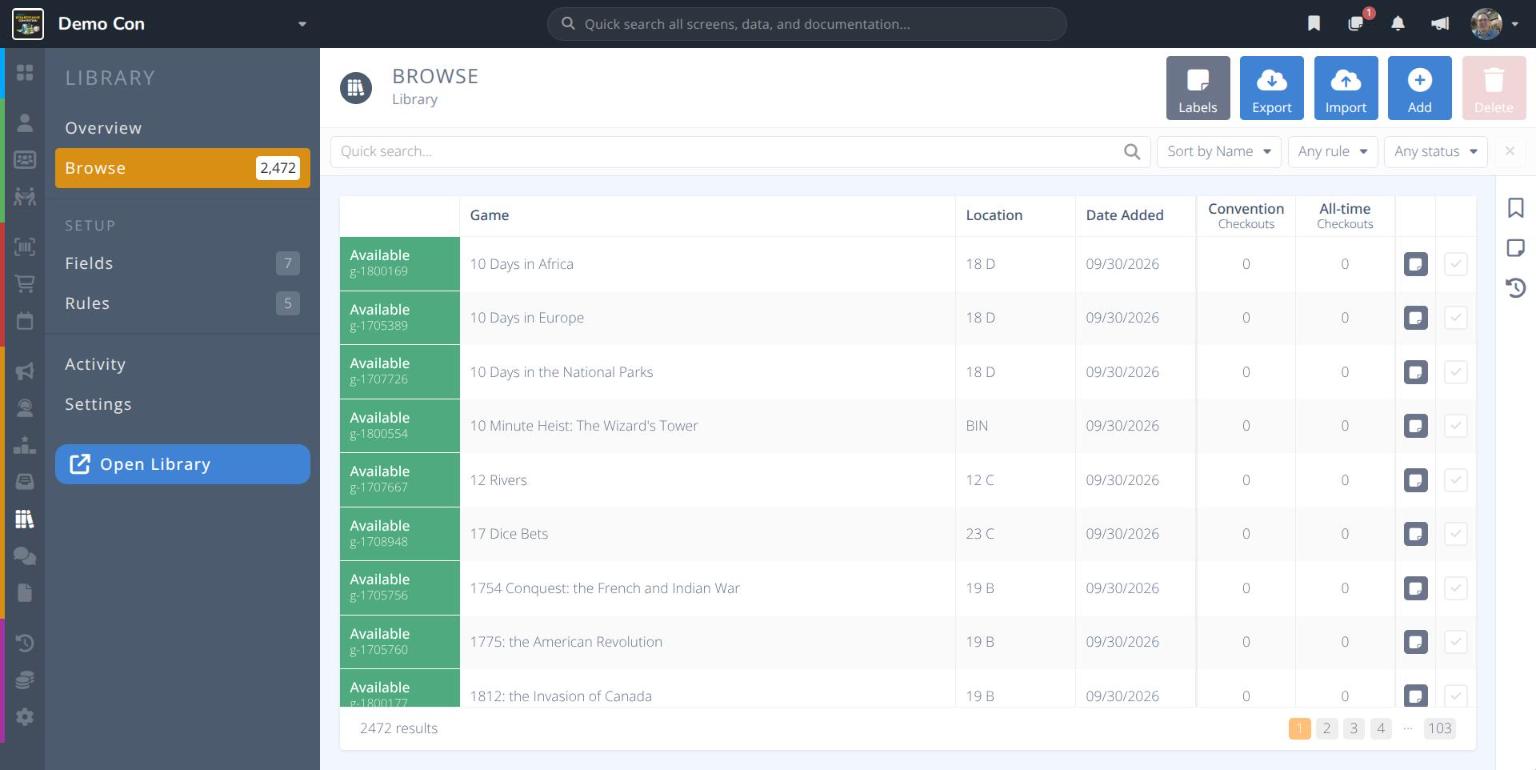
Each row shows the game's status and reference, its Game name, Location, Date Added, and how many times it has been checked out this convention (Convention Checkouts) and ever (All-time Checkouts). Click on a row to view its label.
To find games, use:
- The Quick search... box
- Sort by Name, Location, Date Added, Convention Checkouts or All-Time Checkouts
- Any rule to show the games a
ruleapplies to - Any status to show Available, Checked out, Hidden or Unavailable games
Buttons at the top of the screen:
- - Print labels. See
Print Labels. - - Download the library as a CSV file.
- - Import or update games from a CSV file.
- - Add a single game.
- - Delete the ticked games.
¶ Game
Click a game to open it.
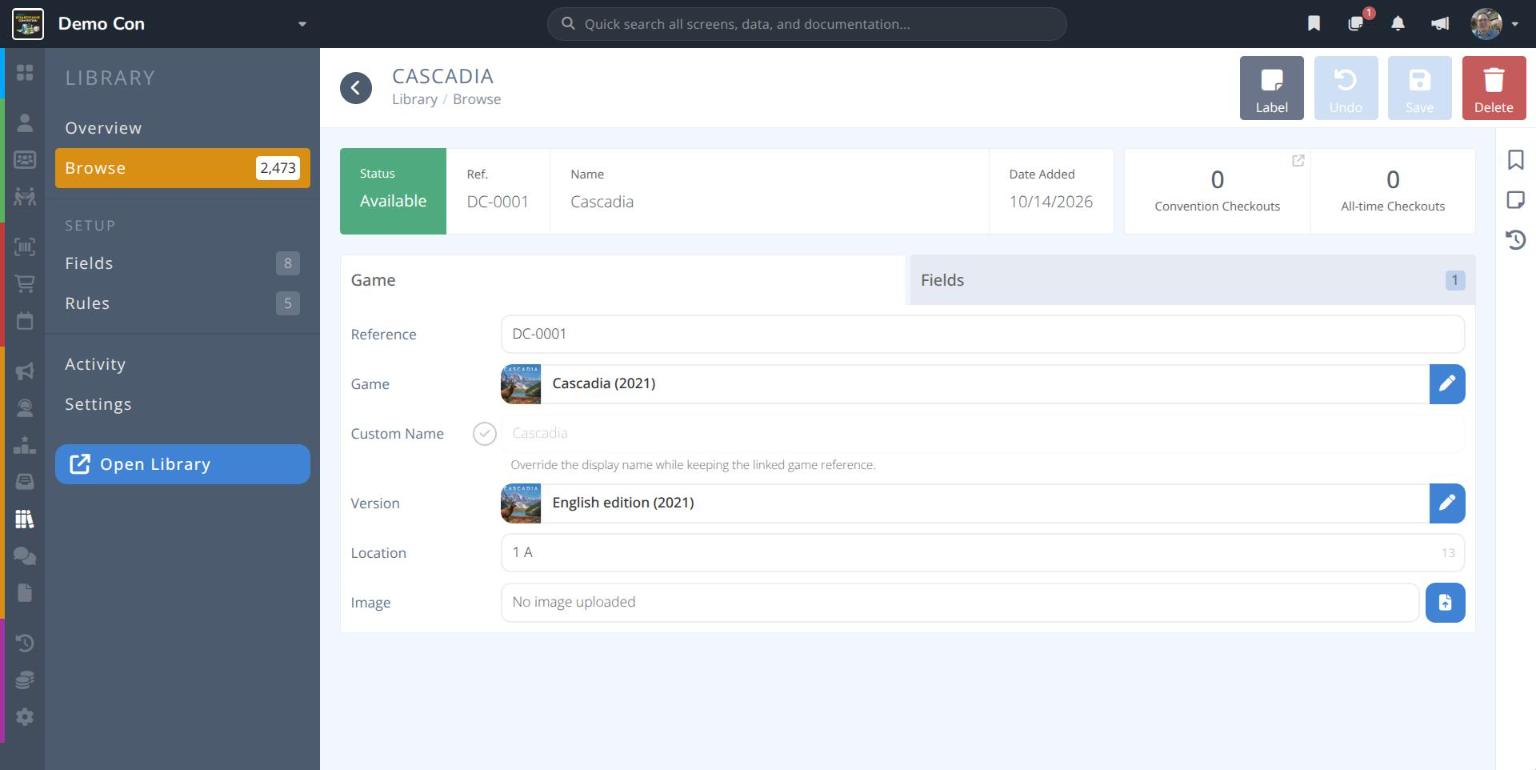
The top of the screen shows the game's status, reference, name, date added, and its convention and all-time checkouts.
Game tab:
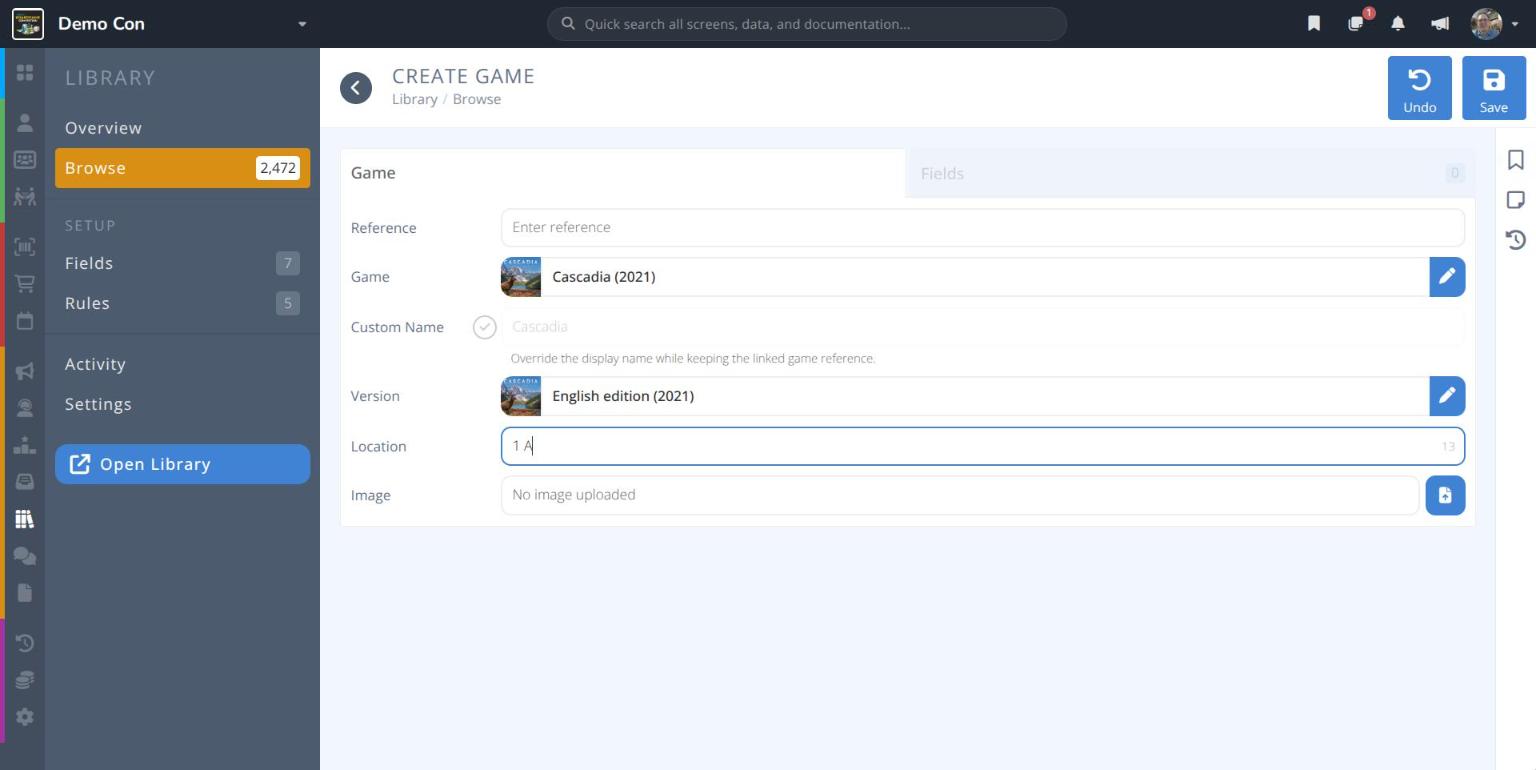
Reference- Your unique reference for this copy. Required when the library'sReferencesetting is Provided. SeeLibrary: Settings.Game- The game, chosen from the game database. Its picture is added for you.Custom Name(optional) - A different name to show, while keeping the link to the game (e.g. Catan - Copy 2).Version(optional) - The edition or version of the game, chosen from the list or typed in.Location- Where the game is kept, such as a shelf number (e.g. 1 A).Rulescan use it.Image(optional) - Your own picture of the game.
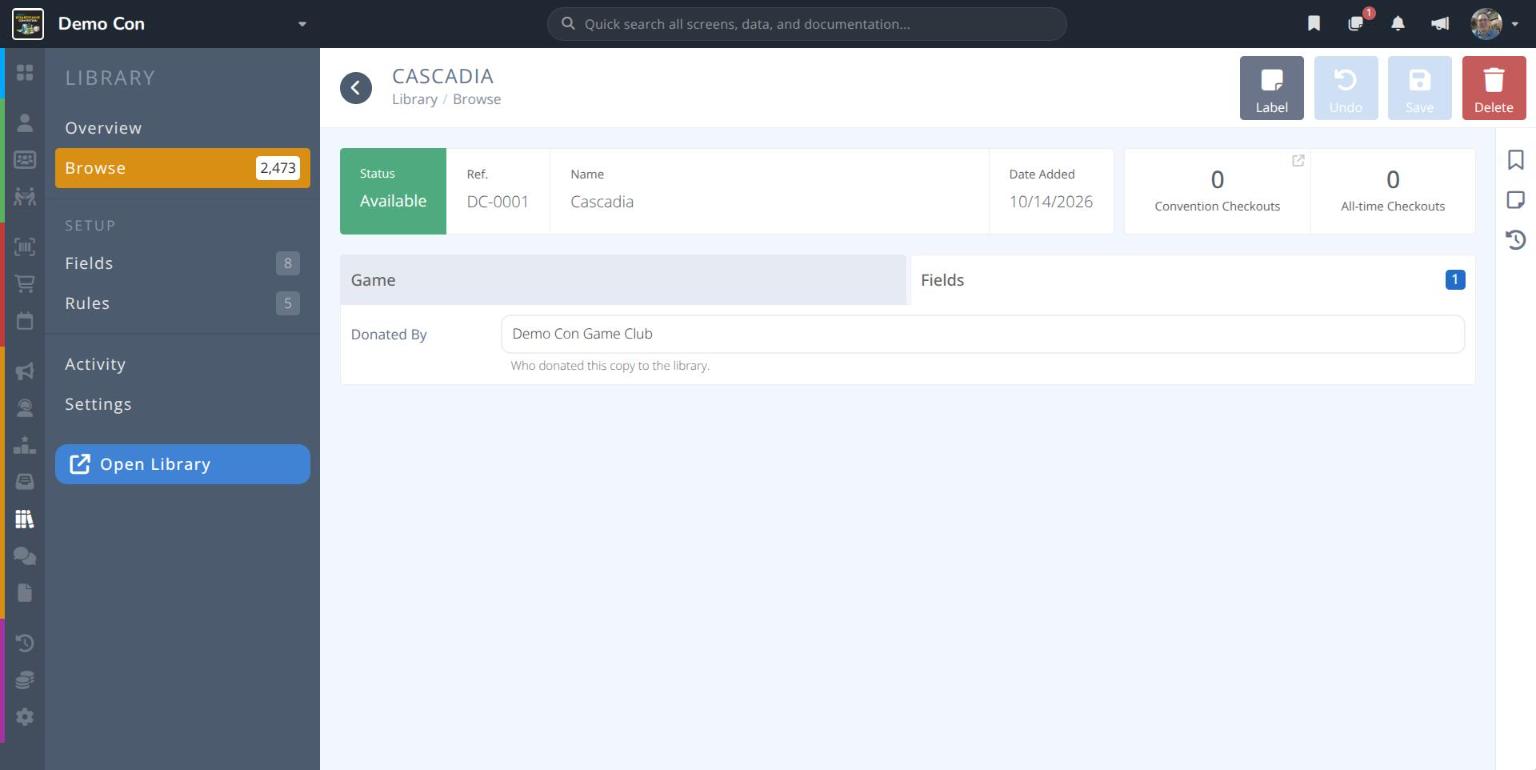
Fields tab: The values of your own fields for this game. The tab is greyed out until you add a field.
Buttons at the top of the screen:
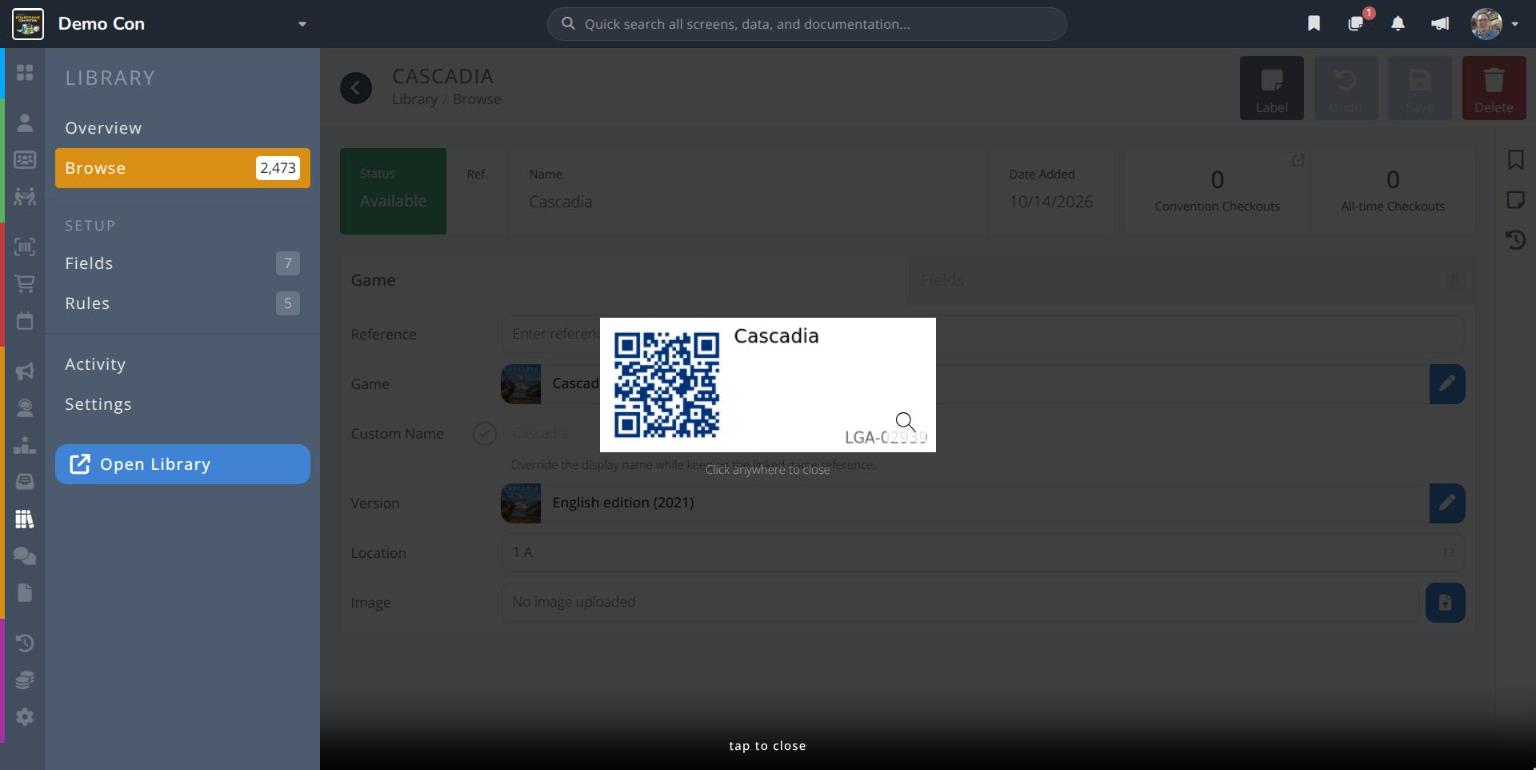
- - View the game's QR code label.
- - Delete the game.
¶ Procedures
¶ Import Games
Use this to add your whole collection, or to update many games at once.
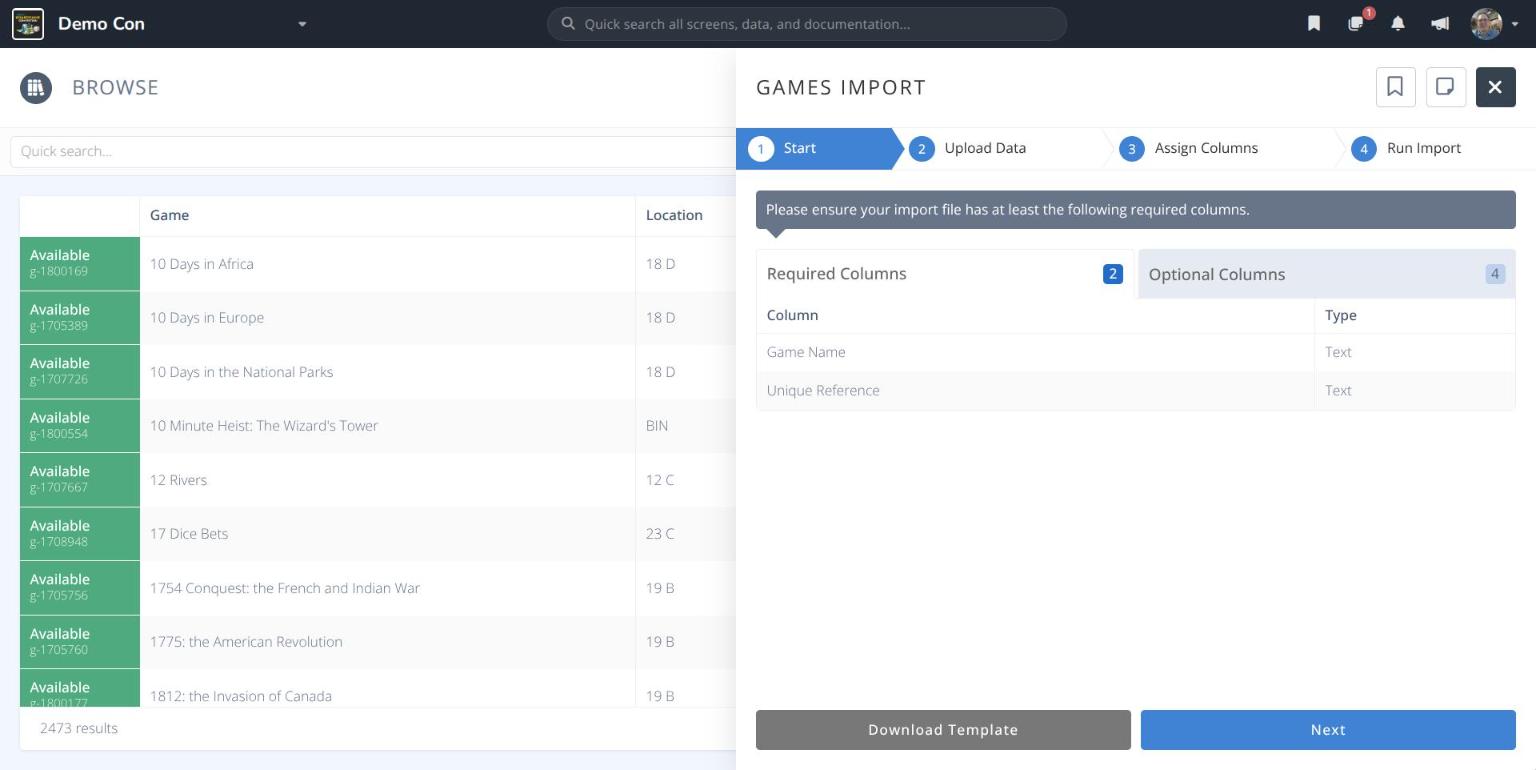
- From the menu click , then click .
- Start - Check the Required Columns (Game Name and Unique Reference) and Optional Columns (such as BGG ID, Edition Name, Game Status and Location). Click for a file to fill in. Then click .
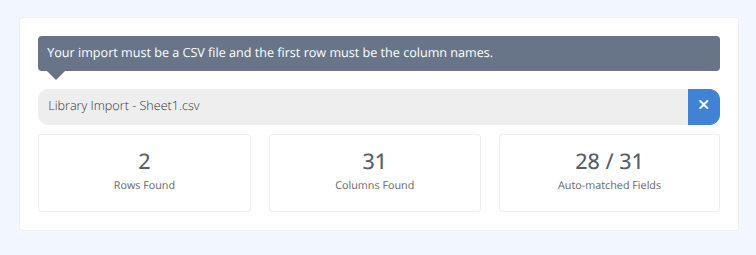
- Upload Data - Click and choose your CSV file. The number of rows and columns found, and the columns matched automatically, are shown. Click .
Note: If your file has special characters, such as accents, save it in UTF-8 format so they import correctly.
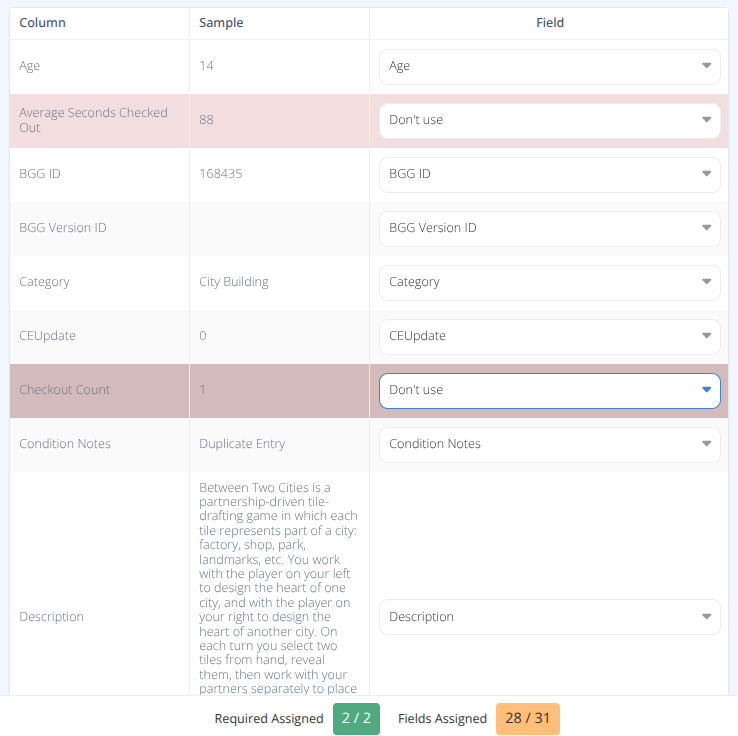
- Assign Columns - Each column is shown with a sample from the first row. Check the Field each column goes into, change any that are wrong, or choose Don't use. Click .
- Run Import - Check the number of rows and the fields, then click .
- When the results are shown, click .
Tip: To import your own extra columns, such as who donated each game, create the fields first. The
Fields Wizardcan create them from your file's header row.
¶ Add a Game
- From the menu click , then click .
- Enter the
Referenceif your library uses Provided references. - In
Game, start typing the name and choose the game from the list. Its picture is added for you. - Choose the
Versionif needed, and enter theLocation. - Click .
- If you have your own fields, click the Fields tab, fill them in, and click again.
¶ Print Labels
Print a QR code label for each game, to stick on the box and scan at the library desk.
- From the menu click .
- Choose the games to print. Use the search and filters, and tick individual games if needed. If none are ticked, every game in the list is printed.
Tip: To print labels for the games you added most recently, choose Sort by Date Added.
- Click . The Generate Sheet panel shows the label sheet, the number of items, how many fit on a page, and the total pages.
- To print only some pages, enter them in Pages (e.g. 1-3).
- Click . A PDF file is created for you to download and print.
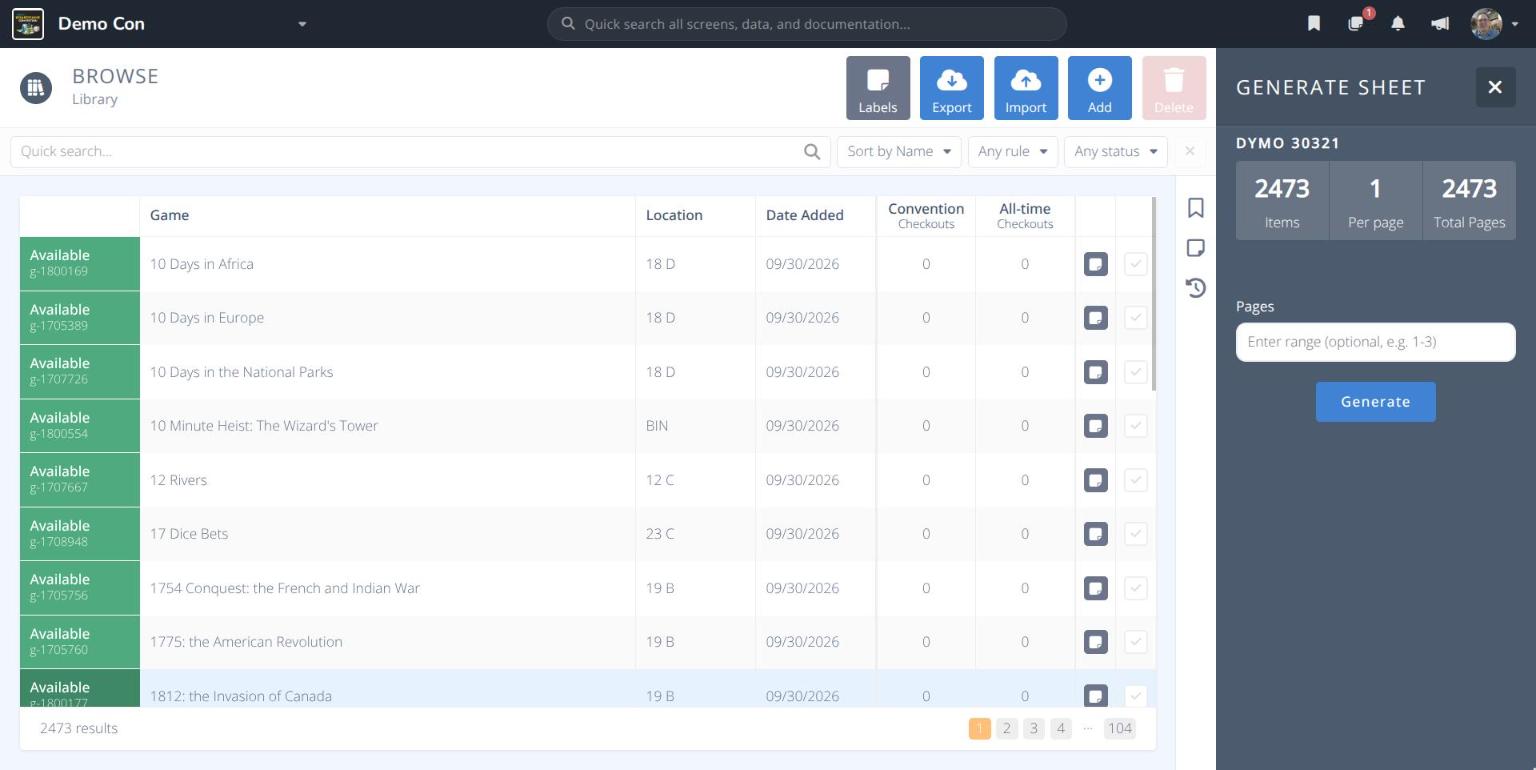
Label Sheetchosen inLibrary: Settings. For large libraries, print in smaller batches (e.g. pages 1-50, then 51-100) so each PDF is created more quickly.
To check a single label, click on the game's row, or Label on the game. Click anywhere to close it.
¶ Export the Library
- From the menu click , then click .
- Choose the columns to include:
- BGG ID, Edition Name, Game Name, Game Status, Location and Unique Reference - The details of the game.
- Label Reference - The reference printed on the game's label.
- Convention Checkouts - How many times the game has been checked out at this convention.
- All-Time Checkouts - How many times the game has been checked out in total.
- Date Added - When the game was added to the library.
- Click . A CSV file in UTF-8 format is downloaded.
¶ Next Steps
Library: Settings- Choose how games are referenced, and the label sheet.Checkout- Track games borrowed from the library.Play to Win- Let attendees win library games by playing them.