¶ Library: Fields
¶ Overview
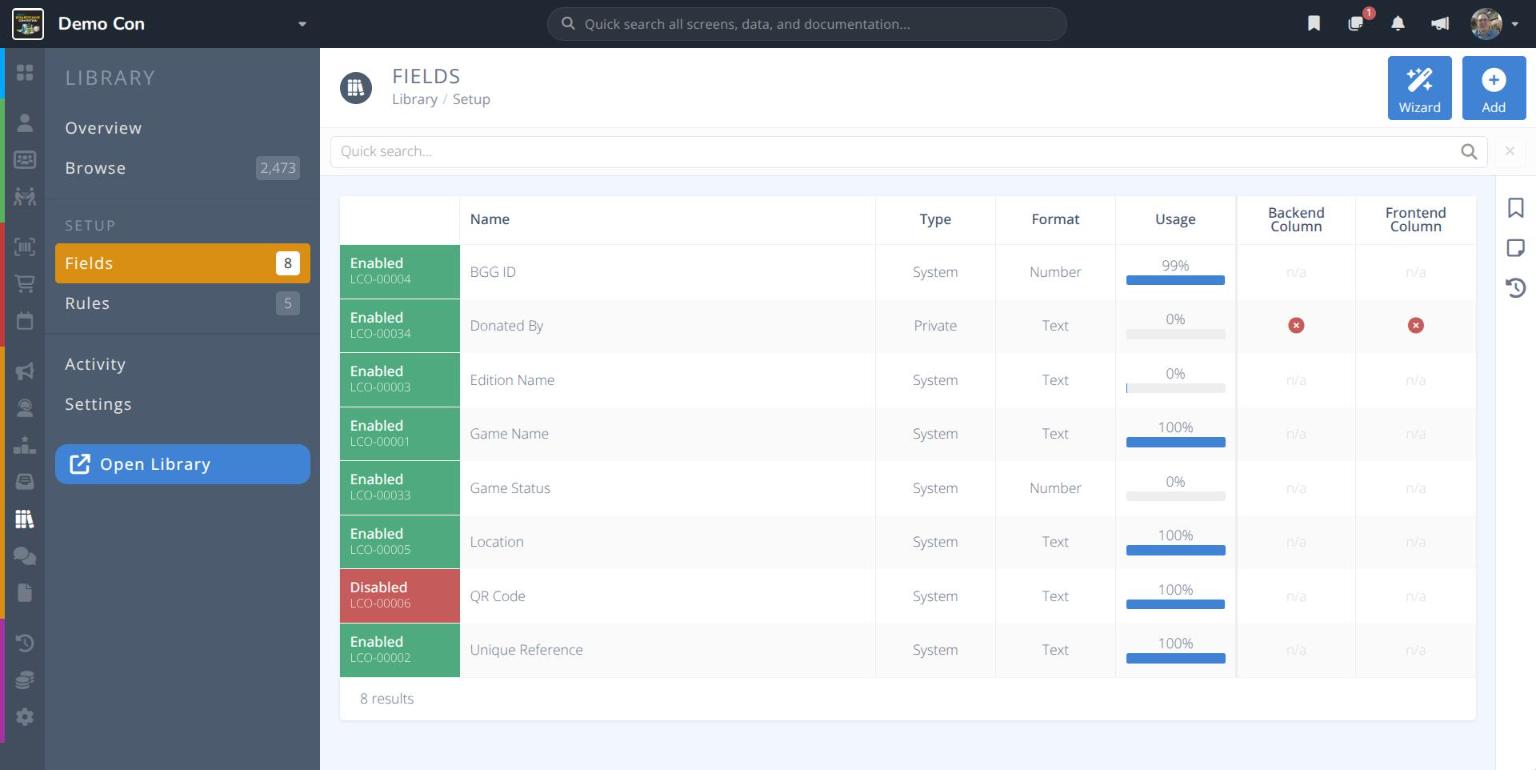
Fields are the pieces of information kept for each library game. Some are System fields every library has, such as Game Name, Location and Unique Reference. You can add your own, such as who donated a game or the year it was bought, and choose whether attendees can see them. Add them one at a time, or use the Wizard to create them from the header row of a CSV file.
From the menu click in the SETUP group.
Each row shows the field's status and reference (e.g. LCO-00034), Name, Type, Format, Usage (how many games have a value), and whether it is a Backend Column or Frontend Column.
¶ Common Procedures
¶ Fields
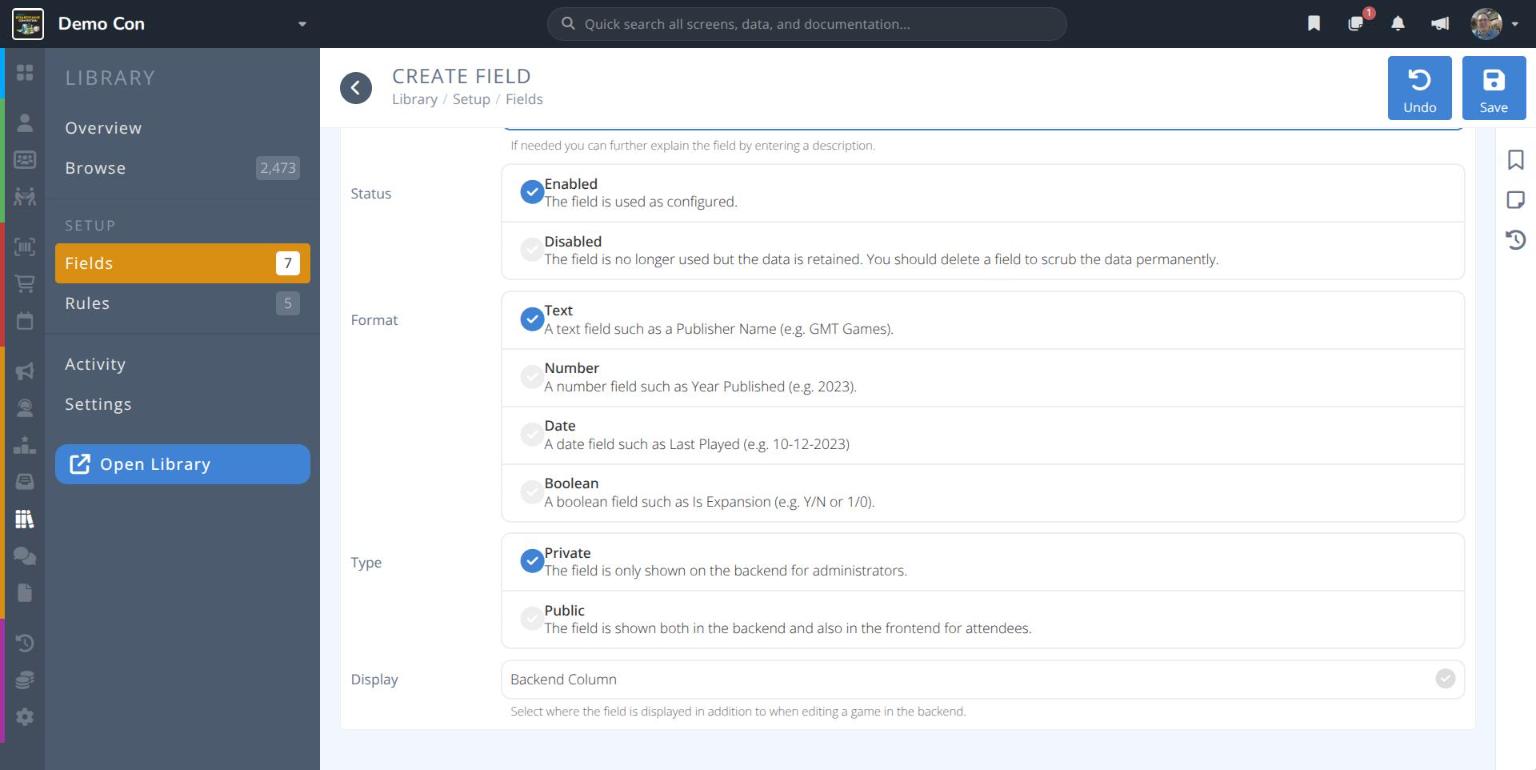
Name- The name of the field, shown in the library.Description(optional) - Explains the field. It is shown under the field when editing a game.Status- Enabled fields are used as set up. Disabled fields are no longer used, but their values are kept. Delete a field to remove its values permanently.Format- The kind of value:- Text - e.g. a publisher name (GMT Games).
- Number - e.g. the year published (2023).
- Date - e.g. the date last played.
- Boolean - Yes or no, e.g. Is Expansion.
Type- Who can see the field:- Private - Only admins, in Manage.
- Public - Admins, and attendees browsing the library.
- System - A built-in field that cannot be changed or deleted.
Display- Where else the field is shown, as well as when editing a game:- Backend Column - A column on the Library screen.
- Frontend Column - A column in the library attendees browse. Only for Public fields.
Note: Avoid showing long text fields as columns. They make the grid hard to read.
¶ Procedures
¶ Add a Field
- From the menu click , then click .
- Enter the
Name, e.g. Donated By, and aDescriptionif needed. - Choose the
FormatandType, and anyDisplaycolumns. - Click .
The field now appears on the Fields tab of every game.
¶ Change a Field
- From the menu click , then click the field.
- Make your changes and click .
Formatdoes not change values already saved, but they may not display or edit correctly afterwards.
¶ Delete a Field
- From the menu click , then click the field.
- Click .
- Read the warning, then click .
Warning: Deleting a field removes its value from every game, and cannot be undone. To stop using a field but keep its values, set its
Statusto Disabled instead.
¶ Use the Wizard to Set Up Fields
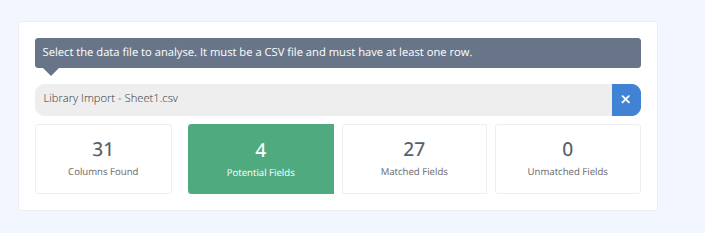
The Wizard reads the header row of your library CSV file and creates a field for each new column. Only the header row is used, so you can use your import file as it is.
- From the menu click , then click .
- Read the explanation and click .
- Click and choose your CSV file.
Note: If your file has special characters, save it in UTF-8 format so they are kept.
- Columns that match existing fields are shown. Check them and click .
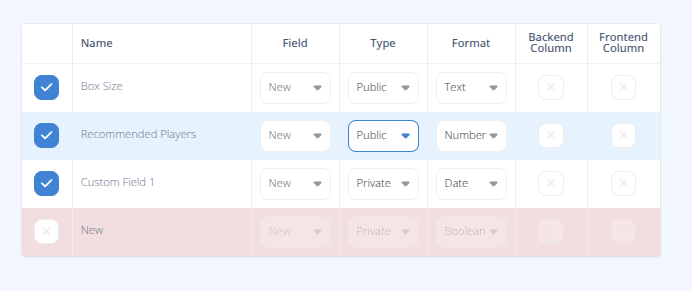
- New columns are listed. For each one:
- Tick it to include it.
- Choose New, or match it to an existing field.
- Choose Private or Public.
- Choose the format: Text, Number, Date (YYYY/MM/DD HH:MM:SS) or Boolean (1 or 0).
- Choose whether it is a Backend Column and/or Frontend Column.
- Click , check the summary, and click .
- When the results are shown, click .
¶ Next Steps
Import Games- Import your games, including your own fields.Library: Rules- Hide or label games automatically.