¶ Library: Rules
¶ Overview
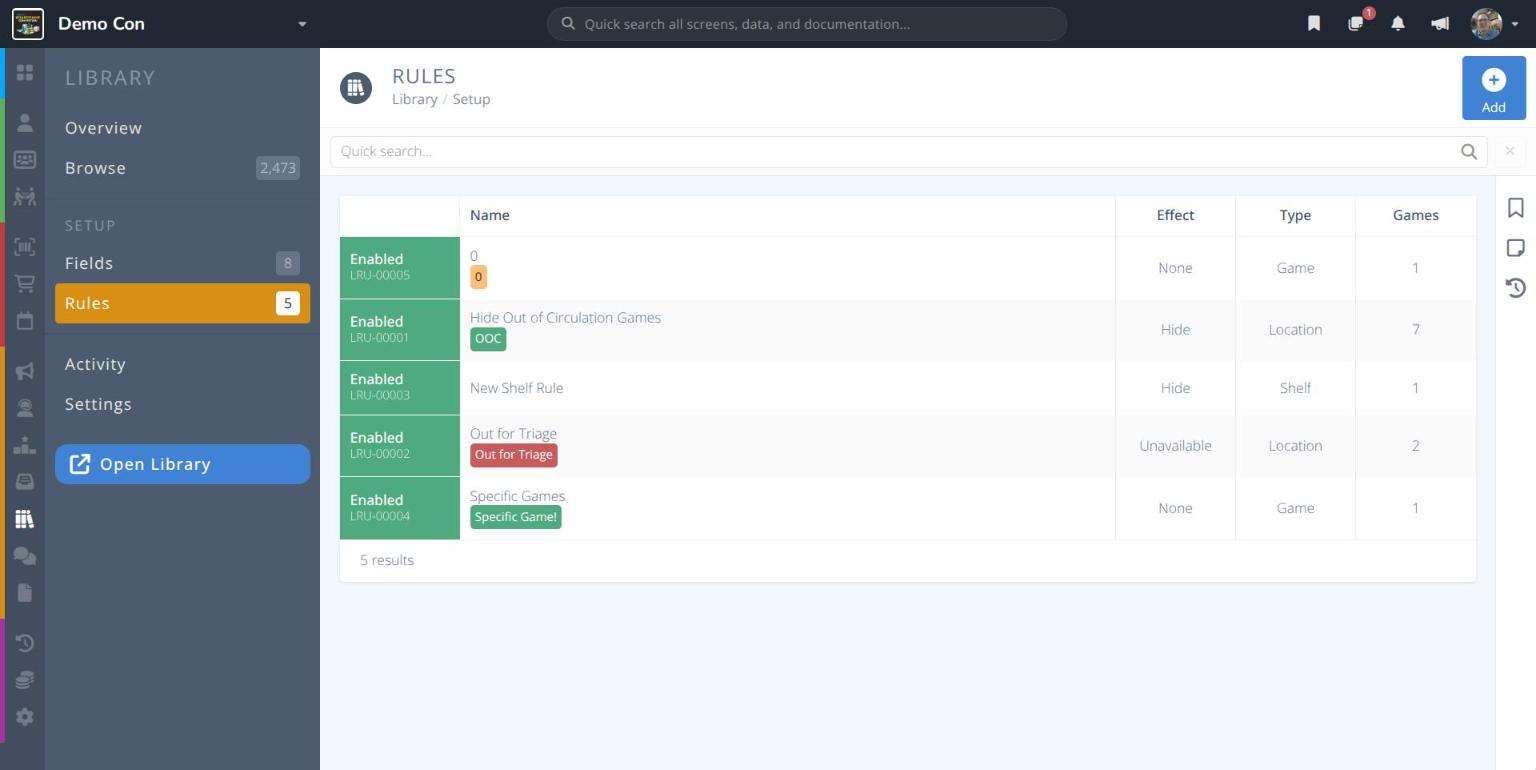
Rules change how games appear without editing each game. A rule picks out games by their shelf, their location, or by name, then can:
- Hide them from the library
- Mark them Unavailable, so attendees can see them but not borrow them
- Add a label, such as Out for Triage, that admins or everyone can see
For example, a rule on the location Triage can mark games unavailable while their missing pieces are checked.
From the menu click in the SETUP group. Each row shows the rule's status and reference, its Name and label, Effect, Type, and how many Games it applies to.
¶ Common Procedures
¶ Fields
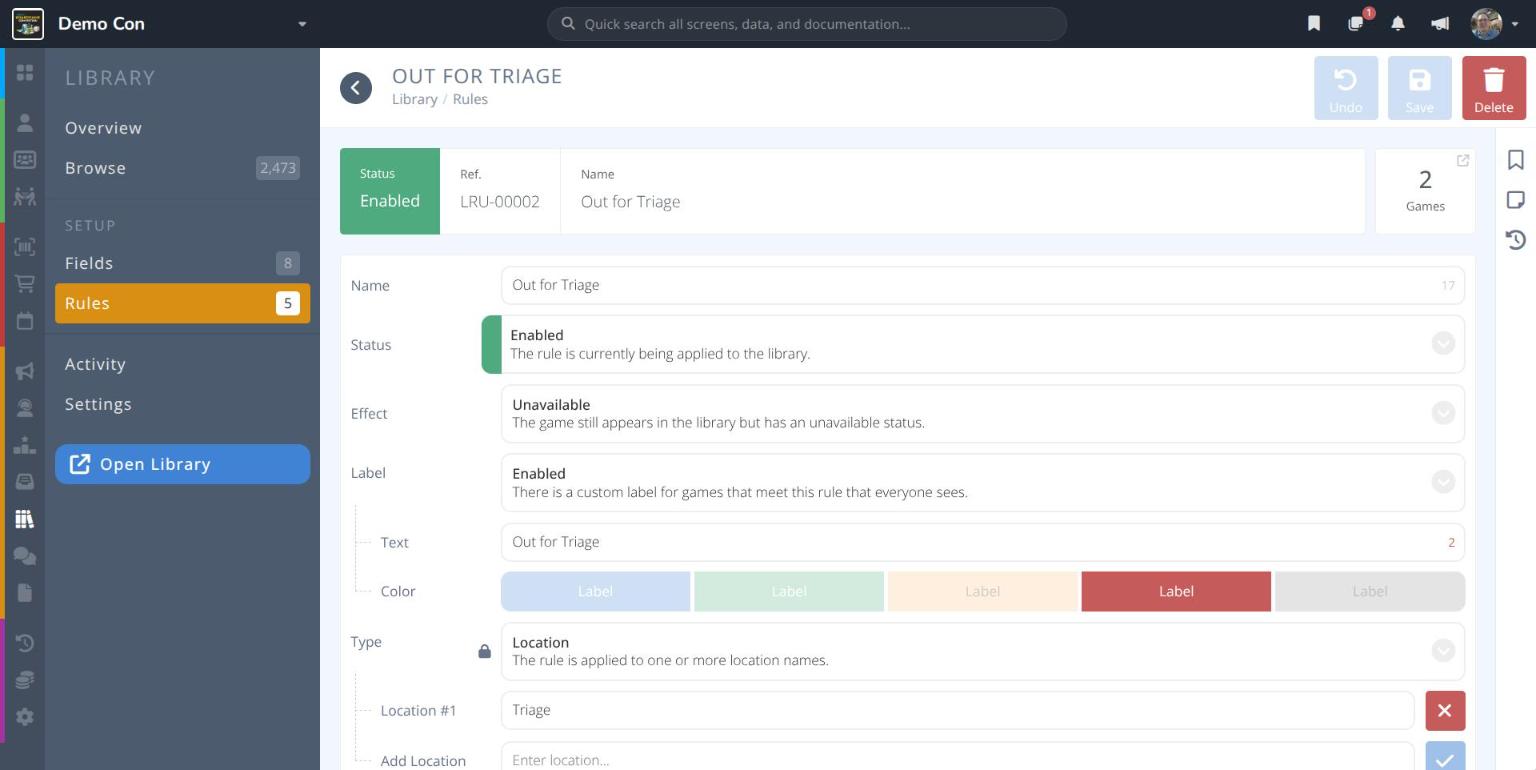
Name- The name of the rule.Status- Enabled rules are applied to the library. Disabled rules are not.Effect- What happens to matching games:- None - No effect, but the rule can still add a label or be used to filter games.
- Hide - The game is hidden from the library.
- Unavailable - The game still appears in the library, but as unavailable.
Label- Whether matching games get a label:- Disabled - No label.
- Private - A label only admins see.
- Enabled - A label everyone sees.
Text- The label's text.Color- The label's color.
Type- How matching games are found. It cannot be changed after saving :- Shelf - Games whose
Locationstarts with one of the shelf numbers you add. - Location - Games whose
Locationcontains any of the words you add. The match ignores capitals, so OOC matches OOC-1, 1-ooc and pooch. - Game - The individual games you choose.
- Shelf - Games whose
¶ Procedures
¶ Add a Library Rule
-
From the menu click , then click .
-
Enter the
Name, and choose theEffect,LabelandType. SeeFields. -
Click .
-
Add what the rule matches, depending on its type:
- Shelf - Enter a shelf number in Add Shelf.
- Location - Enter a word in Add Location, e.g. Triage.
- Game - Start typing in Add Game and choose the game.
Click after each one. Repeat for as many as you need.
-
Click .
Note: Only entries confirmed with are added to the rule.
¶ Change a Library Rule
- From the menu click , then click the rule.
- Change any field that is not locked. Add entries with , or remove them with .
- Click .
Tip: To pause a rule without losing it, set its
Statusto Disabled.
¶ Delete a Library Rule
- From the menu click , then click the rule.
- Click .
- Read the warning, then click .
The rule's effect and label are removed from every game it applied to.
¶ Next Steps
Browse- Use the Any rule filter to see the games a rule applies to.Library: Fields- Add your own fields to games.