¶ Event Tickets
¶ Overview
An event ticket is a seat at a specific ticketed event in your schedule, such as a game tournament, a workshop or a special dinner. Attendees buy a ticket to take a seat at that event.
Unlike badges and add-ons, event tickets are not created in Sales. Each ticketed event in the Schedule has its own ticket, and its price and number of seats are set on the event. The Event Tickets screen brings all of those tickets together so you can see what has sold, who bought it and how much it brought in.
Note: Event tickets carry the platform Processing Fee only. Whether the attendee or the convention pays it follows your
Feessettings. No Processing Fee is charged when a ticket is paid for with credit.
¶ Common Procedures
Sell Tickets for an EventSee Who Bought Tickets for an EventChange a Ticket's Price or Number of Seats
¶ Event Tickets Grid
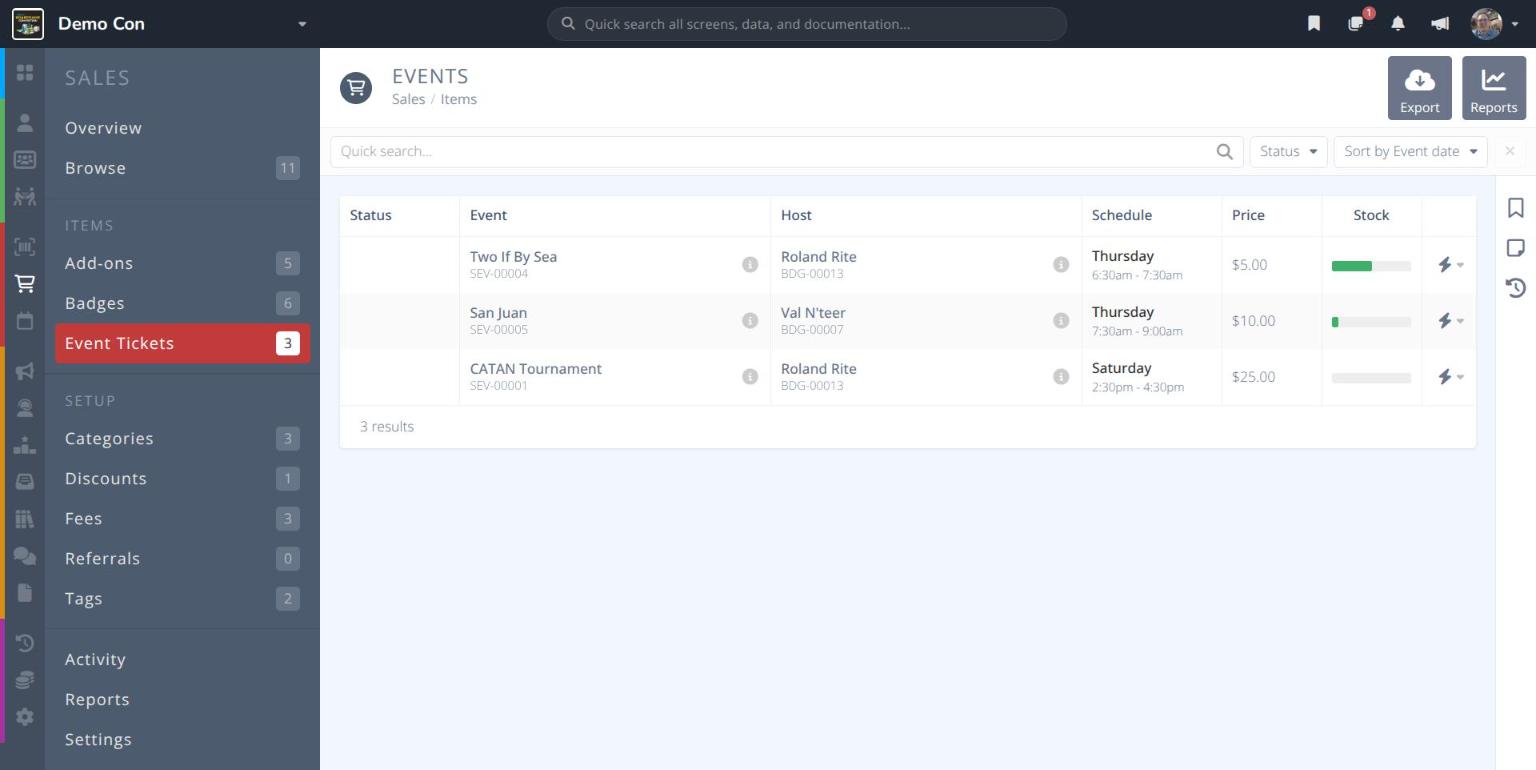
From the menu click under the ITEMS heading. The screen title reads EVENTS.
Each row in the grid shows:
Status- The ticket's statusEvent- The event name and its reference number (e.g. SEV-00004). Click the for a quick view of the event.Host- The event host and their badge reference numberSchedule- The day and time of the eventPrice- The ticket priceStock- A bar showing how many seats have sold. Hover over the bar to see the number sold out of the total (e.g. 2 / 4).- - Quick actions: View
Use the Quick search... bar to find an event. Use the Status filter to show tickets that are Live, Live by Comp, Restricted, Disabled, Blocked or Archived, and the Sort by menu to order the grid by Event date, Name, Price or Sold.
The following buttons appear in the actions area at the top right:
- - Downloads the grid as a CSV file
- - Opens sales reports for event tickets
Sell Tickets for an Event.
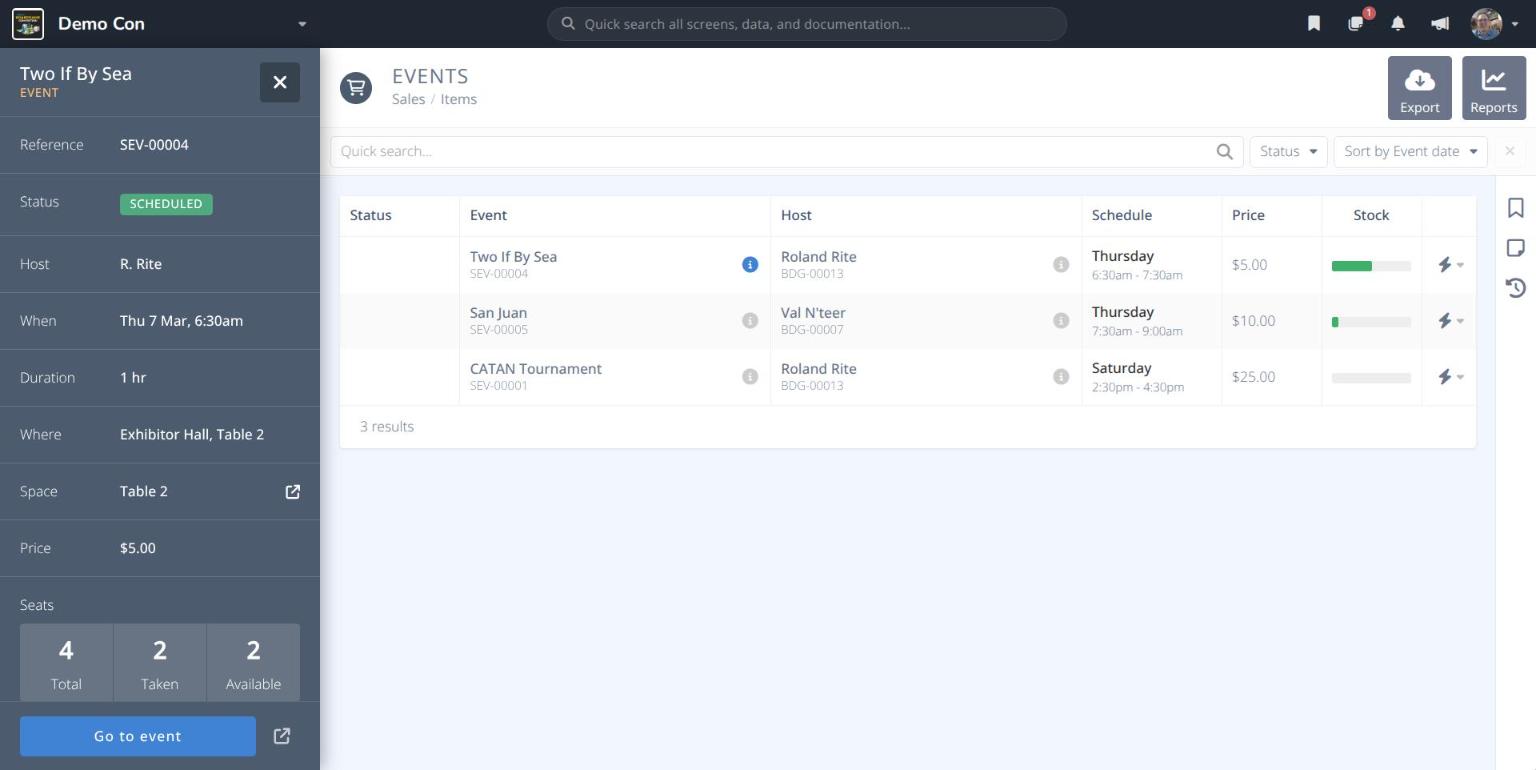
Event quick view
Clicking the beside an event opens a summary panel with the event's Reference, Status, Host, When, Duration, Where, Space, ticket Price and Seats (Total, Taken and Available). Click to open the event in the schedule.
¶ Event Ticket Details
Click a row in the grid to open the ticket. The header shows the event name with its day and start time, the ticket's Status and Price, and the menu.
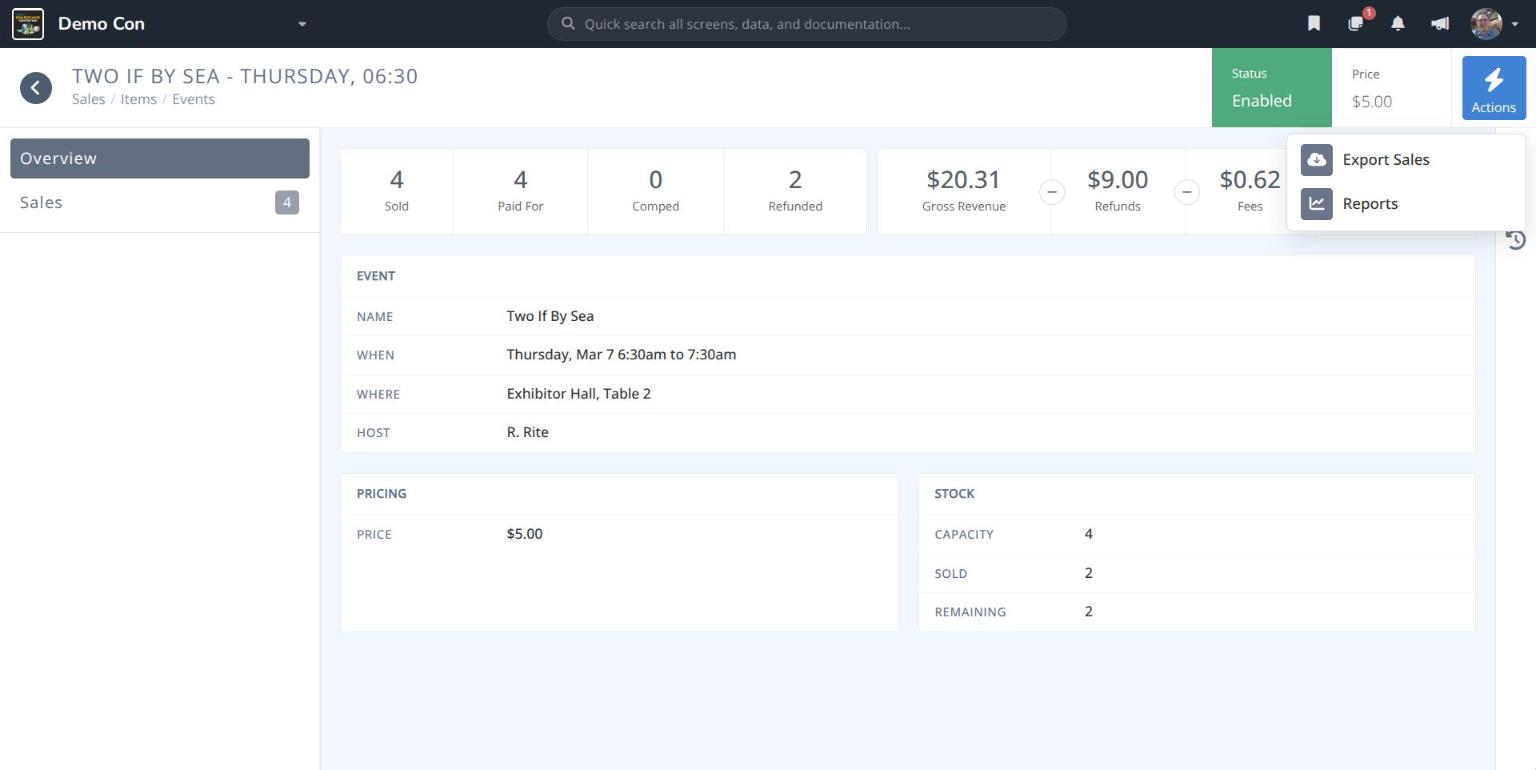
The menu includes:
- Export Sales - Downloads this ticket's sales as a CSV file
- Reports - Opens sales reports for this ticket
Click each tab to see the information for that section:
¶ Overview
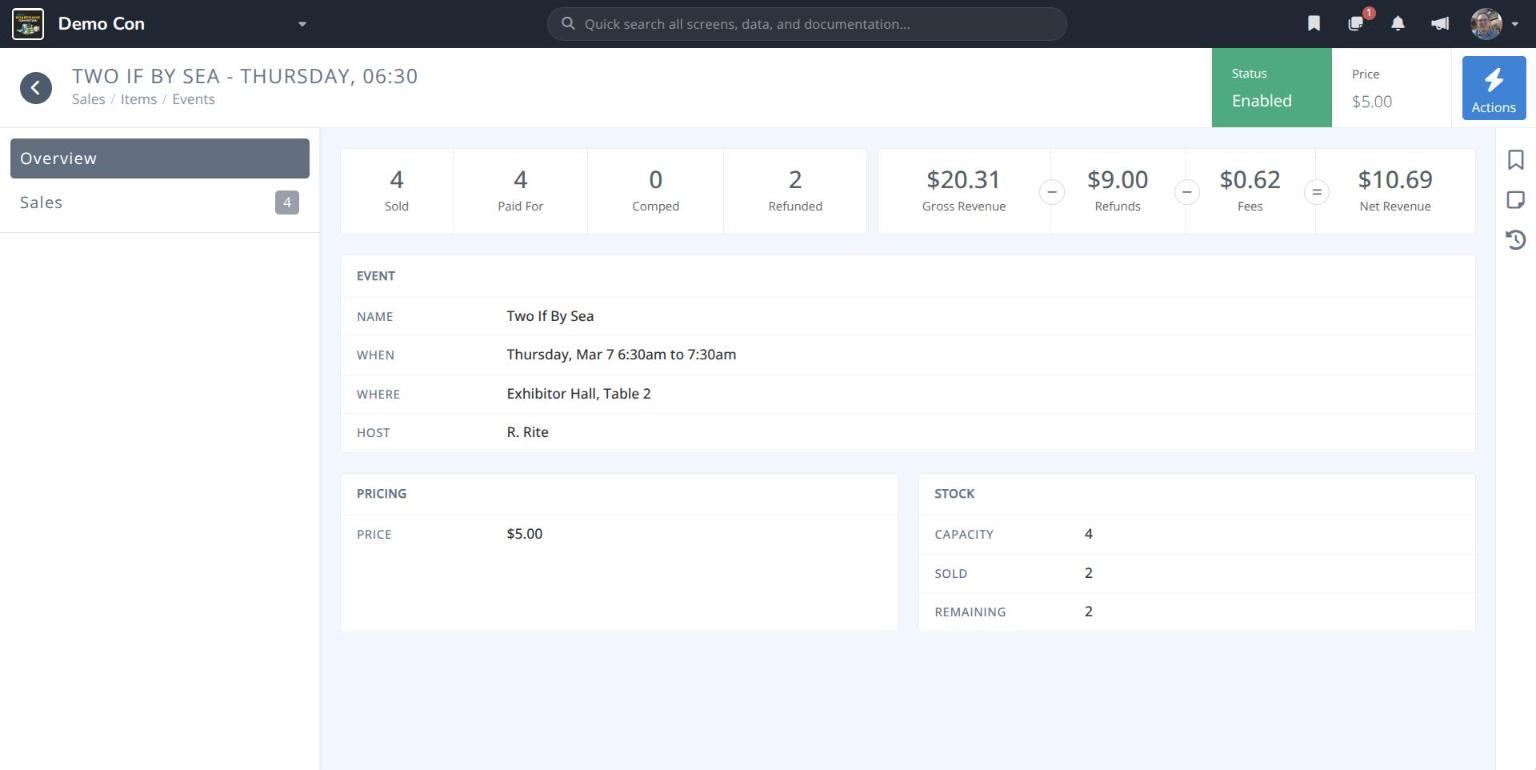
Sold/Paid For/Comped/Refunded- How many tickets have been sold, how many were paid for, given free, or refundedGross Revenue−Refunds−Fees=Net Revenue- What the ticket has brought in. Gross Revenue includes any fees the customer paid.Event- The event's Name, When (day, date and time), Where (room and table) and HostPricing- The ticket PriceStock- The event's seat Capacity, how many tickets are Sold, and how many are Remaining
¶ Sales
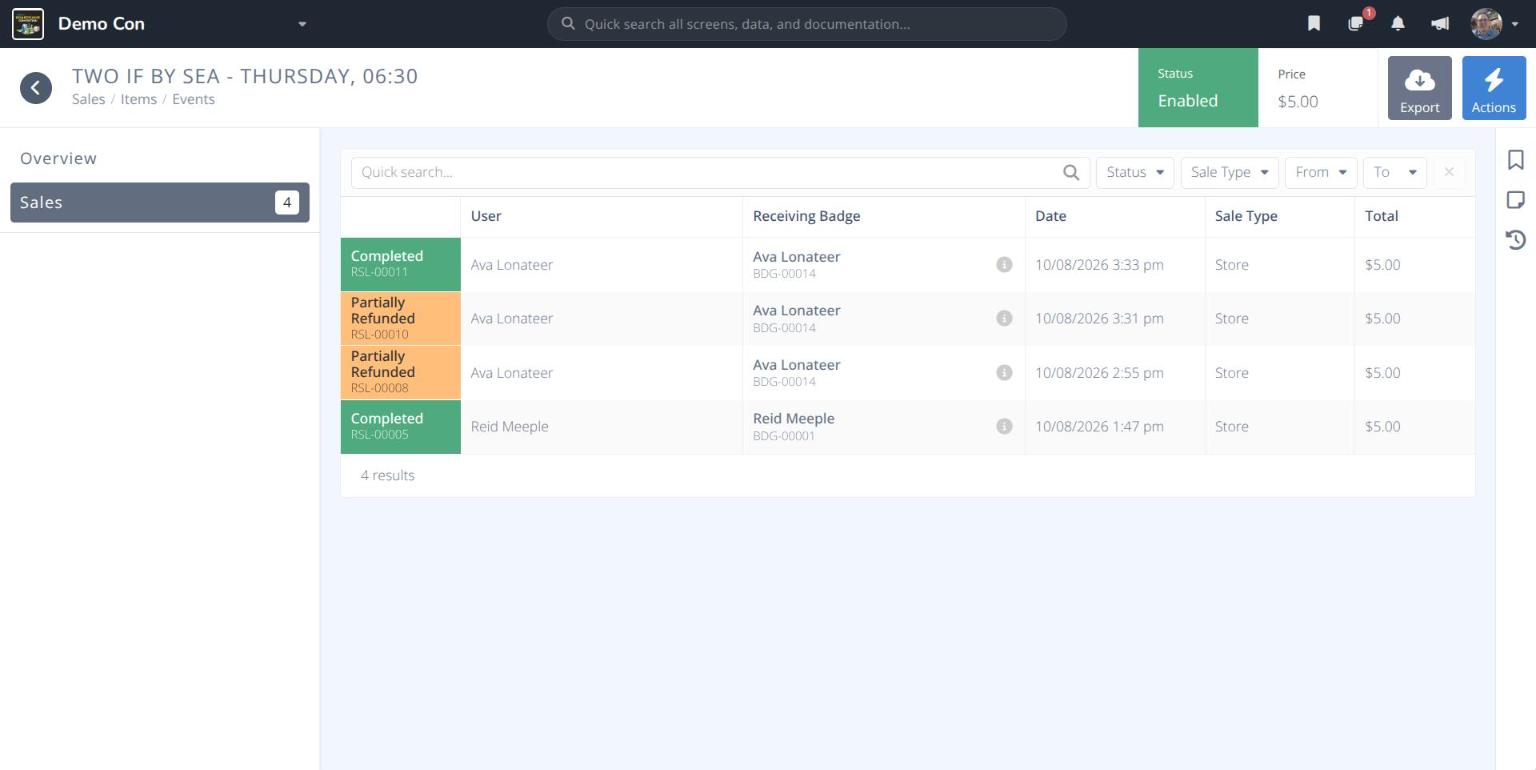
Every sale that includes this ticket, showing:
Status / Ref.- The sale's status (e.g. Completed or Partially Refunded) and reference number (e.g. RSL-00011)User- The person who made the purchaseReceiving Badge- The badge the ticket was bought forDate- When the sale was madeSale Type- Where the sale came fromTotal- The amount for this ticket
Use the Quick search... bar and the filters to narrow the list:
- Status - Completed, Refunded or Partial Refund
- Sale Type - Registration, Store, Third Party or Admin Comp
- From / To - A date range
Click to download the list as a CSV file. Click a sale to open its full details in Sales Browse.
¶ Procedures
¶ Sell Tickets for an Event
Tickets are set up on the event itself, in the schedule.
- From the menu, open the event.
- Click Seats under the SETUP heading.
- Enter the Total seats. This is the number of tickets that can be sold.
- Set Seating Format to Ticketed (attendees must obtain a digital or physical ticket to participate which may have a cost).
- Enter the ticket Price, and choose the Ticket format attendees can use: Digital or Printed, Digital only or Printed only.
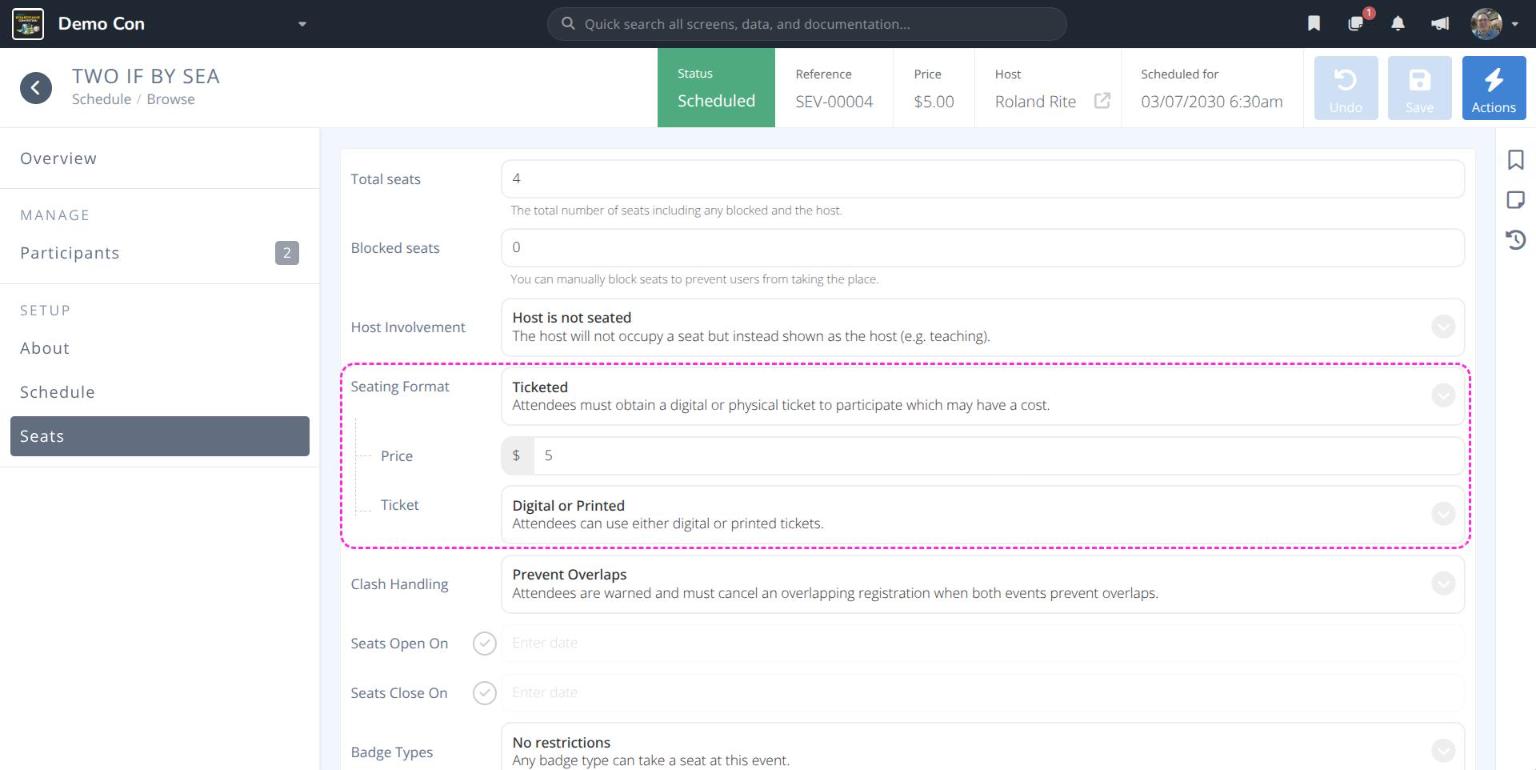
- Click .
The ticket now appears on the Event Tickets screen. Attendees buy it when they take a seat at the event.
Settingsunder Ticketing. Rooms can also be set to ticketed. SeeRoomsandSeats.
Tip: To let attendees redeem tickets they have already paid for, turn on generic tickets in Sales Settings and sell a generic ticket add-on. See
Create a Generic Ticket.
Example ticketed events
| Event | Day and time | Price | Seats |
|---|---|---|---|
| Two If By Sea | Thursday, 6:30am – 7:30am | $5 | 4 |
| San Juan | Thursday, 7:30am – 9:00am | $10 | 12 |
| CATAN Tournament | Saturday, 2:30pm – 4:30pm | $25 | 3 |
¶ See Who Bought Tickets for an Event
- From the menu click .
- Click the event's row (e.g. Two If By Sea).
- Click Sales. Each sale shows who bought the ticket and the badge it was bought for.
To see everyone seated at the event, including anyone added by an admin, open the event in the schedule and click Participants. See Participants.
¶ Change a Ticket's Price or Number of Seats
The ticket's price and seats are part of the event, so change them in the schedule.
- On the Event Tickets screen, click the beside the event, then click . You can also open the event from the menu.
- Click Seats.
- Change the Price or the Total seats.
- Click .