¶ Event Details: Seats
¶ Overview
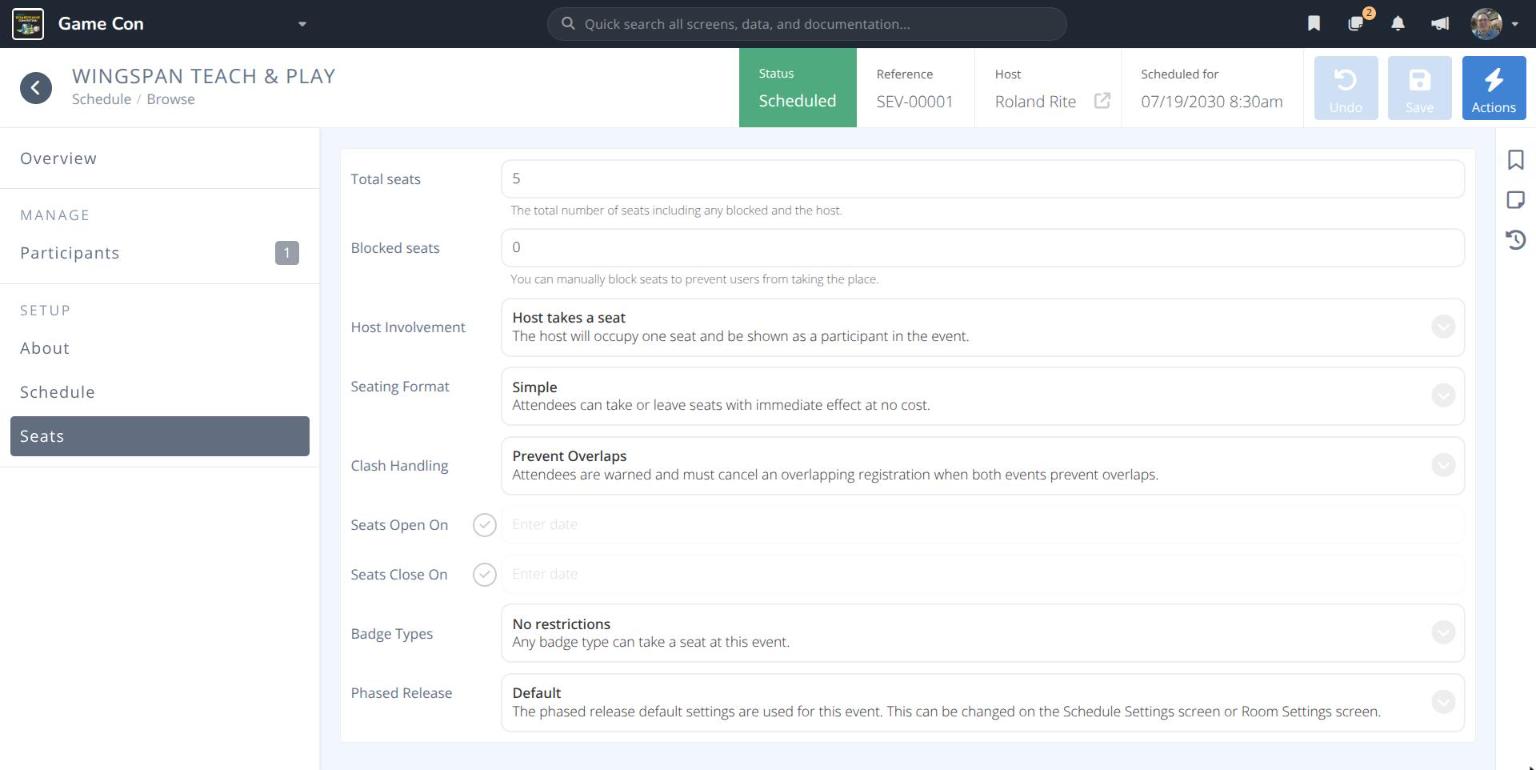
The Seats screen decides how attendees get a place at an event: how many seats there are, whether a ticket is needed, when seats can be taken, and by whom.
Some options here override the room and convention defaults (see How Scheduling Works). To open it, open the event (see Event Details) and click Seats under SETUP. After making changes, click .
¶ Common Procedures
Block SeatsLimit an Event to Certain Badge TypesRelease an Event's Seats in PhasesClose Sign-ups for an Event
¶ Fields
Seats:
Total seats- The total number of seats, including any blocked seats and the hostBlocked seats- Seats you hold back so attendees can't take themHost Involvement- Whether the host takes a seat:- Host takes a seat - The host uses one of the seats, and is shown as a participant
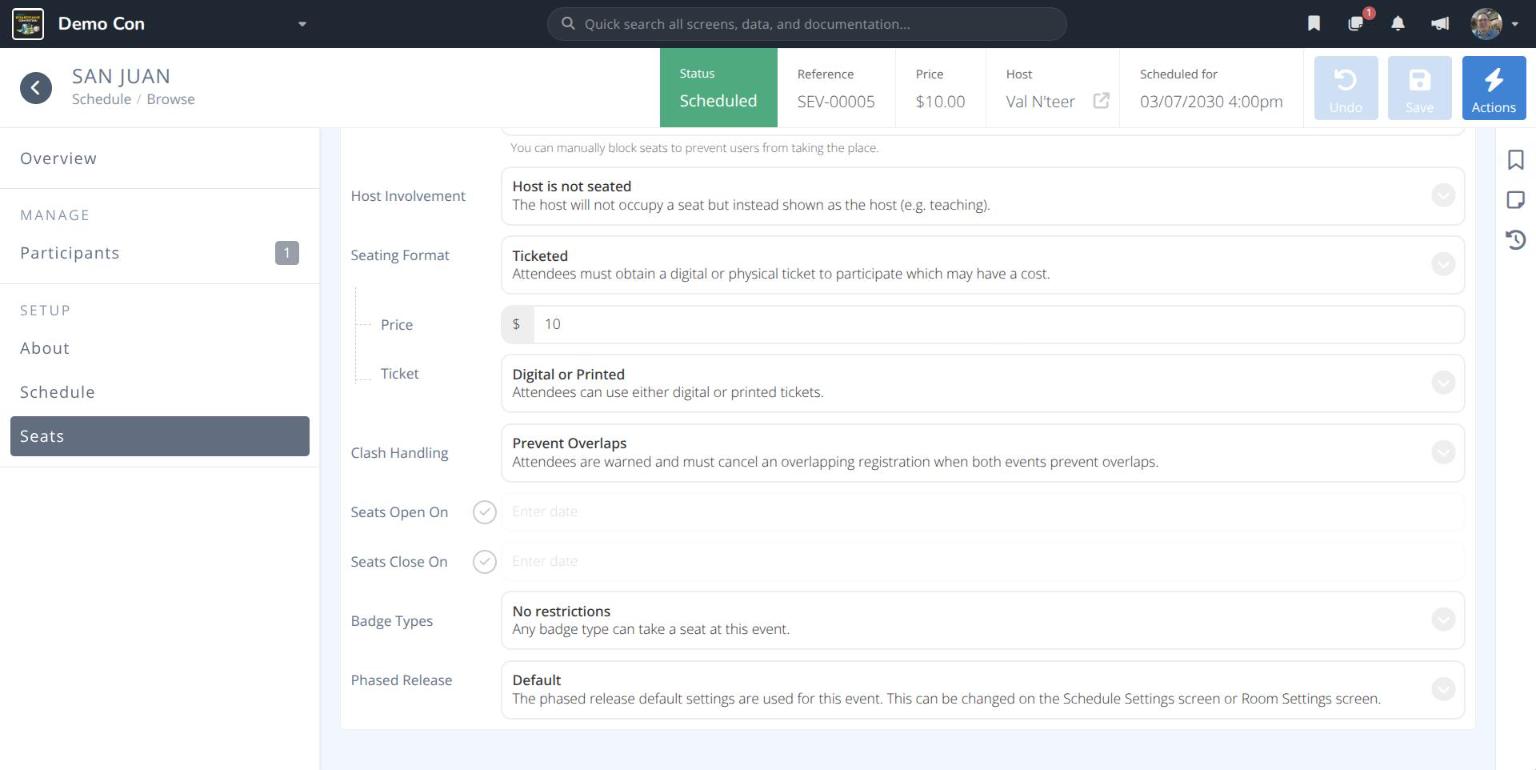
- Host does not take a seat - The host doesn't use a seat, and is shown only as the host (e.g. when teaching)
Note: Attendees answer this when they submit an event in the app, under Will you take one of the seats? Yes, count me as one of the players sets Host takes a seat, and No, I'm only hosting or teaching sets Host does not take a seat.
Tickets:
Seating Format- How attendees get a seat:- Simple - Attendees take or leave seats straight away, at no cost
- Ticketed - Attendees need a digital or printed ticket, which may have a cost. See
Event Tickets. Price- Ticketed only. The ticket price (e.g. $10).Ticket- Ticketed only. Digital or Printed, Digital only or Printed only.
Who can take a seat, and when:
Clash Handling- What happens when an attendee joins this event and another at the same time: Allow Overlaps, Prevent Overlaps or Warn Only. SeeChoose How Overlapping Events Are Handled. Attendees see this setting as Clash Handling on the event's details in the app.Seats Open On(optional) - When attendees can start taking seatsSeats Close On(optional) - When attendees can no longer take seatsBadge Types- No restrictions, or Restrict by badge type so only the badge types you choose can take a seatPhased Release- Whether seats are released in stages:- Default - Uses the room's setting, or the convention's if the room uses Default too
- Enabled - Uses the phases you set for this event (see below)
- Disabled - All seats are available straight away, even if the room or convention uses a phased release
¶ Procedures
¶ Block Seats
Block seats to keep them free, for example for players the host is bringing.
- Open the event and click Seats.
- Enter the number of seats to hold back in
Blocked seats. - Click .
Blocked seats show as Blocked on the Participants screen.
¶ Limit an Event to Certain Badge Types
- Open the event and click Seats.
- Set
Badge Typesto Restrict by badge type. - Choose the badge types that can take a seat.
- Click .
Attendees with other badge types still see the event and can shortlist it, but its Join Event button is grey with a lock . Tapping it shows Only certain badge types can join this event.
¶ Release an Event's Seats in Phases
- Open the event and click Seats.
- Set
Phased Releaseto Enabled. ThePhasesandNoticeoptions appear. - Add each phase, and set the notice attendees see while seats are held back. These work the same way as for a room. See
Set Up a Phased Release for a Room. - Click .
¶ Close Sign-ups for an Event
Stop attendees taking any more seats at an event. Choose one:
- At a set time - Set
Seats Close Onto the date and time sign-ups should close. - Immediately, with a posted message - Set
Phased Releaseto Enabled, don't add any phases so no seats are released, and set theNoticeto something like "Sign ups are now closed." - Immediately, with no posted message - Raise
Blocked seatsuntil no free seats are left.
Then click . To reopen sign-ups, undo the change.
Participantsscreen. To close sign-ups for every event at once, seeClose Sign-ups for All Events.
¶ Next Steps
Participants- See who is seated, and add or unseat participants.Schedule Settings- Set the convention-wide defaults for seating, ticketing and clash handling.