¶ Schedule Settings
¶ Overview
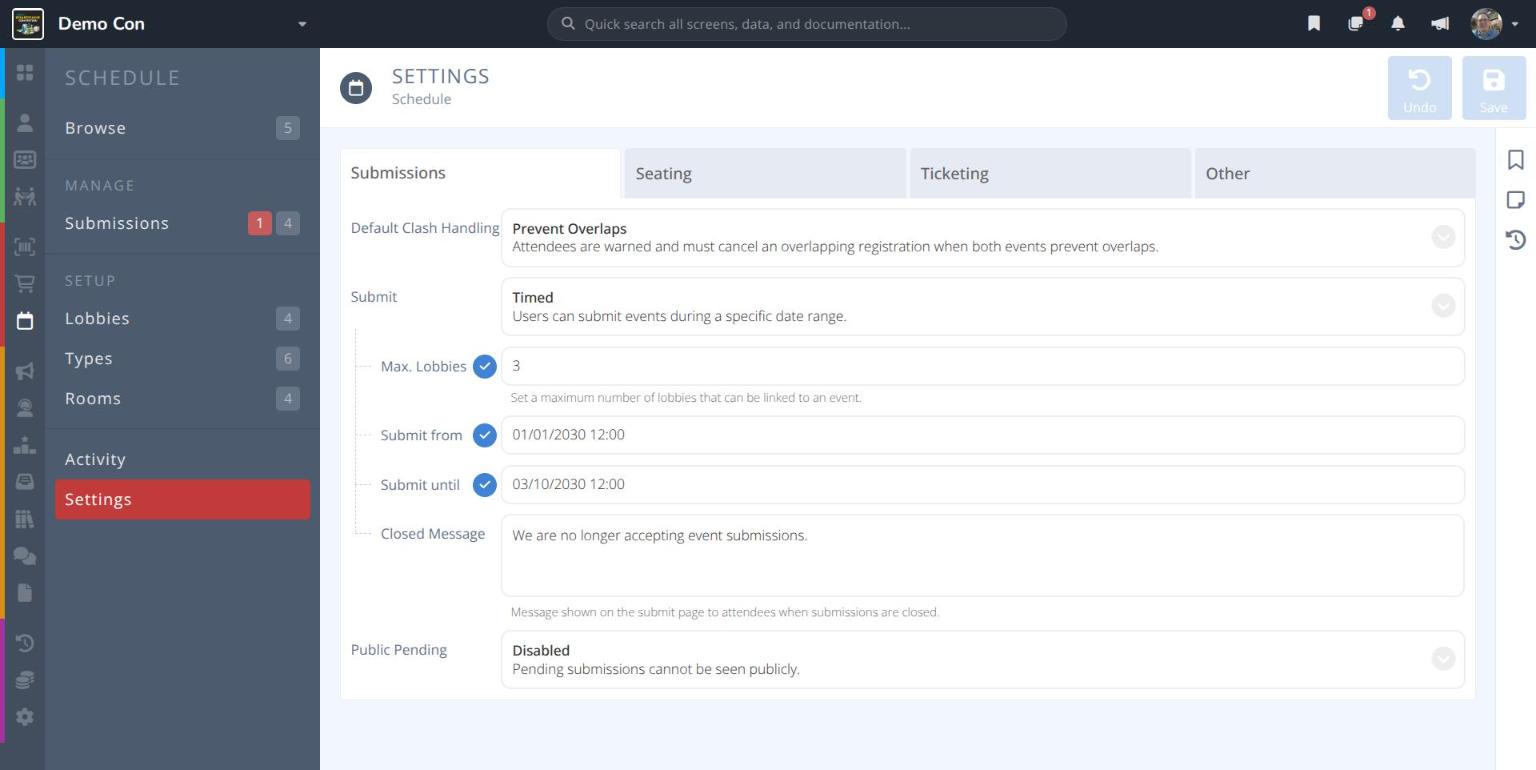
Schedule Settings set the defaults for the schedule at your convention:
- Submissions - Whether attendees can submit events, and how overlapping events are handled
- Seating - Whether seats are released in stages (a phased release)
- Ticketing - Whether events use tickets, and how tickets are priced, bought and refunded
- Other - Whether attendees see lobbies, and who your schedule moderators are
Note: Settings work in three levels. Schedule Settings set the defaults for the convention, a
roomcan override them, and an individual event can override its room. Options set to Default use the level above.
Most conventions set these once before opening submissions, then make changes in individual rooms or events when something needs to work differently.
¶ Common Procedures
Open or Close Event SubmissionsChoose How Overlapping Events Are HandledShow Pending Submissions to AttendeesSet Up a Phased Release for the ConventionClose Sign-ups for All EventsSet Up Ticketing DefaultsAdd a Schedule Moderator
¶ Settings Screen
From the menu click at the bottom of the menu.
The screen has four tabs: Submissions, Seating, Ticketing and Other. After changing a setting, click , or to discard the change.
Some options only appear after you choose a setting above them. For example, Screen Title only appears when Public Pending is Enabled.
Click each tab to see the information for that section:
¶ Submissions
Default Clash Handling- What happens when an attendee joins an event that overlaps another event on their schedule. New events start with this setting, and you can change it on each event. SeeChoose How Overlapping Events Are Handled.- Allow Overlaps - Attendees are not warned or prevented from joining, unless the other event has a stronger clash setting.
- Prevent Overlaps - Attendees are warned, and must cancel their other registration, when both events prevent overlaps.
- Warn Only - Attendees are warned about the overlap, but can still join the event.
Submit- Whether attendees can submit events:- Hide - Attendees cannot submit events, and there is no submit button.
- Closed - Attendees cannot submit events. The submit page shows your
Closed Messageinstead. - Timed - Attendees can submit events between the
Submit fromandSubmit untildates. - Show - Attendees can submit events.
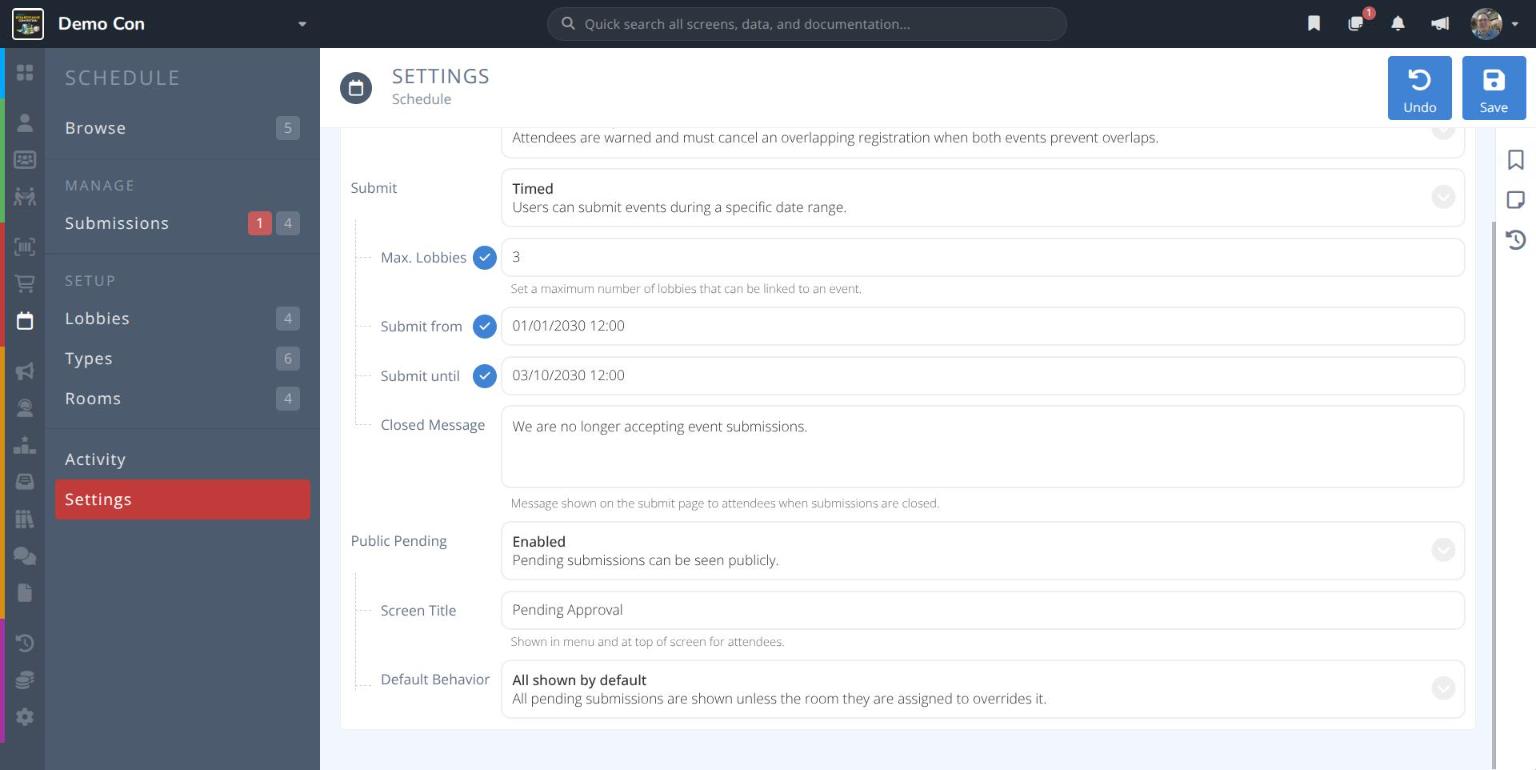
Max. Lobbies(optional) - The most lobbies that can be linked to one event. Default lobbies added by a room count toward this limit.Submit fromandSubmit until(optional) - The dates and times submissions open and close whenSubmitis Timed.Closed Message- The message attendees see on the submit page when submissions are closed.
Public Pending- Whether attendees can see events that are waiting for review:- Disabled - Pending submissions cannot be seen publicly.
- Enabled - Pending submissions can be seen publicly.
Screen Title- The name of the pending events screen, shown in the menu and at the top of the screen for attendees (e.g. Pending Approval).Default Behavior- All shown by default or All hidden by default. A room'sPublic Visibilitysetting can override this.
¶ Seating
-
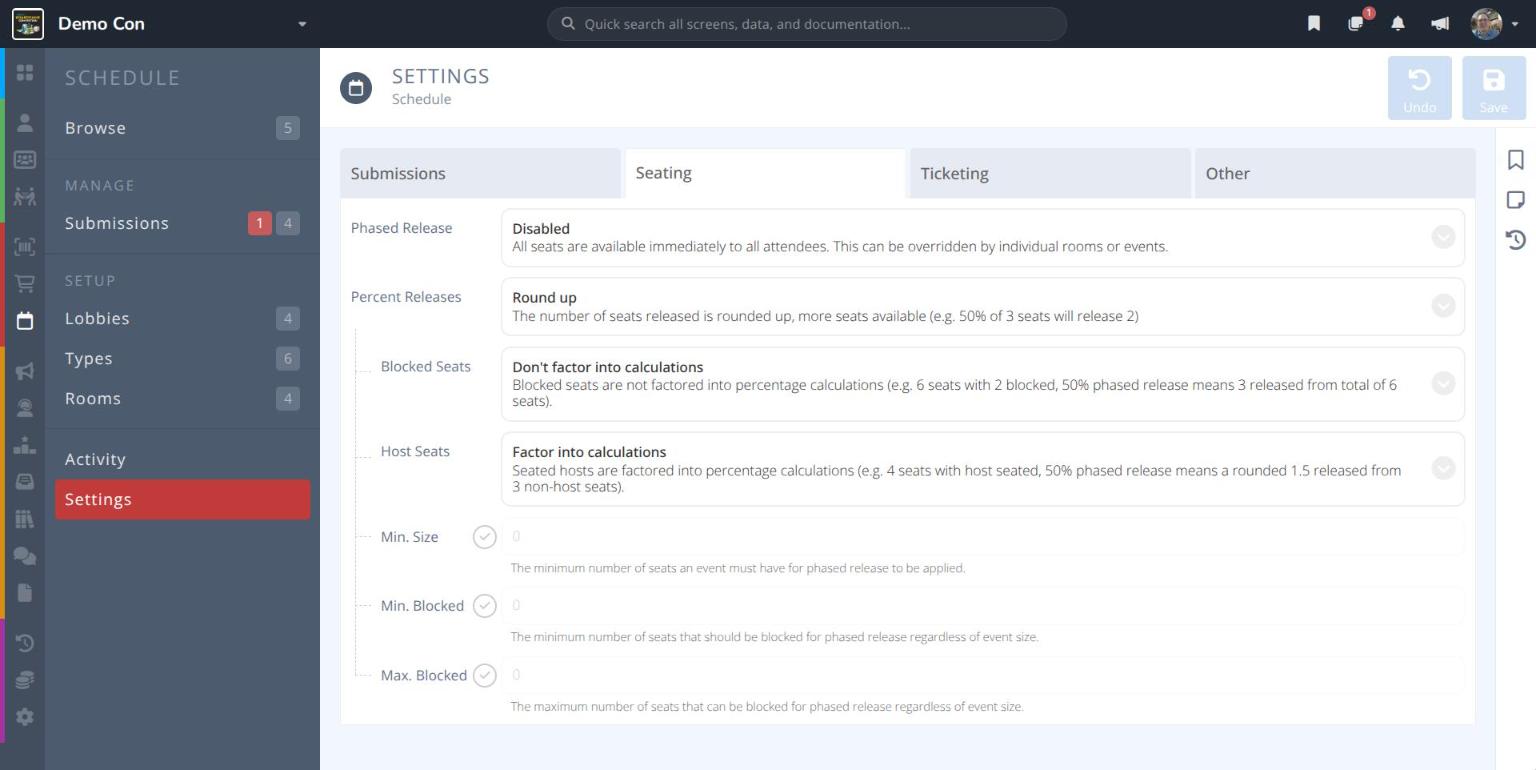
Phased Release- Whether seats are released in stages:- Disabled - All seats are available immediately to all attendees.
- Enabled - Seats start as unavailable and are released over one or more phases to some or all attendees. The
PhasesandNoticeoptions appear. SeeSet Up a Phased Release for the Convention.
Rooms and events can override this setting.
-
Percent Releases- How a phase's percentage is rounded when it doesn't make a whole number of seats:- Round up - More seats are released (e.g. 50% of 3 seats releases 2).
- Round down - Fewer seats are released (e.g. 50% of 3 seats releases 1).
Blocked Seats- Whether seats you have blocked by hand are counted:- Don't factor into calculations - The percentage is taken from all seats (e.g. 6 seats with 2 blocked, a 50% release releases 3 of 6 seats).
- Factor into calculations - The percentage is taken from the seats that aren't blocked (e.g. 6 seats with 2 blocked, a 50% release releases 2 of the 4 non-blocked seats).
Host Seats- Whether a seated host is counted:- Don't factor into calculations - The percentage is taken from all seats (e.g. 4 seats with the host seated, a 50% release releases 2 of 4 seats).
- Factor into calculations - The percentage is taken from the seats the host isn't using (e.g. 4 seats with the host seated, a 50% release releases a rounded 1.5 of the 3 non-host seats).
Min. Size(optional) - Only use a phased release for events with at least this many seats.Min. Blocked(optional) - The fewest seats held back for a phased release, whatever the event's size.Max. Blocked(optional) - The most seats held back for a phased release, whatever the event's size.
¶ Ticketing
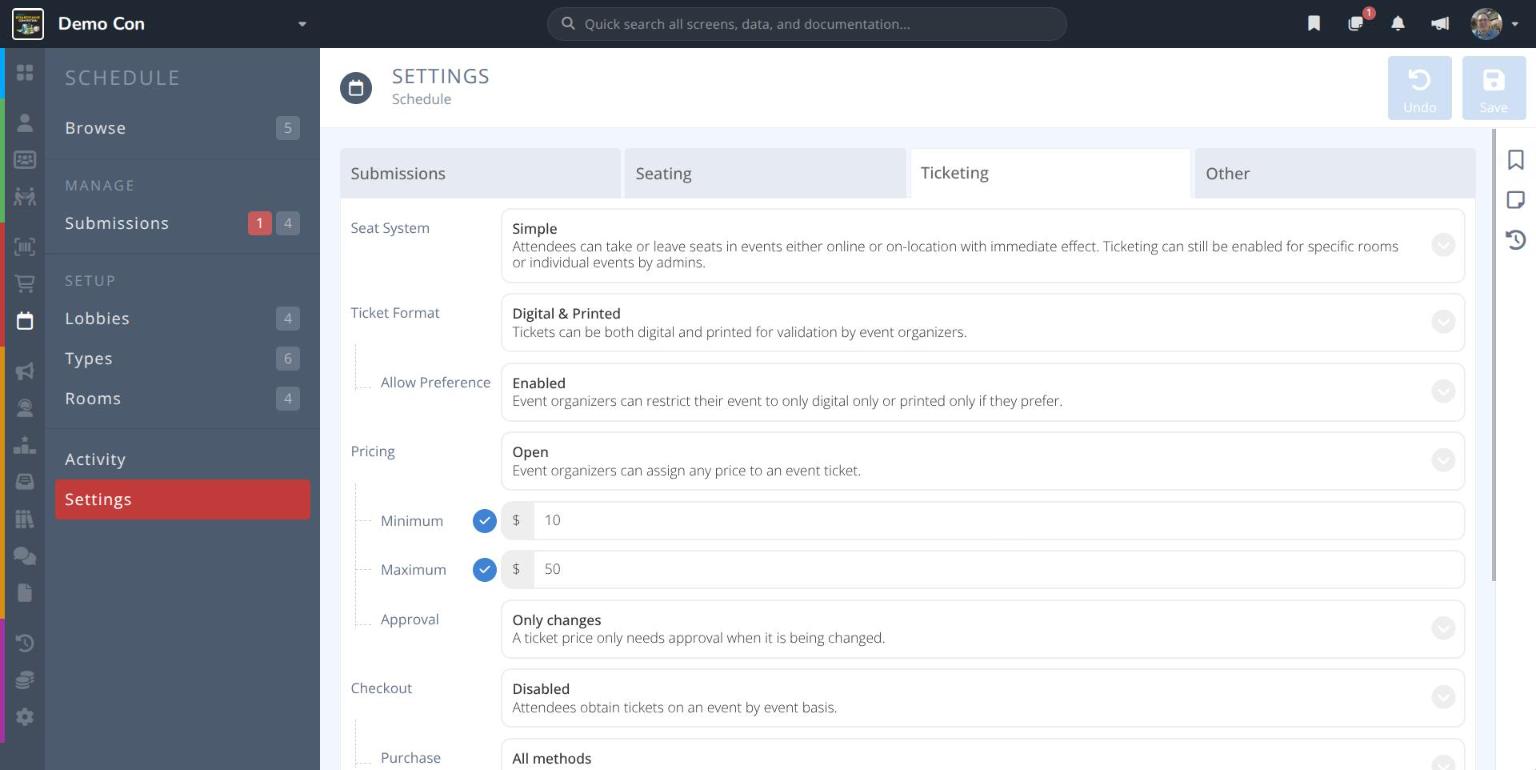
Seat System- How attendees get a place at events by default:- Simple - Attendees take or leave seats, online or on-location, with immediate effect. You can still turn on ticketing for specific rooms or events.
- Ticketed - Attendees get digital or printed tickets to take part. This allows priced events, generic tickets, credit use and on-location ticket validation. See
Event Tickets. Allow Free- Ticketed only. Enabled lets tickets be free. Disabled means every ticket must have a price.Allow Simple- Ticketed only. Free Events Only lets event organizers turn off tickets for a free event. Disabled means tickets are always used, even for free events.
Ticket Format- How tickets are checked by event organizers:- Digital & Printed - Tickets can be digital or printed.
- Digital only - Tickets are digital and scanned with a phone or tablet.
- Printed only - Tickets are printed, and attendees must collect them before their event.
Allow Preference- Enabled lets event organizers limit their event to digital only or printed only. Disabled means attendees can always use either a digital or printed ticket.
Pricing- How ticket prices are set:- Open - Event organizers can set any price. Optionally set a
MinimumandMaximum. - Fixed - All tickets have the same price.
- Options - Event organizers choose from a list of prices you set.
Approval- When a ticket price needs approval:- Default - Only when the event needs approval for another reason
- Always - Every ticket price must be approved before the event is scheduled
- Only changes - Only when a ticket price is changed
- Open - Event organizers can set any price. Optionally set a
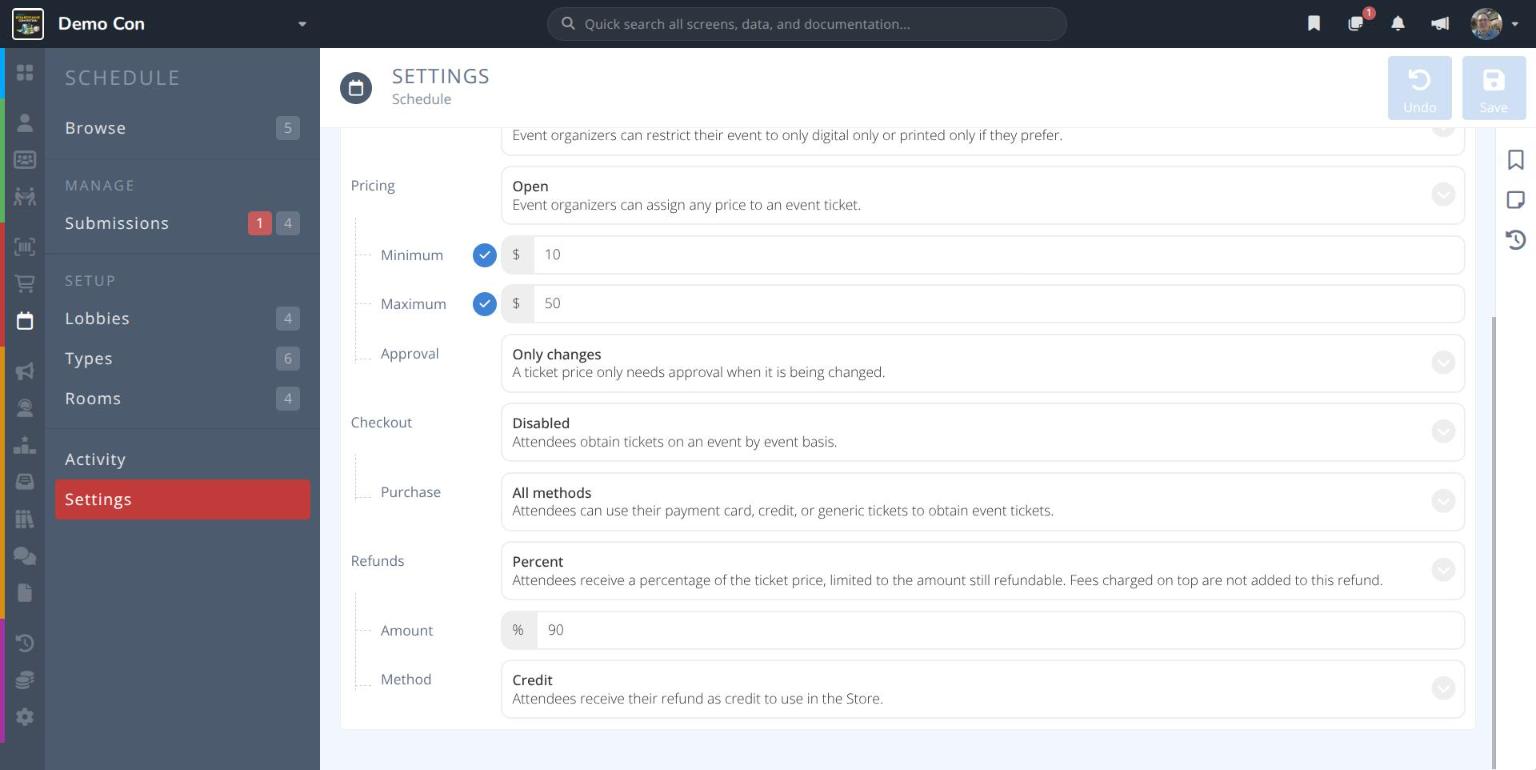
Checkout- Whether tickets go into a cart:- Disabled - Attendees get tickets one event at a time.
- Required - Attendees add one or more tickets to their cart, then check out.
- Optional - Attendees can do either.
Purchase- How attendees can pay for tickets:- All methods - Payment card, credit or generic tickets
- Payment only - Payment card or credit. Generic tickets are not used.
- Redemption only - Generic tickets only
Refunds- How much attendees get back when a ticket is refunded. Refunds are limited to the amount still refundable, and fees charged on top of the ticket price are not refunded.- No refund - Attendees do not receive a refund.
- Percent - Attendees receive the percentage of the ticket price set in
Amount(e.g. 90%). - Fixed - Attendees receive the amount per ticket set in
Amount, up to the ticket price. - Full - Attendees receive the full ticket price. Processing fees are not taken off the ticket price.
Method- How the refund is given:- Credit - As credit to use in the Store
- Payment - To the original payment method. If the attendee didn't pay for the ticket directly, such as a comp or a bundle, it is given as credit.
Seat Systemis Simple.
¶ Other
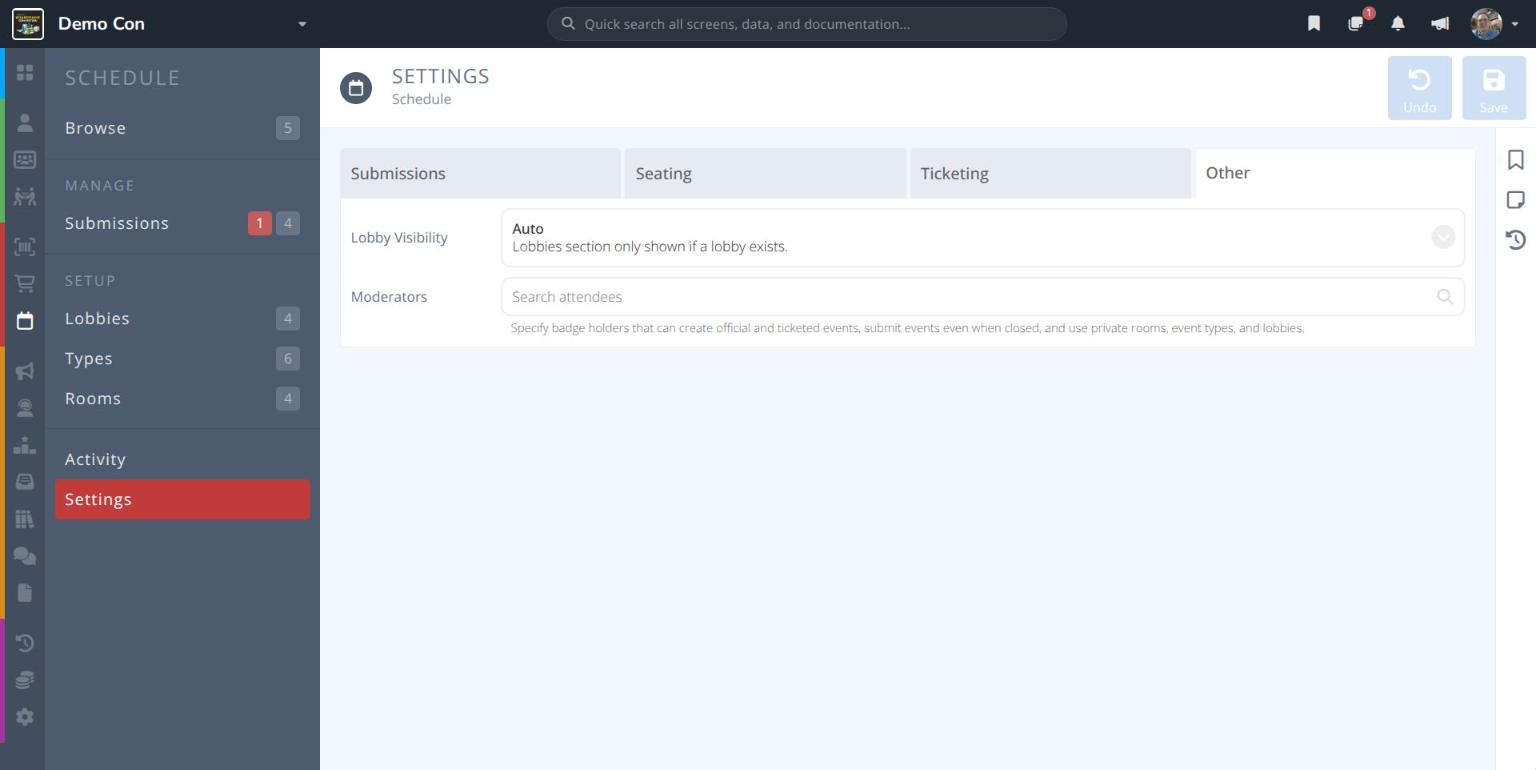
Lobby Visibility- When attendees see the lobbies section:- Hide - Never, even if a lobby exists
- Auto - Only when a lobby exists
- Show - Always shown in the menu, even when no lobby exists
Moderators- Badge holders who can create official and ticketed events, submit events even when submissions are closed, and use private rooms, event types and lobbies. SeeAdd a Schedule Moderator.
¶ Procedures
¶ Open or Close Event Submissions
- From the menu click .
- On the Submissions tab, click
Submitand choose:- Show to open submissions now
- Timed to open and close submissions on set dates
- Closed to close submissions and show attendees a message
- Hide to close submissions and remove the submit button
- If you chose Timed, check
Submit fromandSubmit untiland choose the dates and times. - If you chose Timed or Closed, enter a
Closed Message, such as when submissions will open or who to contact. - If needed, check
Max. Lobbiesand enter the most lobbies an event can be linked to. - Click .
Tip: Moderators can still submit events while submissions are closed, which is useful for adding featured events before you open submissions to everyone.
While submissions are closed, attendees who click Submit Event see your Closed Message instead of the submission form:

¶ Choose How Overlapping Events Are Handled
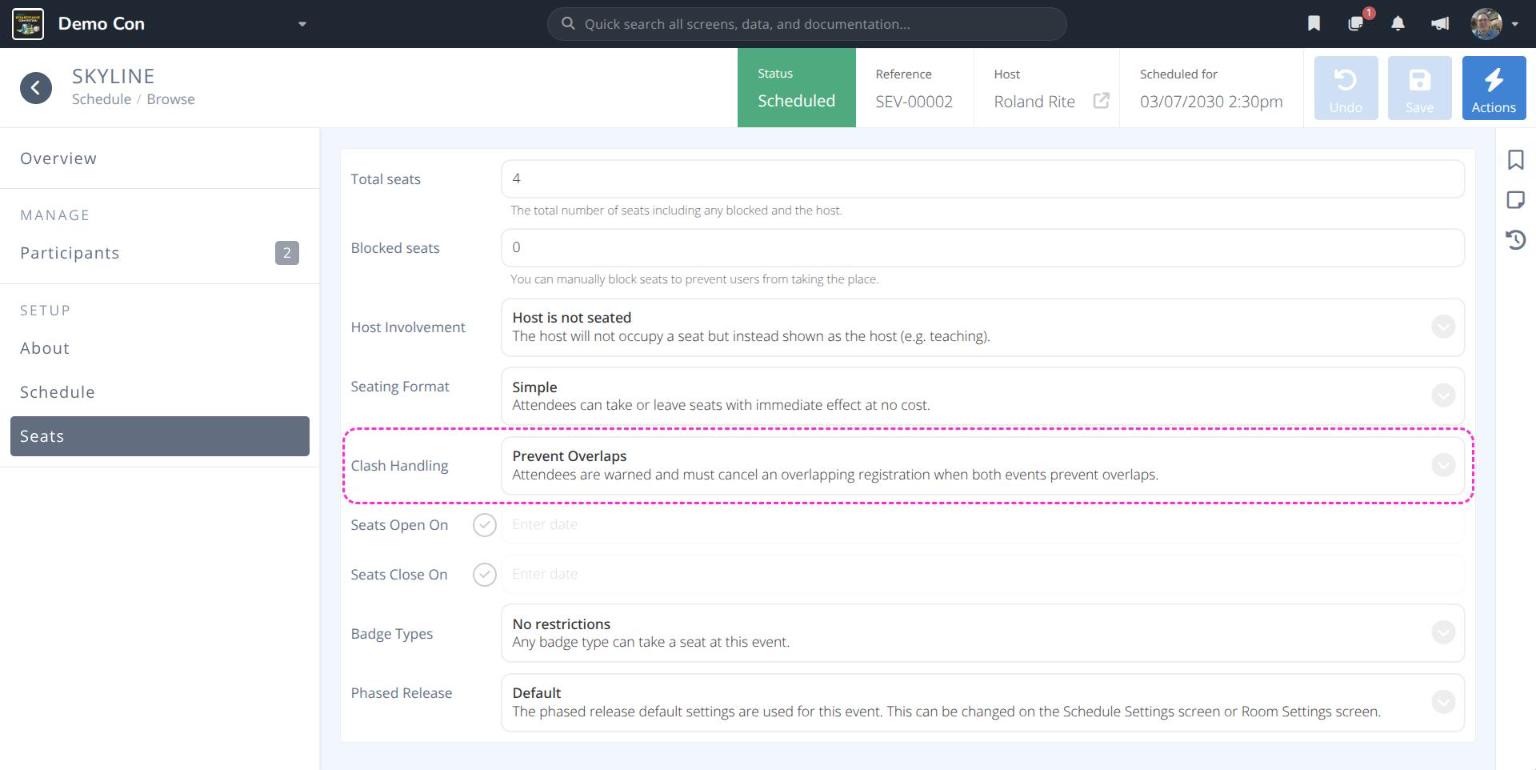
Clash handling decides what happens when an attendee joins an event at the same time as another event on their schedule. The convention sets a default, and each event can use a different setting. Attendees can see each event's setting as Clash Handling on the event's details in the app.
How two overlapping events are handled depends on the setting of both events:
| Event being joined | Event already on their schedule: Allow Overlaps | Warn Only | Prevent Overlaps |
|---|---|---|---|
| Allow Overlaps | No warning | Warning | Warning |
| Warn Only | Warning | Warning | Warning |
| Prevent Overlaps | Warning | Warning | Must cancel |
- No warning - The attendee joins without any prompt. This only happens when both events use Allow Overlaps.
- Warning - The attendee is told about the overlap, but can still join and keep both events.
- Must cancel - The attendee is warned and must cancel their other registration to join. This only happens when both events use Prevent Overlaps.
For example, an attendee joining an Allow Overlaps demo is still warned if it overlaps a Prevent Overlaps tournament they have signed up for.
Suggested settings:
- Priced events - Prevent Overlaps, so attendees can't double-book paid events by accident
- Short drop-in or demo events - Warn Only, so attendees know about the overlap but keep a flexible schedule
- Long drop-in or demo events - Allow Overlaps, so attendees can join without extra prompts
Set the convention default:
- From the menu click .
- On the Submissions tab, click
Default Clash Handlingand choose the setting most of your events should use. - Click .
Change it for one event:
- From the menu click and click the event.
- Click Seats, then click
Clash Handlingand choose a setting.
- Click .
Attendees see events that overlap their schedule marked Clashing with Schedule.
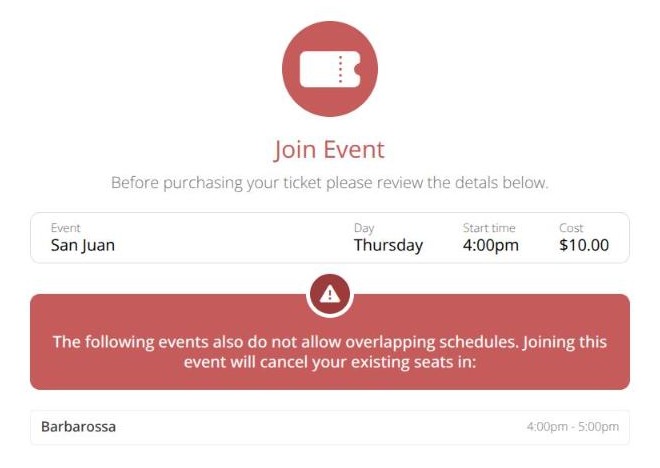
When both events use Prevent Overlaps, attendees see which of their events will be cancelled before they join. For example, an attendee already seated in Barbarossa who tries to join San Juan at the same time is told that joining will cancel their seat in Barbarossa:
¶ Show Pending Submissions to Attendees
Use this to let attendees see events that are waiting for review, for example so they can plan ahead before events are approved.
- From the menu click .
- On the Submissions tab, set
Public Pendingto Enabled. - Enter a
Screen Title. Attendees see it in the menu and at the top of the pending events screen. - Choose the
Default Behavior:- All shown by default - Pending events are shown unless their room hides them
- All hidden by default - Pending events are hidden unless their room shows them
- Click .
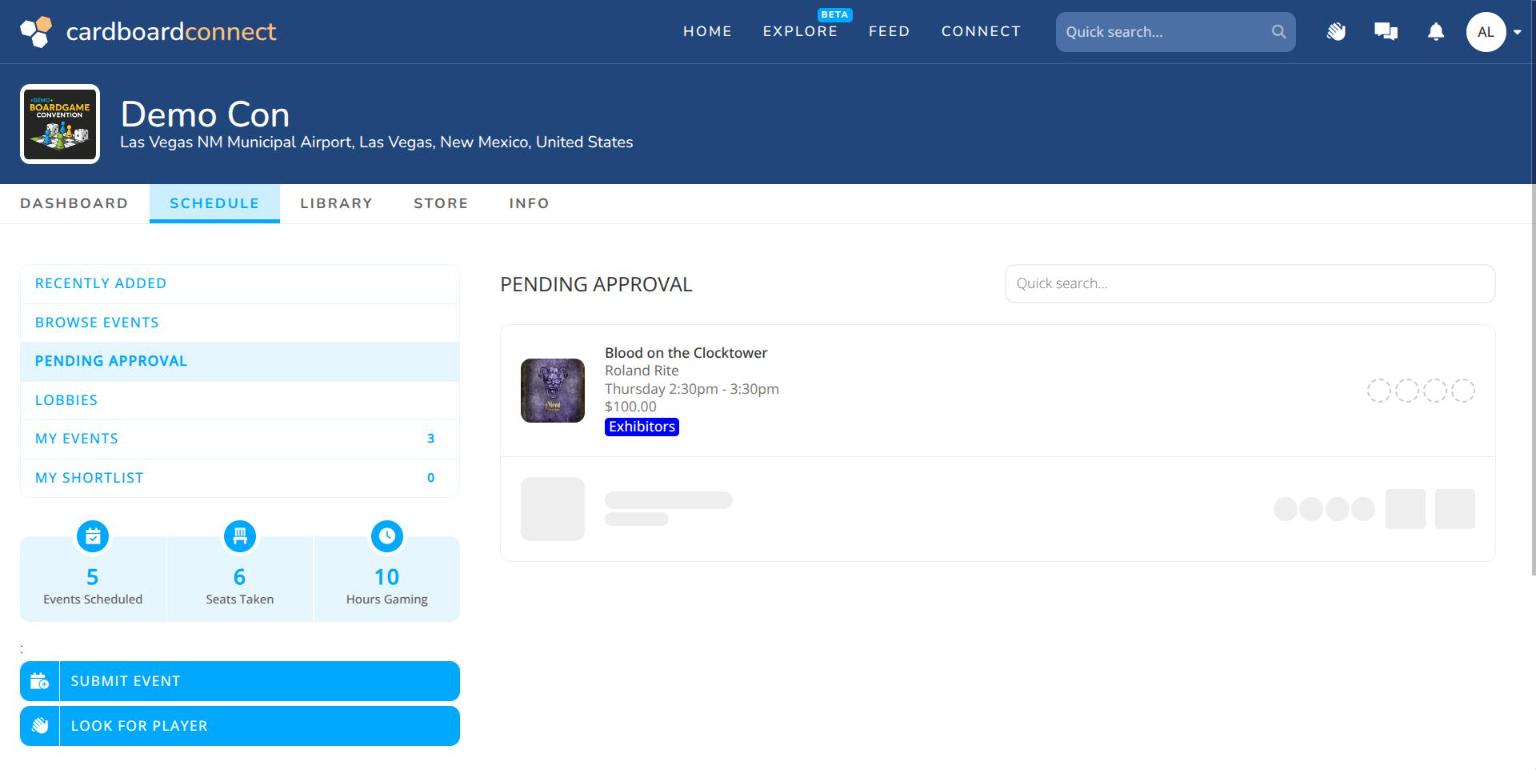
Attendees now see a menu item with your Screen Title on the convention's SCHEDULE tab (e.g. PENDING APPROVAL). It lists the events waiting for review:
To show or hide pending events for one room, change that room's Public Visibility setting. See Rooms.
¶ Set Up a Phased Release for the Convention
A phased release holds back some of each event's seats and releases them in stages, for example to give VIP badge holders the first choice of seats. Setting it here applies it to every room and event that uses Default.
- From the menu click , then click the Seating tab.
- Set
Phased Releaseto Enabled. ThePhasesandNoticeoptions appear. - Use the Add phase at row to add each phase: choose the date and time, the % of seats to release, and who can join, then click . The phases work the same way as in a room. See
Set Up a Phased Release for a Roomfor a worked example. - Edit the
Noticeattendees see while seats are held back from them. Use {date} to show when they can join. - Check
Percent Releases,Blocked SeatsandHost Seatsto decide how seats are counted, and setMin. Size,Min. BlockedorMax. Blockedif needed. - Click .
Phased Releaseto Disabled.
¶ Close Sign-ups for All Events
There's no single switch to stop attendees joining events, but a phased release that releases no seats does the same job.
- From the menu click , then click the Seating tab.
- Set
Phased Releaseto Enabled. - Don't add any phases, or remove any that haven't happened yet, so no more seats are released.
- Set the
Noticeto something like "Sign ups are now closed". Attendees see it at as a banner on the events. - Click .
Warning: This only affects rooms and events where
Phased Releaseis set to Default. Rooms or events set to Enabled or Disabled keep their own setting.
To reopen sign-ups, set Phased Release back to how it was.
¶ Set Up Ticketing Defaults
Set these before any ticketed events are created, even if only a few rooms or events will use tickets.
- From the menu click , then click the Ticketing tab.
- Choose the
Seat System. Choose Simple if only some rooms or events will be ticketed, or Ticketed if most events need tickets. - Choose the
Ticket Formatyour event organizers will check. - Choose how tickets are priced under
Pricing, and when a price needsApproval. - Choose whether attendees use a cart under
Checkout, and how they can pay underPurchase. - Choose the
Refundsamount and theMethod. - Click .
Next steps:
- To make a room ticketed, set its
Seatsto Ticketed. SeeRooms. - To let attendees use generic tickets, see
Sales Settings.
¶ Add a Schedule Moderator
Moderators are badge holders who help run the schedule. They can create official and ticketed events, submit events while submissions are closed, and use private rooms, event types and lobbies.
- From the menu click , then click the Other tab.
- In
Moderators, start typing the attendee's name and select them from the list. - Repeat for anyone else who needs to be a moderator.
- Click .
¶ Next Steps
Rooms- Set up where events take place, and override these defaults for a room.Event Types- Create the types of events attendees can submit.Lobbies- Create lobbies to group related events.Submissions- Review events that need approval.Event Tickets- See and manage tickets for ticketed events.