¶ Lobbies
¶ Overview
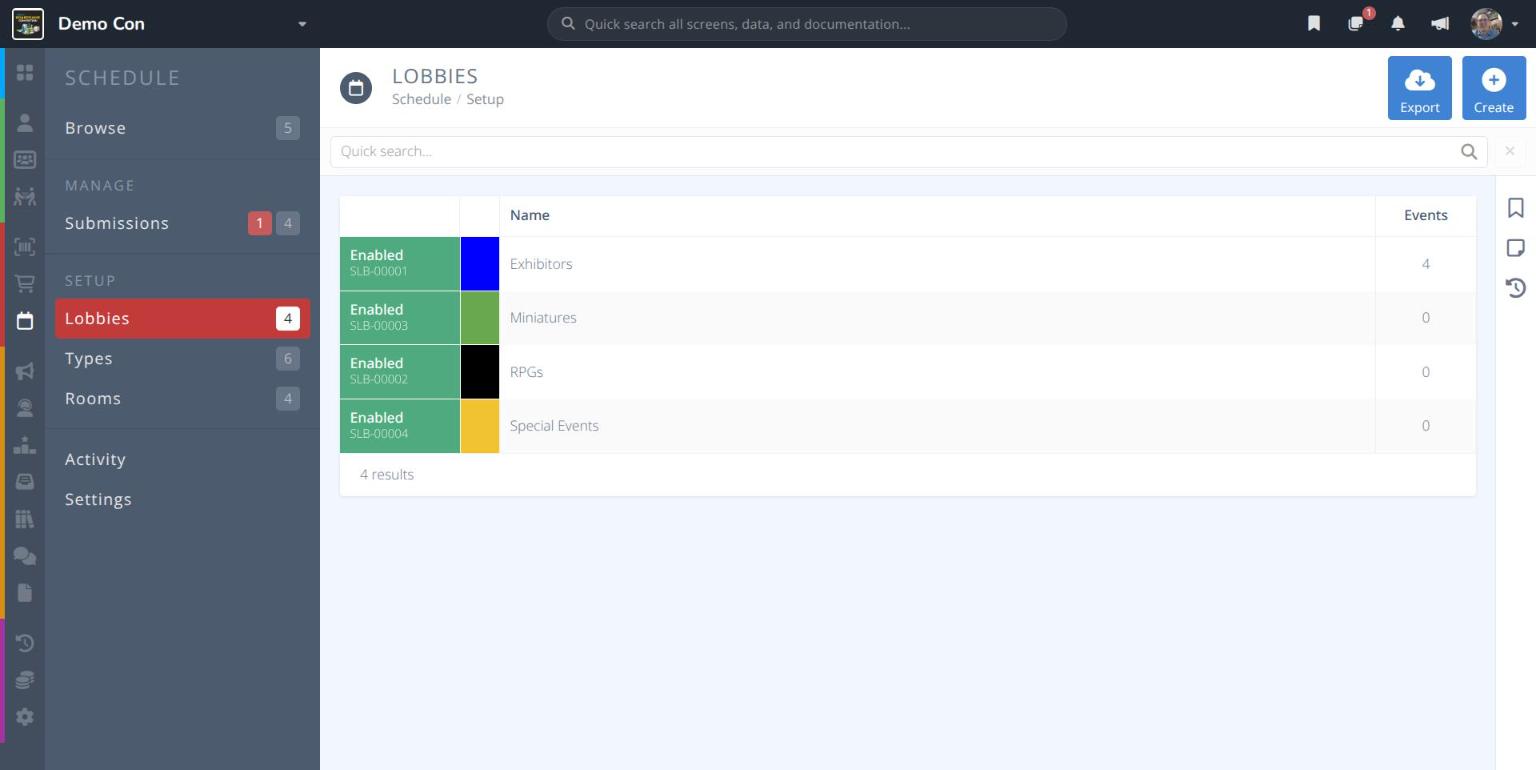
Lobbies gather people around a topic, such as RPGs, Miniatures or Special Events. Events are tagged with lobbies, and attendees use them to find events they're interested in:
- Browse Events - Each event shows its lobby tags in the lobby's colour, and attendees can click a lobby tag above the list to filter the events by it (see below)
- Lobby page - Each lobby lists its events, has its own Chat where attendees can talk about the topic, and shows its Subscribers
Attendees find lobbies under Lobbies on the convention's Schedule, with each lobby's image and description.
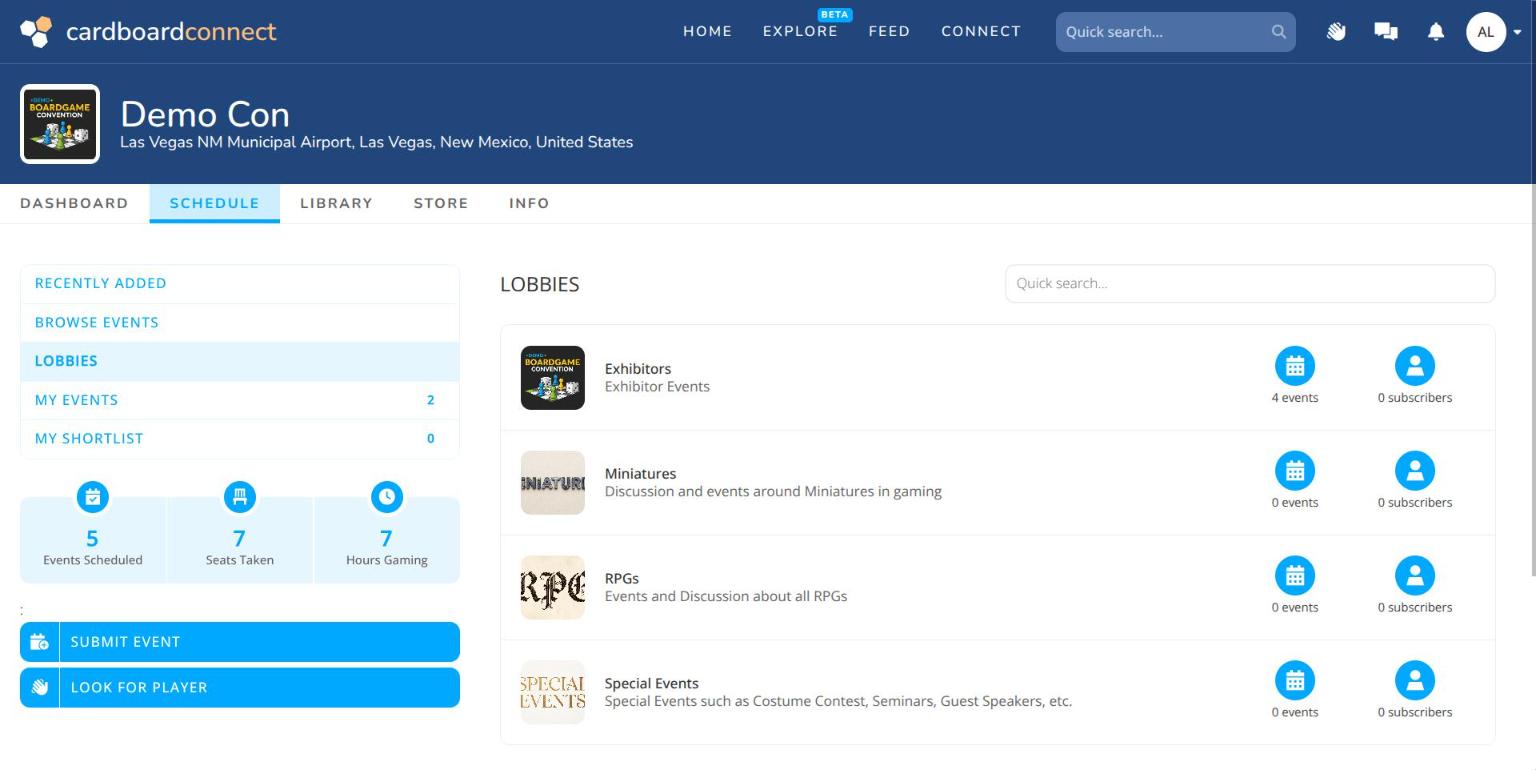
On Browse Events, attendees click a lobby above the list to show or hide its events. Here, Exhibitors is turned off, so only events in Special Events are shown:
Note: Lobbies and
Event Typesare separate. Attendees can see, browse and filter by lobbies, while event types are only used when submitting events and in Manage.
¶ Common Procedures
¶ Lobbies List
From the menu click .
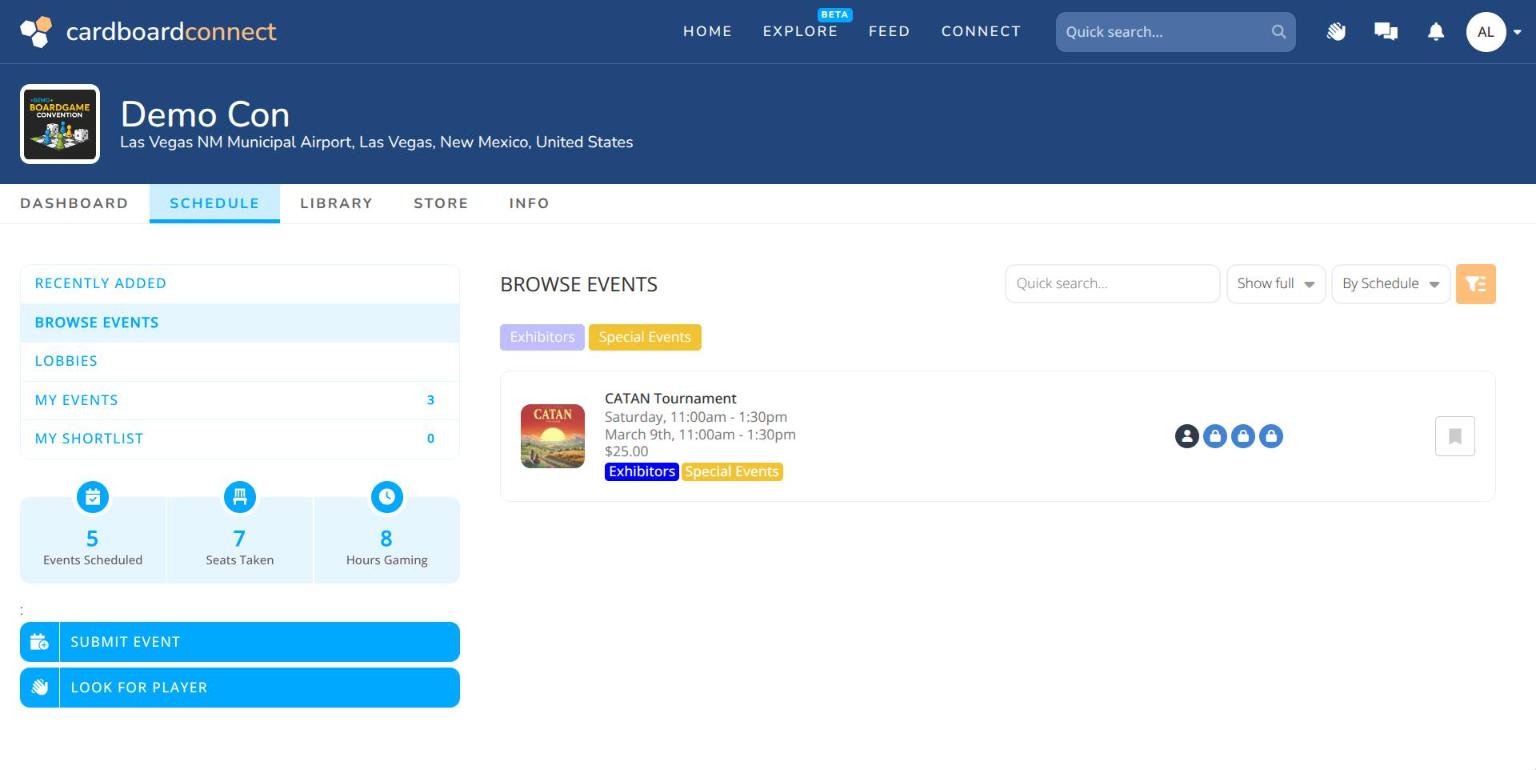
The list shows each lobby's status, colour, name and the number of Events tagged with it. Click a lobby to open it. On the lobby's screen, click the Events tile at the top to open Browse showing only that lobby's events, with Hide Completed turned off.
Eventscount is a count of active events.
¶ Fields
Each lobby has three tabs.
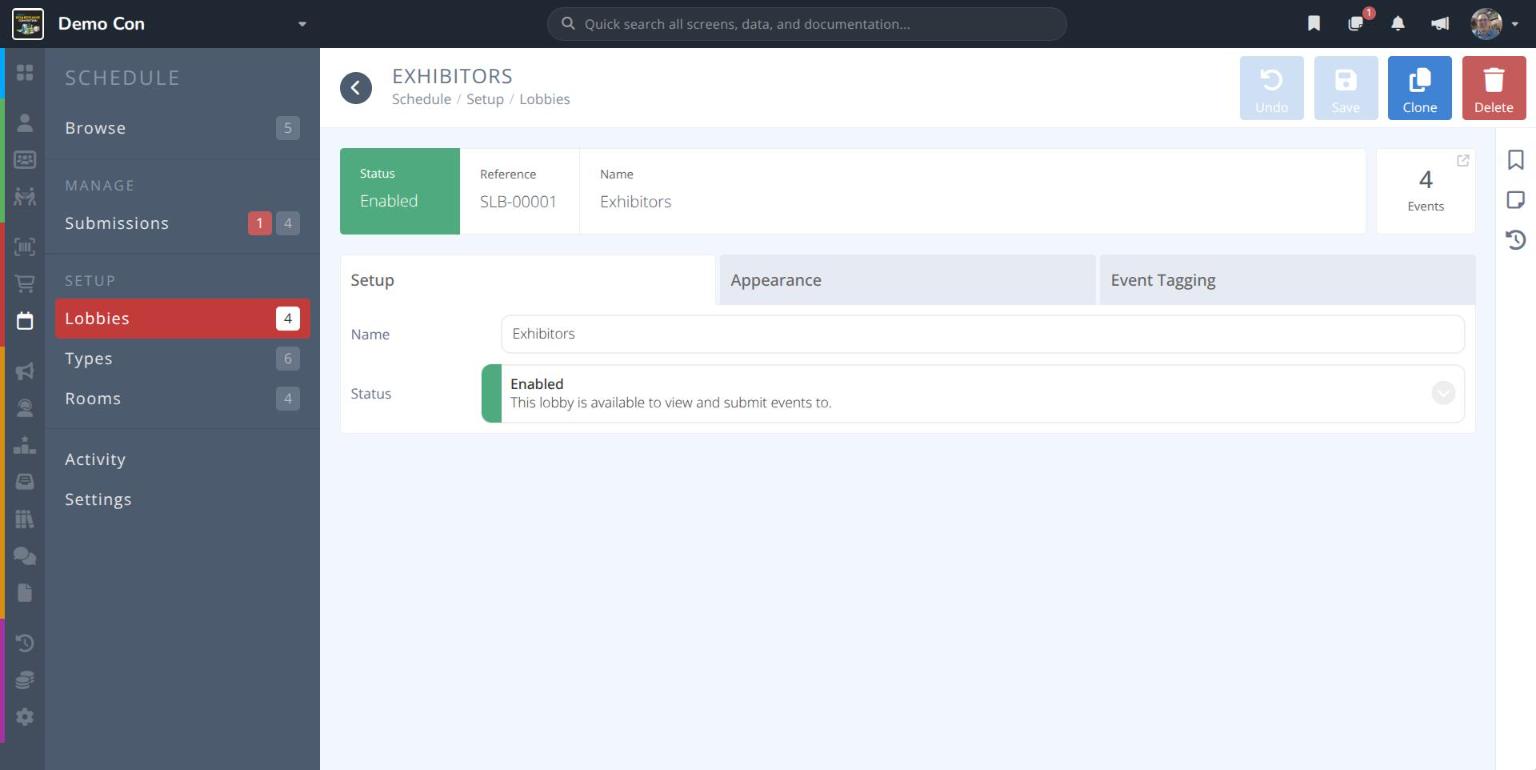

Name- The name of the lobbyStatus- Enabled lobbies can be viewed and have events submitted to them. Disabled lobbies cannot.
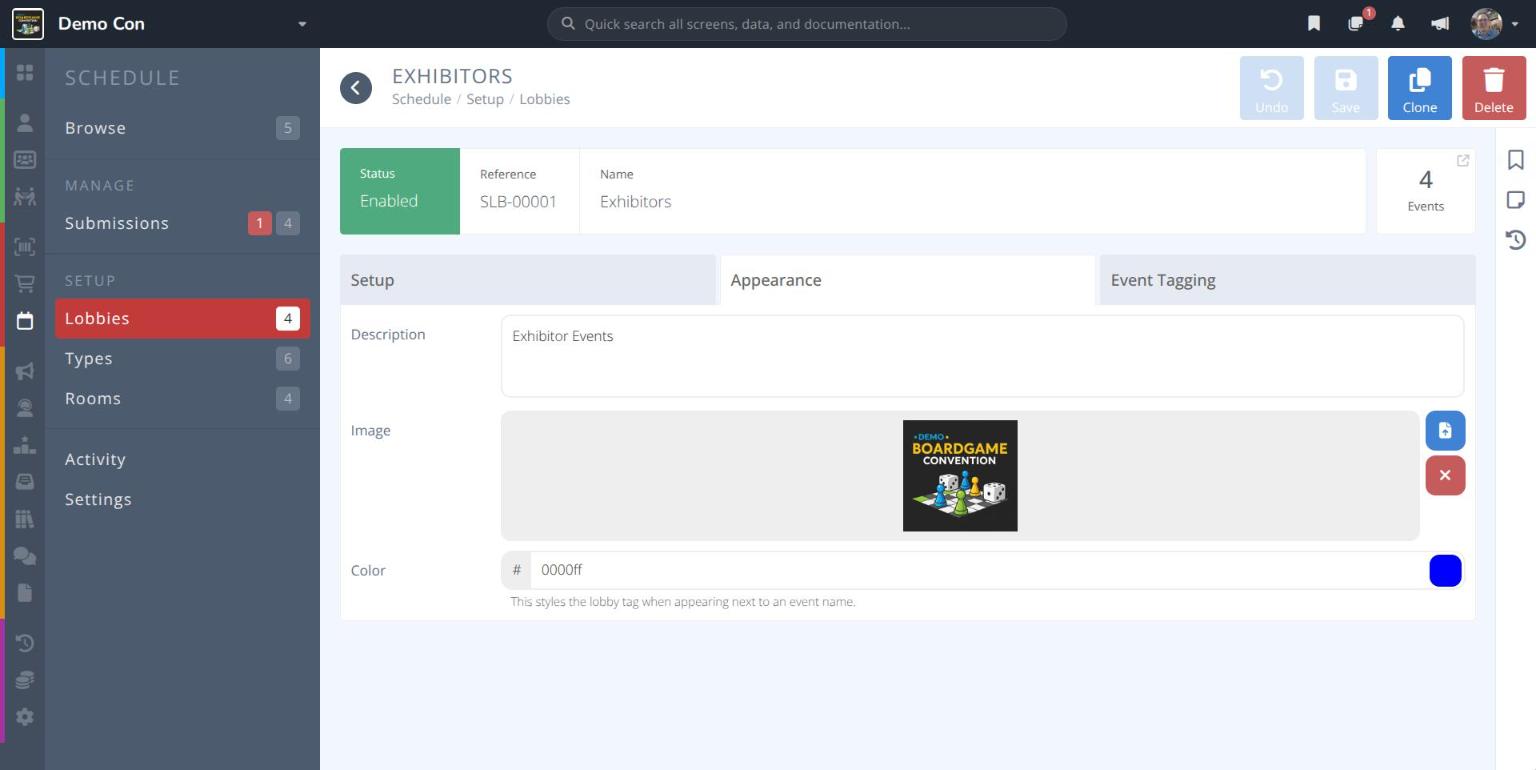
Description- A short description shown to attendees, to help them understand what the lobby is forImage- The image shown with the lobby. Click to upload one, or to remove it.Color- The colour of the lobby's tag on events and in the Browse Events filter. Enter a hex value (e.g. 0000ff) or click the colour swatch to pick one.
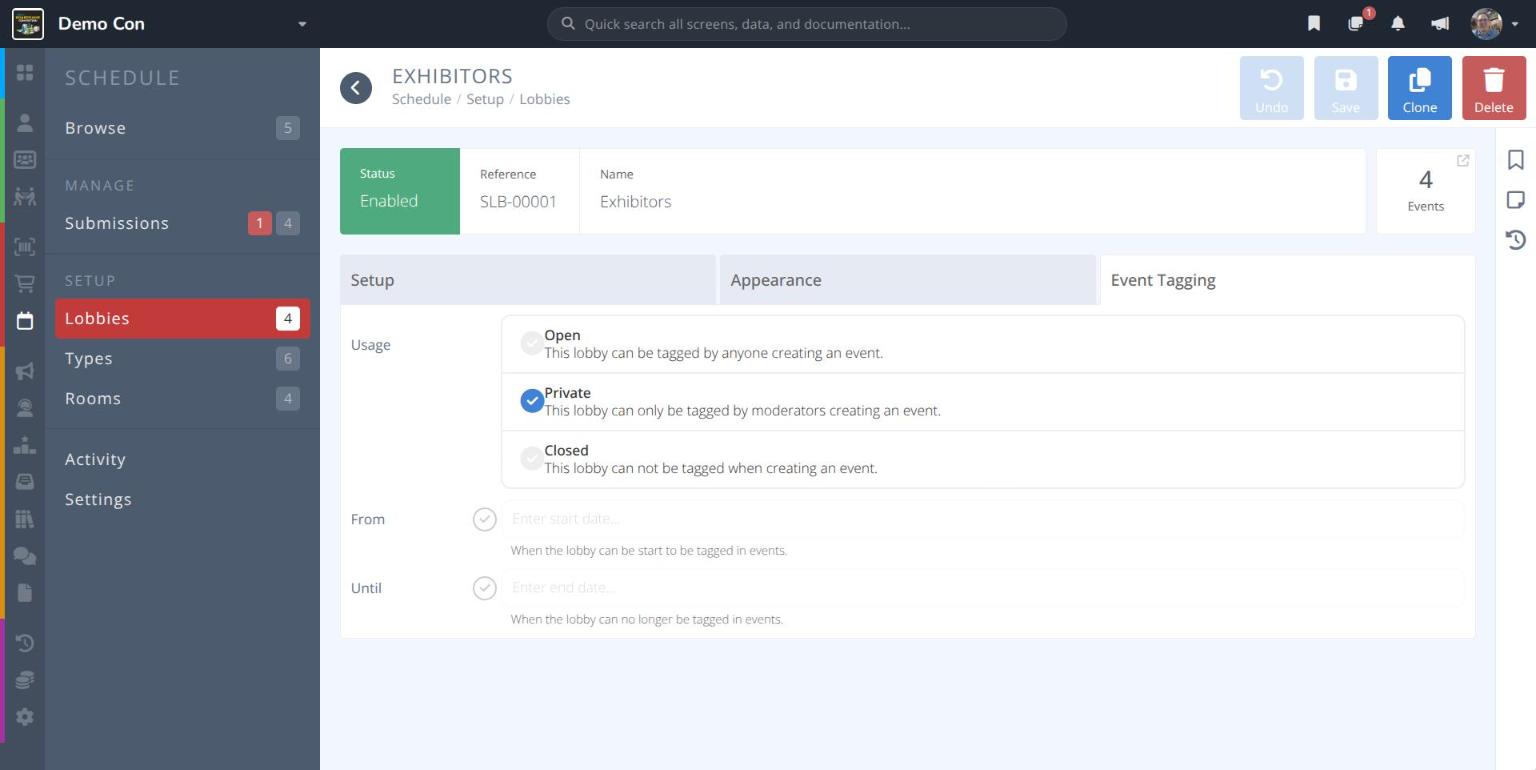
Usage- Who can tag events with this lobby:- Open - Anyone creating an event
- Private - Only moderators creating an event
- Closed - The lobby can't be tagged when creating an event
From- Optional. Tick it and choose a date and time to only allow tagging from then.Until- Optional. Tick it and choose a date and time to stop tagging after then.

¶ Procedures
¶ Create a Lobby
- From the menu click , then click .
- On the Setup tab, enter the
Nameand leaveStatusas Enabled. - On the Appearance tab, add a
DescriptionandImage, and choose aColor. - On the Event Tagging tab, choose the
Usage. SeeControl Who Can Tag a Lobby. - Click .
Tip: Choose colours that are easy to tell apart, so attendees can spot each lobby's tag and filter at a glance.
¶ Control Who Can Tag a Lobby
Most lobbies are Open, so anyone submitting an event can tag it. Use Private for lobbies only staff should use, such as Exhibitors at Demo Con.
- Open the lobby and click the Event Tagging tab.
- Choose the
Usage. - To only allow tagging for a while, tick
Fromand/orUntiland choose the dates. For example, open a lobby for tagging once a featured event is announced. - Click .
¶ Add a Lobby to Every Event in a Room
A room can add one or more default lobbies to every event scheduled in it. Demo Con's Exhibitor Hall and Big Publisher Booth both add the Exhibitors lobby, so every exhibitor event appears in that lobby.
- From the menu click and open the room.
- On the Settings tab, under
Lobbies, select the lobby next to Add default lobby. - Choose whether it is optional or required when submitting events, and click .
- Click .
See Rooms for more.
Max LobbiesinSchedule Settings. Default lobbies count towards it.
¶ Delete a Lobby
- From the menu click and open the lobby.
- Check the
Eventscount at the top right. - Click , then click .
Warning: Deleting a lobby cannot be undone. Events tagged with it lose the tag.
Statusto Disabled, or itsUsageto Closed.
¶ Next Steps
Rooms- Set up where events take place, including default lobbies.Event Types- Sort events into types for managing them.Schedule Settings- Set the maximum number of lobbies per event.