¶ Rooms
¶ Overview
Rooms are where your events take place. A room does not have to be a real, physical room. It can be part of a hall, a single vendor booth, or an area with no fixed tables at all, such as open gaming.
Each room decides most of how an event gets onto your schedule:
- Who can submit events to it (
Access) - Whether submitted events are reviewed before attendees can see or join them (
Approval) - Where and when events can be placed (
Spaces,DaysandHours)
Rooms can be divided into spaces, such as tables. Events in a room with spaces are booked into a space for a set time, so two events can't use the same table at once.
Note: Settings work in three levels.
Schedule Settingsset the defaults for the convention, a room can override them, and an individual event can override its room. Options set to Default use the level above.
¶ Common Procedures
Create a RoomLimit Who Can Submit to a RoomAdd Spaces to a RoomLimit Who Can Use a SpaceSet Up a Phased Release for a RoomAdd Default Lobbies to a Room
¶ Choosing a Room Setup
Most conventions use a mix of rooms, each set up for a different kind of event. These are the most common setups:
| Kind of event | Access | Spaces | Approval |
|---|---|---|---|
| Open gaming - Most attendee-run games | Public | No | Immediately Scheduled |
| Special events - Featured games, tournaments and other events you want to check first | Public | Yes | Hidden until Review |
| Vendor or group events - Demos run by exhibitors or a group (e.g. a Blood on the Clocktower or RPG group) | Private, with access for that badge type or group | Yes | Immediately Scheduled or Hidden until Review |
| A vendor's private table - A booth only one exhibitor uses | Private, with access for that group only | Yes, one or two tables | Immediately Scheduled |
For example, Demo Con uses:
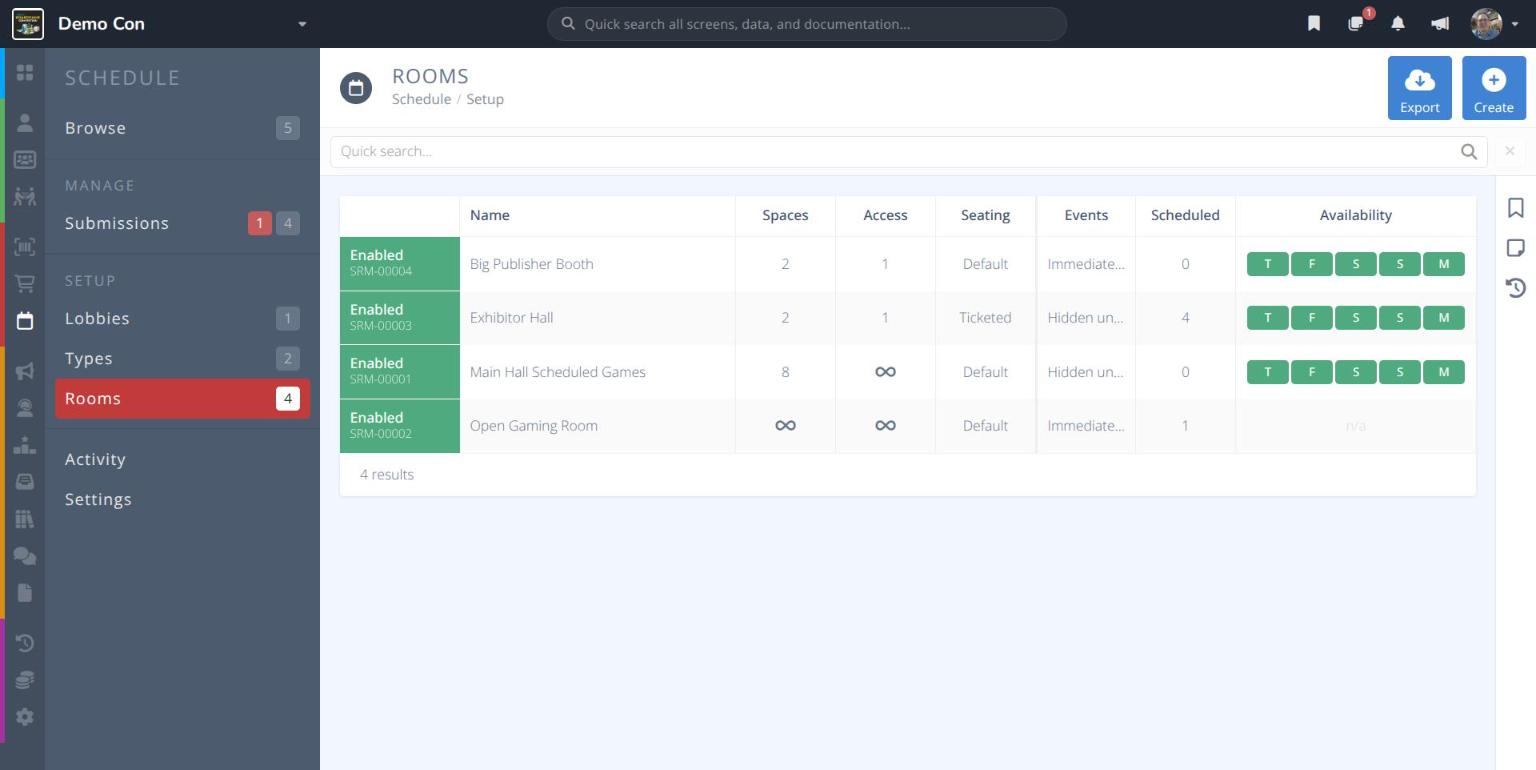
- Open Gaming Room - Open gaming. Anyone can submit, and events go straight onto the schedule.
- Main Hall Scheduled Games - Special events. Anyone can submit, but events stay hidden until an organizer approves them.
- Exhibitor Hall - Only Exhibitor badge holders can submit, and their events are reviewed.
- Big Publisher Booth - Only members of the Exhibitor A group can submit, only Demos are allowed, and events go straight onto the schedule.
Tip: Organizers can also create events themselves from the menu's screen. Events that need approval are reviewed under
Submissions.
¶ Rooms List
From the menu click .
The list shows each room with:
Spaces- The number of spaces in the room. means the room does not use spaces.Access- Who can submit events:- - Public, anyone can submit
- A number - Private, with that many access rules
- A red 0 - Private with no access rules, so only admins and moderators can submit
Seating- Whether events are Simple, Ticketed or use the Default settingEvents- TheApprovalsetting (e.g. Immediately Scheduled)Scheduled- The number of events scheduled in the roomAvailability- The days the room is available. Green days are available. Rooms without spaces currently show n/a.
Use the Quick search... bar to find a room. Click a room to open it. On the room's screen, click the Events tile at the top to open Browse showing only that room's events, with Hide Completed turned off.
Scheduledcount is a count of active events.
¶ Room Details
Each room has these tabs:
- About - The
Name,DescriptionandImage. Attendees see these when choosing a room for their event, so describe what the room is for. - Settings - How the room works (see
Settingsbelow) - Access - Who can submit events. Only shown when
Accessis Private.
The panel below the tabs opens the room's spaces. It is only shown when Spaces is Yes.
¶ Settings
Who can submit, and how events are reviewed:
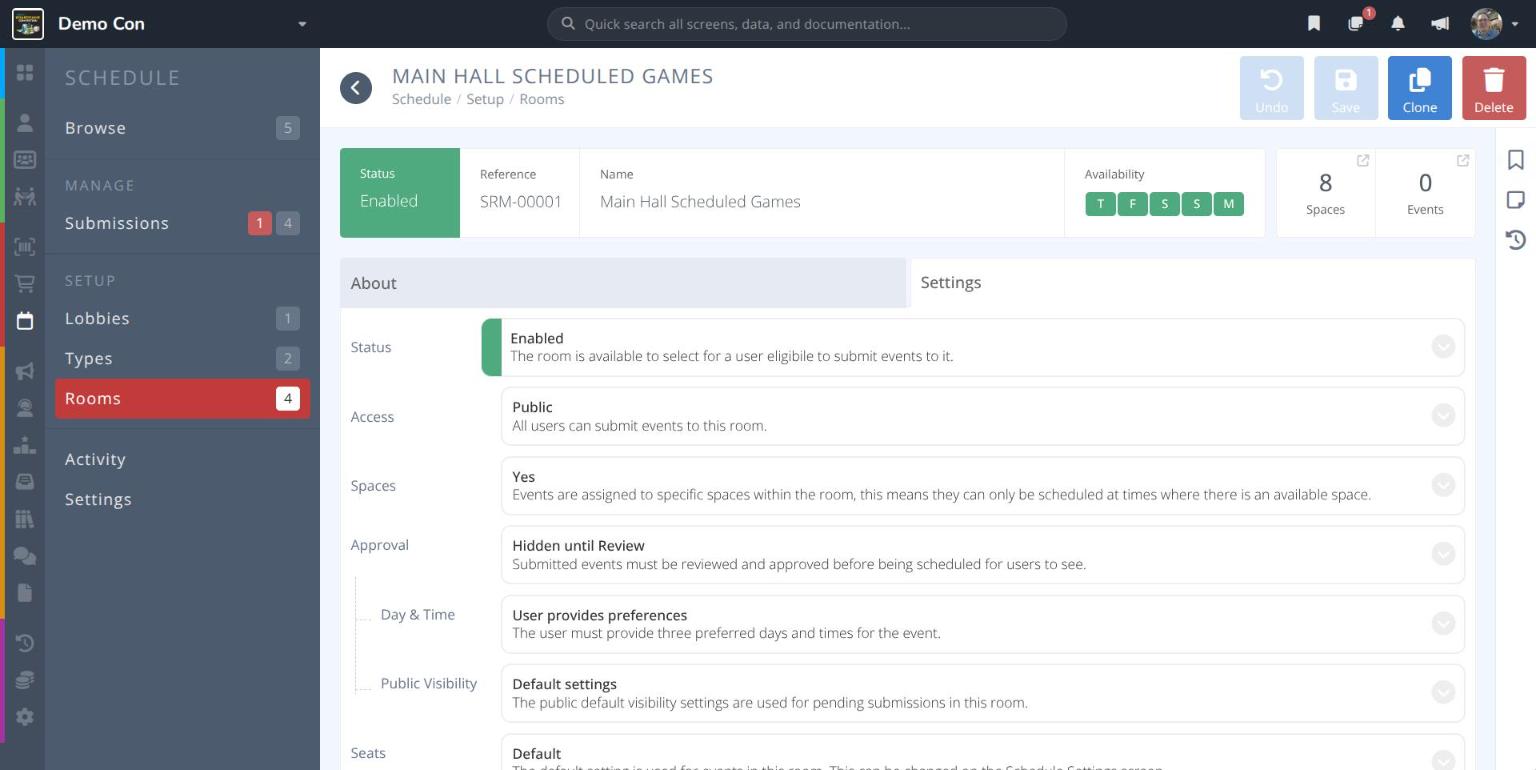
Status- Enabled rooms can be chosen when submitting events. Disabled rooms cannot.Access- Public (anyone can submit) or Private (only admins, moderators and anyone given access on the Access tab)Approval- What happens when an event is submitted:- Immediately Scheduled - The event goes straight onto the schedule for attendees to join
- Hidden until Review - The event is hidden until an organizer approves it
- Limited until Review - The event is shown on the schedule, but attendees can't join it until an organizer approves it
- When an event needs review, two more options appear:
Day & Time- User selects specific (the submitter picks one day and time) or User provides preferences (the submitter gives three preferred days and times, and you choose when you approve it)Public Visibility- Whether events waiting for review can be seen by attendees. Default settings followsSchedule Settings. Always show if enabled or Always hide if enabled override it for this room.
Seats:
Seats- Simple (attendees take or leave a seat), Ticketed (attendees need a ticket, seeEvent Tickets), or DefaultGeneric Tickets- Ticketed rooms only. Whether attendees can use generic tickets for events in this room.Phased Release- Whether seats are released in stages. SeeSet Up a Phased Release for a Room.
Where and when:
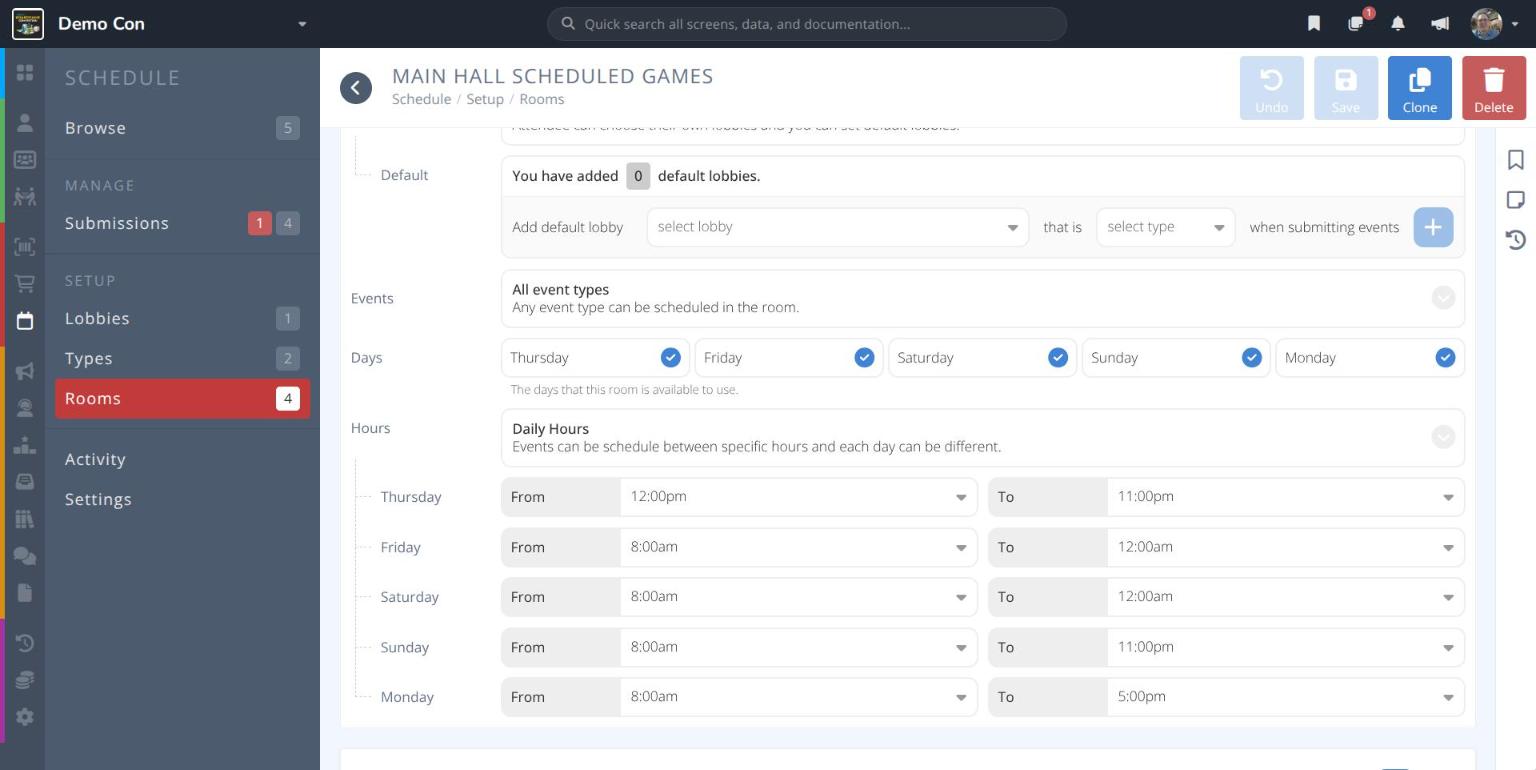
Spaces- Yes (events are booked into a space, such as a table, for a set time) or No (events have no set location, but must still fit within the room'sHours)Lobbies- Whether attendees can choose their own lobbies for events in this room, and anyDefaultlobbies added to every event. SeeAdd Default Lobbies to a Room.Events- All event types, or only Specific event types (seeEvent Types). Admins can always override this when creating or editing events.Days- The days the room can be usedHours- The hours events can be scheduled: All Day, Set Hours (the same hours every day) or Daily Hours (different hours each day)
Hoursapply to every room, with or without spaces. Start times and durations are limited so each event ends by the room's closing time. With Daily Hours, each day uses its own hours.
¶ Procedures
¶ Create a Room
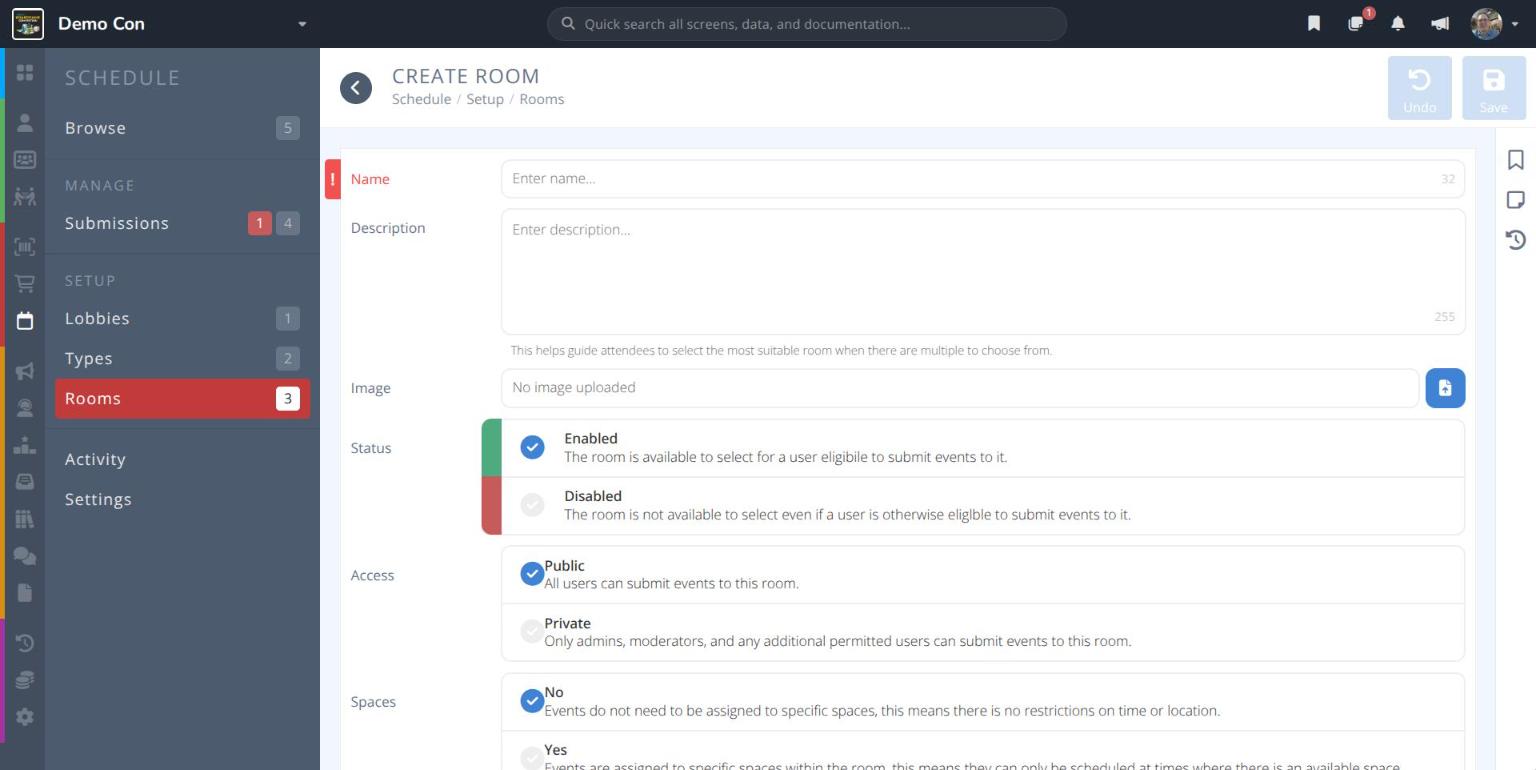
- From the menu click , then click .
- Enter the
Name, and aDescriptionandImageto help attendees choose the right room. - Choose the
Access,SpacesandApprovalfor the kind of events the room is for. SeeChoosing a Room Setup. - Check the
DaysandHoursthe room can be used. - Change any other
Settingsyou need. Most rooms can leaveSeatsandPhased Releaseas Default. - Click .
- Next steps:
- If
Accessis Private,limit who can submit to the room. - If
Spacesis Yes,add spaces to the room.
- If
¶ Limit Who Can Submit to a Room
Use this for rooms such as a vendor booth or a group's table, so only the right people can schedule events there.
- Open the room and make sure
Accessis set to Private on the Settings tab. Click if you changed it. - Click the Access tab.
- Click the kind of access to add:
- - Selected attendees
- - Everyone holding a badge type (e.g. Exhibitor)
- - Badge holders with a category
- - Every member of a group (e.g. Exhibitor A)
- - Selected members of a group
- - Everyone who bought an item
- - Volunteers in a role
- Start typing a name and select it from the list. It is added to the grid, and
Scopeshows how many people it covers.
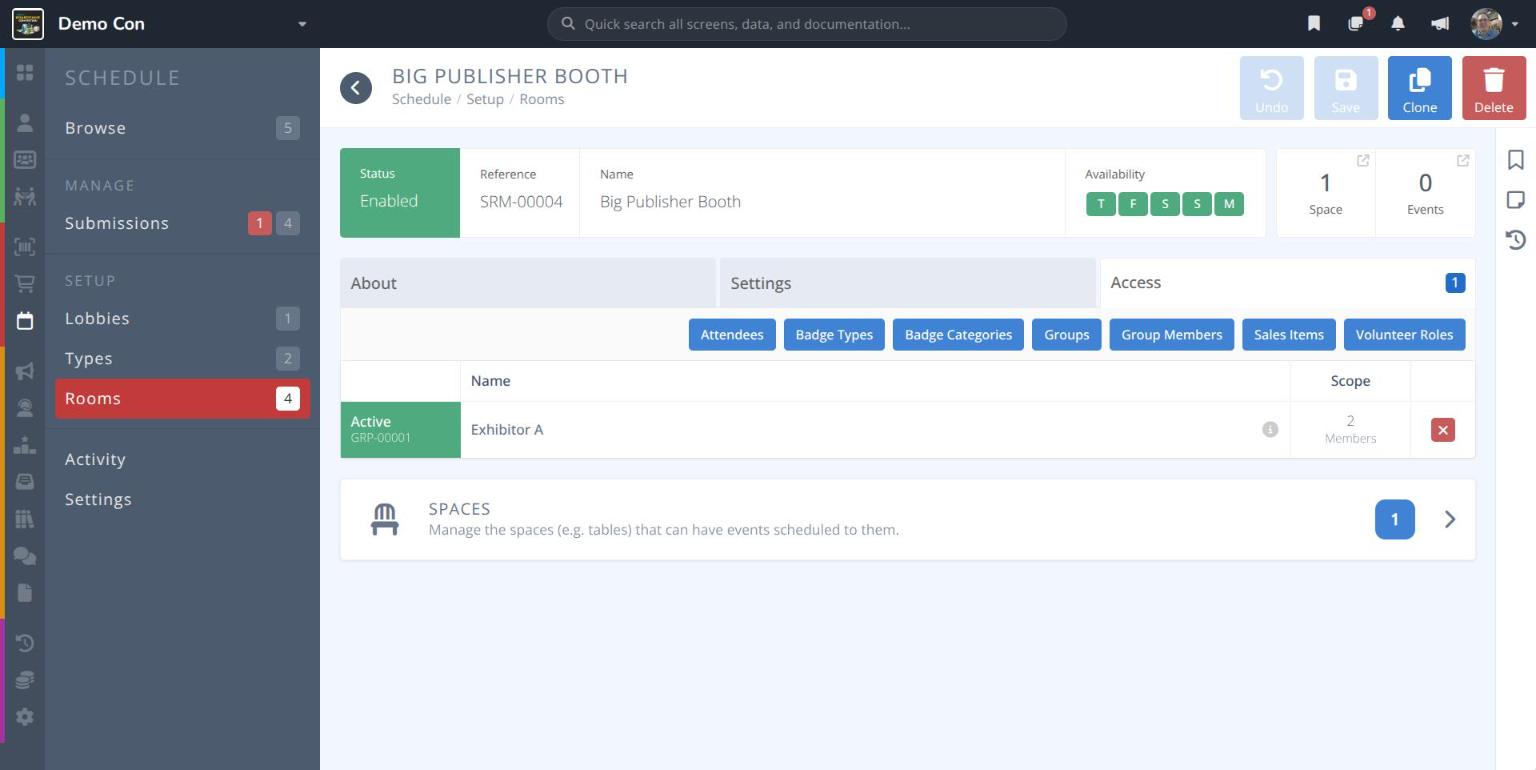
- Repeat for anyone else who needs access. To remove one, click .
- Click .
Allowlist. SeeDrafting Events.
¶ Add Spaces to a Room
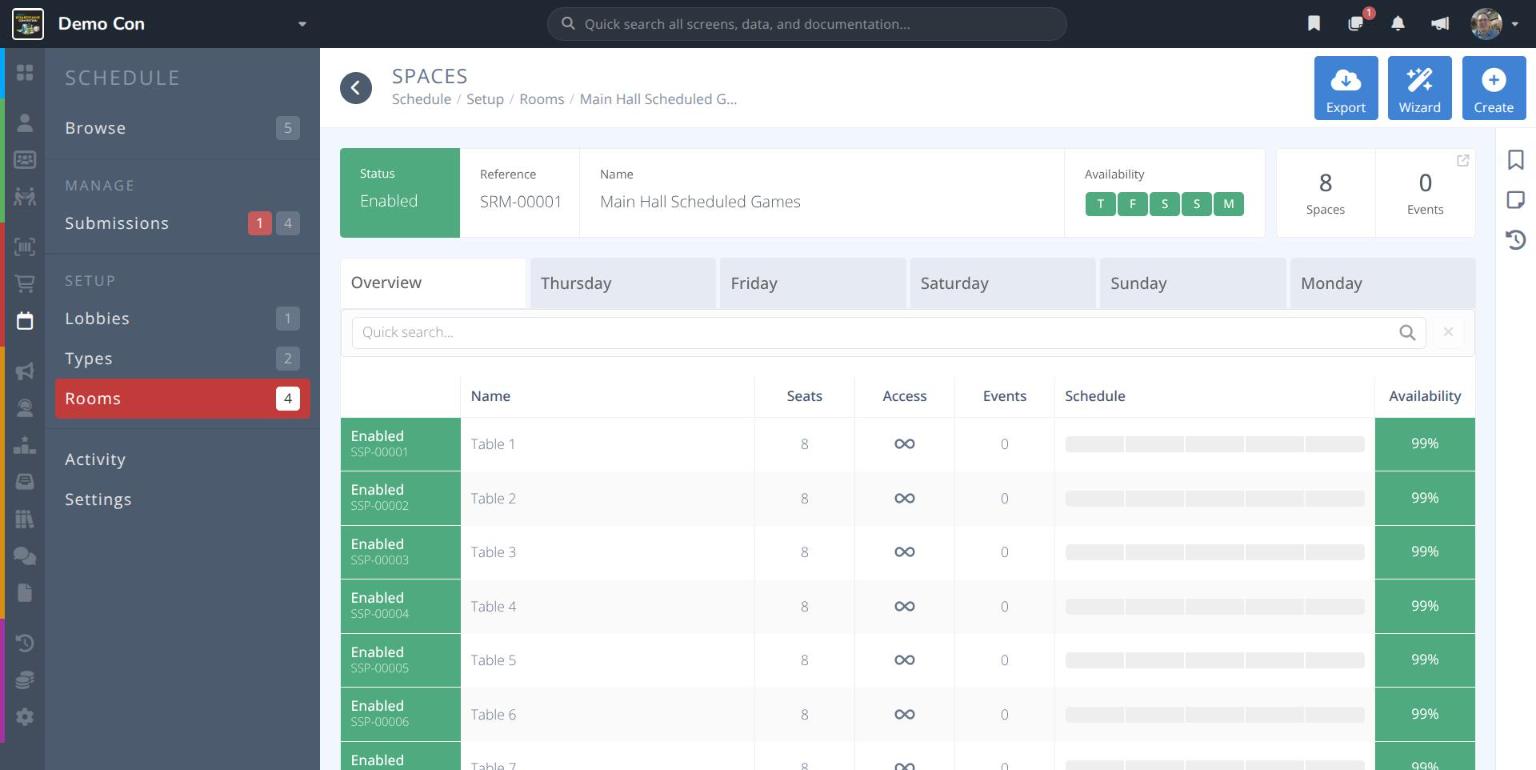
Spaces are the tables (or other areas) in a room that events are booked into. Spaces must be set to Yes on the room's Settings tab.
- Open the room and click the panel.
- Add spaces in one of two ways:
a) Click .
b) Enter a Name Template. Use {number} or {letter} to number the spaces, e.g. Table {number} creates Table 1, Table 2, Table 3 and so on.
c) Enter the Number of Spaces and the Seats per Space.
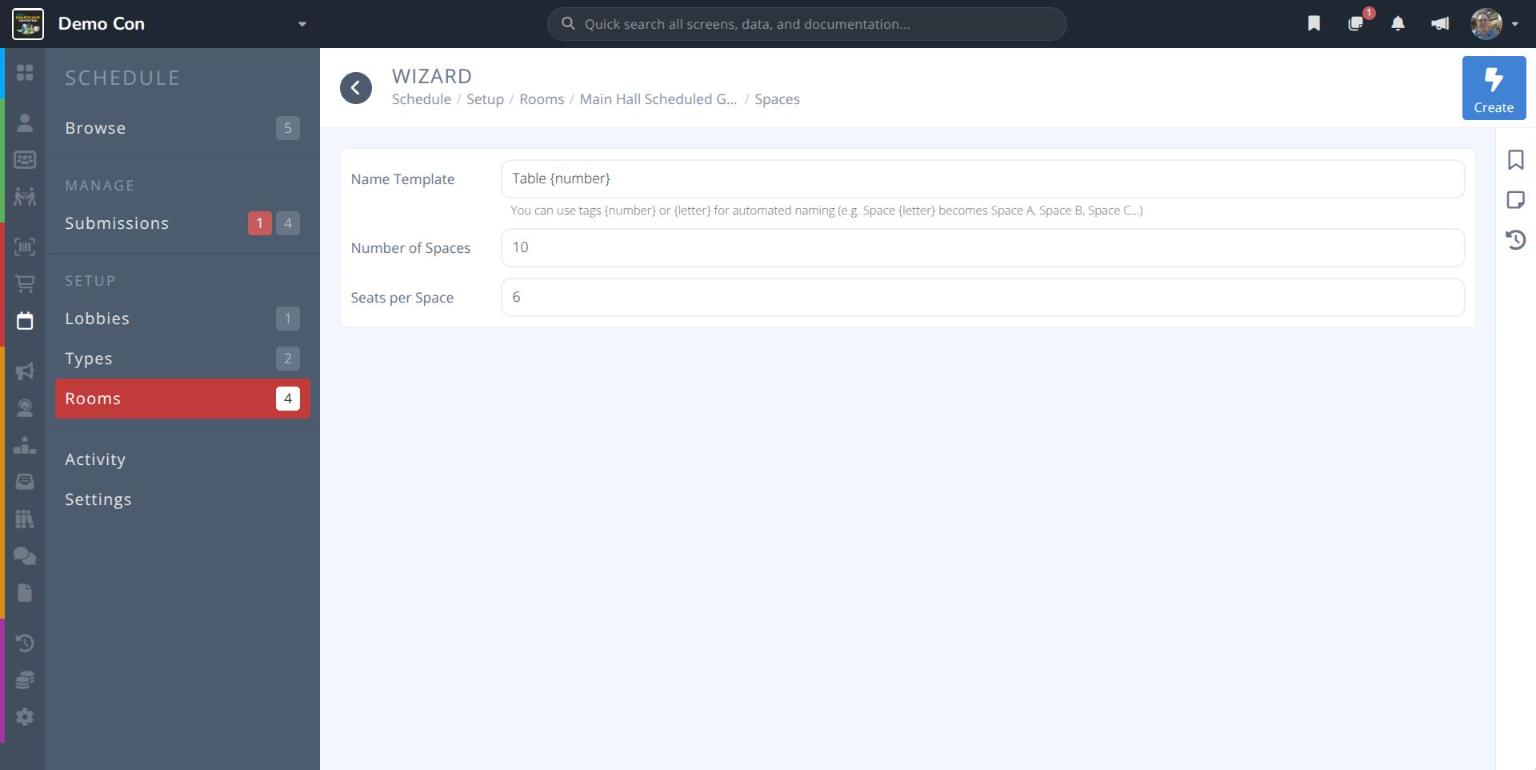
d) Click .
a) Click .
b) Enter the Name and Seats.
c) Click .

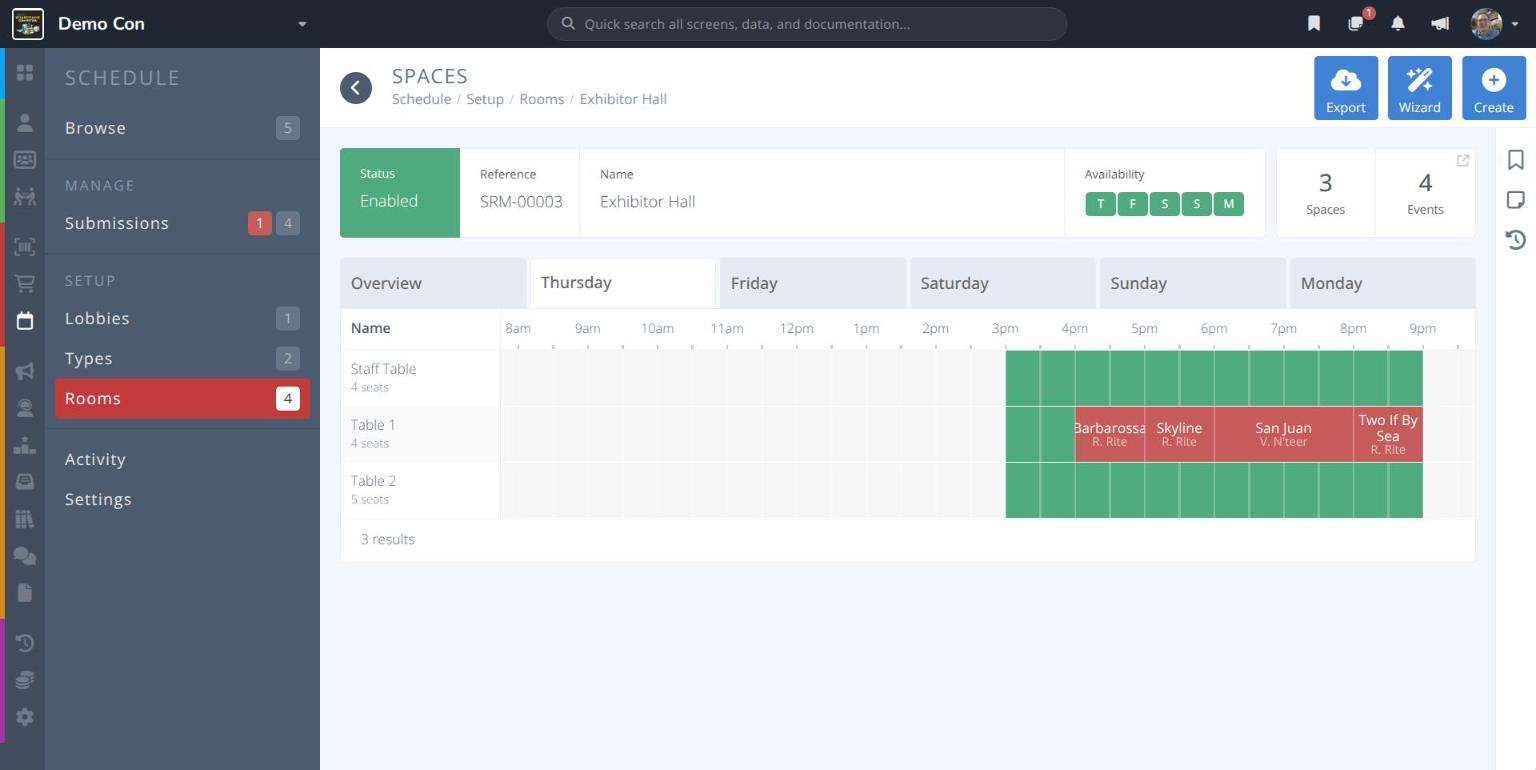
The Overview tab lists the room's spaces and how much of their time is booked. Click a day's tab to see a timeline of each space that day. Booked events show in red, free time in green, and hours when the room or space isn't open in grey. Pending submissions that have asked for a space are also drawn on that space's timeline, so you can see requests before you approve them.
¶ Limit Who Can Use a Space
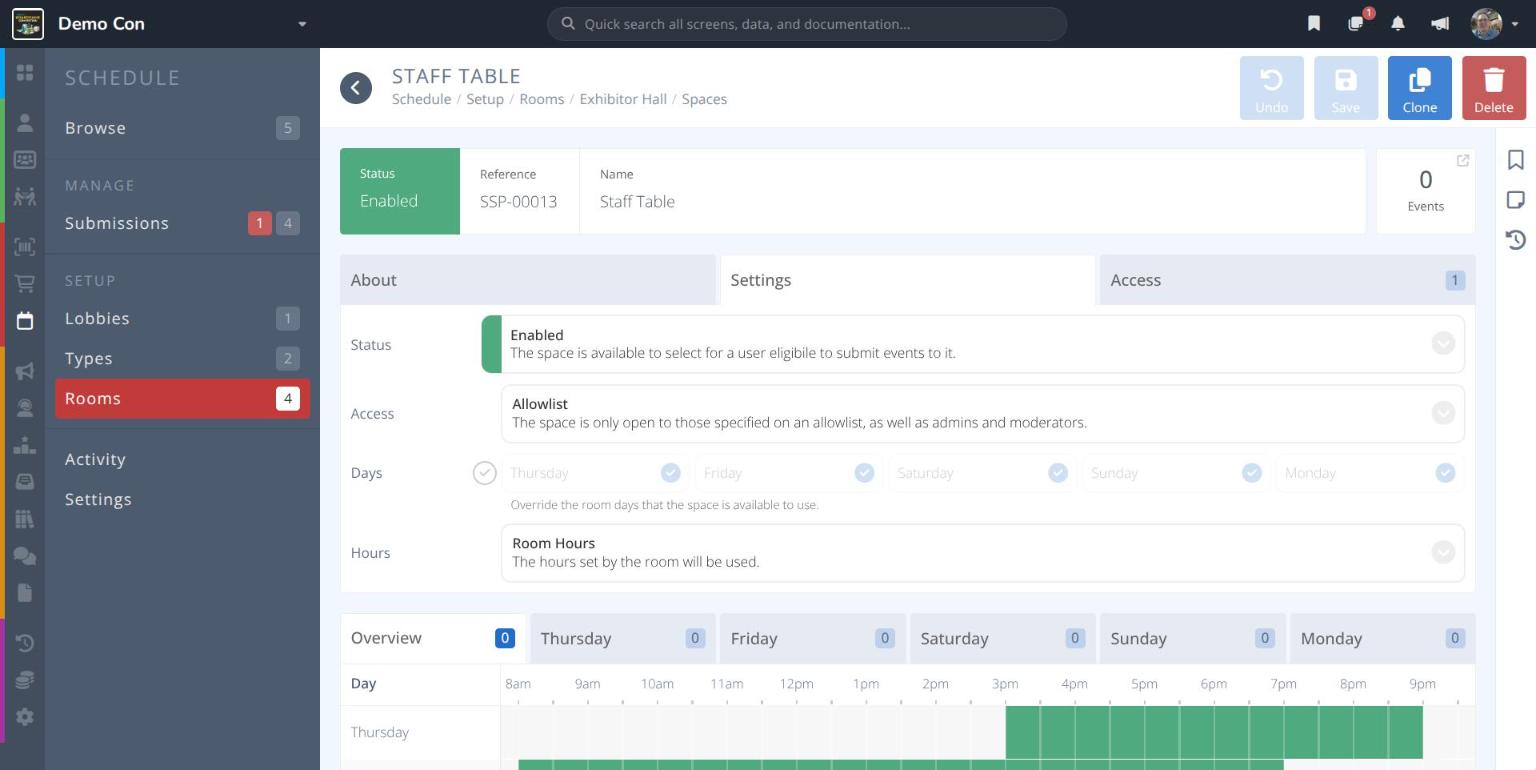
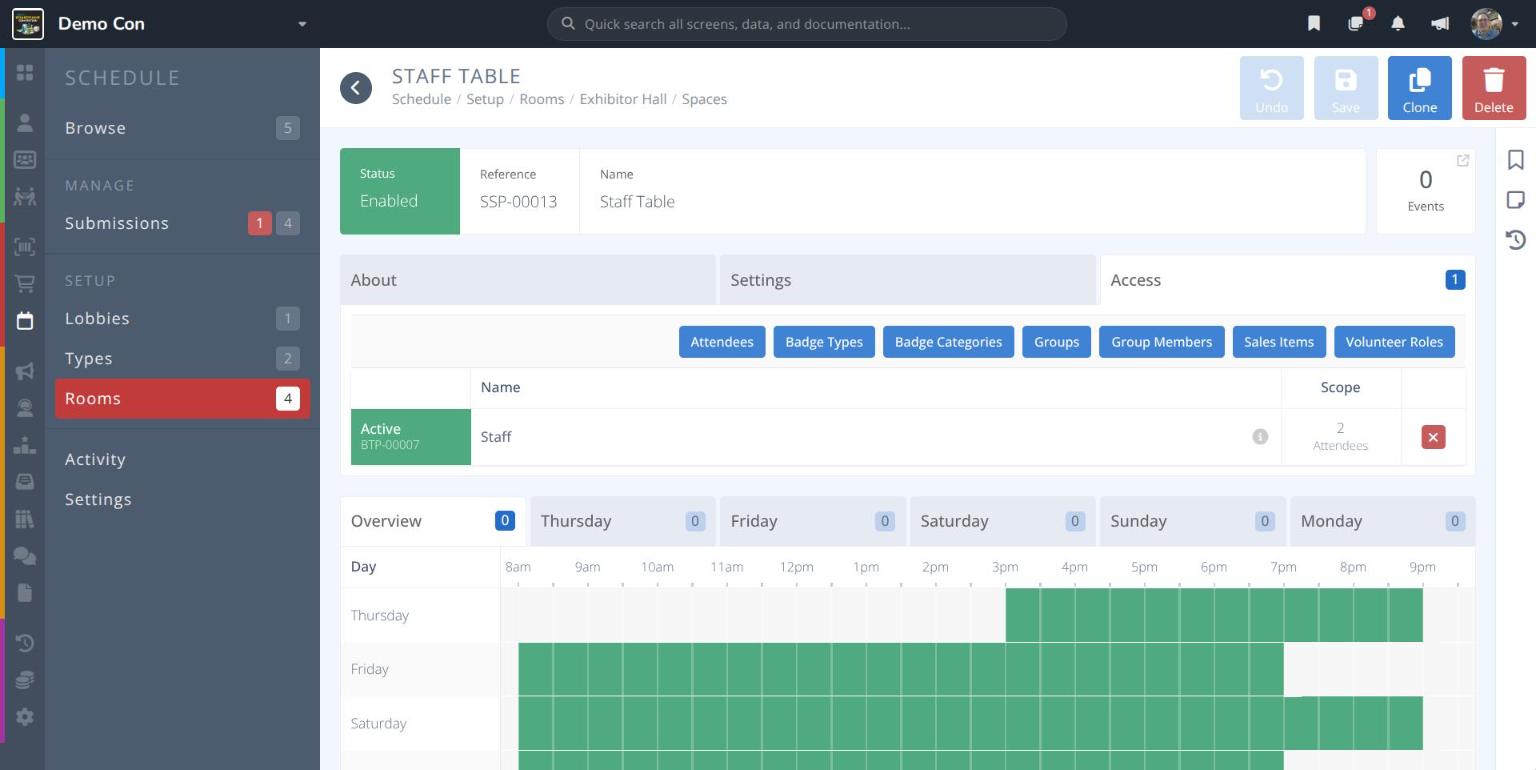
By default, a space can be used by anyone who can submit to its room. You can limit a single space, or give it different days or hours from the rest of the room. For example, Demo Con's Exhibitor Hall has a Staff Table that only Staff badge holders can book.
- Open the room, click the panel, then click the space.
- Click the Settings tab.
- Set
Access:- All Eligible - Anyone who can submit to the room
- Admins & Moderators - Staff only
- Allowlist - Only the people you add, plus admins and moderators
- If needed, change the
DaysorHoursfor this space. Room Hours uses the room's hours. - Click .
- If you chose Allowlist, click the Access tab that appears. Add who can use the space the same way as for a room (see
Limit Who Can Submit to a Room), then click .
¶ Set Up a Phased Release for a Room
A phased release holds back some of each event's seats and releases them in stages. Most rooms use the convention's setting from Schedule Settings, so only change it here if this room needs something different.
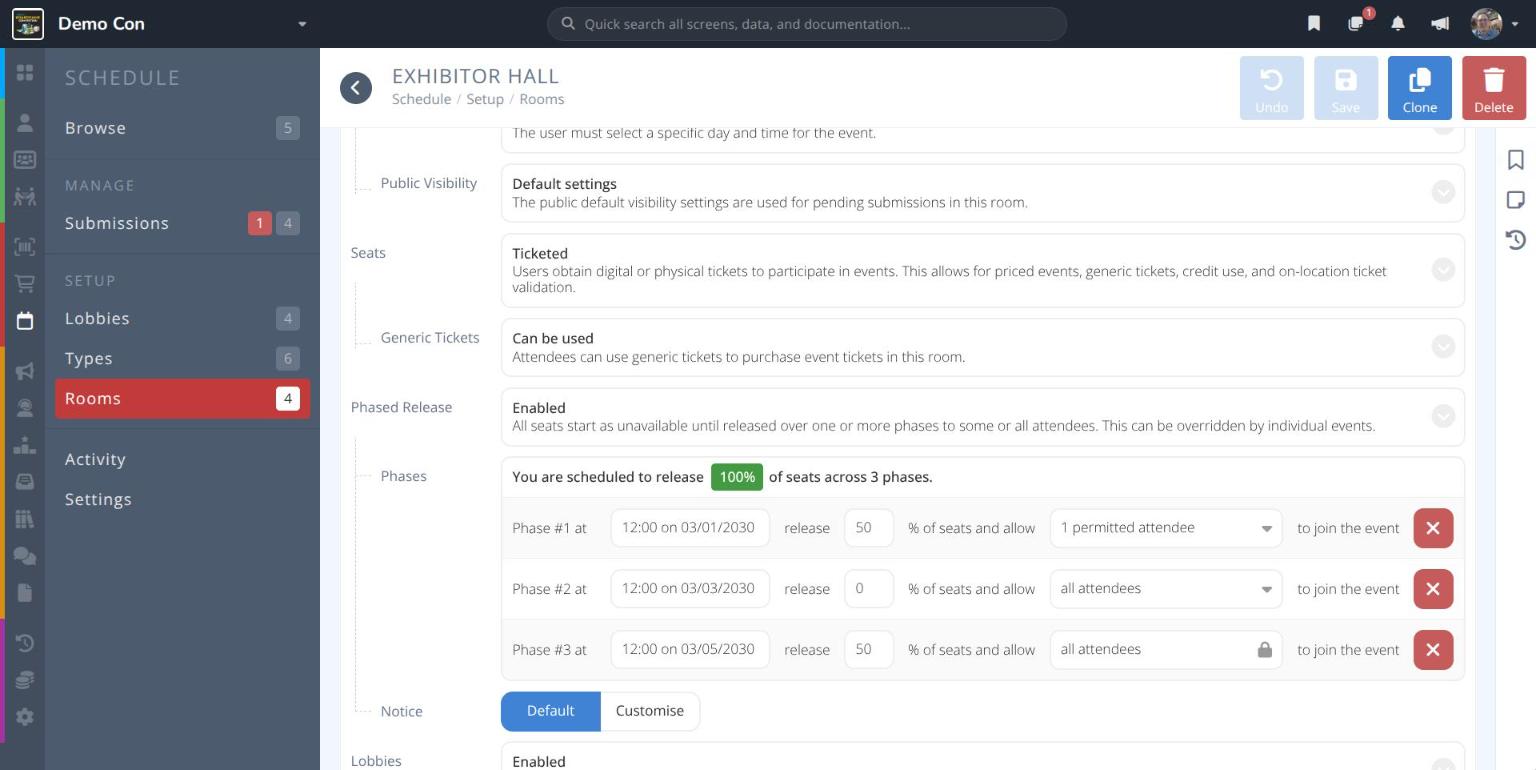
For example, Demo Con's Exhibitor Hall releases seats in three phases:
| Phase | Seats released | Who can take a seat |
|---|---|---|
| #1 - 1 March | 50% | VIP badge holders only |
| #2 - 3 March | 0% (no more seats) | All attendees, from the seats already released |
| #3 - 5 March | The remaining 50% | All attendees |
-
Open the room and click the Settings tab.
-
Set
Phased Releaseto Enabled. ThePhasesandNoticeoptions appear. -
Use the Add phase at row to add each phase:
- Choose the date and time the phase starts.
- Enter the % of seats to release. Enter 0 to let more people join without releasing more seats.
- Choose who can join: all attendees, or Select additional permitted attendees to limit it (see below).
- Click .
The summary above the phases shows how much of the room's seats you have scheduled for release (e.g. 100% across 3 phases).
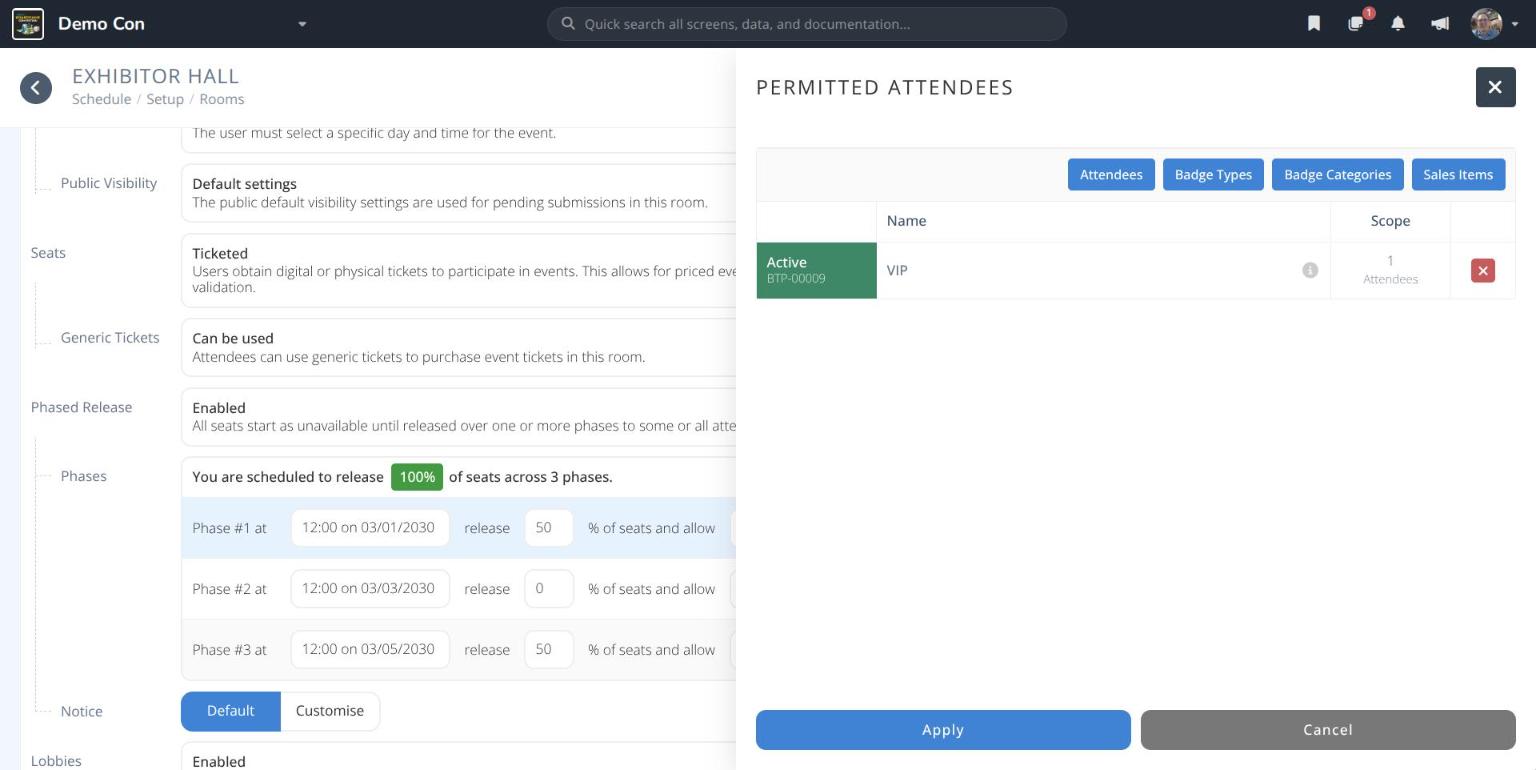
- To limit a phase to certain people, open its list and choose Change permitted attendees. In the PERMITTED ATTENDEES panel, click , , or , select who to add, then click . The phase then shows how many attendees it covers (e.g. 1 permitted attendee).
-
Leave
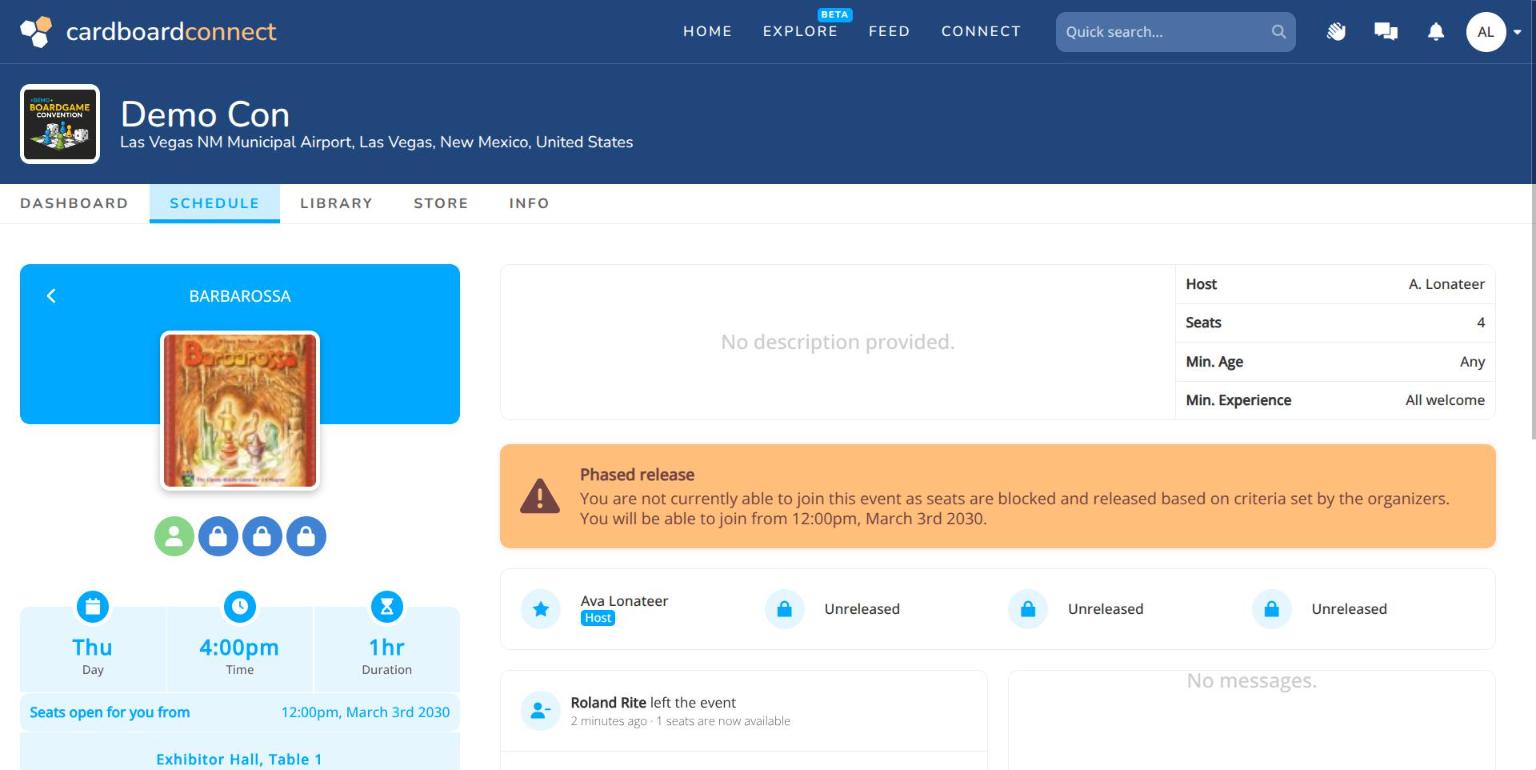
Noticeon , or click to write the message attendees see while seats are held back from them. Use {date} to show when seats open to them.Attendees see the notice on the event, along with when seats open for them. For example, an attendee without a VIP badge sees that they can join from the start of phase #2:
- Click .
Phased Releaseto Disabled.
¶ Add Default Lobbies to a Room
Default lobbies are added to every event in the room. For example, Demo Con's Exhibitor Hall adds the Exhibitors lobby to every event there.
- Open the room and click the Settings tab.
- Under
Lobbies, next to Add default lobby, select the lobby. - Choose whether it is optional or required when submitting events, and click .
- Click .
To remove a default lobby, click next to it and save.
Schedule Settings.
¶ Next Steps
Event Types- Create the types of events your rooms allow.Lobbies- Create lobbies to group related events.Schedule Settings- Set the convention-wide defaults your rooms use.Submissions- Review events submitted to rooms that need approval.