¶ Submissions
¶ Overview
A submission is an event that is waiting for an organizer's decision before it goes on the schedule. Events become submissions when they are submitted to a room whose Approval is Hidden until Review or Limited until Review. Events submitted to an Immediately Scheduled room, such as open gaming, skip this step and go straight onto the schedule.
On the Submissions screen you can:
- See every submission and its status
- Check and change the event's details, and give it a space, day and time
- Accept it, so it is scheduled
- Reject it, with a reason sent to the submitter
- Retract a decision, which sets the submission back to Pending
- Keep private notes, and message the submitter
Once a submission is scheduled, it becomes a regular event that attendees can see and join. You manage it from the screen from then on.
Tip: The menu item shows two counts. The red number is how many submissions are Pending a decision, and the white number is the total.
¶ Common Procedures
Review a SubmissionChoose a Space, Day and TimeAccept a SubmissionReject a SubmissionRetract a DecisionMessage the Submitter
¶ Submissions List
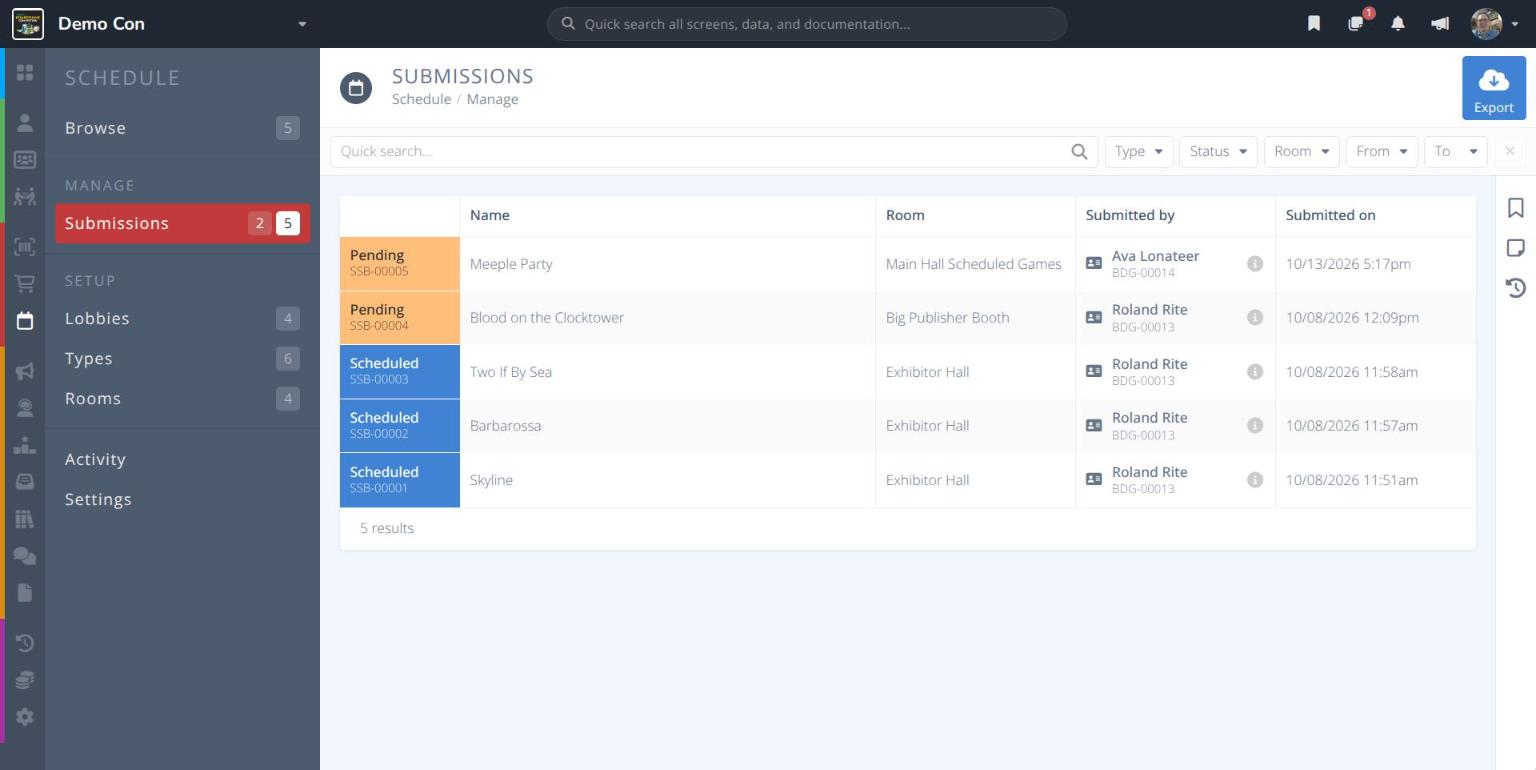
From the menu click .
The list shows each submission with:
Status- Where the submission is in the review (see below), with its reference number (e.g. SSB-00005)Name- The event's nameRoom- The room it was submitted toSubmitted by- The attendee who submitted it, with their badge referenceSubmitted on- When it was submitted
Submissions can have these statuses:
- Pending - Waiting for a decision. The Status filter also lets you pick Pending - Submission (submitted directly by a badge holder) or Pending - Application (submitted as part of an application form).
- Approved - Accepted, and waiting for the attendee to schedule it themselves
- Pre-approved - Accepted, and will be scheduled once the applicant's application is approved and they have a badge
- Scheduled - Accepted and on the schedule. The submission is now read-only.
- Rejected - Not accepted
- Cancelled - Cancelled by the submitter or an organizer, and no longer being considered
Use the Quick search... bar, or the Type, Status, Room, From and To filters, to find submissions. Click to download the list as a CSV file. Click a submission to open it.
¶ Submission Details
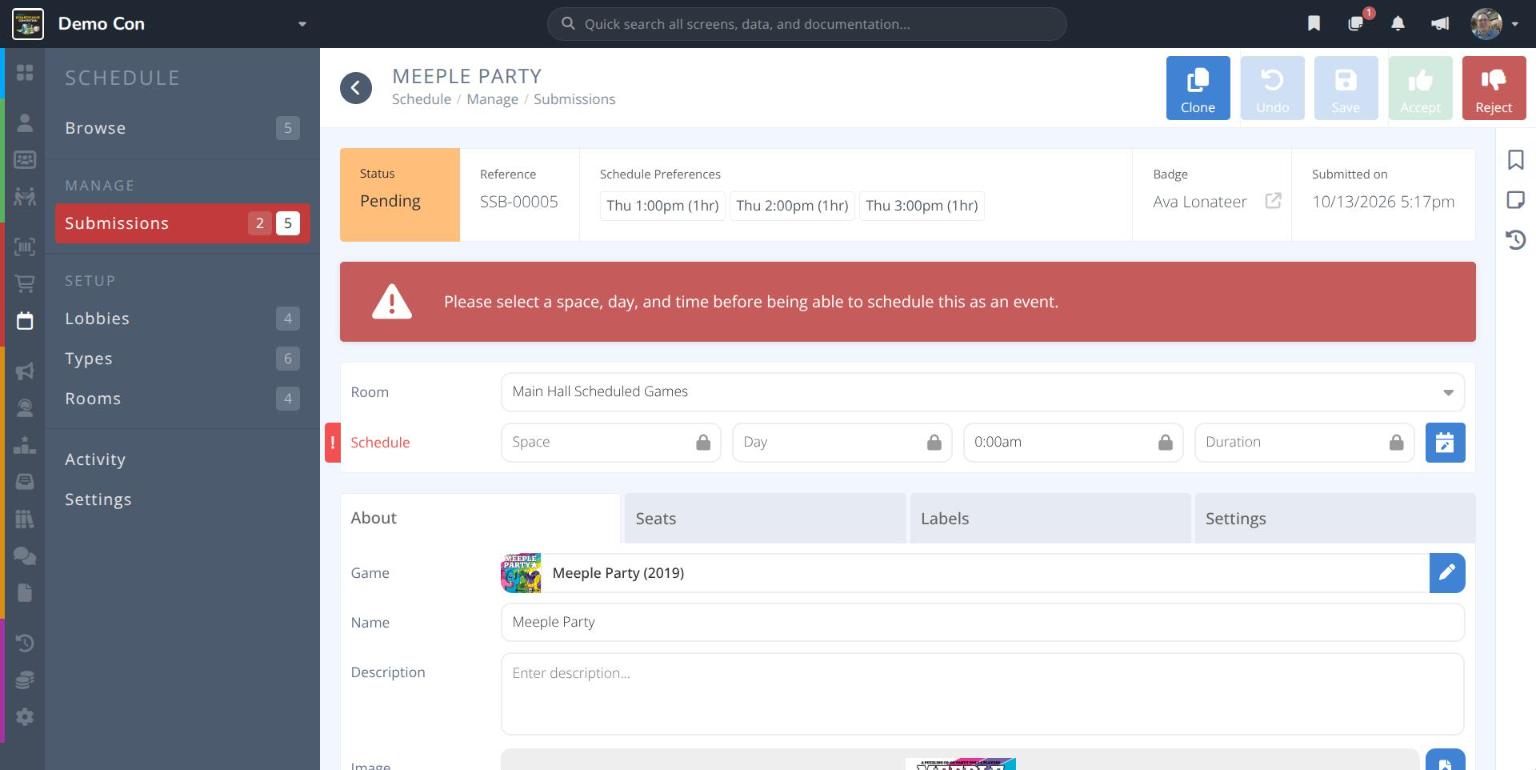
Each submission has:
- A summary bar - The
Status,Reference, the submitter'sSchedule Preferences, theirBadgeand when it wasSubmitted on. After a decision, it also shows when it wasDecided on, and for scheduled events a link to theEvent. - Room and Schedule - The room, and the space, day, time and length of the event. See
Choose a Space, Day and Time. - About, Seats, Labels and Settings tabs - The event's details, which you can change before you accept it (see
Event Tabsbelow). - Private Notes - Notes for organizers only. They are never shared with the submitter.
- Submission Discussion - Messages between organizers and the submitter. See
Message the Submitter.
The buttons at the top change with the status:
| Status | Buttons |
|---|---|
| Pending | |
| Approved, Pre-approved or Rejected | |
| Scheduled |
Note: and are greyed out while you have unsaved changes. Click first.
¶ Event Tabs
The tabs hold the same details as a scheduled event, so anything you set here carries over when the submission is accepted. Click each tab to see what it holds:
Game- The game being played. Linking a game is optional, but fills in its name and image for you.Name- The event's name, as attendees see itDescription- What the event is about, such as who it's for or what to bringImage- The picture shown with the event
Host playing- Whether the host takes one of the seats (User is playing), or is only hosting, teaching or organizingTotal seats- The number of seats, including any blocked seats and the hostBlocked seats- Seats held back so attendees can't take themFormat- Whether the event is Simple or Ticketed. Ticketed events also have aPriceand ticketFormat. SeeEvent Tickets.
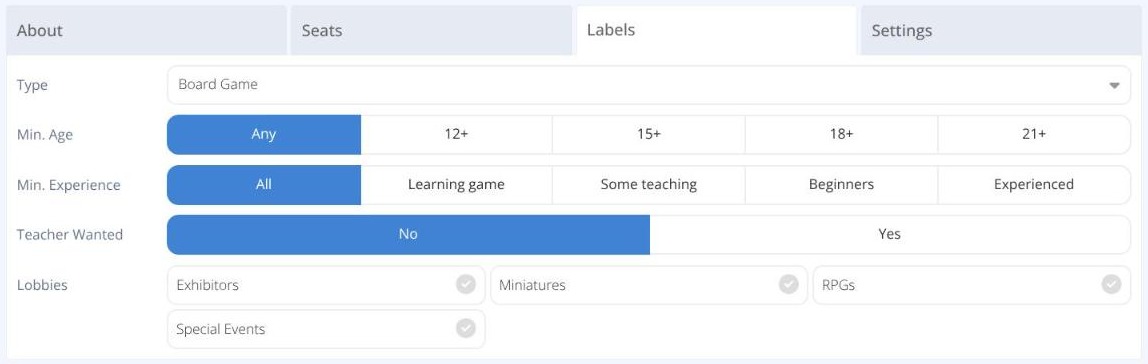
Type- Theevent typeMin. Age- Any, 12+, 15+, 18+ or 21+Min. Experience- All, Learning game, Some teaching, Beginners or ExperiencedTeacher Wanted- Whether the host is looking for someone to teach the gameLobbies- Thelobbiesthe event appears in
Custom Host- A name to show as the host instead of the submitter's name (e.g. a company or group)Official- Whether this is an official convention eventClash Handling- What happens when attendees join this event and another at the same time. SeeChoose How Overlapping Events Are Handled.
¶ Procedures
¶ Review a Submission
- From the menu click .
- To see only the submissions waiting for you, click Status and choose Pending. Click Status again to close the list.
- Click a submission to open it.
- Check the event's details on the About, Seats, Labels and Settings tabs. Change anything that needs it, such as the description or number of seats.
- If the room has spaces, choose a space, day and time. See
Choose a Space, Day and Time. - Click .
Acceptorrejectthe submission. If you need more information first,message the submitter, or add a Private Note for other organizers.
¶ Choose a Space, Day and Time
A submission to a room with spaces must have a space, day and time before you can accept it. Until it does, the submission shows Please select a space, day, and time before being able to schedule this as an event.
When the room asks attendees for preferences (Day & Time set to User provides preferences), the submitter's choices are shown under Schedule Preferences. Each one shows the space they picked (if the room has spaces), the day, start time and length, e.g. Table 3, Thu 4:00pm (2hr).
- Open the submission. If needed, change the
Roomand click before going on. - Click next to
Schedule. The PICK DAY & TIME screen opens. - Click the tab for the day.
- On the row for the space you want, click the event's start time, then its end time. Green time is free, red time is already booked by another event, and grey time is outside the room's hours.
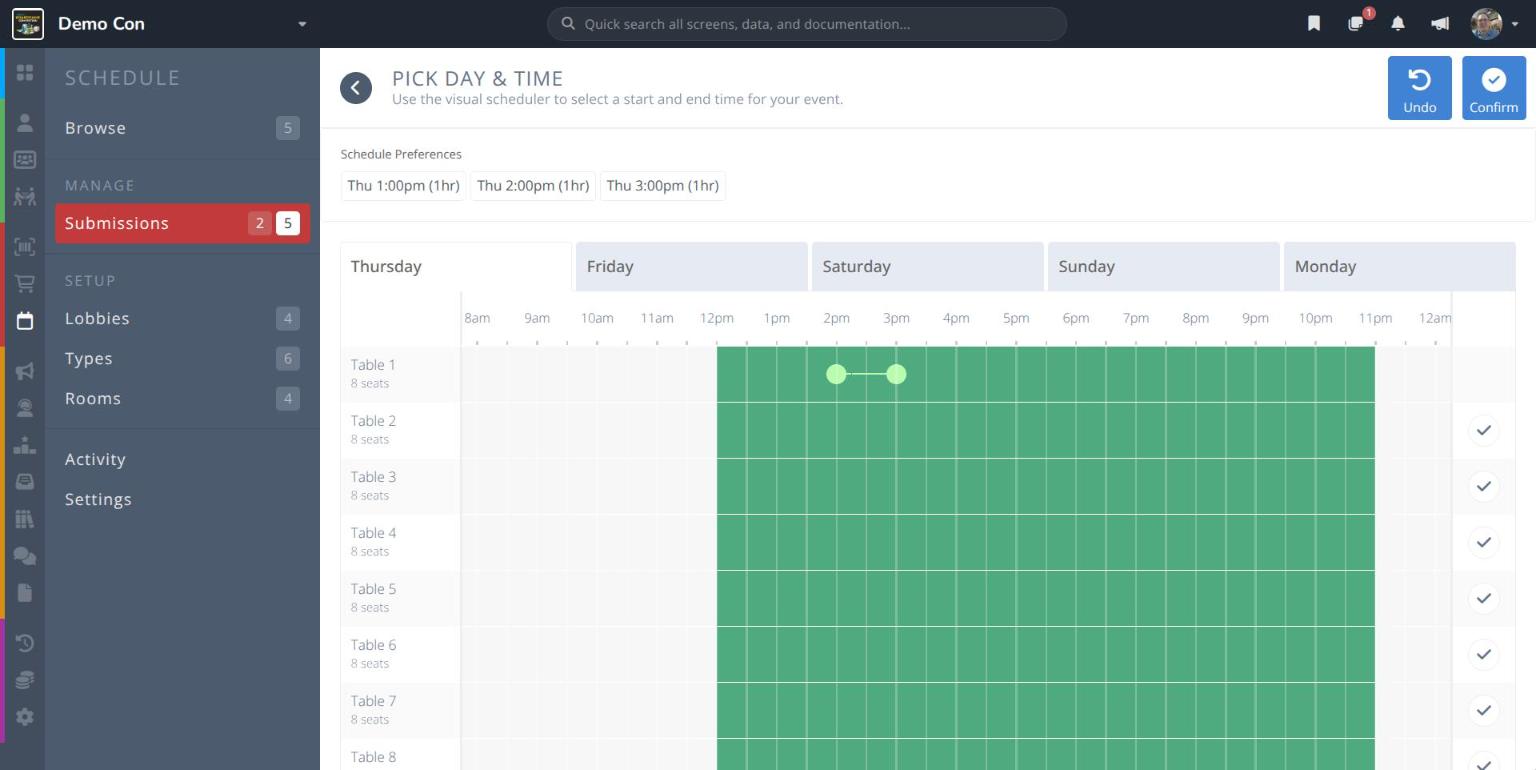
- Click . The space, day, time and length are filled in.
- Click .
Scheduleinstead.
¶ Accept a Submission
- Open the submission and make sure it has a space, day and time, if the room needs one. Save any changes.
- Click .
- Check the name, day and times, then choose how the event is scheduled:
- Schedule automatically - The event goes on the schedule straight away, on the submitter's behalf. The status changes to Scheduled.
- Attendee to schedule - The submitter schedules the event themselves at the approved location and time. The status changes to Approved.
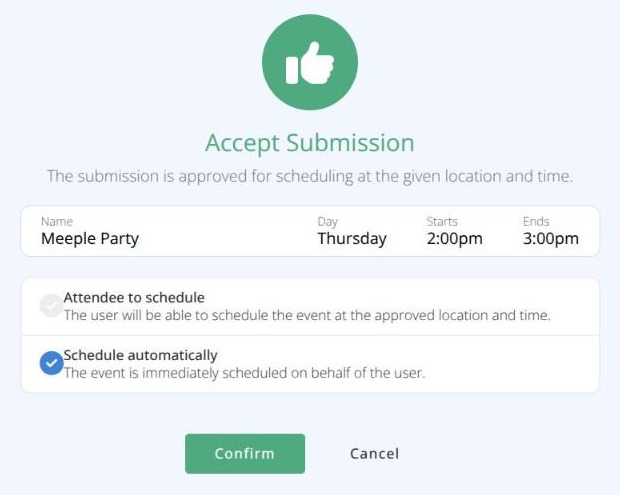
- Click .
With Attendee to schedule, the submitter sees the event as Approved under MY EVENTS → Submitted on the convention's SCHEDULE tab, with the approved time:

¶ Reject a Submission
- Open the submission and click .
- Enter the reason. This is required, and can be up to 255 characters. The submitter is notified, and the reason is added to the Submission Discussion.
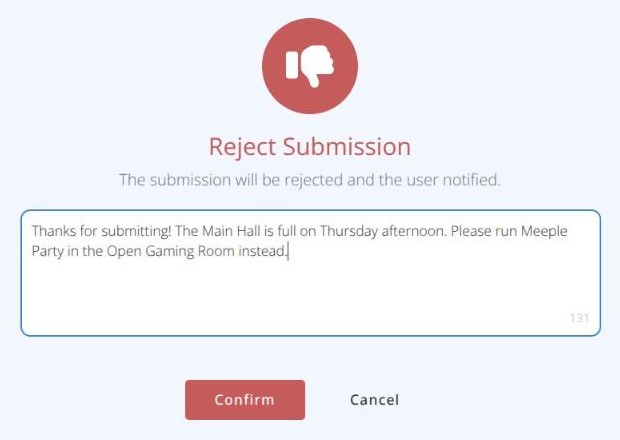
- Click . The status changes to Rejected.
¶ Retract a Decision
Retract an accept or reject that was made by mistake, or that needs to be looked at again. Retracting sets the submission back to Pending, and keeps its room, space, day and time.
- Open the submission and click .
- Click on the Retract Approval (or Retract Rejection) screen.
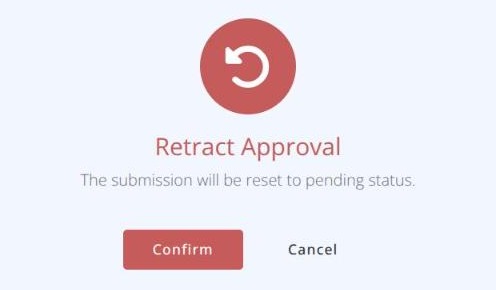
You can retract Approved, Pre-approved and Rejected submissions. A Scheduled submission can't be retracted. To change or cancel it, click the Event link in its summary bar, or find the event on the screen.
¶ Message the Submitter
- Open the submission and scroll down to Submission Discussion.
- Type your message in the Enter message... box and click .
The submitter can reply, and the conversation stays with the submission for other organizers to see.
¶ Next Steps
Rooms- Choose which rooms need submissions reviewed, and whether attendees give preferred times.Schedule Settings- Open or close submissions, and choose whether attendees can see pending ones.Event Details- Manage events once they are scheduled.