¶ Add-ons
¶ Overview
An add-on is any extra an attendee can buy on top of their badge, such as a T-shirt, a pin, a meal or a parking pass. Add-ons also include generic tickets, which attendees redeem to attend a ticketed event.
An add-on can have a single price, or several variants. Variants are the options an attendee chooses between, such as T-shirt sizes. Each variant can have its own price and stock limit.
Note: An add-on can only be bought once it is offered somewhere, such as a store category. These are called Channels. New add-ons show as Blocked until they have at least one channel.
¶ Common Procedures
Create an Add-onCreate an Add-on with VariantsCreate a Generic TicketAdd or Clone a VariantSell an Add-on in the Online StoreLet Attendees Choose Their Comped VariantSend an Email with an Add-onDisable or Delete an Add-on or Variant
¶ Add-ons Grid
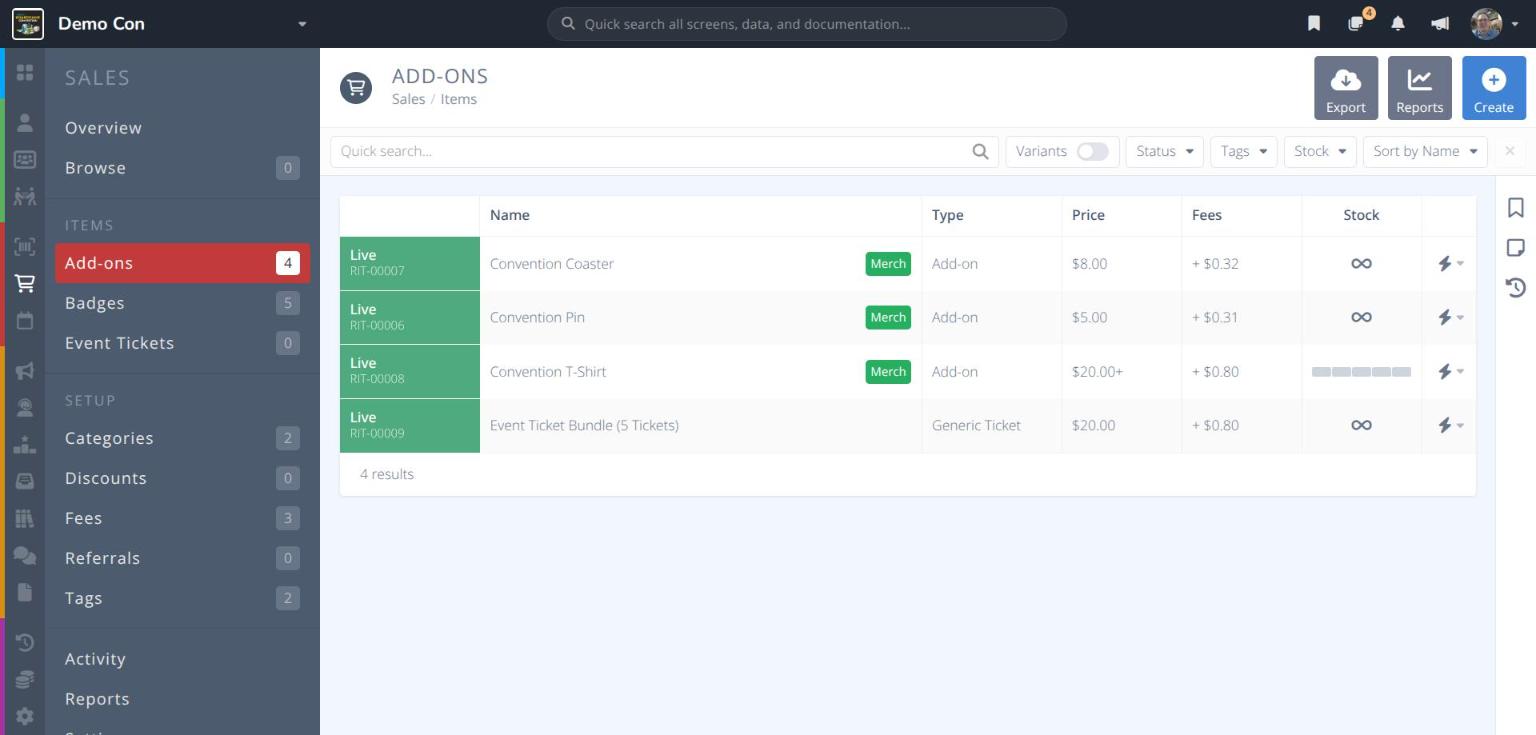
From the menu click under the ITEMS heading.
Each row in the grid shows:
Status / Ref.- The item's status (see below) and its reference number (e.g. RIT-00008)Name- The name attendees see, followed by anyTagsType- Add-on or Generic TicketPrice- The item's price. Items with variants show the lowest price with a + (e.g. $20.00+).Fees- The fees added to the price when they are passed on to the customerStock- for unlimited, or a bar showing how many have sold out of the stock limit- - Quick actions: Manage, Disable, Delete
Use the Quick search... bar and the Status, Tags, Stock and Sort by filters above the grid to narrow the list.
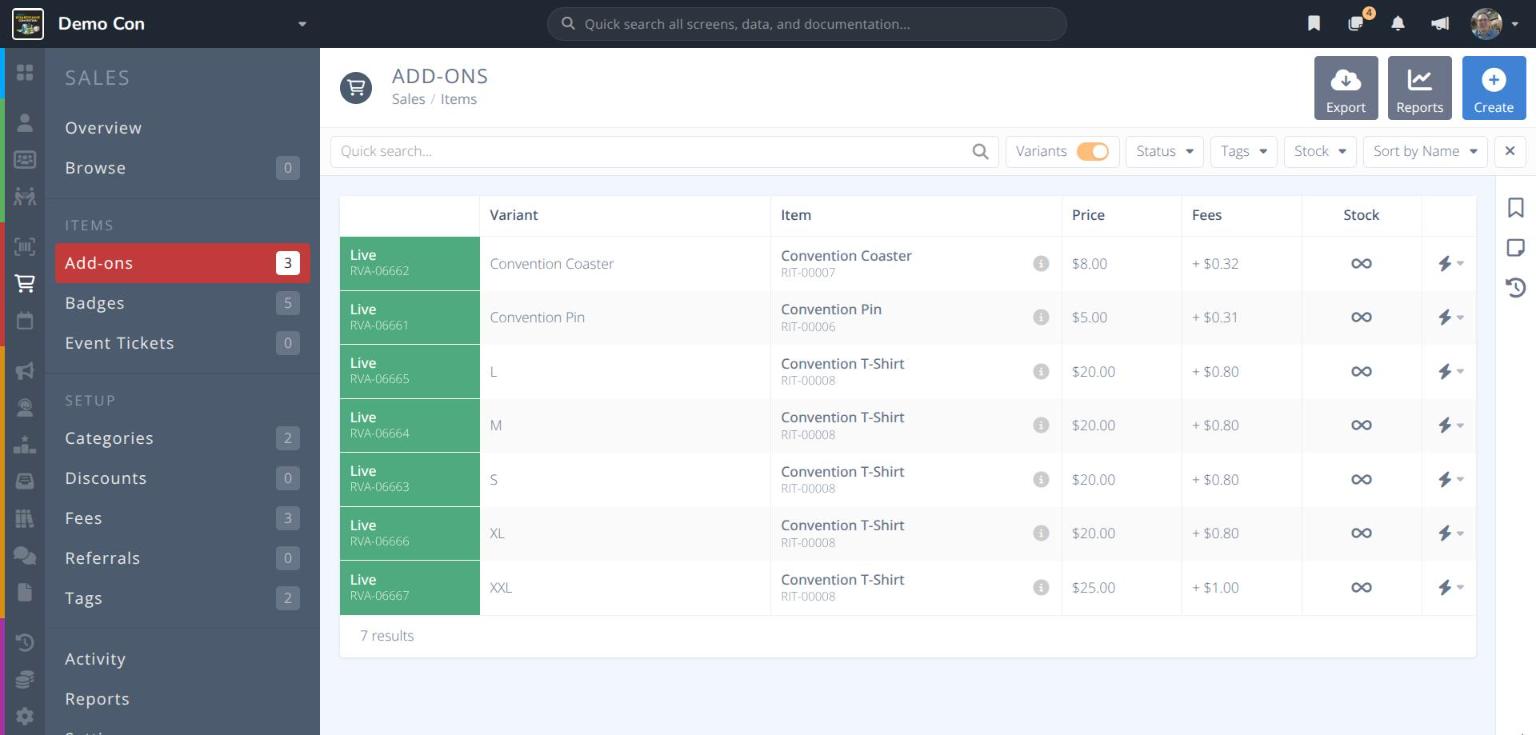
Turn on the Variants toggle to list every variant on its own row, with the item it belongs to.
The following buttons appear in the actions area at the top right:
- - Downloads the grid
- - Opens sales reports for add-ons
- - Creates a new add-on
¶ Statuses
| Status | Meaning |
|---|---|
| Live | On sale. Anyone eligible can buy it. |
| Live by Comp | Not on sale directly, but attendees can still get it as a comp with another item that is live (e.g. a T-shirt given free with a badge). |
| Restricted | On sale, but only to some attendees. |
| Blocked | Turned on, but something is stopping anyone from buying it, such as no channel or a closed sale date. A number (e.g. Blocked (2)) shows how many issues there are. |
| Disabled | Turned off. |
| Archived | Archived and no longer in use. Tick Archived in the Status filter to find archived items. |
Tip: Open an item's Status section to see exactly what is blocking or restricting it, with a link to fix each issue.
¶ Add-on Details
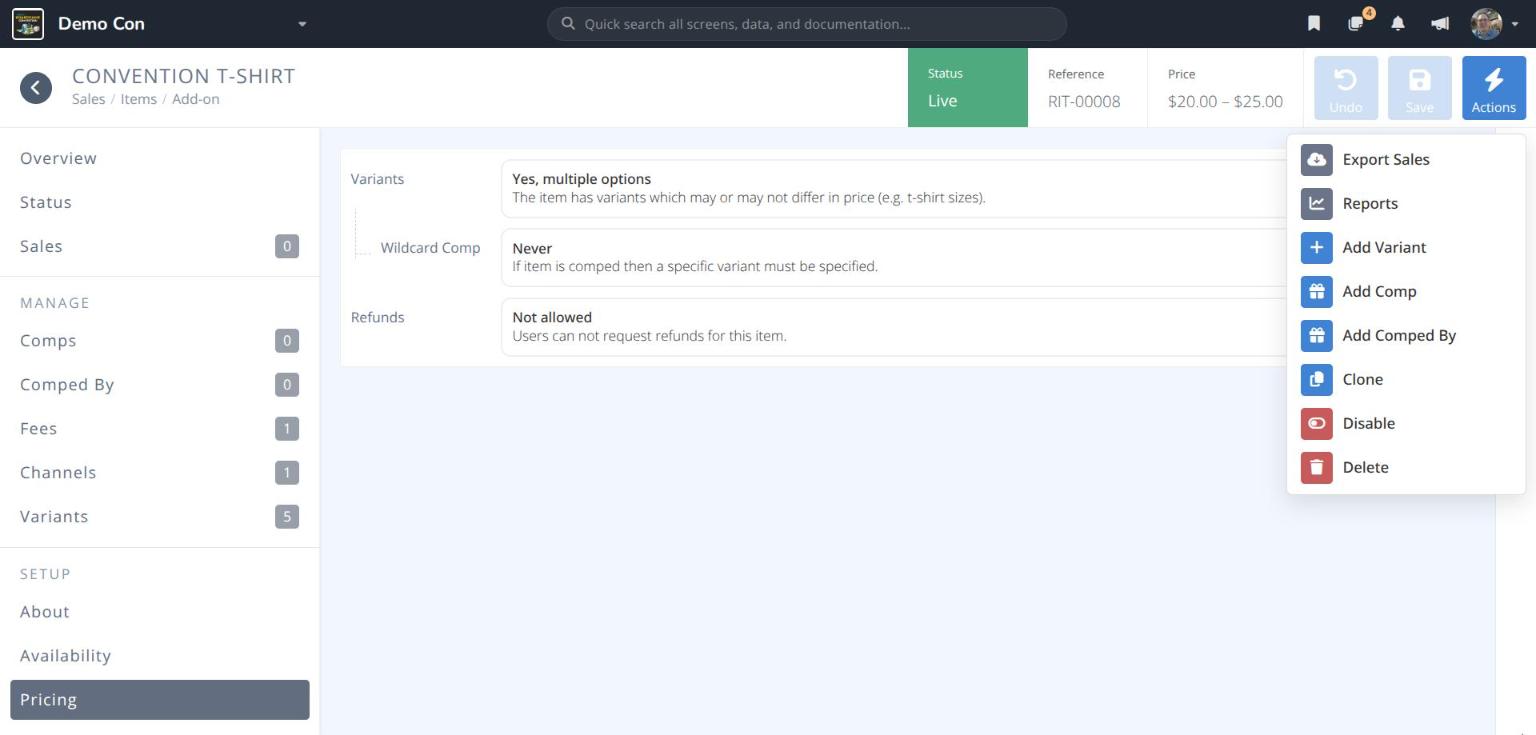
Click a row in the grid to open the add-on. The header shows its Status, Reference and Price (a range, such as $20.00 – $25.00, when variants have different prices), along with , and .
The menu includes:
- Export Sales - Download the sales of this item
- Reports - Open sales reports for this item
- Add Variant - Add another option (only for items with variants)
- Add Comp - Give another item free when this add-on is bought
- Add Comped By - Give this add-on free when another item is bought
- Clone - Start a new item with the same settings
- Disable - Stop selling the item
- Delete - Permanently remove the item
The menu on the left is grouped into sections. Click each tab to see the information for that section:
¶ Overview
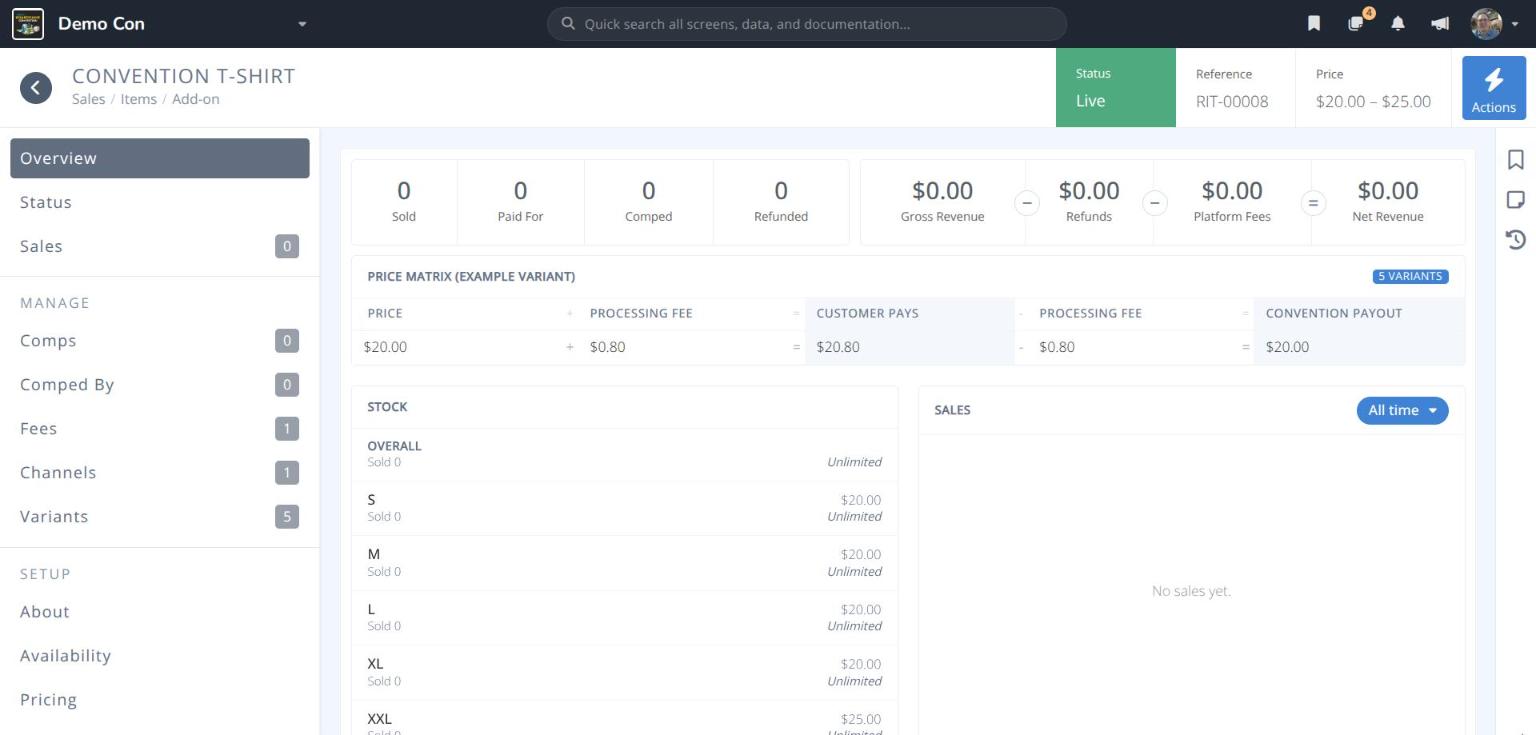
Sold/Paid For/Comped/Refunded- How many have been obtained, and howGross Revenue−Refunds−Platform Fees=Net RevenuePrice Matrix- How the price, fees, what the customer pays, and what the convention receives fit together. For items with variants, one variant is shown as an example.Stock- Units sold and the stock limit, overall and for each variantSales- A chart of sales over time. Use the window button (e.g. All time) to change the date range.
¶ Status
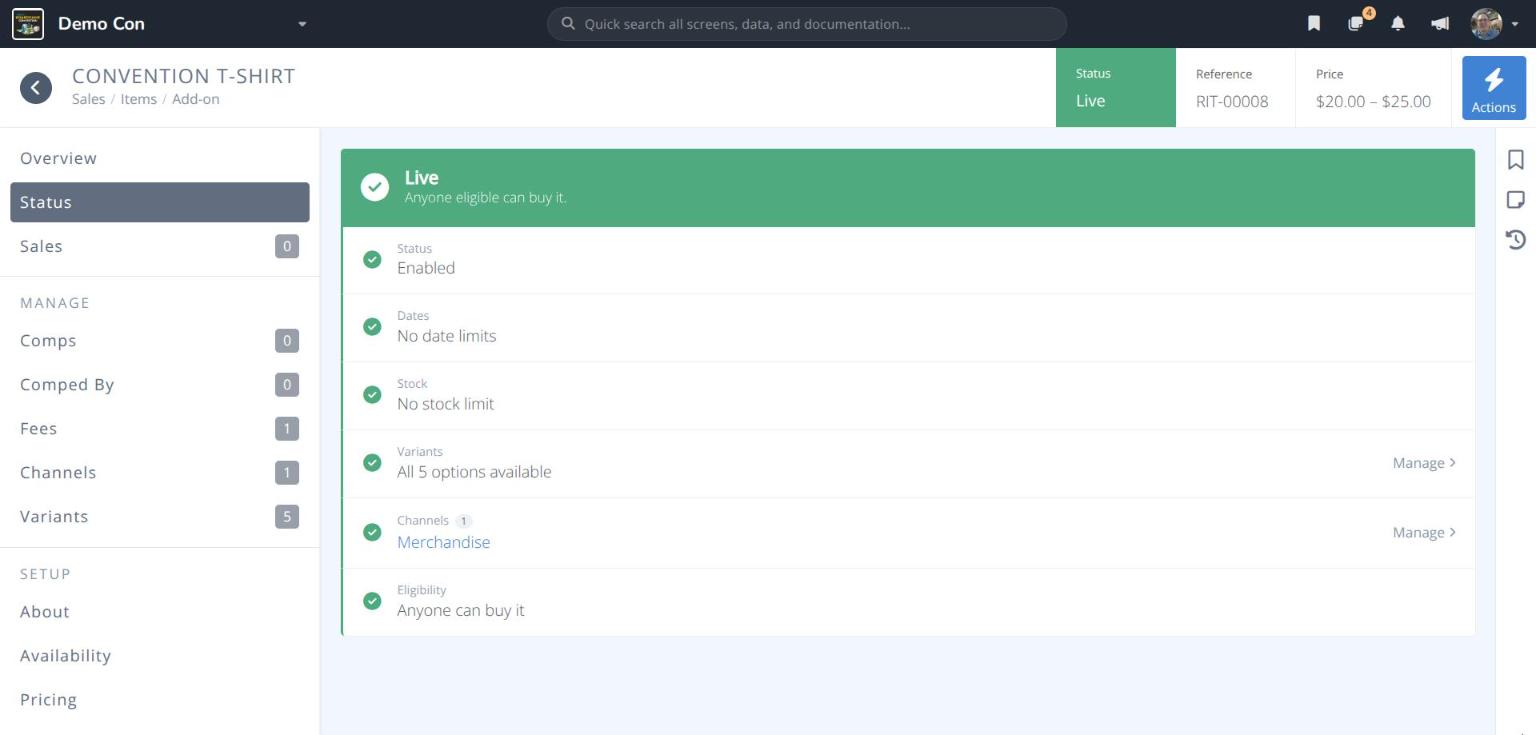
A checklist of everything that affects whether the item can be bought. Each row shows a green check, a warning, or a red block.
Status- Whether the item is enabledDates- Whether the sale window is openStock- Whether any stock remainsVariants- How many variants are available (items with variants only)Channels- Where the item is offeredEligibility- Who can buy it
Click Resolve, Review or Manage on a row to jump to the setting that controls it.
¶ Manage
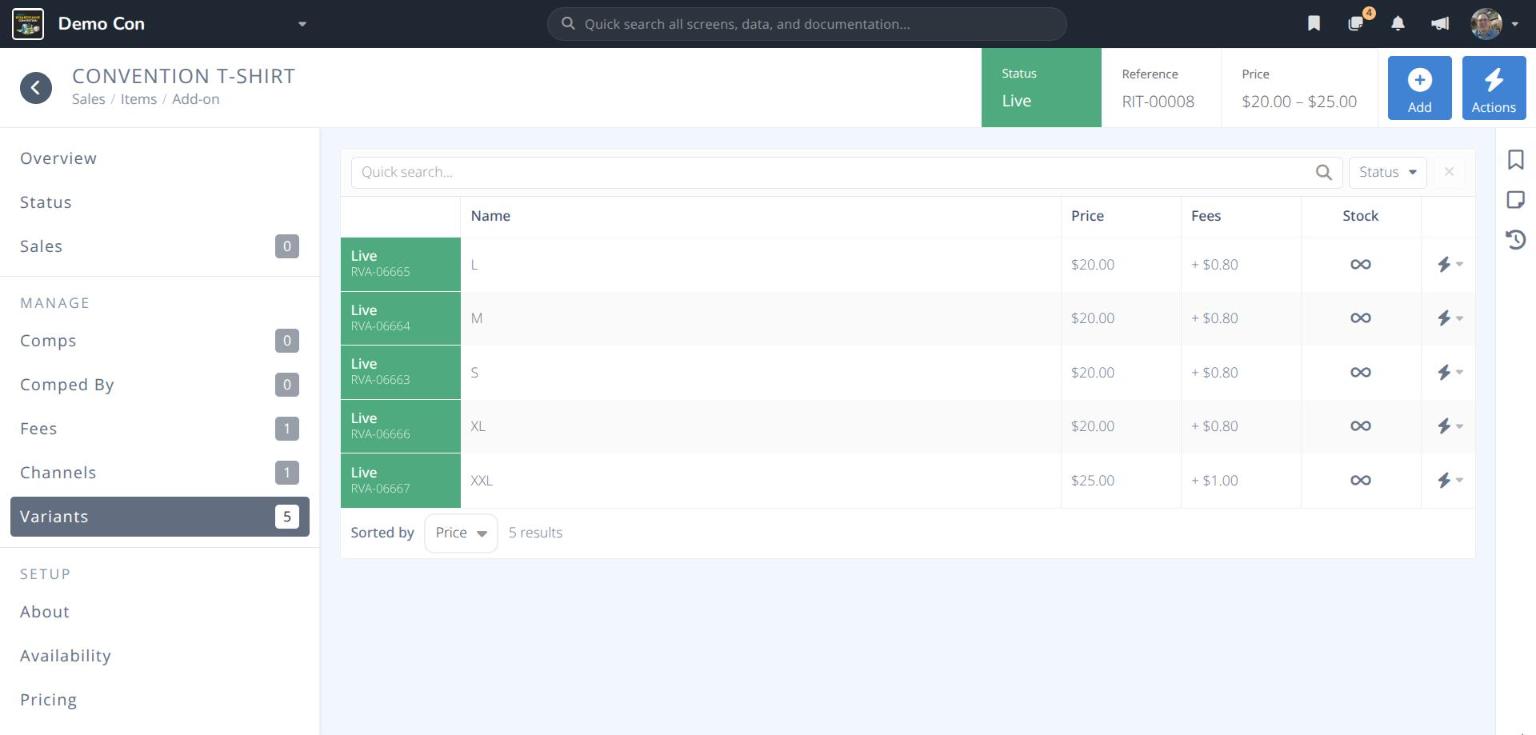
Sales- Every sale of this itemComps- Other items given free when this add-on is boughtComped By- Other items that give this add-on free when they are boughtFees- The fees that apply to this item. Add-ons are charged the platform Processing Fee only; the Badge Fee applies only to full badges. SeeFees.Channels- The store categories that offer this item, with sales and revenue for eachVariants- The item's options (items with variants only). SeeAdd or Clone a Variant.Applicable Users- Who is allowed to buy the item. Only appears when Users on the Availability section is not set to All users. SeeRestrict Who Can Buy a Badge; add-ons work the same way.
¶ Setup
About
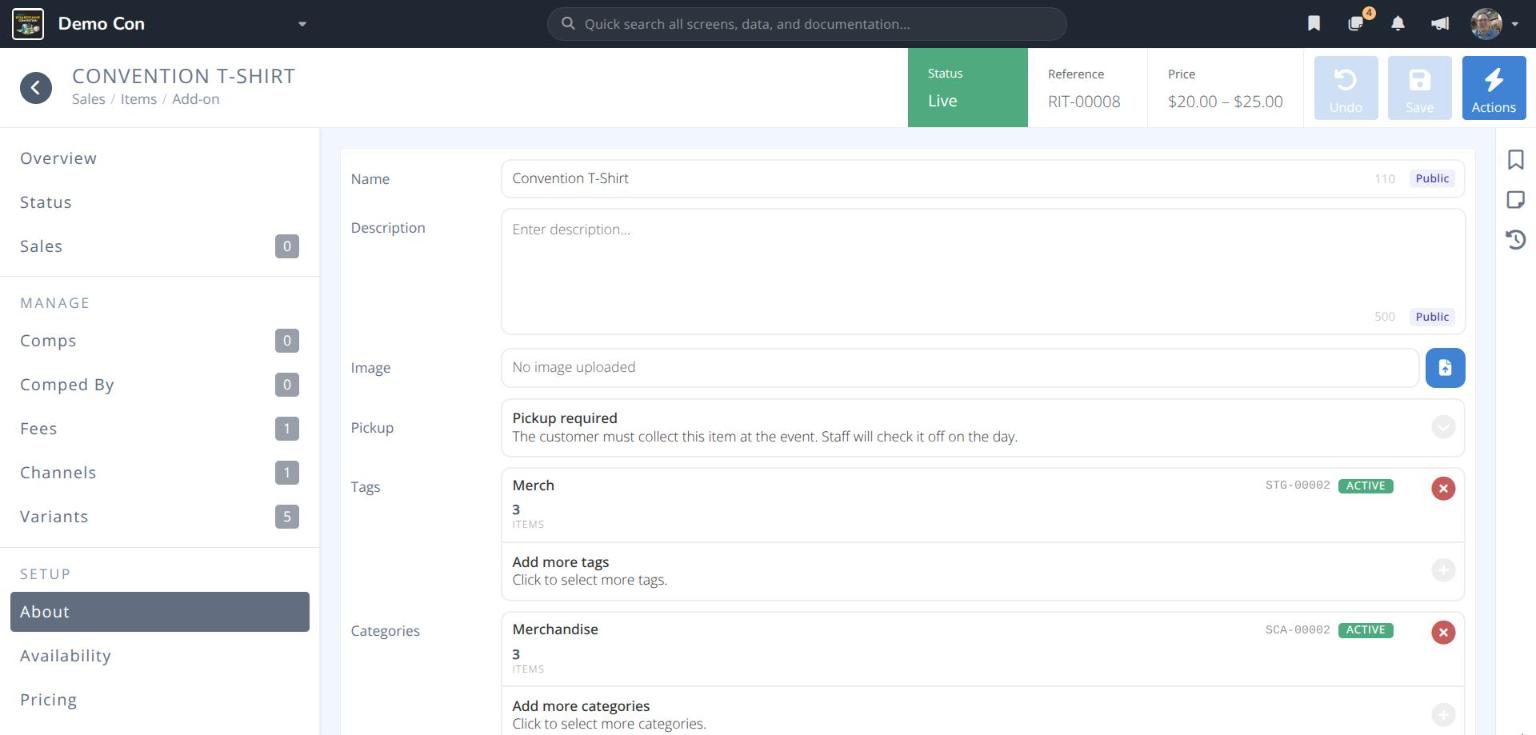

Name- The name attendees see when buying (Public)Description- Text shown to attendees when buying (Public)Image- An optional image for the itemPickup- Check Pickup required when the customer must collect the item at the event. Staff check it off in the RegistrationAssistantwhen it is collected. If pickup is not required, the item shows as completed as soon as it is obtained.Tags- Labels used to organize and filter items. SeeTags.Categories- The store categories that sell this item. Adding a category creates an Online Store channel.
Availability
Users- Who can buy the item: All users, All users unless excluded or Specific usersAvailable from/Available until- Optional dates and times for the sale window, in the convention's time zoneStock Limit- Optional maximum number of this item that can be sold, across all variantsLimit per user- Optional maximum number that can be bought for each badge. For example, with a limit of 2, a parent buying for three family members can buy up to 2 for each of their badges.
Pricing
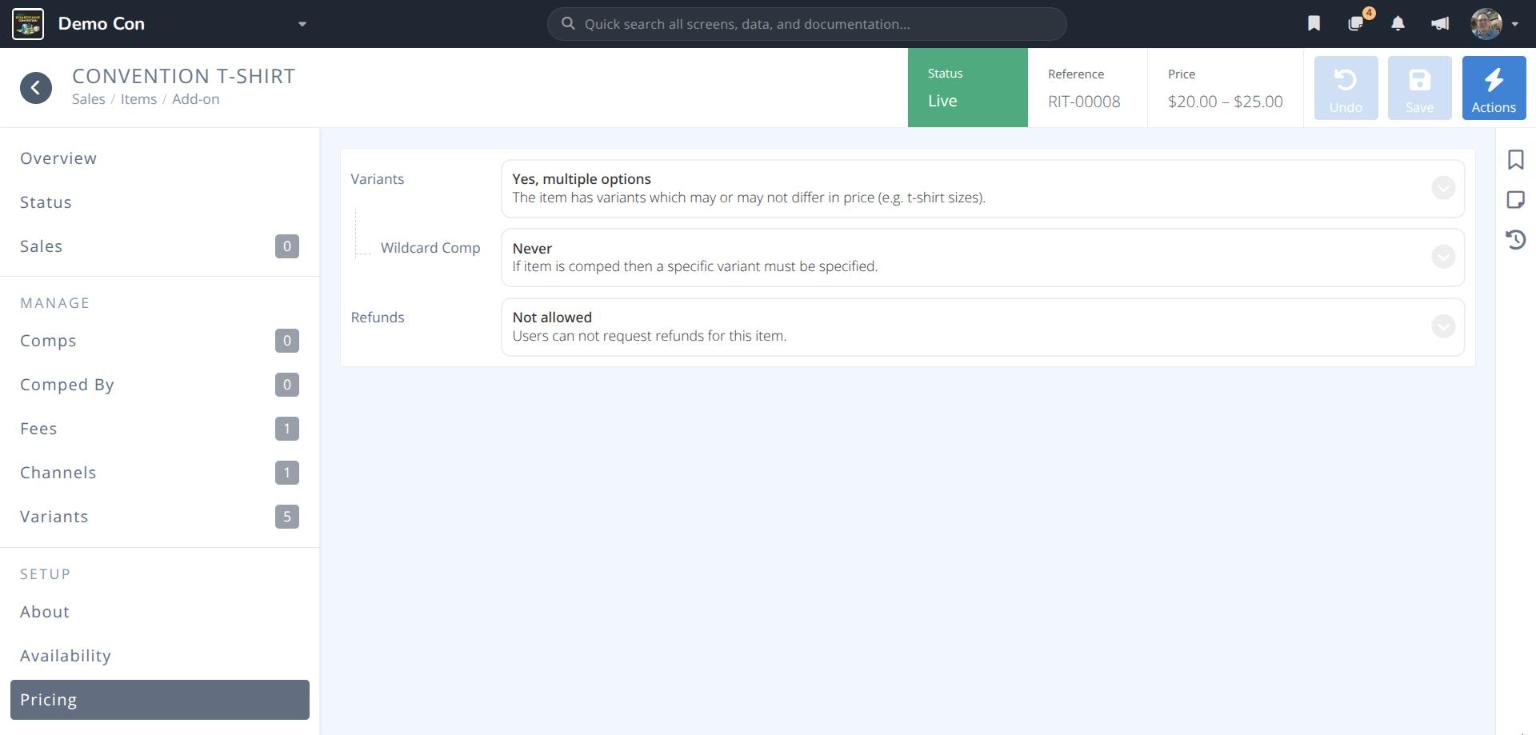
Variants- No, one option (a single price) or Yes, multiple options (the item has variants which may or may not differ in price, e.g. T-shirt sizes)Price- The price of the item, before fees. Only shown for items without variants; each variant has its own price.Wildcard Comp- Items with variants only. What happens when the item is given free as a comp:- Never - A specific variant must be chosen when the comp is set up.
- Allowed - The comp can be given without a variant, and the attendee chooses one later (e.g. their T-shirt size). See
Let Attendees Choose Their Comped Variant.
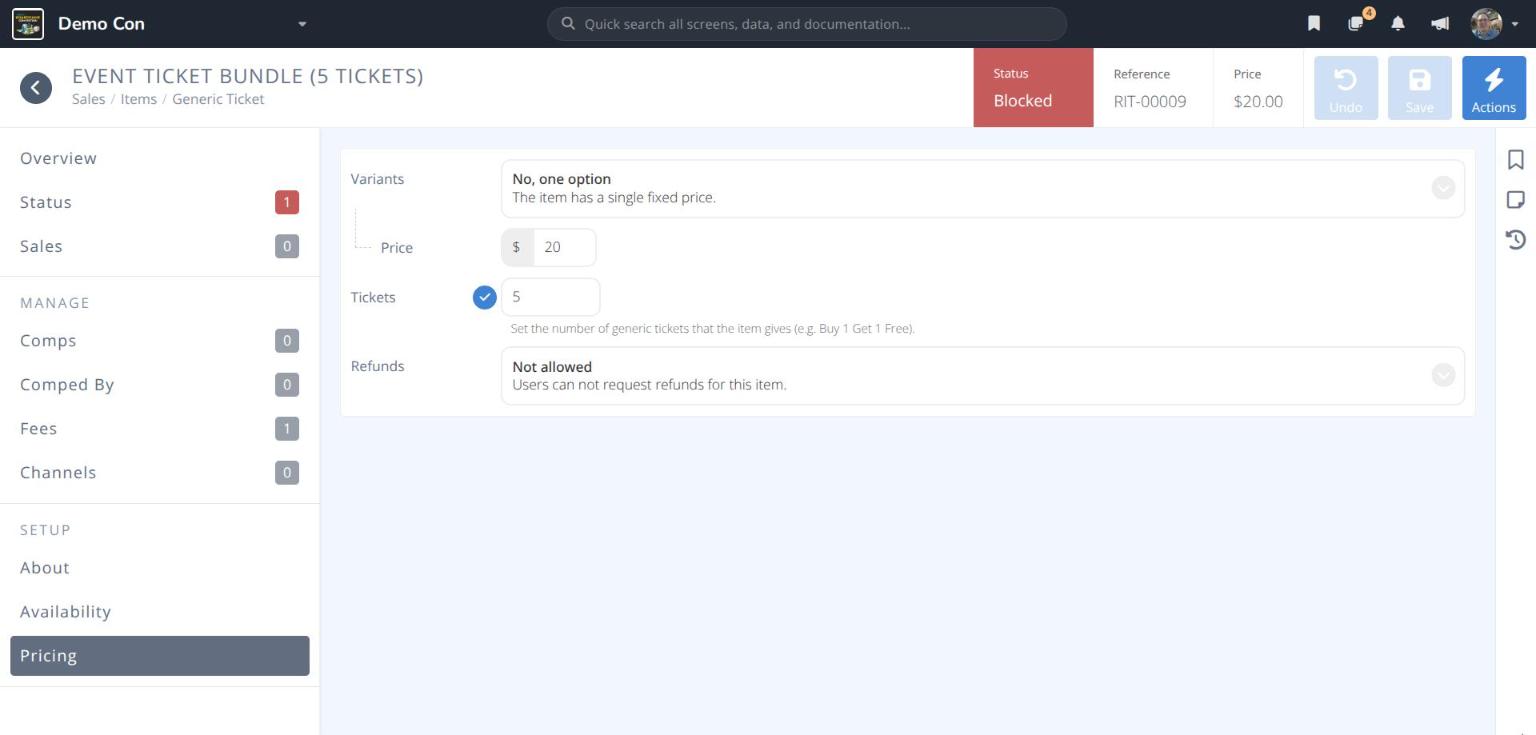
Tickets- Generic tickets only. The number of generic tickets the item gives (e.g. 5 for a bundle). SeeCreate a Generic Ticket.Refunds- Not allowed (users cannot request refunds for this item) or Allowed (users can request refunds for this item)
Email (add-ons only)
Email Delivery- No email, or Send email to send the customer an email with the Subject and Content you enter when they get this item. SeeSend an Email with an Add-on.
¶ Procedures
¶ Create an Add-on
Use this for items with a single price, such as a pin.
- From the menu click .
- Click . The CREATE ADD-ON panel opens.
- Leave Type set to Add-on.
- Enter the Name attendees will see (e.g. Convention Pin).
- Leave Variants set to No, one option and enter the Price.
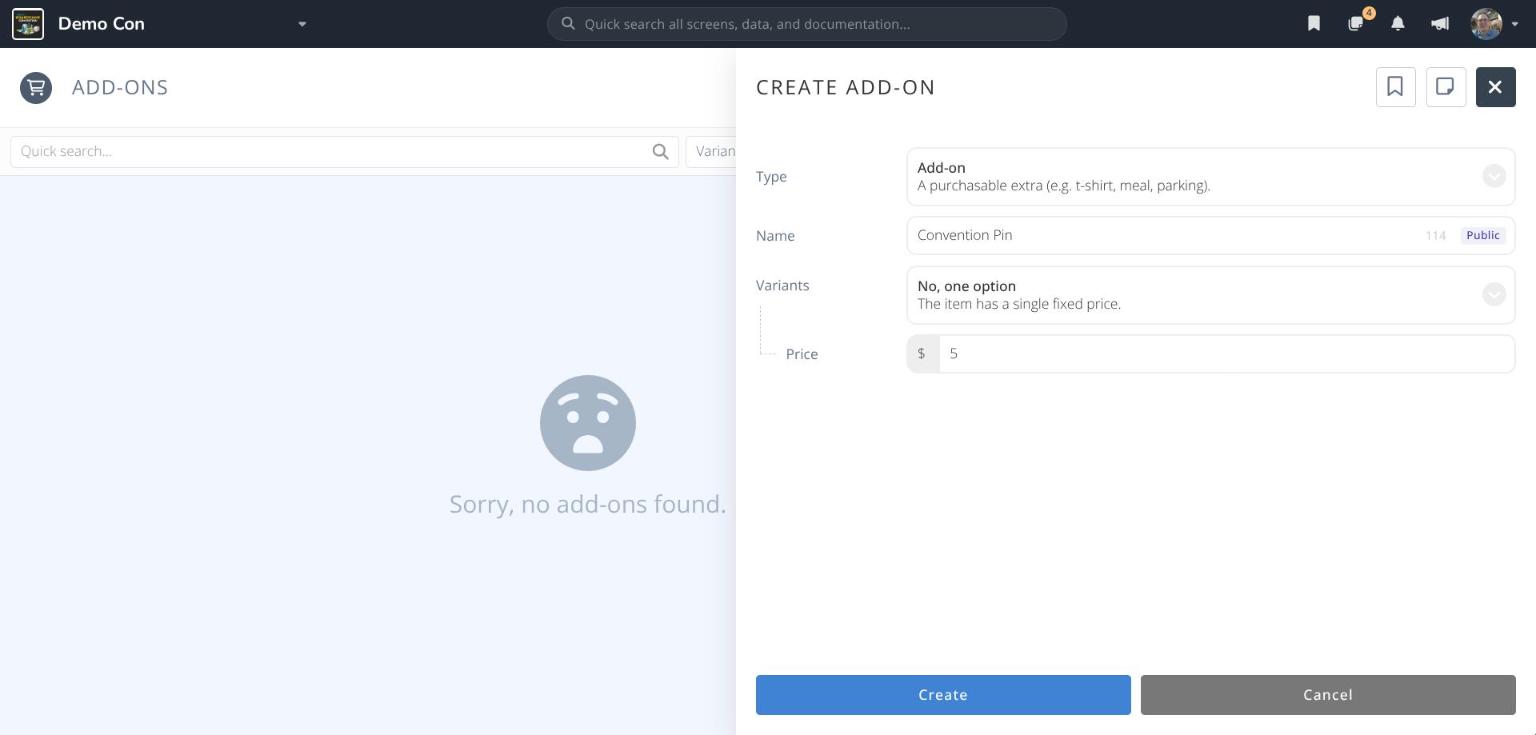
- Click . The add-on opens. It shows as Blocked until it is offered in a channel.
- Click About and add a Description, an Image, any Tags, and the store Categories that should sell it. Check Pickup required if attendees collect it at the event.
- Click .
- Optionally set sale dates and limits on Availability, and refunds on Pricing, then click .
¶ Create a Generic Ticket
A generic ticket is an add-on that attendees can redeem to attend a ticketed event of their choice, such as a game tournament or a workshop. It is not tied to one event. One generic ticket item can give several tickets, so you can sell bundles at a discount.
Turn on generic tickets
Before generic tickets can be used for events, turn them on for the convention. You only need to do this once.
- From the menu click , then click the Generic Tickets tab.
- Set Use for Events to Enabled (users can purchase generic tickets that they can later redeem when joining ticketed events).
- Enter the Value of one generic ticket when it is used for an event seat (e.g. $5).
- Click .
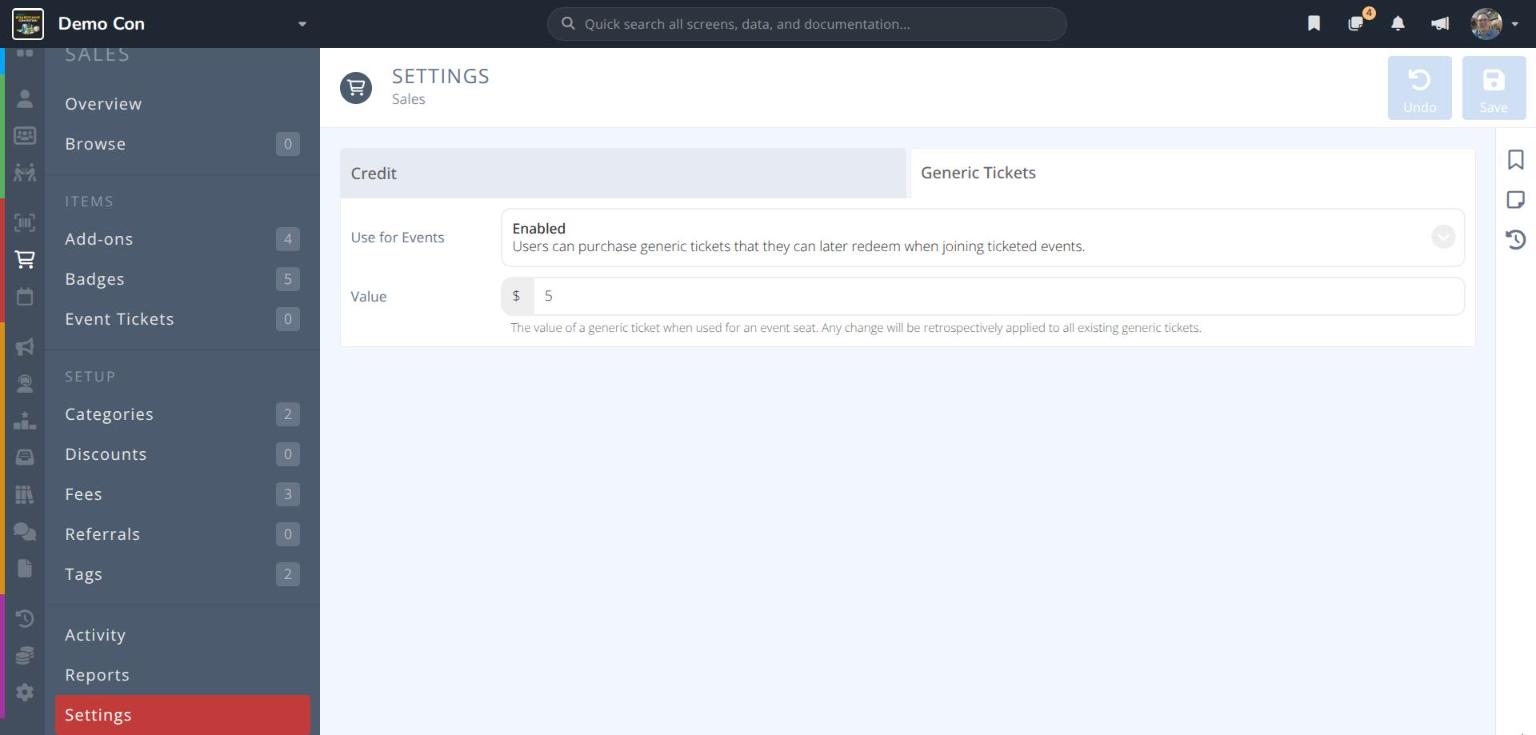
Caution: Changing the Value later applies to every generic ticket already sold, not just new ones.
Create the generic ticket item
- From the menu click , then click .
- Set Type to Generic Ticket. The panel changes to CREATE GENERIC TICKET.
- Enter the Name attendees will see (e.g. Event Ticket Bundle (5 Tickets)).
- Leave Variants set to No, one option and enter the Price.
- Enter the number of Tickets the item gives (e.g. 5 for a bundle, or 2 for Buy 1 Get 1 Free).
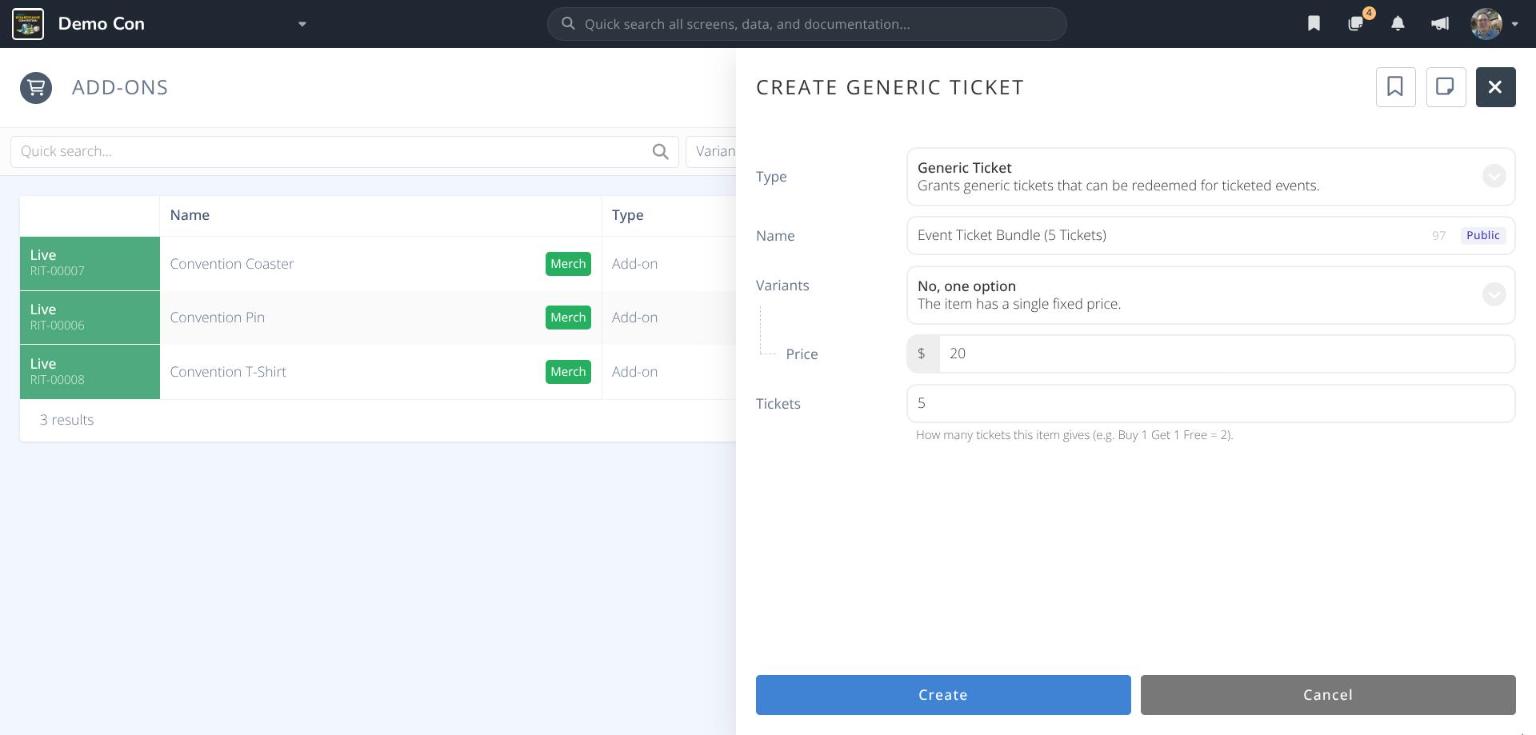
- Click . The item opens with Generic Ticket in its breadcrumb. It shows as Blocked until it is offered in a channel.
- Click About and add a Description and the store Categories that should sell it, then click .
To change the number of tickets later, open the item and click Pricing.
Example generic tickets
With a generic ticket Value of $5:
| Name | Price | Tickets | Total value |
|---|---|---|---|
| Event Ticket | $5 | 1 | $5 |
| Event Ticket Bundle (5 Tickets) | $20 | 5 | $25 |
When an attendee buys the item, they receive that number of generic tickets to use on any ticketed event. Unused generic tickets appear with the convention's other tickets on the Event Tickets page.
¶ Create an Add-on with Variants
Use this for items that come in several options, such as T-shirt sizes.
- Follow steps 1–4 of
Create an Add-on. - Set Variants to Yes, multiple options. The Price field is removed, because each variant has its own price.
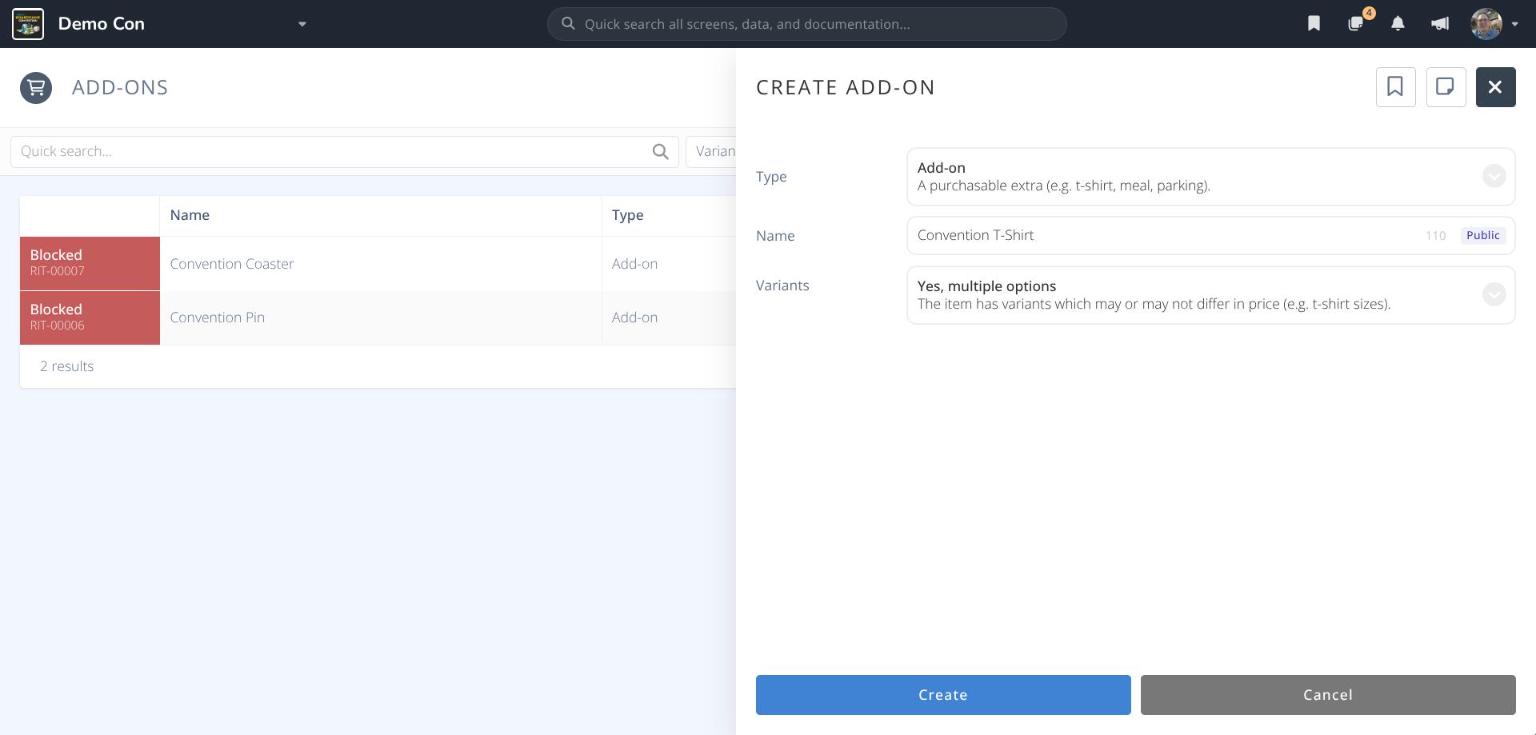
- Click . The add-on opens with a Variants section under MANAGE.
- Add each option. See
Add or Clone a Variant. - Finish the setup on About, Availability and Pricing as in steps 7–9 of
Create an Add-on.
Example add-ons
| Name | Variants | Price | Setup |
|---|---|---|---|
| Convention Pin | No | $5 | — |
| Convention Coaster | No | $8 | — |
| Convention T-Shirt | S, M, L, XL | $20 | Pickup required |
| XXL | $25 | Cloned from XL |
¶ Add or Clone a Variant
- Open the add-on and click Variants.
- Click . The CREATE VARIANT panel opens.
- Enter the Name attendees will see (e.g. M) and the Price. Optionally click the check circle beside Stock Limit and enter a limit for this variant.
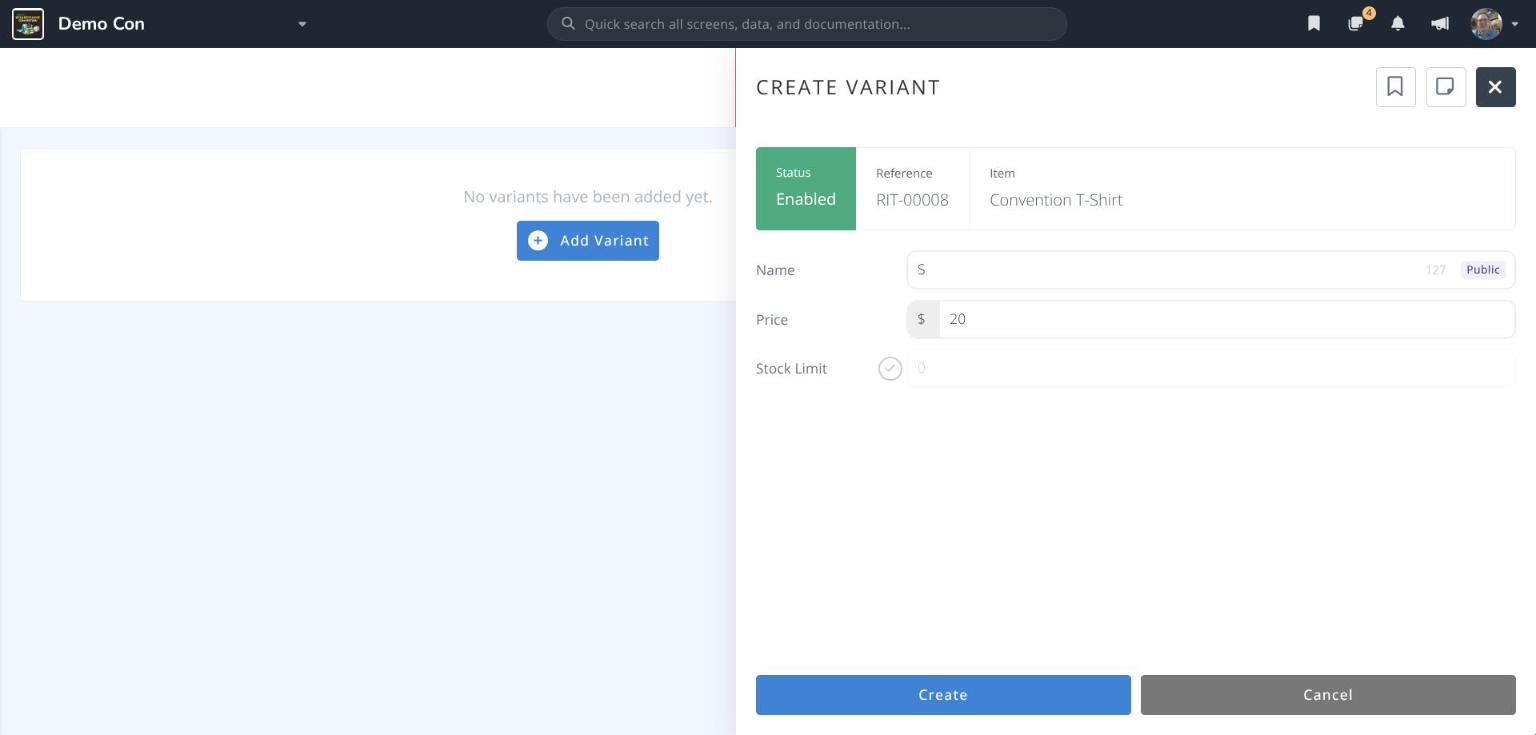
- Click . Repeat for each option.
To copy an existing variant instead, click the at the end of its row and choose Clone. The CLONE VARIANT panel opens with the name, price and stock limit filled in. Change the Name (e.g. from XL (copy) to XXL) and Price, then click .
Change the order of variants
Use the Sorted by menu below the variants list to choose the order attendees see:
- Name - Alphabetical
- Price - Lowest price first. Variants with the same price are listed alphabetically.
- Custom - Your own order. Drag each row by the handle at its left, then click .
¶ Sell an Add-on in the Online Store
- Open the add-on and click About.
- Click Categories and select the store category (e.g. Merchandise). Click .
- Click .
- Click Channels to confirm the item is now offered in the Online Store.
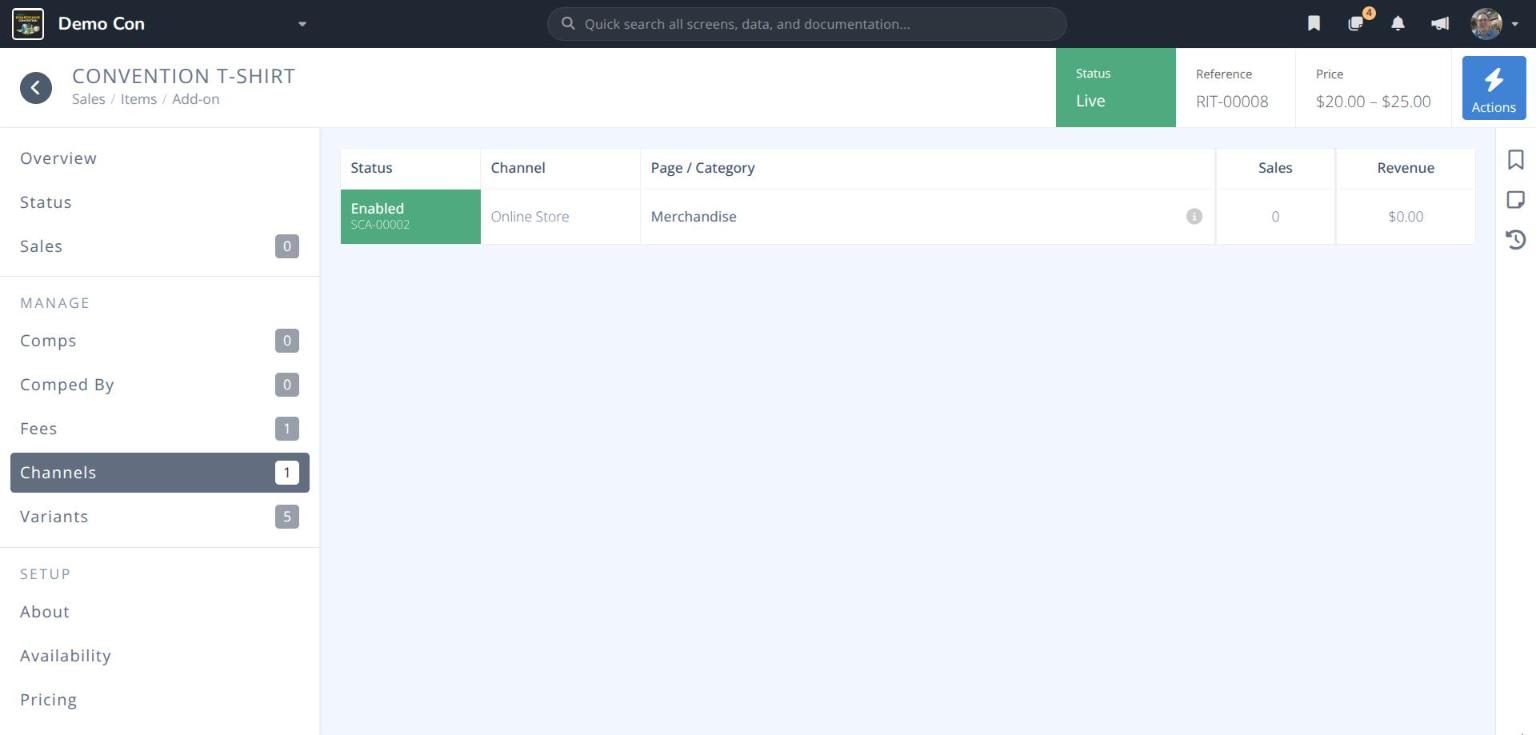
Categories. Attendees must hold a badge before they can use the store, so add-ons sold there are only available to badge holders.
Categories.
In the store, an add-on with variants appears as one product with the text From and its lowest price. Attendees choose a variant when they buy it.
¶ Let Attendees Choose Their Comped Variant
Use a wildcard comp when you give an add-on with variants away for free, but want each attendee to choose their own option, such as a free T-shirt for volunteers in their own size.
- Open the add-on and click Pricing.
- Set Wildcard Comp to Allowed.
- Click .
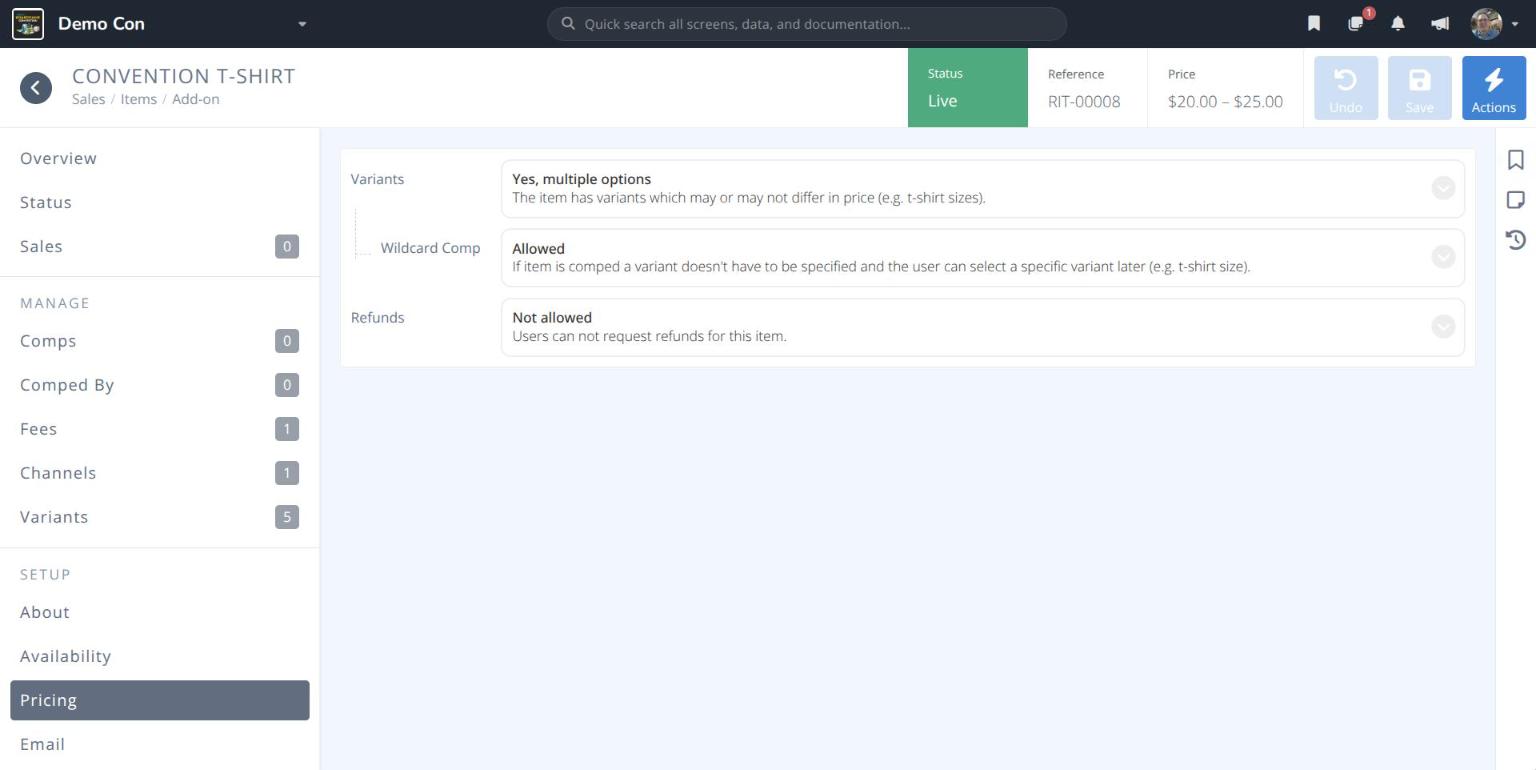
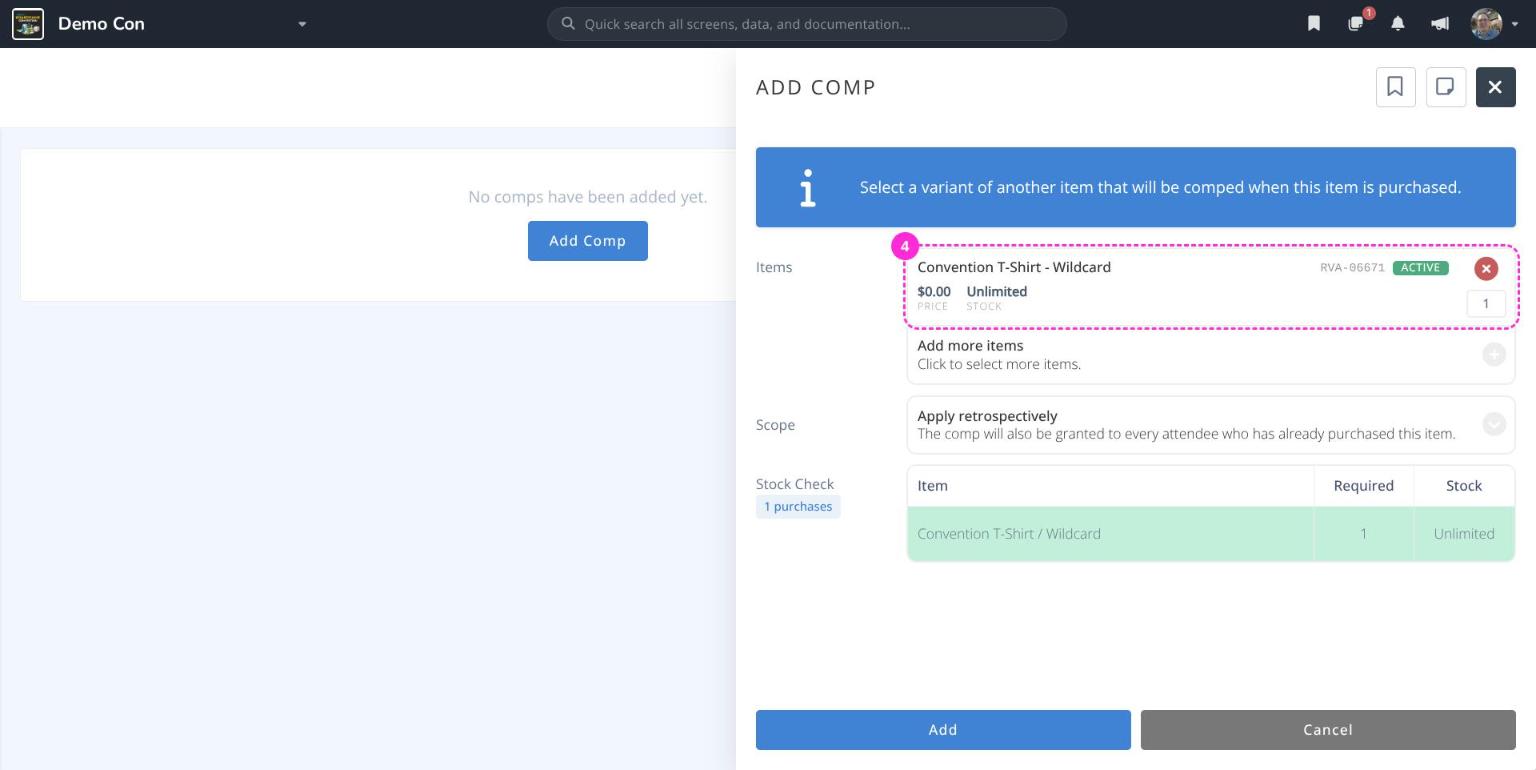
- Set up the comp on the item that gives it away (e.g. the Staff or Volunteer badge). See
Comp Another Item with a Badge. When selecting the item, choose the Wildcard option (e.g. Convention T-Shirt - Wildcard) instead of a specific variant.
What attendees see
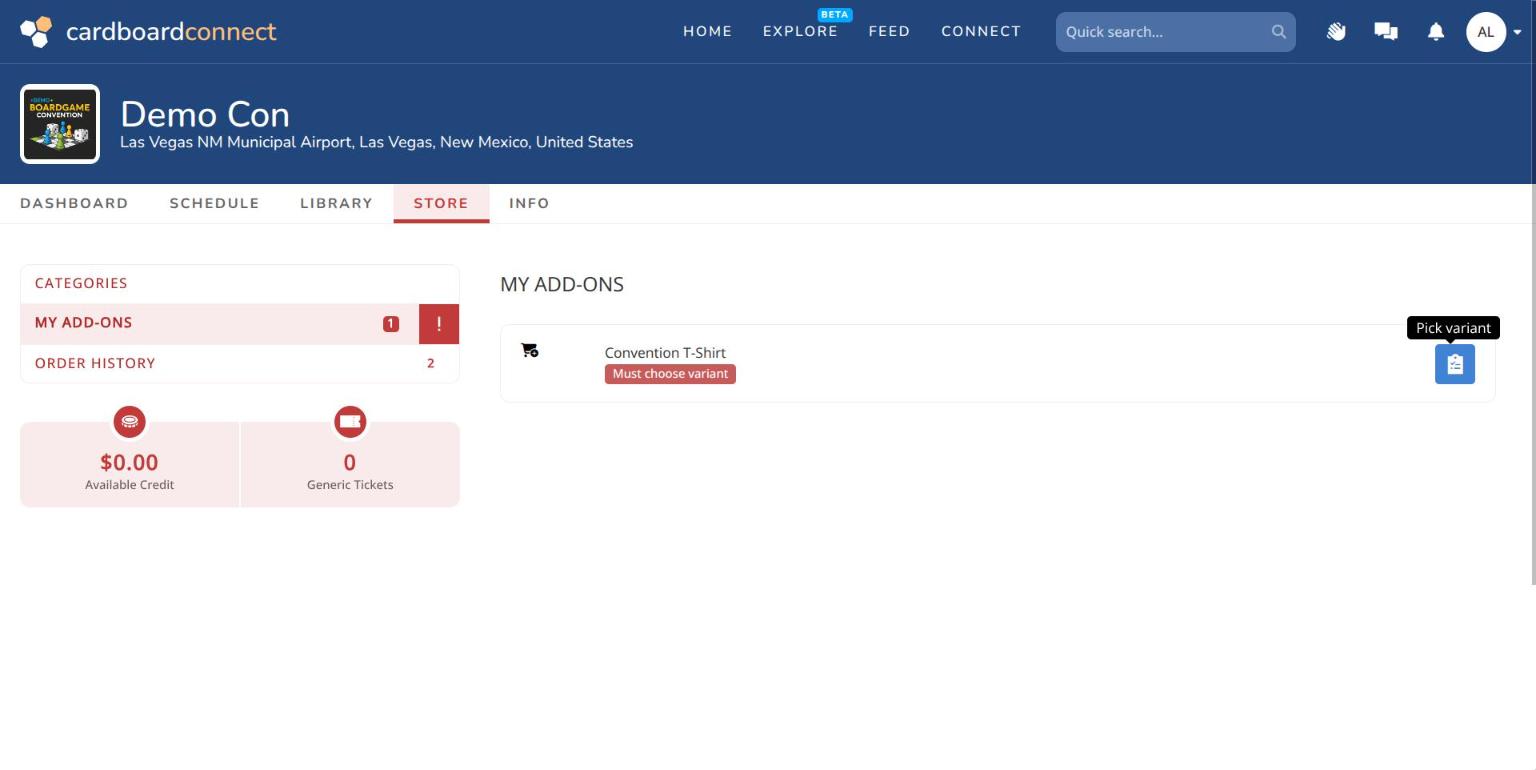
Attendees who receive a wildcard comp see a Must choose variant tag on the item in My Add-ons in the store, and pick their option from the variants that are still available.
¶ Send an Email with an Add-on
Send instructions or digital content, such as pickup details or a download link, to everyone who gets the add-on.
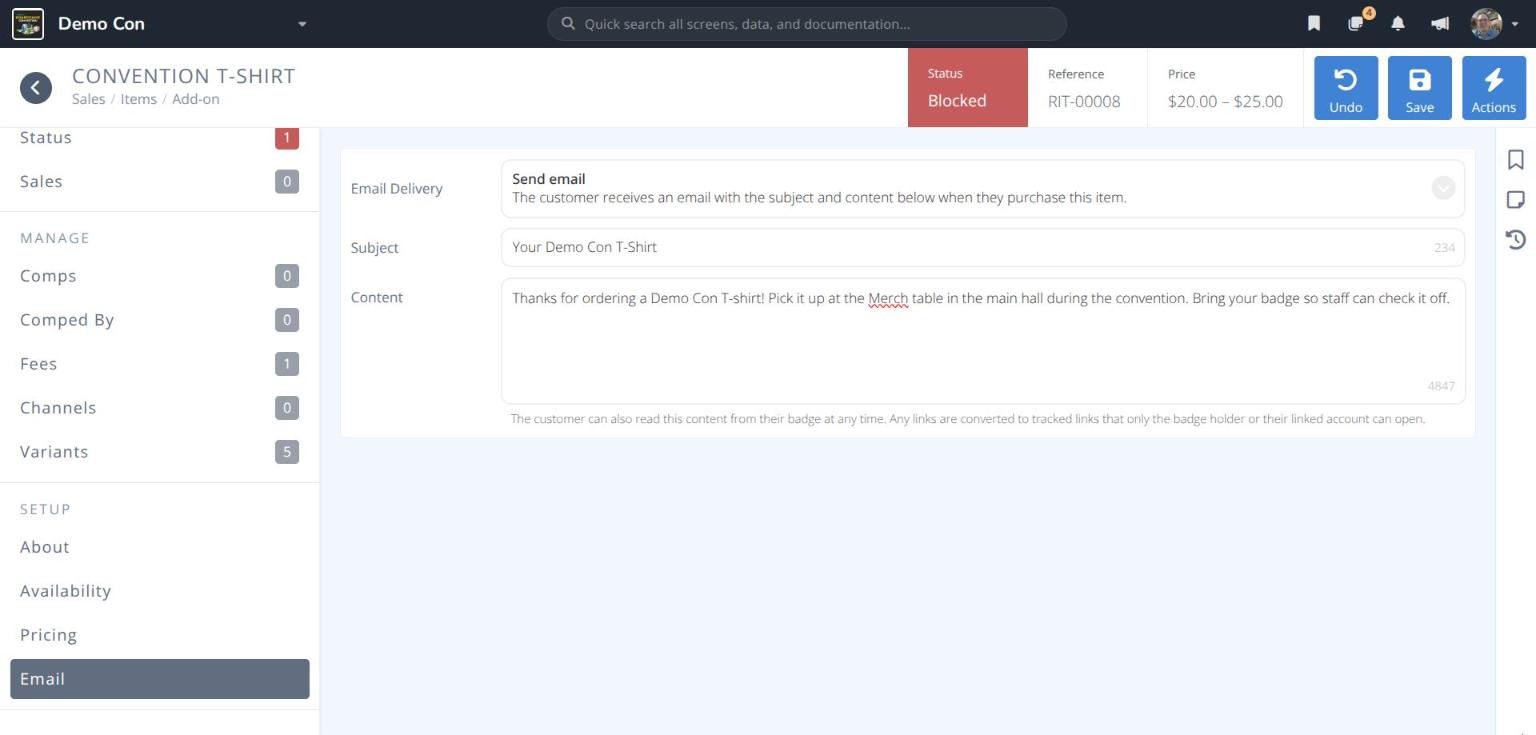
- Open the add-on and click Email.
- Set Email Delivery to Send email.
- Enter the Subject and Content of the email.
- Click .
The email is sent whenever someone gets the item, whether they buy it, are comped it, or receive it by transfer. It comes from no-reply@cardboardconnect.com.
Attendee experience
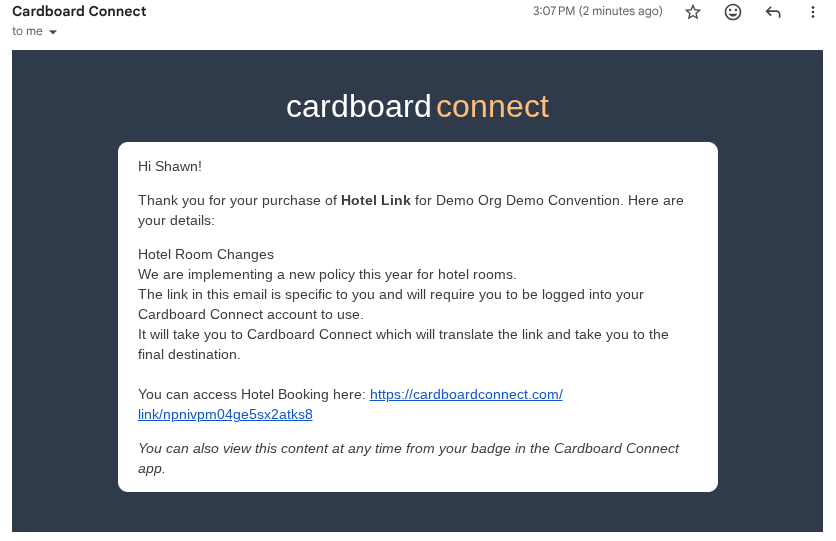
The attendee receives the email from no-reply@cardboardconnect.com. All links are converted to Cardboard Connect links, to allow click tracking and prevent easy sharing of the content.
The attendee can view the content at any time from the Store: My Add-ons section of the app. Items with content show an Includes emailed content tag. Clicking the View Content button shows the current content.

¶ Disable or Delete an Add-on or Variant
- To change the whole add-on, open it, or click the at the end of its row in the grid. To change one variant, click the at the end of its row in Variants.
- Choose Disable to stop selling it, or Delete to remove it.
Warning: Deleting an item or variant cannot be undone. If it has already been sold, Disable it instead so its sales history is kept.
¶ Notes about Stock Limits
Badges. For example, with an item limit of 100 and a limit of 20 on each of six sizes, no more than 20 of any size, and no more than 100 in total, can be sold.
¶ Next Steps
Categories- Set up the store categories that sell your add-ons.Tags- Group add-ons for filtering and reporting.Badges- Comp an add-on with a badge, such as a free T-shirt for staff.