¶ Tags
¶ Overview
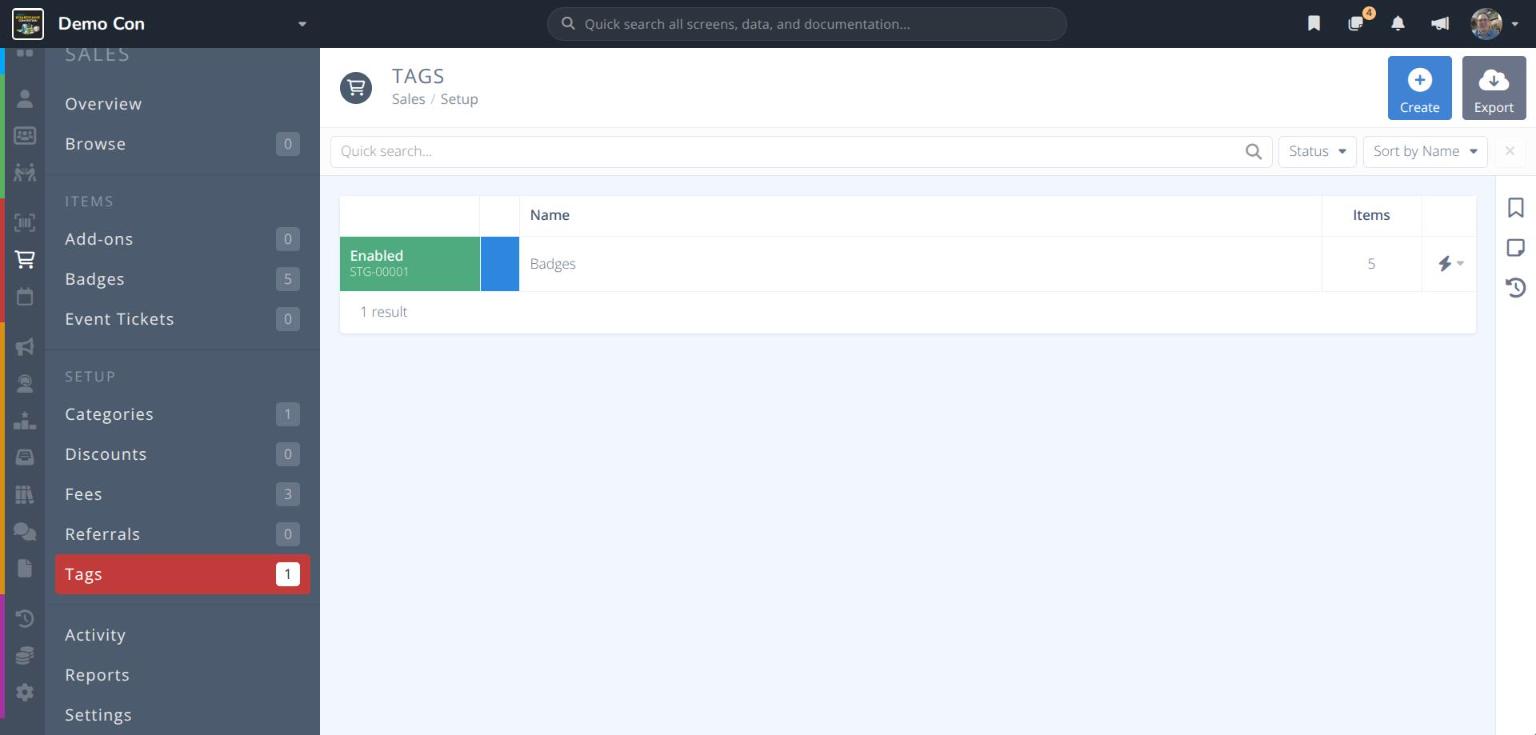
Tags are colored labels you attach to sales items to group them, for example Badges, Merchandise or Booths. An item can have several tags.
Tags help you:
- Find items - Filter the and grids by tag.
- Report on groups of items - Filter sales reports by tag, and see spending by tag on an item's Overview.
- See totals at a glance - Each tag shows how many items it covers, how many have sold, and the revenue they brought in.
Note: Tags are for internal use only. They are not shown to attendees or customers.
¶ Common Procedures
¶ Tags Grid
From the menu click under the SETUP heading.
Each row in the grid shows:
Status / Ref.- Enabled or Disabled, and the tag's reference number (e.g. STG-00001)Colour- The tag's color swatchName- The tag's nameItems- The number of sales items with this tag- - Quick actions: Manage, Tag Items, Disable, Delete
Use the Quick search... bar and the Status and Sort by filters to narrow the list.
The following buttons appear in the actions area at the top right:
- - Creates a new tag
- - Downloads the grid
¶ Tag Details
Click a row in the grid to open the tag. The header shows its Status and Reference, and the menu includes Reports, Tag Items, Clone, Disable and Delete.
Click each tab to see the information for that section:
¶ Overview
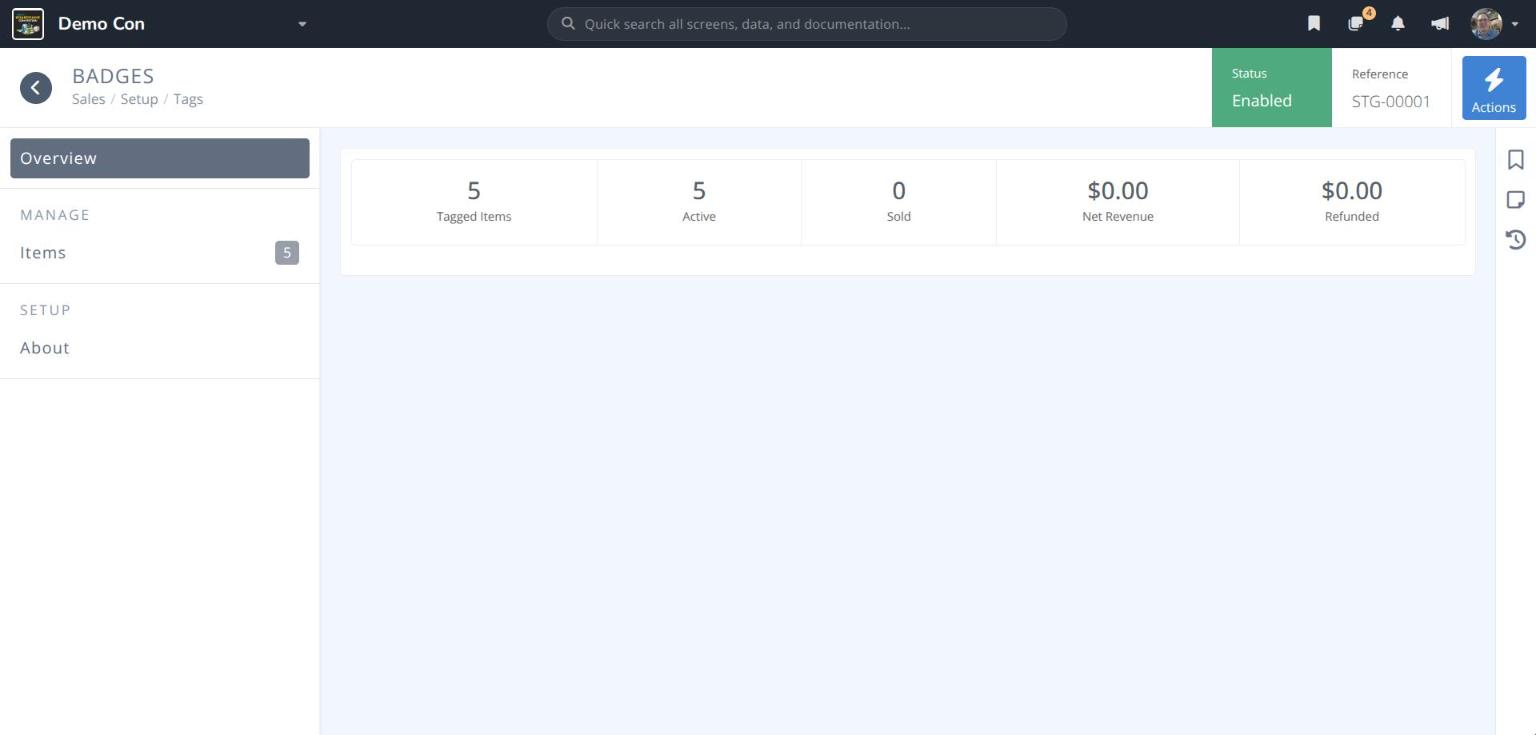
Tagged Items- How many items have this tagActive- How many of those items are activeSold- Units sold across all tagged itemsNet Revenue- Revenue from tagged items after refunds and feesRefunded- Amount refunded on tagged itemsTop Tagged Items by Revenue- The best-selling items with this tag (shown once there are sales)
¶ Items
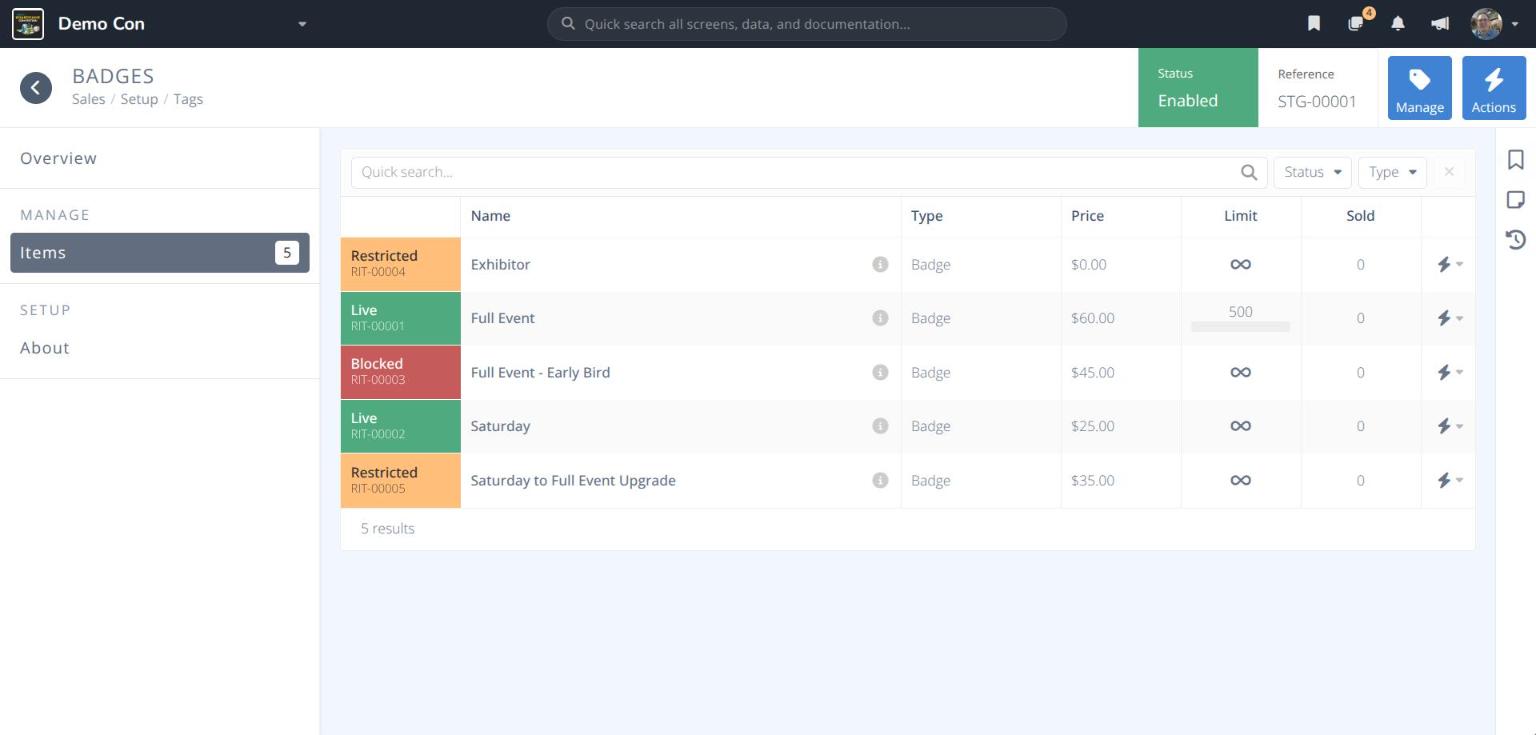
Every item with this tag, showing its status, Type, Price, stock Limit and units Sold. Use the Quick search... bar and the Status and Type filters to narrow the list. Click to add or remove items.
¶ About
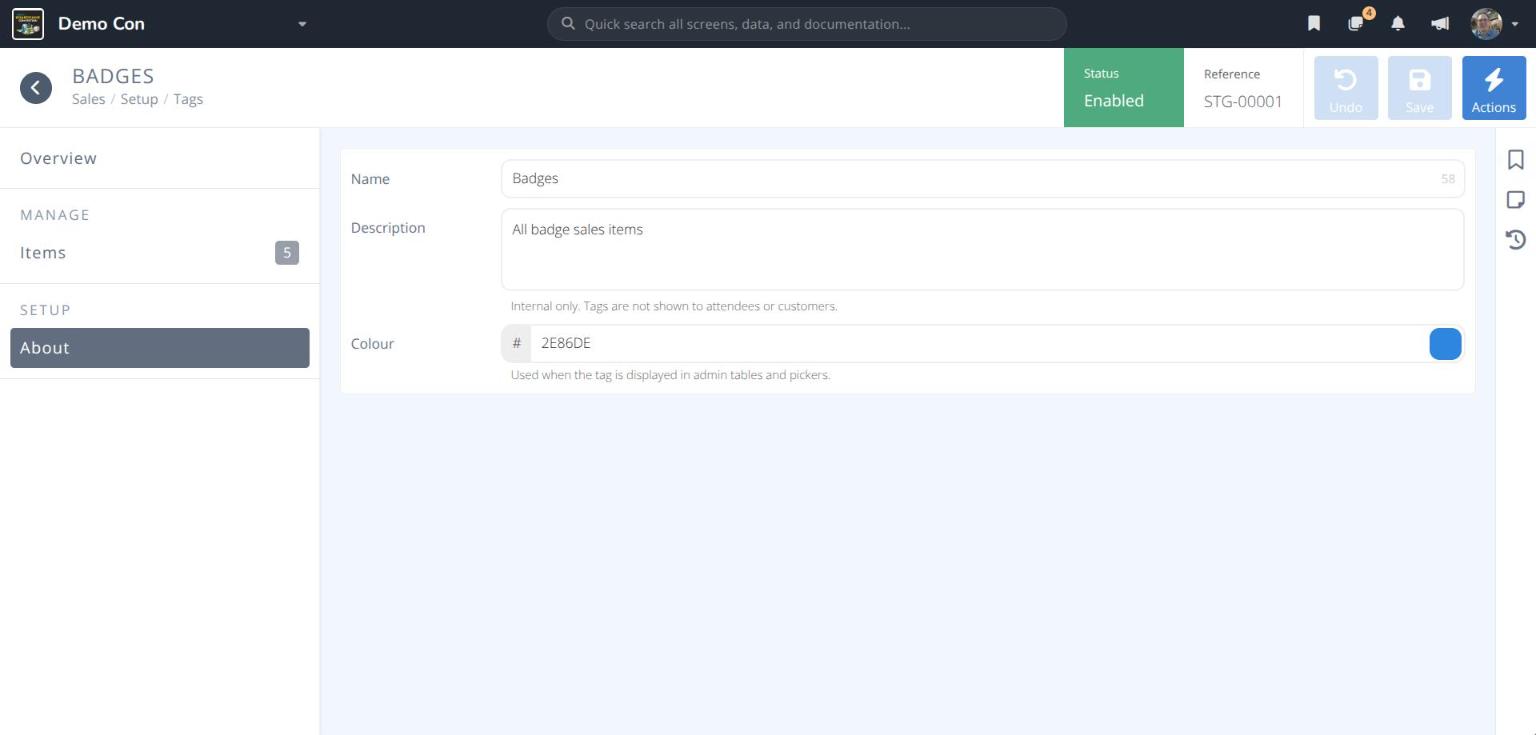

Name- The tag's nameDescription- Optional notes. Internal only; tags are not shown to attendees or customers.Colour- The color used when the tag is shown in admin tables and pickers. Type a hex value after the #, or click the swatch to pick a color.
¶ Procedures
¶ Create a Tag
- From the menu click .
- Click . The CREATE TAG panel opens.
- Enter a Name, an optional Description, and a Colour.
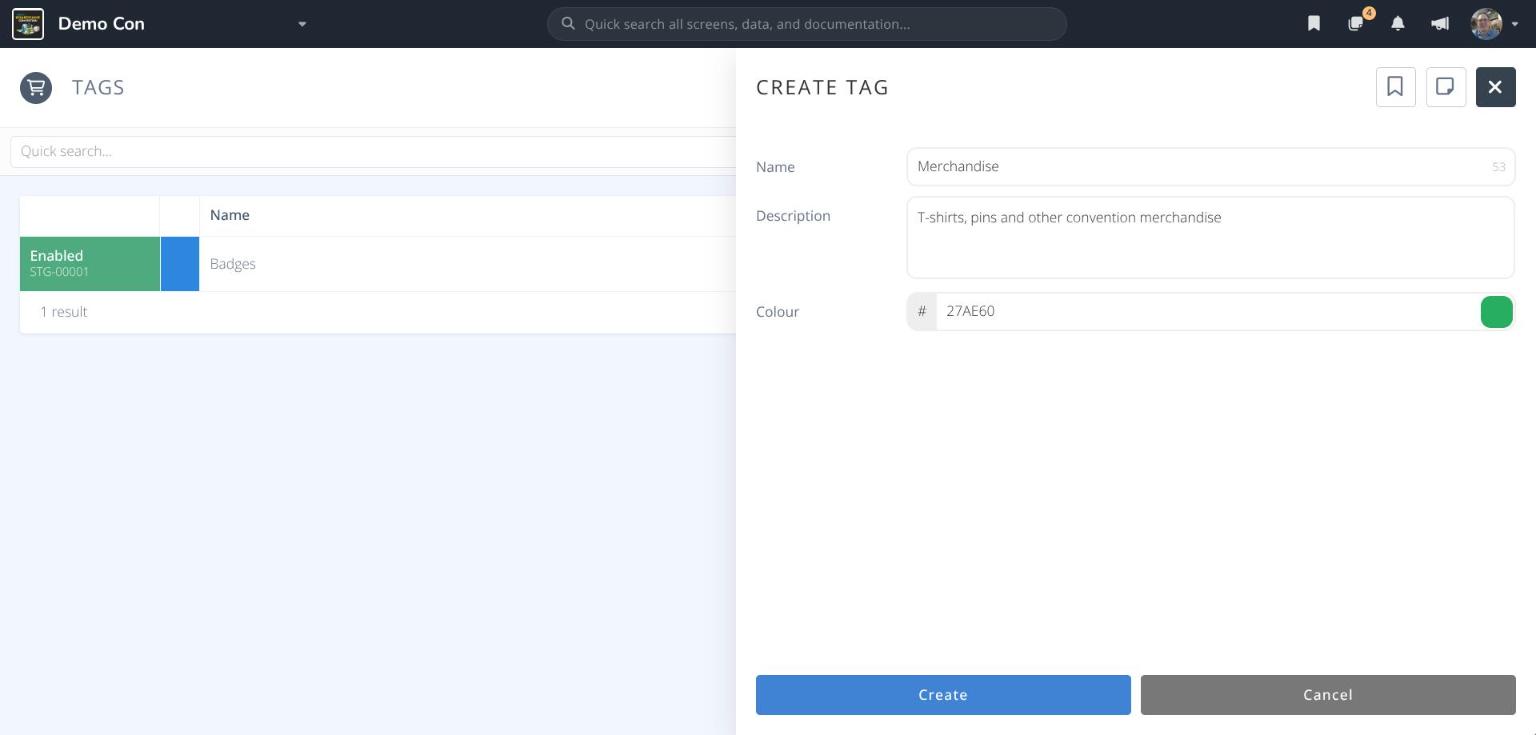
- Click . The tag opens and shows as Enabled.
Example tags
| Name | Colour | Use for |
|---|---|---|
| Badges | 2E86DE |
All badge sales items |
| Merchandise | 27AE60 |
T-shirts, pins and other merchandise |
| Booths | E67E22 |
Exhibitor booths and tables |
| Sponsorships | 8E44AD |
Sponsorship packages |
Tip: Choose distinct colors so tags are easy to tell apart in the item grids.
¶ Add Items to a Tag
Use this to tag several items at once.
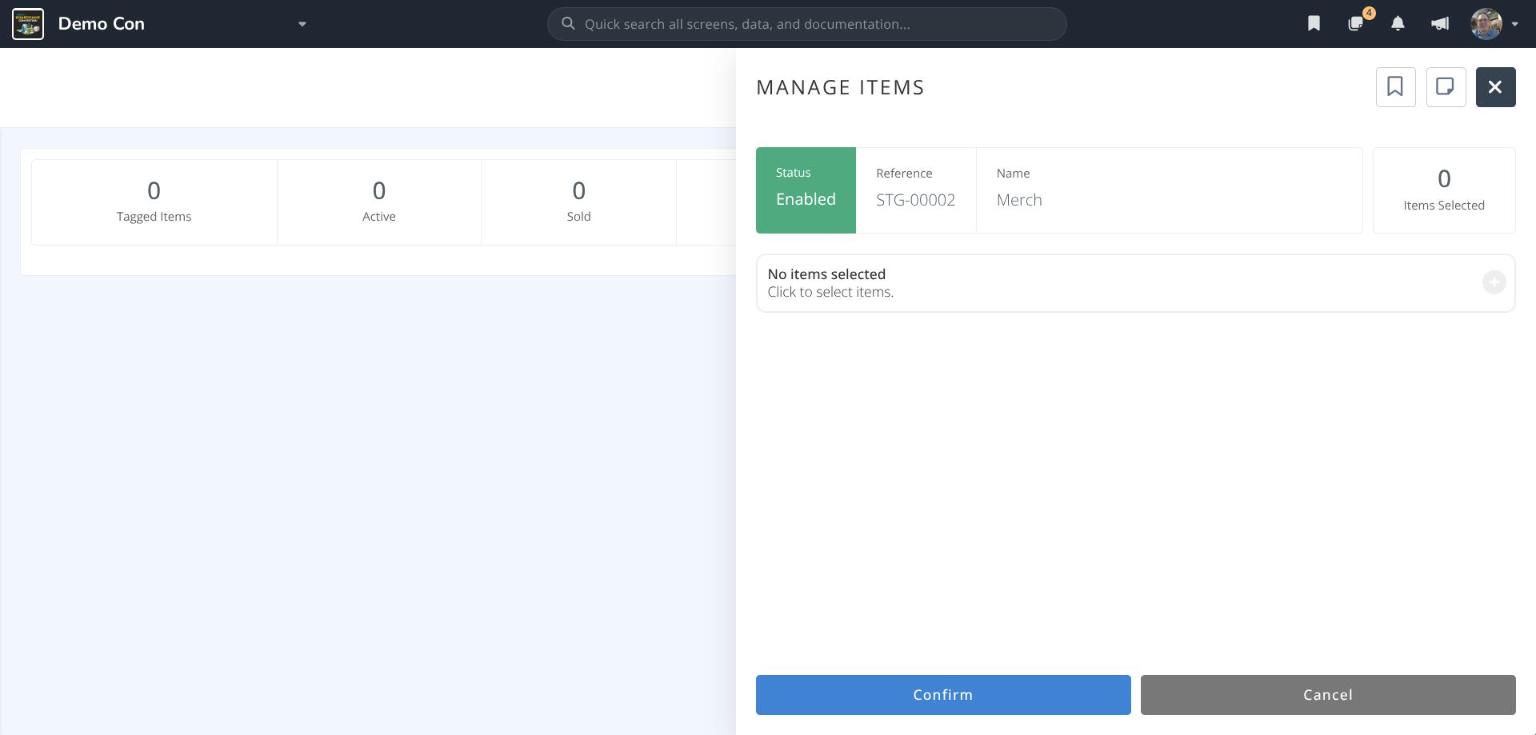
- Open the tag, then click → Tag Items. You can also choose Tag Items from the at the end of the tag's row in the grid. The MANAGE ITEMS panel opens.
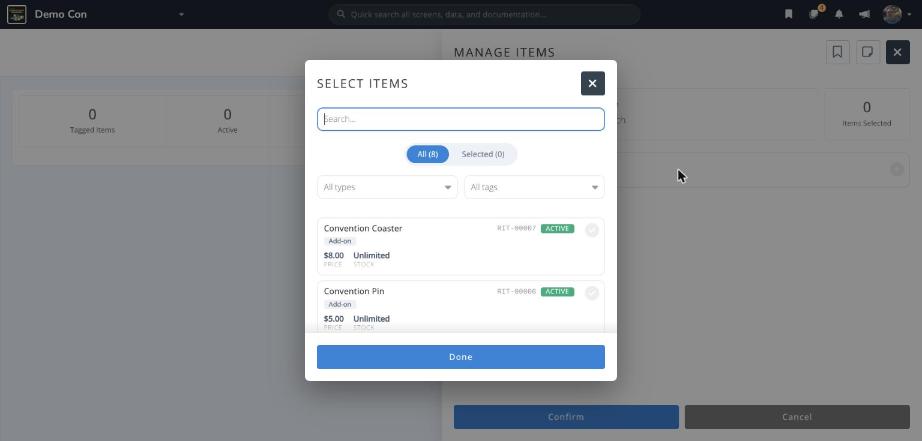
- Click No items selected (or Add more items if the tag already has items).
- In the SELECT ITEMS window, search for items, or narrow the list with All types and All tags. Click each item to select it, then click .
- Check the list of items in the panel, then click .
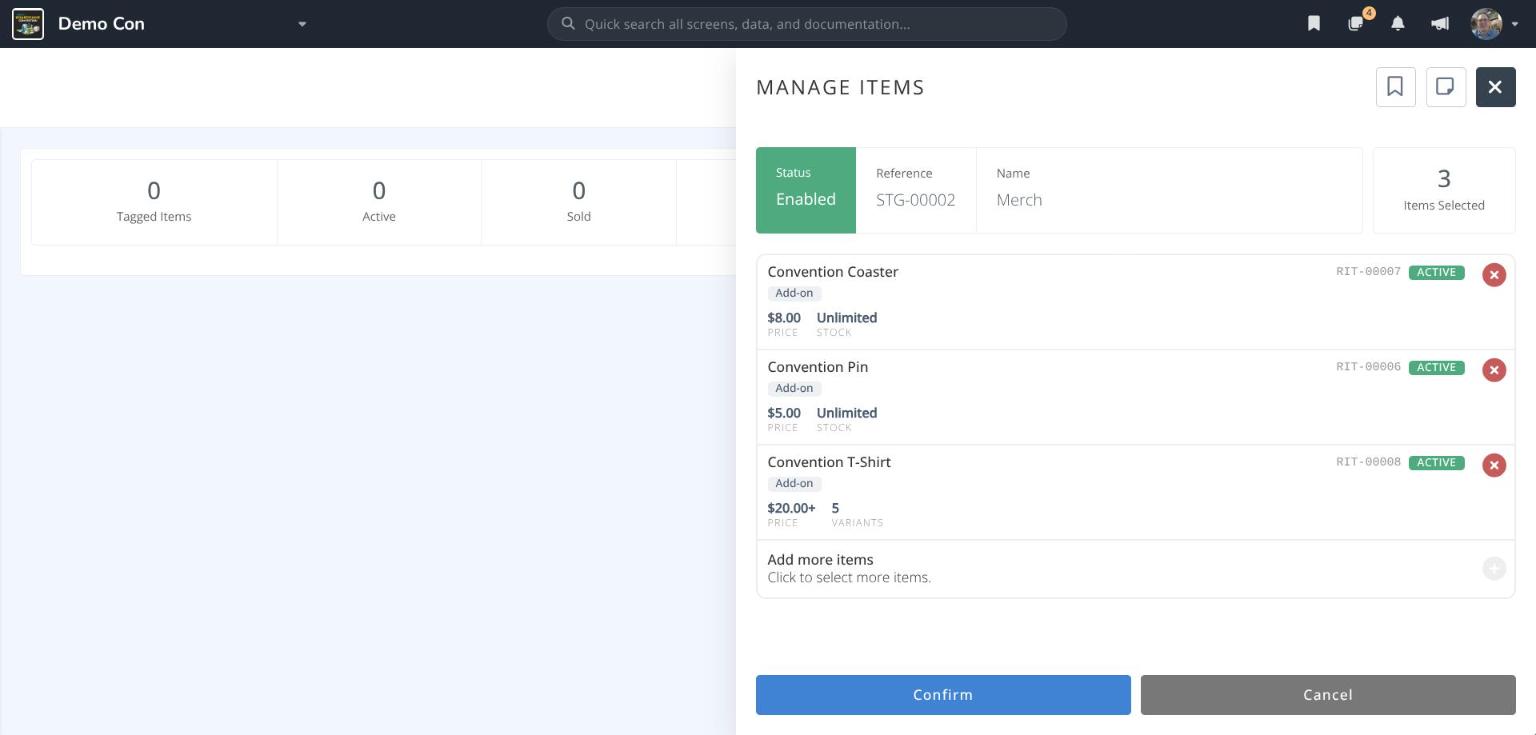
The tag now appears beside each item's name in the grids.
¶ Tag a Sales Item
Use this to tag one item from the item itself.
- Open the item from or .
- Click About, then click Tags.
- In the SELECT TAGS window, click the tag(s) to add, then click .
- Click .
The tag now appears beside the item's name in the grid, and the item is listed under the tag's Items.
Caution: The Create button in the SELECT TAGS window creates a new tag. Click an existing tag to select it.
¶ Remove Items from a Tag
- Open the tag and click Items.
- Click . The MANAGE ITEMS panel lists every item with this tag.
- Click the beside each item to remove.
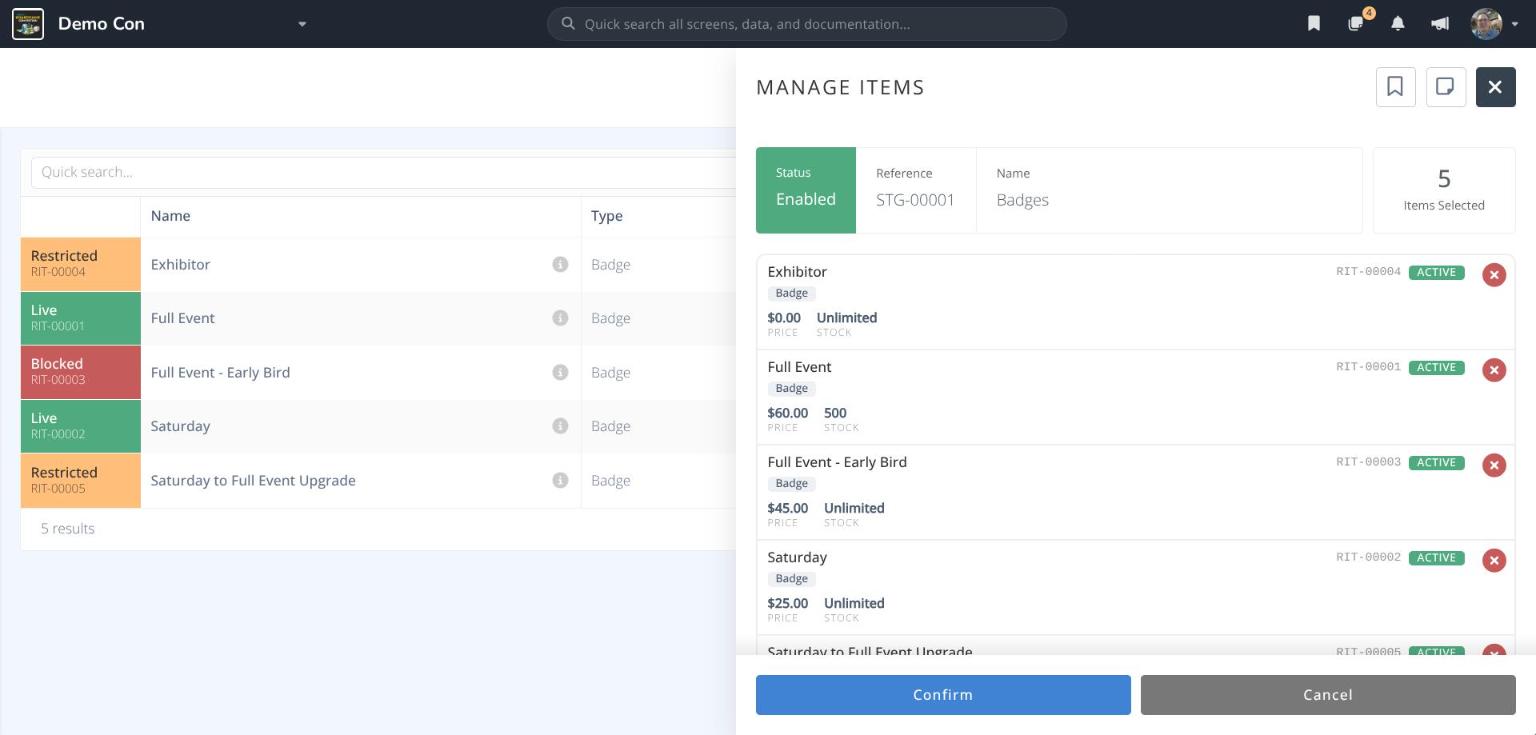
- Click .
¶ Disable or Delete a Tag
- Open the tag, or click the at the end of its row in the grid.
- Choose Disable to stop using the tag, or Delete to remove it.
Warning: Deleting a tag cannot be undone. Items keep selling, but they will no longer be grouped or filtered by this tag.