¶ Badges
¶ Overview
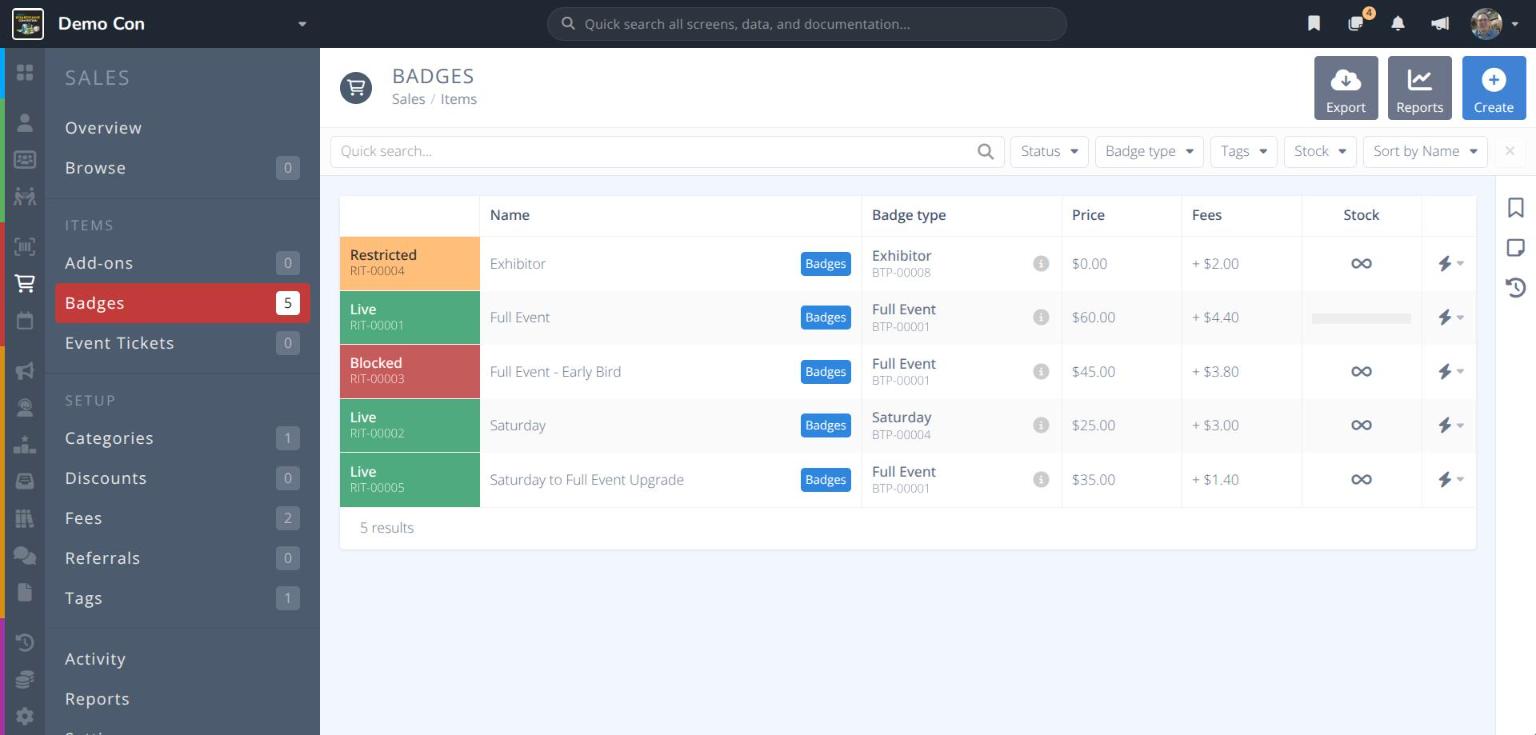
A badge sales item is what attendees actually buy to get a badge. Each one is linked to a Badge Type and sets the price, when it can be bought, and who can buy it.
You can create several sales items for the same badge type. For example, the Full Event badge type might be sold as Full Event – Early Bird, Full Event, and Full Event – At Door, each with its own price and dates.
Note: The badge type must exist before you can create a badge sales item for it. See
Create a Badge Type.
¶ Common Procedures
Create a Badge Sales ItemSell Additional Badges in the Online StoreSet When a Badge Can Be BoughtRestrict Who Can Buy a BadgeCreate a Badge UpgradeComp Another Item with a BadgeDisable or Delete a Badge Sales Item
¶ Badges Grid
From the menu click under the ITEMS heading.
Each row in the grid shows:
Status / Ref.- The item's status (see below) and its reference number (e.g. RIT-00001)Name- The name attendees see, followed by anyTagsBadge type- The badge type the buyer receivesPrice- The item's priceFees- The fees added to the price when they are passed on to the customerStock- for unlimited, or a bar showing how many have sold out of the stock limit- - Quick actions: Manage, Disable, Delete
Use the Quick search... bar and the Status, Badge type, Tags, Stock and Sort by filters above the grid to narrow the list.
The following buttons appear in the actions area at the top right:
- - Downloads the grid
- - Opens sales reports for badge items
- - Creates a new badge sales item
¶ Statuses
| Status | Meaning |
|---|---|
| Live | On sale. Anyone eligible can buy it. |
| Live by Comp | Not on sale directly, but attendees can still get it as a comp with another item that is live (e.g. a T-shirt given free with a badge). |
| Restricted | On sale, but only to some attendees (e.g. one badge type or badge category). |
| Blocked | Turned on, but something is stopping anyone from buying it, such as no channel or a closed sale date. A number (e.g. Blocked (2)) shows how many issues there are. |
| Disabled | Turned off. |
| Archived | Archived and no longer in use. Tick Archived in the Status filter to find archived items. |
Tip: Open an item's Status section to see exactly what is blocking or restricting it, with a link to fix each issue.
¶ Badge Item Details
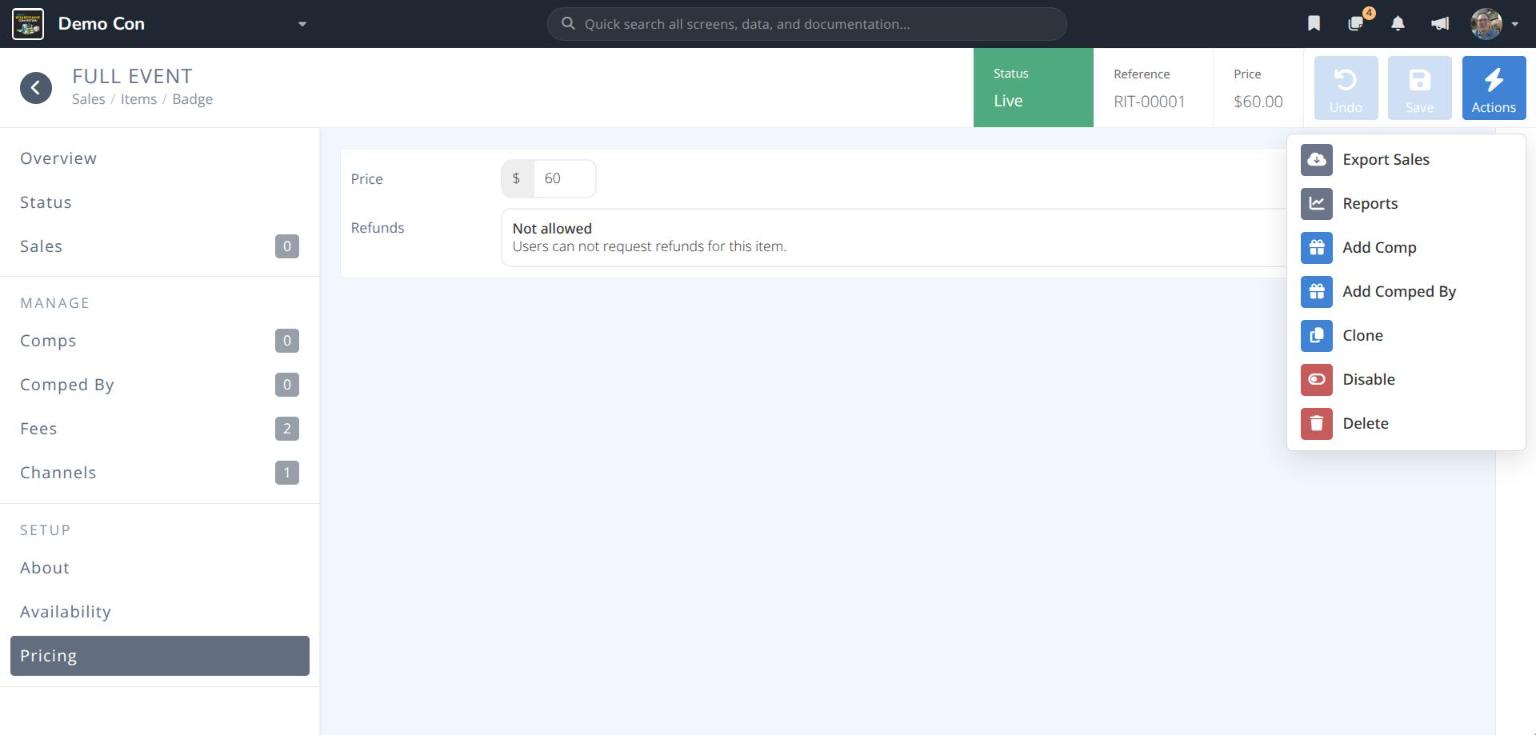
Click a row in the grid to open the badge item. The header shows its Status, Reference and Price, along with , and .
The menu includes:
- Export Sales - Download the sales of this item
- Reports - Open sales reports for this item
- Add Comp - Give another item free when this badge is bought
- Add Comped By - Give this badge free when another item is bought
- Clone - Start a new item with the same settings
- Disable - Stop selling the item
- Delete - Permanently remove the item
The menu on the left is grouped into sections. Click each tab to see the information for that section:
¶ Overview
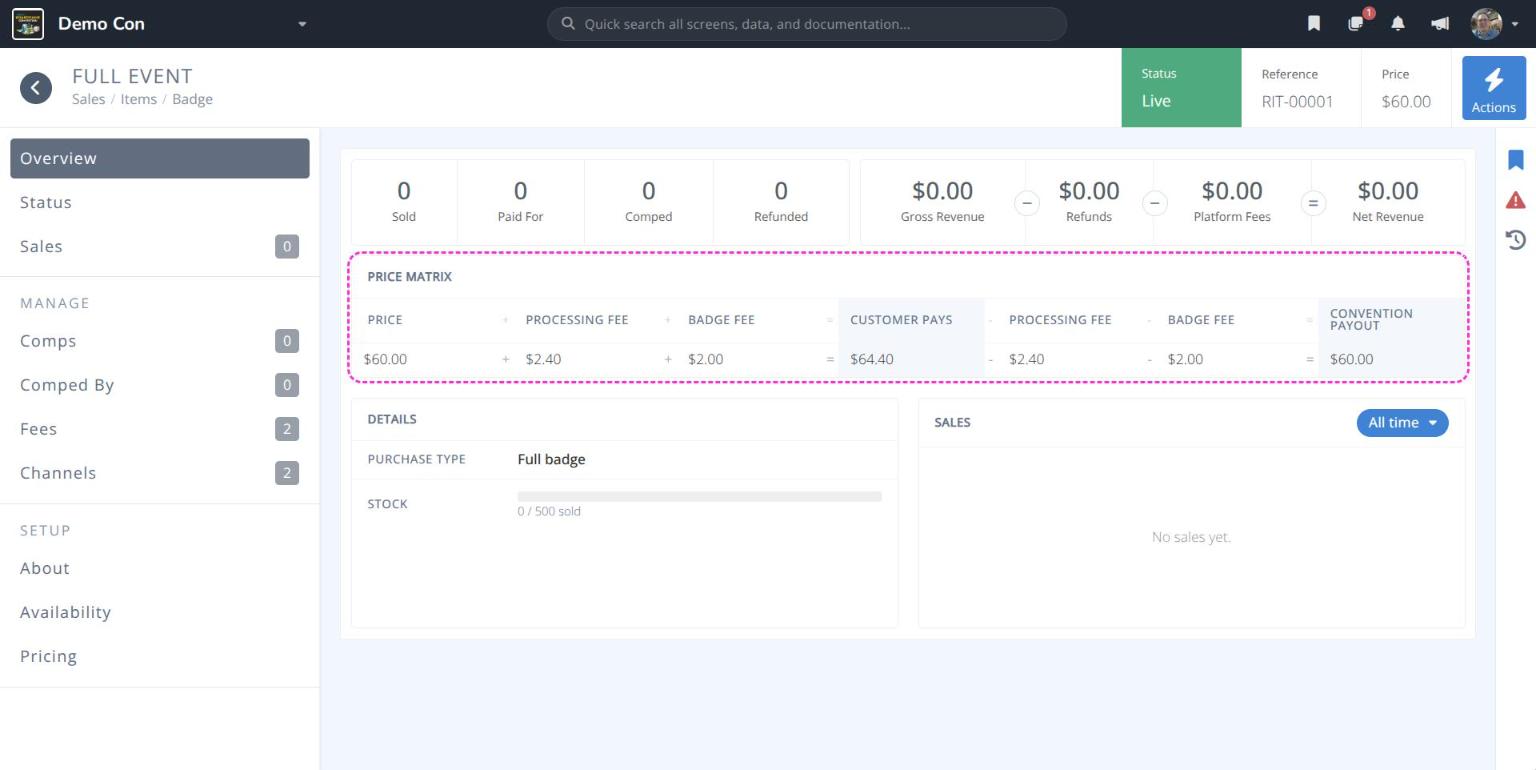
Sold/Paid For/Comped/Refunded- How many have been obtained, and howGross Revenue−Refunds−Platform Fees=Net RevenuePrice Matrix- How the price, fees, what the customer pays, and what the convention receives fit togetherDetails- The Purchase Type and a Stock barSales- A chart of sales over time. Use the window button (e.g. All time) to change the date range.
Fees.
¶ Status
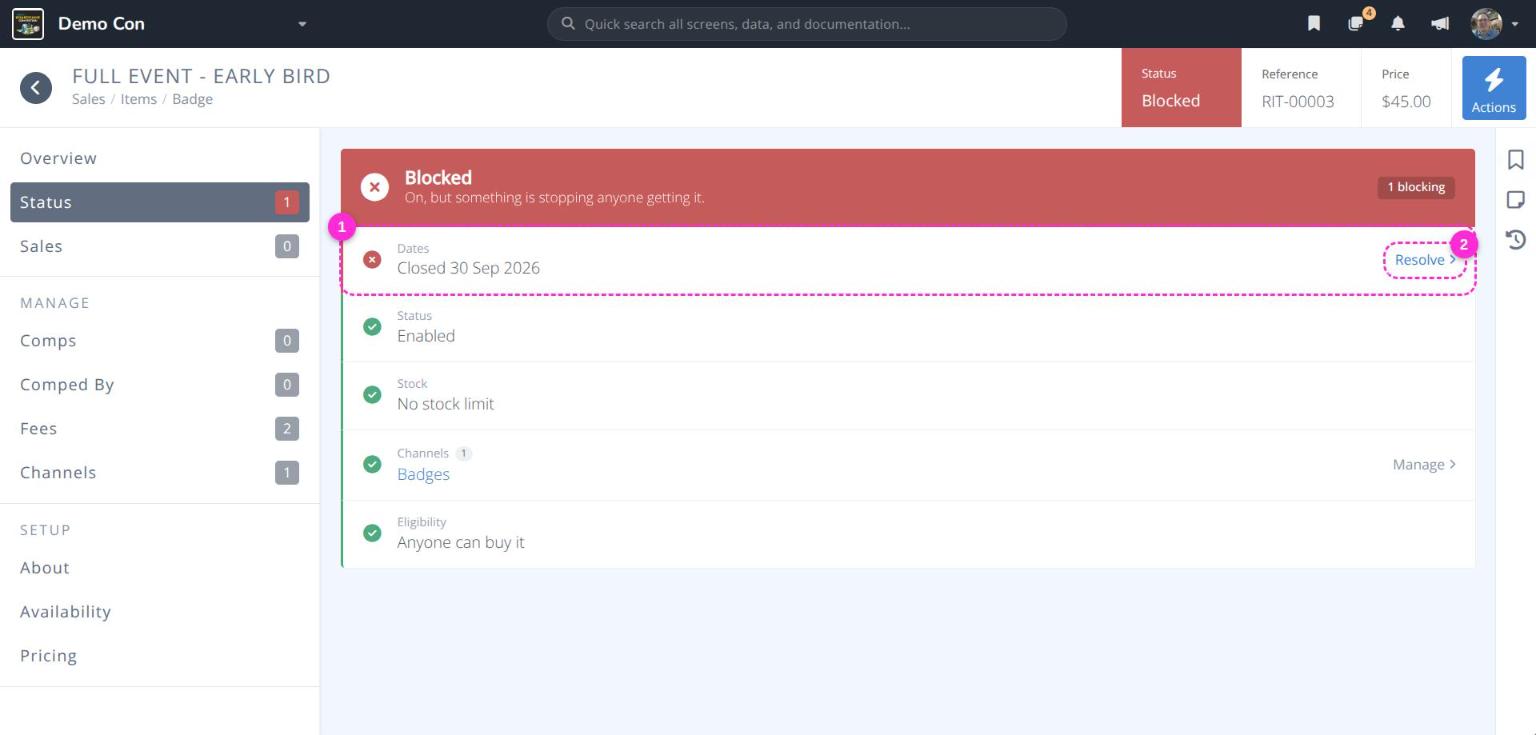
A checklist of everything that affects whether the item can be bought. Each row shows a green check, a warning, or a red block.
Status- Whether the item is enabledDates- Whether the sale window is open (1)Stock- Whether any stock remainsChannels- Where the item is offeredEligibility- Who can buy itAlso comped by- Shown when the item is also given free with other items
Click Resolve, Review or Manage on a row to jump to the setting that controls it (2).
¶ Manage
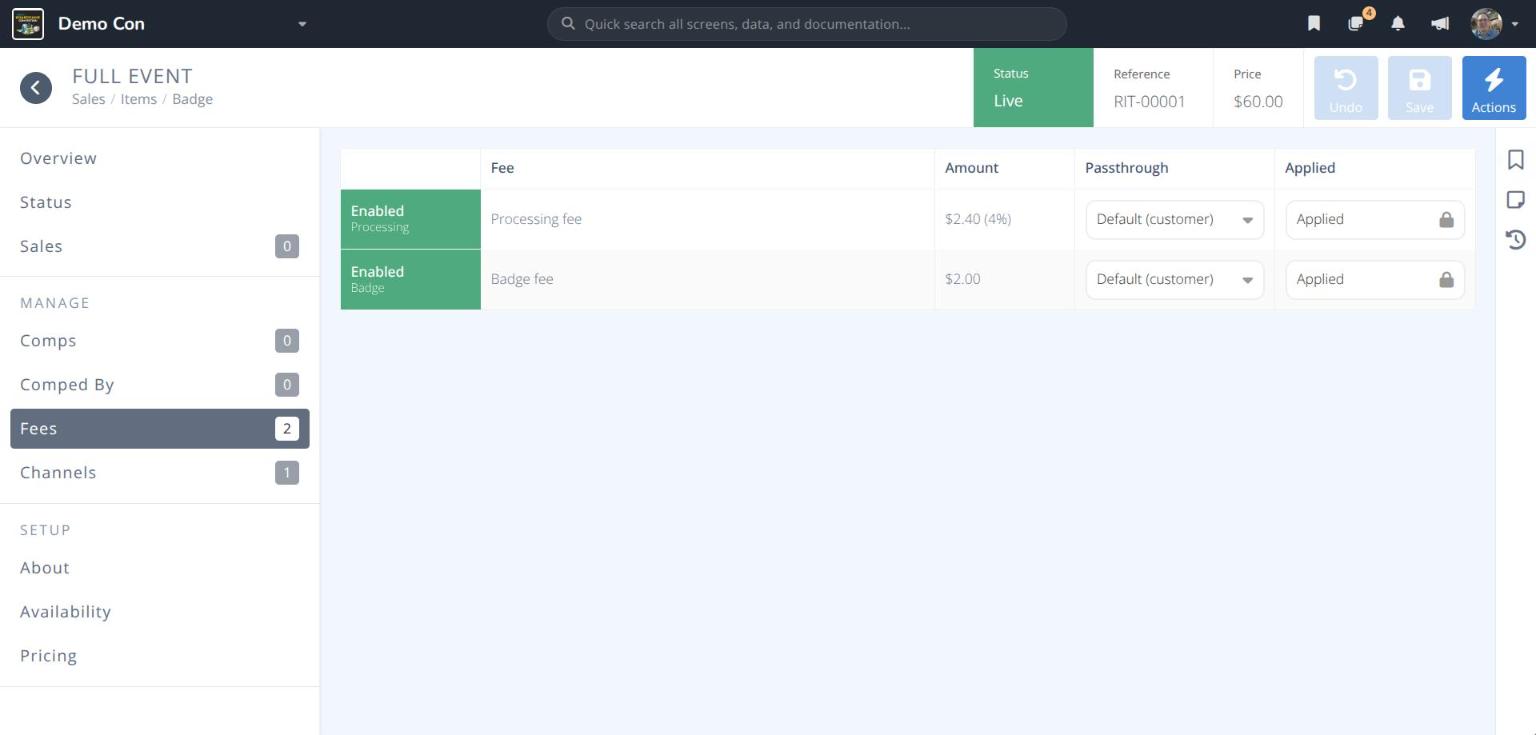
Comps- Other items given free when this badge is bought. SeeComp Another Item with a Badge.Comped By- Other items that give this badge free when they are bought.Fees- The fees that apply to this item. For each fee, choose the Passthrough (who pays it). Platform fees are always Applied and cannot be removed.Channels- The store categories and registration pages that offer this item, with sales and revenue for each.Applicable Users- Who is allowed to buy the item. Only appears when Users on the Availability section is not set to All users. SeeRestrict Who Can Buy a Badge.
¶ Setup
About
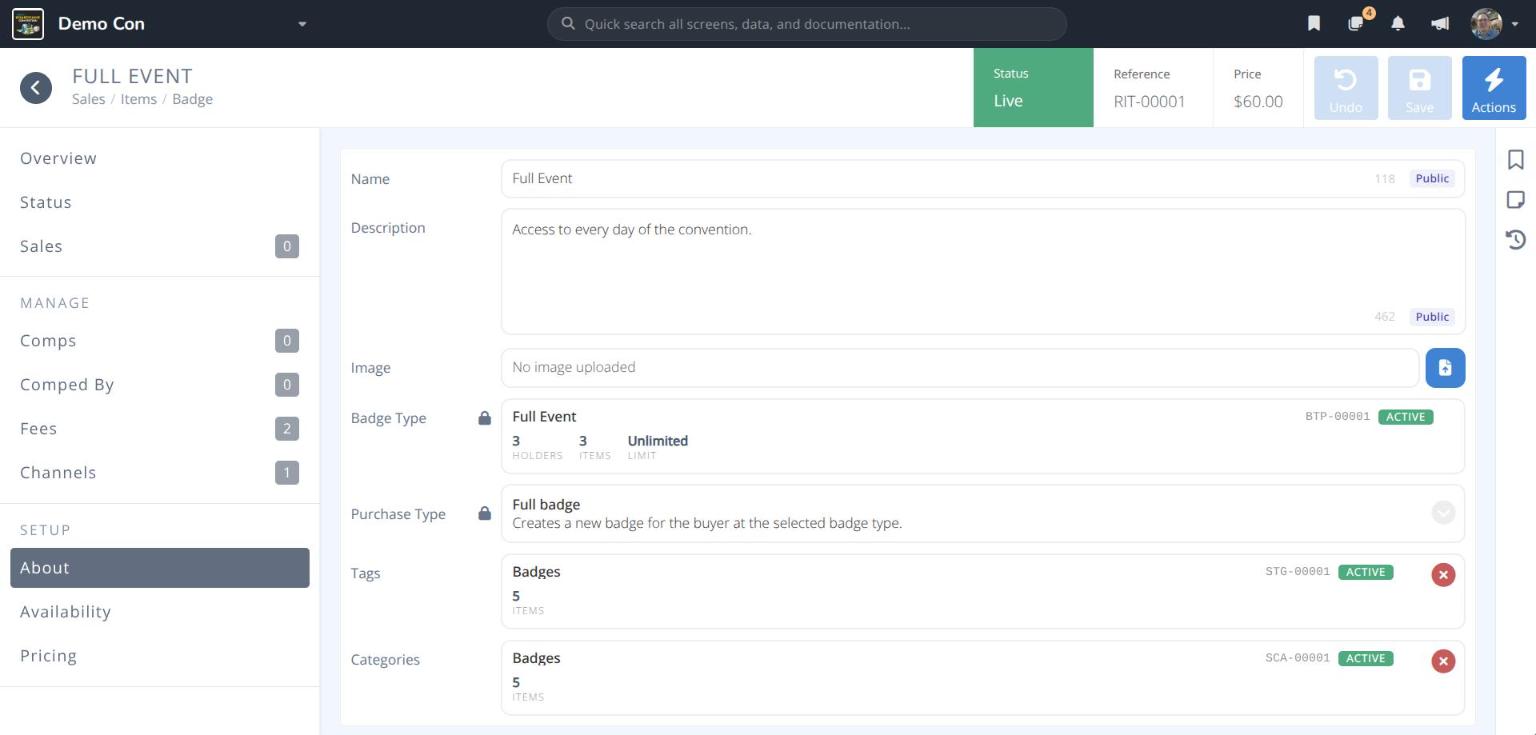

Name- The name attendees see when buying (Public)Description- Text shown to attendees when buying (Public)Image- An optional image for the itemBadge Type- The badge type the buyer receives. Cannot be changed after the item is created.Purchase Type- Cannot be changed after the item is created:- Full badge - Creates a new badge for the buyer at the selected badge type.
- Badge upgrade - Switches an existing badge to this badge type. No new badge is created.
Tags- Labels used to organize and filter items. SeeTags.Categories- The store categories that sell this item. Adding a category creates an Online Store channel.
Availability
Users- Who can buy the item:- All users - Any user can purchase this item.
- All users unless excluded - Any user can purchase except those matched in Applicable Users.
- Specific users - Only users matched in Applicable Users can purchase this item.
Available from/Available until- Optional dates and times for the sale window, in the convention's time zoneStock Limit- Optional maximum number of this item that can be sold
Pricing
Price- The price of the item, before feesRefunds- Not allowed (users cannot request refunds for this item) or Allowed (users can request refunds for this item)
¶ Procedures
¶ Create a Badge Sales Item
- From the menu click .
- Click . The CREATE BADGE ITEM panel opens.
- Enter the Name attendees will see (e.g. Full Event) and the Price.
- Click Badge Type. In the SELECT BADGE TYPE window, search for and click the badge type (1).
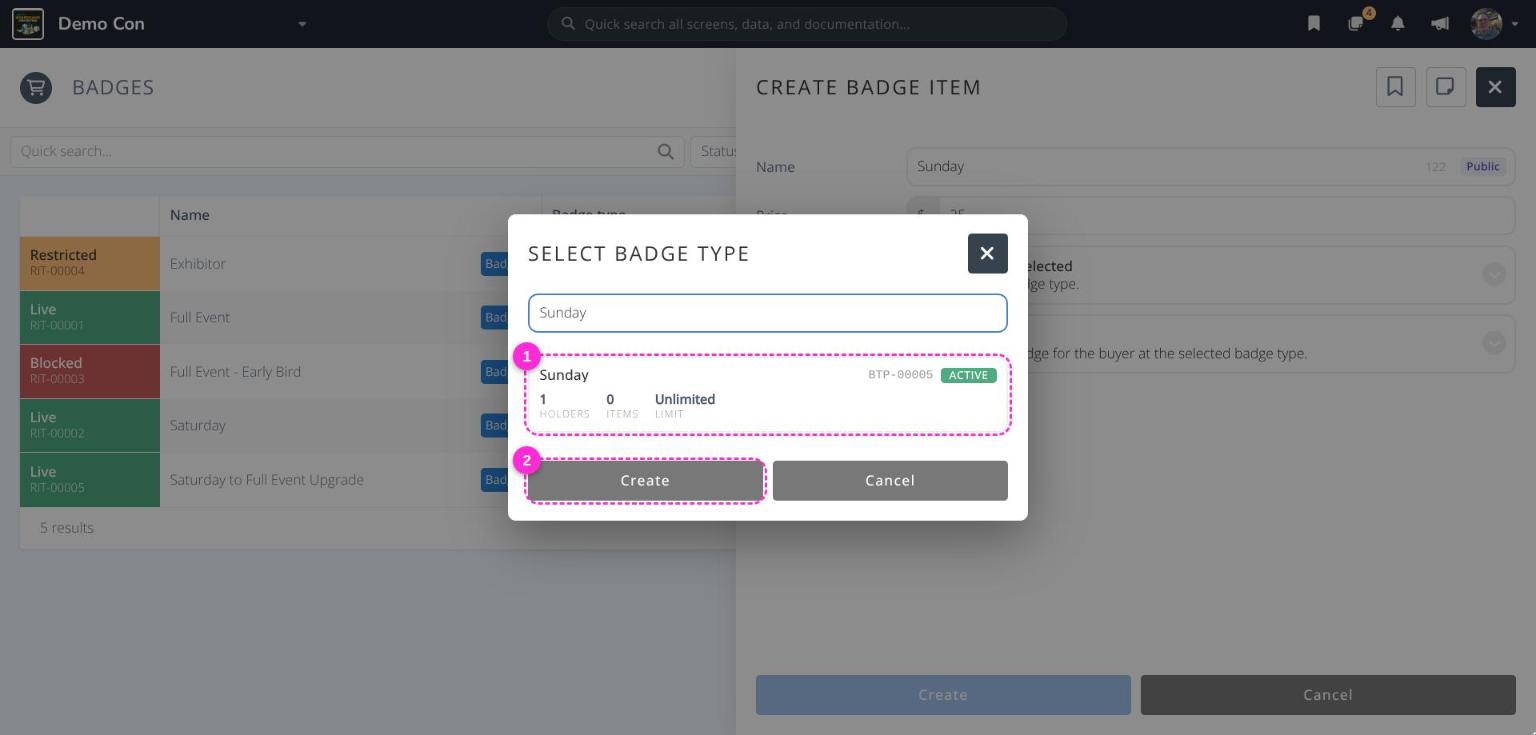
Caution: The Create button in the SELECT BADGE TYPE window (2) creates a brand-new badge type. Click the badge type card instead to select an existing one.
- Leave Purchase Type set to Full badge (1). Choose Badge upgrade only for upgrades; see
Create a Badge Upgrade.
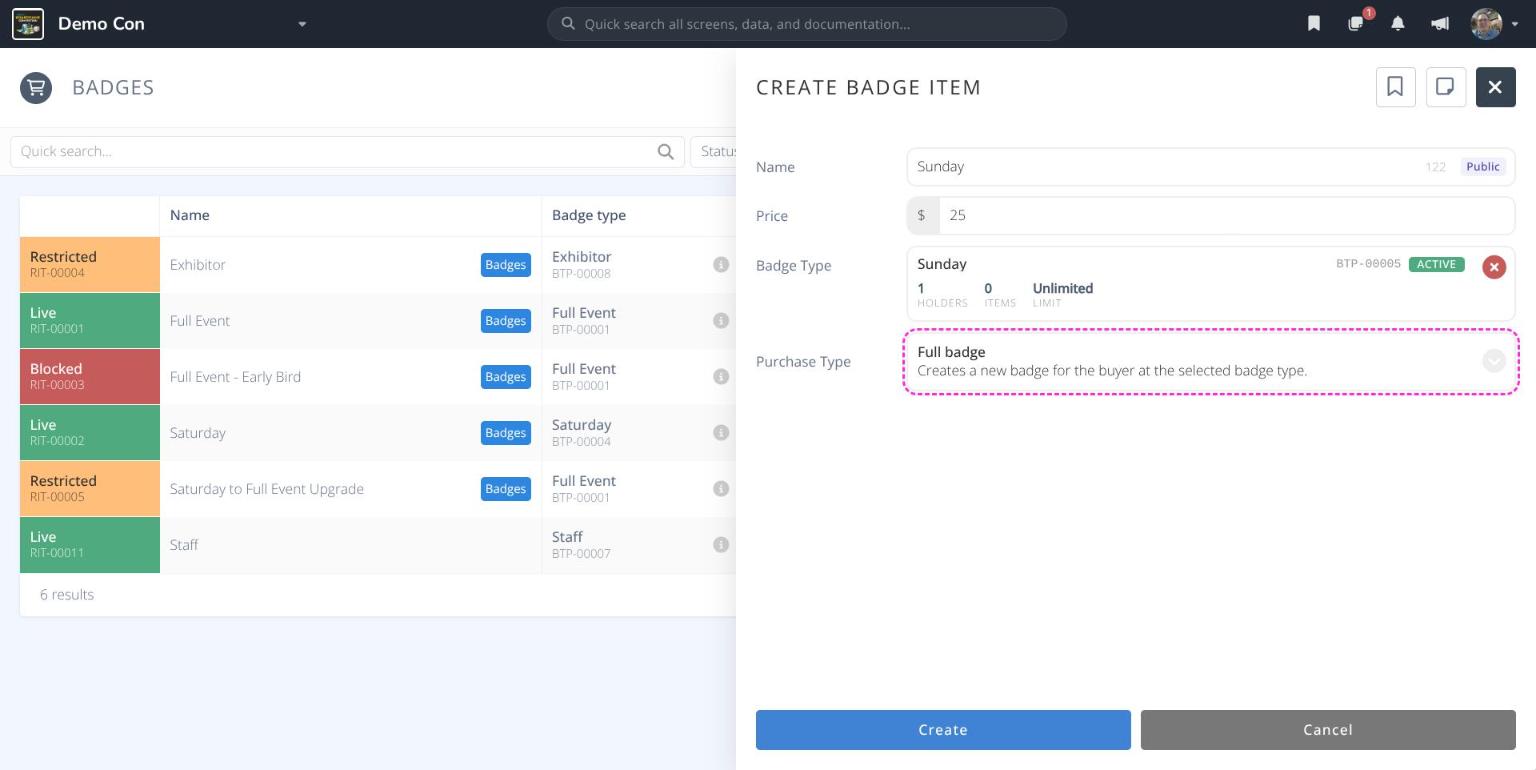
Warning: The Badge Type and Purchase Type cannot be changed after the item is created.
- Click . The badge item opens. It shows as Blocked until it is offered in a channel.
- Click About and add a Description, any Tags, and the store Categories that should sell this badge.
- Click .
- Optionally set the sale dates and stock limit on Availability, and refunds on Pricing, then click .
Example badge sales items
| Name | Badge Type | Price | Setup |
|---|---|---|---|
| Full Event – Early Bird | Full Event | $45 | Available until a set date |
| Full Event | Full Event | $60 | Stock limit of 500 |
| Saturday | Saturday | $25 | — |
| Exhibitor | Exhibitor | $0 | Only exhibitor companies can buy it |
| Saturday to Full Event Upgrade | Full Event | $35 | Badge upgrade, only Saturday badge holders can buy it |
¶ Sell Additional Badges in the Online Store
Attendees must hold a badge before they can use the online store, so their first badge is bought through a registration page. Use the store for additional badges, such as badges for family members, and for upgrades.
- Open the badge item and click About.
- Click Categories and select the store category (e.g. Additional Badges). Click .
- Click .
- Click Channels to confirm the item is now offered in the Online Store.
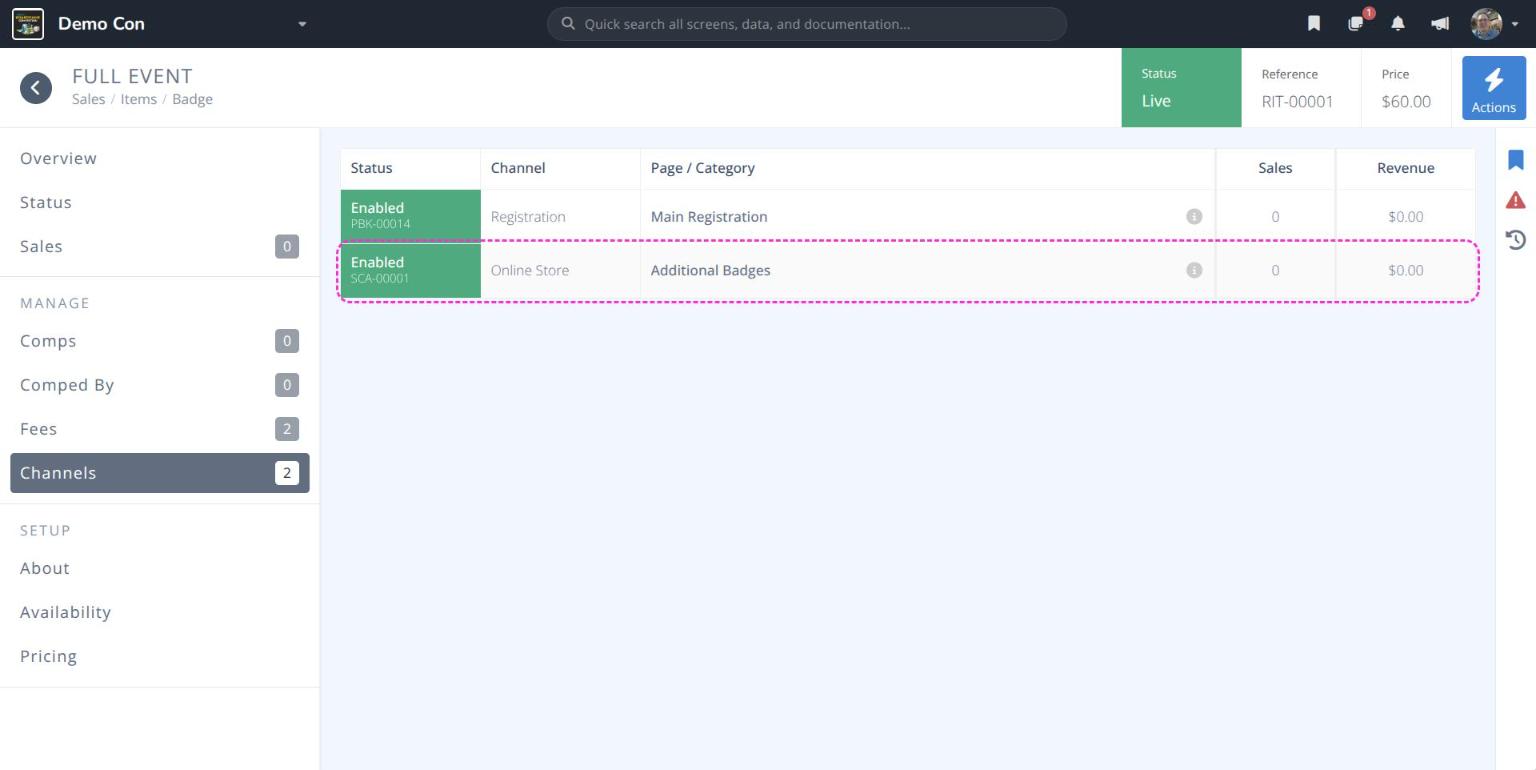
Categories. Badge items added to a registration page also appear in Channels.
¶ Set When a Badge Can Be Bought
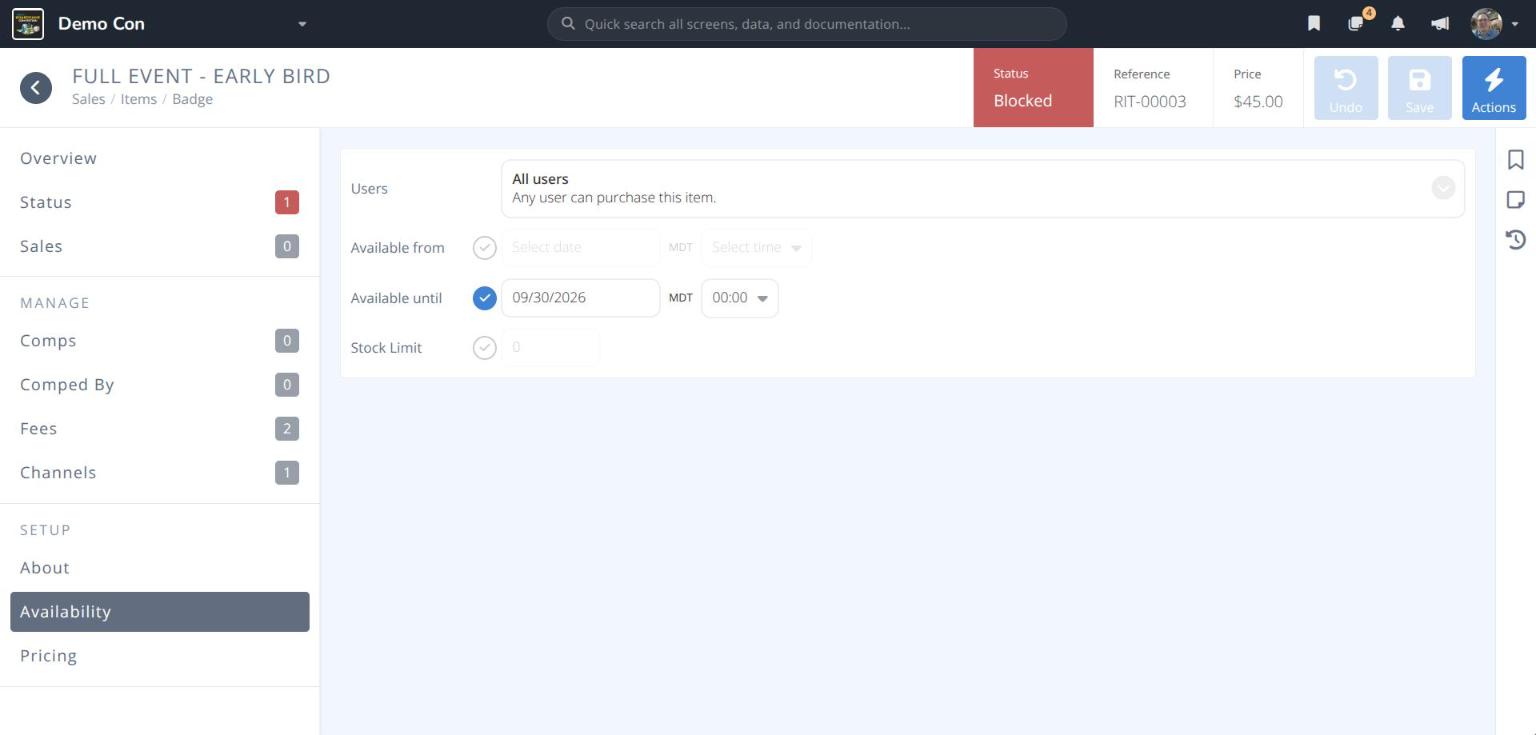
Use sale dates for pricing tiers such as Early Bird.
- Open the badge item and click Availability.
- Click the check circle beside Available from and/or Available until, enter the date (MM/DD/YYYY) and choose the time.
- Click .
¶ Restrict Who Can Buy a Badge
Use this for badges only certain attendees should see, such as exhibitor or staff badges, or upgrades.
- Open the badge item and click Availability.
- Set Users to Specific users (only those you choose) or All users unless excluded (everyone except those you choose).
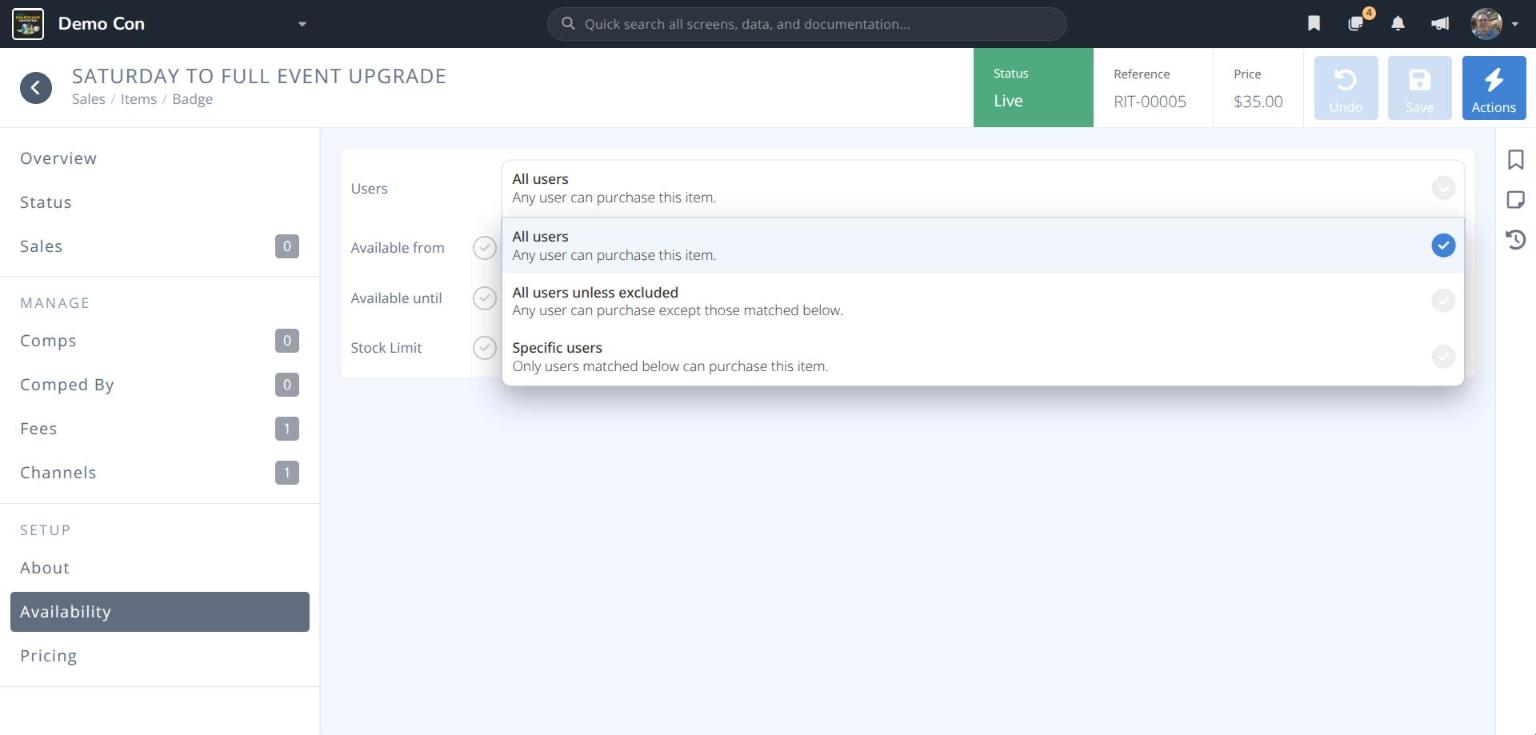
- Click . A new Applicable Users section appears under MANAGE.
- Click Applicable Users, then click the type of access to add (1): Attendees, Badge Types, Badge Categories, Groups, Group Members, Sales Items or Volunteer Roles.
- Select the matching entries and click . Each one appears in the list (2), with its Scope (how many attendees it covers).
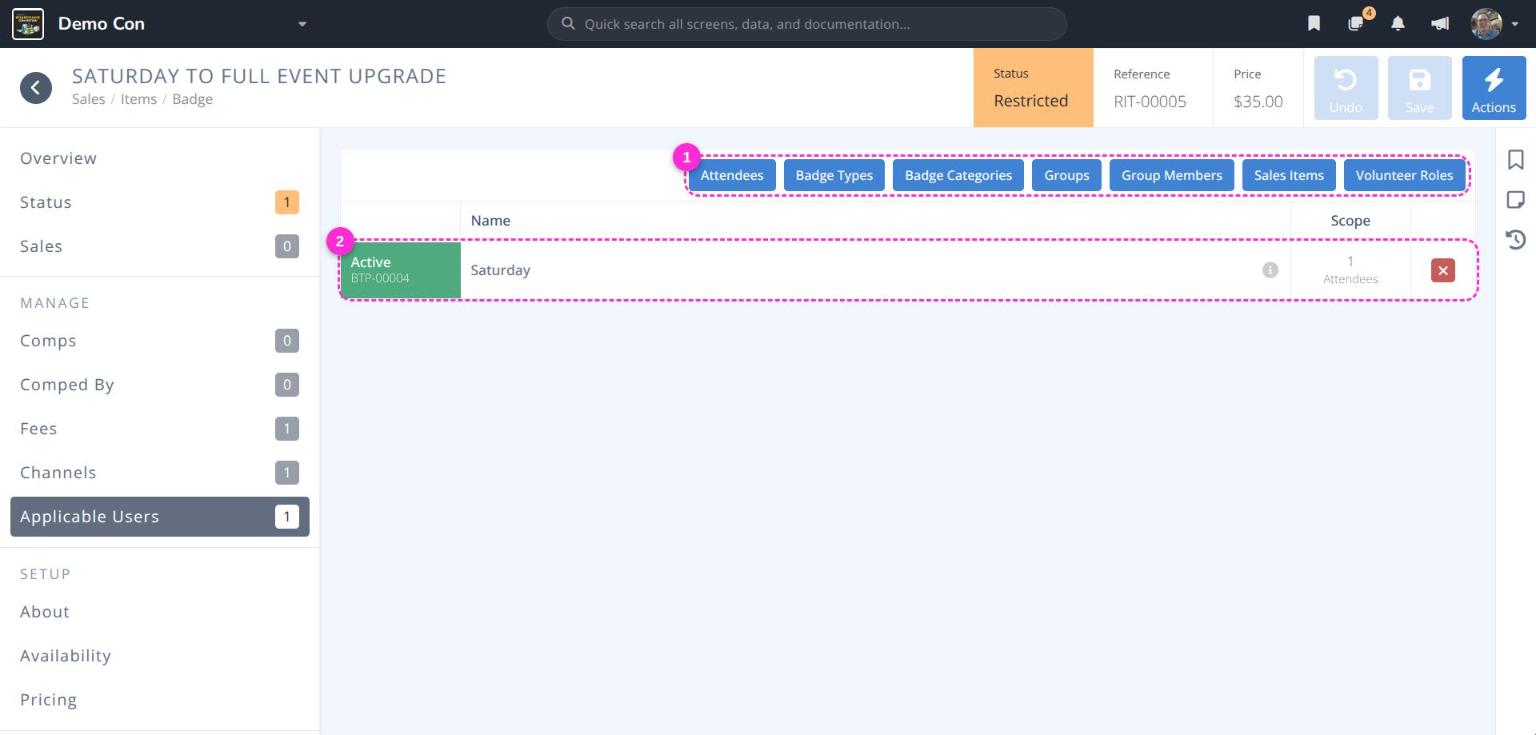
- Click . The item now shows as Restricted.
Badge Category.
¶ Create a Badge Upgrade
An upgrade switches an attendee's existing badge to a different badge type. Create a separate upgrade item for each upgrade path you allow (e.g. Saturday to Full Event).
- Follow
Create a Badge Sales Itemwith these settings:- Name: Something clear, e.g. Saturday to Full Event Upgrade
- Price: The cost of the upgrade (usually the difference in price)
- Badge Type: The badge type after the upgrade (e.g. Full Event)
- Purchase Type: Badge upgrade
- Follow
Restrict Who Can Buy a Badgeand add the badge type before the upgrade (e.g. Saturday) under Badge Types. - Follow
Sell Additional Badges in the Online Storeto offer the upgrade in a store category.
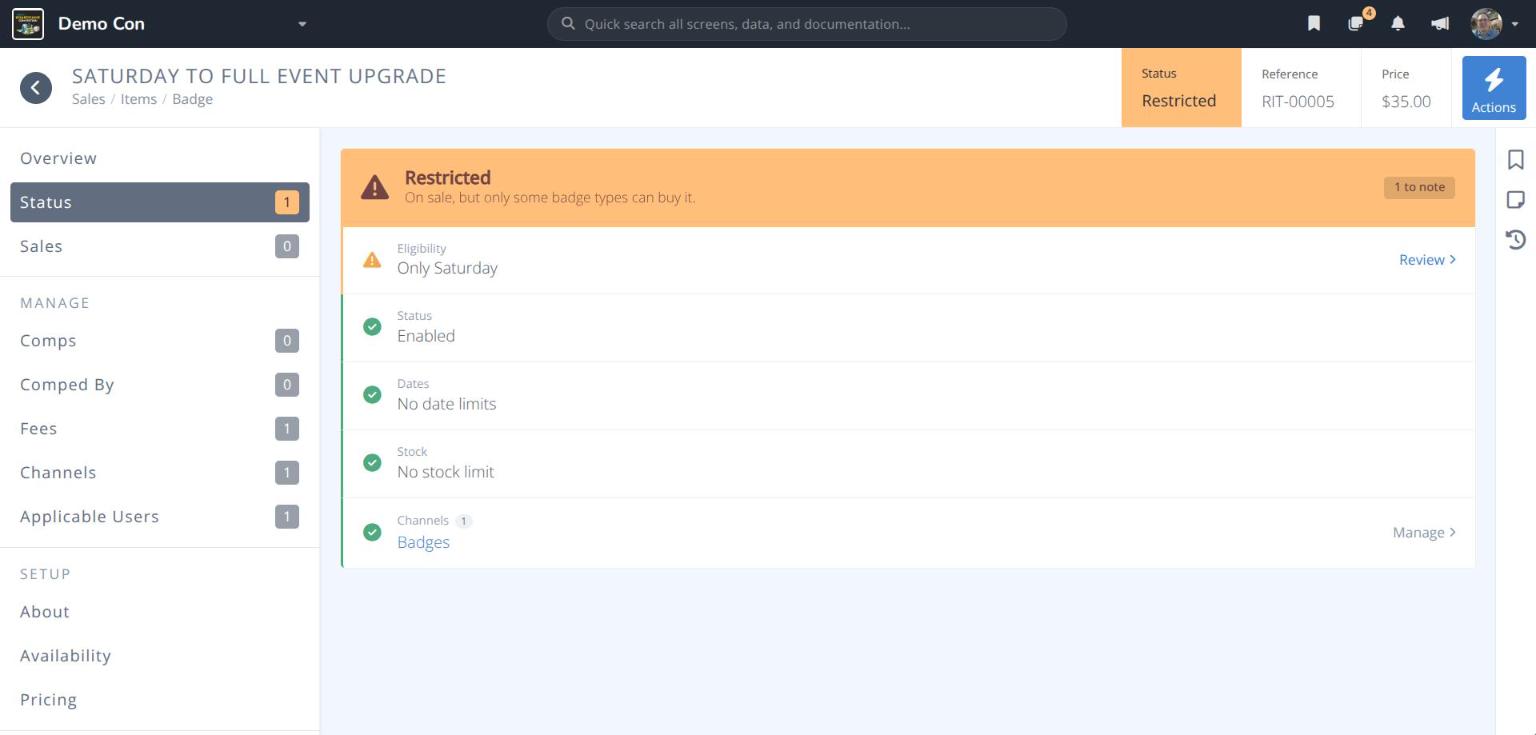
When an eligible attendee buys the upgrade, their existing badge changes to the new badge type.
Badge Typeinstead of on each sales item. A badge type limit counts every badge of that type, however it was created or upgraded.
¶ Comp Another Item with a Badge
Give an add-on (e.g. a T-shirt) free with a badge.
- Open the badge item and click → Add Comp.
- Click Items and select the item (or variant) to give free.
- Choose the Scope:
- New purchases only - The comp will only be granted on future purchases of this item.
- Apply retrospectively - The comp will also be granted to every attendee who has already purchased this item.
- Click . The comp appears under Comps.
¶ Disable or Delete a Badge Sales Item
- Open the badge item, or click the at the end of its row in the grid.
- Choose Disable to stop selling it, or Delete to remove it.
¶ Notes about Stock Limits
¶ Next Steps
Fees- Choose whether fees are absorbed or passed on to attendees.Categories- Set up the store categories that sell your badges.Add-ons- Create merchandise and other extras.