¶ Categories
¶ Overview
Store categories are the sections of the online store that attendees browse, such as Merchandise, Additional Badges or Exhibitor Extras. Each category holds a group of sales items, with an optional description, image and map.
Adding an item to a store category gives it an Online Store channel, which is what lets attendees buy it. Items that are not offered in any channel show as Blocked.
Note: Attendees must hold a badge before they can use the online store. Sell first badges through a registration page, and use store categories for additional badges, upgrades and add-ons.
¶ Common Procedures
Create a Store CategoryAdd Items to a CategoryChange the Order of ItemsRestrict Who Can See a CategorySet When a Category Is OpenDisable or Delete a Category
¶ Categories Grid
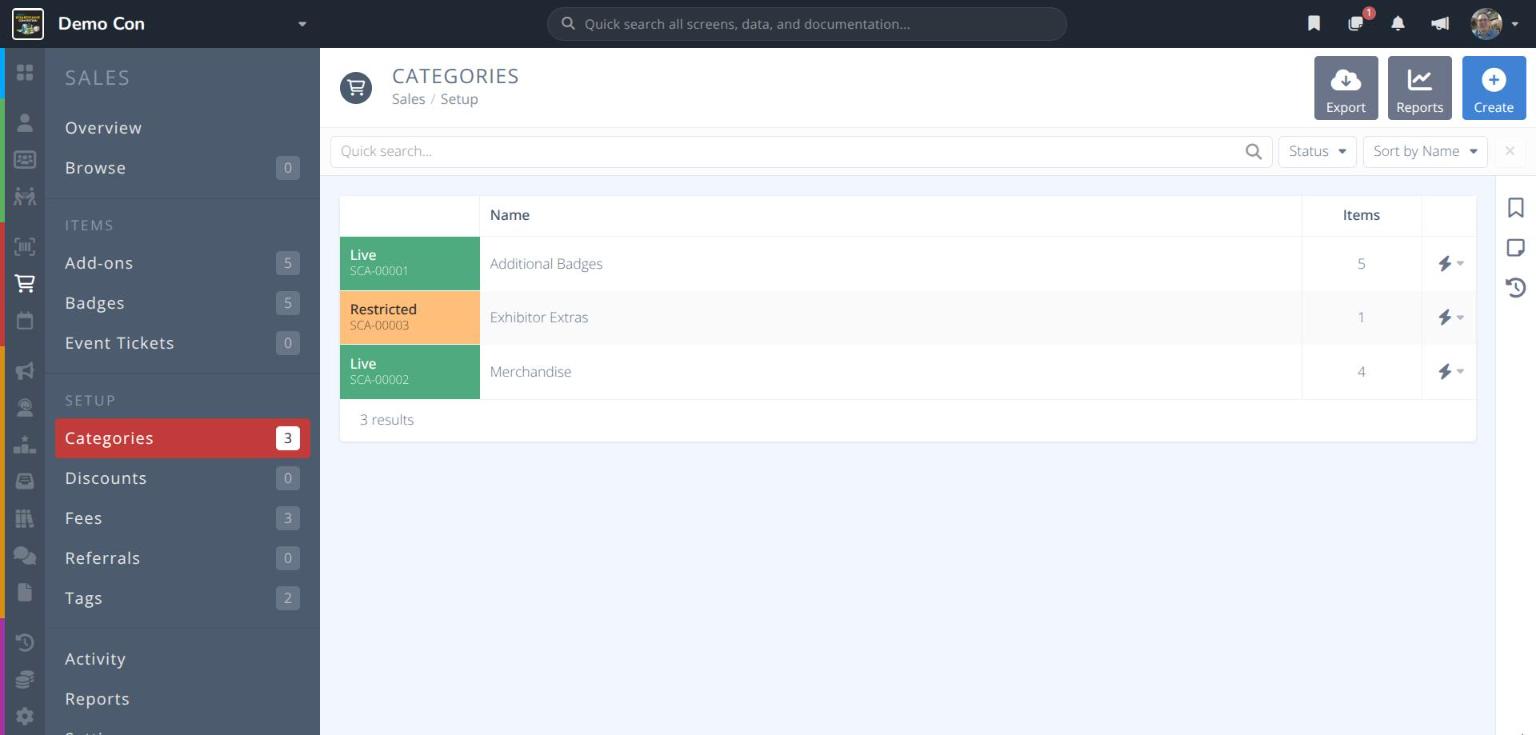
From the menu click under the SETUP heading.
Each row in the grid shows:
Status / Ref.- The category's status (see below) and its reference number (e.g. SCA-00001)Name- The name attendees see in the storeItems- The number of sales items in the category- - Quick actions: Manage, Disable, Delete
Use the Quick search... bar and the Status and Sort by filters to narrow the list.
The following buttons appear in the actions area at the top right:
- - Downloads the grid
- - Opens sales reports for categories
- - Creates a new category
¶ Statuses
| Status | Meaning |
|---|---|
| Live | In the store. Anyone eligible can browse it. |
| Restricted | In the store, but only some attendees can see it. |
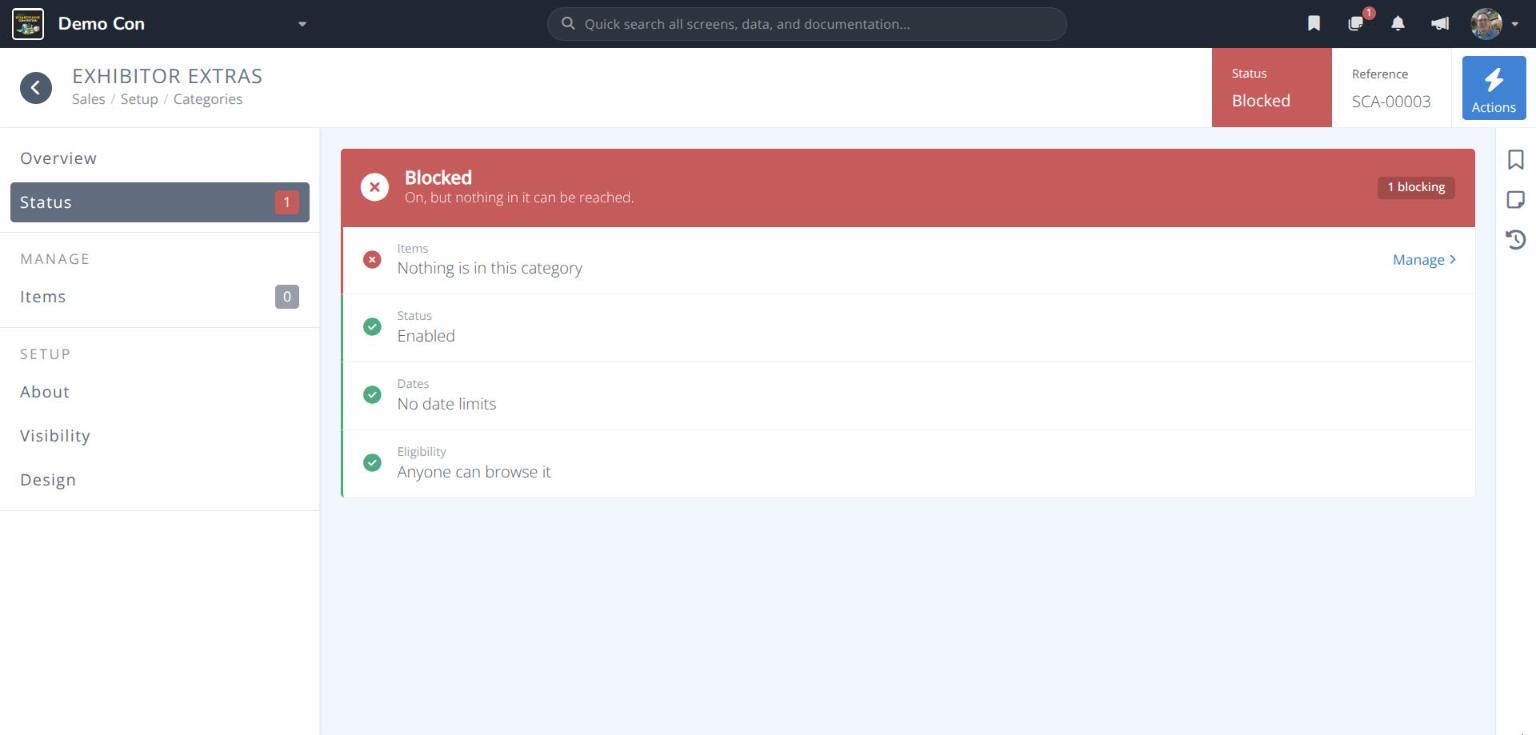
| Blocked | Turned on, but nothing in it can be reached, such as when it has no items. |
| Disabled | Turned off. |
¶ Category Details
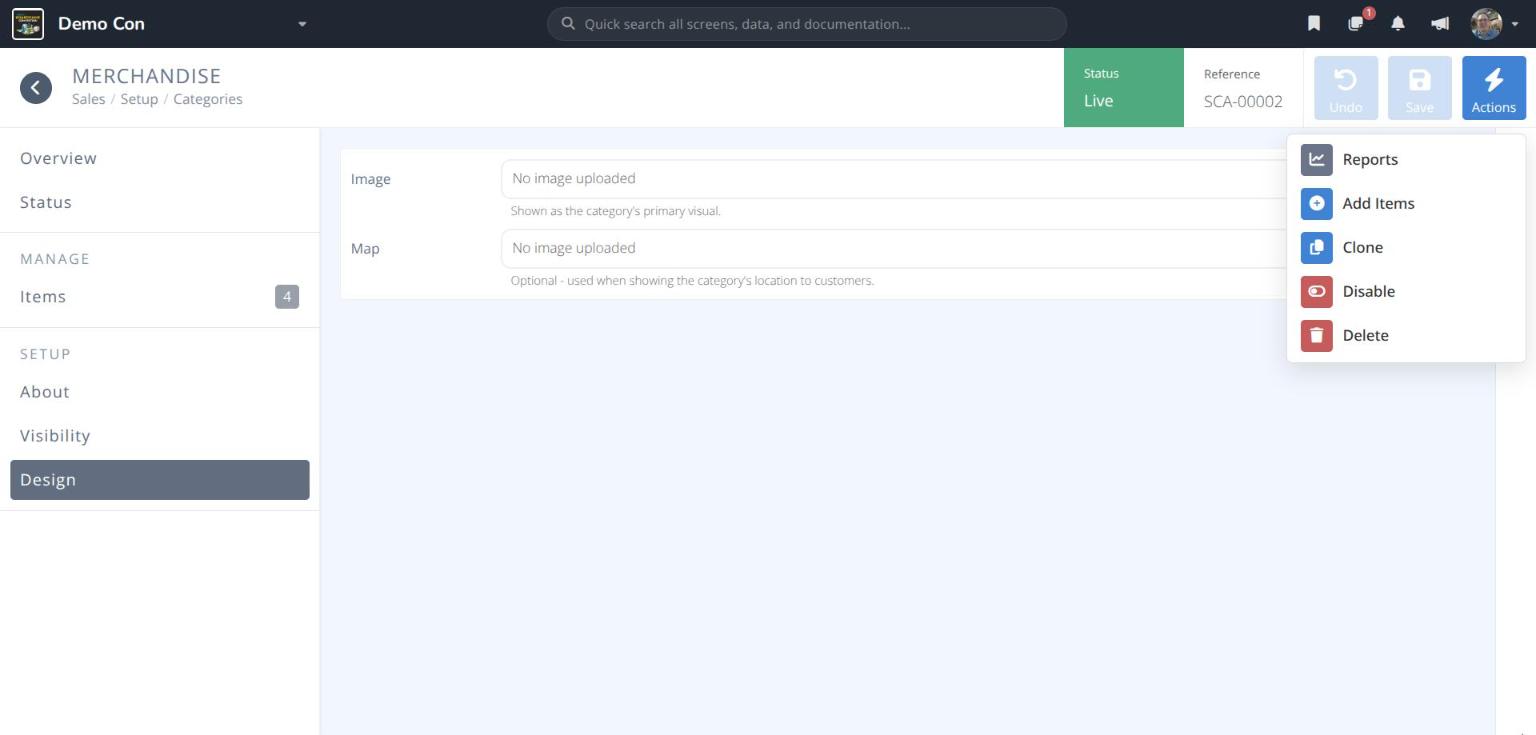
Click a row in the grid to open the category. The header shows its Status and Reference. The menu includes Reports, Add Items, Clone, Disable and Delete.
Click each tab to see the information for that section:
¶ Overview
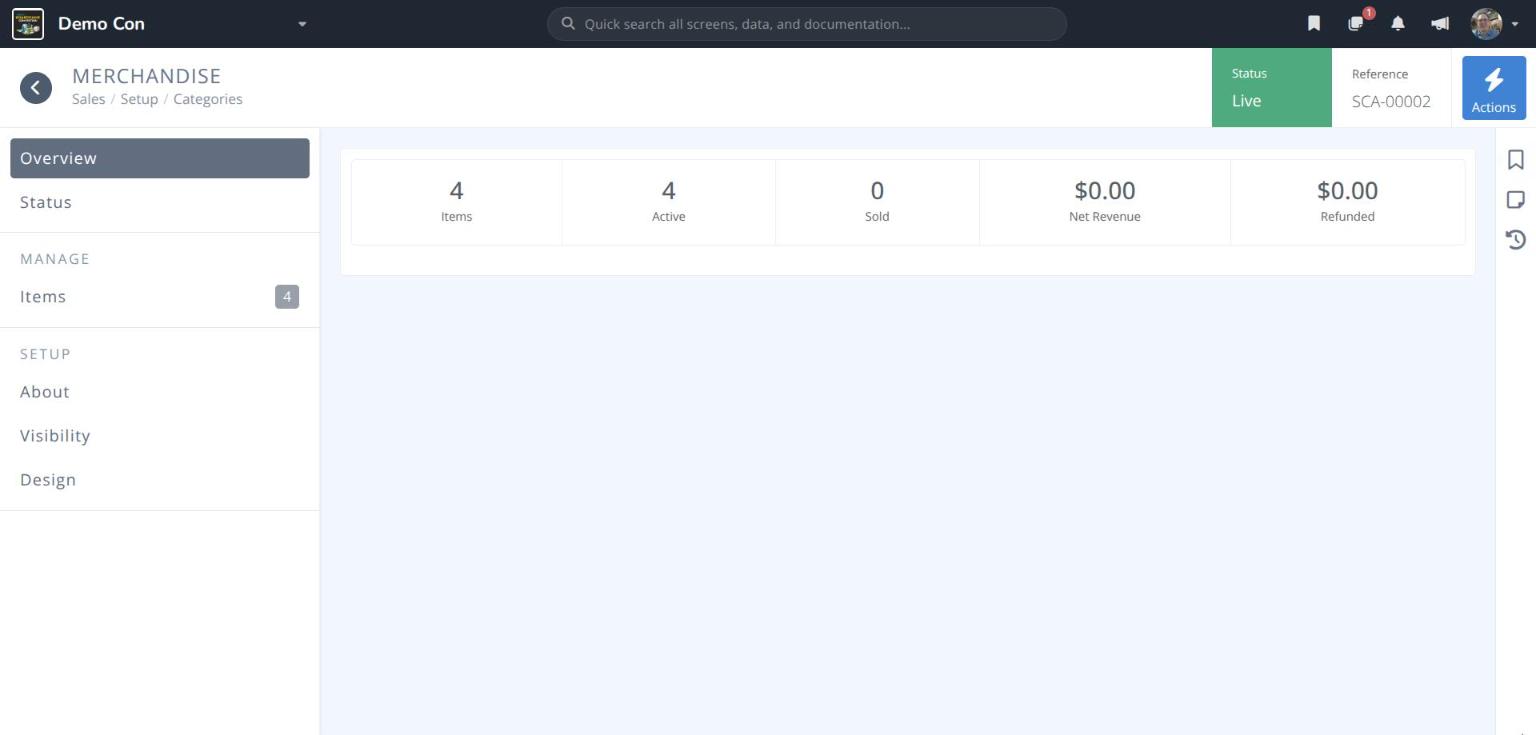
Items- How many sales items are in the categoryActive- How many of those items are activeSold- Units sold from this categoryNet Revenue- Revenue from this category after refunds and feesRefunded- Amount refunded on items from this category
¶ Status
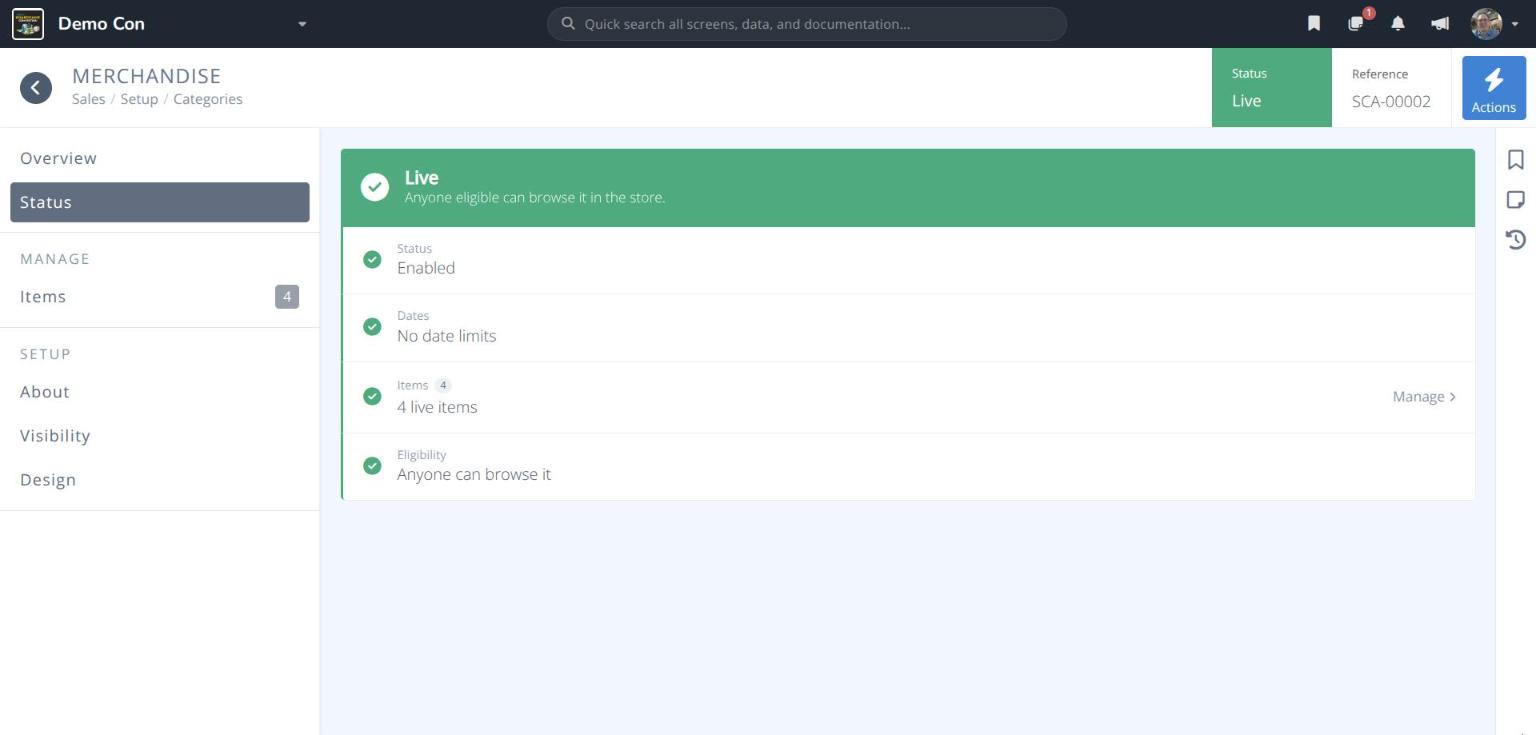
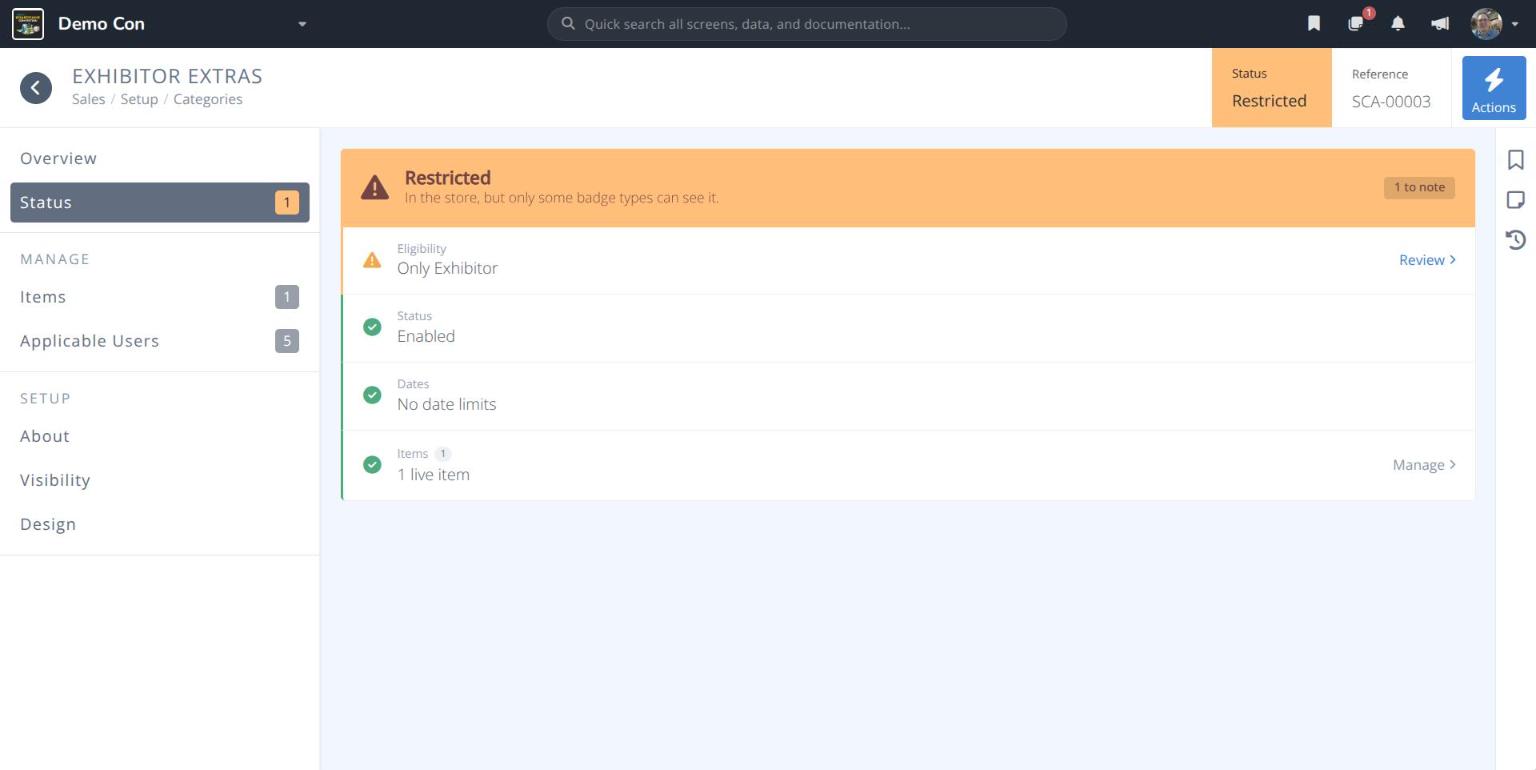
A checklist of everything that affects whether attendees can browse the category:
Status- Whether the category is enabledDates- Whether the category is openItems- How many live items it containsEligibility- Who can browse it
Click Manage or Review on a row to jump to the setting that controls it.
¶ Manage
Items
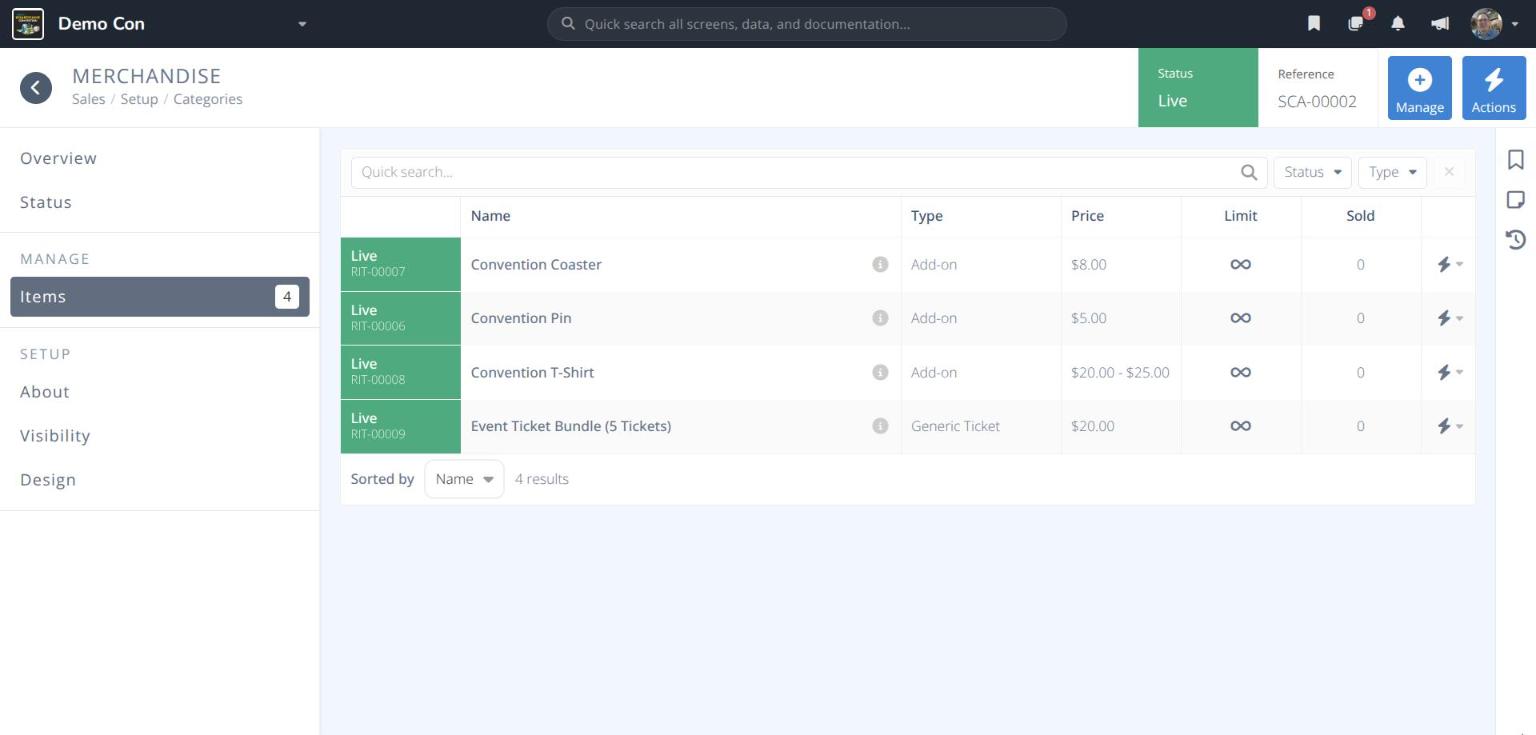
Every item in the category, showing its status, Type, Price, stock Limit and units Sold. Use the Quick search... bar and the Status and Type filters to narrow the list, and Sorted by to change the order. Click to add or remove items.
Applicable Users
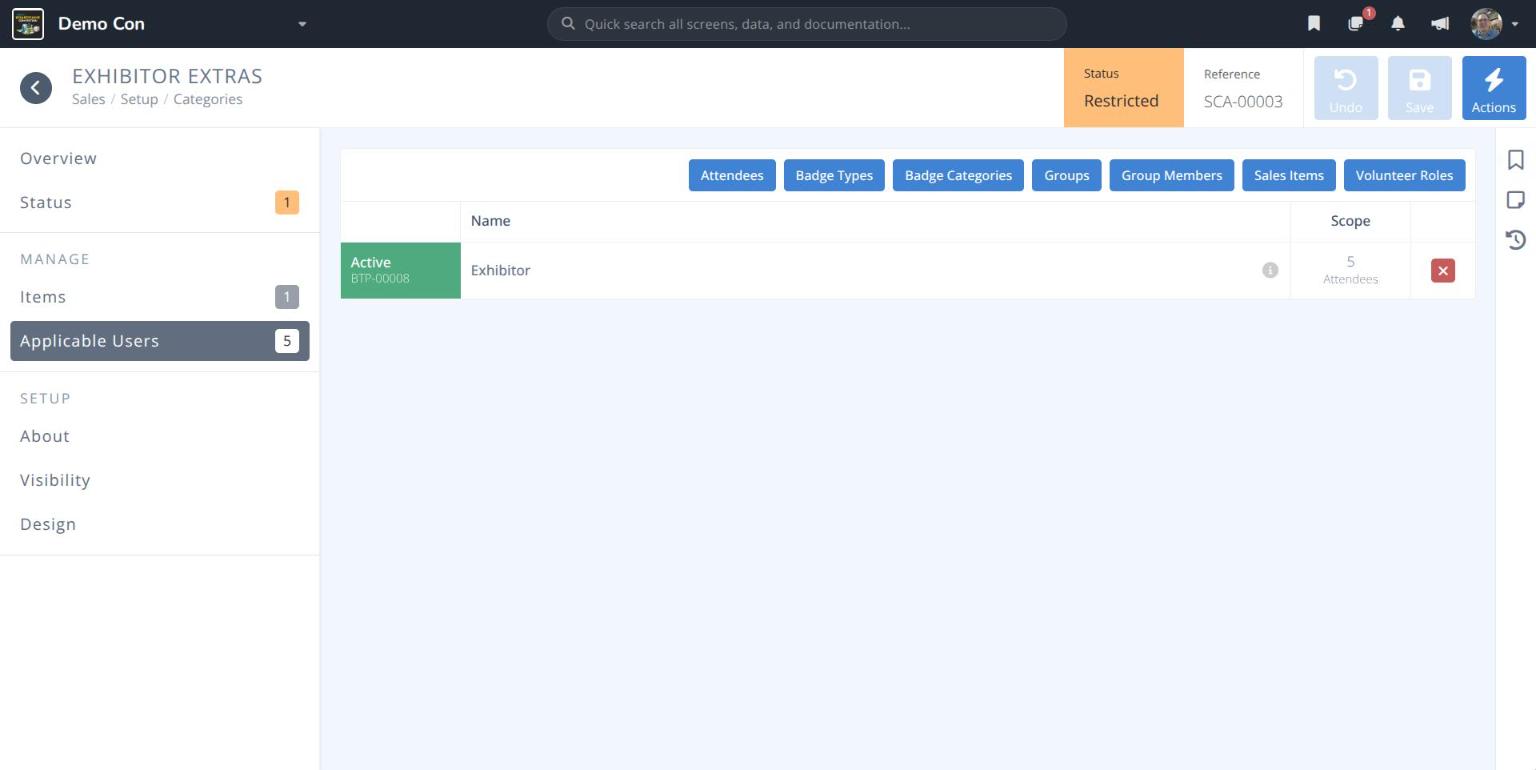
Who is allowed (or not allowed) to see the category. Only appears when Visibility is not set to All users. See Restrict Who Can See a Category.
¶ Setup
About

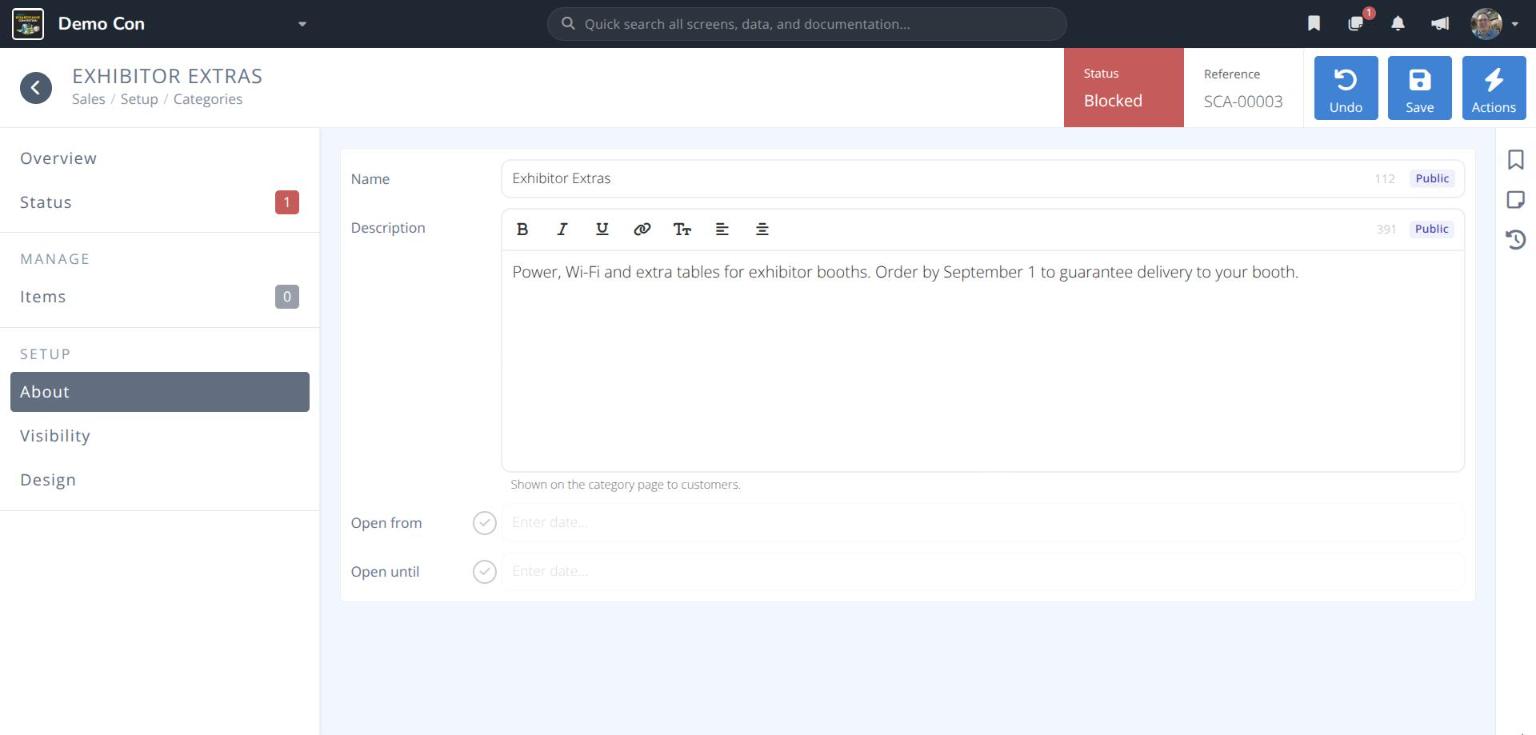
Name- The category name shown in the store (Public)Description- Text shown on the category page to customers (Public). Use the toolbar to add bold, italic, underline, links, headings and alignment.Open from/Open until- Optional dates when the category is available in the store
Visibility
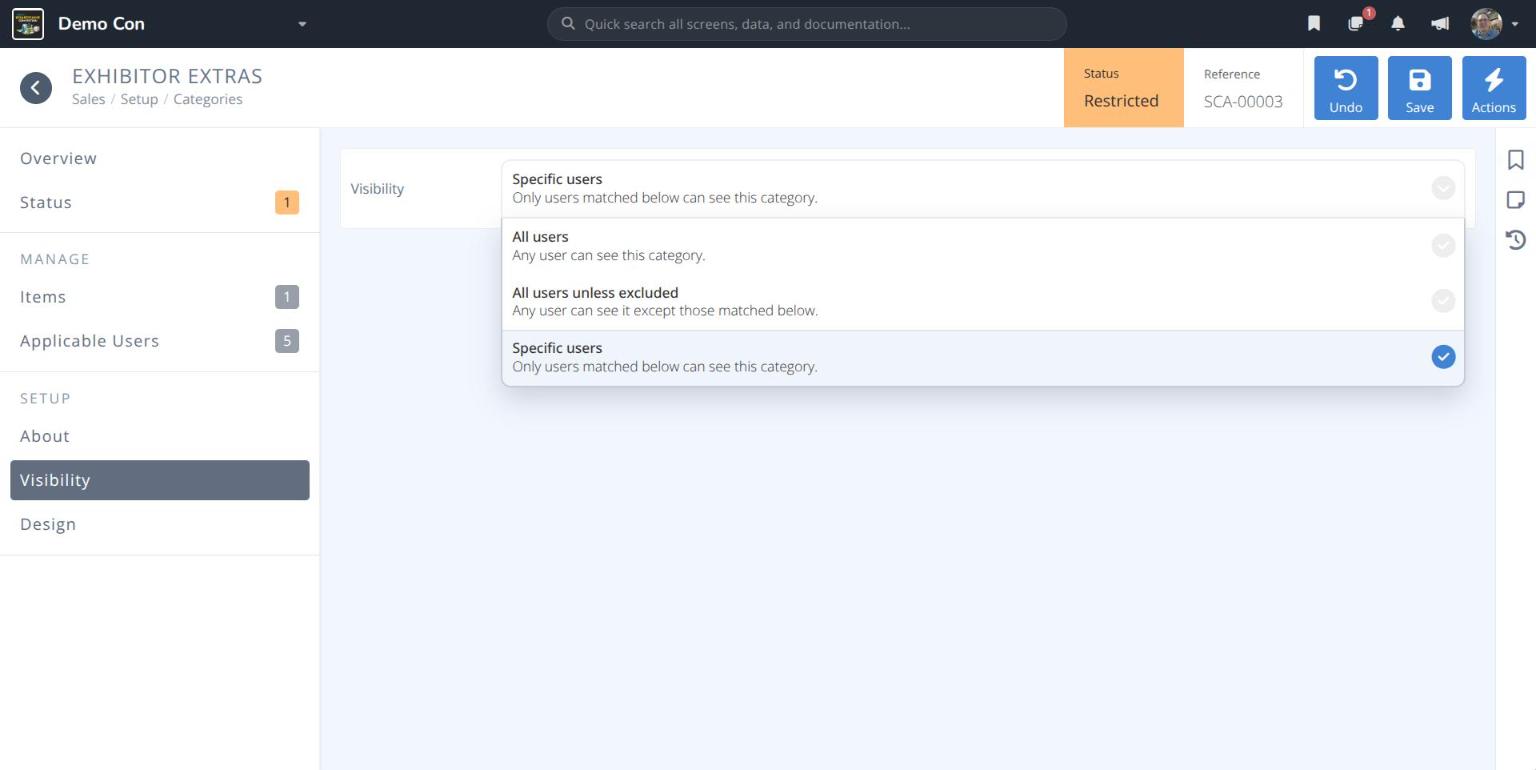
Visibility- Who can see the category:- All users - Any user can see this category.
- All users unless excluded - Any user can see it except those matched in Applicable Users.
- Specific users - Only users matched in Applicable Users can see this category.
Design
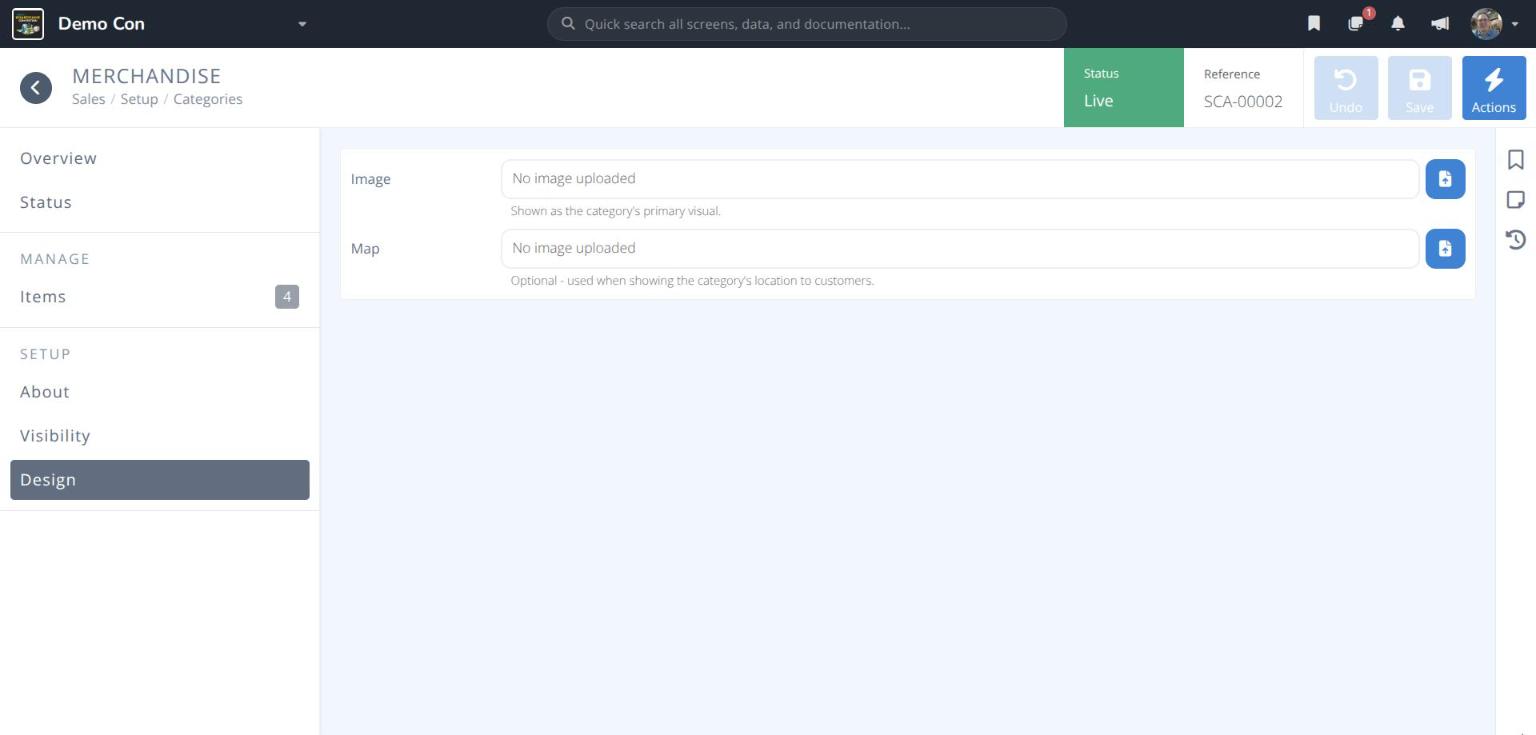
Image- Shown as the category's primary visualMap- Optional. Used when showing the category's location to customers, such as a map of exhibitor booths.
¶ Procedures
¶ Create a Store Category
- From the menu click .
- Click . The CREATE CATEGORY panel opens.
- Enter the Name attendees will see in the store (e.g. Exhibitor Extras).
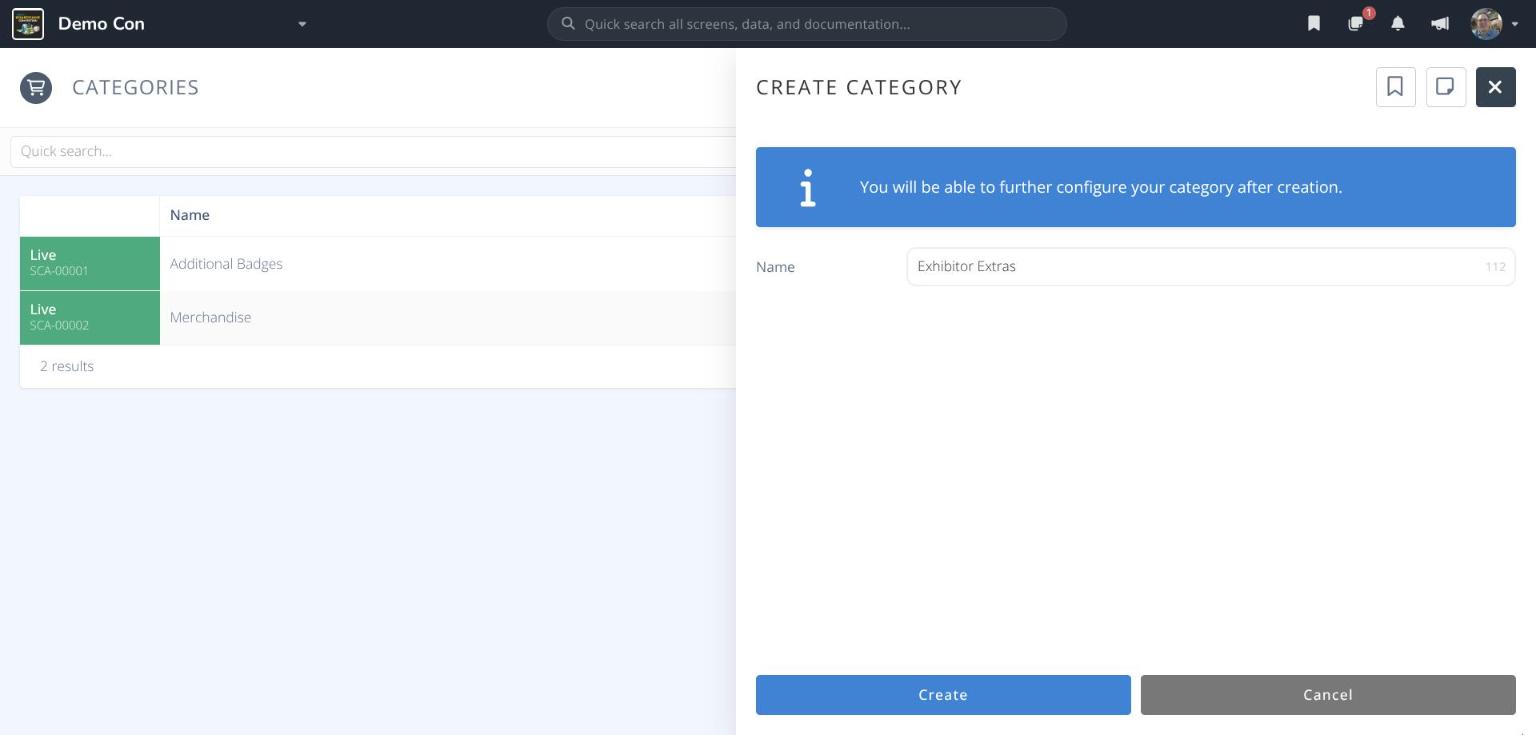
- Click . The category opens. It shows as Blocked until it has at least one item.
- Click About and add a Description to help attendees with their purchases. Click .
- Optionally click Design and upload an Image and a Map, then click .
- Add items. See
Add Items to a Category.
Example categories
| Name | Items | Visibility |
|---|---|---|
| Additional Badges | Badge sales items and upgrades | All users |
| Merchandise | T-shirts, pins, coasters, event ticket bundles | All users |
| Exhibitor Extras | Booth power, Wi-Fi, extra tables | Specific users: the Exhibitor badge type |
¶ Add Items to a Category
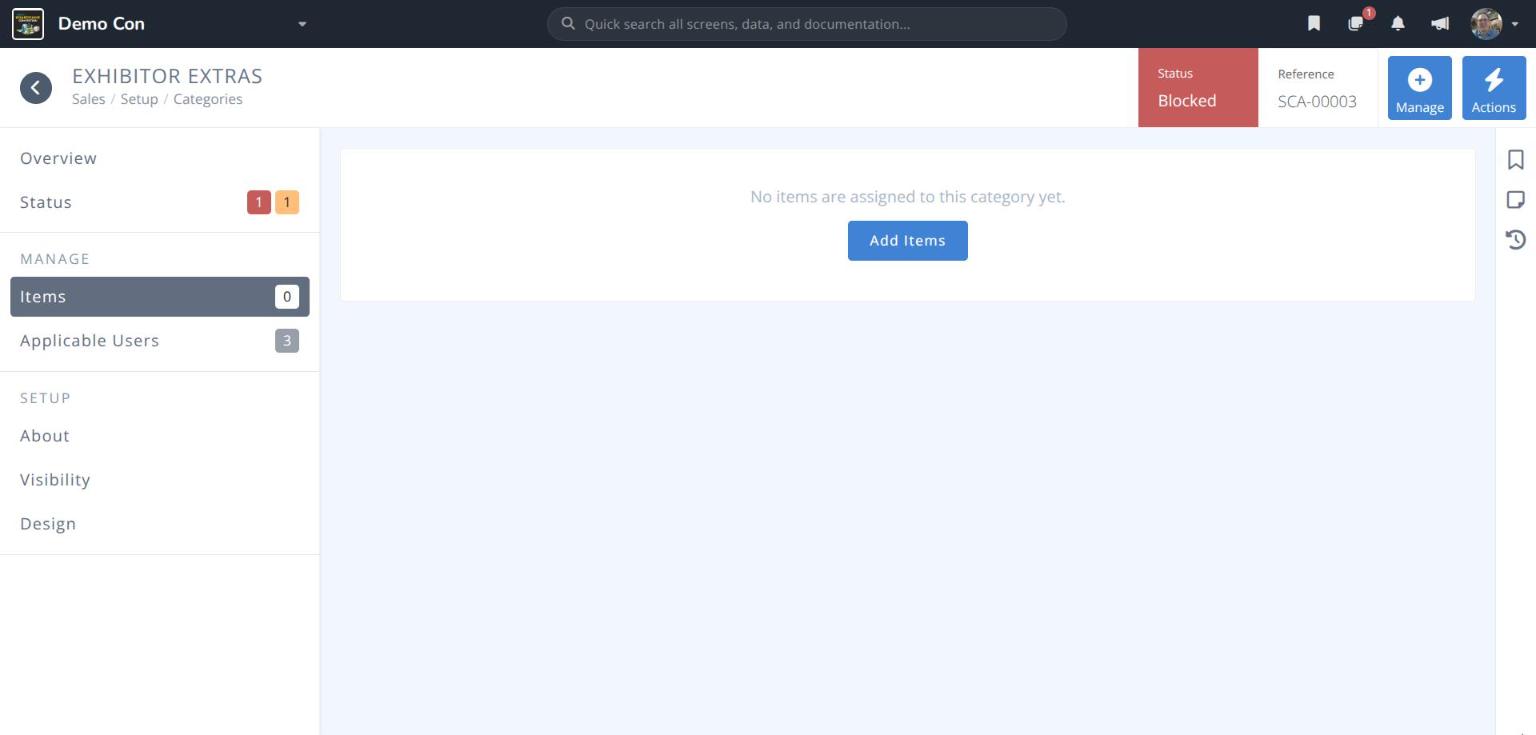
- Open the category and click Items.
- Click (or if the category already has items). The MANAGE ITEMS panel opens.
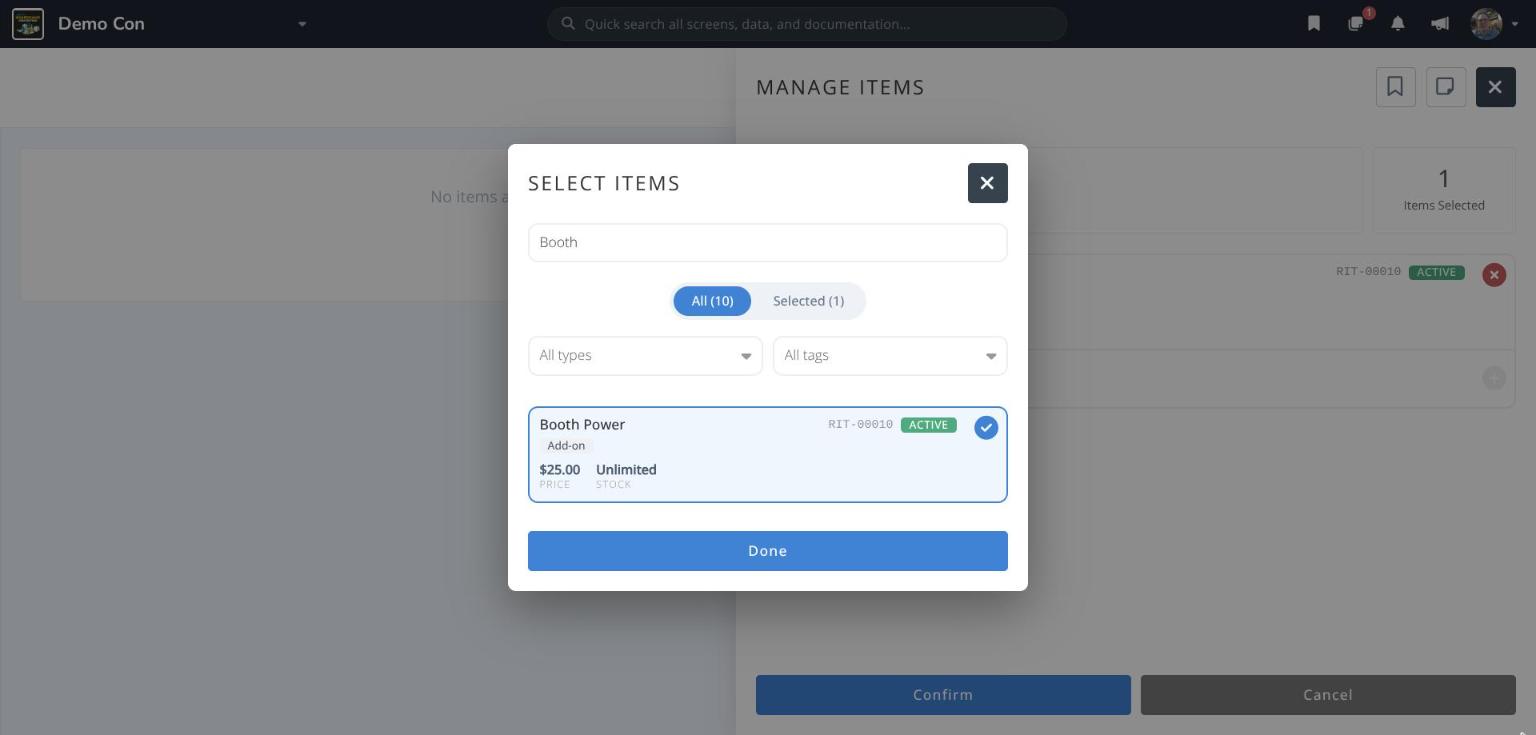
- Click No items selected (or Add more items). In the SELECT ITEMS window, search for items, or narrow the list with All types and All tags. Click each item to select it, then click .
- Click .
The items are now offered in the store, and each one shows the category under its Channels.
Tip: You can also add a single item to a category from the item itself: open it from or , click About, and choose the Categories.
¶ Remove Items from a Category
- Open the category, click Items, then click .
- Click the beside each item to remove.
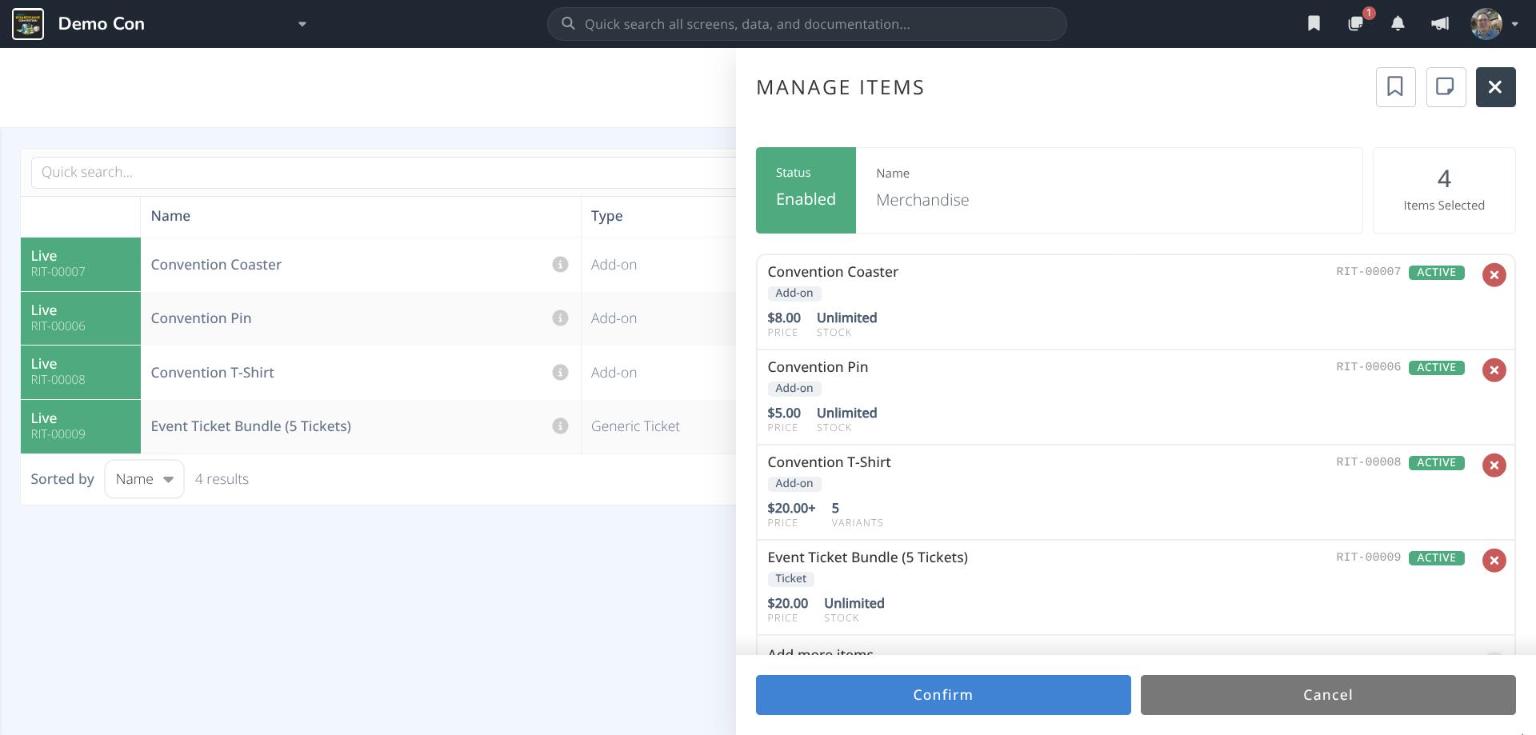
- Click .
Caution: An item that is not in any category or registration page shows as Blocked and can no longer be bought.
¶ Change the Order of Items
- Open the category and click Items.
- Click Sorted by below the list and choose:
- Name - Alphabetical
- Price - Lowest price first
- Custom - Your own order. Drag each row by the handle at its left, then click .
¶ Restrict Who Can See a Category
Use this for categories only some attendees should see, such as extras for exhibitors or staff.
- Open the category and click Visibility.
- Click Visibility and choose:
- Specific users - Only the attendees you choose can see the category (e.g. exhibitors only).
- All users unless excluded - Everyone except the attendees you choose can see it.
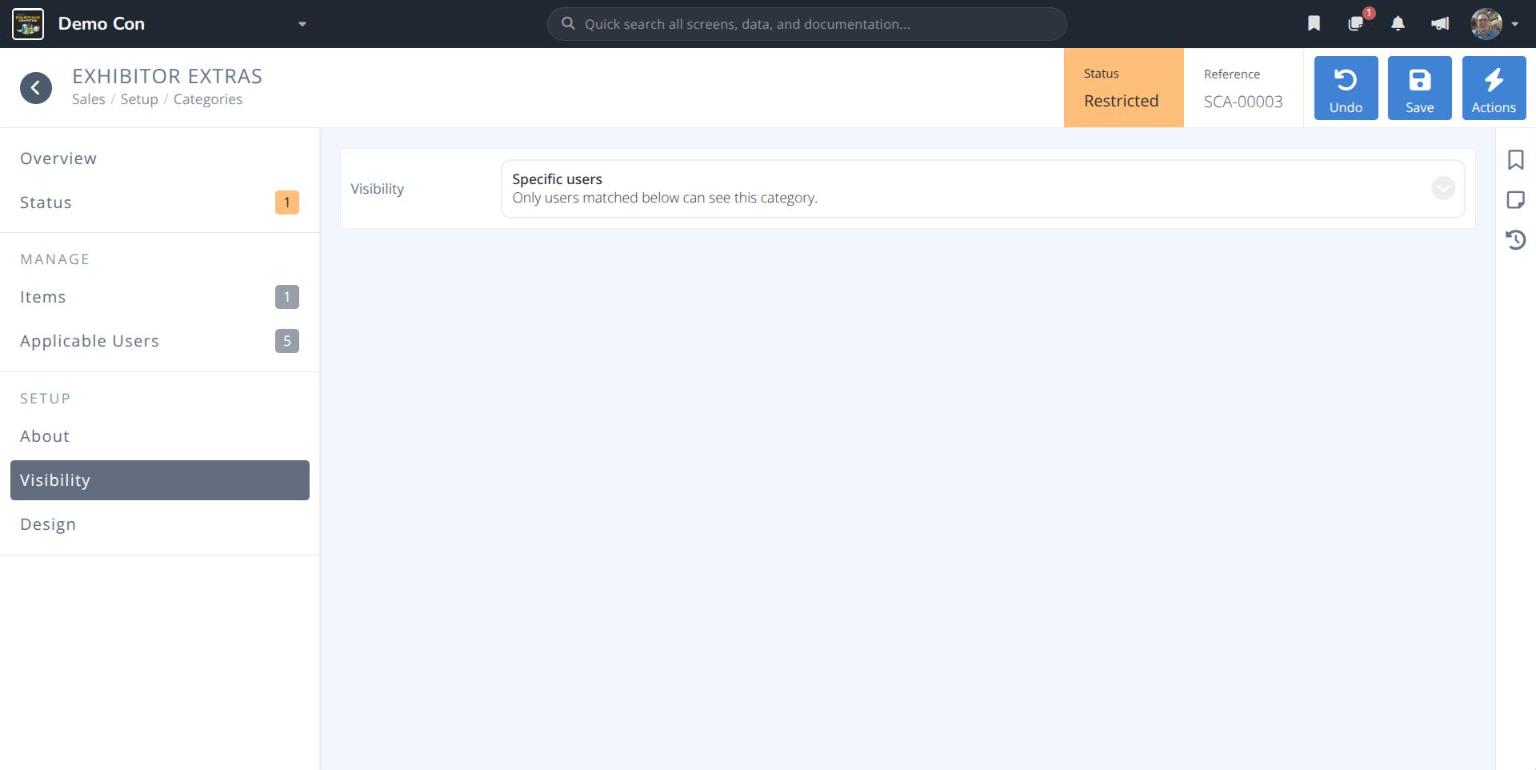
- Click . A new Applicable Users section appears under MANAGE.
- Click Applicable Users, then click the type of access to add: Attendees, Badge Types, Badge Categories, Groups, Group Members, Sales Items or Volunteer Roles.
- Select the matching entries and click . Each one appears in the list with its Scope (how many attendees it covers).
- Click . The category now shows as Restricted, and its Status shows who can see it under Eligibility (e.g. Only Exhibitor).
Badge Category, or to the ExhibitorBadge Type.
Restrict Who Can Buy a Badge.
¶ Set When a Category Is Open
- Open the category and click About.
- Click the check circle beside Open from and/or Open until, and enter the date and time.
- Click .
Outside these dates the category is not shown in the store.
¶ Disable or Delete a Category
- Open the category, or click the at the end of its row in the grid.
- Choose Disable to hide it from the store, or Delete to remove it.
Warning: Deleting a category cannot be undone. Items in it are not deleted, but they will show as Blocked if they are not offered anywhere else.
¶ Attendee View
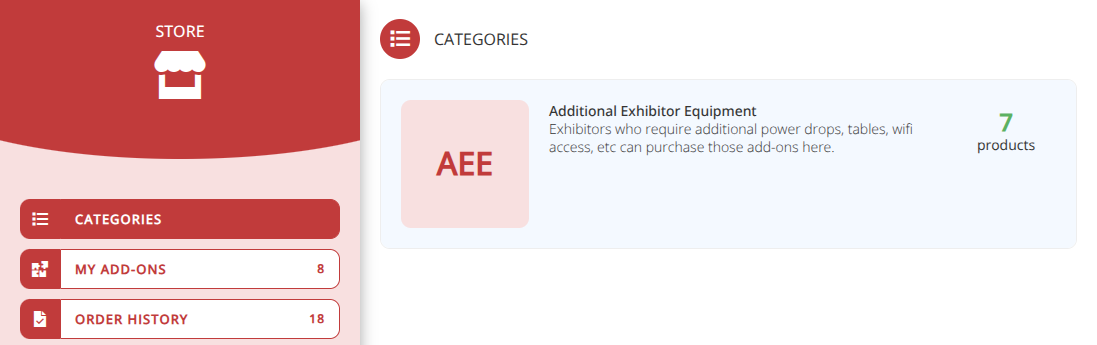
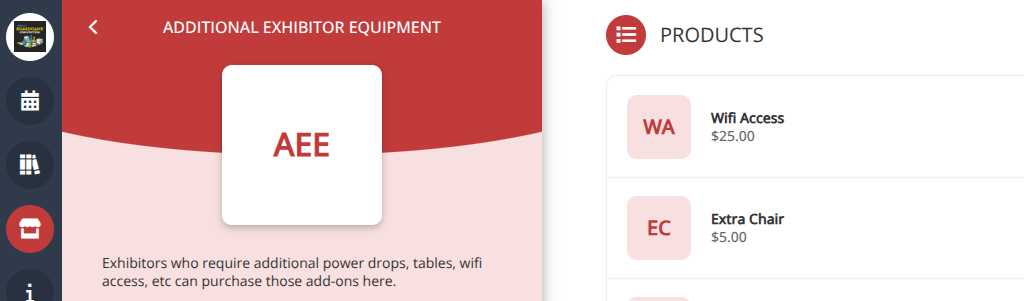
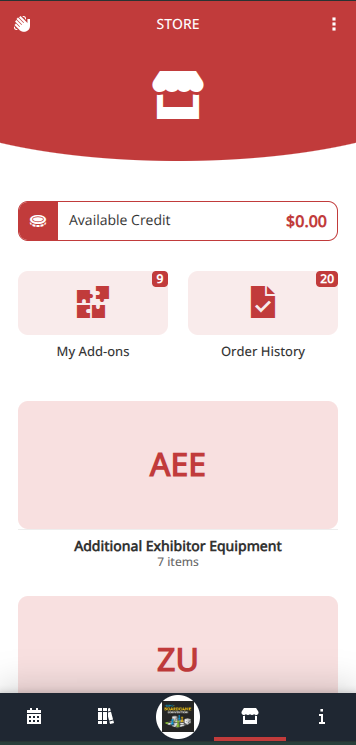
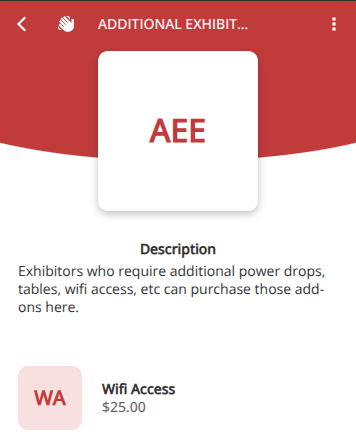
Attendees see each live category in the Store, with its image, name and description. Clicking a category shows its items.