¶ Attendees: Categories
¶ Overview
Badge categories add an extra line of text under the attendee's name on any badge they are assigned to. Unlike a Badge Type, which applies to every badge of that type, a category is assigned to individual badges.
Categories are most often used to show a company name, such as an exhibitor, vendor, publisher or local game store. They can also identify people who belong to a group, such as Board Member, Convention Founder or Lifetime Member.
Note: When a category is assigned to a badge, the badge always uses the One line name format, regardless of the badge type's setting. See the
Sample Badgefor where the category appears.
¶ Common Procedures
Create a Badge CategoryAssign a Category to a BadgeQuickly View Badge Holders in a CategoryModify a Badge CategoryDelete a Badge Category
¶ Categories Grid
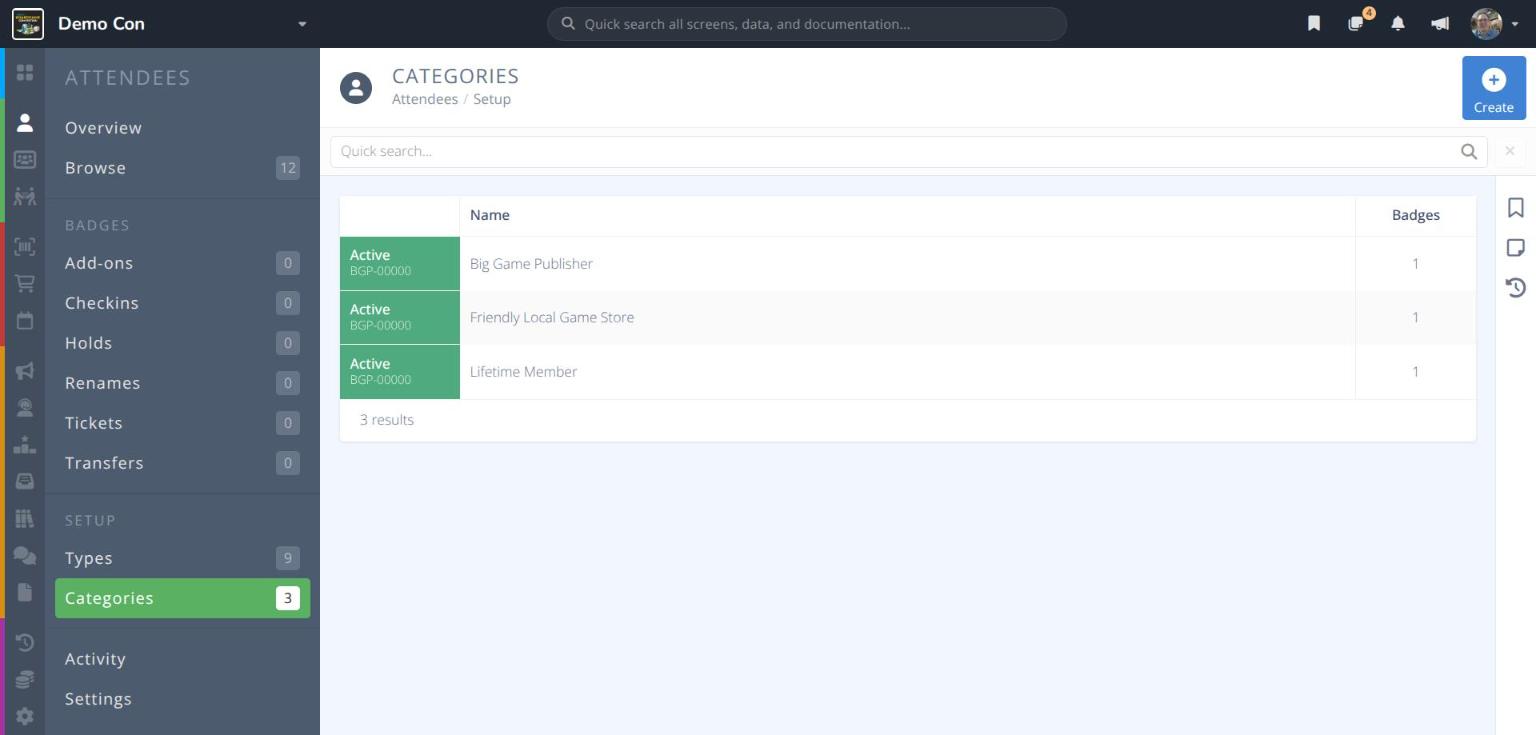
From the menu click under the SETUP heading. The number beside Categories in the menu shows how many categories your convention has.
Each row in the grid shows:
Status / Ref.- Whether the category is Active, along with its reference numberName- The text printed on badges assigned to this categoryBadges- The number of badges currently assigned to this category
Use the Quick search... bar above the grid to filter by name.
The following button appears in the actions area at the top right:
- - Opens a new, blank category.
¶ Fields
Fields marked with  are required.
-
Name- The text printed on every badge assigned to this category (e.g. Friendly Local Game Store).
After a category is saved, a summary appears at the top of the screen showing its Status, Ref. number, Name and a Badges counter. Click the icon on the Badges counter to see every badge in the category.
¶ Procedures
¶ Create a Badge Category
- From the menu click .
- Click in the actions area. The CREATE GROUP screen opens.
- Enter the Name exactly as it should appear on the badge (e.g. Friendly Local Game Store).
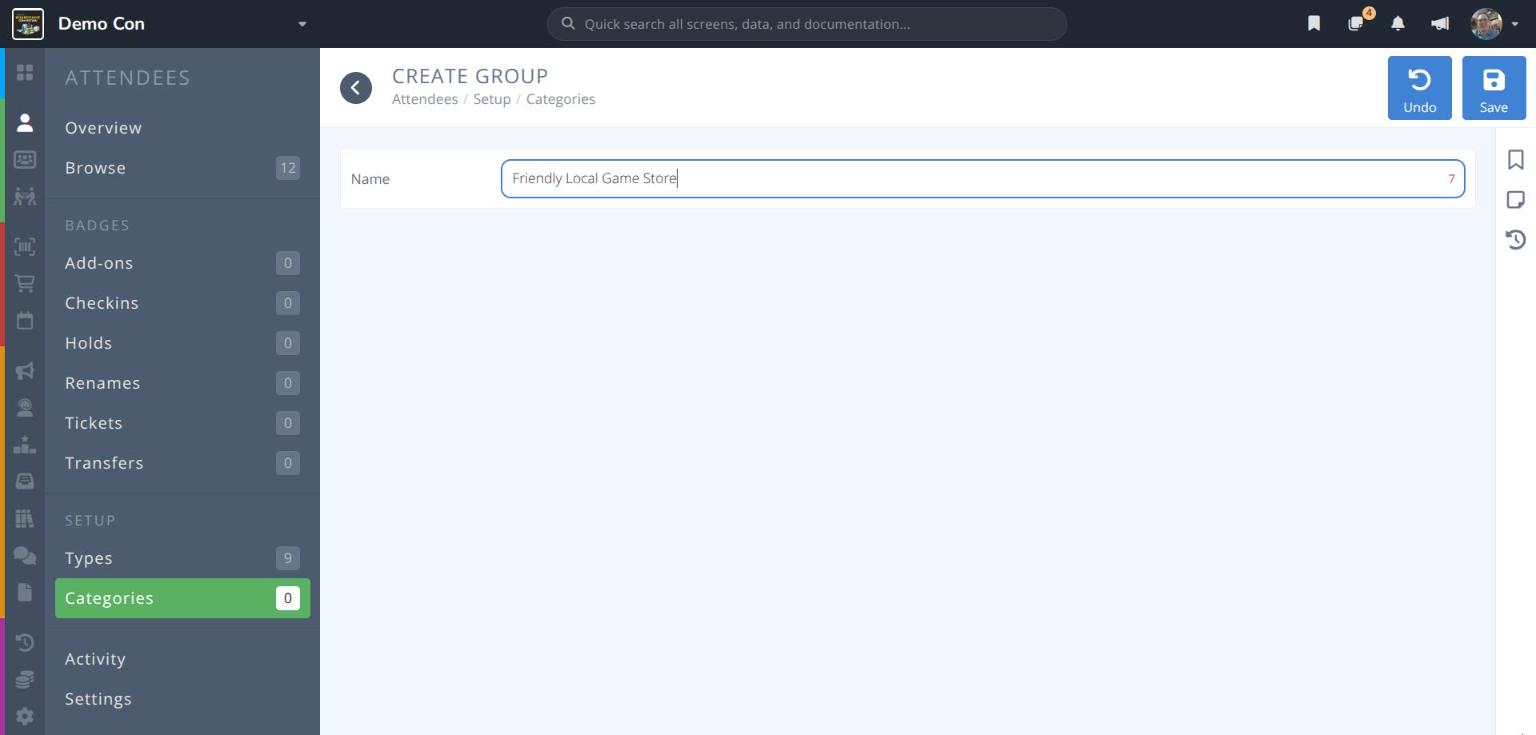
- Click .
A green You have successfully created the group message appears, along with the category summary described in Fields.
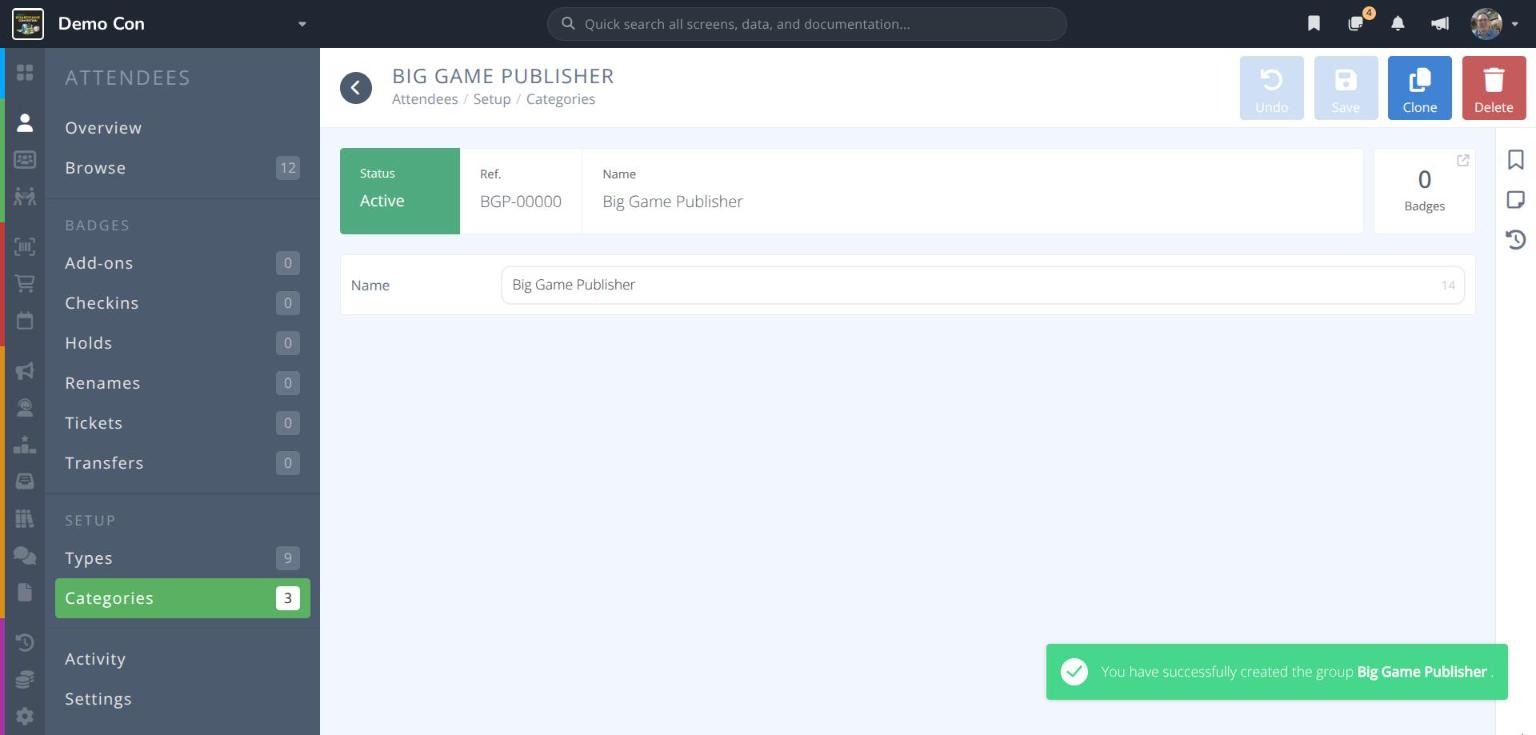
Tip: Creating several categories? Click on a saved category to start a new one, then change the Name.
Example categories
| Name | Typical use |
|---|---|
| Friendly Local Game Store | Staff of a local retailer exhibiting or partnering with the convention |
| Big Game Publisher | Exhibitor or sponsor company badges |
| Lifetime Member | Recognizing a group of attendees, such as long-time supporters |
Assign a Category to a Badge.
¶ Assign a Category to a Badge
- From the menu click .
- Click the row of the badge you want to update. Use the Quick search... bar to narrow the list if needed.
- On the badge's Setup tab, open the Category dropdown (it shows Select optional category when empty) and choose the category.
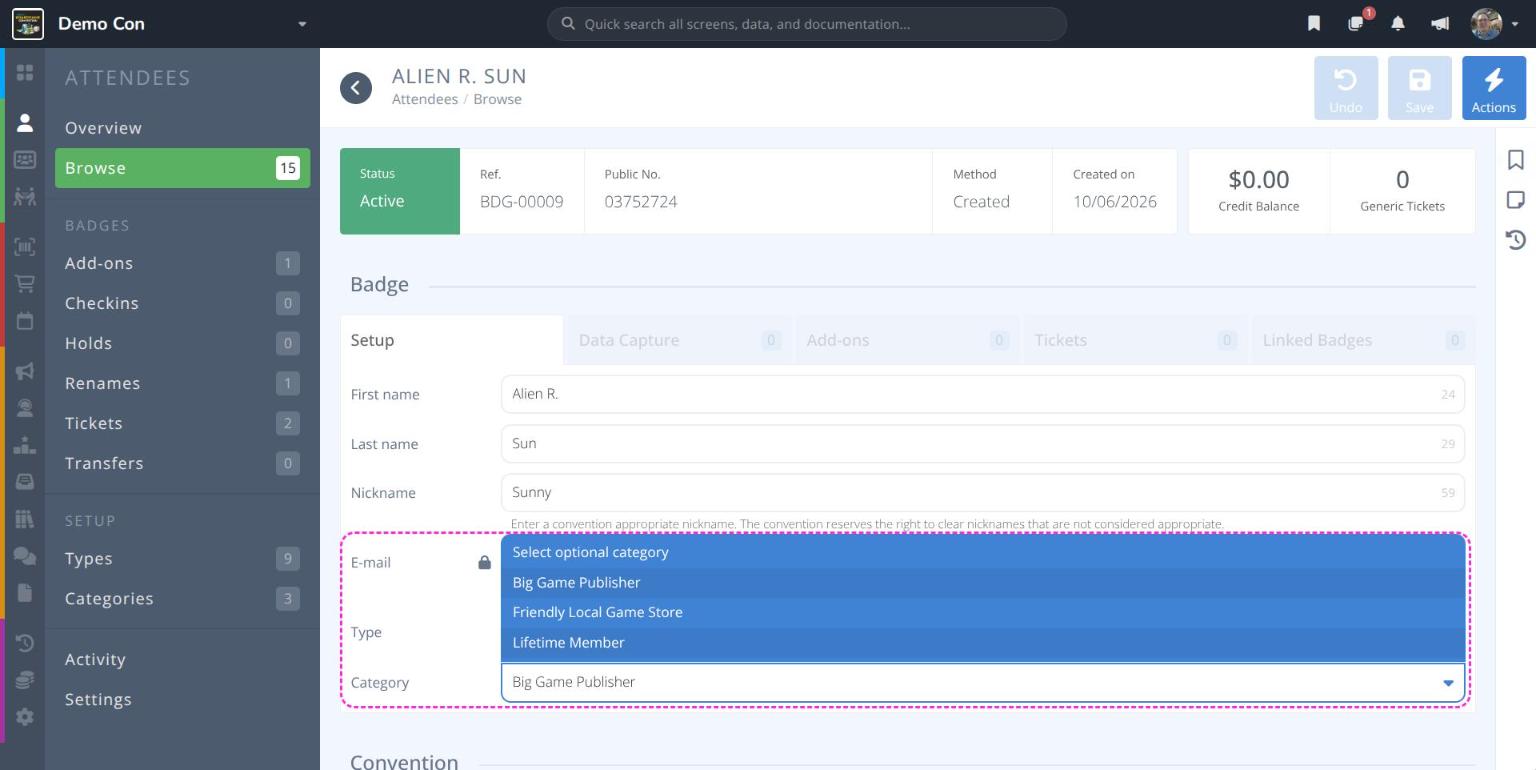
- Click .
Caution: Any additional badges purchased by a badge holder who has a category are automatically assigned the same category.
¶ Quickly View Badge Holders in a Category
- From the menu click .
- Click the row of the category you want to view.
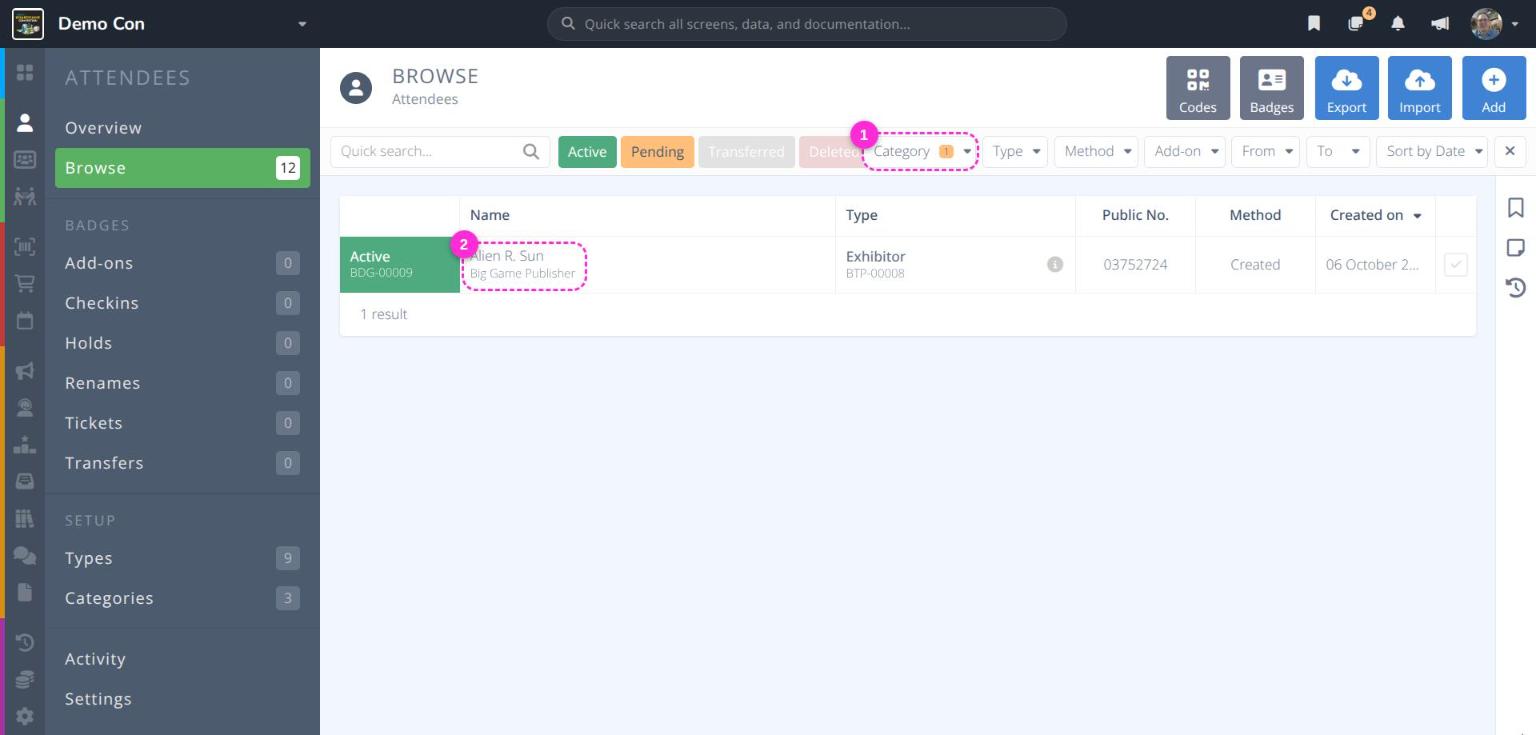
- In the summary at the top of the screen, click the icon on the Badges counter.
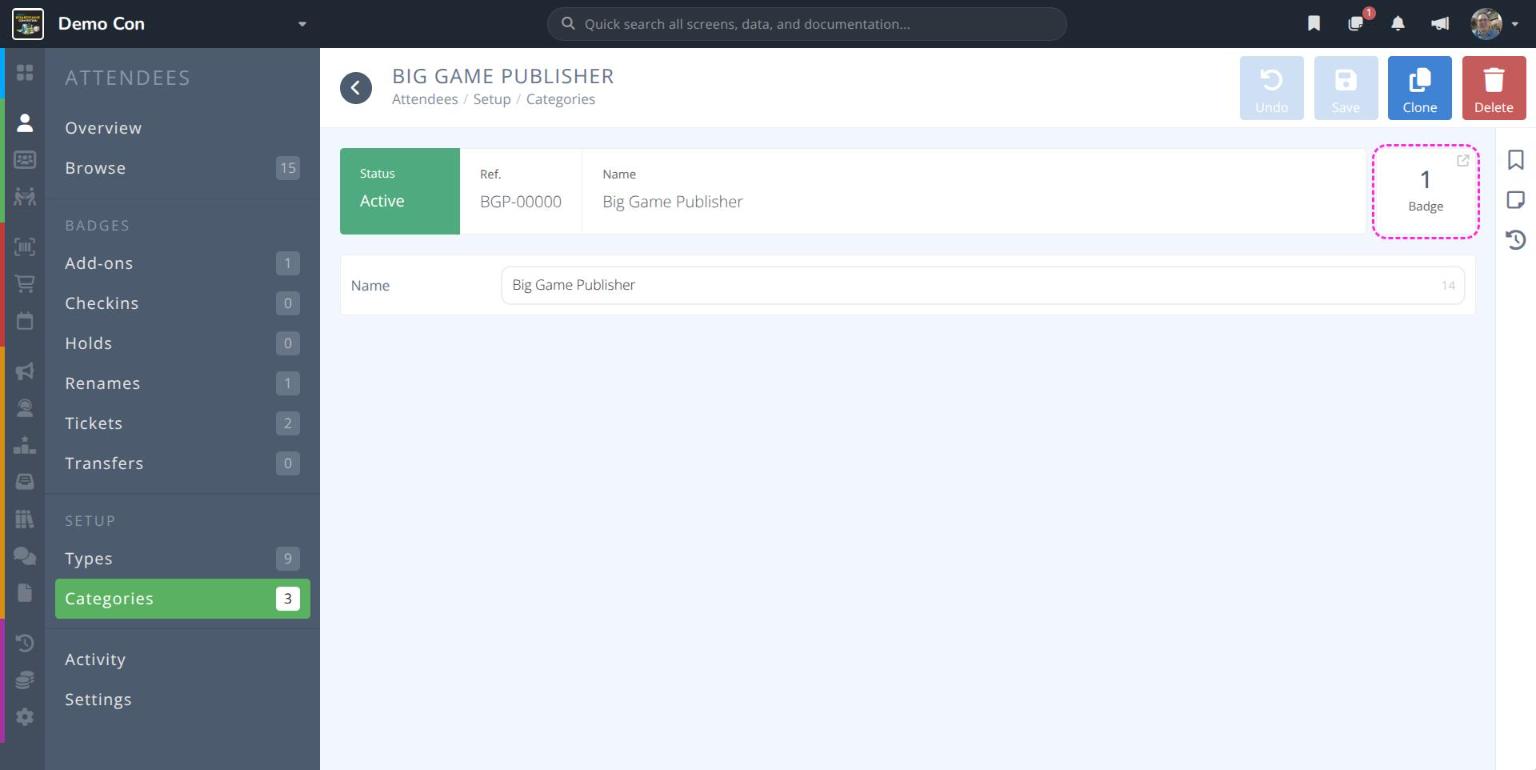
- The grid opens with the Category filter already applied (1). Each badge's category is shown under the attendee's name (2).
¶ Modify a Badge Category
- From the menu click .
- Click the row of the category you want to change.
- Update the Name.
- Click .
¶ Delete a Badge Category
- From the menu click .
- Click the row of the category you want to delete.
- Check the Badges counter. It should be 0 before you delete a category.
- Click .
Warning: Deleting a category cannot be undone.
- Click .
¶ Next Steps
Sales Items- Create the items attendees buy for each badge type.Types- Review or update your badge types.