¶ Items
¶ Overview
The Items section of is where you manage everything attendees can buy, from badges to T-shirts to event tickets. Each thing you sell is a sales item, with its own price, availability and stock.
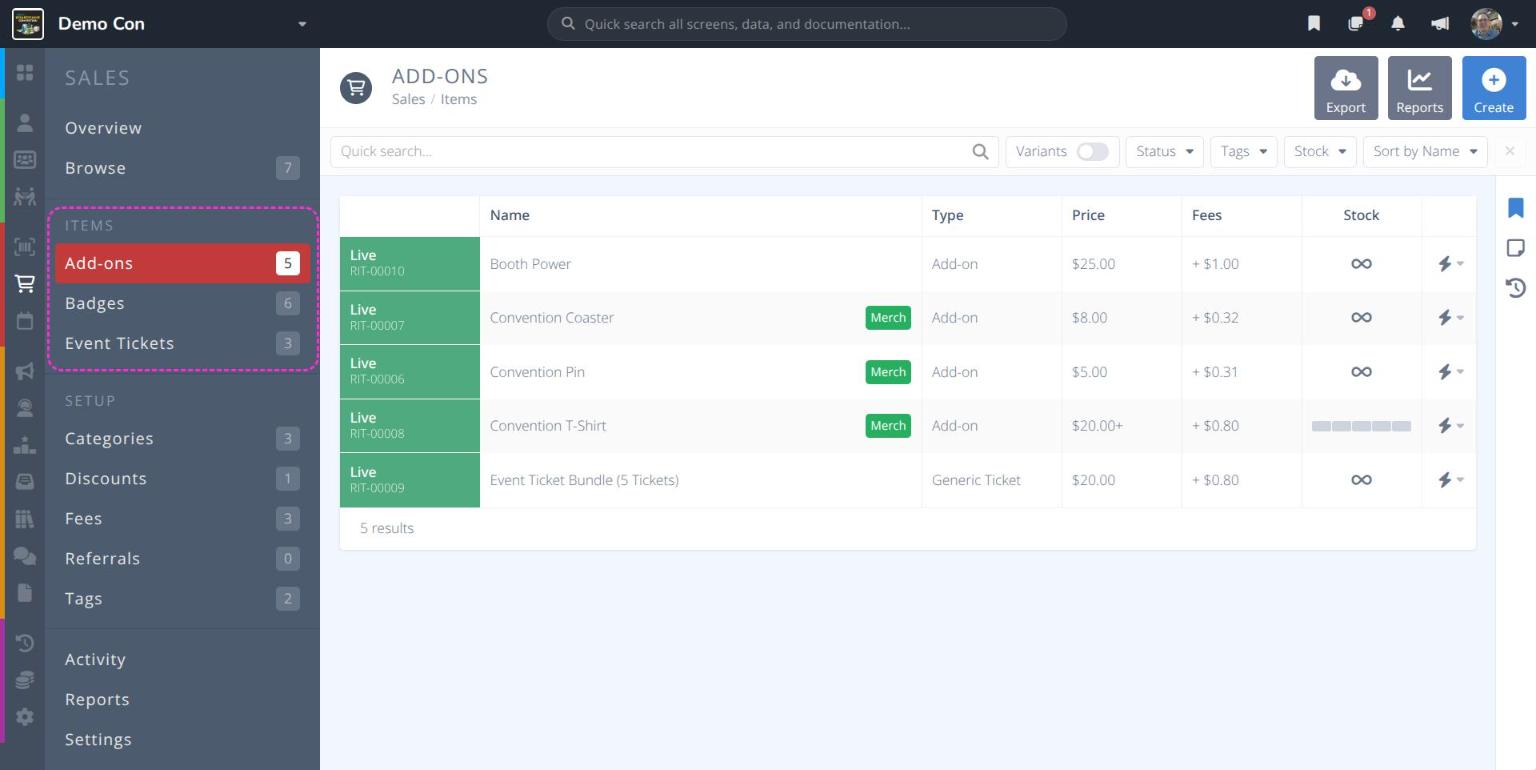
From the menu, look for the ITEMS heading in the side menu.
¶ Menu Breakdown
Add-ons- View and manage merchandise, extras and generic ticketsBadges- View and manage the badge sales items attendees buyEvent Tickets- View the tickets for ticketed events in your schedule
¶ Which Item Do I Need?
| Badges | Add-ons | Event Tickets | |
|---|---|---|---|
| What attendees get | A badge, or an upgrade to their existing badge | An extra item, such as merchandise, or a bundle of generic tickets | A seat at a specific ticketed event |
| Created from | → | → | The event in the Schedule, when tickets are enabled |
| Requires | A Badge Type |
Nothing. Generic tickets need generic tickets turned on in Sales Settings. | A scheduled event with tickets enabled |
| Where it is sold | Registration pages, and store categories for additional badges | Store categories | The event's listing in the schedule |
| Typical examples | Full Event, Saturday, Full Event – Early Bird, Saturday to Full Event Upgrade | T-shirt, pin, parking pass, Event Ticket Bundle (5 Tickets) | Game tournament, workshop, special dinner |
| Platform fees | Processing Fee and Badge Fee (upgrades: Processing Fee only) | Processing Fee only | Processing Fee |
¶ Recommended Setup Order
- Create your badge sales items. Most attendees need a badge before they can buy anything else. See
Create a Badge Sales Item. - Create add-ons (optional) for merchandise and other extras. See
Create an Add-on. - Create generic tickets (optional) if attendees can redeem tickets for any ticketed event. See
Create a Generic Ticket. - Offer each item in a channel, such as a registration page or a store category. Items show as Blocked until they have at least one channel. See
Categories.
Note: Attendees must hold a badge before they can use the online store. Sell first badges through a registration page, and use the store for additional badges, upgrades and add-ons.
Tip: Every sales item has the same layout: Overview, Status, a MANAGE section and a SETUP section. Once you know one item type, the others will feel familiar. Open an item's Status section to see exactly what is stopping it from being sold.