¶ Fees
¶ Overview
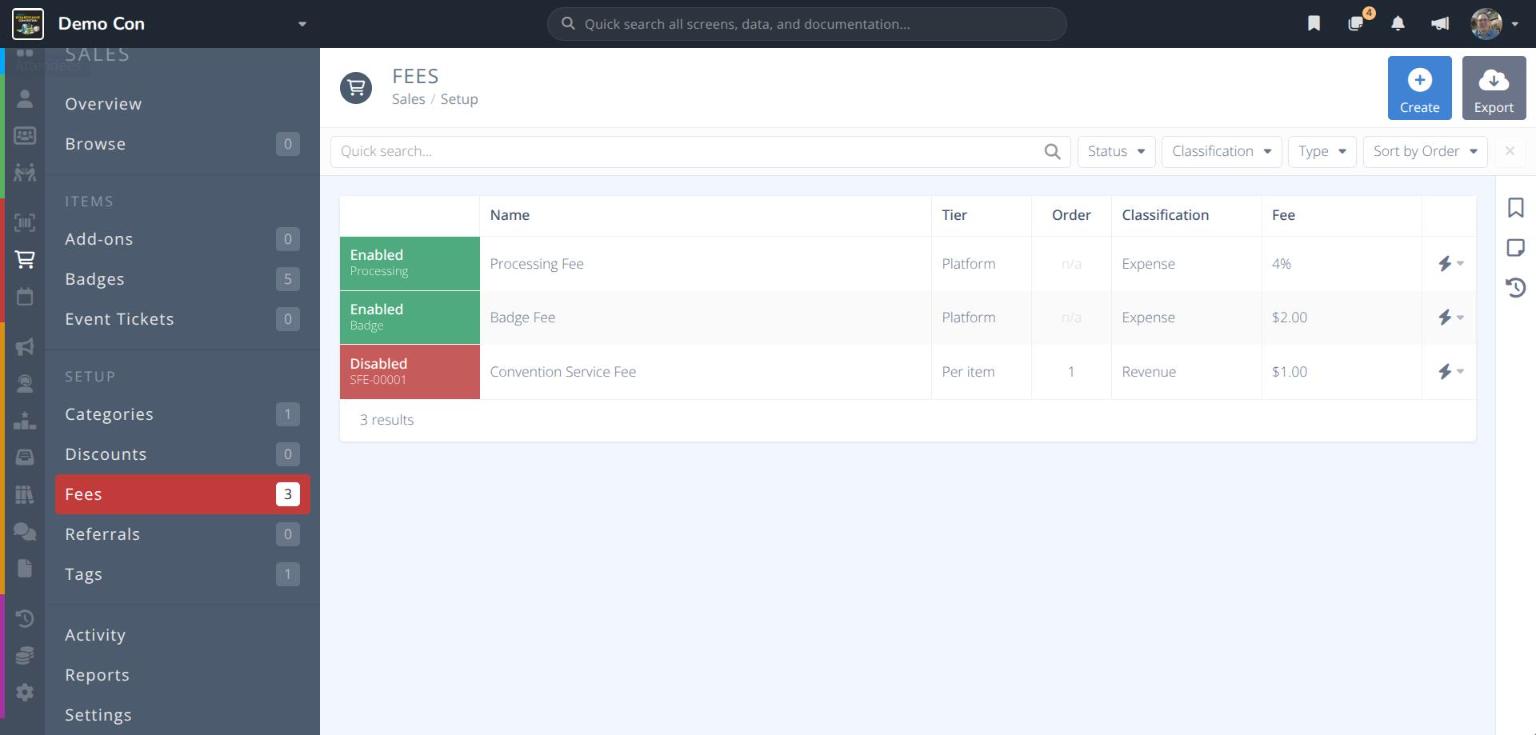
The Fees screen controls every fee added to a sale. There are two kinds of fees:
-
Platform fees - Set by Cardboard Connect and present on every convention:
- Processing Fee - A percentage of the sale.
- Badge Fee - A flat amount for each new badge.
You cannot change their amounts or disable them, but you choose who pays them (the convention or the attendee) and whether they are refunded.
-
Custom fees - Fees your convention creates, such as a service fee, a surcharge, or sales tax. You control the amount, how it is calculated, and which items and users it applies to.
Note: By default, platform fees are Absorbed by convention and Not refundable. Many conventions now pass these fees on to attendees instead; see
Pass Platform Fees on to Attendees.
¶ Common Procedures
Pass Platform Fees on to AttendeesChange Fee Handling for a Single ItemCreate a Custom FeeLimit a Custom Fee to Certain Items or UsersEnable or Disable a Custom Fee
¶ Fees Grid
From the menu click under the SETUP heading.
Each row in the grid shows:
Status- Enabled or Disabled, with the reference (e.g. Processing, Badge, or SFE-00001 for custom fees)Name- The fee's internal nameTier- Platform for platform fees, or Per item / Per sale for custom feesOrder- The order custom fees are calculated in (n/a for platform fees)Classification- Revenue, Liability or ExpenseFee- The amount or percentage- - Quick actions for the fee
Use the Quick search... bar and the Status, Classification, Type (Fixed Amount, Percent, Combined) and Sort by filters to narrow the list.
The following buttons appear in the actions area at the top right:
- - Creates a new custom fee
- - Downloads the grid
¶ Platform Fees
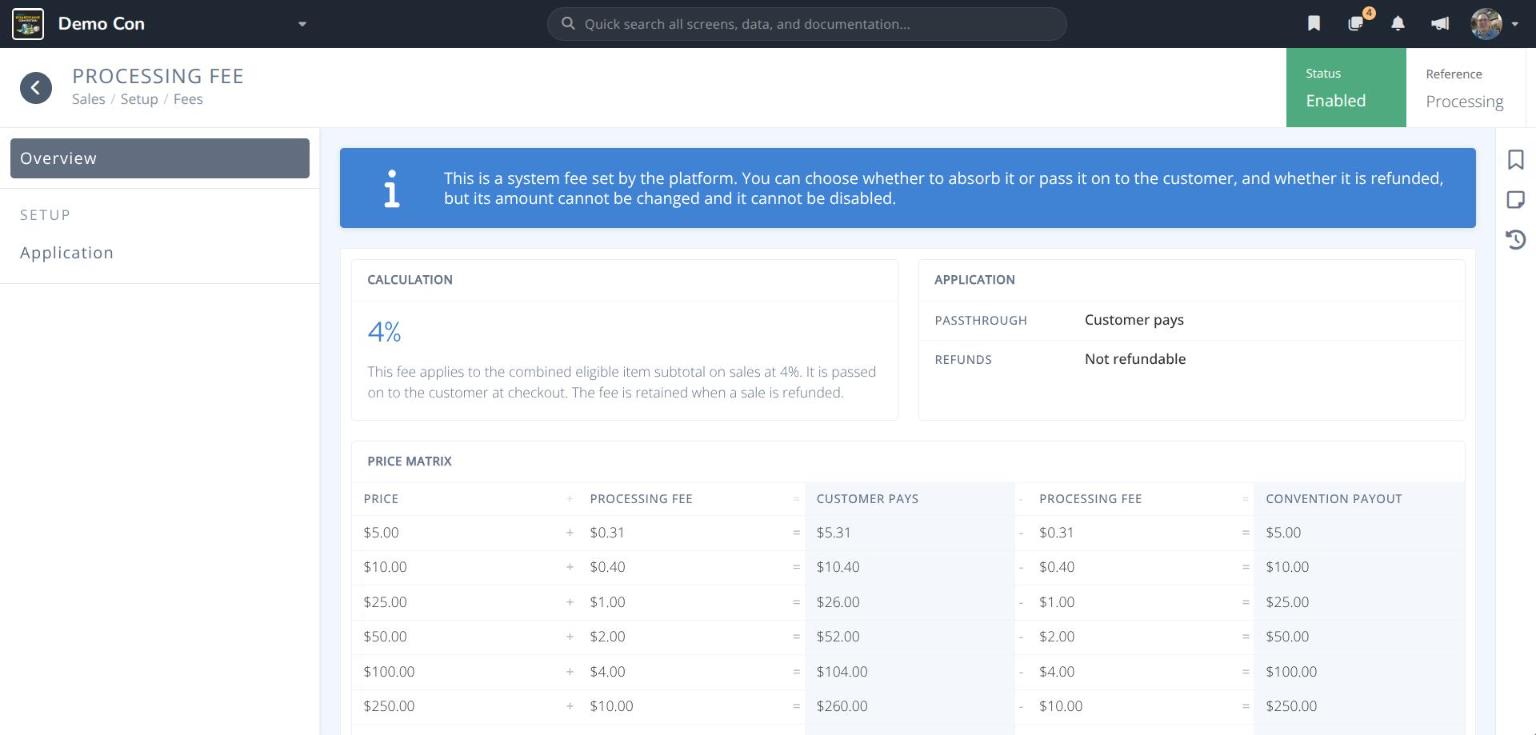
Click Processing Fee or Badge Fee in the grid to open it. A blue banner explains that the amount cannot be changed and the fee cannot be disabled.
- Overview - Shows the Calculation in plain language, the current Application settings, and a Price Matrix showing what the customer pays and what the convention receives at several example prices.
- Overrides - Lists any items whose handling of this fee differs from the default. Only appears when at least one item has been changed. See
Change Fee Handling for a Single Item. - Application:
Passthrough- Who pays the fee:- Absorbed by convention - The fee is taken from the convention share. The customer does not see it.
- Customer pays - The fee is added to the customer total. The customer sees it at checkout.
Refunds- What happens to the fee when a sale is refunded:- Not refundable - The fee is not refunded when a refund is issued.
- Refundable - The fee is refunded proportionally when a refund is issued.
¶ Custom Fees
Click a custom fee in the grid to open it. New custom fees are Disabled until you enable them, and a red banner with an Enable button (1) is shown while the fee is off.
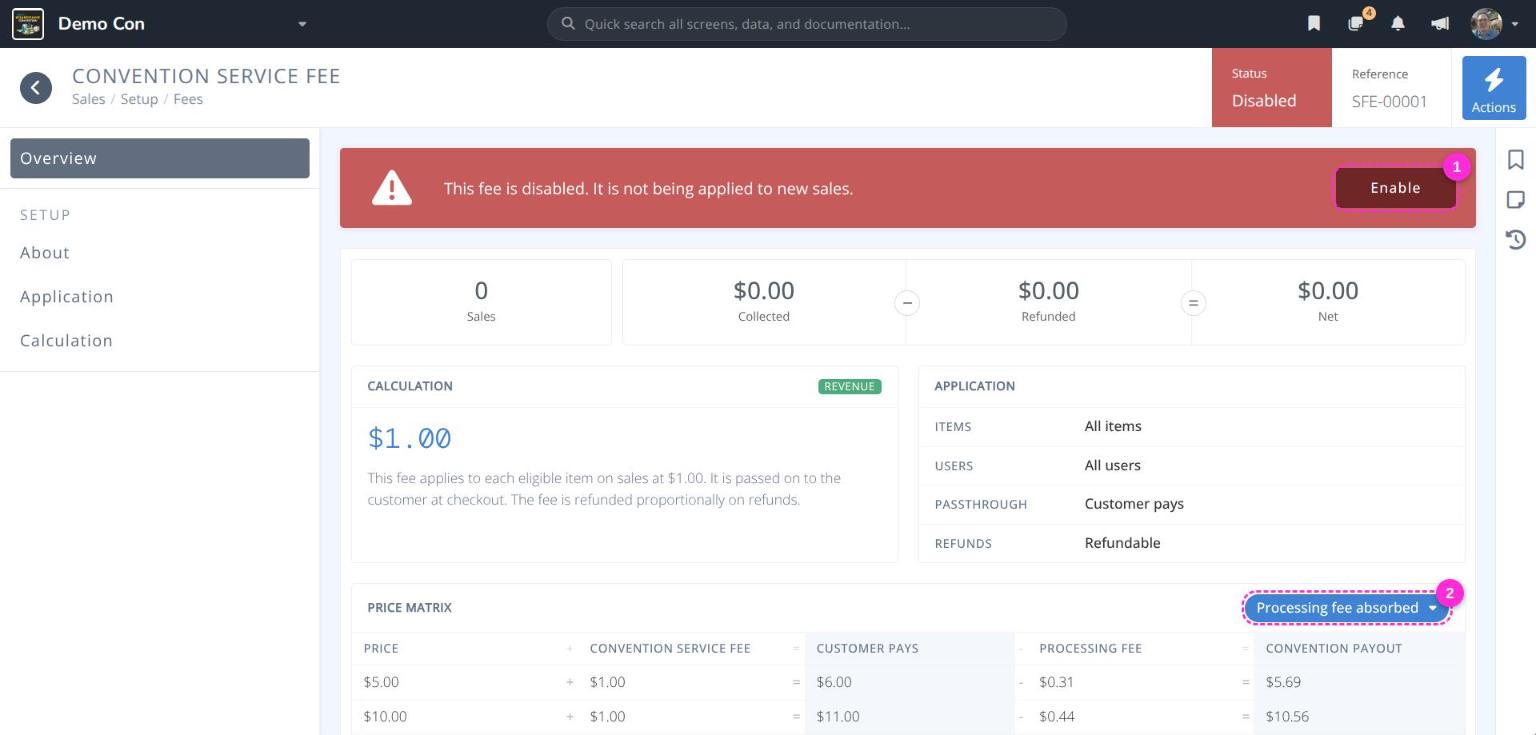
The Overview shows:
Sales- How many sales have included this feeCollected−Refunded=NetCalculation- The amount, its classification, and a plain-language summary of how it is appliedApplication- Which items and users it applies to, who pays it, and whether it is refundedPrice Matrix- Example prices with this fee. Use the button above the matrix (2) to preview the results with the processing fee absorbed or passed on to the customer. This only changes the preview, not your settings.
The menu includes Reports, Enable / Disable, Clone and Delete.
Click each tab to see the fields in the SETUP sections:
¶ About
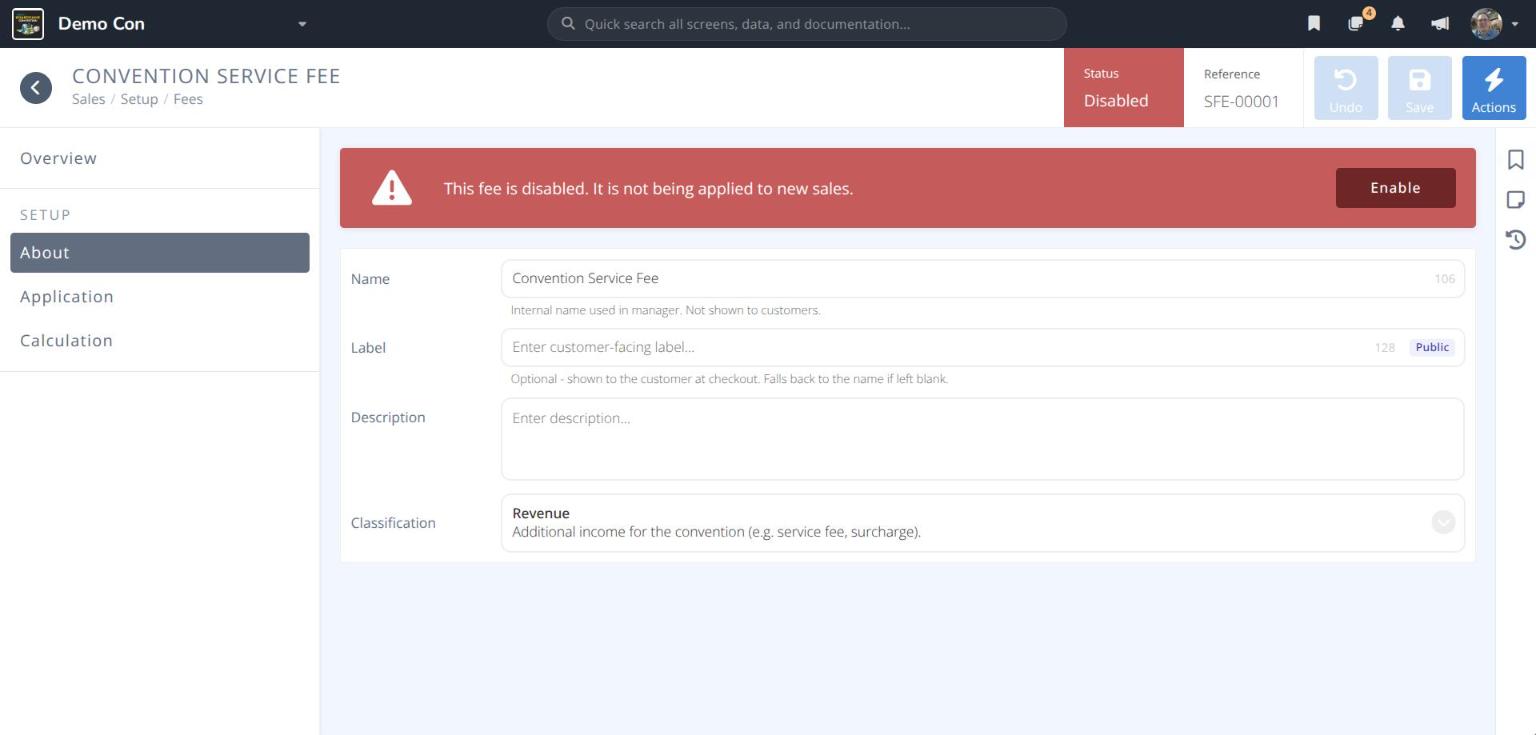

Name- The internal name used in the manager. Not shown to customers.Label- Optional name shown to the customer at checkout (Public). Falls back to the name if left blank.Description- Optional internal notes about the feeClassification- How the money is treated in reports:- Revenue - Additional income for the convention (e.g. service fee, surcharge).
- Liability - Collected by the convention on behalf of a third party (e.g. sales tax). Must be remitted.
- Expense - A cost paid by the convention (e.g. booking fee, processing cost).
¶ Application
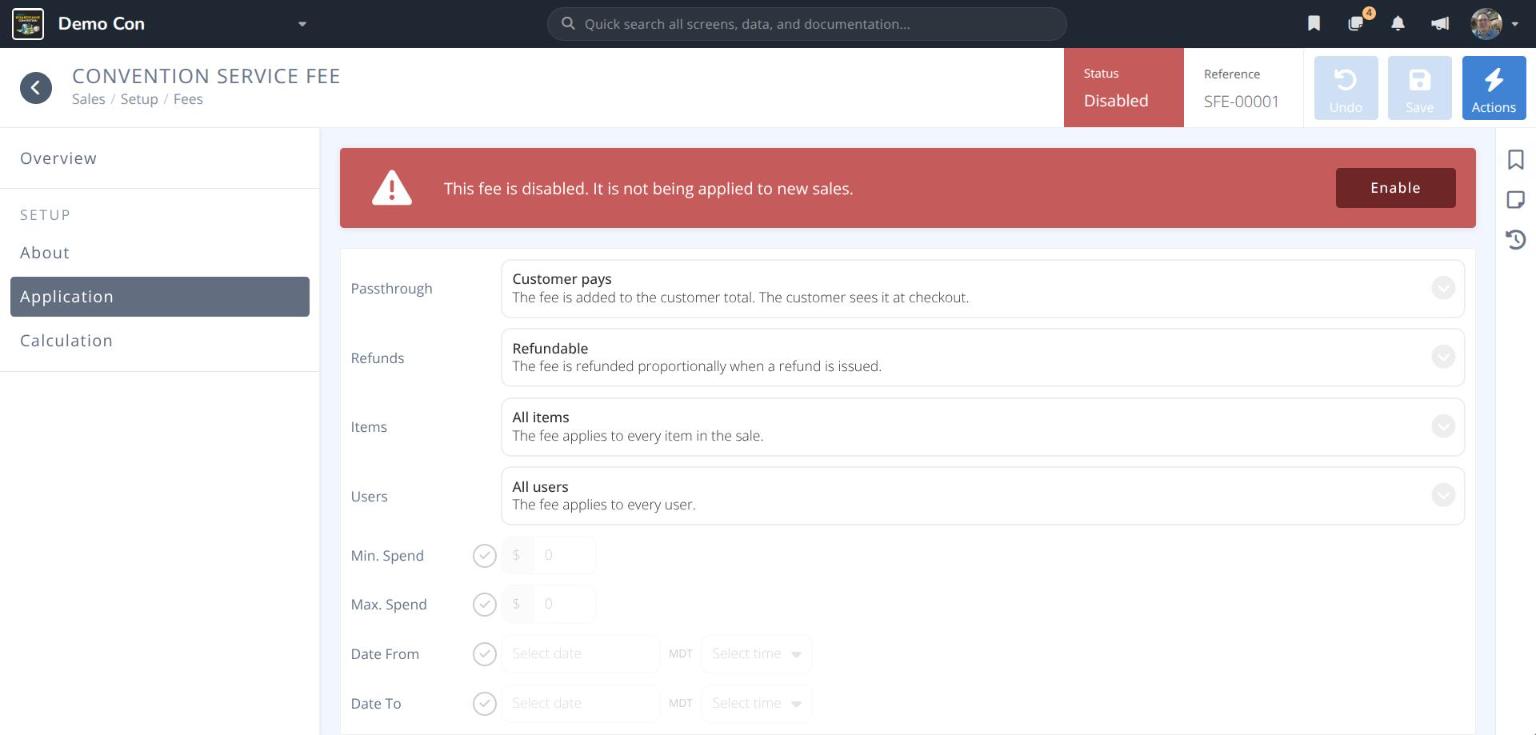
Passthrough- Customer pays or Absorbed by convention (seePlatform Fees)Refunds- Refundable or Not refundableItems- Which items the fee applies to:- All items - The fee applies to every item in the sale.
- All items unless excluded - The fee applies to every item except those chosen.
- Specific items - The fee applies only to the items chosen.
Users- Which users pay the fee:- All users - The fee applies to every user.
- All users unless excluded - The fee applies to every user except those chosen.
- Specific users - The fee applies only to the users chosen.
Min. Spend/Max. Spend- Optional spend range for the fee to applyDate From/Date To- Optional dates the fee applies between
¶ Calculation
-
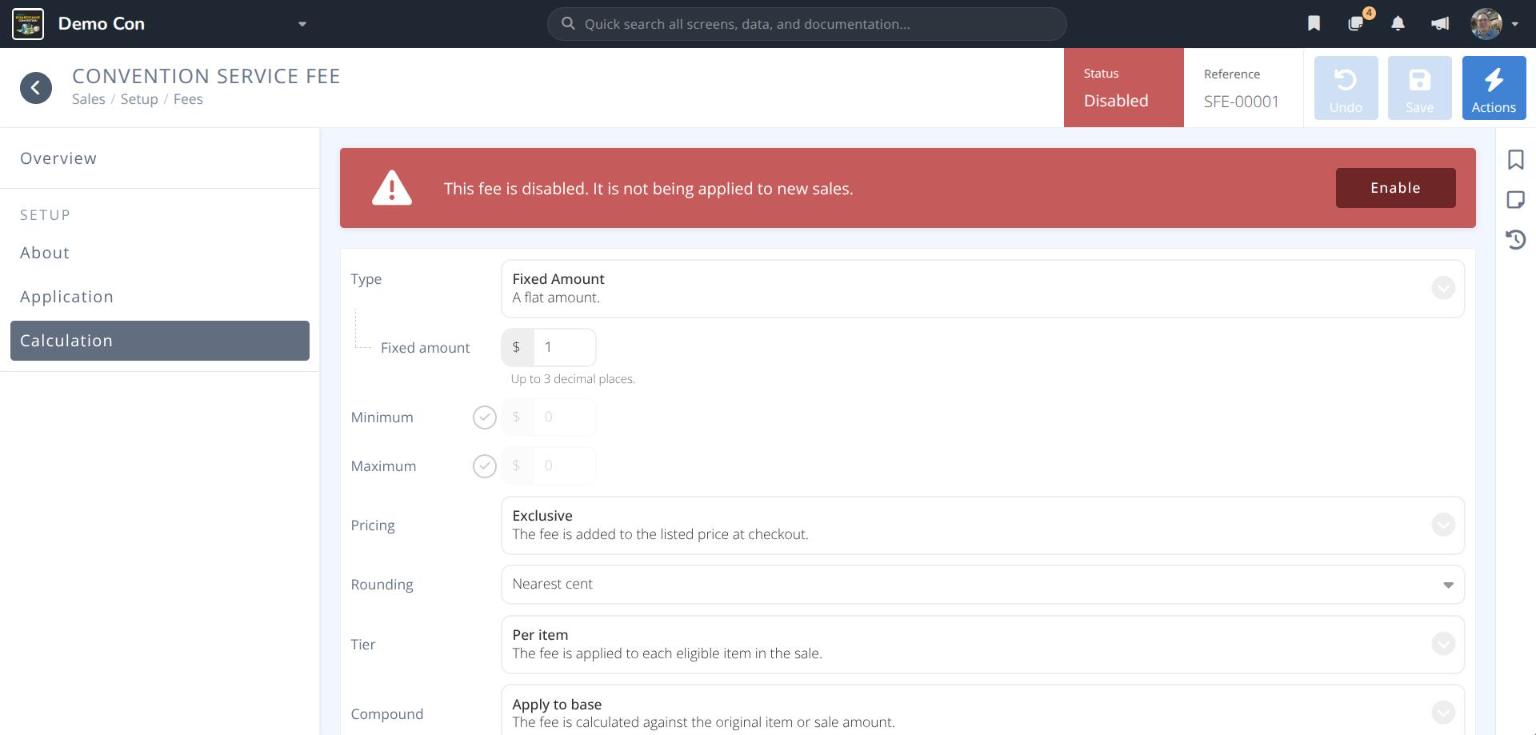
Type- How the amount is worked out:- Fixed Amount - A flat amount (up to 3 decimal places).
- Percent - A percentage of the base amount.
- Combined - A fixed amount plus a percentage.
Minimum/Maximum- Optional limits on the calculated feePricing:- Exclusive - The fee is added to the listed price at checkout.
- Inclusive - The fee is already included in the listed price and shown separately at checkout. Typical for VAT-style taxes.
Rounding- Nearest cent, Round up or Round downTier:- Per item - The fee is applied to each eligible item in the sale.
- Per sale - The fee is applied once per sale on the combined eligible item subtotal.
Compound:- Apply to base - The fee is calculated against the original item or sale amount.
- Apply to running subtotal - The fee is calculated against the running subtotal, including earlier fees.
¶ Procedures
¶ Pass Platform Fees on to Attendees
- From the menu click .
- Click Processing Fee.
- Click Application and set Passthrough to Customer pays.
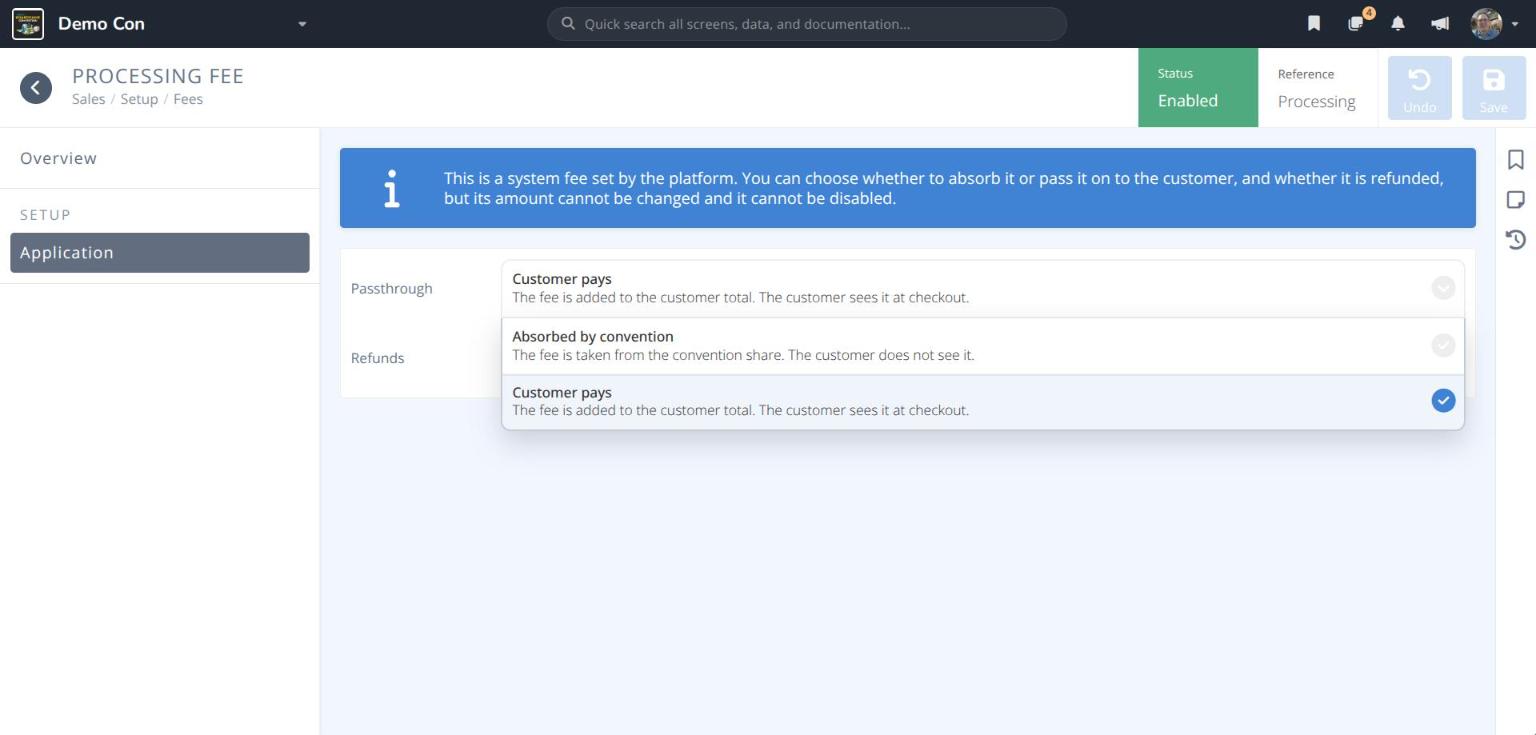
- Choose whether the fee is Refundable or Not refundable.
- Click .
- Repeat steps 2–5 for the Badge Fee.
Tip: Check the Price Matrix on the fee's Overview, or on any item's Overview, to see exactly what attendees will pay.
¶ Change Fee Handling for a Single Item
Use this when one item should be handled differently from your default, for example absorbing fees on a free Staff badge.
- Open the item from or .
- Click Fees.
- Change the Passthrough for the fee. Default follows the setting on the
Feesscreen.
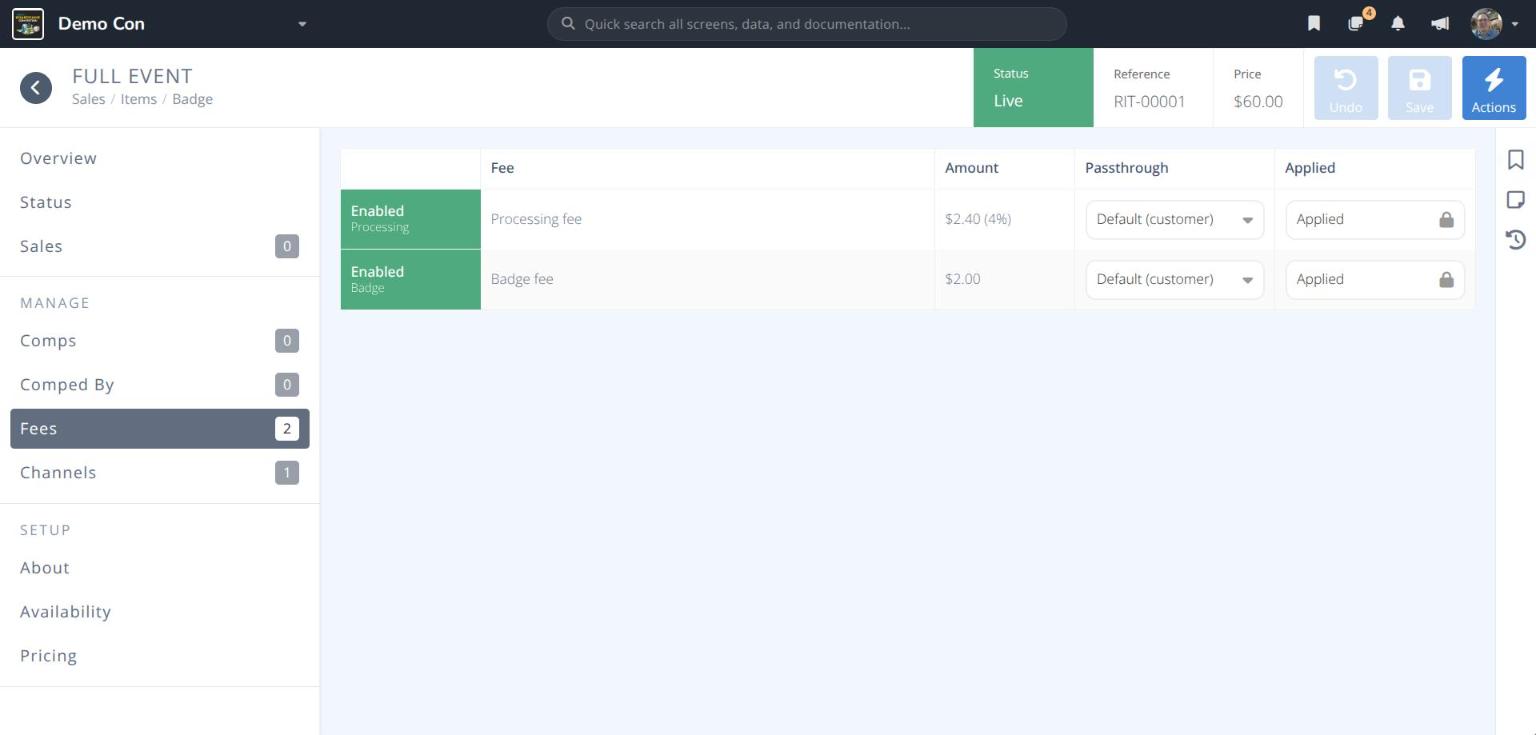
- Click . The item now appears under Overrides on that platform fee.
¶ Create a Custom Fee
- From the menu click .
- Click . The CREATE FEE panel opens.
- Enter a Name (e.g. Convention Service Fee).
- Choose the Classification, Tier and Type, then enter the amount or percentage.
- Choose the Passthrough and Refunds settings.
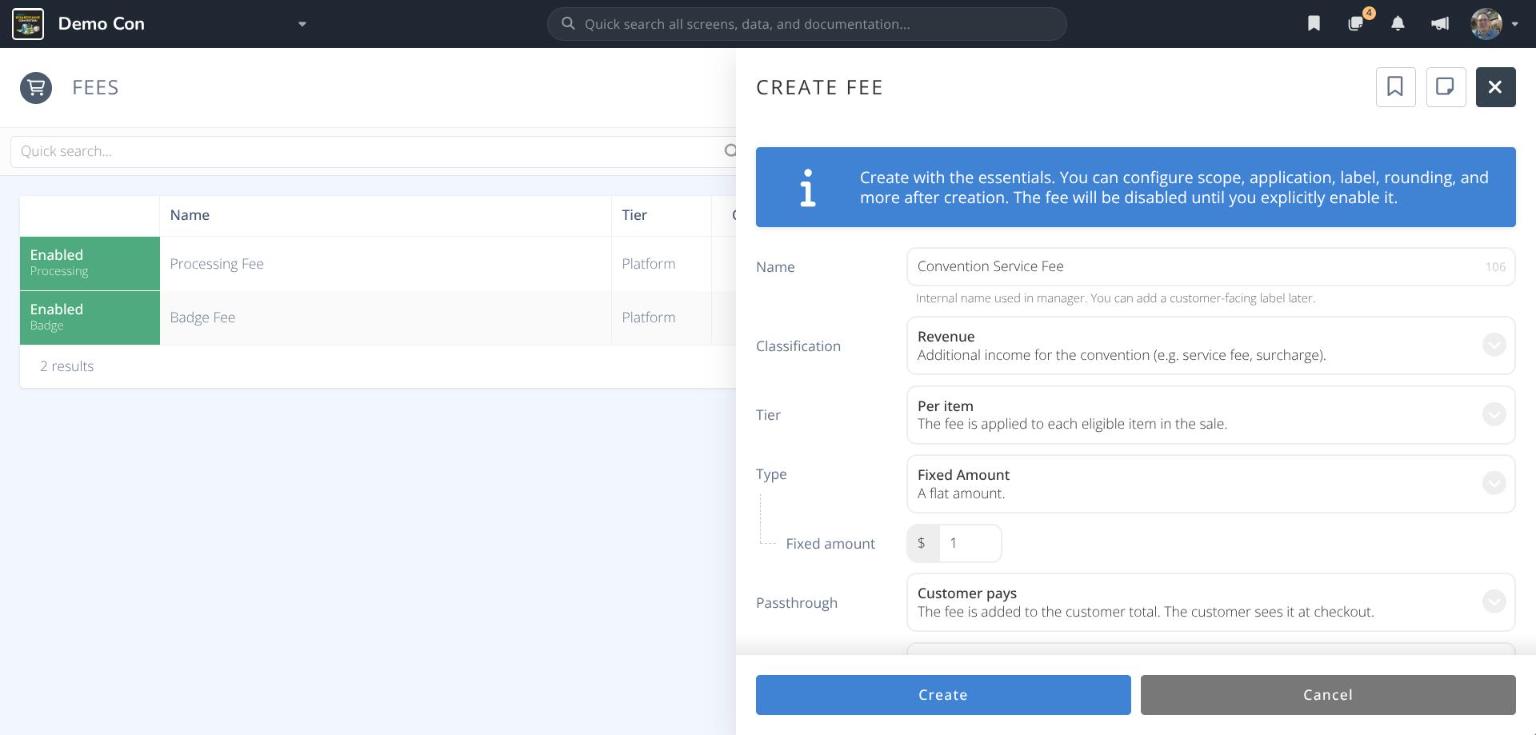
- Click . The fee opens and shows as Disabled.
- Review the About, Application and Calculation sections. Add a customer-facing Label, and limit the fee to certain items or users if needed.
- When you're ready for the fee to be charged, click Enable on the red banner.
Caution: A new custom fee applies to all items and all users unless you change the Items and Users settings before enabling it.
Example custom fees
| Name | Classification | Type | Tier | Pricing |
|---|---|---|---|---|
| Convention Service Fee | Revenue | Fixed Amount ($1.00) | Per item | Exclusive |
| Sales Tax | Liability | Percent | Per sale | Exclusive or Inclusive |
| Credit Card Surcharge | Revenue | Percent | Per sale | Exclusive |
¶ Limit a Custom Fee to Certain Items or Users
- Open the custom fee and click Application.
- Set Items to Specific items or All items unless excluded, and/or Users to Specific users or All users unless excluded.
- Click . New sections appear under MANAGE (e.g. Applicable Items) where you choose the items or users.
- Add the items or users, then click .
¶ Enable or Disable a Custom Fee
- Open the custom fee.
- Click Enable on the red banner, or use → Enable / Disable.
Warning: Deleting a custom fee cannot be undone. If it has already been charged, Disable it instead.
¶ Next Steps
Badges- See how fees affect each badge item's price.Categories- Set up the store categories where items are sold.