¶ Contests
¶ Overview
The Contests module is your central hub for gamifying the attendee experience. By leveraging QR code scanning, you can transform your event into an interactive scavenger hunt or a high-stakes giveaway. Whether you want to reward the most dedicated "completionists" who scan every code or give everyone an equal shot at a prize, this section provides the granular control needed to manage entries, prizes, and winners with ease.
¶ Key Capabilities
-
Customizable Eligibility: Define exactly how participants qualify whether by hitting a specific scan threshold, completing a strict sequence, or simply scanning a single code.
-
Flexible Participation: Run "Open" contests for all attendees or limit entry to those who have specifically registered.
-
Intelligent Awarding: Choose between Manual selection or Automated awarding to let the system handle the heavy lifting at a scheduled time.
-
Dynamic Probability: Use "Weighted" settings to give your most active participants a statistically better chance of winning, or keep it "Equal" for a traditional luck-of-the-draw feel.
-
Real-Time Engagement: Attendees stay informed through automated email/app notifications, live leaderboards, and public winner announcements.
Pro Tip: Use the Weight field on individual QR codes to make certain locations or tasks more valuable than others, driving traffic exactly where you want it most.
¶ Settings
For details on Contest settings refer to the Settings documentation
¶ Common Procedures
¶ Fields
Select the tab to view the corresponding fields.
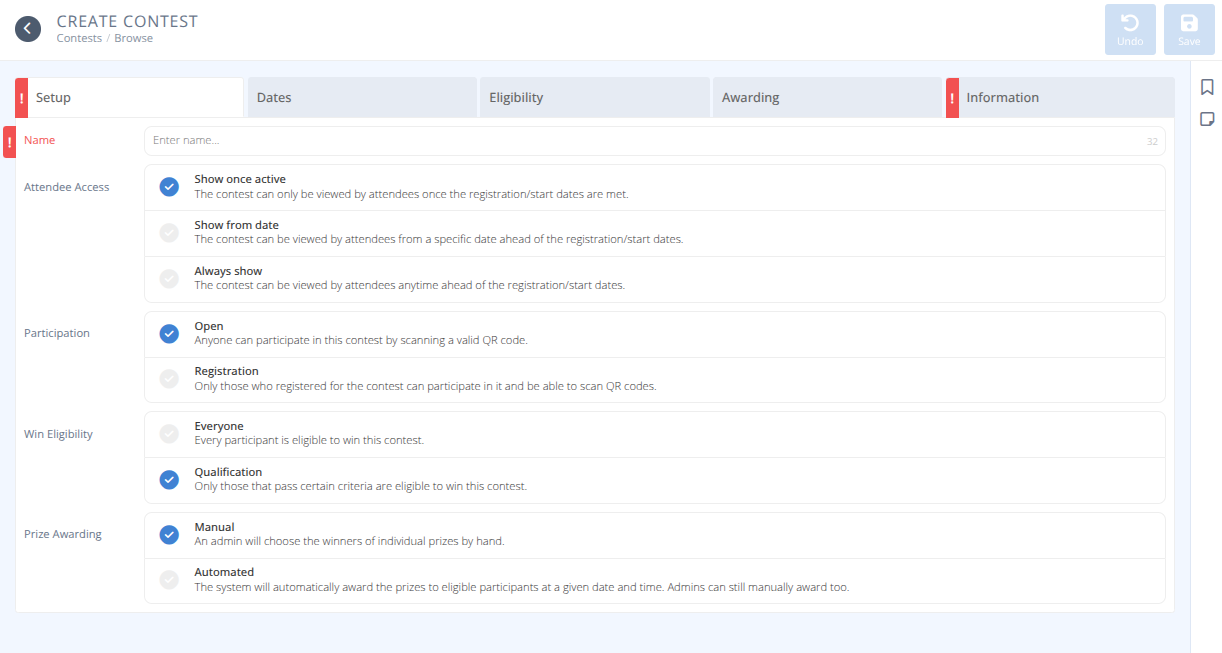


Name- The name of the convention. This will be displayed to attendees.-
Attendee Access- When is this contest visible to attendees, one of:
→ Show once active - The contest can only be viewed by attendees once the registration/start dates are met.
→ Show from date - The contest can be viewed by attendess from a specific date ahead of the registration/start dates.
→ Always show - The contest can be viewed by attendees anytime ahead of the registration/start dates. -
Participation- Who can participate in the contest, either:
→ Open - Anyone can participate in this contest by scanning a valid QR code.
→ Registration - Only those who registered for the contest can participate in it and be able to scan QR codes. -
Win Eligibility- Who can win the contest, either:
→ Everyone - Every participant is eligible to win this contest.
→ Qualification - Only those that pass the criteria specified in the Eligibility tab are eligible to win this contest. Prize Awarding- How are winners determined, either:
→ Manual - An admin will chose the winners of individual prizes by hand.
→ Automated - The system will automatically award the prizes to eligible participants at a given date and time. Admins can still manually award as well.
-
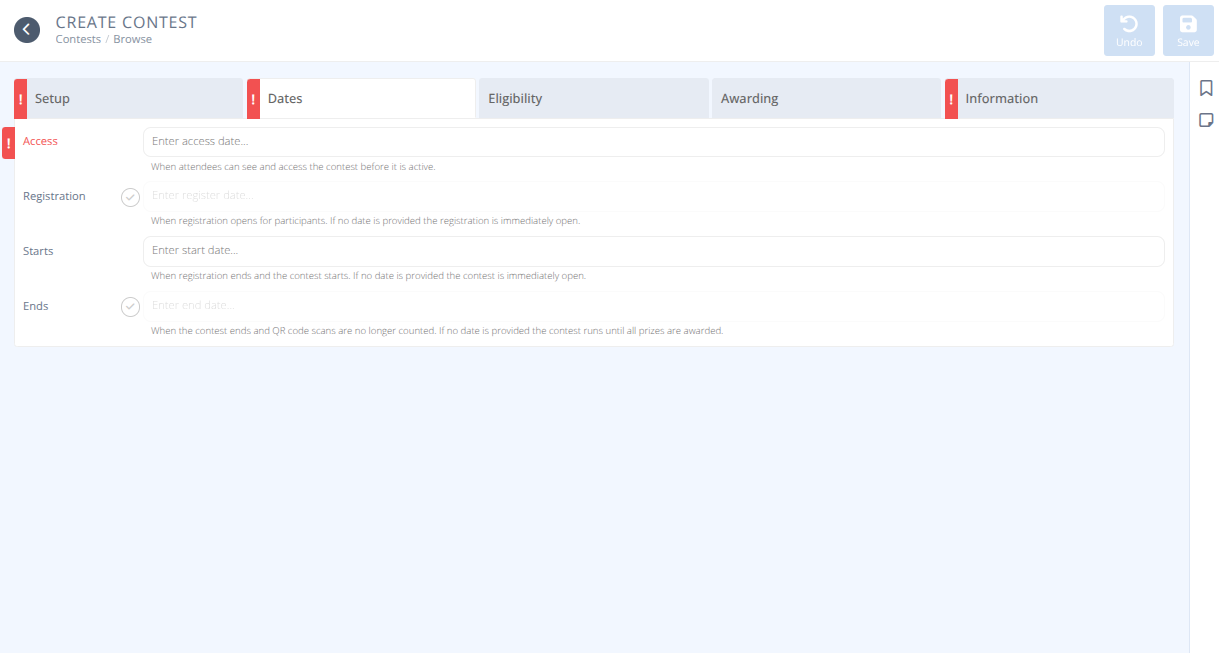
Access- The date and time when attendees can see and access the contest before it is active. Note: This field is only available if
 Attendee Accessis set to Show from date Registration- When registration opens for participants. If no date is provided the registration is open immediately.Starts- The date and time when registration ends and the contest starts. If no date is provided the contest is open immediately.Ends- The date and time when the contest ends and QR code scans are no longer counted. If no date is provided the contest runs until all prizes are awarded.
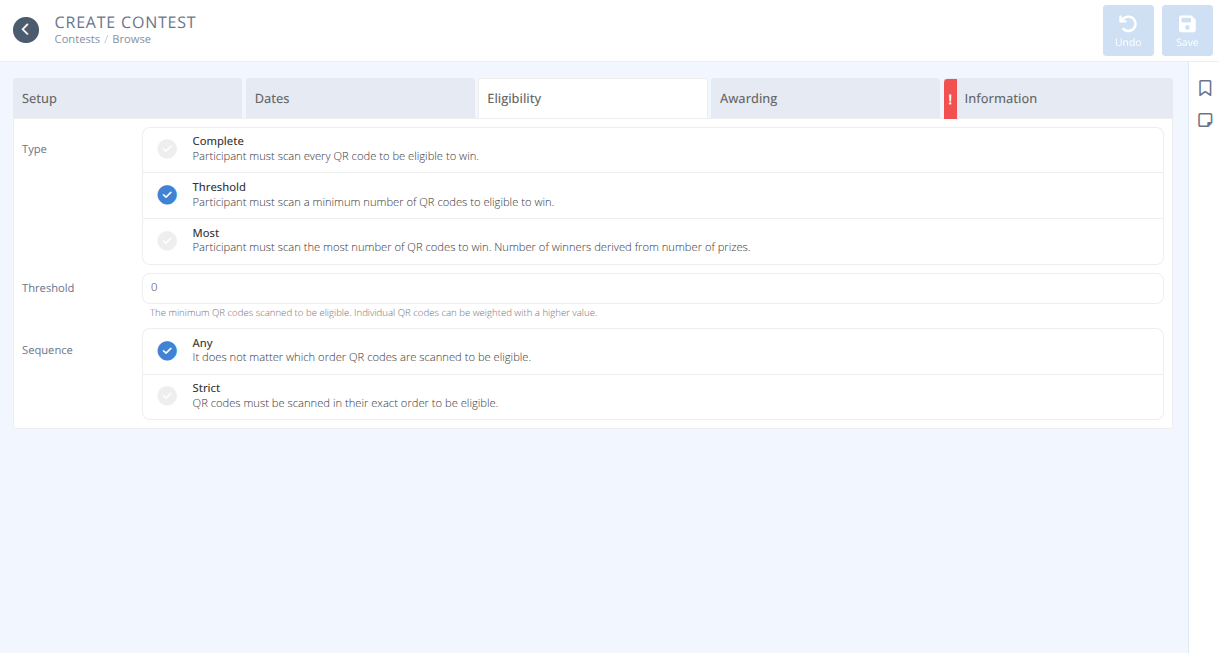
This tab only applies if Win Eligibility is set to Qualification
-
Type- Who is eligible to win the contest, either:
→ Complete - Participants must scan all QR codes to be eligible to win.
→ Threshold - Participants must scan a minimum number of QR codes to be eligible to win.
→ →Threshold- The minimum number of QR code value scanned to be eligible. Individual QR codes can be weighted with a higher value. -
Sequence- What order QR codes need to be scanned in, either:
→ Any - It does not matter which QR codes are scanned to be eligible.
→ Strict - QR codes must be scnned in their exact order to be eligible.
-
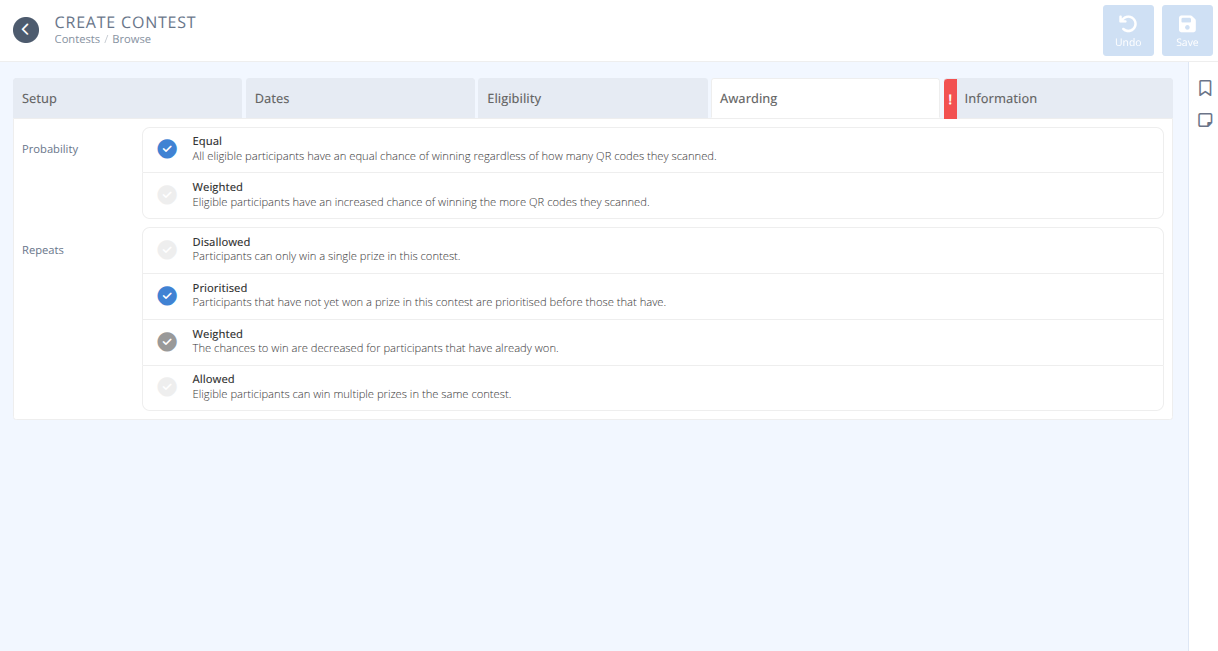
Probability- How do scan numbers adjust the probability of winning, either:
→ Equal - All participants have an equal chance of winning regardless of how many QR codes the scanned.
→ Weighted - Eligible participants have an increased change of winning the more QR codes they scanned. -
Repeats- How are previous winners handled with this draw, either:
→ Disallowed - Participants can only win a single prize in this contest.
→ Prioritized - Participants that have not yet won a prize in this contest are prioritized before those that have won.
→ Weighted - The chances to win are decreased for participants that have already won.
→ Allowed - Eligible participants can win multiple prizes in the same contest.
-
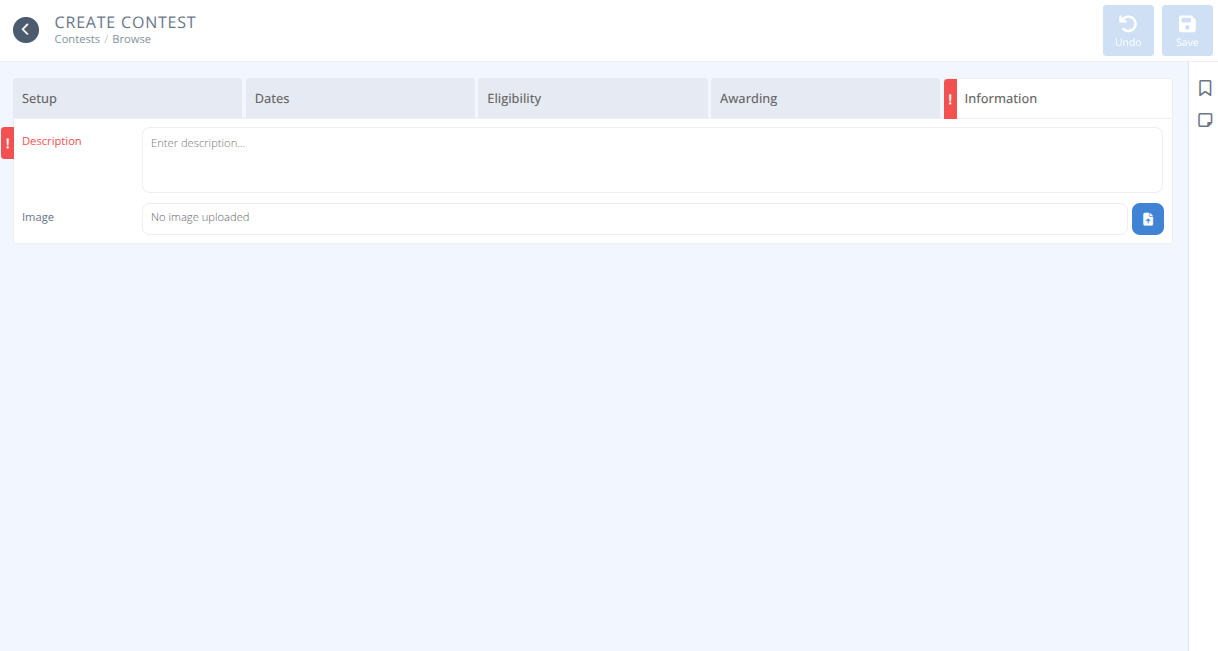
Description- The details of the contest that are displayed on the contest page. -
Image- An image that represents the contest that is displayed on the contest page.
¶ Procedures
¶ Create a Contest
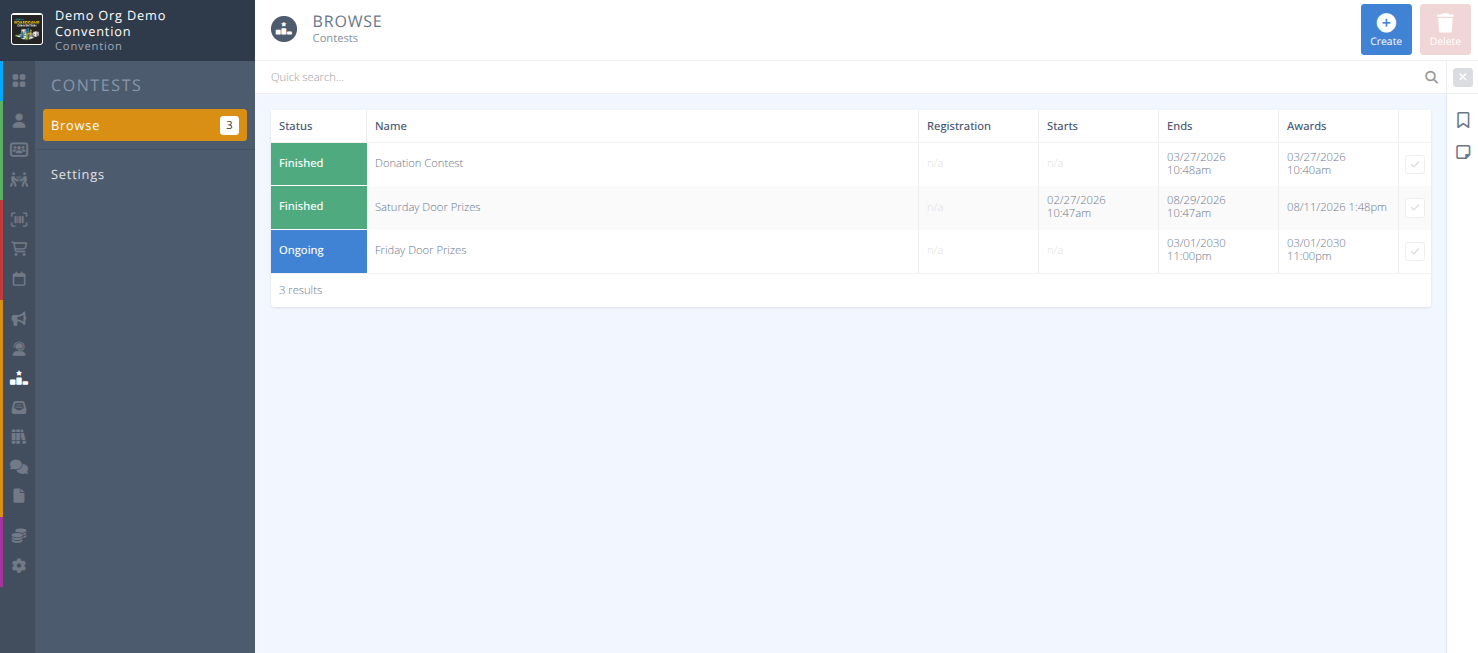
- From the menu category select .
- Click the button in the action area.
- Specify the details of the contest using the details in the Fields section.
- Click the button in the action area.
¶ Manage QR Codes
-
From the menu category select .
-
In the grid select the Contest you wish to manage.
-
Select the button.

¶ Add a QR Code
-
Click button in the action area.
-
Create your QR code by specifying the required fields.
¶ QR Code Fields
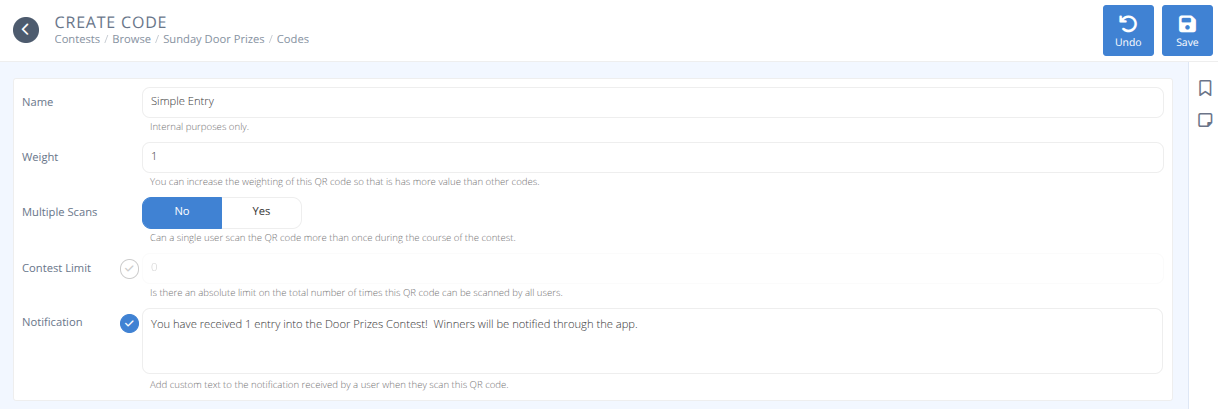
Name- The internal name of the QR CodeWeight- The number of entries this scan counts as.Multiple Scans- Can a single user scan the QR code more than once during the course of the contest, either:
→ No - Additional scans will indicate that the scan has already been completed.
→ Yes - Each scan adds the specified weight to the entry count.
→ →Cooldown Period- When multiple scans are permitted how frequently can it be scanned by a participant in minutes.Contest Limit- Is there an absolute limit on the total number of times this QR code can be scanned by all users.Notification- Custom text added to the notification received by a user when they scan this QR code.
3.Click the button in the action area.
¶ Modify a QR Code
- In the grid of QR codes select the one you wish to manage.
- Modify the fields as needed.
- Click the button in the action area.
¶ Delete a QR Code
- In the grid of QR codes select the one(s) you wish to delete.
- Click the button.
 Warning: This cannot be reversed.
- Deleting a QR code does not change the number of entries for particpants that have already used that QR code.- Click .
¶ Print QR Codes
- In the grid of QR codes select the rows you wish to print, or select none to print them all.
- Click the button in the action area to open the print panel.
- Review the details of the print request and click . The template used can be modified in Settings between Avery 22805 and Avery 2206.
-
¶ Manage Prizes
-
From the menu category select
-
In the grid select the Contest you wish to manage.
-
Select the button.

¶ Create a Prize
-
Click button in the action area.
-
Create your Prize by specifying the required fields.
¶ Prize Fields
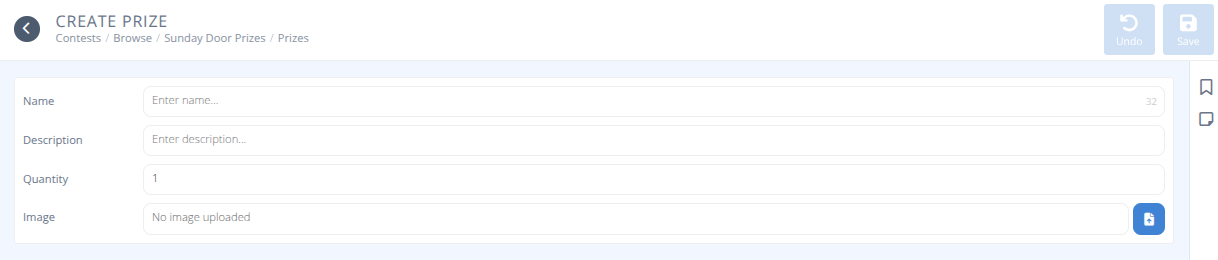
Name- The name of the Prize that is displayed to participants.Description- The details of the Prize that is shown to participantsQuantity- The quantity of this Prize to be awarded.Image- An image to show the Prize to participantsAwards On- An optional date that overrides the dates set on the contest. This specific prize will be awarded on the selected date.
3.Click the button in the action area.
¶ Modify a Prize
- In the grid of Prizes select the one you wish to manage.
- Modify the fields as needed.
- Click the button in the action area.
¶ Delete a Prize
- In the grid of Prizes select the one(s) you wish to delete.
- Click the button.
Warning: This cannot be reversed.
- Deleteing a prize that has already been awarded will result in the system showing a Winner with no prize assigned.
- The winner will still show on the attendee side, so should be removed before deleting the prize.- Click .
-
¶ Manage Winners
-
From the menu category select
-
In the grid select the Contest you wish to manage.
-
Select the button.

¶ Assign a Winner
- Click button in the action area.
- Search for and select the particpant to award the prize to.
- Select the prize to be awarded.
- Click the button in the action area.
¶ Delete Winner(s)
- Select the winner(s) you wish to delete.
- Click the button.
Warning: This cannot be reversed.
- No notifications are sent to the deleted winner.
- IfPrize Awardingis set to Automated andAwardsdate is in the past a new winner will be selected and notified within a few minutes.
- The previous winner may be selected again. If you do not want this remove the participant from the contest first.- Click .
¶ Manage Participants
-
From the menu category select
-
In the grid select the Contest you wish to manage.
-
Select the button.

¶ Add a Participant
- Click button in the action area.
- Search for and select the particpant to award the prize to.
- Select the QR codes to assign to the participant.
Note: Only one scan of each selected QR code will be attributed to the particpant.- Click the button in the action area.
¶ Modify a Participant's Scans
- Search for and select the particpant to modify.
- Select the QR codes to assign to the particpant.
Note: When modifying a particpant their number of entries will be replaced with the value of the selected codes. As with adding a particpant only one scan of each code will be granted.- Click the button in the action area.
¶ Delete Participant(s)
- Search for and select the particpant(s) to remove from the contest.
- Click the button.
Warning: This cannot be reversed.
- Deleting a participant that has already been assigned a prize will have no effect on that awarded prize and the participant will still be shown in the winners list.- Click .
¶ Attendee Experience
¶ Enter a Contest
¶ Sample Email
-
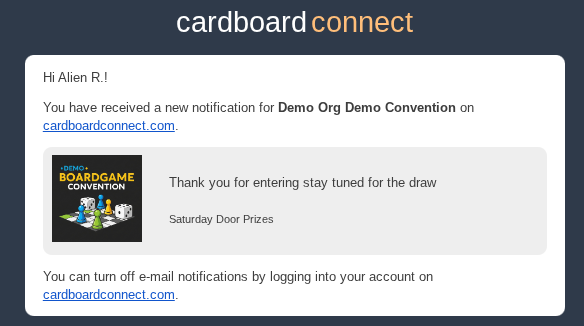
Emails will come from no-reply@cardboardconnect.com with a subject of "You have a new notification for convention-name"
¶ Sample Notification
-
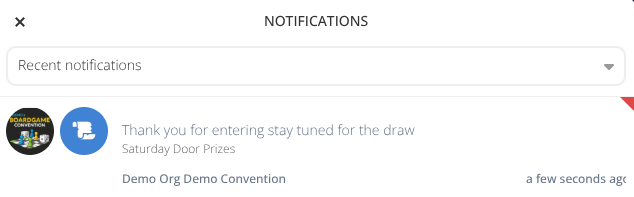
Notifications will be sent to both the app and web app.
¶ Contest Leaderboard
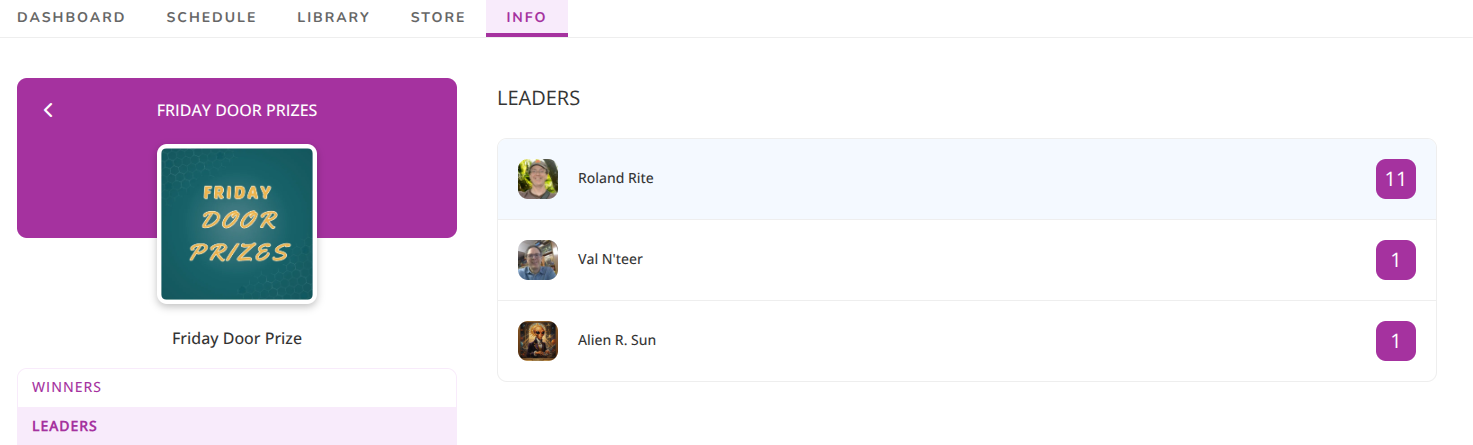
- Participants can see their entries from the Contest Leaderboard
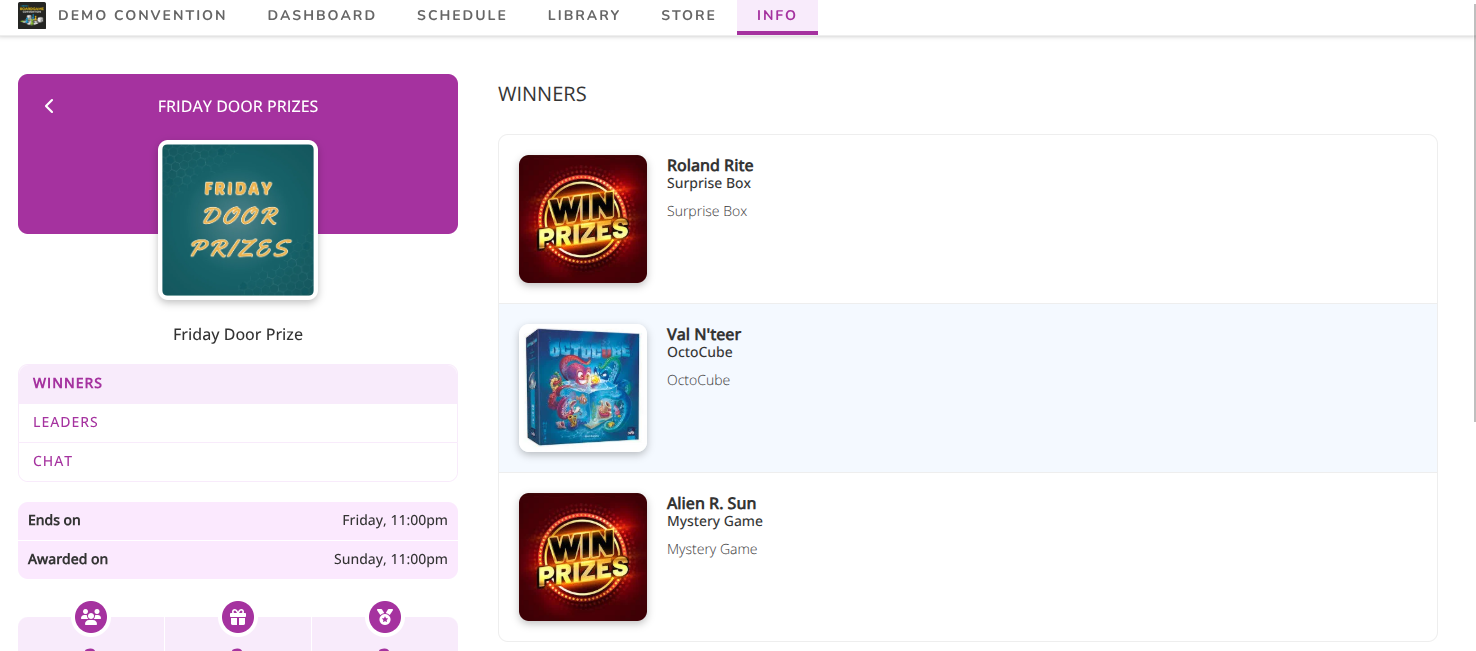
¶ Winners
- Winners will be notified via Email and App Notification as well as by a posted announcement. They can also be viewed by attendees on the Contest Winner page.