¶ Volunteers
¶ Overview
The menu is where you staff your convention. From here you can:
- Create volunteer roles, such as Registration or Library Desk, and the slots (shifts) people sign up for
- Choose who can volunteer for each role, and whether you approve them first
- Take volunteer applications through your registration site
- Approve, switch, reject and cancel volunteer assignments
- See who is volunteering, when, and how many of your slots are filled
Note: You can rename volunteers to suit your convention, e.g. Questers who go Questing. Attendees see your names. See
Volunteers: Settings.
¶ How Volunteering Works
- Choose how attendees volunteer in
Volunteers: Settings: whether they can see the roles, and whether they join slots directly, apply with a form, or can't sign up at all. - Create roles and slots in
Roles. A Schedule role has slots at set times. A Rollcall role is one list of people, e.g. on-call game teachers. - Set each role's eligibility: anyone can join (Open), you approve each volunteer (Review), only people you give
Accesscan join (Access only), or only you can assign people (Admin assigned). - Volunteers sign up. Depending on your settings, attendees pick slots in the app, or apply through a volunteer application page. See
Volunteers: Applications. - Review their assignments. Each slot a volunteer asks for is an assignment. It is Pending until you approve it, Pre-approved while an applicant still needs a badge, and Confirmed once it is set. See
Volunteers: Assignments.
¶ Menu Breakdown
¶ Volunteers
¶ Review - Review Volunteer Applications
Applications- Applications to volunteer, with the slots asked for
¶ Assignments - Who Is Volunteering When
Confirmed- Assignments that are setPre-approved- Approved assignments waiting for the applicant's badgeSubmitted- Assignments asked for, to approve or rejectCancelled- Cancelled assignments
¶ Setup - Set Up Volunteering
¶ Admin - Administrate Volunteers
Activity- View Volunteers activity (redirects to general information on Activity pages)Settings- Names, sign-up method, cancelling and hour limits
¶ Common Procedures
Create a RoleGenerate Slots With the WizardReview a Volunteer ApplicationApprove an AssignmentAdd a VolunteerManage a Volunteer's AssignmentsGrant Access to Roles
¶ Overview Screen
From the menu click .
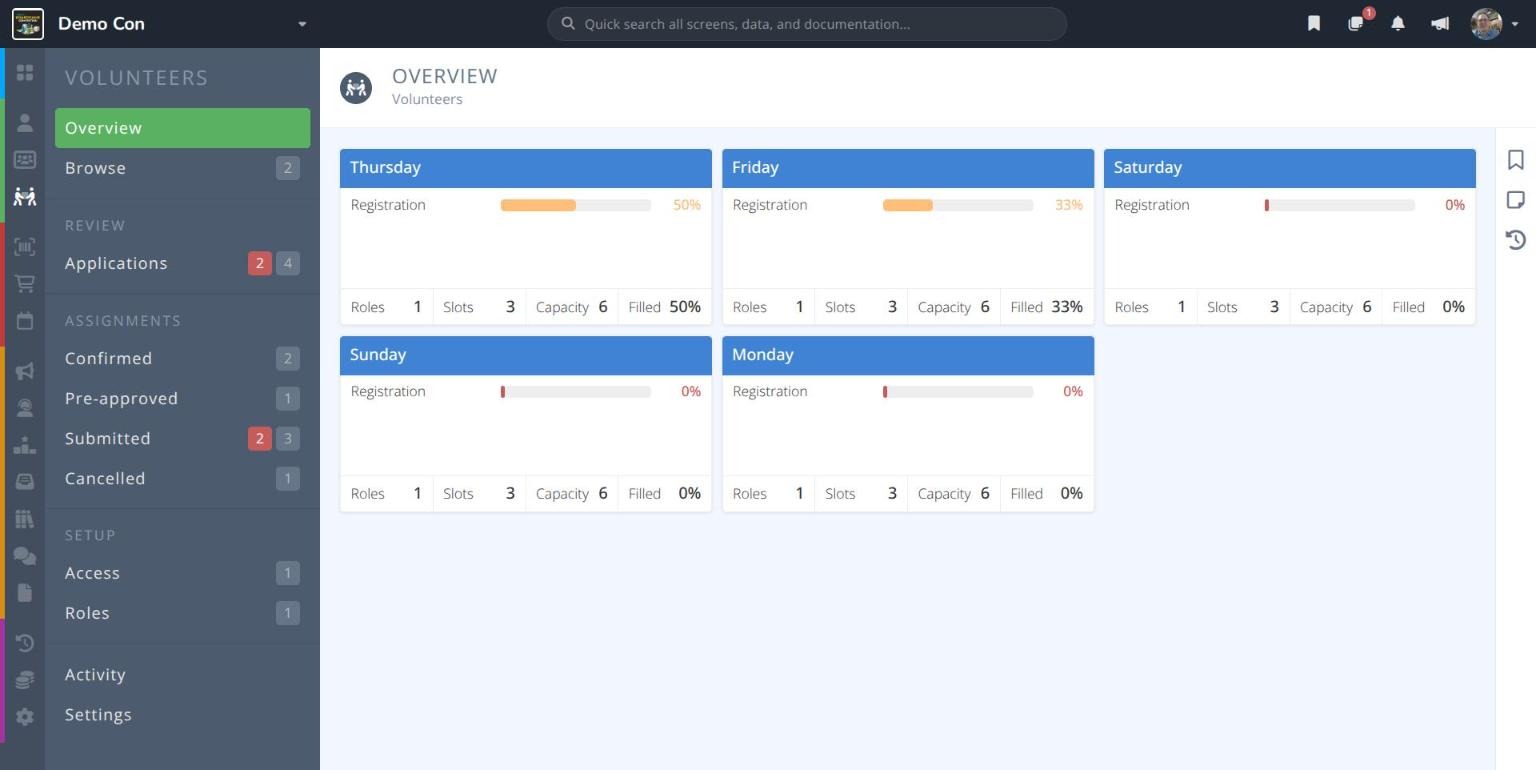
Each day of your convention has a card. It shows how full each role is that day, and the day's number of Roles, Slots, total Capacity, and how much is Filled. Click a role to open it.
¶ Browse
From the menu click .
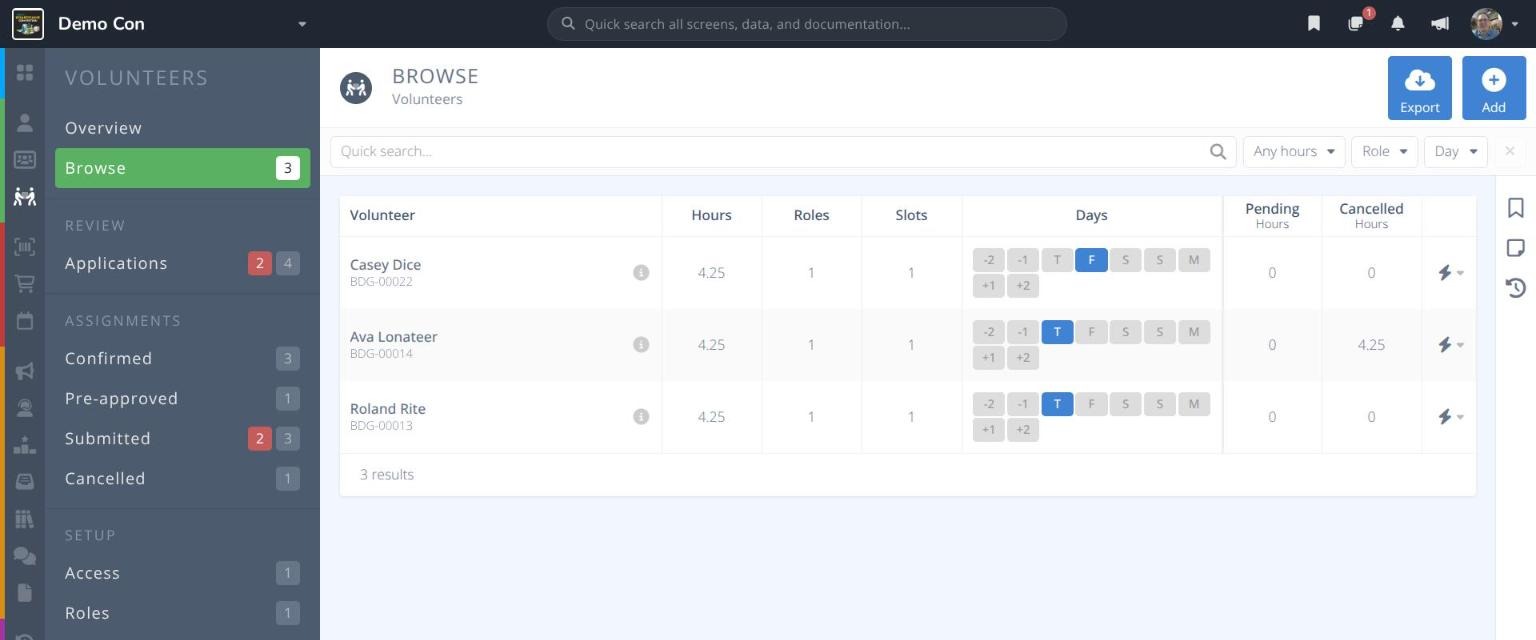
Each row is one volunteer. It shows their name and badge, their confirmed Hours, how many Roles and Slots they have, the Days they volunteer (highlighted in blue), and their Pending and Cancelled hours.
To find volunteers, use the Quick search... box, Any hours, Role and Day. Click to download the list as a CSV file, e.g. to check everyone has done their hours.
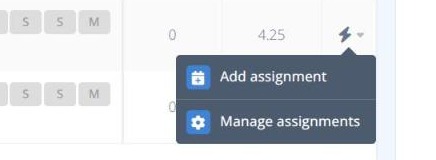
Click on a row to Add assignment or Manage assignments for that volunteer.
¶ Procedures
¶ Add a Volunteer
Use this to sign someone up yourself, for example staff who don't apply. Their first assignment is confirmed straight away.
- From the menu click , then click .
- Search for the
Attendeeand choose them. They need a badge. - Choose the
Role. - Choose the
Slot. - Click .
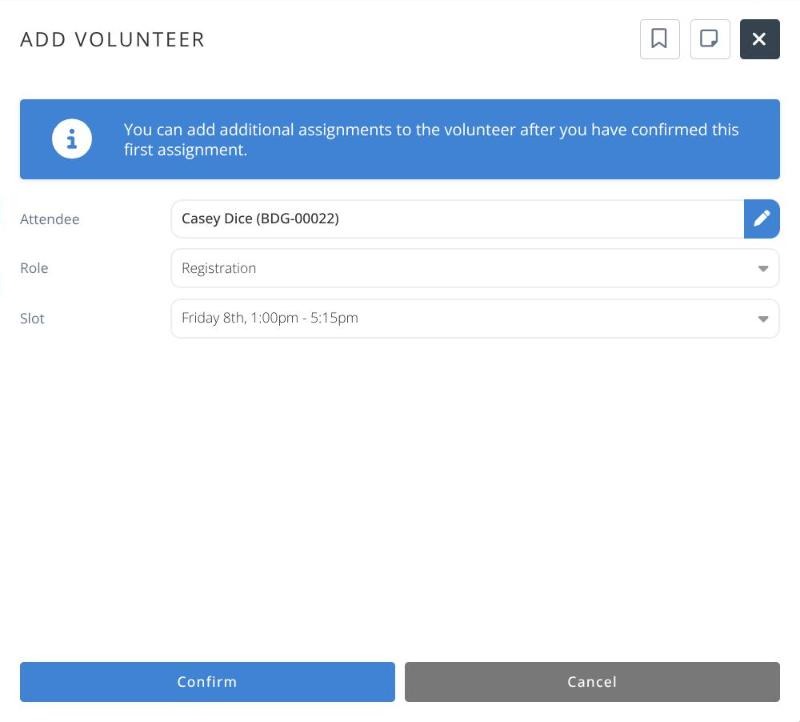
To give them more slots, click on their row and choose Add assignment.
¶ Manage a Volunteer's Assignments
- From the menu click .
- Click on the volunteer's row and choose Manage assignments.
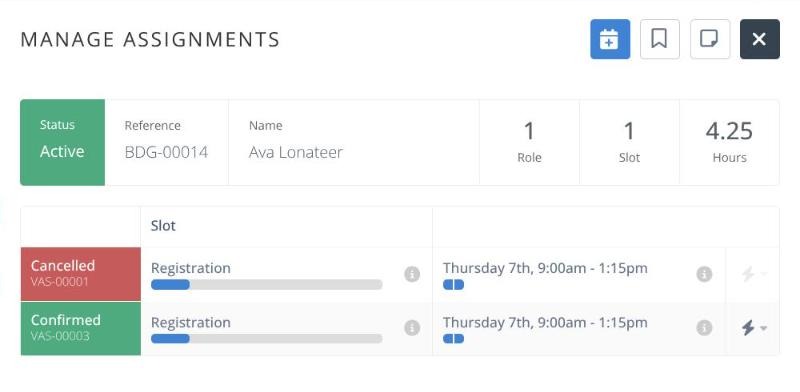
- The MANAGE ASSIGNMENTS panel lists every slot they have, with its status. Click on a slot to cancel it, or to approve, switch or reject it if it's pending. Click at the top to add another slot.
¶ Next Steps
Roles- Create your volunteer roles and slots.Volunteers: Settings- Choose how attendees volunteer.Create an Application Page- Take volunteer applications.