¶ Volunteers: Applications
¶ Overview
When your Slots setting is By Application, people apply to volunteer through an application page on your registration site, and choose the slots they would like. See Volunteers: Settings and Create an Application Page.
This screen shows only volunteer applications. They also appear with all other applications in Forms Applications, which covers approving, rejecting and converting in more detail.
From the menu click in the REVIEW group.
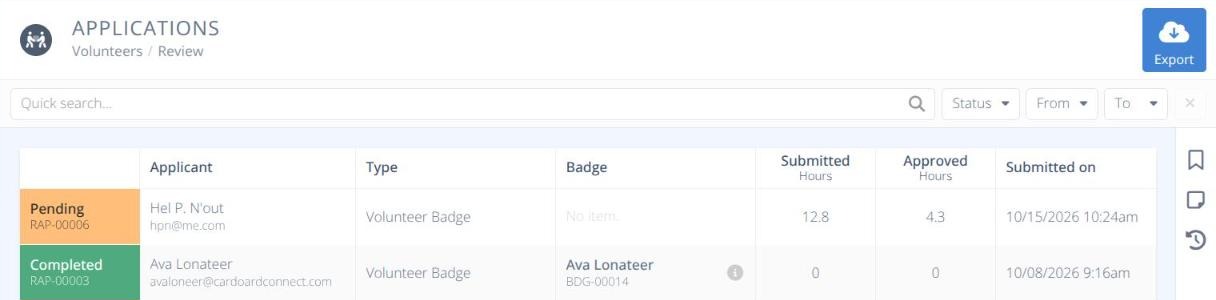
Each row is one application:
- Status - Where the application is up to, with its reference (e.g. RAP-00001):
- Pending - Waiting for review.
- Reviewing - Marked as under review.
- Approved - Approved. The applicant has been sent a link to register their badge.
- Completed - The applicant has registered, or the application was converted to a badge.
- Rejected - Rejected. The applicant was told.
- Applicant - Their name and e-mail.
- Type - The kind of application, e.g. Volunteer Badge.
- Badge - The applicant's badge, once they have one.
- Submitted Hours and Approved Hours - The hours of the slots they asked for, and of those you have approved.
- Submitted on - When they applied.
To find applications, use the Quick search... box, Status, and From and To. Click to download the list as a CSV file.
¶ Common Procedures
Review an ApplicationApprove or Reject an Applicant's SlotsApprove an ApplicationConvert an Application to a Badge
¶ Application
Click an application to open it. The top shows the application Type, the Page it came from, when it was Submitted on, and its Submitted Hours and Approved Hours.
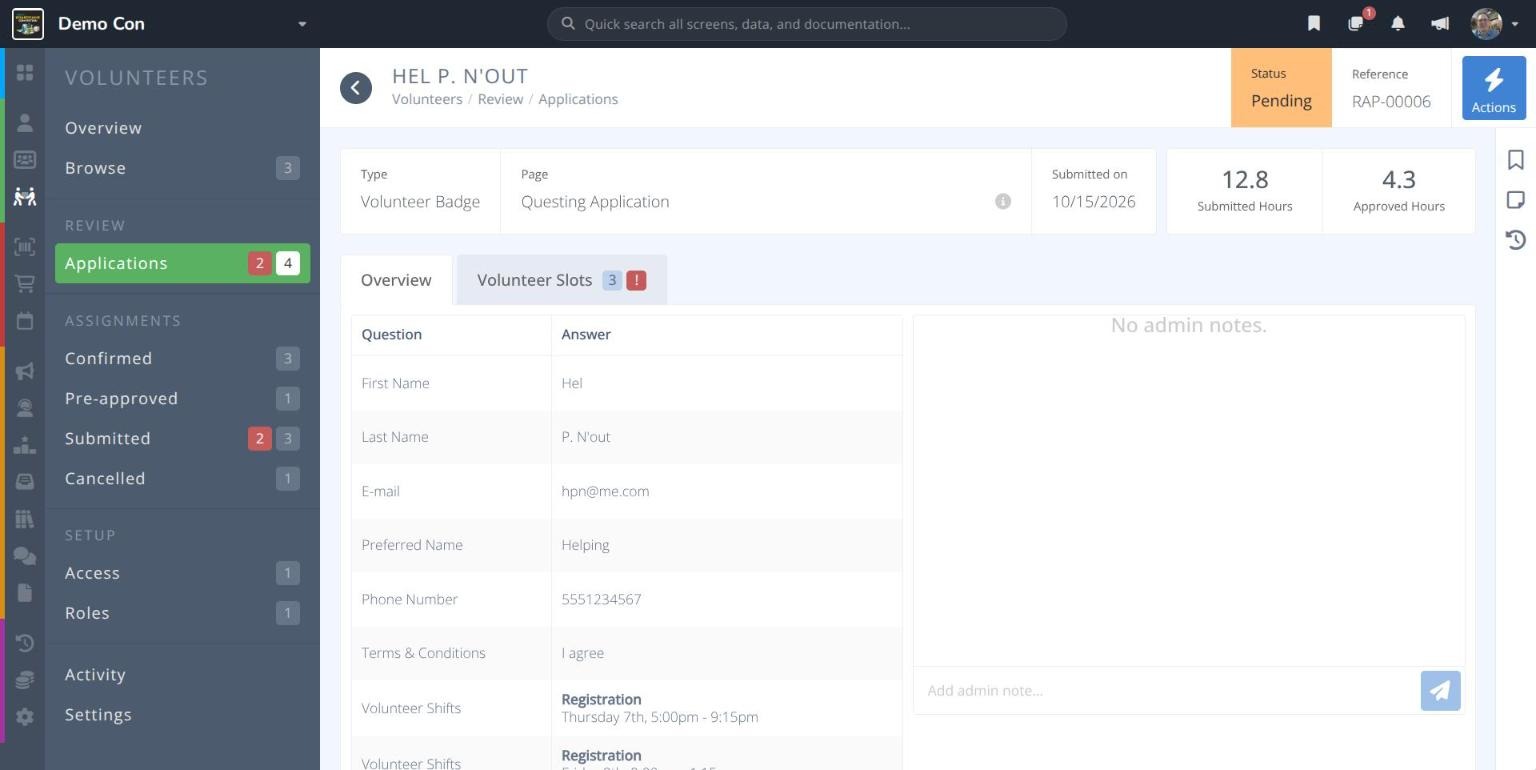
- Overview - The applicant's answers, including the slots they chose, with admin notes for other organizers.
- Volunteer Slots - Each slot they asked for, with its role, time, hours and status. A red ! means some slots still need a decision.
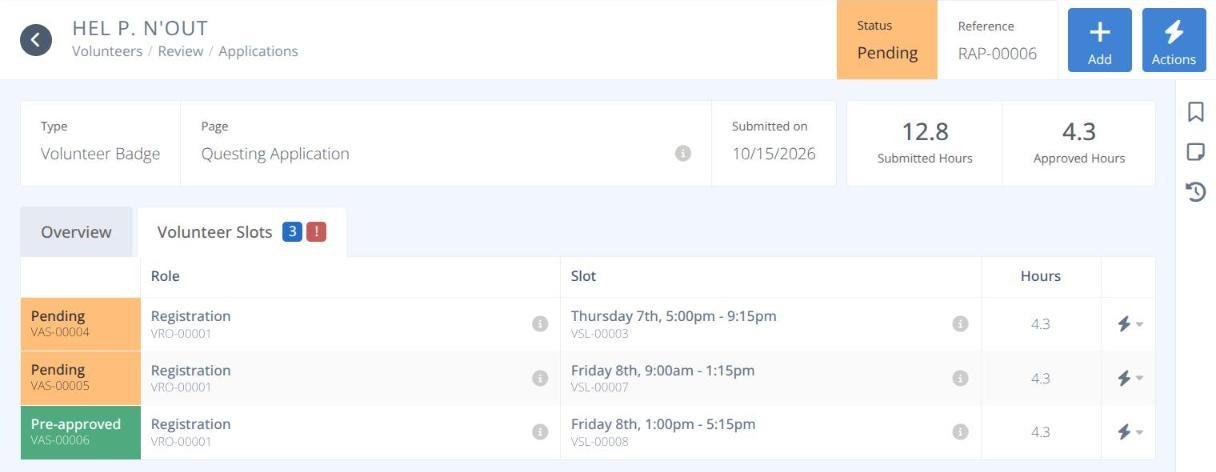
Click to Add volunteer slot, Approve application, Convert to badge, Set as under review or Reject application. Click to add a slot.
¶ Procedures
¶ Review an Application
- From the menu click , then click the application.
- Read the applicant's answers on the Overview tab. Add an admin note if others need to know something.
- Click the Volunteer Slots tab and decide on each slot. See
Approve or Reject an Applicant's Slots. - Approve the application, or convert it to a badge. See
Approve an Application.
Tip: Decide on the slots before you approve the application. When you approve it, any slots still Pending are pre-approved too.
¶ Approve or Reject an Applicant's Slots
-
Open the application and click the Volunteer Slots tab.
-
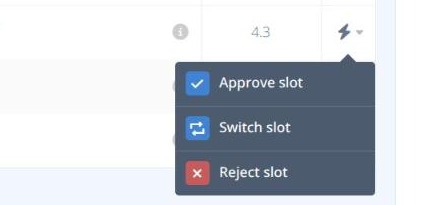
Click on a slot:
- Approve slot - The slot is Pre-approved. It becomes Confirmed once the applicant registers their badge.
- Switch slot - Move the applicant to another slot.
- Reject slot - Turn down that slot.
-
Click .
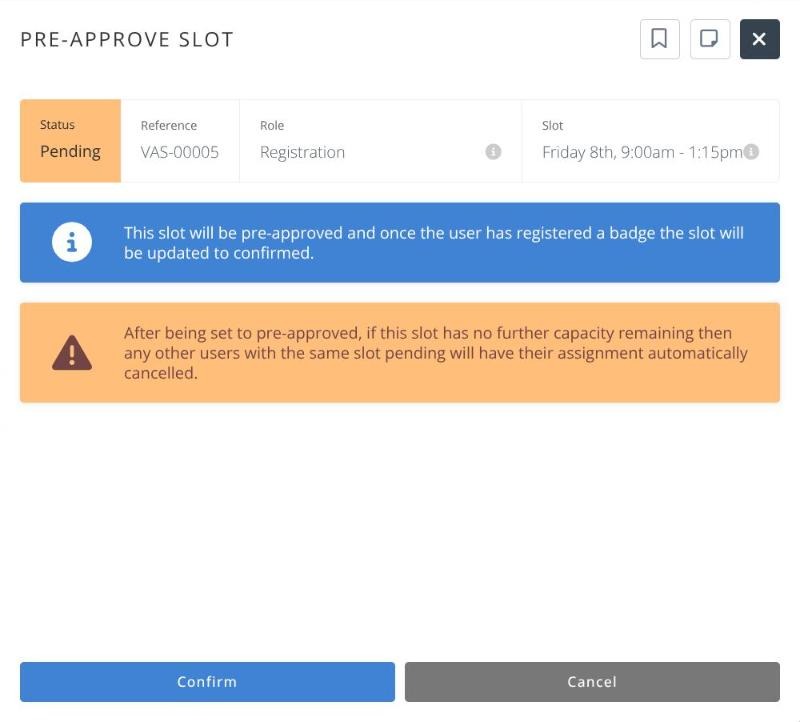
Warning: If pre-approving fills the slot, everyone else still pending for that slot has their assignment cancelled automatically.
¶ Next Steps
Volunteers: Assignments- Follow every assignment across all volunteers.Forms Applications- Approve, reject and convert every kind of application.