¶ Volunteers: Roles
¶ Overview
A role is a volunteer job, such as Registration or Library Desk. Each role has:
- Slots - The shifts people sign up for, each with a day, time and capacity. A Rollcall role has no slots, just one list of volunteers.
- Eligibility - Who can volunteer for it, and whether you approve them first.
From the menu click in the SETUP group.
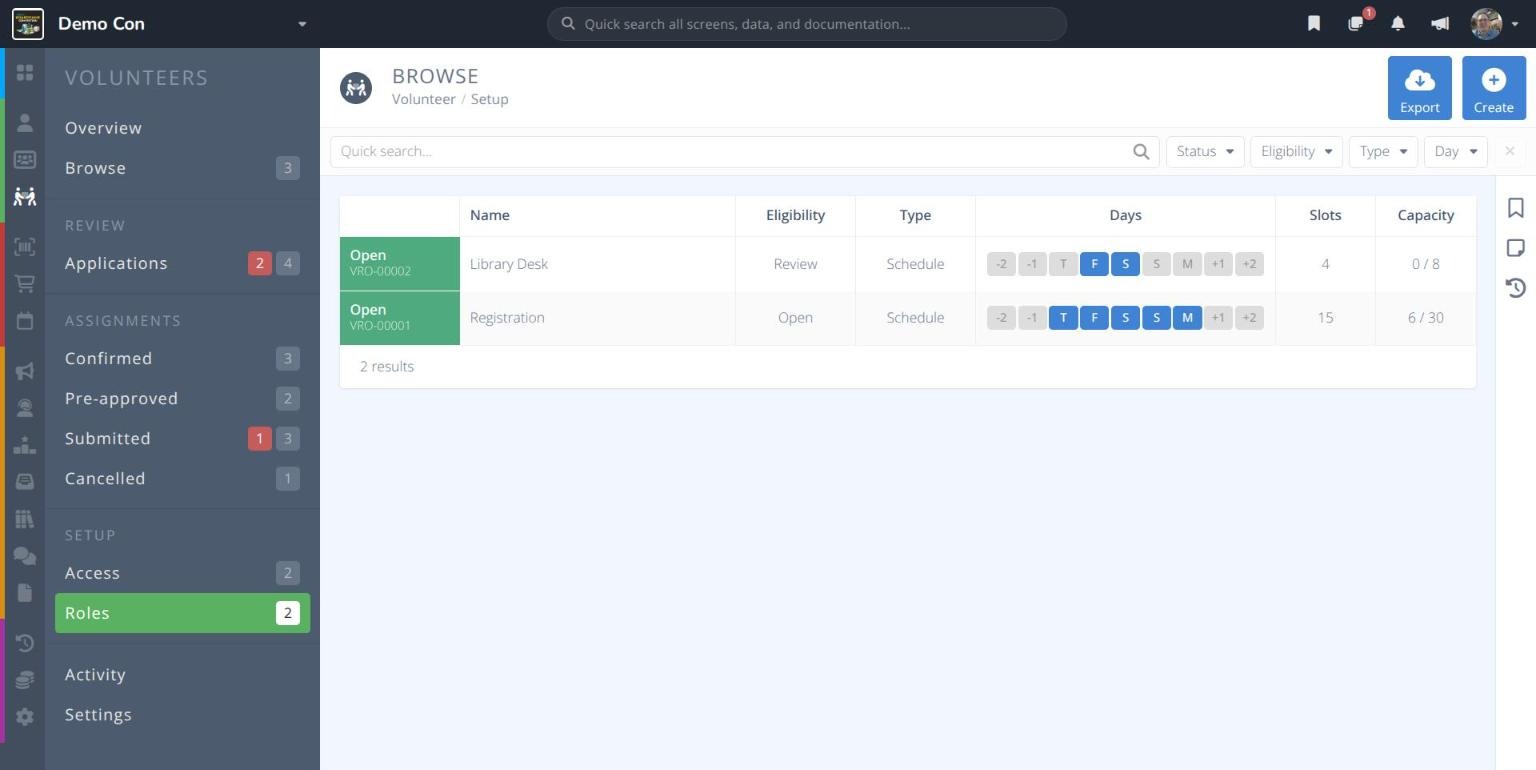
Each row in the list is one role. It shows its status and reference (e.g. VRO-00001), Name, Eligibility, Type, the Days it has slots, how many Slots it has, and its Capacity (filled out of total). To find roles, use the Quick search... box, Status, Eligibility, Type and Day. Click to download the list as a CSV file.
¶ Common Procedures
Create a RoleGenerate Slots With the WizardAdd a SlotChange, Close or Remove a SlotAdd a Volunteer to a SlotCancel a Role
¶ Fields
Name- The role's name, shown to attendees.Description(optional) - What the volunteer will do, shown to attendees.Image(optional) - A picture for the role.Status- Whether people can sign up:- Open - Open to new volunteers, following the eligibility rule.
- Closed - Closed to new volunteers. Organizers can still assign people.
Eligibility- Who can volunteer:- Open - Any attendee can volunteer, with no approval.
- Review - Any attendee can volunteer, and an organizer approves each assignment.
- Access only - Only attendees given access to this role can volunteer. See
Access. - Admin assigned - No one can volunteer directly. An organizer assigns them.
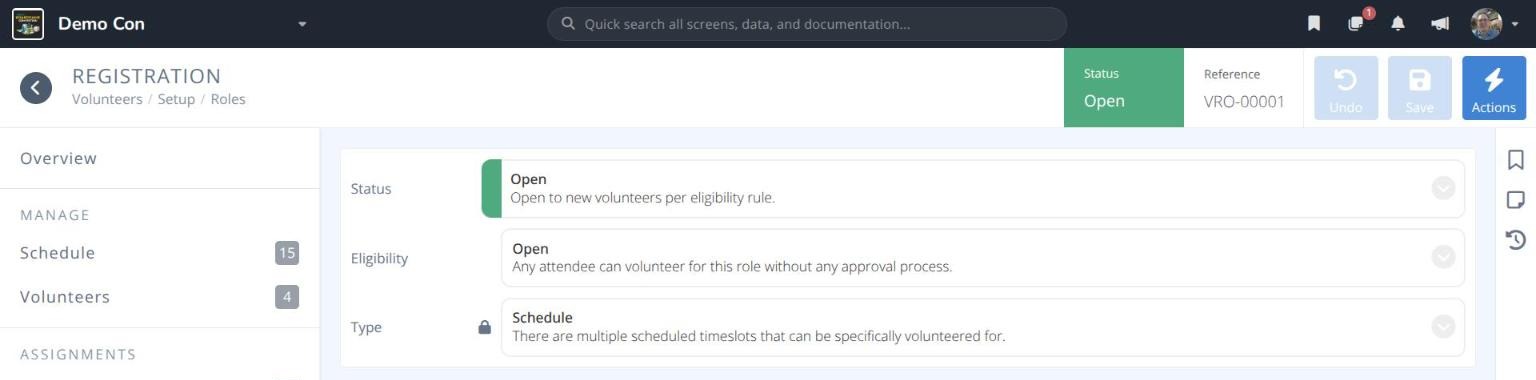
Type- How the role is staffed. It can't be changed after the role is created .- Schedule - The role has slots at set times that people sign up for.
- Rollcall - The role has one list of volunteers, with no times, e.g. on-call game teachers.
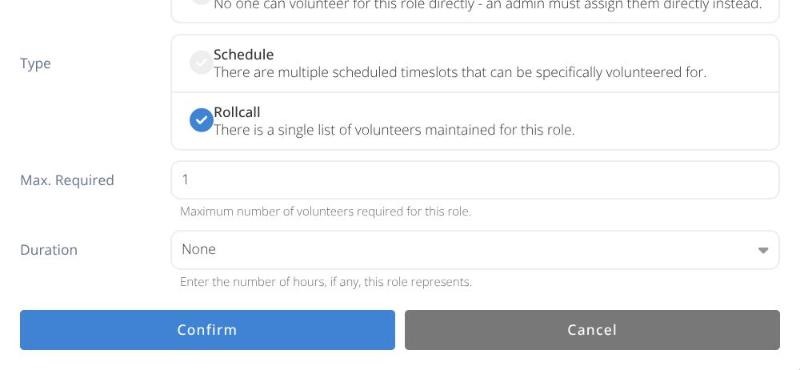
Max. Required- The most volunteers the role needs.Duration(optional) - The hours the role counts for.
¶ Role
Click a role to open it. The role has its own menu on the left:
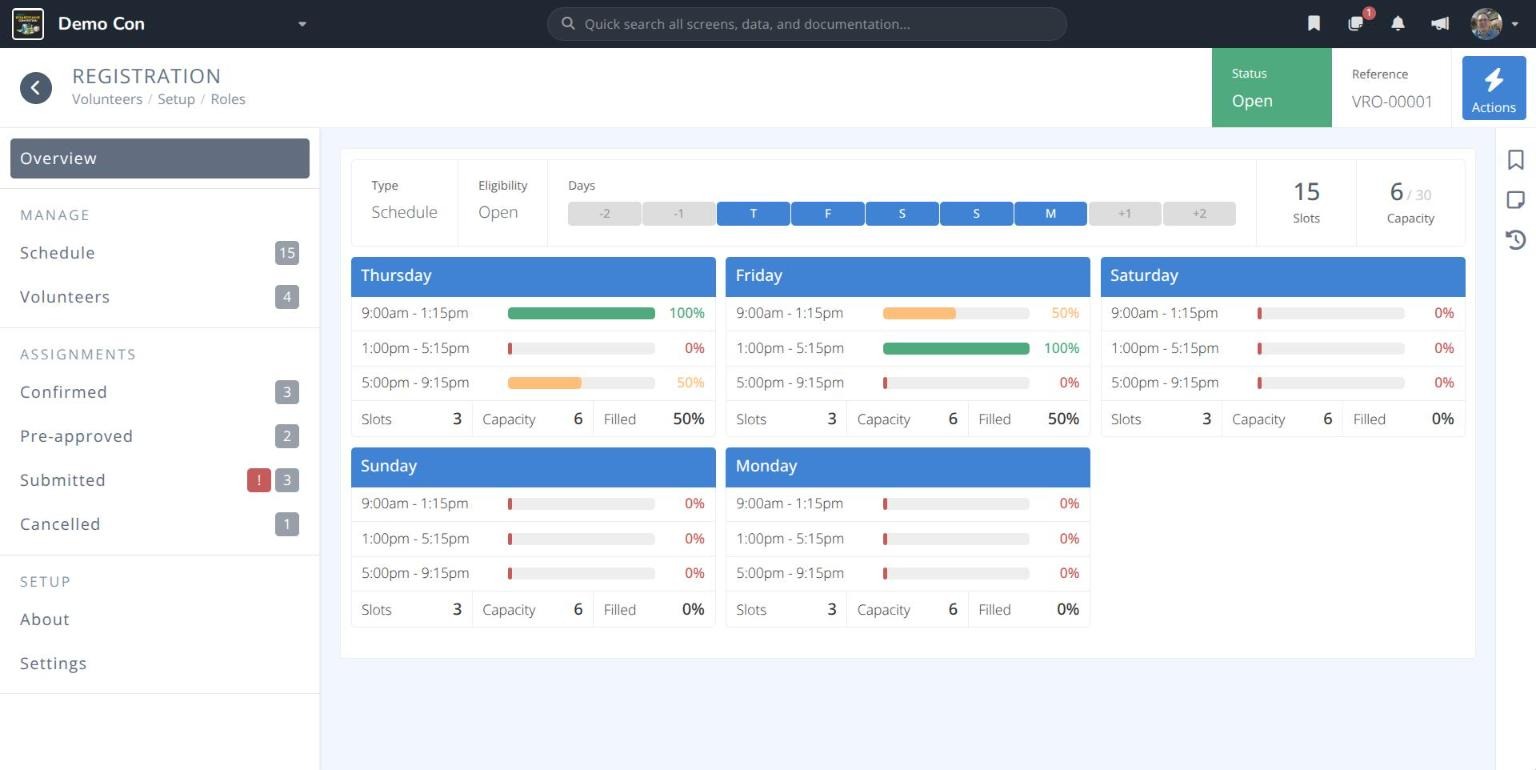
- Overview - The role's type, eligibility, days, slots and capacity, with a card for each day showing how full each slot is.
- MANAGE
- Schedule - The role's slots. See
Slots. - Volunteers - Everyone volunteering for the role, with their hours.
- Schedule - The role's slots. See
- ASSIGNMENTS - The role's Confirmed, Pre-approved, Submitted and Cancelled assignments. They work the same way as the main lists. See
Volunteers: Assignments. - SETUP
- About - The role's
Name,DescriptionandImage. - Settings - The role's
Status,EligibilityandType.
- About - The role's
Click to Add volunteer, Add schedule slot, Generate schedule slots or Cancel role.
¶ Slots
On a role, click Schedule to see its slots.
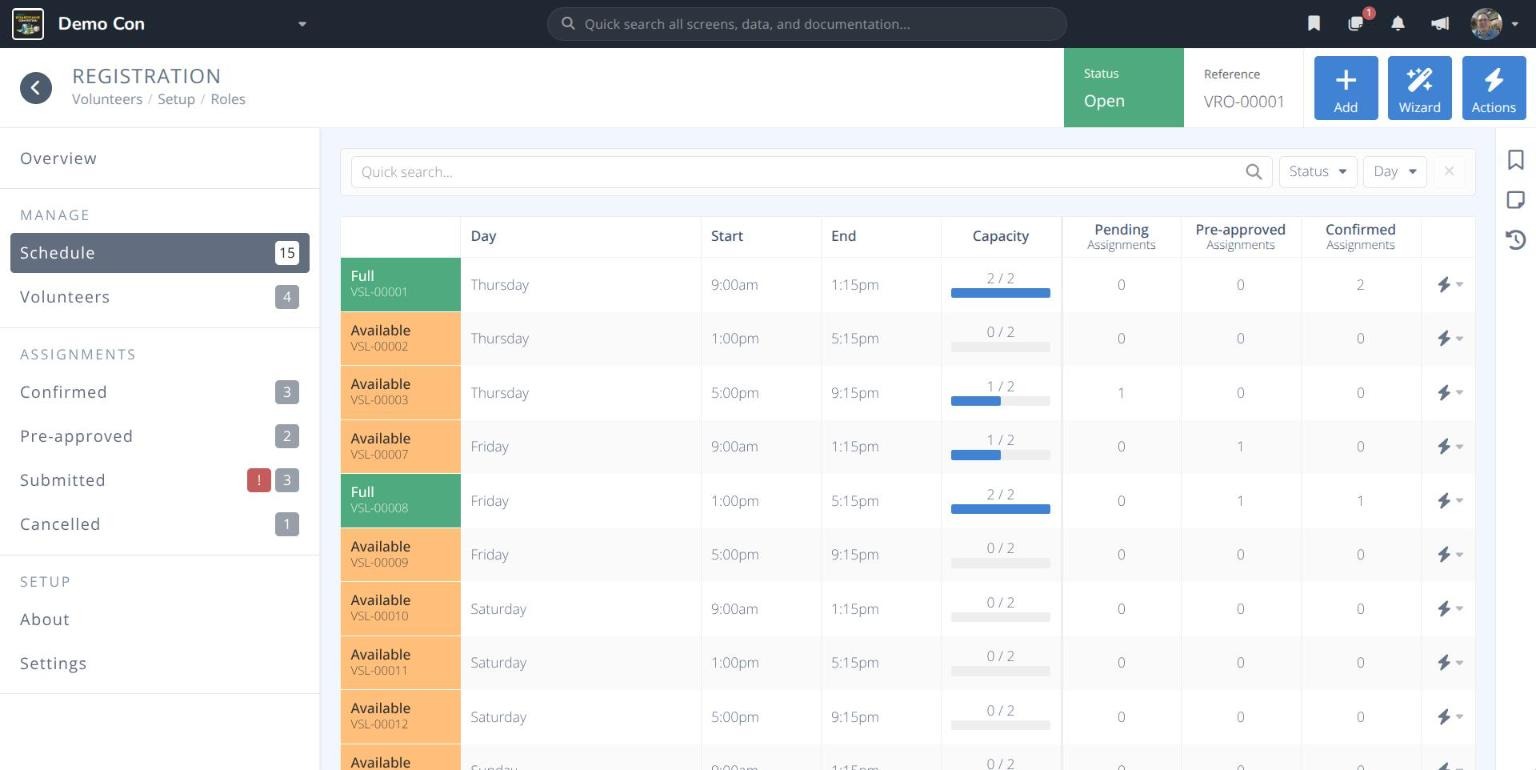
Each row is one slot. It shows its status and reference (e.g. VSL-00001), Day, Start and End, Capacity (filled out of total), and how many Pending, Pre-approved and Confirmed assignments it has:
- Available - The slot has space.
- Full - Every place is taken.
- Closed - Closed to new volunteers, even if it has space.
Click on a slot to Add volunteer, Manage assignments, Edit slot, Close slot (or Open slot) or Remove slot.
¶ Procedures
¶ Create a Role
- From the menu click , then click .
- Enter the
NameandDescription, and add anImageif you like. - Choose the
Status,EligibilityandType. SeeFields. For Rollcall, enter theMax. RequiredandDuration. - Click .
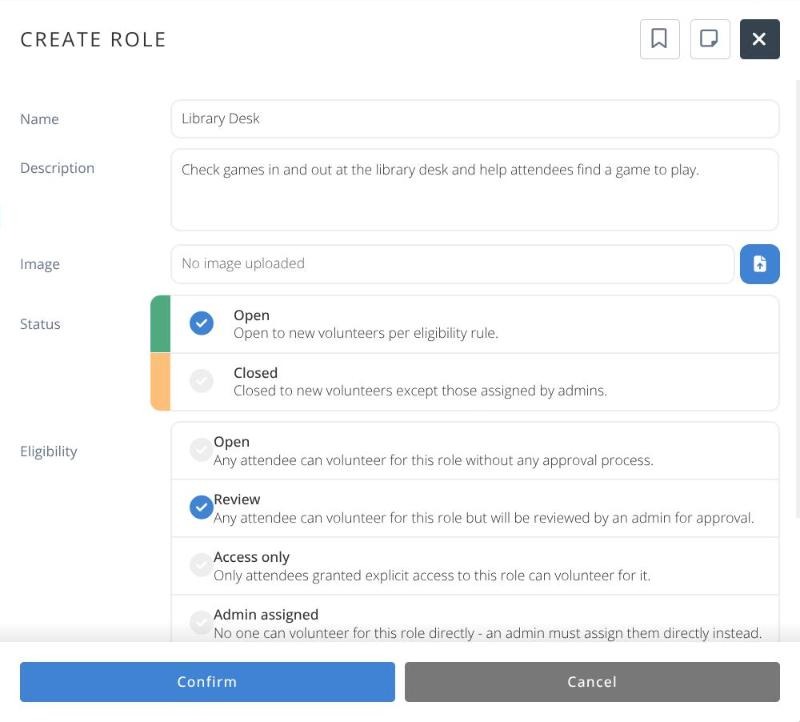
For a Schedule role, add its slots next. See Generate Slots With the Wizard.
¶ Generate Slots With the Wizard
The wizard creates many slots at once, e.g. two shifts a day for each day of your convention.
- Open the role and click Schedule, then click .
- Tick the
Applicable Days. You can include up to two days before and after your convention, e.g. for set-up and tear-down. - Enter the number of
Slots per Day. - Choose the
Start Timeof the first slot, and theSlot Duration. - Choose a
Slot Overlapif you want shifts to overlap for a handover. Otherwise each slot starts when the last one ends. - Enter the
Volunteers per Slot. - Click .
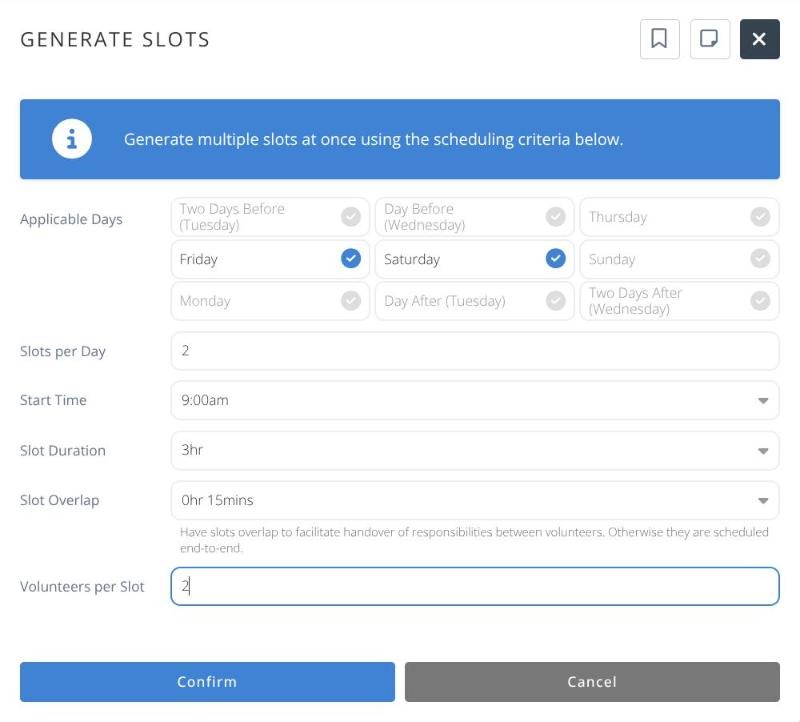
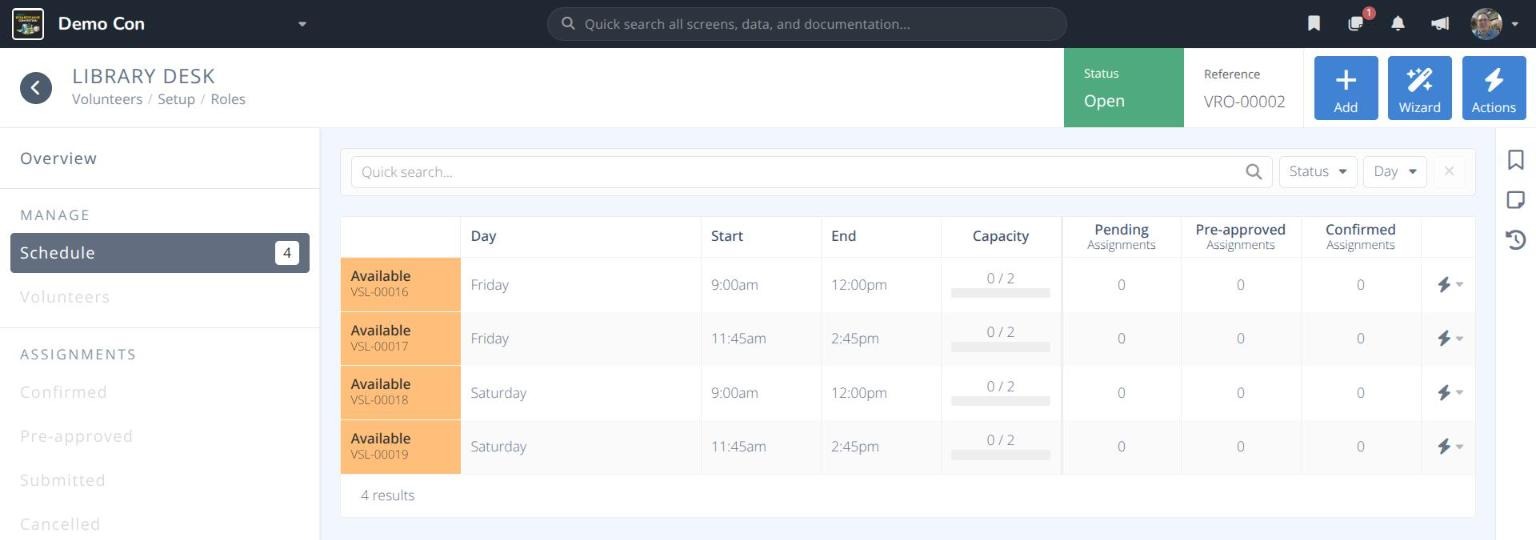
For example, Friday and Saturday, 2 slots a day starting at 9:00am, 3 hours long with a 15 minute overlap, creates a 9:00am-12:00pm and an 11:45am-2:45pm slot on each day:
¶ Add a Slot
- Open the role and click Schedule, then click .
- Choose the day, time and duration, and enter the capacity. You can give the slot a custom name.
- Click .
¶ Change, Close or Remove a Slot
- Open the role and click Schedule.
- Click on the slot and choose:
- Edit slot - Change its name, day, time, duration or capacity.
- Close slot - Stop new volunteers signing up, even if there is space. Use Open slot to reopen it.
- Remove slot - Delete the slot.
- Click .
Warning: Removing a slot cancels the assignments of everyone in it. If you lower a slot's capacity below the number of volunteers in it, no one is removed, so check the slot afterwards.
¶ Add a Volunteer to a Slot
- Open the role and click Schedule.
- Click on an Available slot and choose Add volunteer.
- Search for the attendee and choose them.
- Click .
The assignment is confirmed straight away. If it fills the slot, anyone still pending for the slot has their assignment cancelled and is told.
¶ Cancel a Role
- Open the role and click , then Cancel role.
- Click .
A cancelled role can no longer be assigned to.
Warning: Check the role's assignments before cancelling it, and let its volunteers know.
¶ Next Steps
Volunteers: Settings- Open volunteering to attendees.Access- Let certain attendees volunteer for Access only roles.Volunteers: Assignments- Approve the assignments people ask for.