¶ Volunteers: Submitted
¶ Overview
The Submitted screen lists the assignments people have asked for, from applications or from roles with Review eligibility, and your decisions on them. Confirmed and cancelled assignments are not shown. The red number shows how many are still Pending.
From the menu click in the ASSIGNMENTS group.
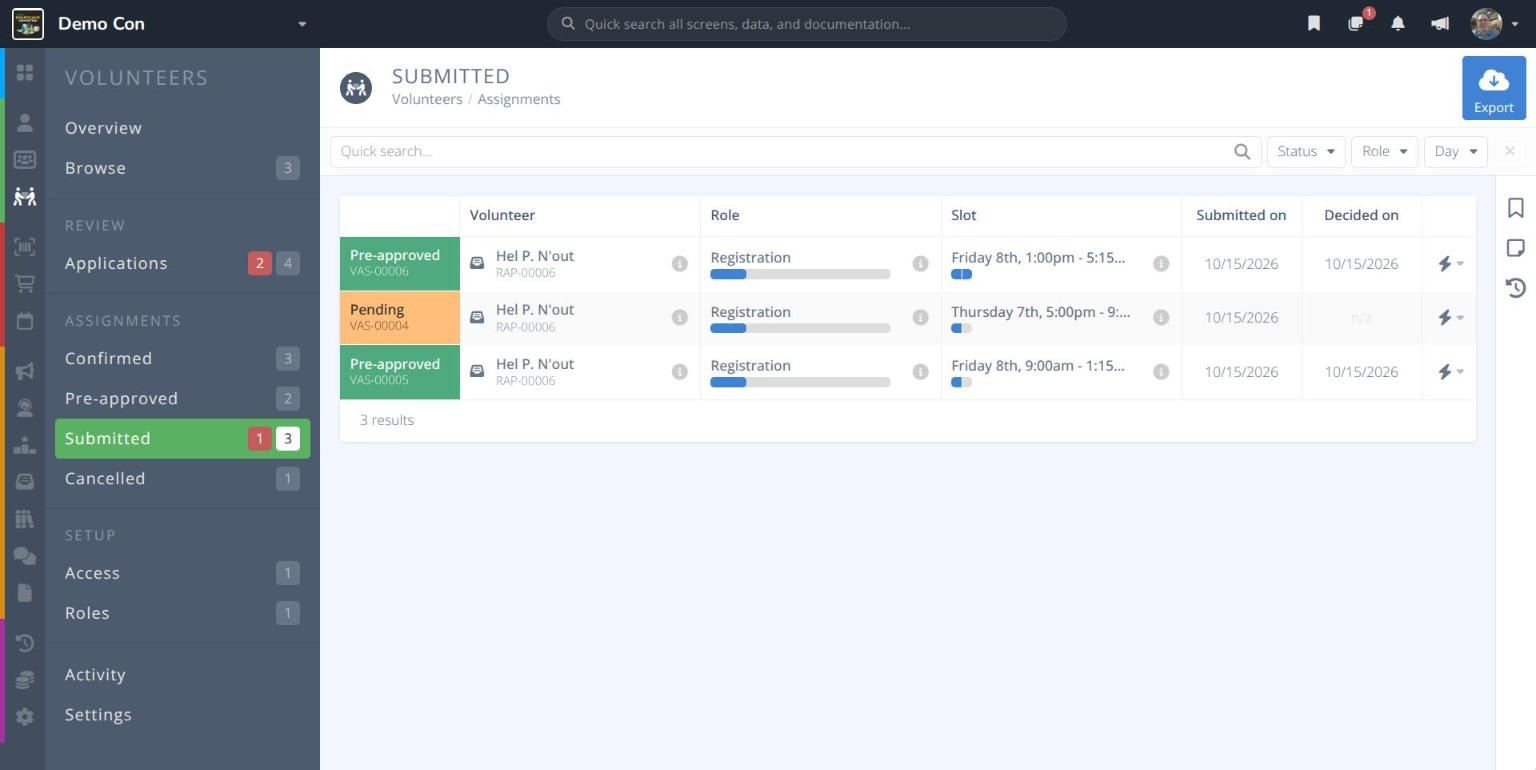
Each row is one assignment. It shows its status and reference, the Volunteer (or applicant), the Role and Slot, when it was Submitted on, and when you Decided on it. To find assignments, use the Quick search... box, Status, Role and Day. Click to download the list as a CSV file.
¶ Common Procedures
¶ Procedures
¶ Approve an Assignment
- From the menu click .
- To see only the ones waiting for you, choose Pending in Status.
- Click on the assignment and choose Approve assignment.
- Click .
A volunteer with a badge is Confirmed. An applicant without a badge is Pre-approved until they register.
Warning: If this fills the slot, everyone else still pending for that slot has their assignment cancelled and is told.
¶ Switch an Assignment
Use this to offer a volunteer a different slot, e.g. when the one they asked for is full.
- Click on a Pending assignment and choose Switch assignment.
- Choose the new slot.
- Click .
¶ Reject an Assignment
- Click on a Pending assignment and choose Reject assignment.
- Click .
¶ Retract a Decision
Use this to undo an approval or rejection made by mistake.
- Click on a Pre-approved or Rejected assignment and choose Retract decision.
- Click .
The assignment goes back to Pending.
¶ Next Steps
Volunteers: Applications- Decide on an applicant's slots together.Volunteers: Settings- Choose whether pending assignments hold a place in the slot.