
¶ Manage.CardboardConnect.com
Official Documentation for Manage.CardboardConnect.com used to Manage organizations, conventions, and more.
For more details on the product please visit info.cardboardconnect.com for how we might help your convention/store
If you are an attendee at a convention and are looking for App Documentation refer to the Attendee App Help Guides
Note: This site is being actively updated and added to. If documentation is not up to date and you need additional support please reach out to us directly.
The site has recently relaunched and rebranded as Cardboard Connect (previously Cardboard Events) much of the documentation has not been updated to reflect this change yet.
¶ Getting Started
Select from the tabs below depending on if you already manage an Organization on the platform or if you are working with a New Organization.
- Please complete the Sign Up first.
- You will need a Cardboard Connect Account before you can complete the onboarding request. If you previously had a Cardboard Events account it will not have changed and can be used on the rebranded site.
- We will need to create your organization and property before you can get started.
- You will receive email(s) from support@cardboardconnect.com with details when your organization is created and ready to manage.
- You have received your login account and are part of an organization:
- Skip to First Steps or use the Menu on the left to navigate as needed.
¶ Logging In
Note: Your login is the same for cardboardconnect.com and manage.cardboardconnect.com.
You will need to review and accept the terms of use on first login.
If you've forgotten your password you can reset it here.
¶ Manage Home Page
Due to the amount of data and complexities of managing a convention it is strongly recommended to use a desktop view of the manage website.
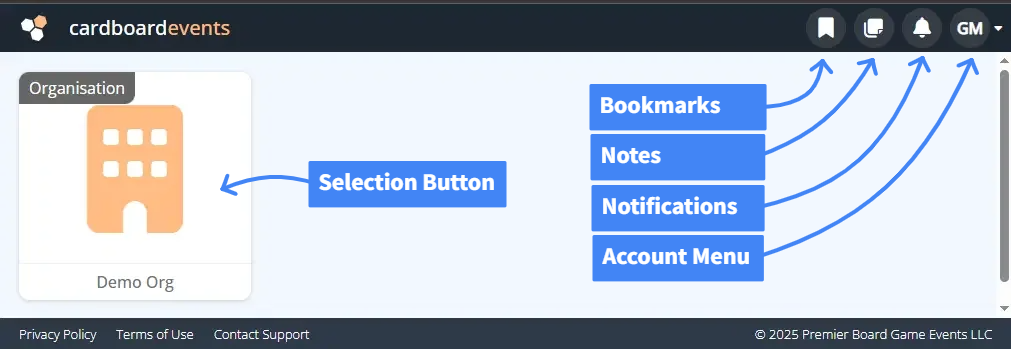
The Manage site is broken down into Organizations which have one or more Properties which have one or more Entities like Conventions or Stores. All screens will have a similar basic layout and behavior.
The main navigation bar has several useful tools on it that will be accessible throughout the manage system. Click on the tab below for a quick overview of each tool.
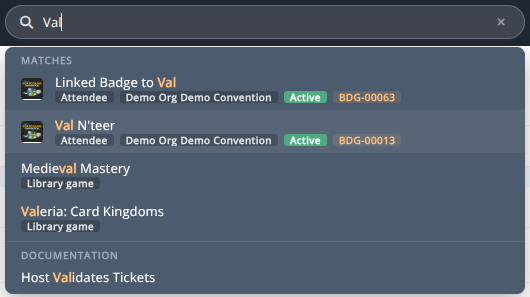
The quick search bar will search through data records and documentation to provide a quick way to navigate to the correct information in the system.
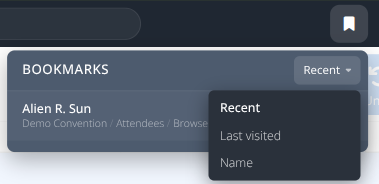
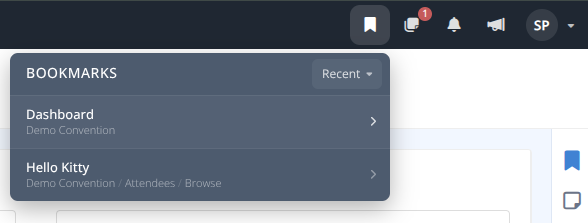
Bookmarks can be used to quickly jump to a saved page. These are useful when you want to quickly jump back to a record/area.
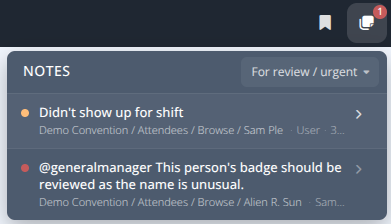
Admin notes show you any notes left for yourself or other Admins. Similar to bookmarks clicking on these will take you to the record/area where the note was left.
Any system notifications sent to the logged in administrator will be shown here.
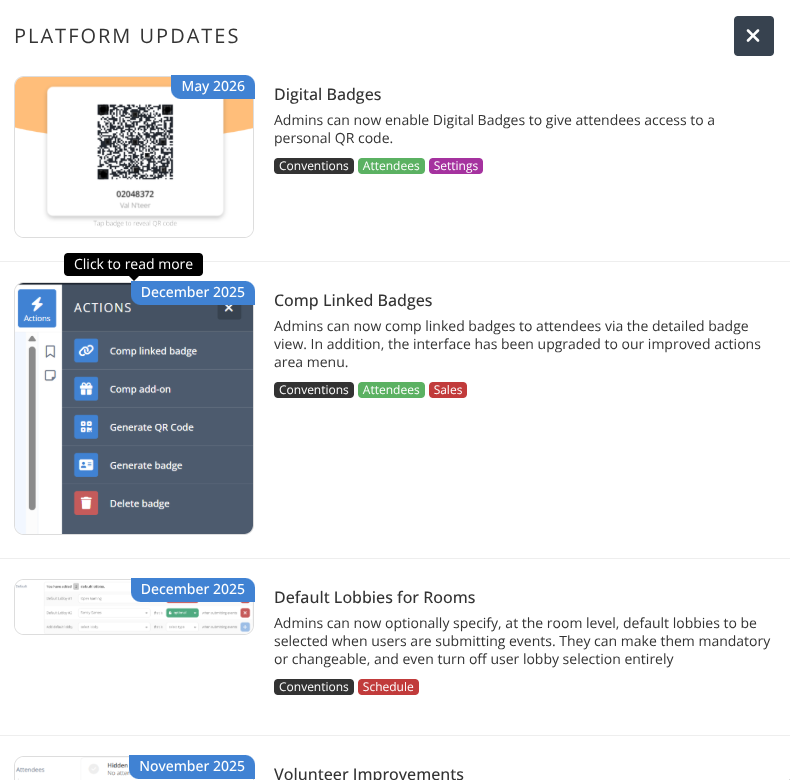
Brief summaries on new major platform updates will be shown here. The megaphone will be highlighted to show the number of unviewed updates. Clicking on the image will display the full summary of the update.
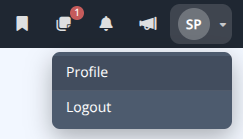
The account menu is where you can logout and modify your administrative profile details.
¶ Admin Side Panel Actions
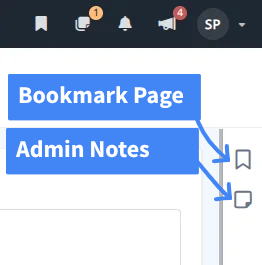
On the right hand side of the screen underneath the Account Menu you'll see two icons for making a bookmark or creating administrative notes in the system. These icons are available on most Manage pages.
¶ Bookmarks
Bookmarks allow you to save your current location to quickly navigate back to the exact location you're currently on. The Bookmark Page button will toggle between Add Bookmark and Remove Bookmark. Once added it will be available from the Manage Header Toolbar
¶ Admin Notes
Admin Notes allow you to add notes to your current location that can be for your own use or to coordinate with other administrators. The Admin Notes button will toggle to show a different icon when a note exists on the record you are currently viewing. Clicking on it will allow you to view all current notes against this screen and add/edit/close/delete them.
- A General Note will be displayed with a filled in version of the sticky note
- A Review Note
- An Urgent Note
¶ First Steps
Your start page will show any organizations that you belong to and any conventions that you are currently running. The system is open so that you can set it up in any way that suits you best, however we recommend setting up the following basic components.
- Review and adjust your Organization as needed
a) Review Your Properties and adjust details.
b) Configure your Team and Assign Permissions
c) Setup Billing and connect to Stripe so that you can get paid.
d) Import your Library or link to it - Create your Convention
You may clone (partial or complete) a previous convention or create a new one. - Setup the basics of your Convention
a) Setup Badge Types
b) Setup Sales Items for your badges.
c) Setup your Registration Page
For a more detailed step by step setup of a basic convention registration page check out the Quick Setup Guide