¶ Event Details: About
¶ Overview
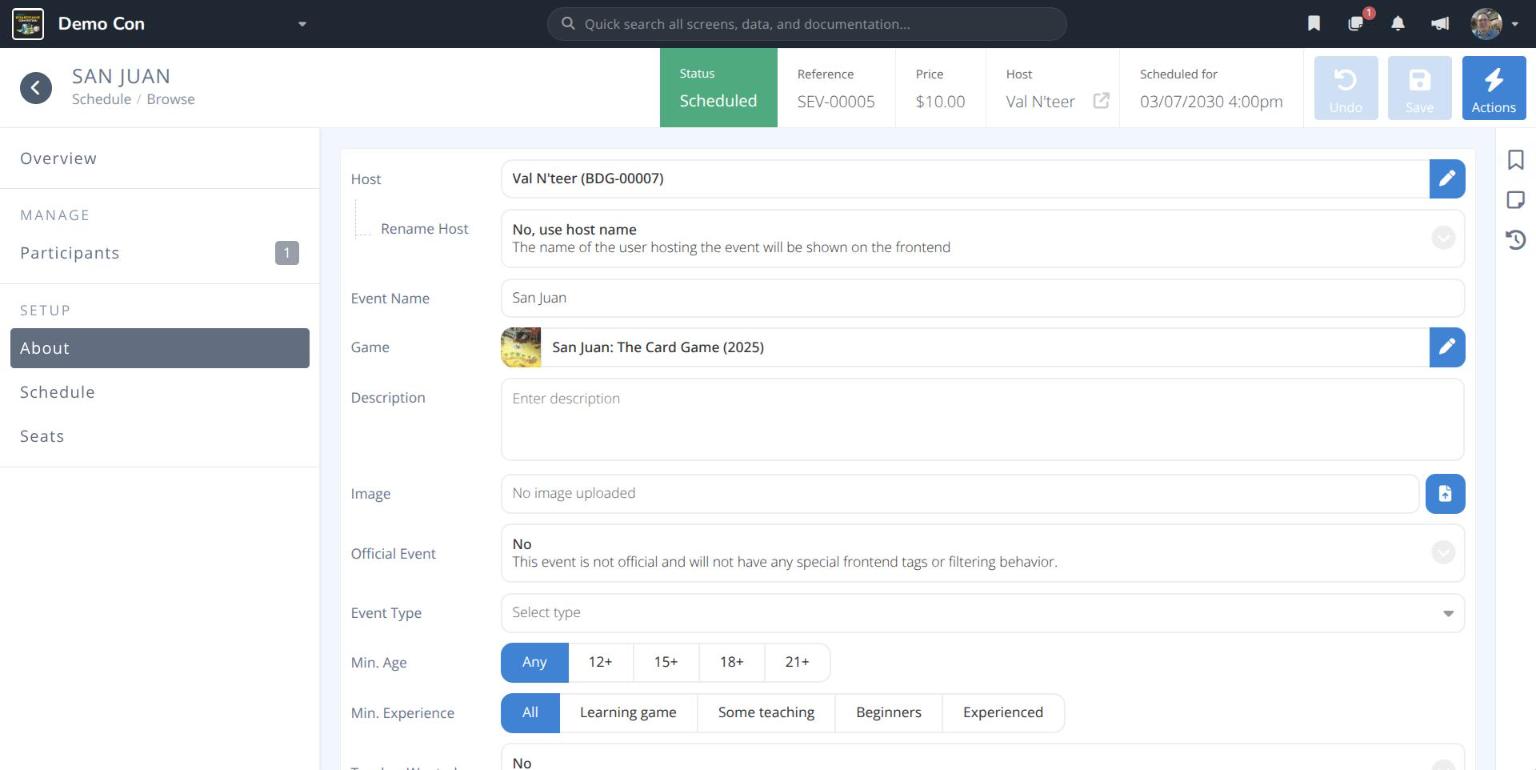
The About screen holds what attendees see about an event: who is hosting it, what it is, and how it is labelled on the schedule.
To open it, open the event (see Event Details) and click About under SETUP. After making changes, click , or to discard them.
¶ Common Procedures
¶ Fields
Host and event:
Host- The badge holder hosting the event. Click to change it.Rename Host- Whose name attendees see as the host:- No, use host name - The host's name is shown
- Yes, use custom name - A
Custom Nameyou enter is shown instead, such as a company or group
Group- Only shown when the event belongs to a group. The event stays in the group, so its host must be a member. Choose No group to take the event out of the group. Its host can then be anyone.Event Name- The event's name, as attendees see itGame- The game being played. Click to choose it. Choosing a game also supplies the event's image, unless you upload your own.Description- What the event is about, such as who it's for or what to bringImage- An image of your own for the event. Click to upload it. If you don't upload one, the game's image is used.Official Event- Yes labels the event as official on the attendee site. What counts as official is up to your convention.
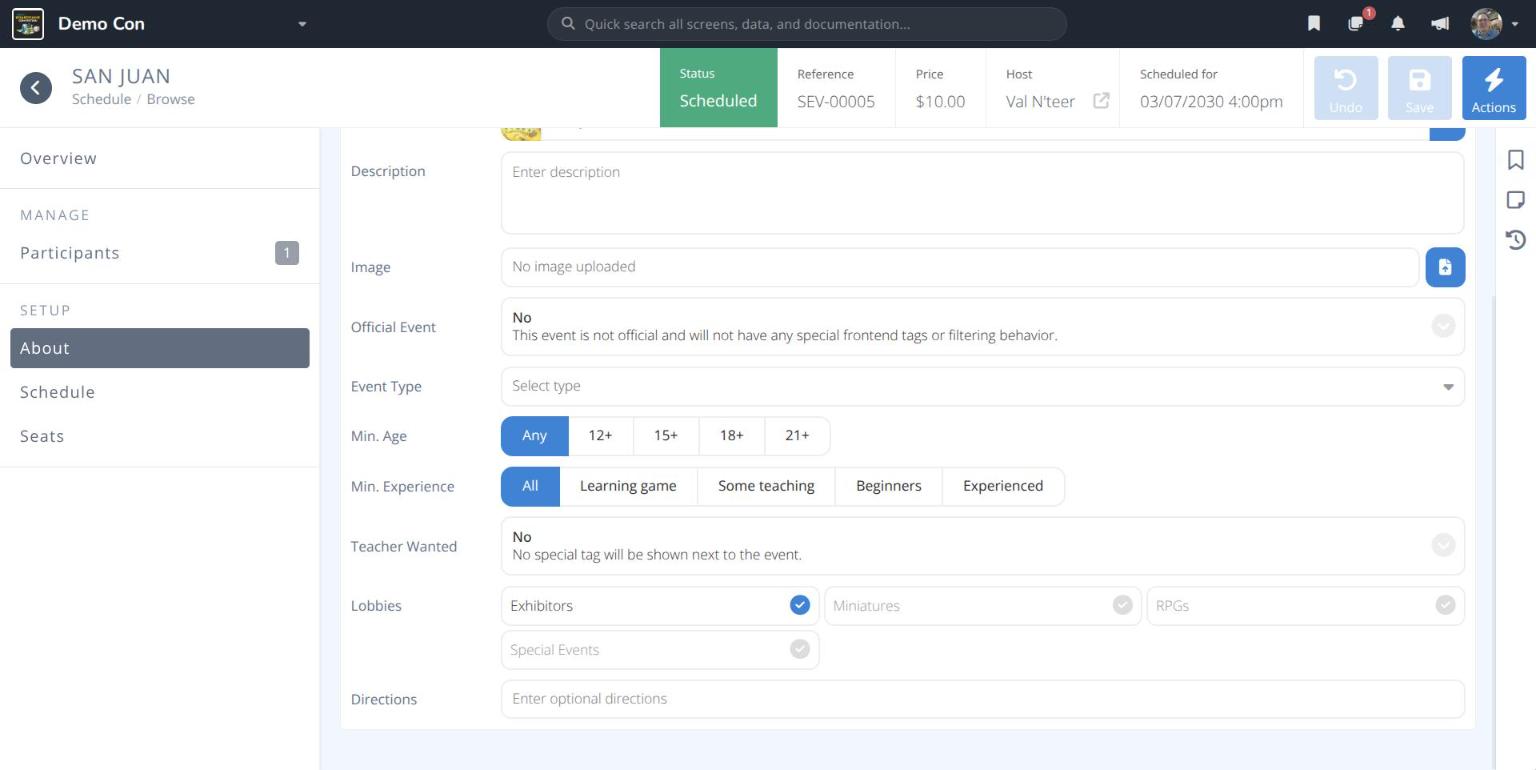
Labels:
Event Type- Theevent typeMin. Age- Any, 12+, 15+, 18+ or 21+Min. Experience- All, Learning game, Some teaching, Beginners or ExperiencedTeacher Wanted- Yes shows a tag next to the event saying a teacher is wantedLobbies- Thelobbiesthe event appears in. Click a lobby to tick or untick it.Directions- Extra directions to help attendees find the event. These are most useful in a room without spaces, such as open gaming.
Note:
Min. Age,Min. ExperienceandTeacher Wantedare labels for attendees. They aren't enforced, andTeacher Wanteddoesn't arrange a teacher.
¶ Procedures
¶ Change the Host
- Open the event and click About.
- Click next to
Host, then search for and select the new host's badge. - Click .
If the event belongs to a group, the new host must be a member of that group. Otherwise a red message appears under Group and nothing is saved:
- "The host must be a member of <Group Name>. Add them to the group first, or remove the event from the group."
To fix it, add the host to the group first, or take the event out of the group.
¶ Take an Event Out of a Group
Use this when an event should be hosted by someone who isn't in its group.
- Open the event and click About.
- Set
Groupto No group. Take the event out of the group. Its host can then be anyone. - Choose the new
Hostif needed. - Click .
The event no longer shows in the group's events, and the Group setting disappears from its About screen.
Caution: Removing an event from a group is permanent and cannot be undone.
¶ Show a Custom Host Name
Use this when the event is run by a company, store or group rather than the person who submitted it, e.g. Big Publisher Demo Team.
- Open the event and click About.
- Set
Rename Hostto Yes, use custom name. - Enter the
Custom Name. - Click .
Attendees now see the custom name as the host. The badge holder in Host is still the event's host in Manage.