¶ Attendees: Renames
¶ Overview
Every change to the name or subtitle on a badge is recorded as a rename, whether the attendee made it or an organizer did. Depending on your Renaming settings, attendees' renames happen straight away or wait for your approval.
From the menu click in the BADGES group. The red number shows how many renames are waiting for you.
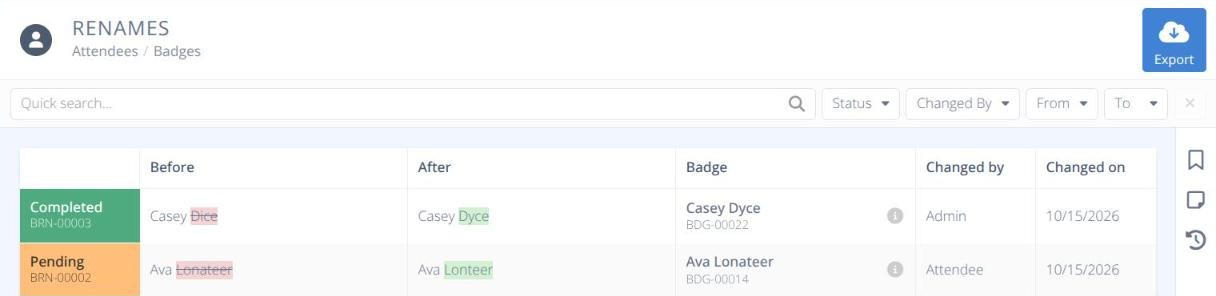
Each row is one rename:
- Status - Where the rename is up to:
- Pending - Waiting for an organizer to accept or reject it.
- Completed - Made by an organizer, accepted, or made by an attendee when no approval is needed.
- Rejected - Rejected by an organizer.
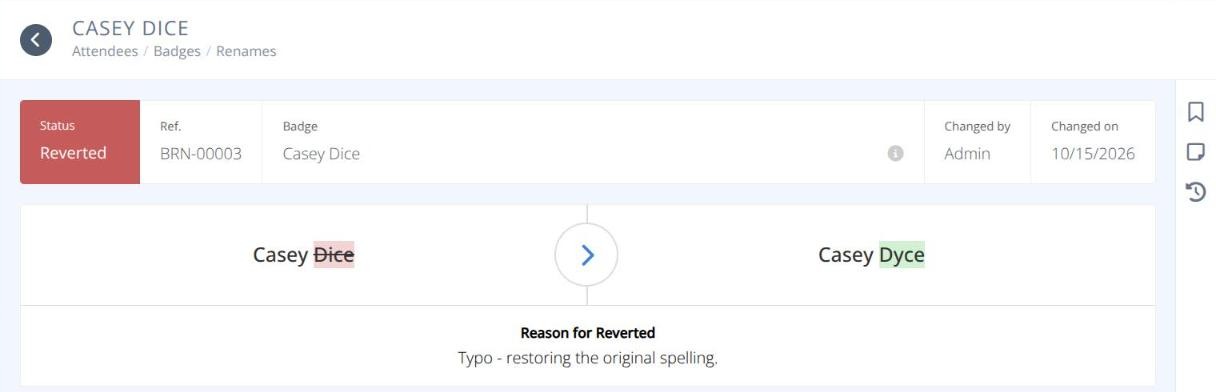
- Reverted - Changed back to the old name by an organizer.
- Before and After - The name before and after. The part that changed is crossed out in red and highlighted in green.
- Badge - The attendee's badge. Click to quick-view it.
- Changed by - Attendee or Admin.
- Changed on - When the rename was made.
To find renames, use the Quick search... box, Status, Changed By, and From and To. Click to download the list as a CSV file.
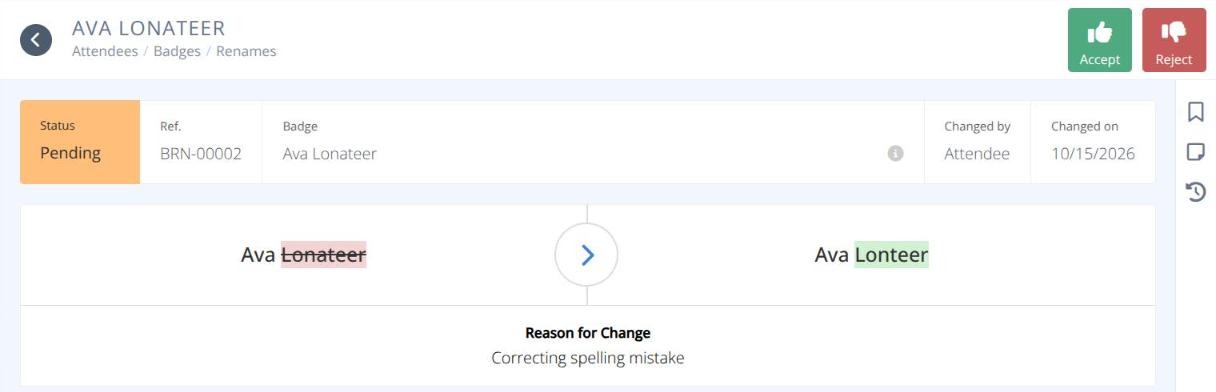
Click a rename to open it. It shows the change and the attendee's Reason for Change.
¶ Common Procedures
¶ Procedures
¶ Accept or Reject a Rename
-
From the menu click .
-
Click a Pending rename and read the change and the reason.
-
To accept it, click . You can correct the
First nameandLast namefirst, e.g. to fix capitals. Click .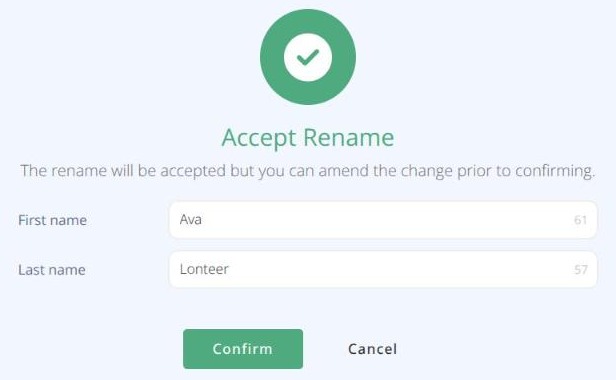
-
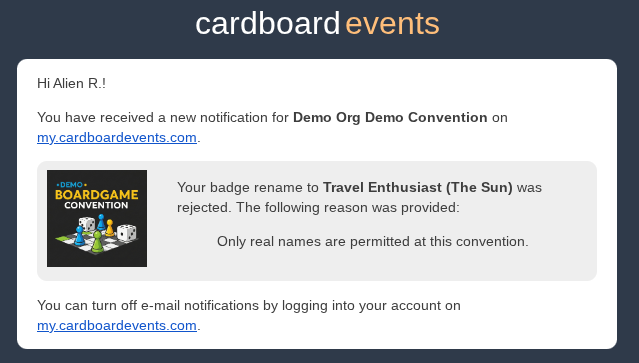
To reject it, click . Enter a reason if you want to tell the attendee why, then click .
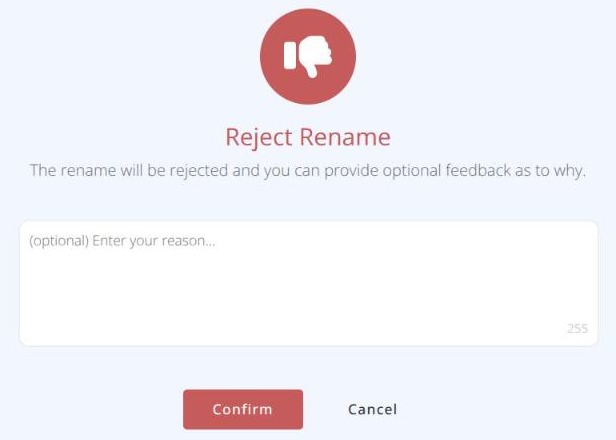
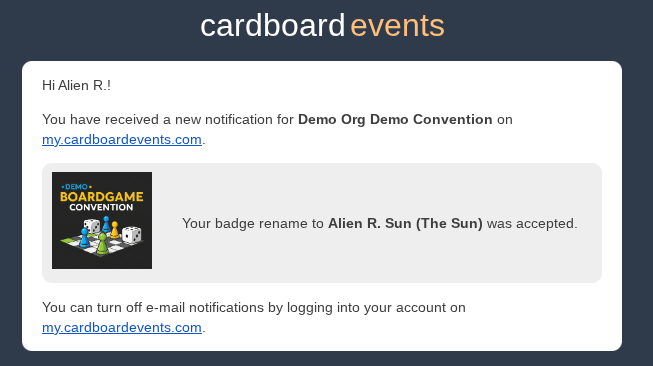
The attendee receives an e-mail and an app notification with your decision.
| Accepted | Rejected |
|---|---|
 |
 |
¶ Revert a Rename
Use this to put back the old name after a completed rename, for example one made by mistake.
- From the menu click , then click a Completed rename.
- Click .
- Enter a reason if you want one, then click .
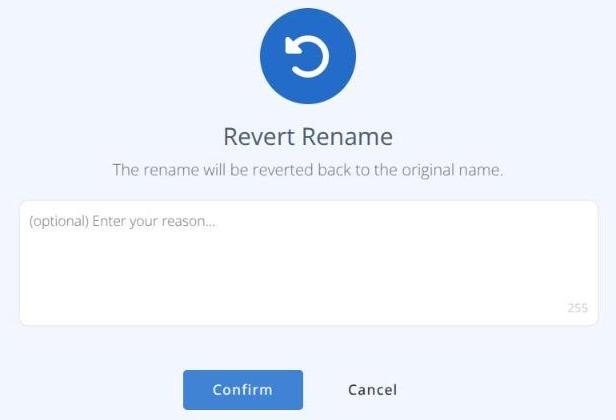
The badge goes back to the Before name, and the rename shows as Reverted with your reason.
Note: The attendee is not currently notified when a rename is reverted.
¶ What Attendees See
Attendees ask for a rename from their badge in the app, when your settings allow it:
¶ Next Steps
Attendees: Settings- Choose whether attendees can rename their badges, until when, and how often.Holds- Stop one attendee from renaming their badge.