¶ Badge Details
¶ Overview
Click a badge on the Attendees screen to open it. The badge screen brings together everything about that attendee at your convention.
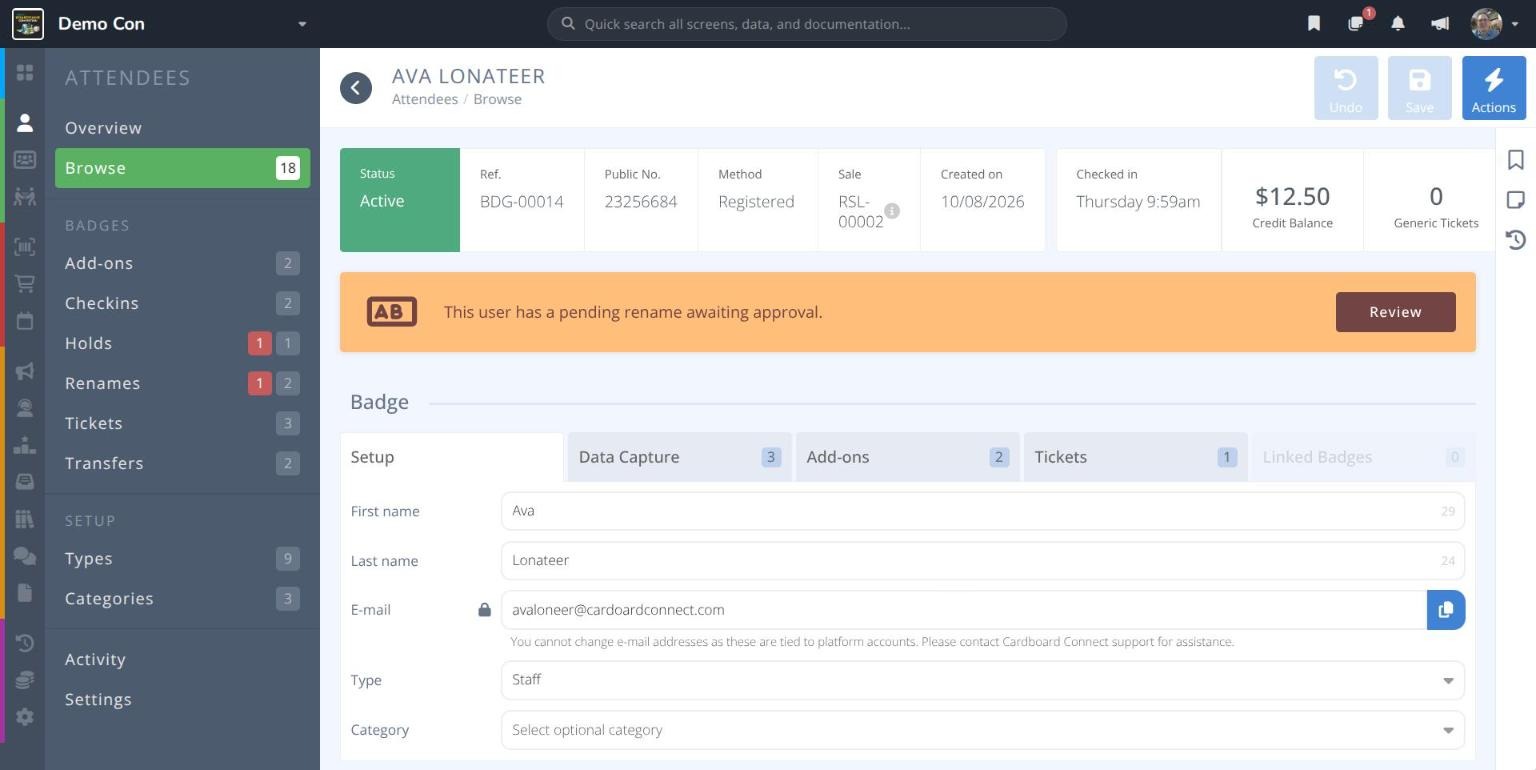
The top of the screen shows the badge's Status, Ref., Public No., Method, the Sale it came from, when it was Created on and Checked in, its Credit Balance and how many Generic Tickets it has. Click next to the sale to quick-view it.
A banner appears when something needs your attention, such as a rename waiting for approval, a hold on the badge, or a linked badge that has not been assigned yet. Click on the banner to open it.
¶ Common Procedures
Change a Badge's Name, Type or CategoryComp a Linked BadgeComp an Add-onShow a Badge's QR CodeGenerate a BadgeDelete a Badge
¶ Badge Tabs
- Setup - The attendee's name, subtitle, e-mail, badge type and category. See
Fields. - Data Capture - The attendee's answers to your registration form.
- Add-ons - Add-ons bought with the badge, and whether each was collected.
- Tickets - The badge's event tickets.
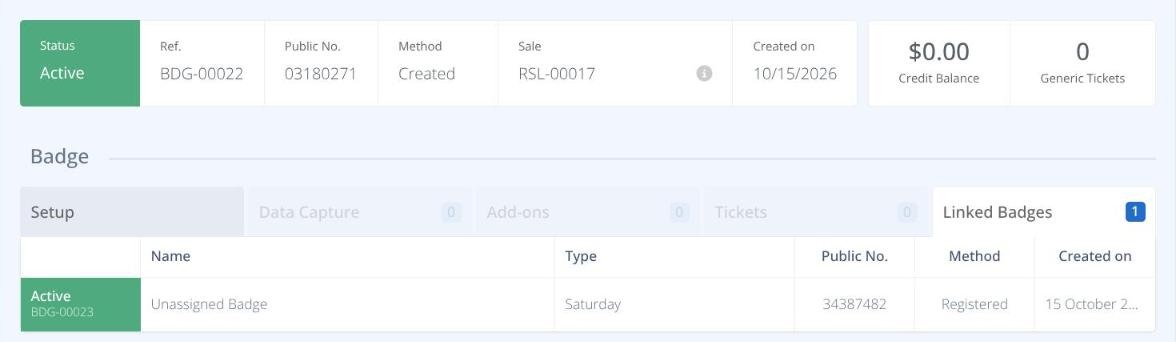
- Linked Badges - Badges this attendee manages for other people, such as family or staff.
The number on each tab shows how many records it has. Tabs with nothing in them are greyed out.
¶ Convention Tabs
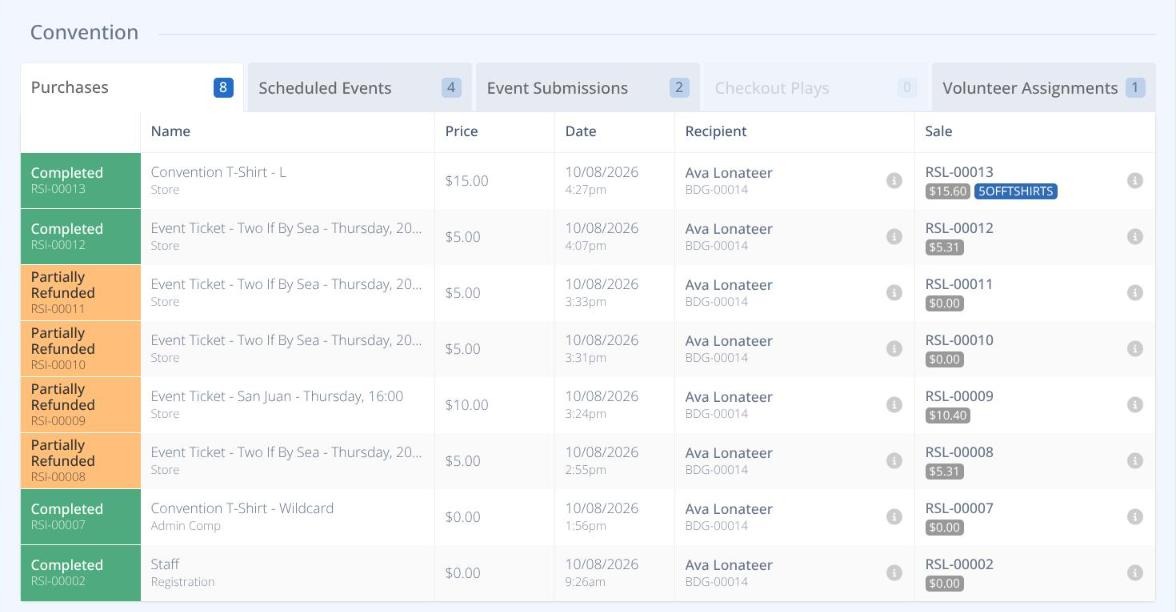
Lower down, the Convention tabs show what the attendee has done at your convention:
- Purchases - Every item bought for or by the badge, with its sale.
- Scheduled Events - Events the attendee is seated at.
- Event Submissions - Events the attendee has submitted.
- Checkout Plays - Library games the attendee borrowed or played.
- Volunteer Assignments - The attendee's volunteer shifts.
¶ Actions
Click at the top of the badge:
- Comp linked badge - Give the attendee another badge to manage.
- Comp add-on - Give the attendee add-ons for free.
- Generate QR Code - Show the badge's QR code.
- Generate badge - Show the printed badge.
- Delete badge - Delete the badge.
¶ Procedures
¶ Change a Badge's Name, Type or Category
- Open the badge. See
Find a Badge. - On the Setup tab, change the
First name,Last name, subtitle,TypeorCategory. - Click .
Note: A change to the name or subtitle is recorded on the
Renamesscreen, where it can be reverted. TheTransfer.
¶ Comp a Linked Badge
A linked badge is managed by this attendee, who can assign it to someone else from their account. Use it for an exhibitor's staff or a parent's children, so they don't each need to register.
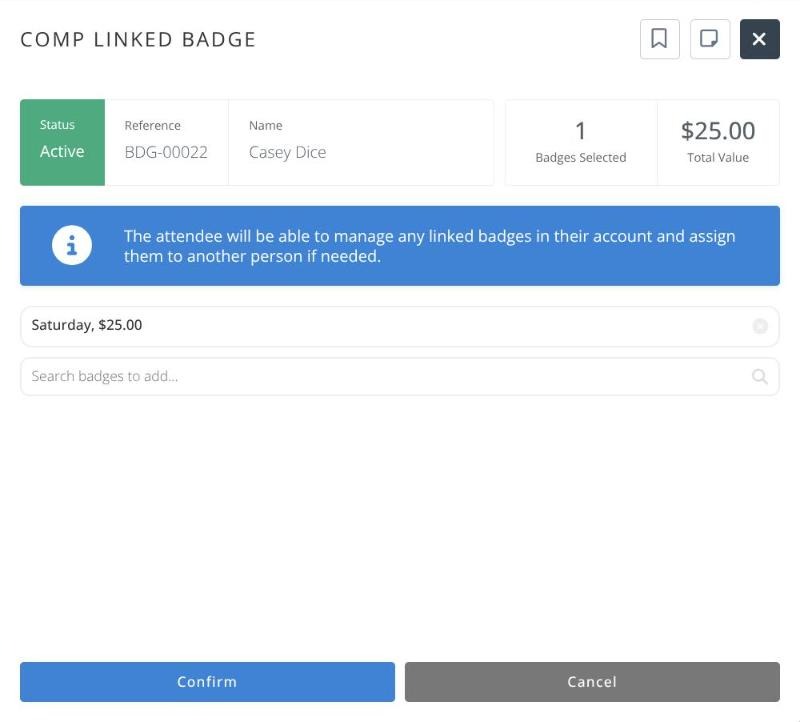
- Open the badge, then click > Comp linked badge.
- Search for a badge sales item in Search badges to add... and click it. Add as many as you need. Badges Selected and Total Value update as you go.
- Click .
Each new badge appears on the Linked Badges tab as Unassigned Badge, and a $0 Admin Comp sale is recorded.
¶ Comp an Add-on
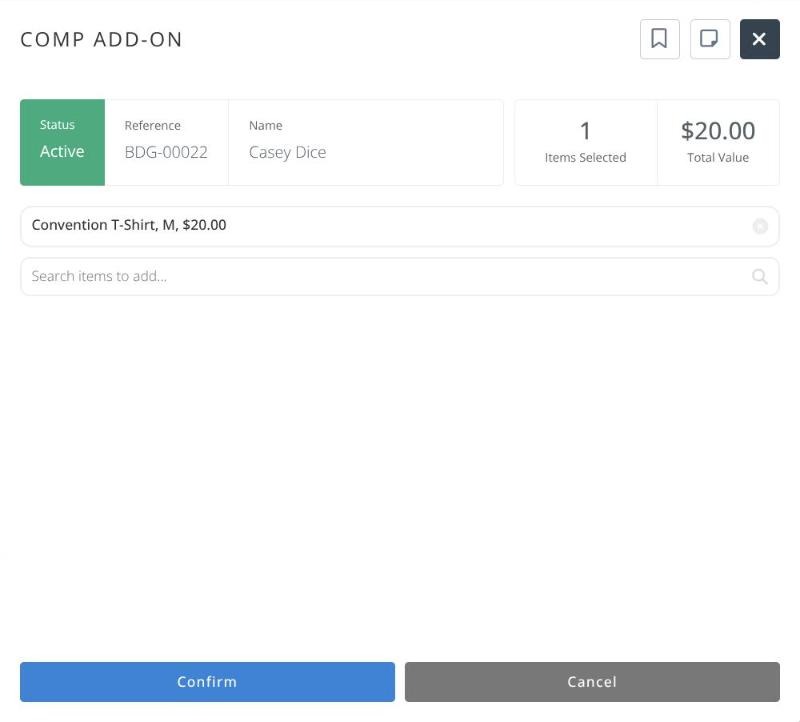
- Open the badge, then click > Comp add-on.
- Search for an add-on in Search items to add... and click it. Each variant, such as a T-shirt size, is listed separately.
- Click .
The add-on appears on the Add-ons tab, and a $0 Admin Comp sale is recorded.
Add-ons.
¶ Show a Badge's QR Code
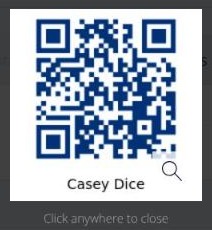
- Open the badge, then click > Generate QR Code.
- The QR code is shown with the attendee's name. Right-click it to save or print it, or click anywhere to close it.
¶ Generate a Badge
Use this to print one badge, for example at the registration desk.
- Open the badge, then click > Generate badge.
- The badge is shown as it will print. Right-click it to save or print it, or click anywhere to close it.
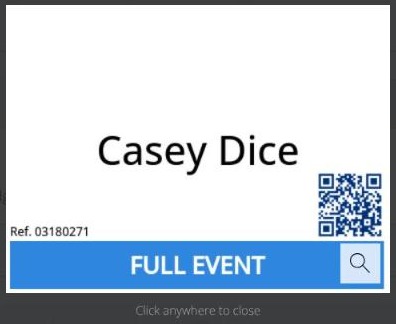
How the badge looks is set by its badge type. See Attendees: Types.
¶ Delete a Badge
Warning: Deleting a badge cannot be undone. Any events the attendee hosts are cancelled, and they are removed from every event they are seated at. To give the badge to someone else instead, use a
Transfer.
- Open the badge, then click > Delete badge.
- Check it is the right badge, then click .
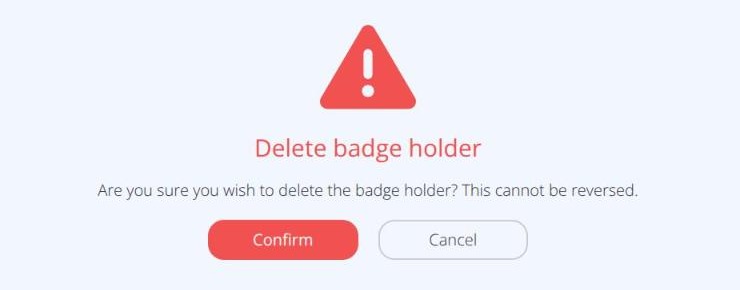
The badge moves to the filter on the screen.