¶ Attendees: Holds
¶ Overview
A hold stops a badge from doing certain things in the app, without deleting the badge. For example, you can stop an attendee from posting in chats after a complaint, or from buying more items while a payment problem is sorted out.
From the menu click in the BADGES group. The red number shows how many holds are active.
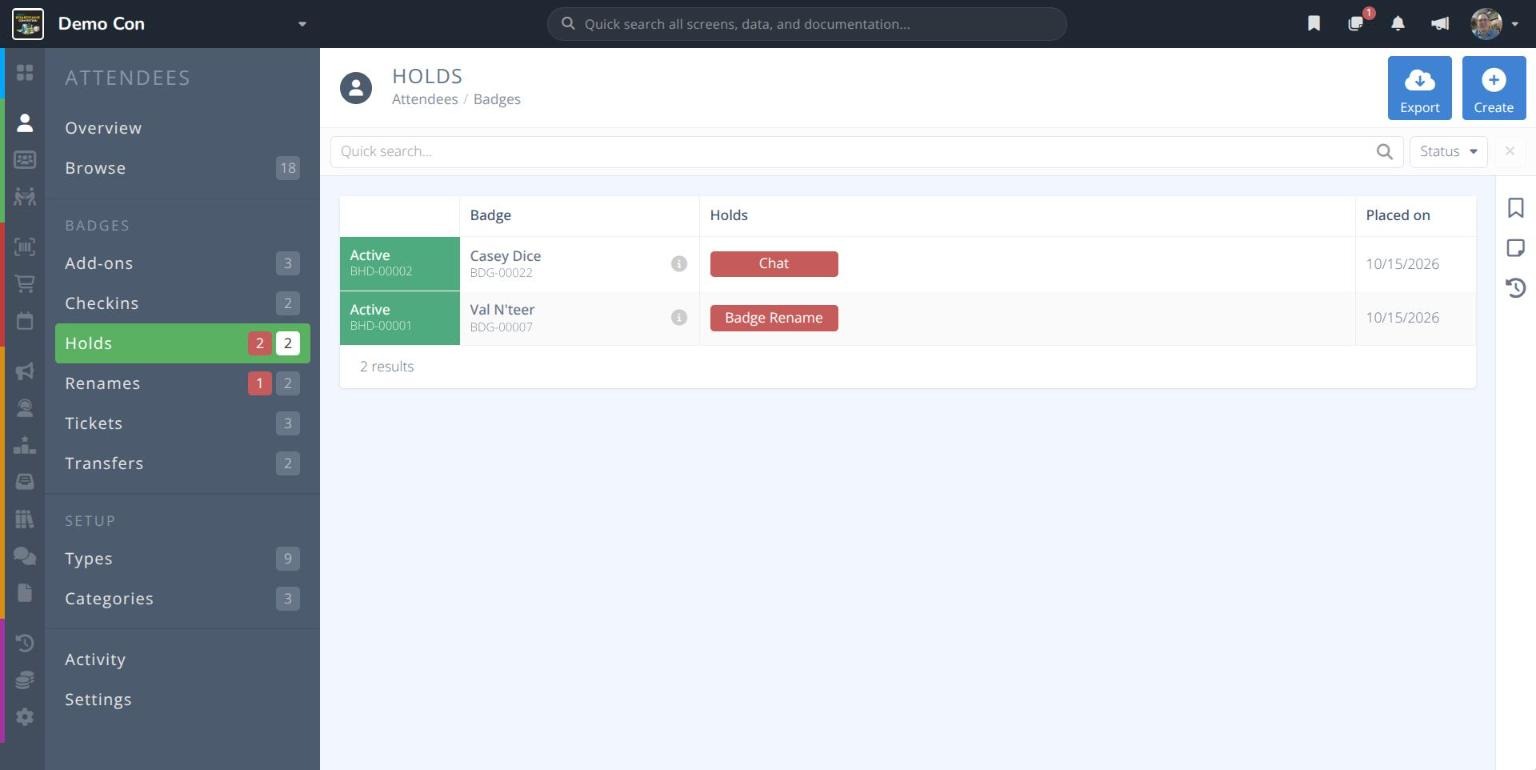
Each row is one hold. It shows its status and reference (e.g. BHD-00001), the Badge it is on, the Holds in place, and when it was Placed on. To find holds, use the Quick search... box and Status (Active or Removed). Click to download the list as a CSV file.
¶ Common Procedures
¶ Fields
Badge- The badge to place the hold on.Reason(optional) - Why the hold was placed. Only organizers see it. It is posted on the hold's Chat tab.Notify User- Whether the attendee is e-mailed about the hold:- No - The attendee is not told.
- Yes - The attendee is e-mailed.
Message(optional) - Extra text added to the e-mail.
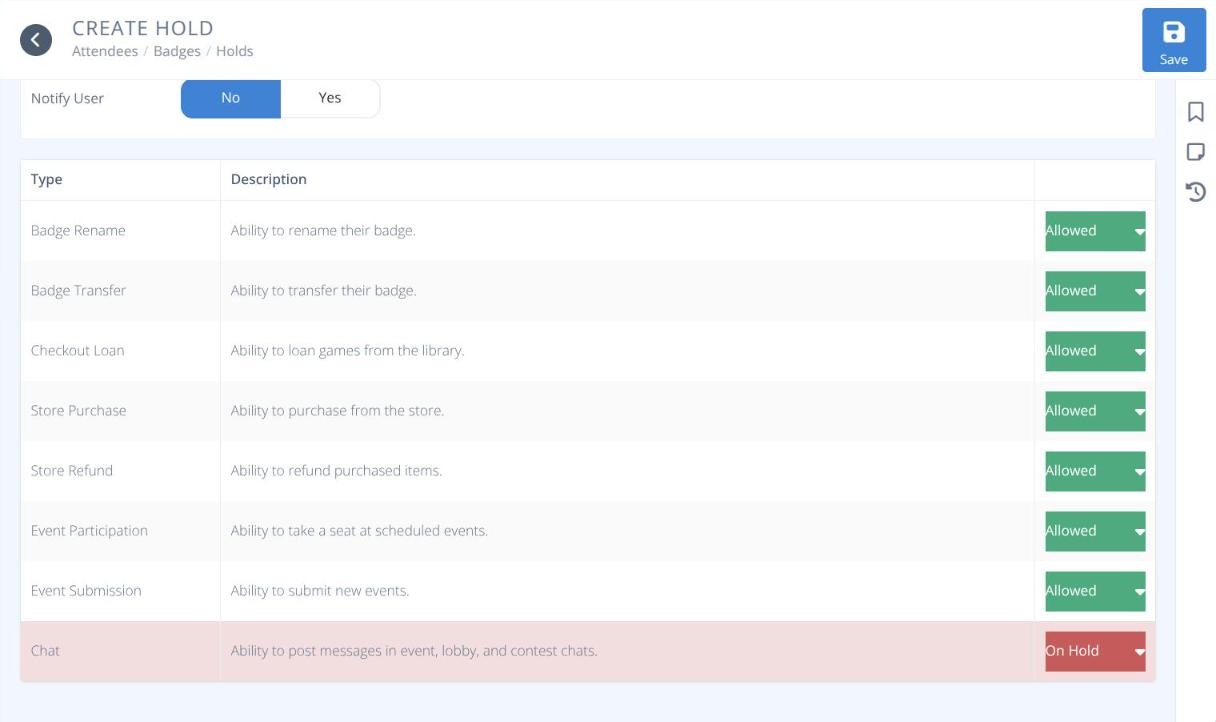
- Hold types - Set each one to Allowed or On Hold:
| Hold | Stops the attendee from |
|---|---|
| Badge Rename | Renaming their badge. |
| Badge Transfer | Transferring their badge. |
| Checkout Loan | Borrowing games from the library. |
| Store Purchase | Buying from the store. |
| Store Refund | Refunding items they bought. |
| Event Participation | Taking a seat at scheduled events. |
| Event Submission | Submitting new events. |
| Chat | Posting in event, lobby and contest chats. |
¶ Procedures
¶ Place a Hold on a Badge
-
From the menu click , then click .
-
Search for the
Badgeby name or reference, and choose it. -
Enter a
Reasonfor other organizers. -
Choose whether to
Notify User. If Yes, add aMessageif you want to explain the hold.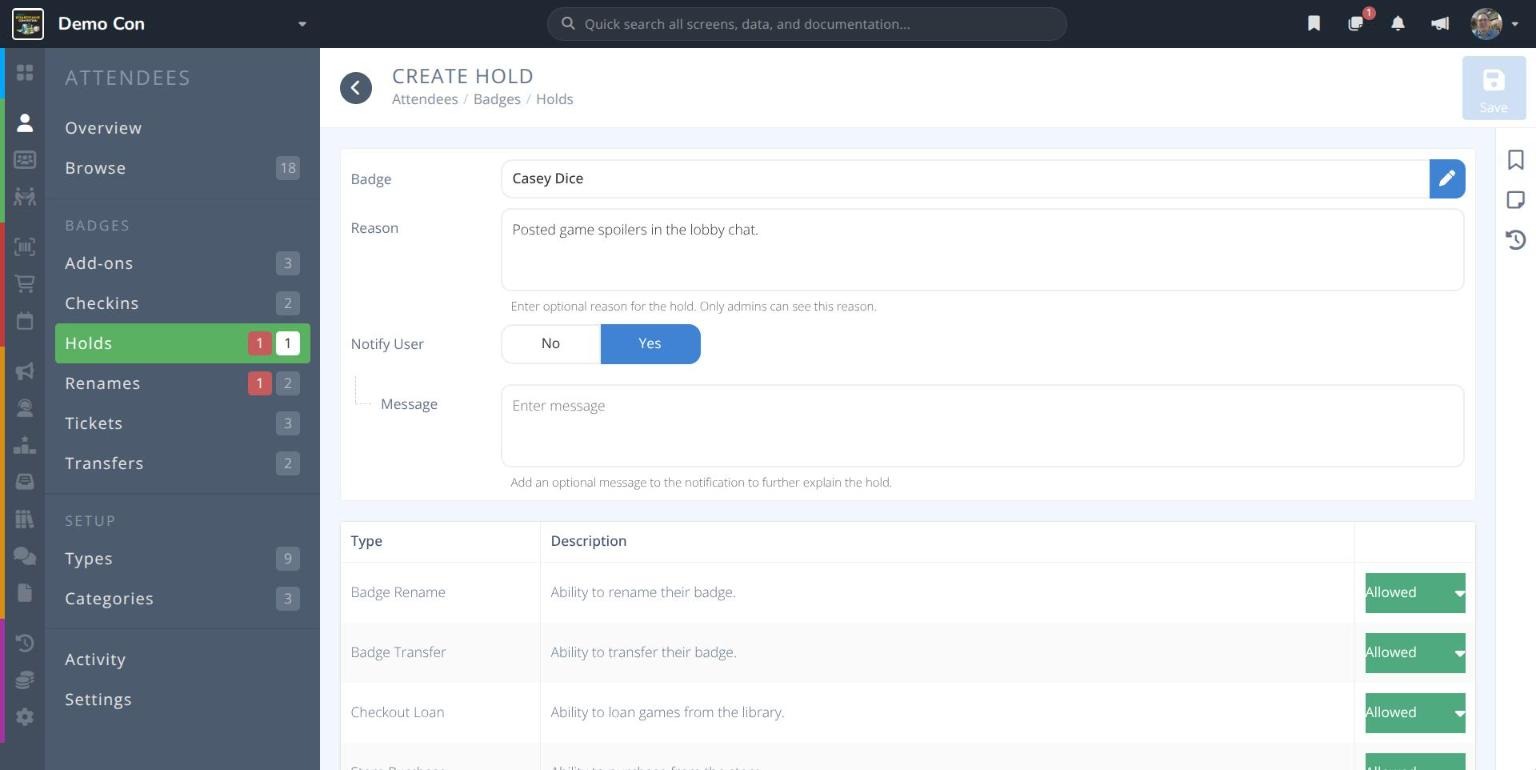
-
Set each hold you need to On Hold.
-
Click .
The hold opens, and a banner appears on the attendee's badge:

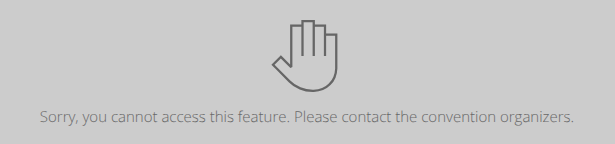
When the attendee tries to do something that is on hold, they see a warning like this:
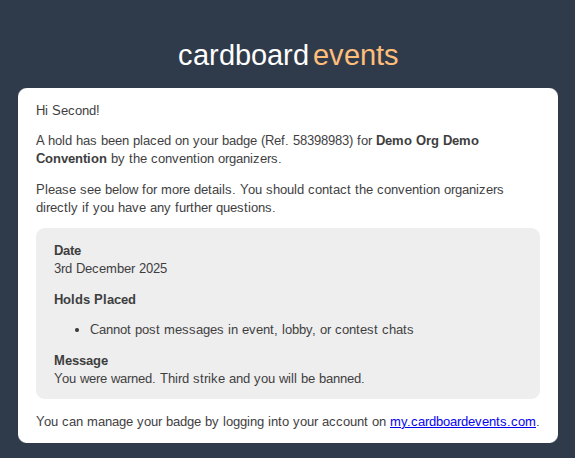
If you chose to notify them, they receive an e-mail like this:
¶ Change a Hold
- From the menu click , then click the hold.
- On the Holds tab, set each hold to Allowed or On Hold.
- Click .
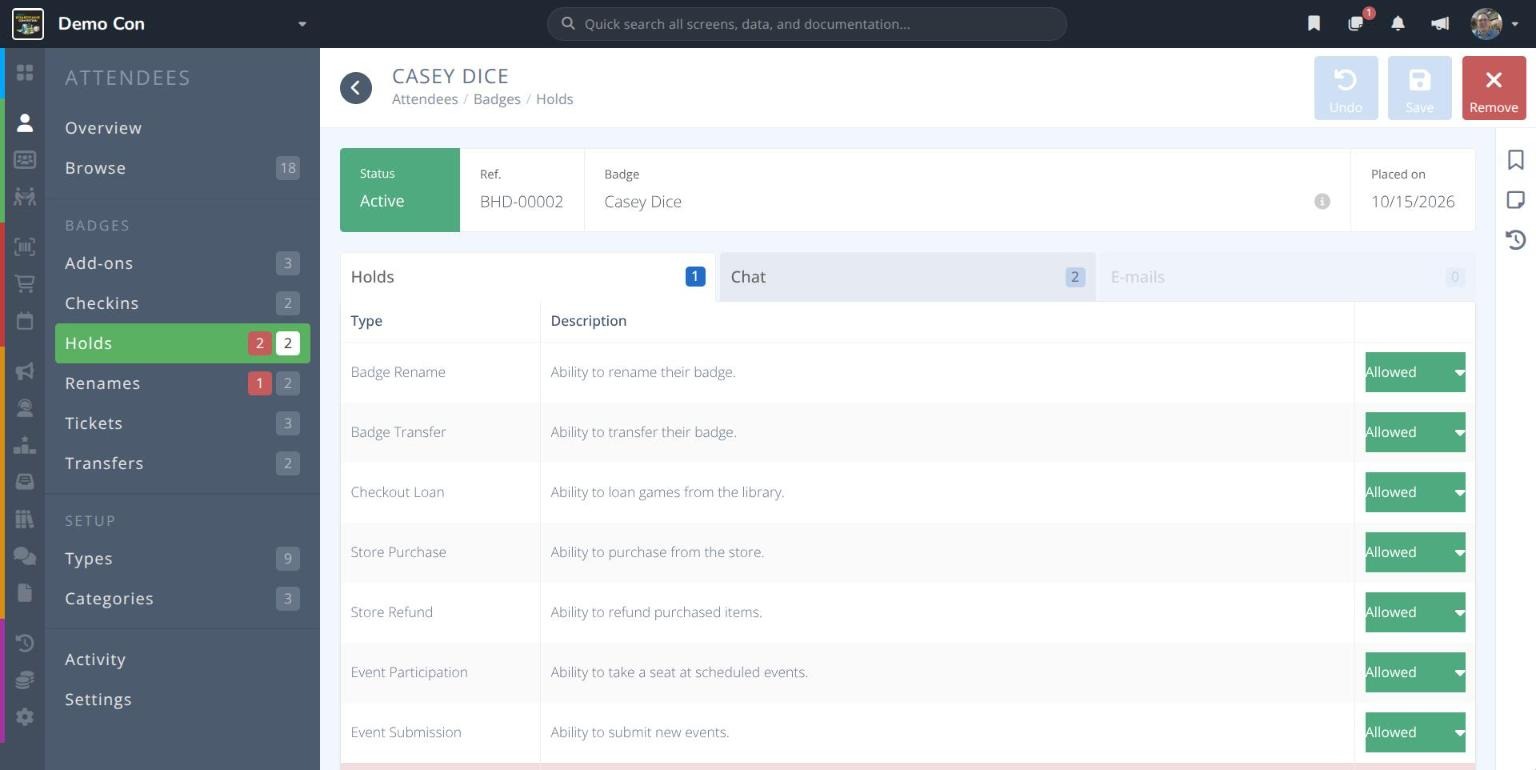
The hold also has a Chat tab for notes between organizers, which starts with the reason, and an E-mails tab with the e-mails sent to the attendee about it.
¶ Remove a Hold
Warning: Removing a hold lifts every hold on it at once. To lift only some, see
Change a Hold.
- From the menu click , then click the hold.
- Click .
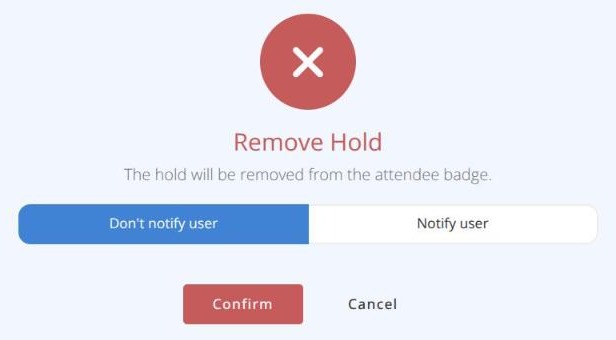
- Choose Don't notify user or Notify user.
- Click .
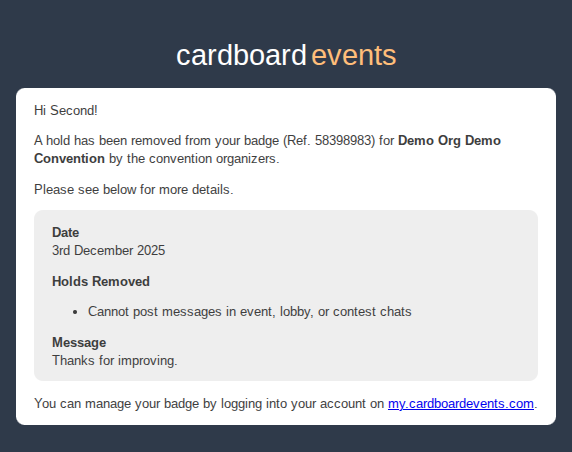
If you chose to notify them, the attendee receives an e-mail like this:
¶ Next Steps
Badge Details- See everything about the attendee's badge.Messages- Read and moderate chats.