¶ Discounts
¶ Overview
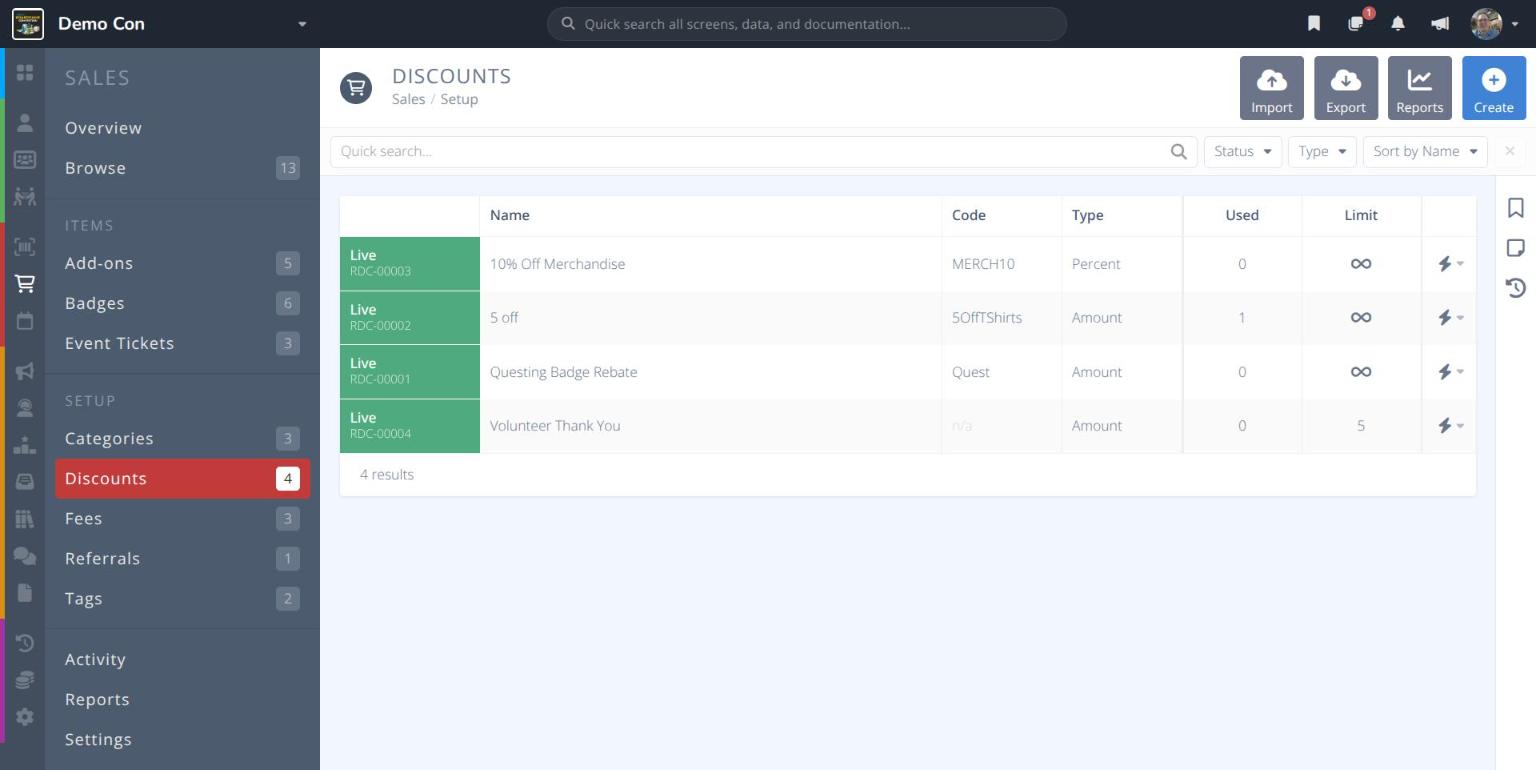
A discount is a code attendees enter at checkout to get money off or free items. Use discounts for early bird offers, partner deals, staff and volunteer perks, or to give a free badge.
Each discount has:
- A Type: Amount (dollars off), Percent (a percentage off) or Comp (free items).
- A Format: a Single code that anyone eligible can use, or Unique codes that can each be used only once.
- Optional rules for when and where the code can be used, who can use it, how many times, and which items it applies to.
Every use is tracked, so you can see how often a code was used and how much it took off.
Note: To track where sales come from without changing the price, use a
Referralcode instead. Attendees can use a discount code and a referral code on the same sale.
¶ Common Procedures
Create a DiscountSet the Rules for a DiscountCreate Unique CodesGrant or Revoke a Unique CodeImport DiscountsDisable or Delete a DiscountExample Discounts
¶ Discounts Grid
From the menu click under the SETUP heading.
Each row in the grid shows:
Status / Ref.- The discount's status (e.g. Live) and reference number (e.g. RDC-00002)Name- The discount's name, for your team onlyCode- The code attendees enter. Shows n/a for discounts with unique codes.Type- Amount, Percent or CompUsed- How many times the discount has been usedLimit- The maximum number of uses, or ∞ for no limit. For unique codes, this is the number of codes.- - Quick actions: Manage, Disable, Delete
Use the Quick search... bar to find a discount. Use the Status filter to show discounts that are Live, Restricted, Disabled, Blocked or Archived, the Type filter to show Amount, Percent or Comp discounts, and the Sort by menu to order the grid by Name or Used.
The following buttons appear in the actions area at the top right:
- - Creates a new discount
- - Creates discounts from a spreadsheet. See
Import Discounts. - - Downloads the grid as a CSV file
- - Opens sales reports for discounts
¶ Discount Details
Click a row in the grid to open the discount. The header shows its Status and Reference, and the menu.
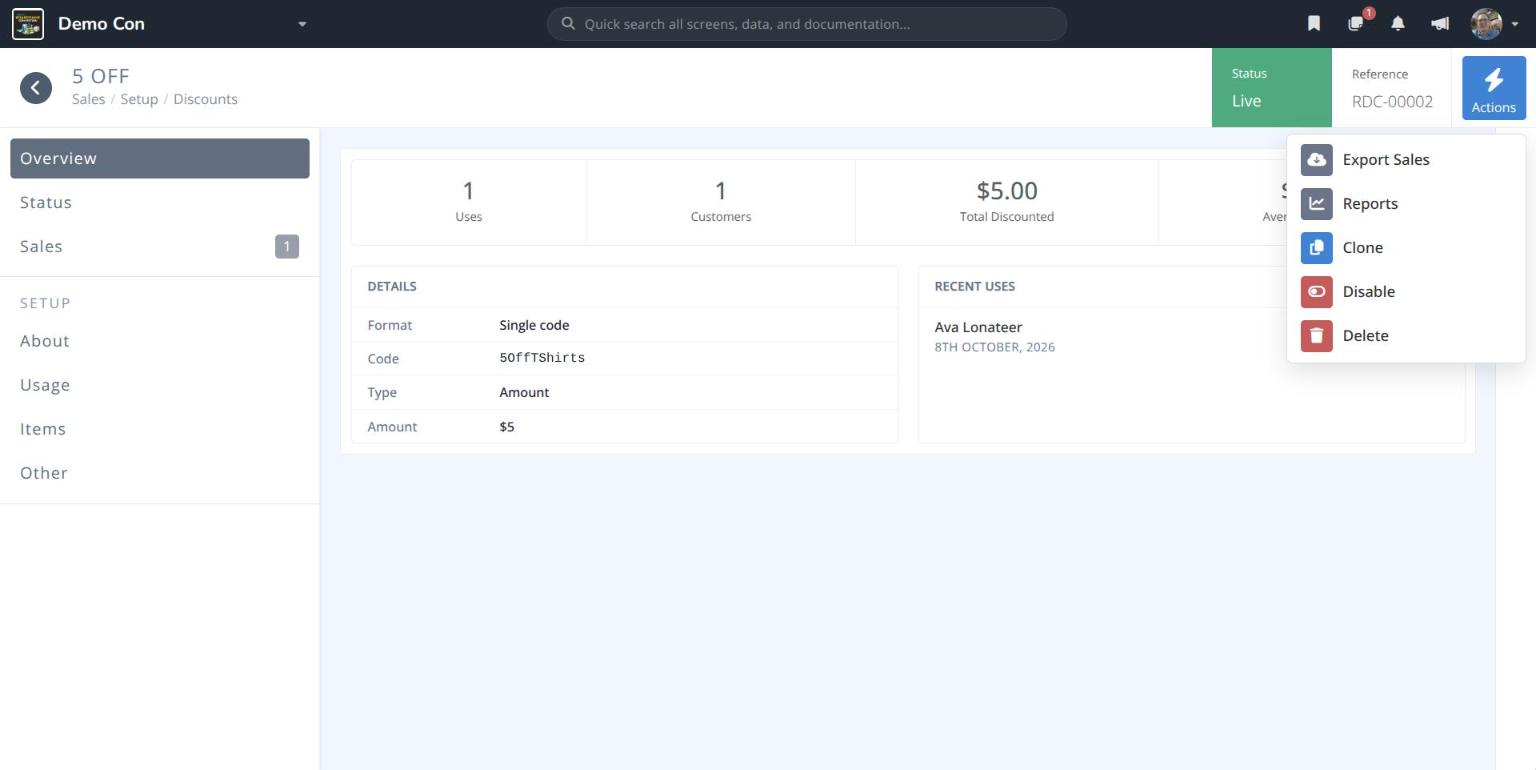
The menu includes:
- Export Sales - Downloads the sales that used this discount as a CSV file
- Reports - Opens sales reports for this discount
- Clone - Starts a new discount with the same settings
- Disable - Stops the discount from being used
- Delete - Removes the discount
Click each tab to see the information for that section:
¶ Overview
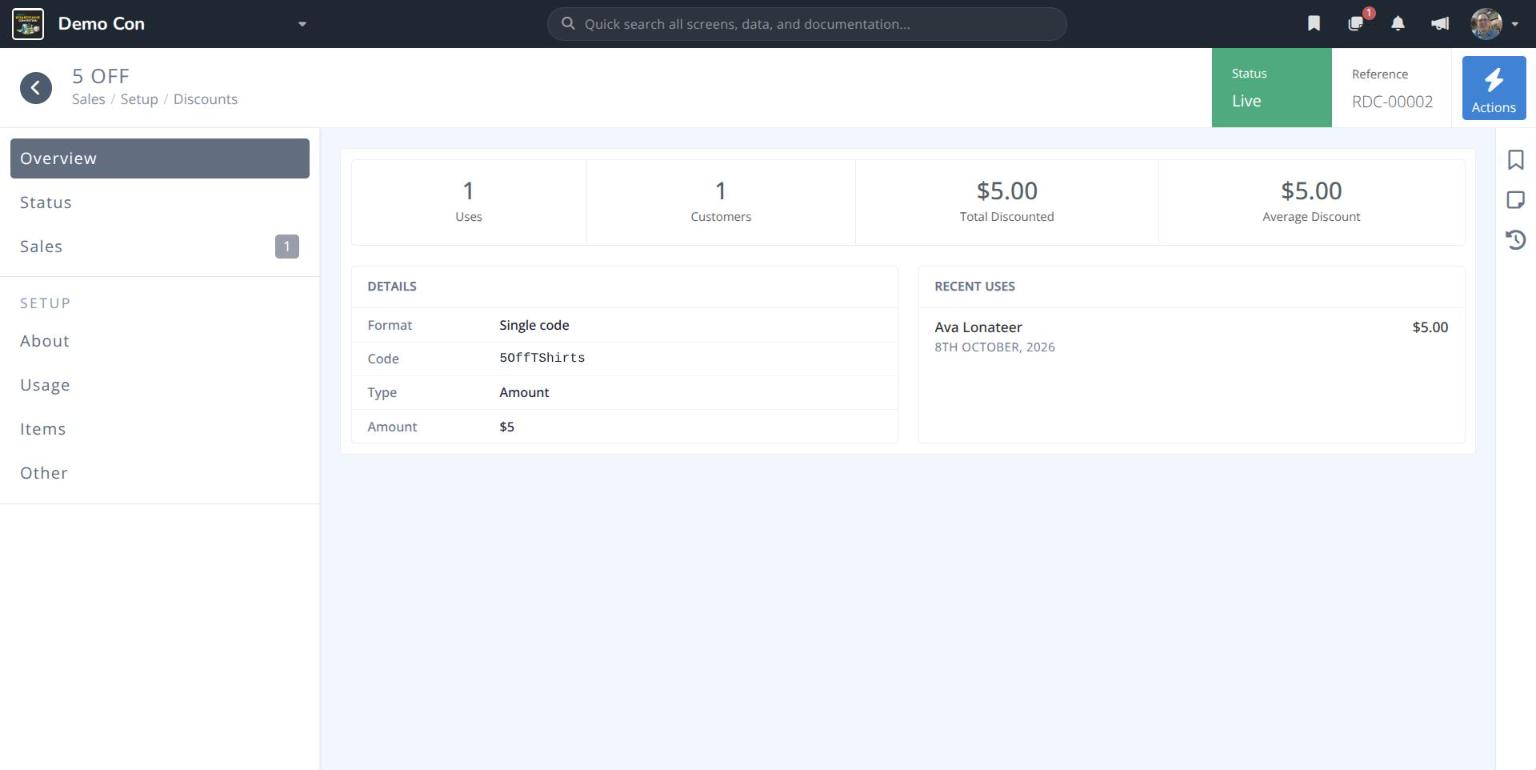
Uses- How many times the discount has been usedCustomers- How many different customers used itTotal Discounted- The total amount taken offAverage Discount- The average amount taken off per useDetails- The discount's Format, Code, Type and AmountRecent Uses- The latest uses, with who used it, the date and the amount taken off
¶ Status
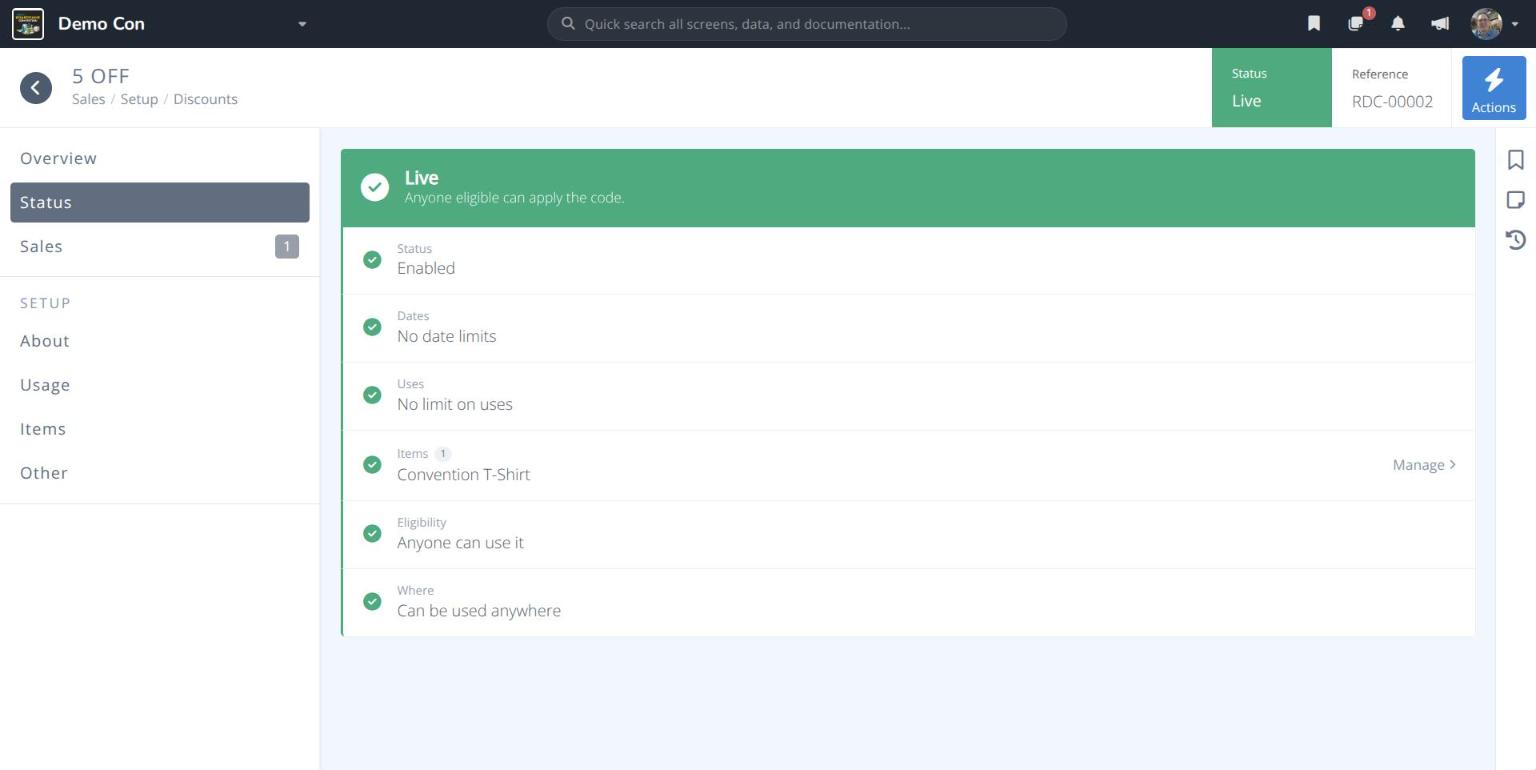
A checklist of everything that affects whether the code can be used: its Status, Dates, Uses, Items, Eligibility (who can use it) and Where (the contexts it can be used in). Click Manage on a row to jump to that setting.
The Items row names what the discount applies to, based on its Eligibility, for example Applies to everything, Applies to Add-ons or Applies to Badges, Generic Tickets. It updates as soon as you save a change.
¶ Sales
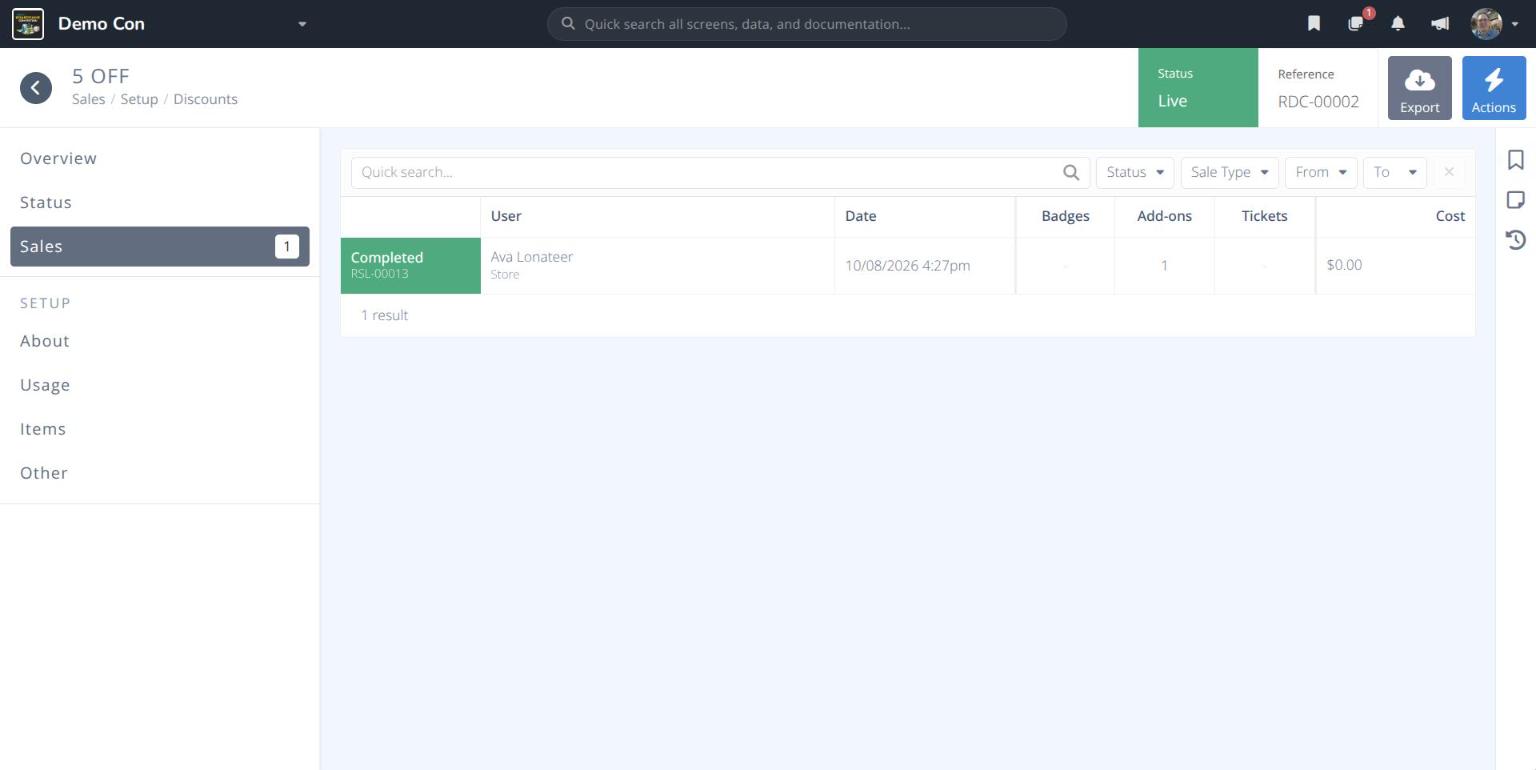
Every sale that used the discount, showing its status and reference number, the User and where the sale came from (e.g. Store), the Date, how many Badges, Add-ons and Tickets were bought, and the Cost (the amount the customer paid for that sale, after the discount). Use the Status, Sale Type, From and To filters to narrow the list, or click to download it.
¶ About
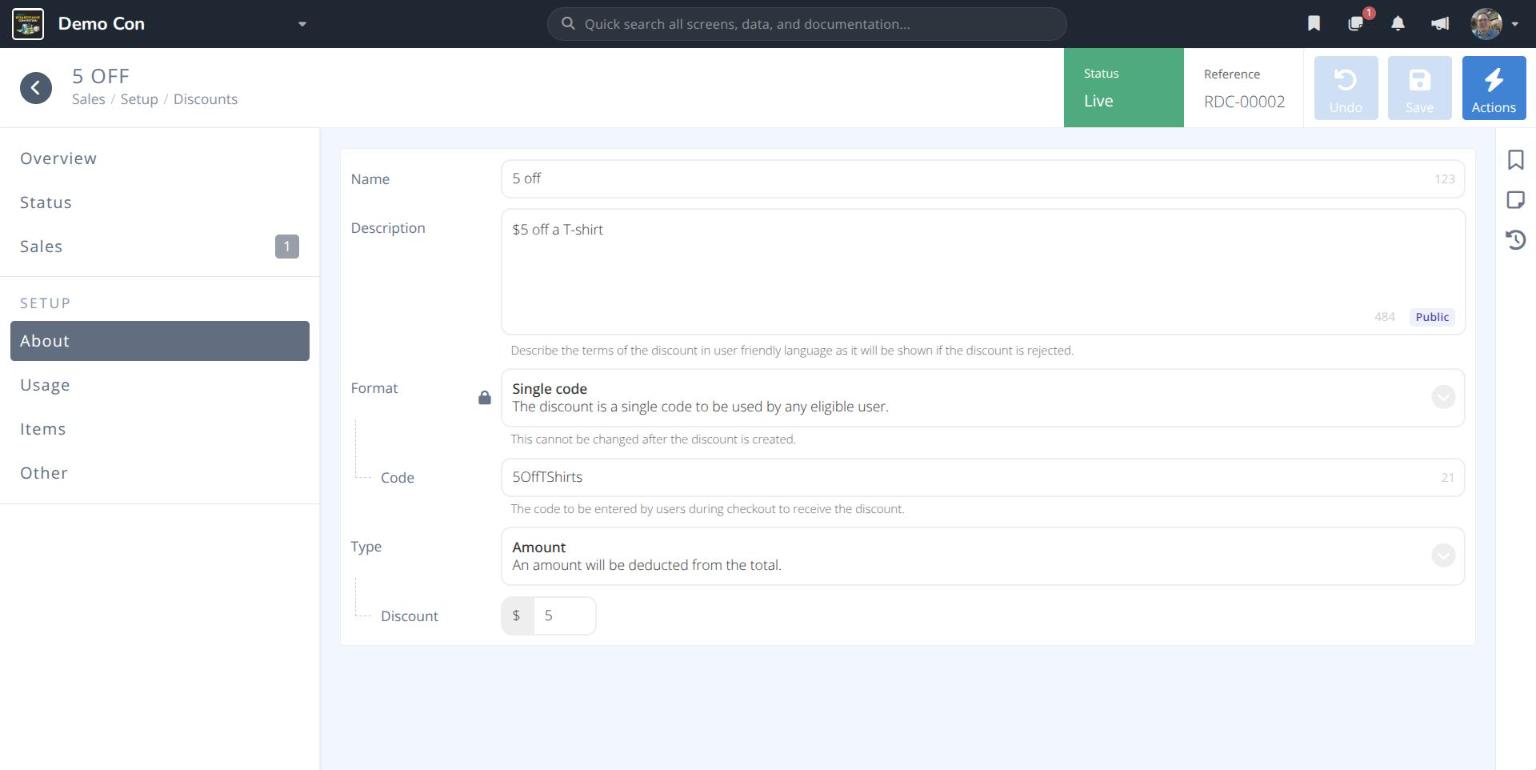

Name- The discount's name, for your team only-
Description- The terms of the discount in plain language. Attendees see this if the code is rejected at checkout, so explain what the code is for and what it needs (e.g. "$5 off a T-shirt"). Format- Single code (one code for any eligible user) or Unique codes (codes that can each be used once). Cannot be changed after the discount is created.-
Code- Single code only. The code attendees enter at checkout (up to 32 characters). Type- What the discount gives:- Amount - An amount is deducted from the total.
- Percent - A percentage of the eligible total is deducted.
- Comp - One or more specified items are given free.
-
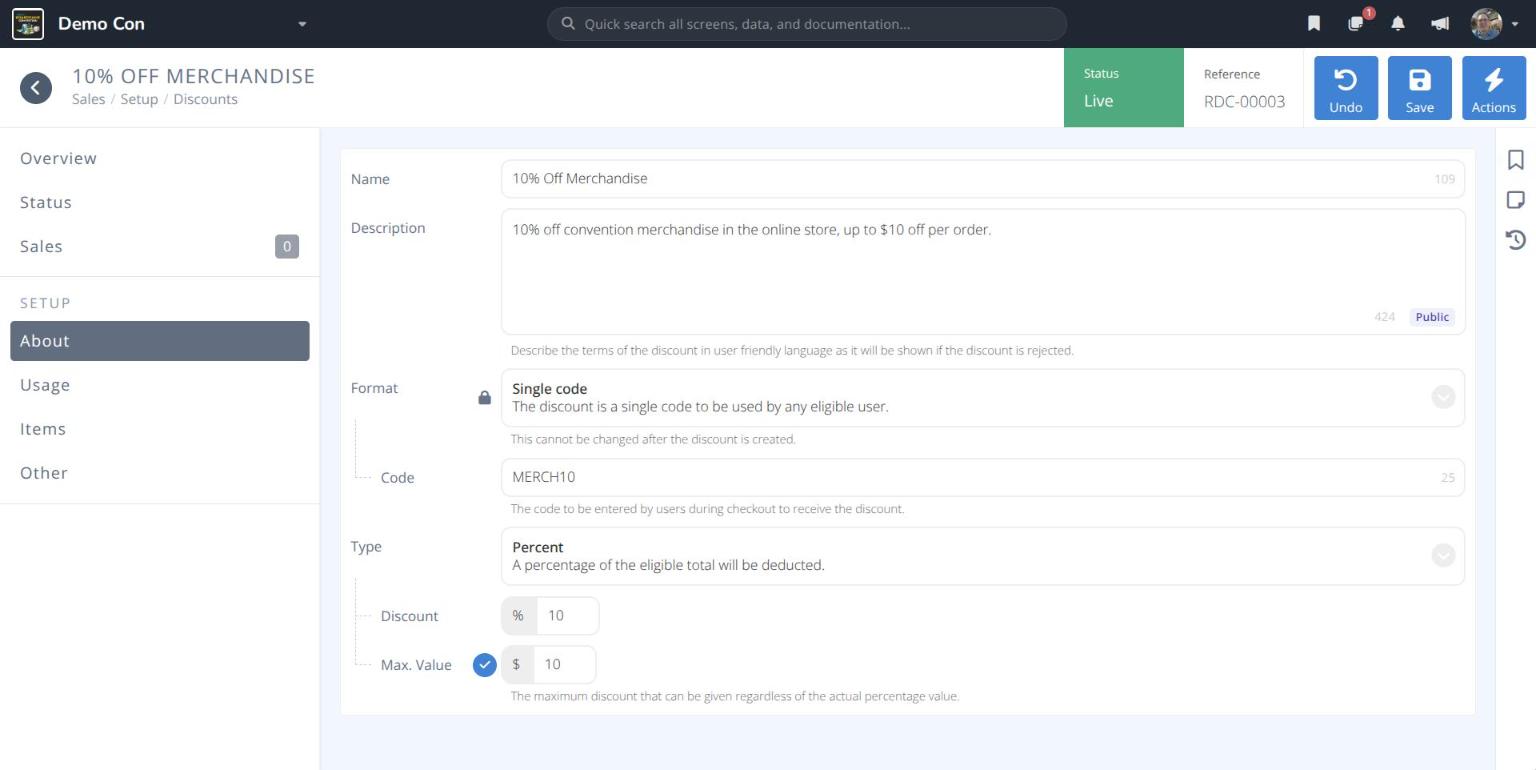
Discount- Amount and Percent only. The dollar amount or the percentage. Max. Value- Percent only. The most the discount can take off, whatever the percentage works out to.
¶ Usage
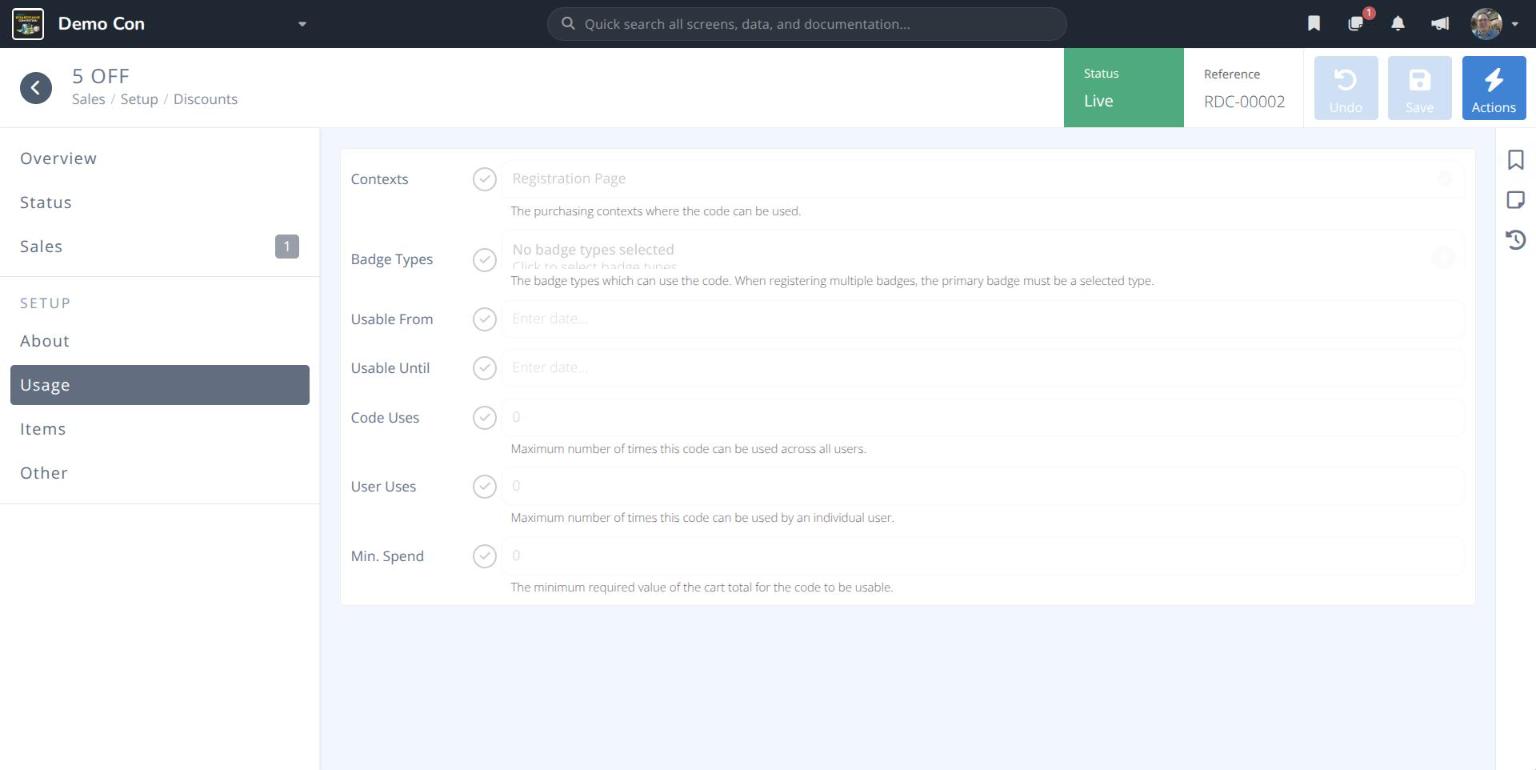
Click the check circle beside a field to turn it on. Fields left off have no limit.
-
Contexts- Where the code can be used. Choose one or more of:- Registration Page - Badge registration pages
- Store Category - Your online store
- Third Party Page - Third party sales pages
- Event Ticket Office - Event ticket purchases
Leave off to allow the code anywhere.
-
Badge Types- Which badge types can use the code. When someone registers several badges, the primary badge must be one of the selected types. -
Usable From/Usable Until- The dates the code can be used -
Code Uses- The maximum number of times the code can be used across all users -
User Uses- The maximum number of times one user can use the code -
Min. Spend- The minimum cart total needed for the code to work
¶ Items
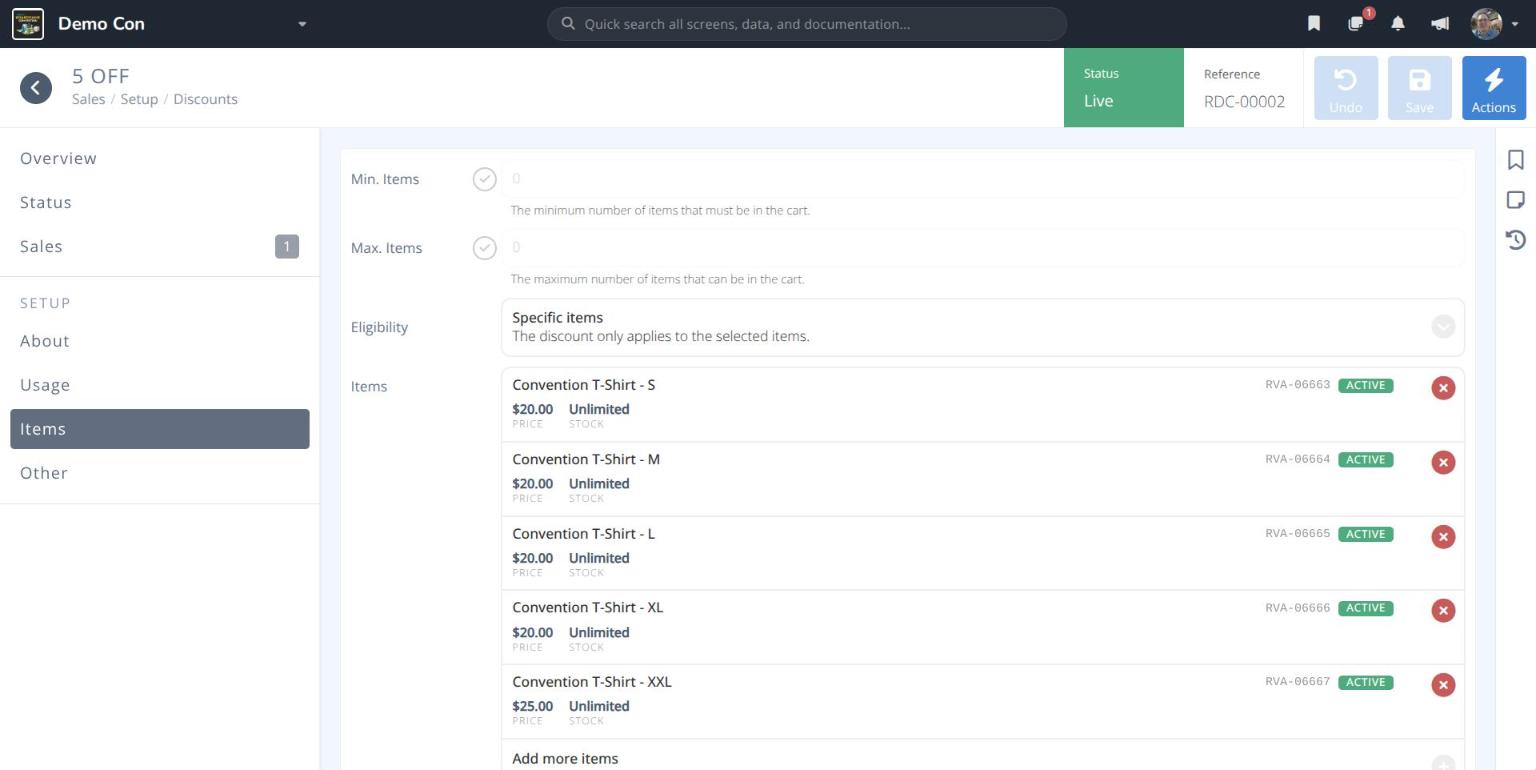
Min. Items/Max. Items- The minimum and maximum number of items that can be in the cartEligibility- Which items the discount applies to:- Any item - Any items added to the cart
- By Type - Only items of the selected types (Badge, Add-on and/or Generic Ticket)
- By Tag - Only items with the selected
Tags - Specific items - Only the items you select. Choose each item or variant, such as each T-shirt size.
¶ Other
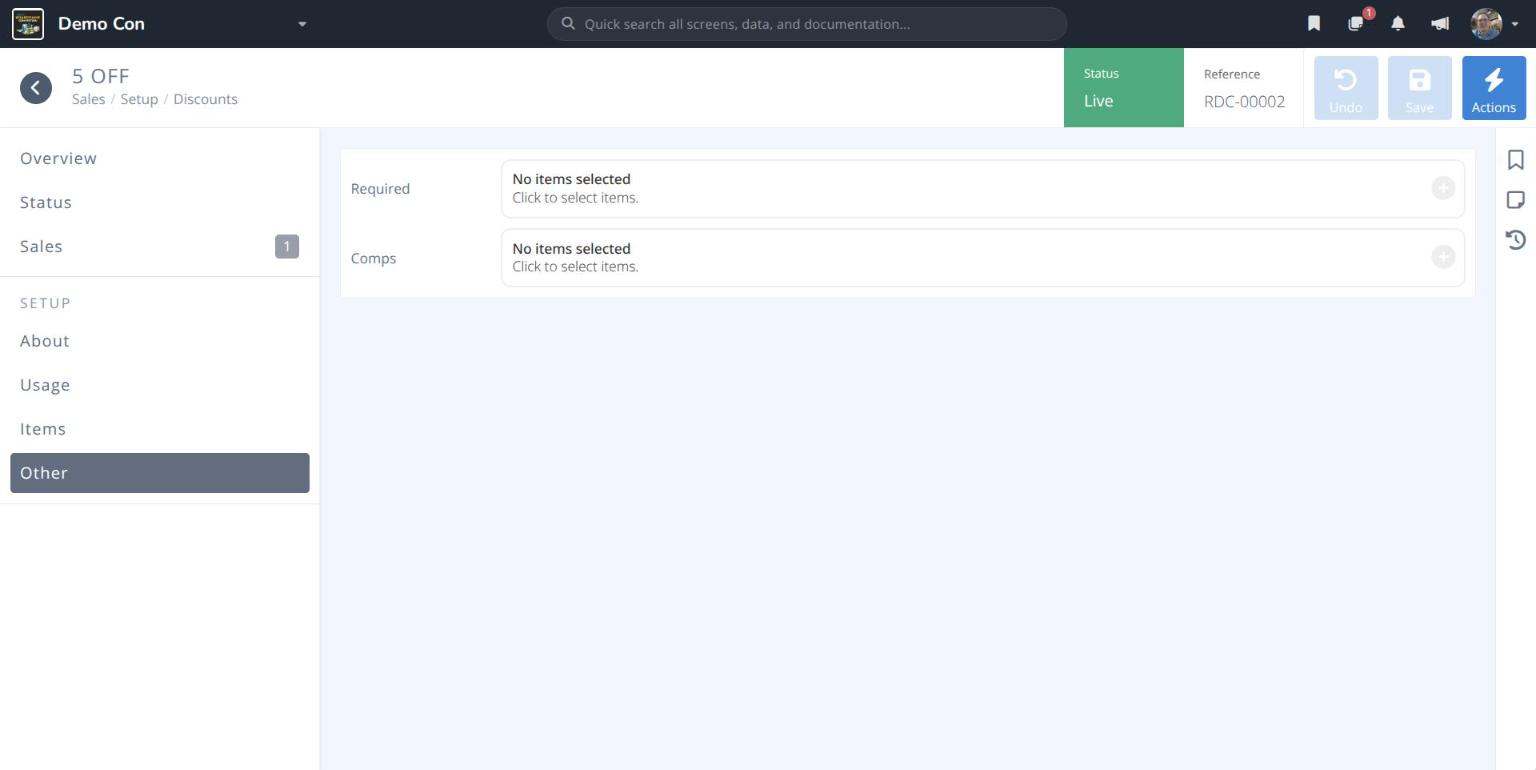
Required- Items the attendee must already have bought to use the code. Applies to store and ticket office purchases.Comps- Items the code gives free, in addition to what the attendee is buying
¶ Procedures
¶ Create a Discount
- From the menu click .
- Click . The CREATE DISCOUNT panel opens.
- Enter a Name for your team (e.g. 10% Off Merchandise).
- Enter a Description that explains the offer and its conditions to attendees (e.g. "10% off convention merchandise in the online store, up to $10 off per order.").
- Choose the Format:
- Single code - Enter the Code attendees will type (e.g. MERCH10).
- Unique codes - No code is needed now. You generate the codes after the discount is created. See
Create Unique Codes.
- Choose the Type and enter the Amount: dollars for Amount, or a percentage for Percent. For Comp, add the free items on Other after creating the discount.
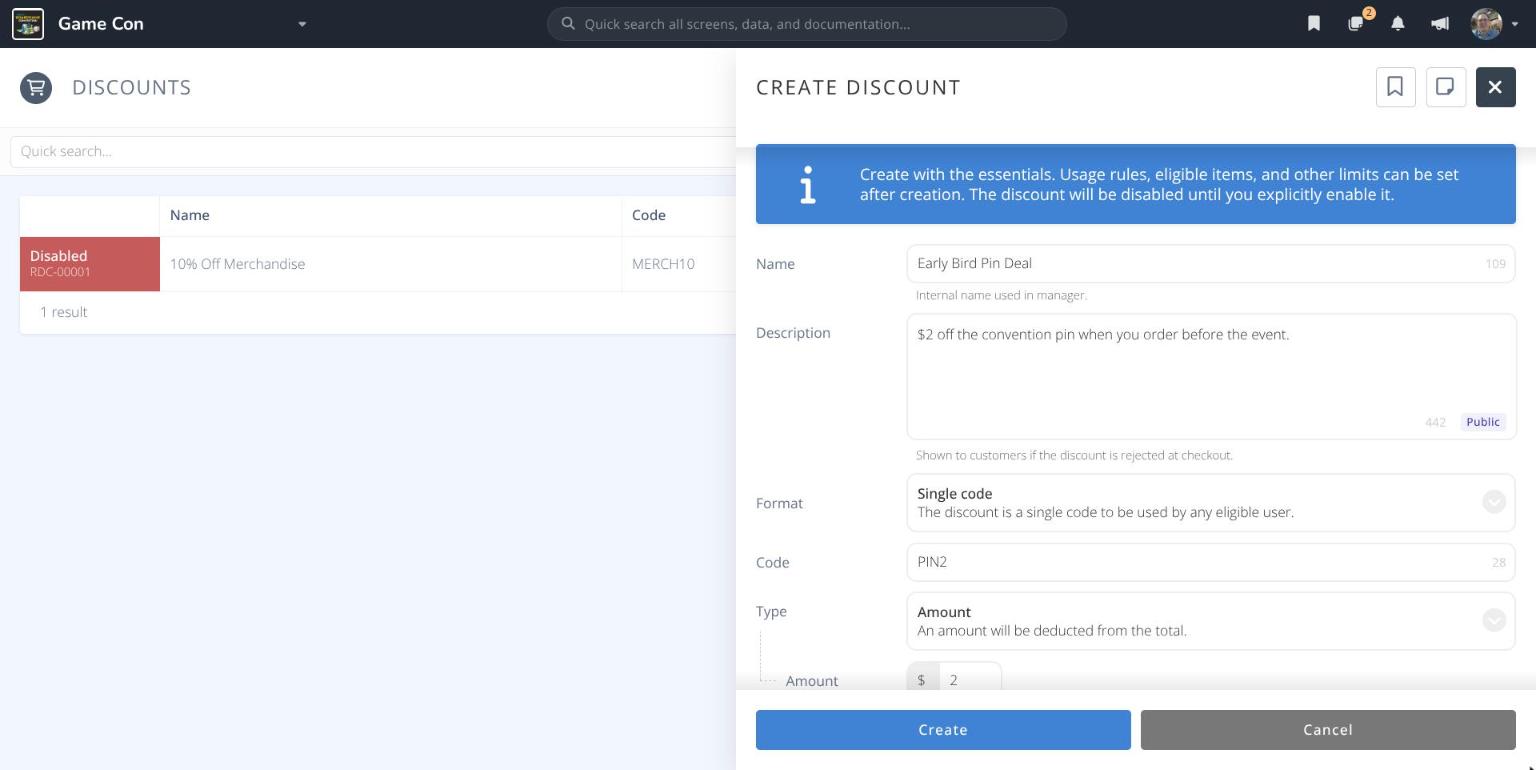
- Click . The discount opens as Disabled, with the message This discount is disabled. It cannot be redeemed on new sales.
- Set any rules the discount needs. See
Set the Rules for a Discount. - When it's ready to use, click in the red banner. The discount can now be used.
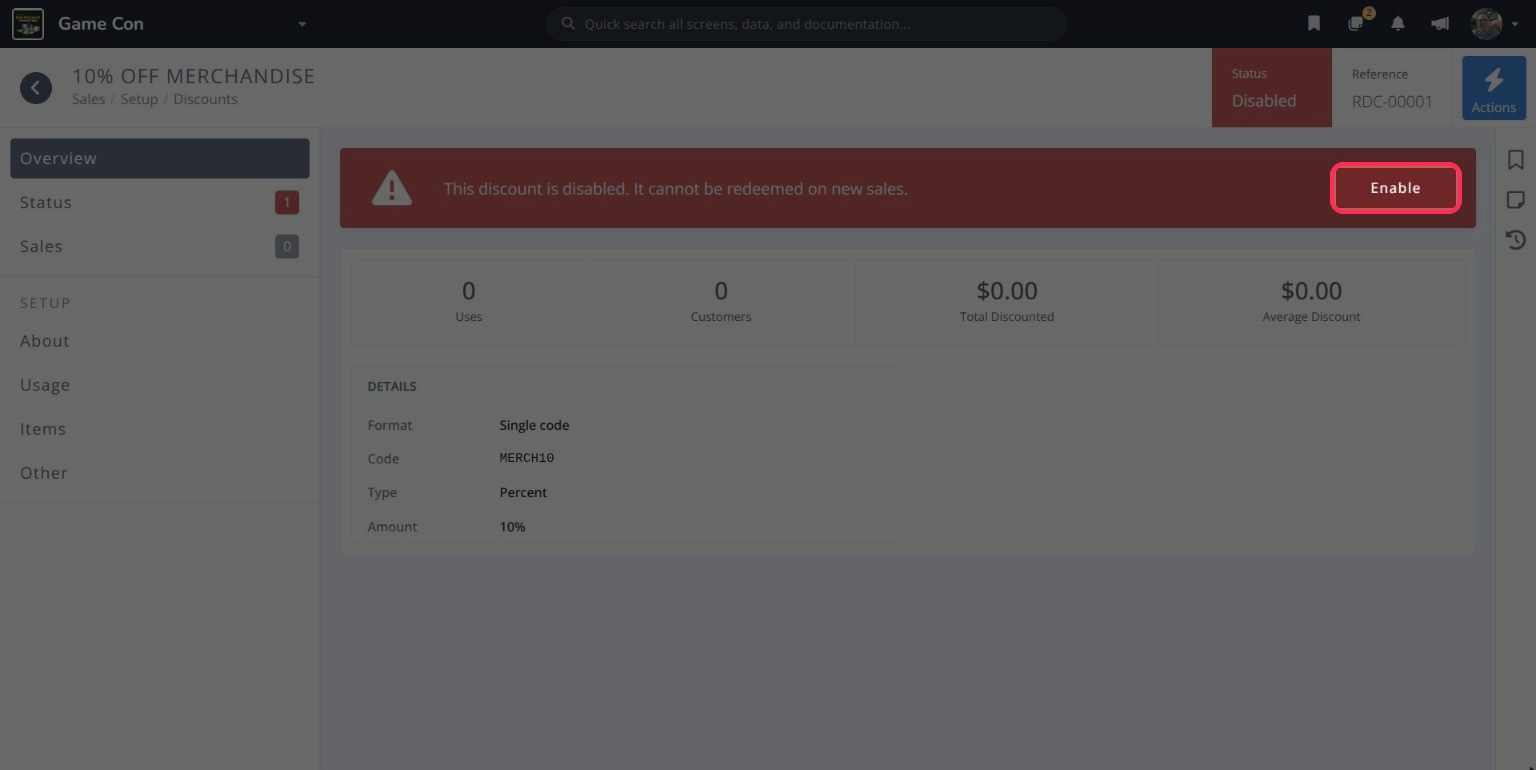
Caution: Once enabled, a discount with no rules can be used by anyone, on any item, anywhere. Check Status before you enable it and share the code.
¶ Set the Rules for a Discount
- Open the discount.
- For a Percent discount, click About and turn on Max. Value to cap how much it can take off.
- Click Usage to limit when, where, by whom and how often the code can be used.
- Click Items to choose which items the discount applies to, and how many items the cart can hold.
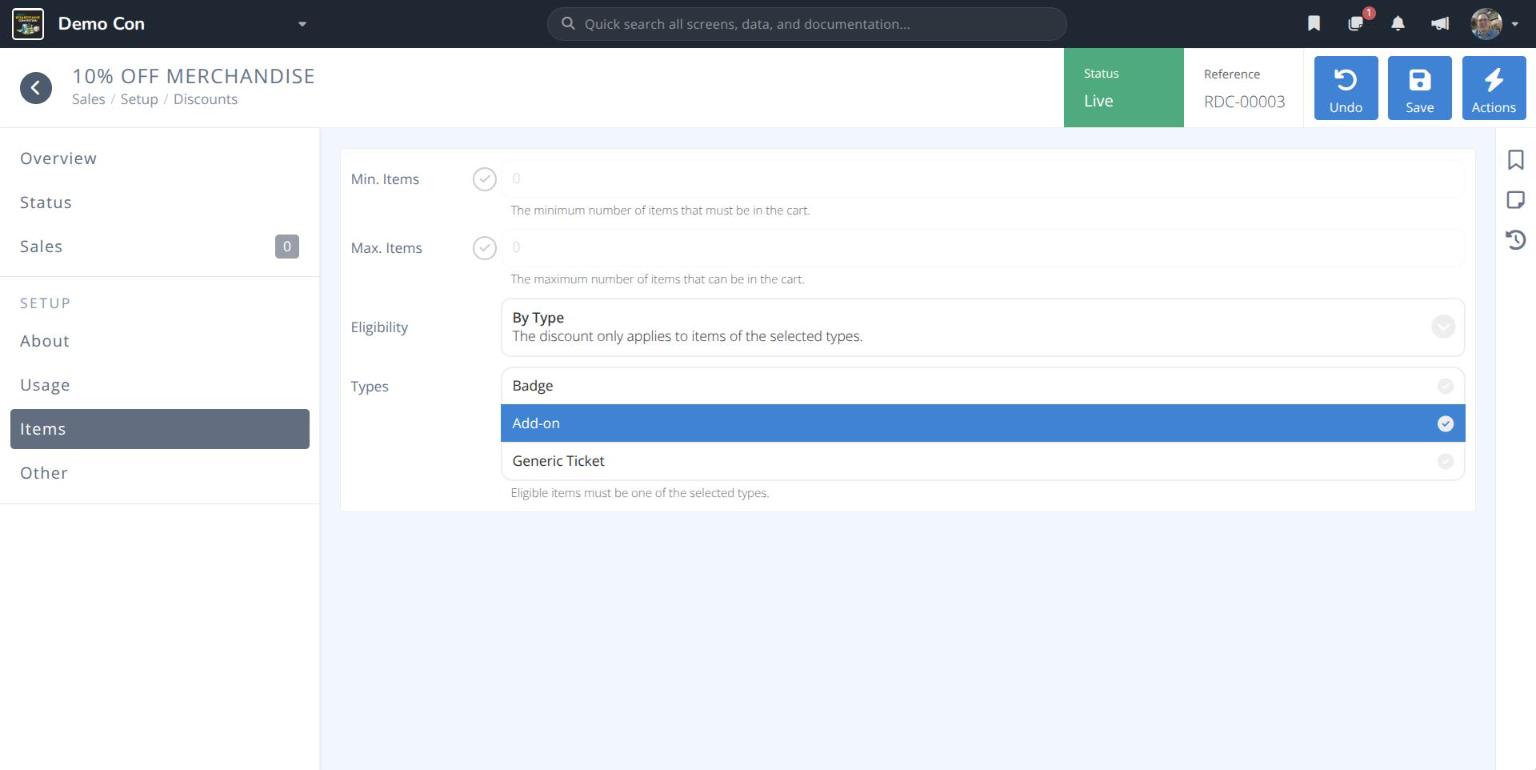
- Click Other to add Required items, or the free items for a Comp discount.
- Click on each section you change.
- Click Status to check that the rules read as you expect.
Tip: A percentage applies to every eligible item in the cart. To limit it, set Max. Items or Max. Value, and say so in the Description so attendees know why the code was rejected.
¶ Create Unique Codes
Unique codes suit offers for specific people, such as one free badge per guest or a thank-you for each volunteer. Each code can be used once.
- Create a discount with Format set to Unique codes. See
Create a Discount. The discount's side menu gains a CODES section with Available, Granted and Used. - Click Available, then click .
- Enter the Quantity of codes to create (1 – 1000).
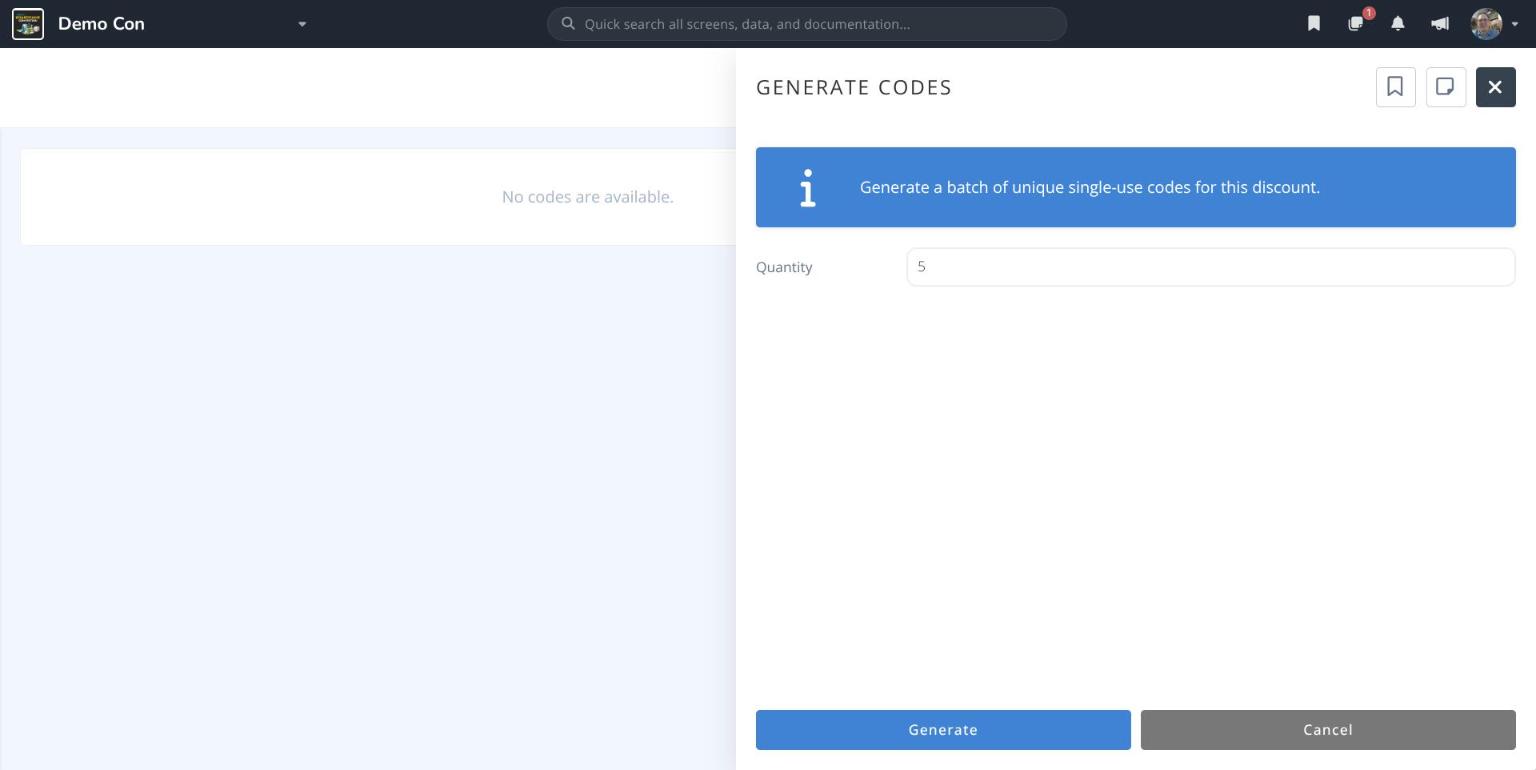
- Click . The new codes appear under Available, with the date each was generated.
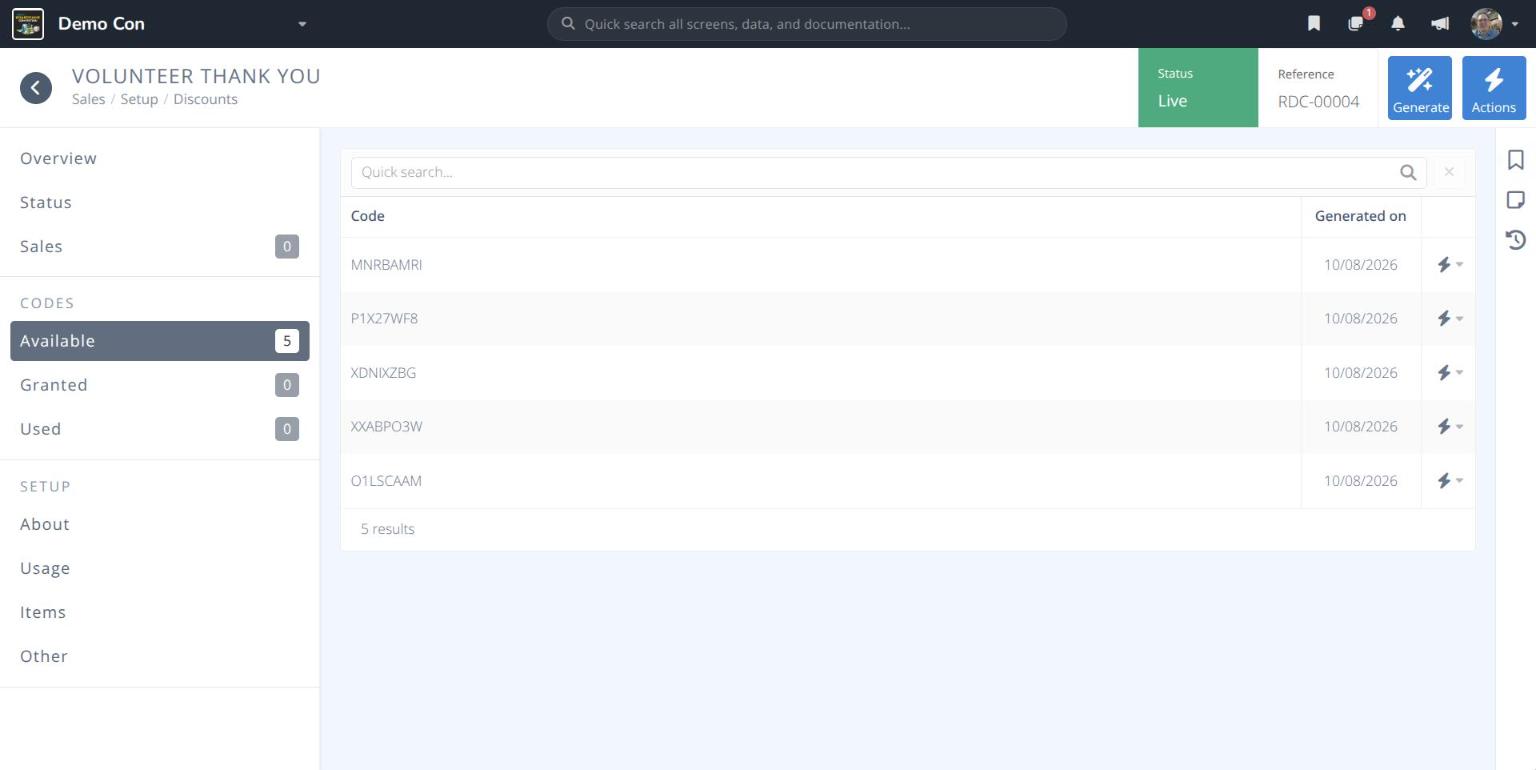
The codes move to Used once they have been used. To remove a code you don't need, click the at the end of its row and choose Delete code.
¶ Grant or Revoke a Unique Code
Granting a code records who you gave it to, so each use can be traced back to the recipient. Granting does not send the code; share it with the recipient yourself.
Grant a code
- Open the discount and click Available.
- Click the at the end of the code's row and choose Grant code. The GRANT CODE panel opens.
- Choose who to Grant to:
- Attendee - A specific attendee in the convention store. Select the Attendee.
- Group - A group, for later assignment to a group member
- Other - Given out another way (e.g. printed, emailed, awarded or reserved). Enter a Reference describing it.
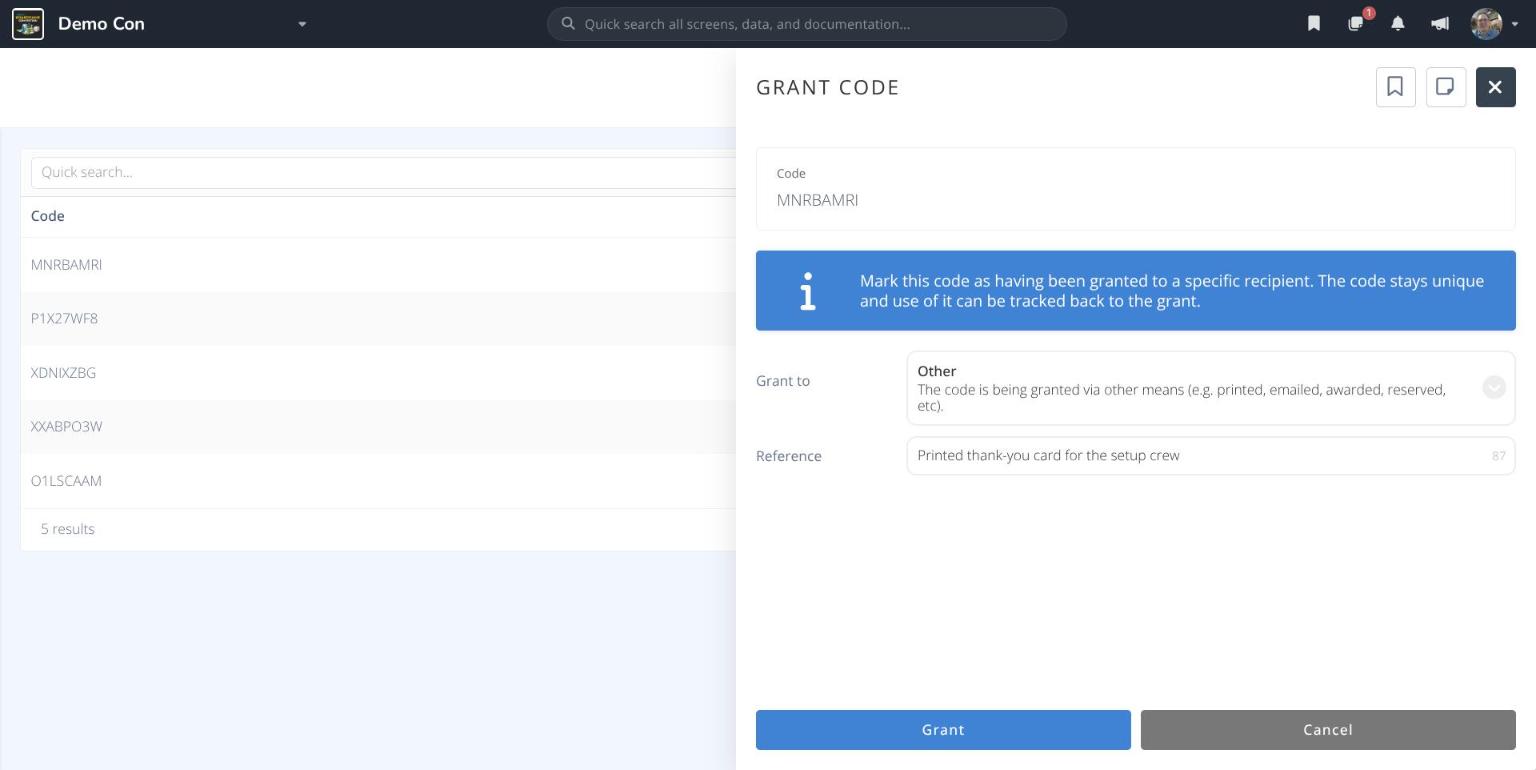
- Click . The code moves to Granted, which shows its Type, Recipient and the date it was granted.
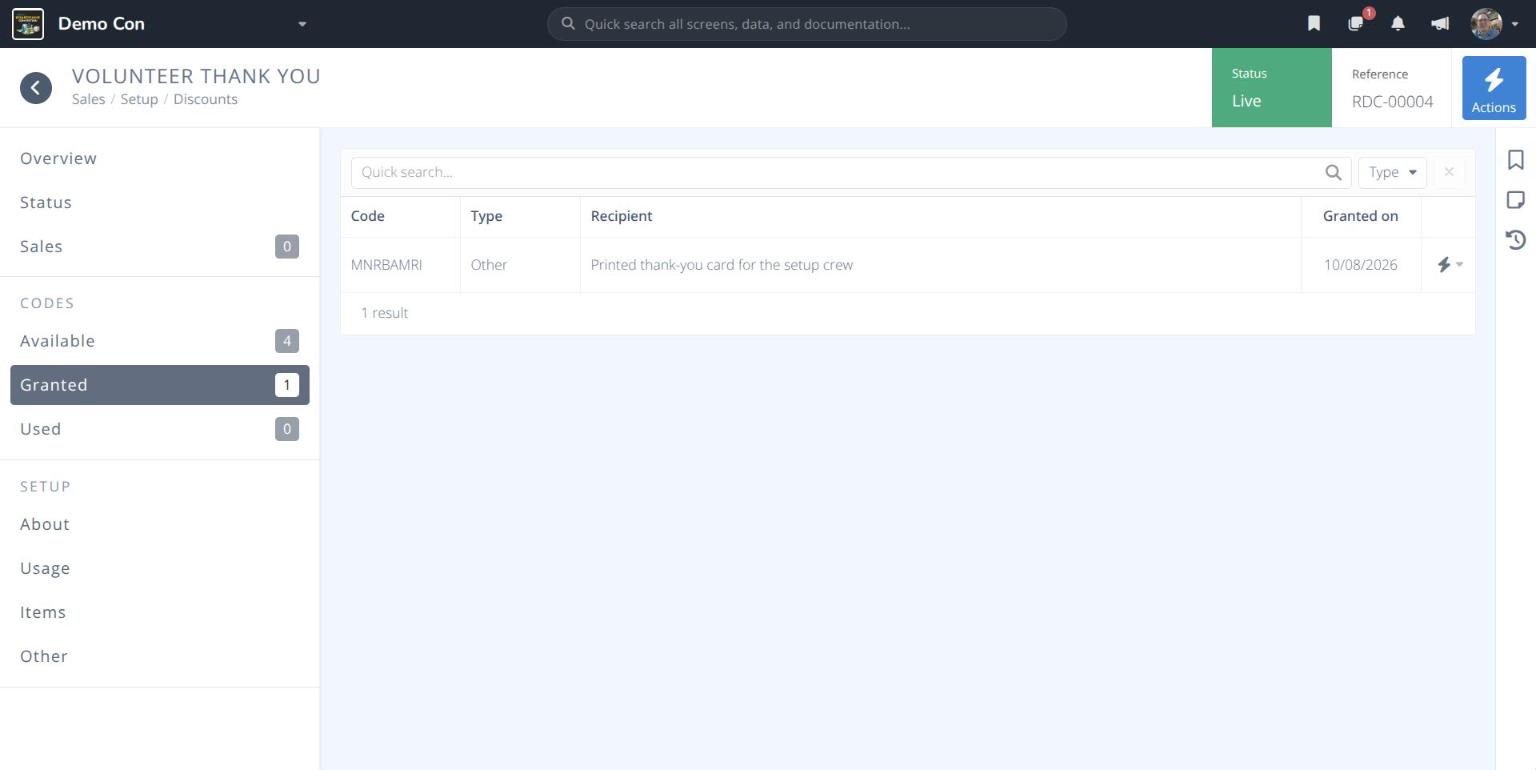
Revoke a grant
- Click Granted.
- Click the at the end of the code's row and choose Revoke grant. The code returns to Available.
¶ Import Discounts
Use an import to create many discounts at once, for example a code for each partner.
- From the Discounts grid, click . The DISCOUNTS IMPORT panel opens with four steps: Start, Upload Data, Assign Columns and Run Import.
- On Start, review the columns your file needs, and click Download Template for a ready-made file.
- Required Columns: Name, Code (for single code discounts), Type (Amount, Percent or Comp) and Amount (dollars such as 10.00 for Amount, a whole number such as 25 for Percent)
- Optional Columns: Format, Status, Limit Enabled, Uses Limit, User Uses, Max Value, Min Spend, Min Items, Max Items, Description, From Date and To Date (MM/DD/YYYY)
- Click Next and follow the steps to upload your file, match its columns and run the import.
¶ Disable or Delete a Discount
- Open the discount and click , or click the at the end of its row in the grid.
- Choose Disable to stop the code from being used, or Delete to remove it.
Warning: Deleting a discount cannot be undone. To keep its history and sales, disable it instead.
¶ Example Discounts
Percent off merchandise, with a cap
- Type: Percent, Discount: 10, Max. Value: $10
- Items → Eligibility: By Type → Add-on
- Description: "10% off convention merchandise in the online store, up to $10 off per order."
Dollar amount off a specific item
- Type: Amount, Discount: $5
- Items → Eligibility: Specific items → each variant of the Convention T-Shirt
- Description: "$5 off a T-shirt"
One free badge per person
- Format: Unique codes, Type: Percent, Discount: 100
- Usage → Contexts: Registration Page, Badge Types: the badge types it covers
- Items → Min. Items and Max. Items: 1, Eligibility: By Type → Badge
- Generate one code per guest and grant each one. Using a percentage keeps the badge free even if the price changes, for example from Early Bird to At The Door.
Free items with a badge purchase
- Type: Comp
- Usage → Badge Types: the badge type that earns the comp (e.g. Saturday)
- Other → Comps: the free items (add an item more than once to give several)
- The free items are added when the code is applied. They do not replace items already in the cart.
Dollar amount off the whole cart
- Type: Amount, Discount: $40
- Usage → Badge Types: the badge type that qualifies (e.g. Friday)
- The amount comes off the whole cart, even if it is more than the qualifying item's price. To limit it to one item, set Items → Max. Items to 1 and say so in the Description.