¶ Referrals
¶ Overview
Referral codes can be entered during the time of sales to track the number of uses and total amount spent.
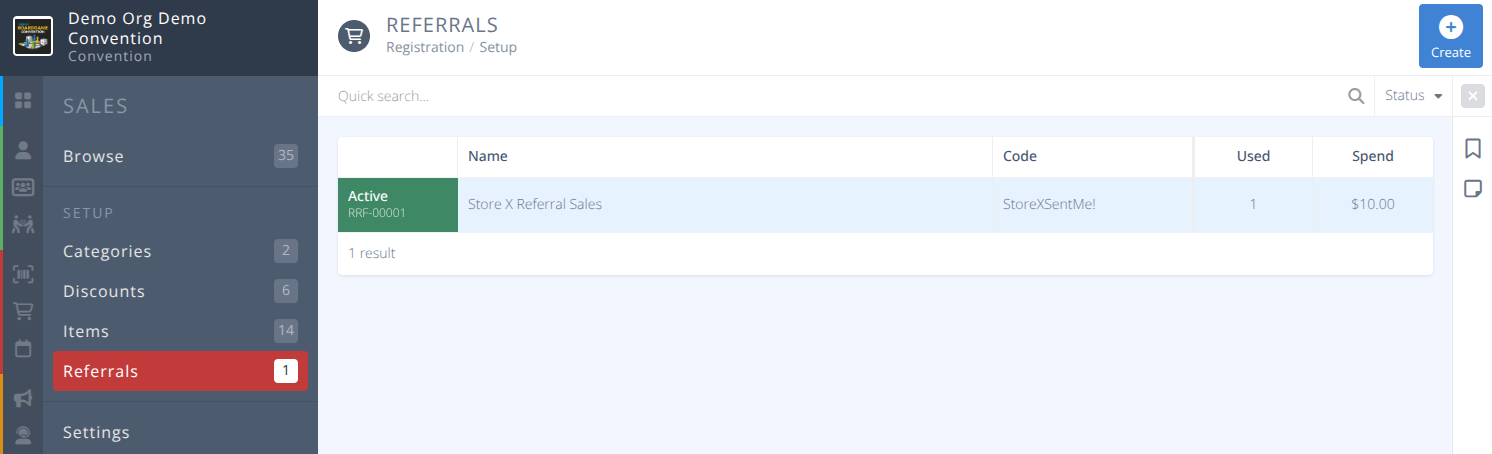
The Quick Search can be used to filter by Name or Code as well as Status
¶ Common Procedures
Create A Referral CodeModify A Referral CodeDelete A Referral CodeUse A Referral CodeView All Sales Completed with a Specific Referral Code
¶ Fields
Note: Mandatory fields are denoted by a
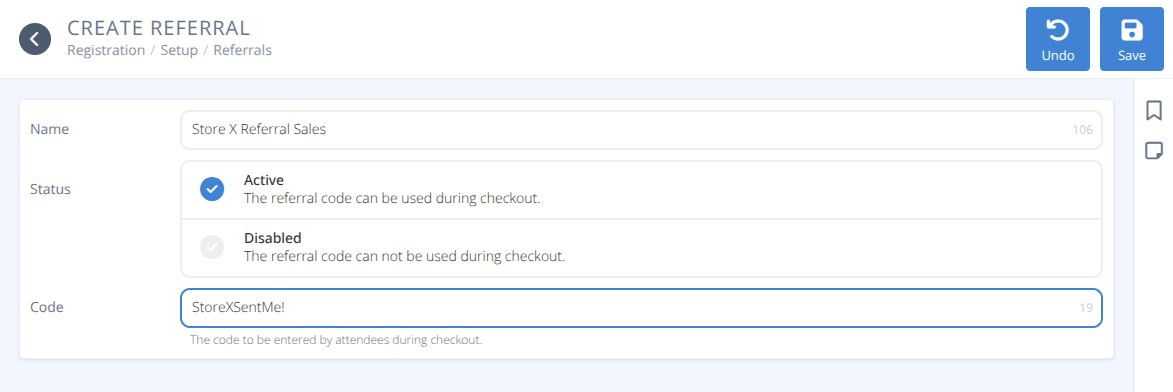

Name- The Name of the referral code. This is for internal usage only.-
Status- The status of the code either:- Active - The refferal code can be used during checkout.
- Disabled - The referral code cannot be used during checkout.
-
Code- The code that must be entered during checkout for the sale to be tracked
¶ Procedures
¶ Create A Referral Code
- From the Sales Menu click on Referrals.
- Click <kbd Create/+
- Provide the Name, Code, and Status
- Click Save
¶ Modify A Referral Code
- From the Sales Menu click on Referrals.
- Use the Quick search... to filter the list of codes if necessary
- Click on the row of the code you wish to modify
- Edit the fields as needed.
- Click Save
¶ Delete A Referral Code
- From the Sales Menu click on Referrals.
- Use the Quick search... to filter the list of codes if necessary
- Click on the row of the code you wish to delete
- Click Delete
Warning: This action cannot be reversed.
All Sales associated with this Referral Code will no longer be connected to a code. Exported Sales will display a Referral value of "Unknown"
- Click Confirm
¶ Use A Referral Code
- During the purchase process the user will enter the code on the line labeled
Referral

- Click the Add button.
- If the code is valid it will change to be highlighted in green:

otherwise it will be highlighted in red:

- Once completed the sale will be added to the total number of uses and the total sales.
¶ View All Sales Completed with a Specific Referral Code
Referral code Sales can be seen in two ways:
- Directly from the Browse menu item under Sales
a. Click on the Referral filter in the Quick search bar.
b. Select the referral code(s) you wish to view in the side panel. - From the detailed view of a Referral
a. From the Sales Menu click on Referrals.
b. Use the Quick search... to filter the list of codes if necessary
c. Click on the row of the code you wish to see sales for
d. Click on the Use(s) box.

e. You will be redirected to the Browse menu with the selected code filtered as in 1. above