¶ Attendees: Setup
¶ Overview
The Setup section of is where you define the building blocks every badge is made from. Set these up before you create badges or open registration.
From the menu, look for the SETUP heading in the side menu.
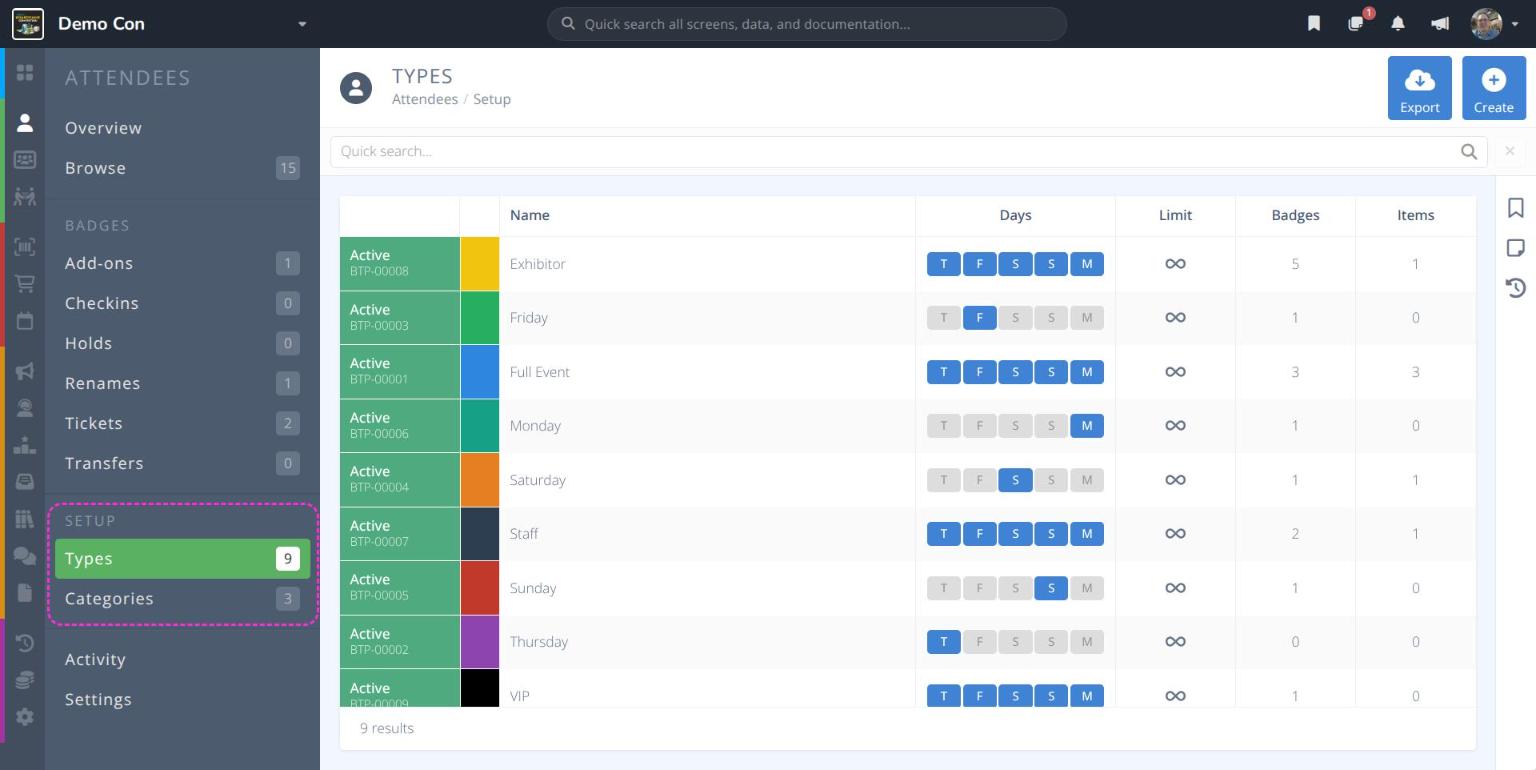
¶ Menu Breakdown
Types- View and manage all badge typesCategories- View and manage badge categories
¶ Types or Categories?
| Types | Categories | |
|---|---|---|
| Required? | Yes. Every badge must have a type. | No. Categories are optional. |
| Applies to | Every badge of that type | Only the individual badges it is assigned to |
| Controls | Which days the badge is valid, quantity limits, and the badge's look (color bar, label, name format, subtitle, images) | One extra line of text under the attendee's name |
| Typical examples | Full Event, Weekend, Saturday, Staff, Exhibitor | Friendly Local Game Store, Big Game Publisher, Lifetime Member |
| Assigned | When the badge is created or purchased | When the badge is created, or later from the badge's Setup tab in |
See the Sample Badge for where each setting appears on a printed badge.
¶ Recommended Setup Order
- Create your badge types. At least one type is required before any badge can exist. See
Create a Badge Type. - Create categories (optional), if you plan to print company or group names on badges. See
Create a Badge Category. - Create Sales Items for each badge type you plan to sell through registration or the store. See
Badgesin Sales Items. - Create or import badges that are not sold through registration, such as staff or comped badges. See
Add an Attendee.
Note: A badge type cannot be sold on its own. Attendees buy a Sales Item, which is linked to a badge type.