¶ Applications
¶ Overview
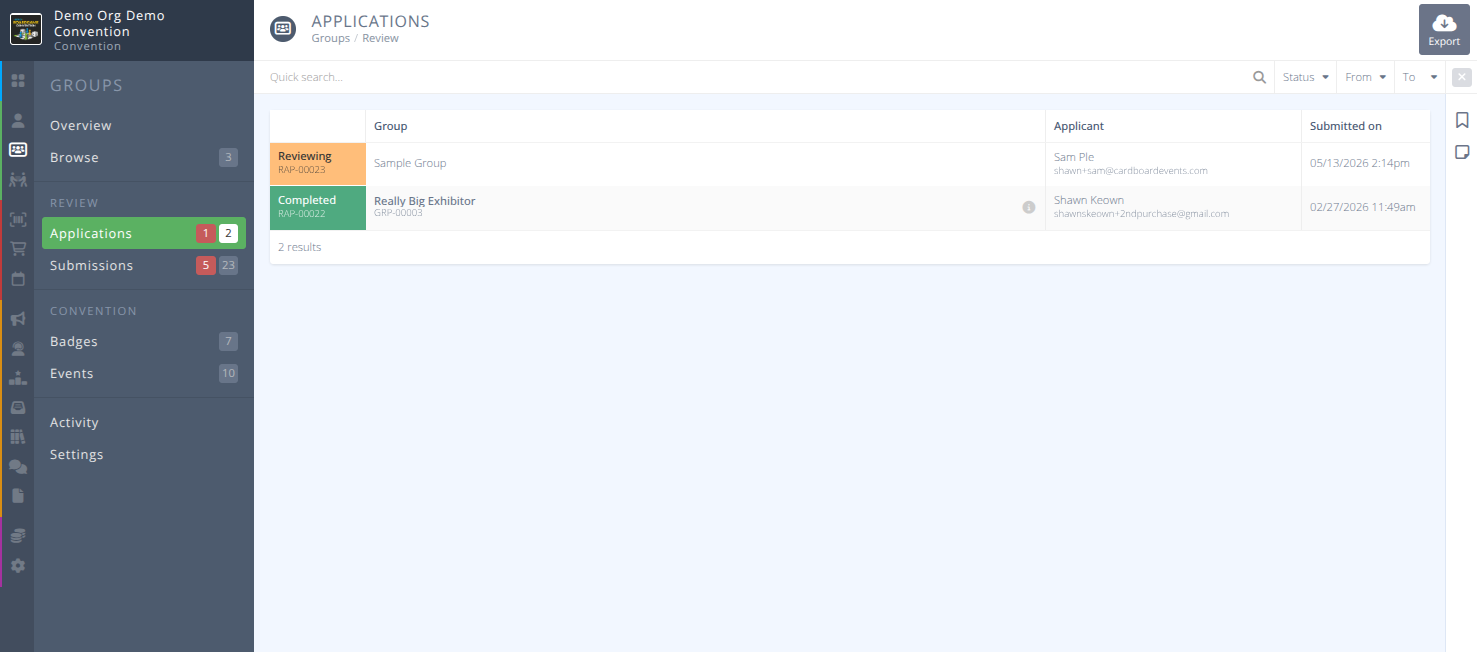
Group Applications are a specific type of Application that can be easily filtered and viewed here.
To create the application page that groups use to apply for group status, please refer to the documentation in Pages and the procedure: Create a Group Application Page
¶ Common Procedures For Group Applications
Review a Group Application- Approve, Reject, and manage group applications.Export Group Applications
¶ Fields
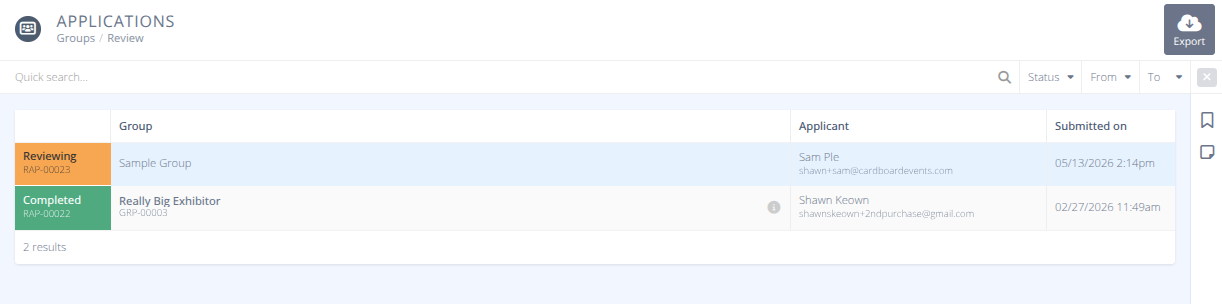
Status- The status of the application, one of:- Pending - The application has been submitted but has not yet been reviewed.
- Reviewing - The application has been submitted and is being reviewed.
- Completed - The application has been approved and the group has been created.
- Rejected - The application has been rejected and the applicant notified.
Group- The name of the groupApplicant- The name and email address of the applicant.Submitted on- The date the application was submitted.
¶ Procedures
¶ Review a Group Application
-
Group applications submitted for approval can be found in the menu of the section.
-
Locate the application you wish to review in the grid using the Quick search... and filters as needed and click on it.
-
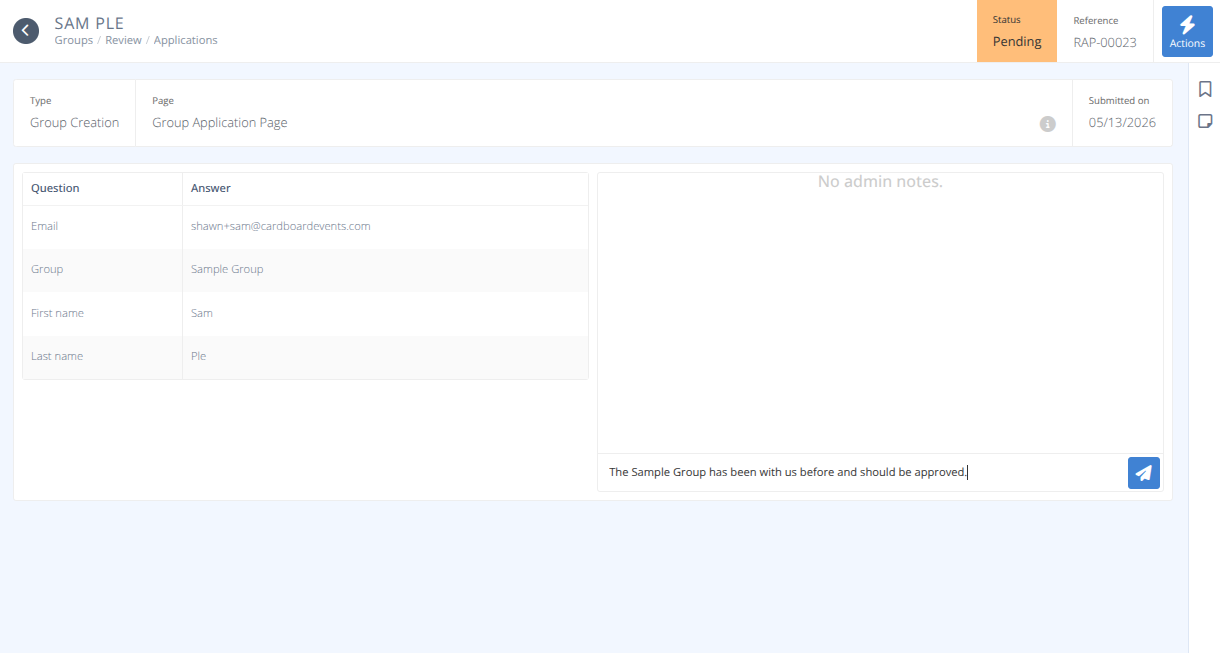
The detailed view of the application will be shown. You now have a number of possible actions:
¶ Approve Application
- To approve an application click in the top right of the screen and then from the Actions menu.
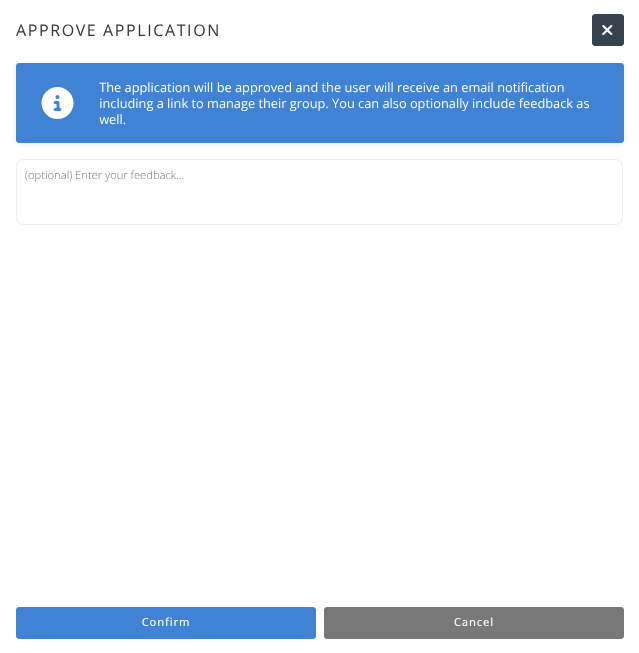
- A side panel will display the approval and you may enter any optional feedback that will be sent to the applicant.
- Click
- The applicant will receive an email notification that their group has been approved. They may now login to cardboardconnect.com and access the group from the User Context Menu in the top right.
¶ Set as Under Review
- Setting an application as "Under review" is a cosmetic change to allow other admins to easily see the application is being reviewed. Click in the top right of the screen and then from the Actions menu.
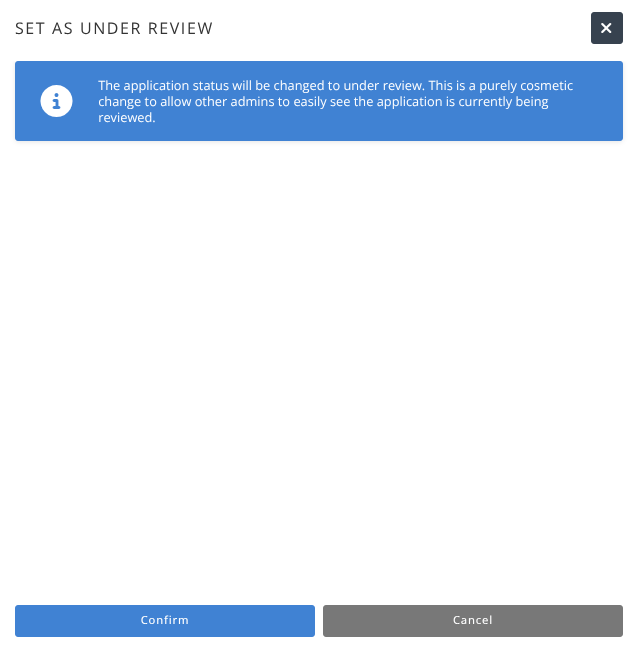
- A side panel will display the message that the record will change state.
- Click
- There is no notification or status sent when an application is set under review.
¶ Reject Application
- To reject an application in the top right of the screen and then from the Actions menu.
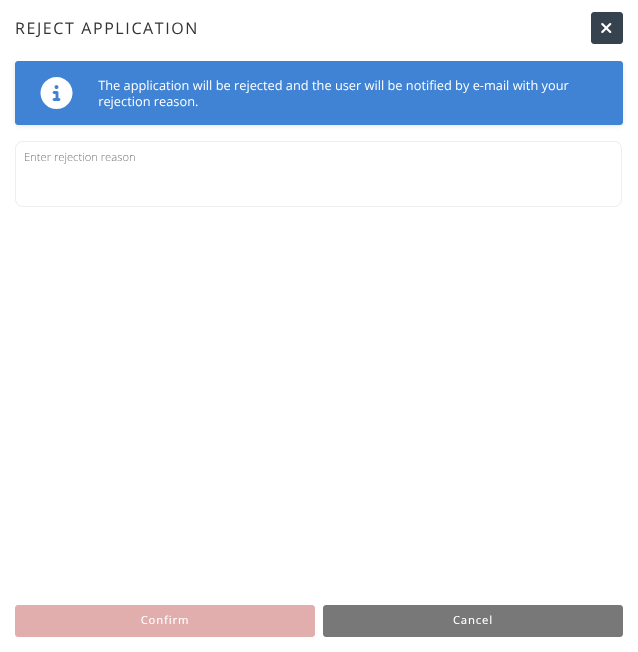
- A side panel will display where you enter the reject reason (this will be sent to the applicant).
- Click
- An email will be sent to the applicant indicating that their application has been rejected.
¶ Add Admin Notes to the Application
- To add Admin notes type in the box with the text "Add admin note..." and hit enter or click on the send button.
- Your notes will be added to the application for all administrators to view.
- To approve an application click in the top right of the screen and then from the Actions menu.
¶ Export Group Applications
- Group applications submitted for approval can be found in the menu of the section.
- Click on the button in the action area of the screen.
- Select the Columns and Settings desired and click
- A csv file will be downloaded with the chosen data.