¶ Group Badges
¶ Overview
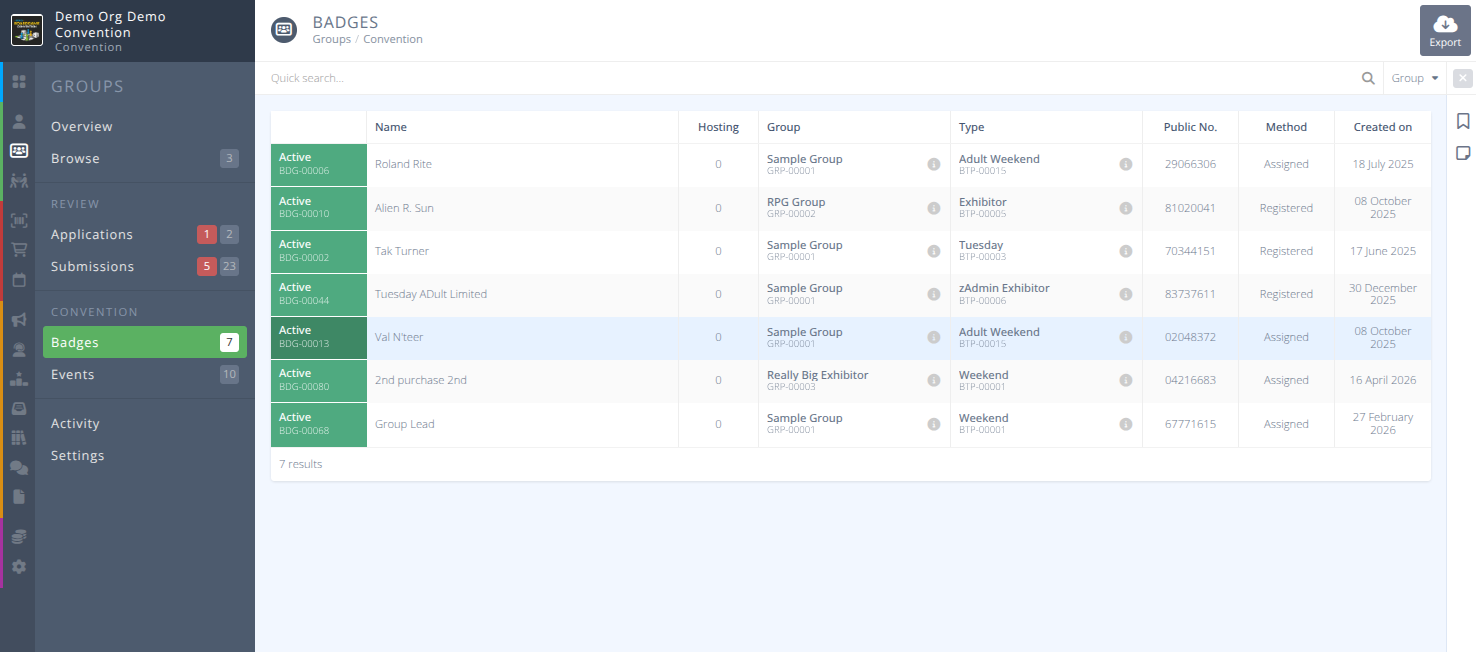
Group Badges are where you'll find a summary of all badge holders that are connected to groups, regardless of how their badge was obtained. The list can be filtered by group or using the Quick search... functionality.
Clicking on a badge will redirect you to the Detailed View of a Badge
¶ Common Procedures
¶ Fields
Status- The status of the badge, one of:
Active - The badge is active and valid.
Pending - The badge is pending a purchase to become valid.
Deleted - The badge has been deleted and is no longer valid.
Transferred - The badge has been transferred to someone else and is no longer valid.Name- The name and category of the Badge. If the badge is managed an indicator will show the managing badge.Type- The type of badge held by the Group Member.Public No.- The public badge number of the Group Member.Method- How was the badge obtained, either:
Assigned - The badge was assigned by another person.
Created - The badge was created by an administrator or via another process.
Unassigned - The badge is managed by someone else and has not been assigned, transferred, or renamed.
Registered - The badge was obtained through a normal registration process.Created On- The date the badge was created.
¶ Procedures
¶ Export Group Badges
- Badges associated with group members can be found in the menu of the section.
- Click on the button in the action area of the screen.
- Select the Columns and Settings desired and click
- A csv file will be downloaded with the chosen data.