¶ Records
¶ Overview
Click a row in any grid to open that record, such as a badge type, a sales item or an attendee. Records share the same layout throughout Manage.
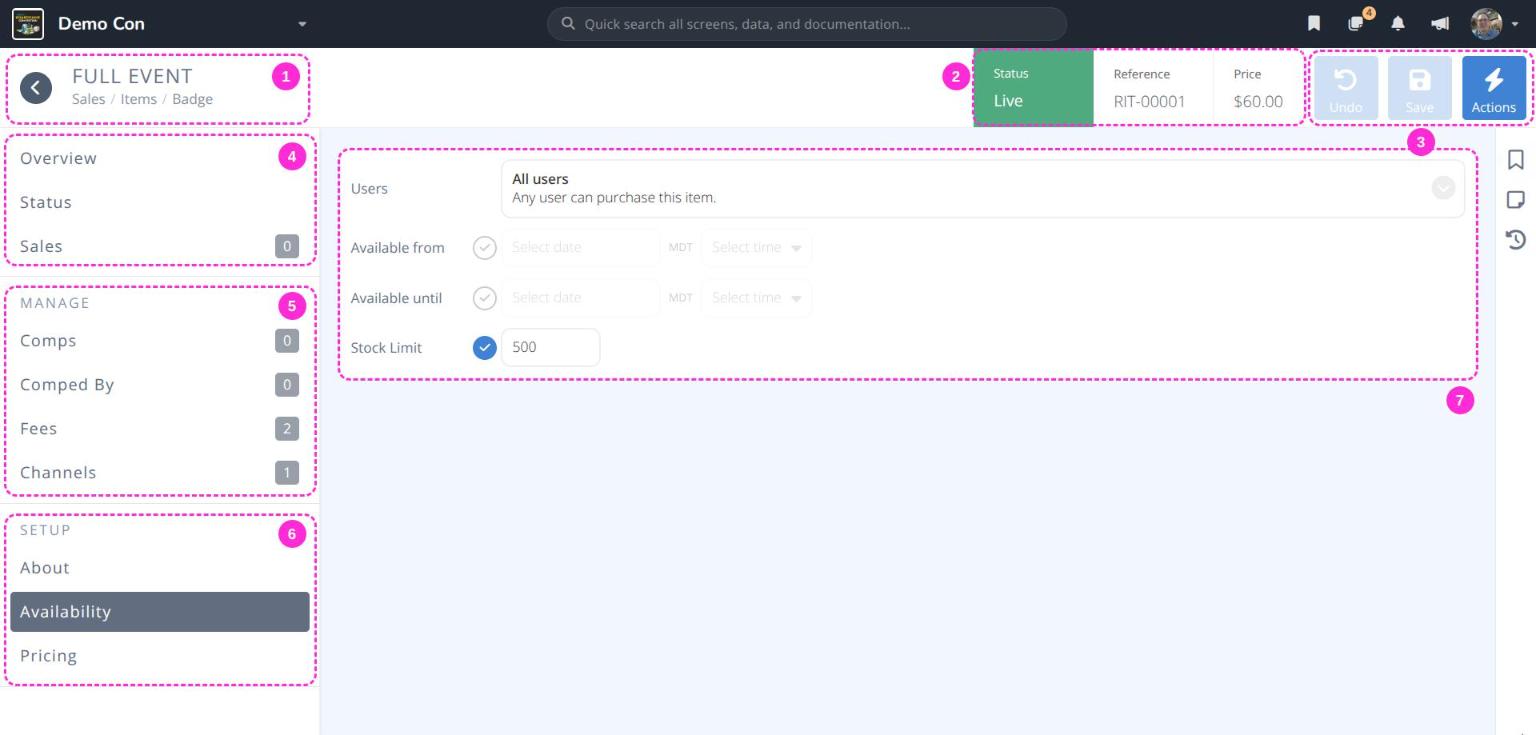
- Title - The record's name and breadcrumb (e.g. Sales / Items / Badge). Click to go back to the grid.
- Summary - Key details at a glance, such as Status, Reference and Price.
- Actions area - , and . See
Save Your Changes. - Overview sections - A summary of the record, its status, and related information such as sales.
- MANAGE - Related records you can add to or change, such as fees or channels. The number beside each section shows how many there are.
- SETUP - The record's own settings, such as its name, availability and pricing.
- Section content - The information for the section selected in the side menu.
Note: Not every record has every section. For example, a badge type has different sections from a sales item. The sections for each record are explained on its own documentation page(s).
¶ Save Your Changes
Changes to a record are not saved until you click Save.
- Make your changes.
- and light up once there is something to save.
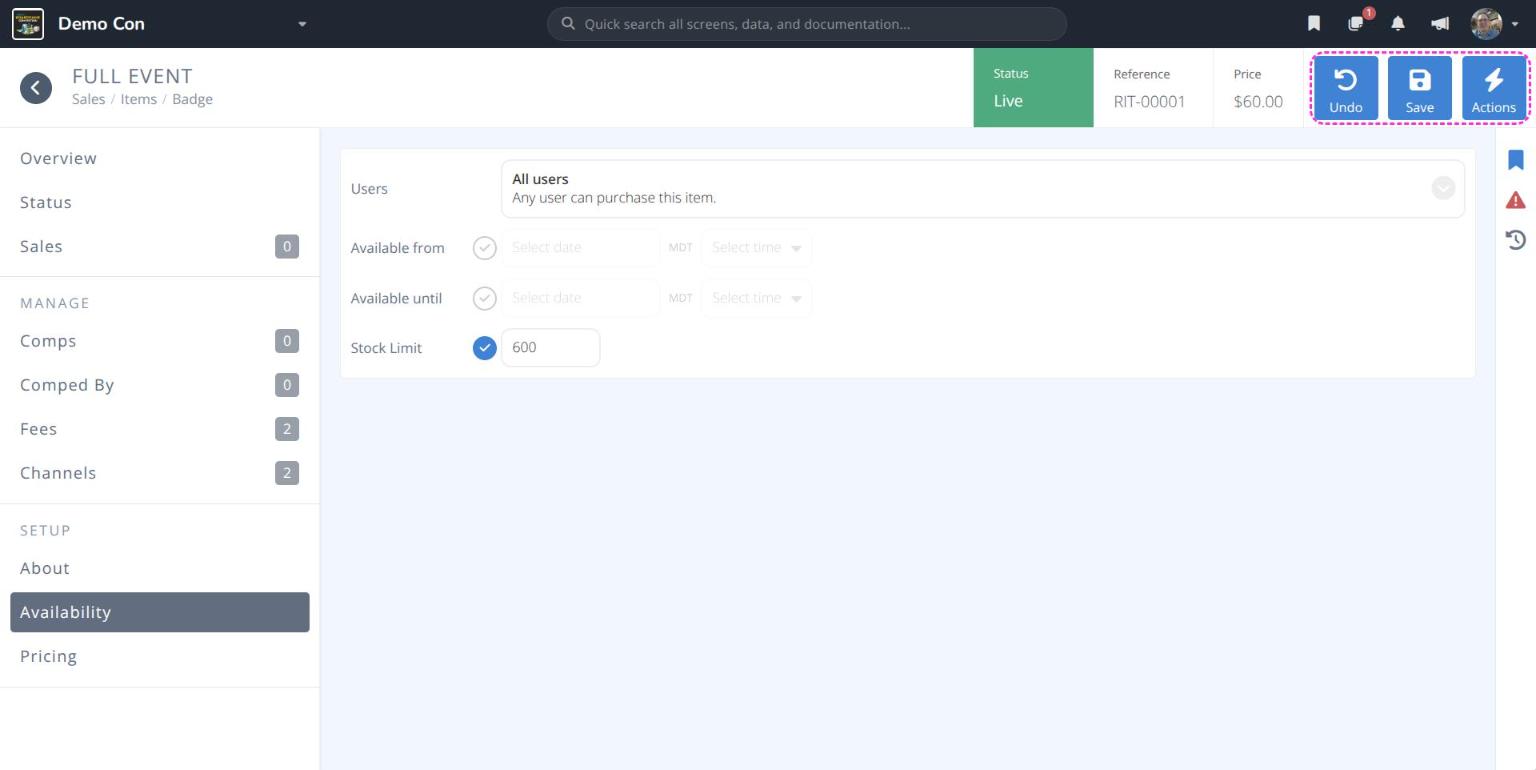
- Click to keep your changes, or to discard them.
When nothing has changed, Undo and Save are greyed out.
Caution: If a field has a problem, such as a required field left blank, a red marker appears beside it and the change cannot be saved until it is fixed.
¶ The Actions Menu
Click for things you can do with the whole record. The options depend on the record, but often include:
- Reports or Export - See or download information about this record
- Clone - Start a new record with the same settings
- Disable - Turn the record off without deleting it
- Delete - Permanently remove the record
Warning: Delete cannot be undone. If the record has been used, such as a sales item that has been sold, Disable it instead so its history is kept.
¶ Panels and Selection Windows
Some actions open a panel on the right side of the screen, such as CREATE BADGE ITEM or MANAGE ITEMS. Fill in the panel and click its blue button (e.g. or ), or click or to close it without making changes.
Fields that link to other records, such as Tags or Categories, open a SELECT window when clicked (e.g. SELECT ITEMS):
- Search for records, or narrow the list with the filters at the top.
- Click a record to select it; a appears. Click it again to deselect it.
- Switch between All and Selected to review your choices.
- Click to return to the record.