¶ Sales Overview
¶ Overview
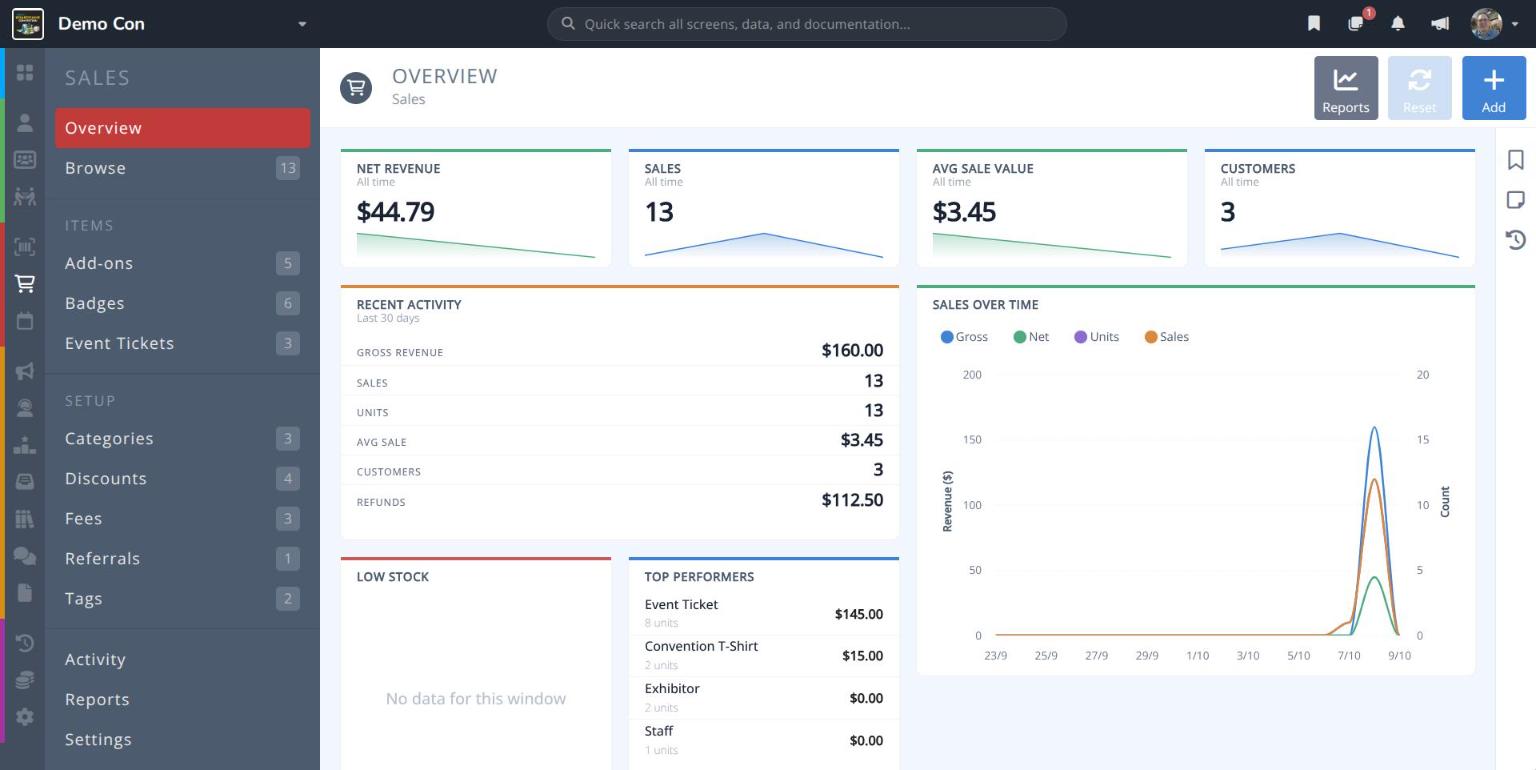
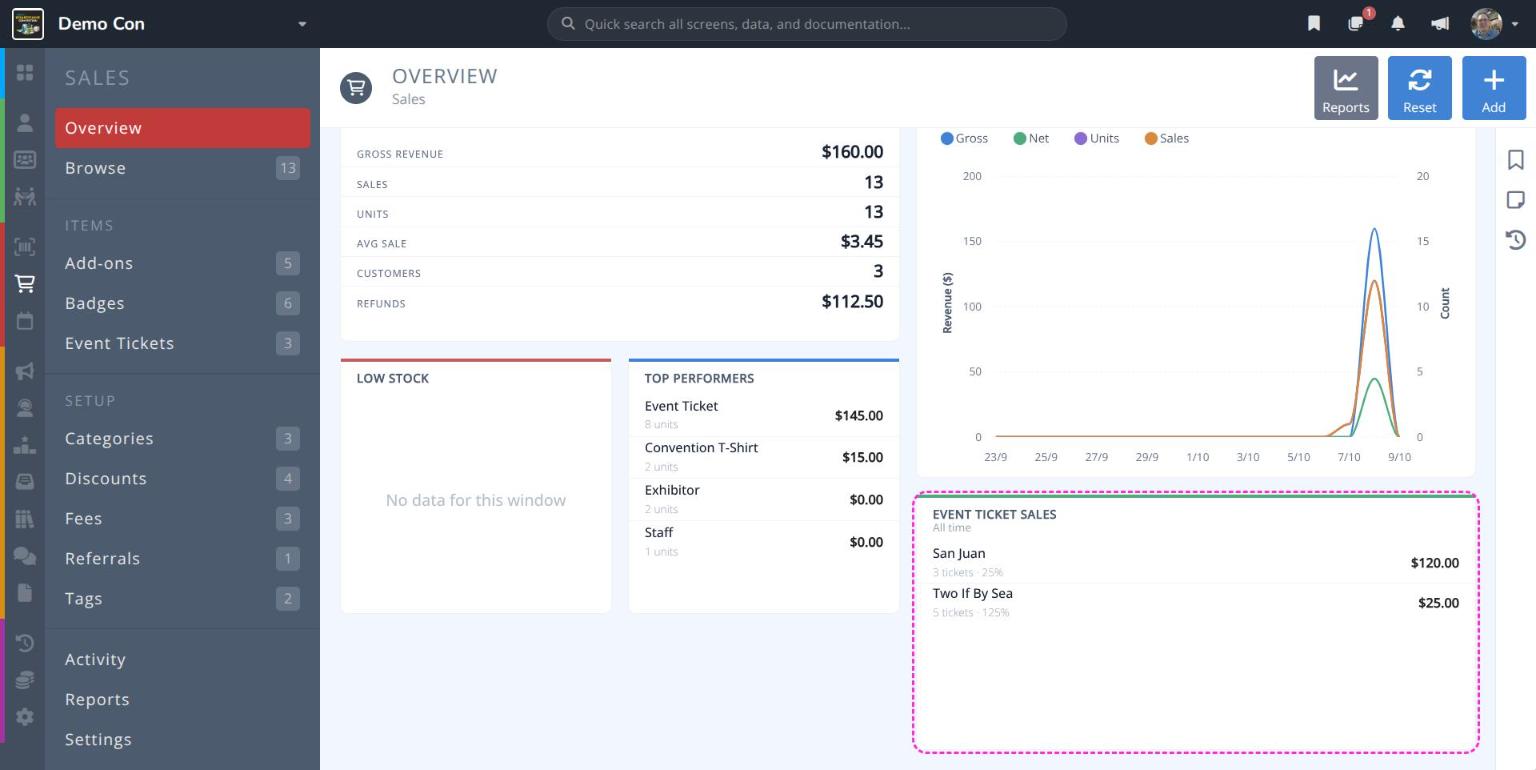
The Sales is your sales dashboard. It shows your key sales figures at a glance on a set of cards, such as Net Revenue, Sales, Recent Activity, Sales Over Time, Low Stock and Top Performers.
Each card is a small version of a Report. A default set of cards is ready to use, and you can add, remove, rearrange and customize them to suit how you run your convention.
Note: Your dashboard is saved for you, for this convention. Changes you make do not affect other organizers' dashboards.
¶ Common Procedures
Add a CardCustomize a CardMove a CardRemove a CardOpen a Card as a Full ReportReset the Dashboard
¶ Dashboard
From the menu click .
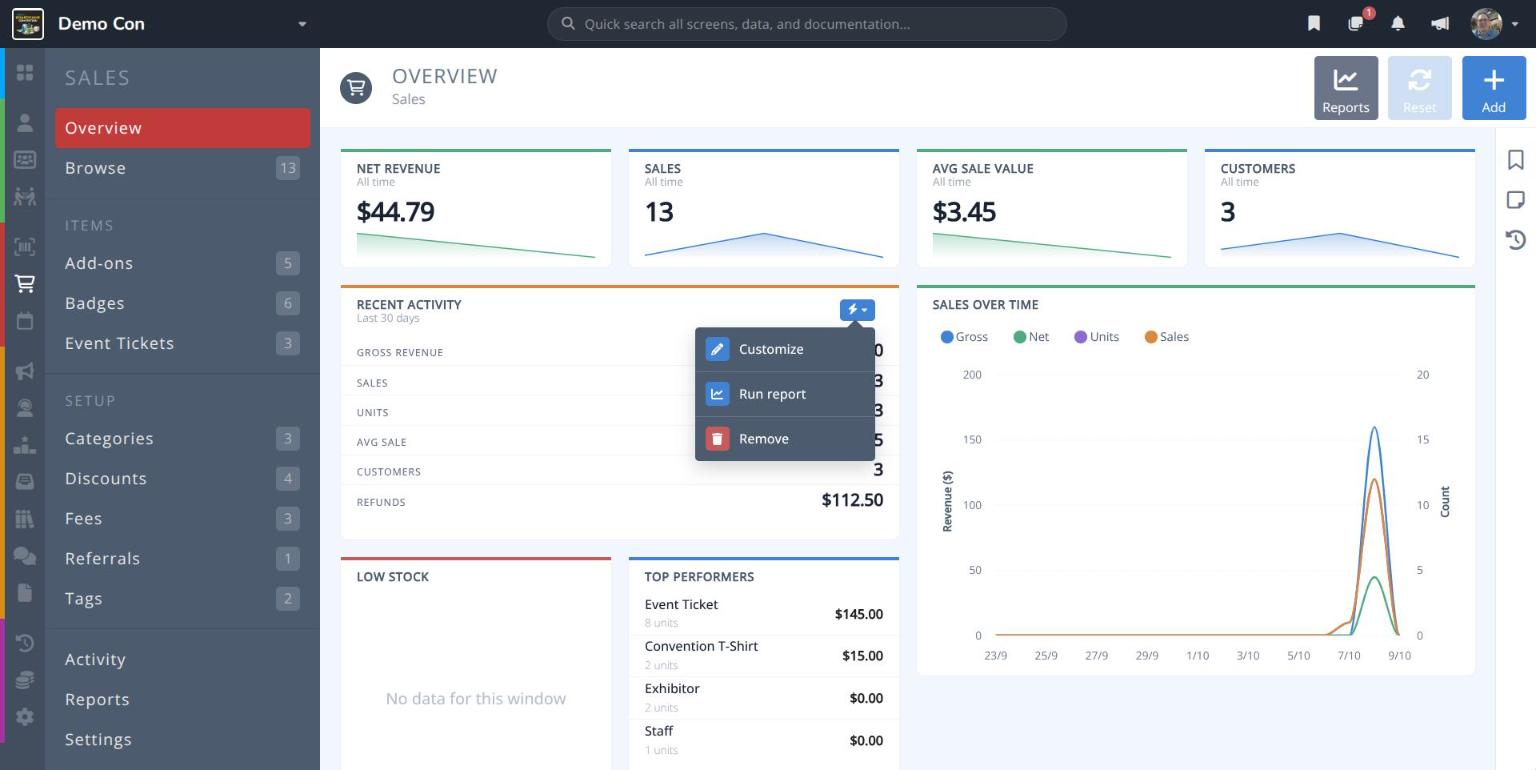
Each card shows its title and the period it covers (e.g. All time or Last 30 days). Hover over a card to show two controls at its top right:
- Card actions - Customize, Run report or Remove the card
- Drag to reorder - Move the card to a new spot on the dashboard
The following buttons appear in the actions area at the top right:
- - Opens
Reports - - Puts back the default cards. Only available once you have changed your dashboard.
- - Adds a card to the dashboard
¶ Procedures
¶ Add a Card
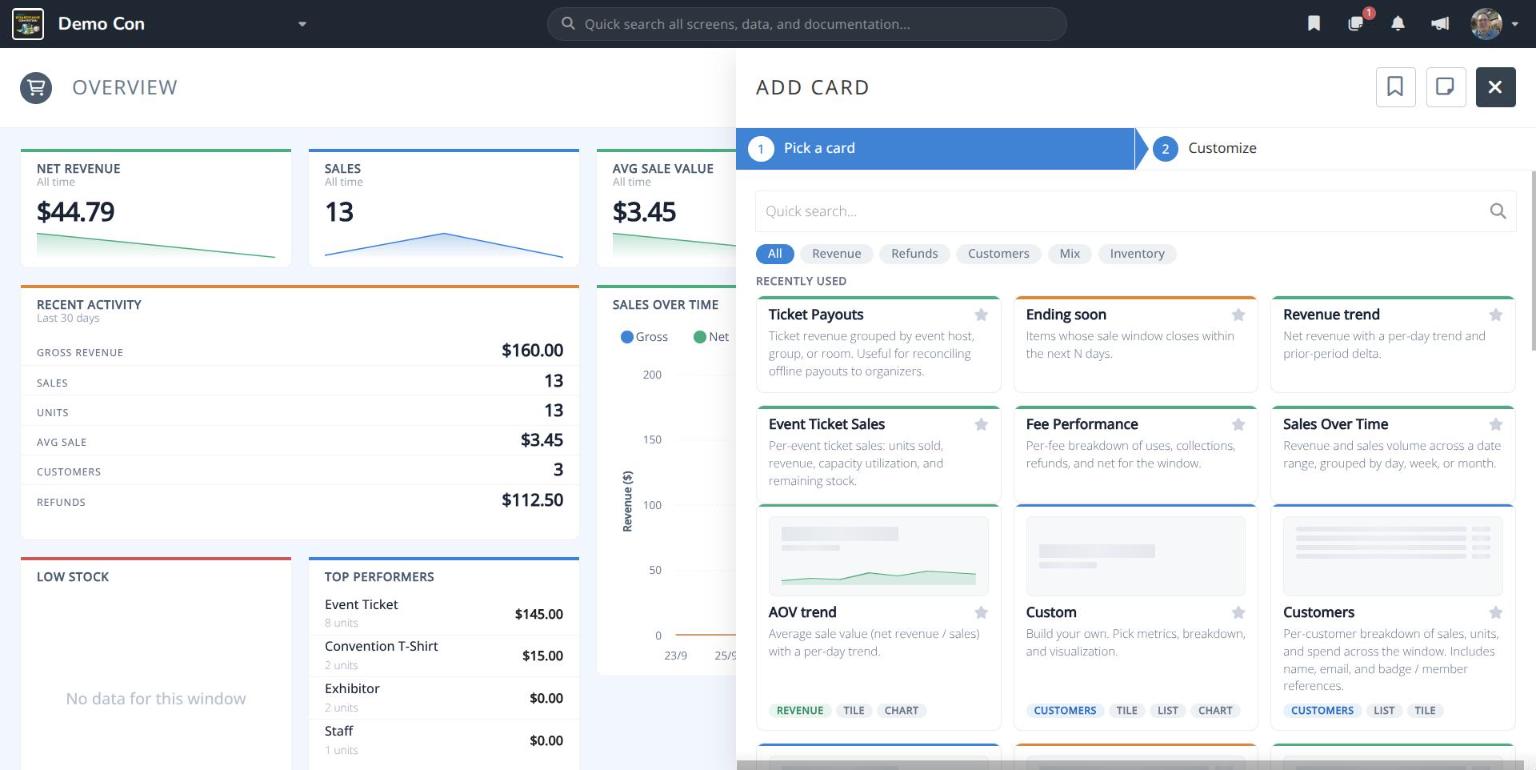
- From the menu click , then click . The ADD CARD panel opens with two steps: Pick a card and Customize.
- Click the card you want. Cards you have used lately appear under RECENTLY USED. Use the Quick search... bar or the filters (Revenue, Refunds, Customers, Mix and Inventory) to find others. Each card's labels show its group and the formats it can be shown in (Tile, List and/or Chart).
-
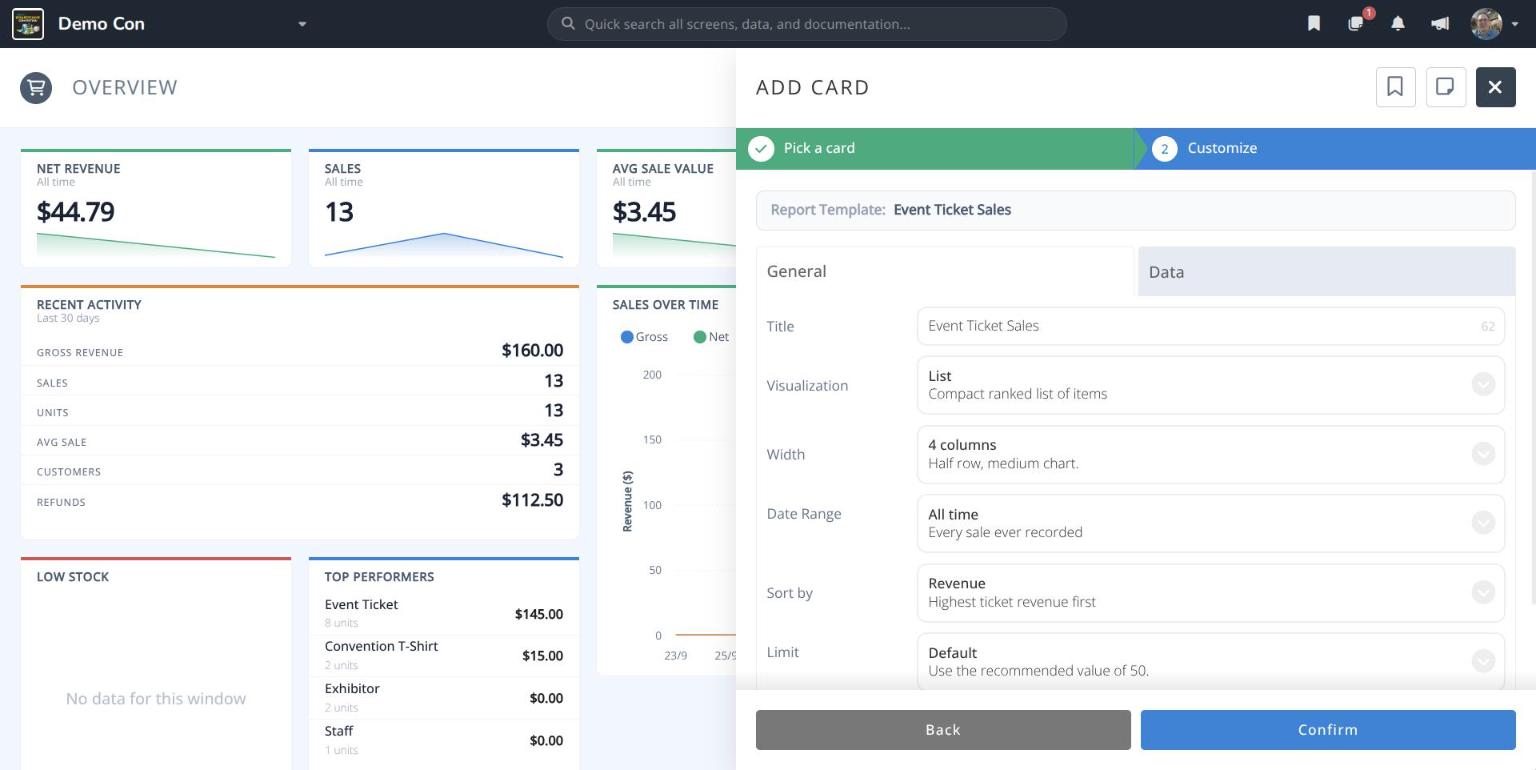
On Customize, check the Title and choose how the card looks. The options depend on the card, and can include:
Visualization- How the results are shown (e.g. List, a compact ranked list)Width- How much of the row the card takes up: 1 column (a compact figure with no sparkline), 2 columns (adds a sparkline), 3 columns, 4 columns (half a row), 6 columns (three-quarters of a row) or Full row (the biggest chart)Date Range- The period the card covers (e.g. All time or Last 30 days)Sort by,Limit,Amountand other options, as on the matchingReport
Use the Data tab to show only some sales, for example sales of items with a particular tag.
- Click . The card is added to the bottom of your dashboard.
¶ Customize a Card
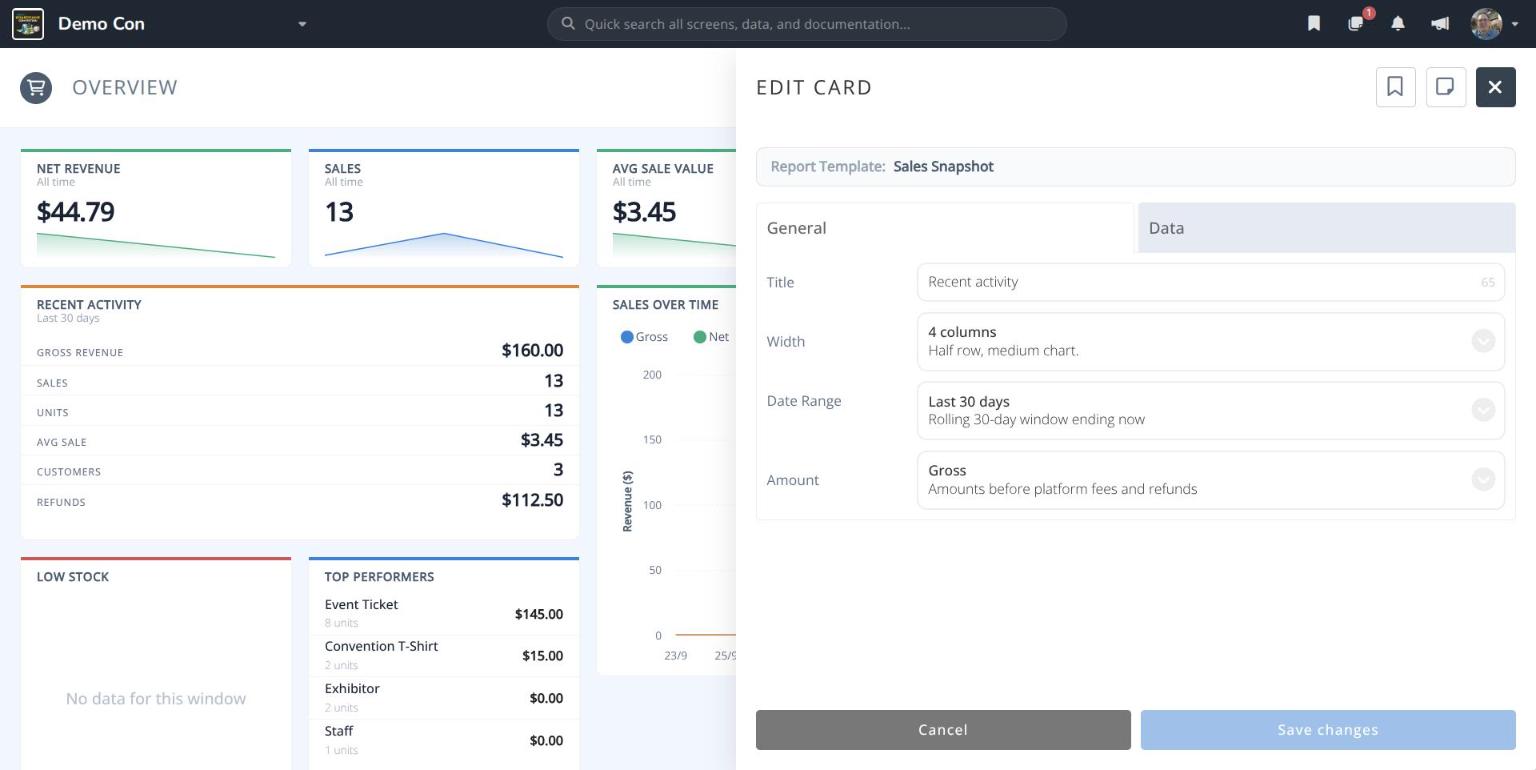
- Hover over the card and click Card actions → Customize. The EDIT CARD panel opens and shows the Report Template the card is based on (e.g. Sales Snapshot).
- Change the Title, Width, Date Range or other options on the General tab, or the filters on the Data tab.
- Click .
¶ Move a Card
- Hover over the card, then click and hold the Drag to reorder handle at its top right.
- Drag the card to where you want it and let go.
The dashboard immediately saves, and an Overview changes saved message appears at the bottom right.
¶ Remove a Card
- Hover over the card and click Card actions.
- Choose Remove.
The card is immediately removed, and an Overview changes saved message appears. To get it back, add it again. See Add a Card.
¶ Open a Card as a Full Report
Use this to see more detail than fits on the card, download the data, or save or schedule it.
- Hover over the card and click Card actions → Run report.
- The RUN REPORT panel opens on the Customize step, already set up with the card's options.
- Change any options, then click .
From the result you can download, save or schedule the report. See Reports.
¶ Reset the Dashboard
- Click in the actions area. The RESET DASHBOARD panel opens.
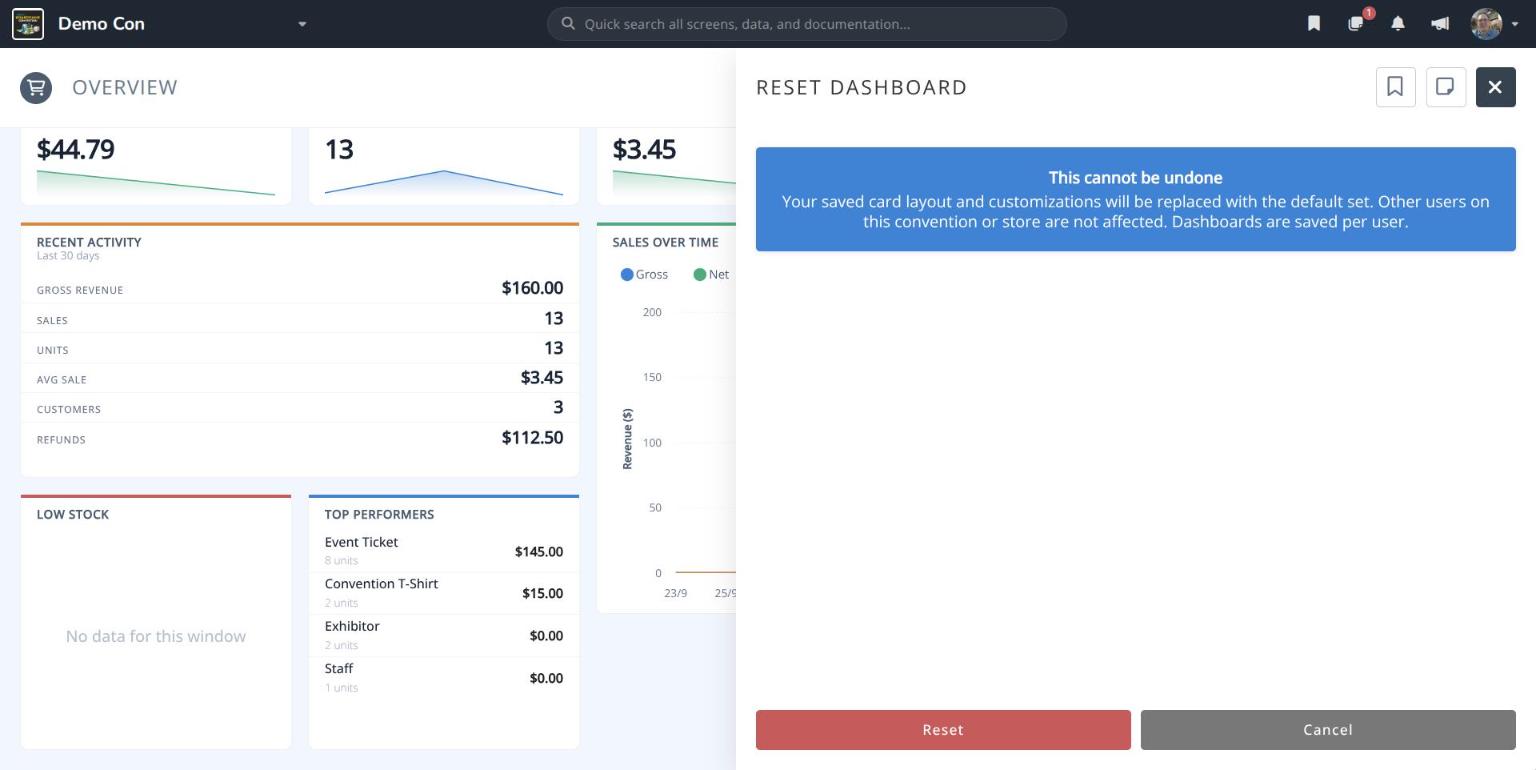
- Read the warning, then click .
Your cards and their settings are replaced with the default set. Other organizers' dashboards are not affected.
Warning: Resetting cannot be undone. Any cards you added or customized are removed.