¶ Working with Connections
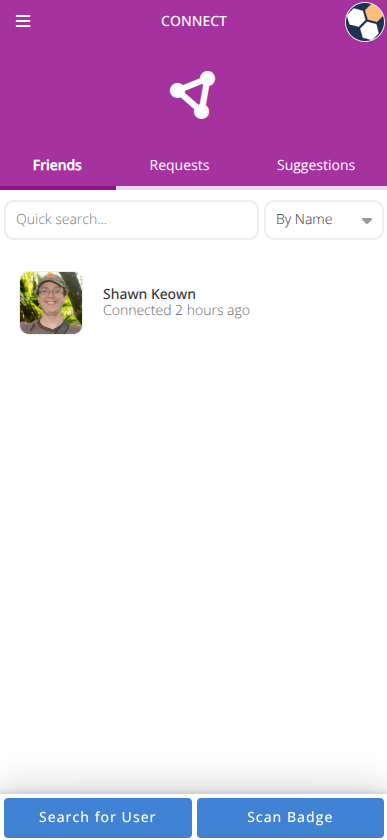
Connections allow you to see and share with your friends. They can be managed on the account level (covered here), but you'll find convention specific connections in the convention/badge view as well.
For the procedures below be sure to first:
-
Login to the Android, iOS, or web app at cardboardconnect.com.
- Look for the button in the top right.
-
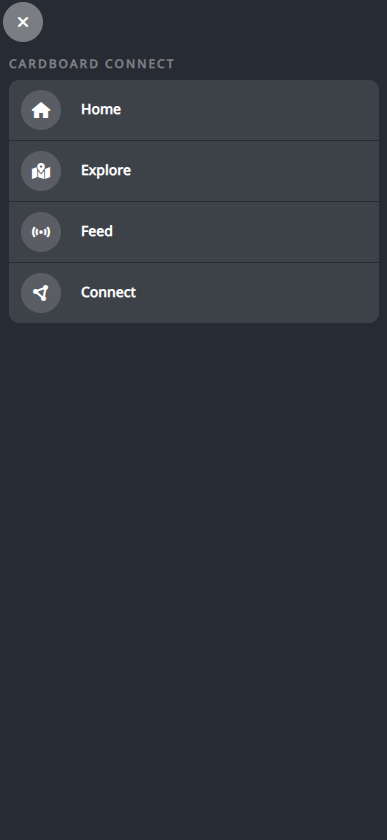
On desktop click the Connect menu or on mobile use the sandwich menu to access .
¶ Send Requests
- Click .
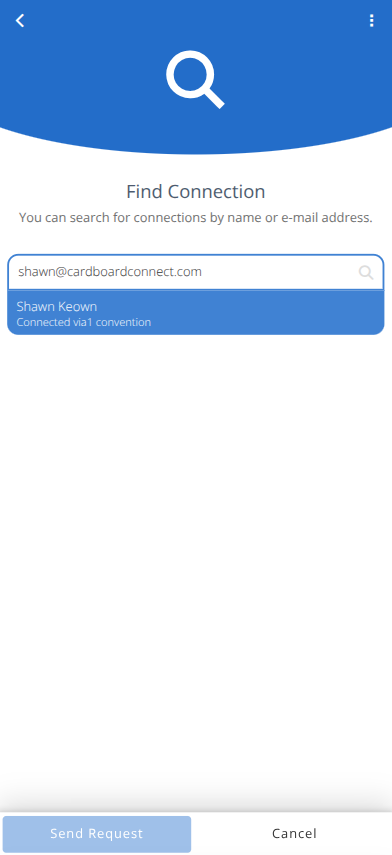
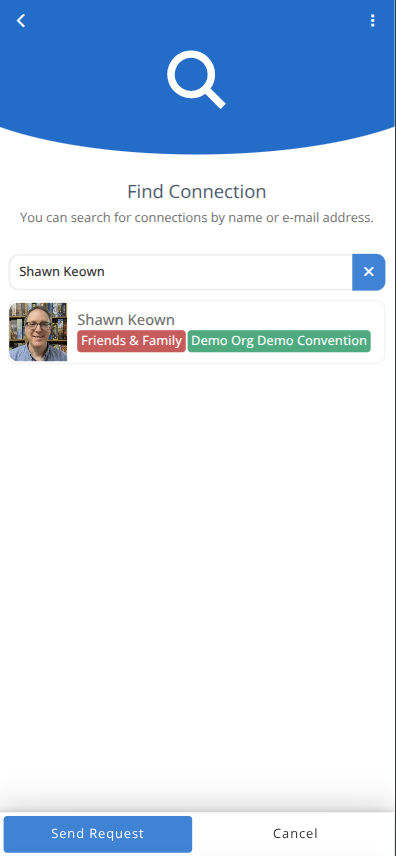
- Type in the name or email of the person to add and select it from the list.
- Click
- The recipient will be notified and must accept the request to finalize the connection.
¶ Scan a Badge
- Click
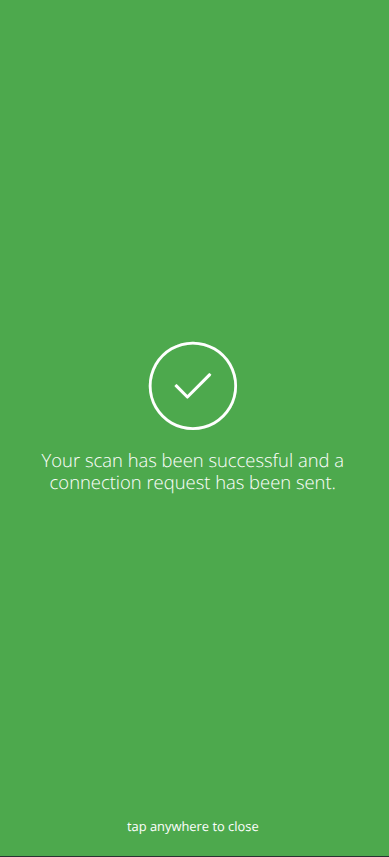
- Scan the QR code of their badge to send them a request automatically.
- The recipient will be notified and must accept the request to finalize the connection.
¶ Accept/Reject Requests
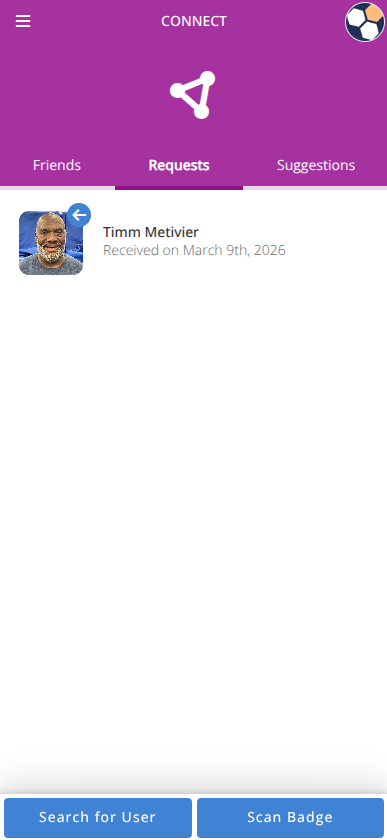
- Click the tab.
- Select the request to review.
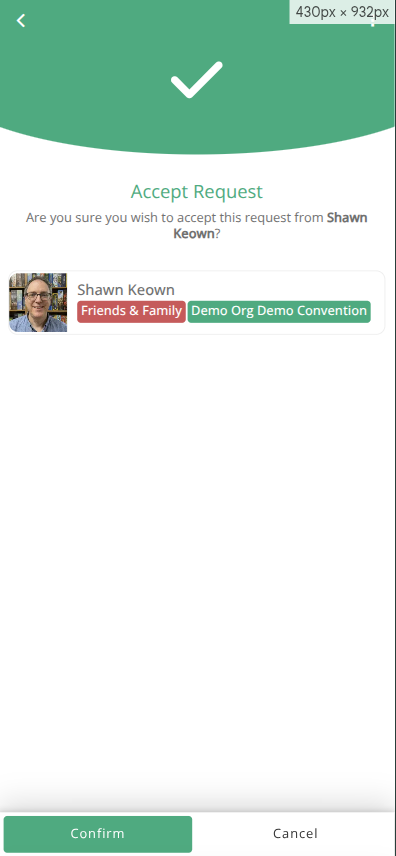
- Click or
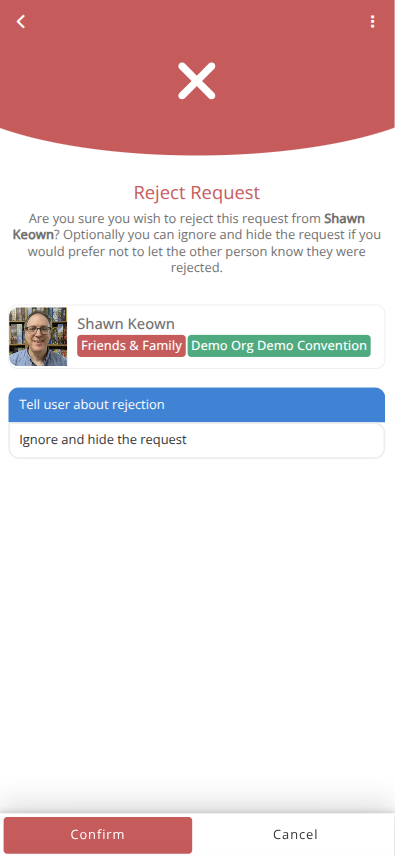
- Click or choose whether to notify the sender of the rejection and click
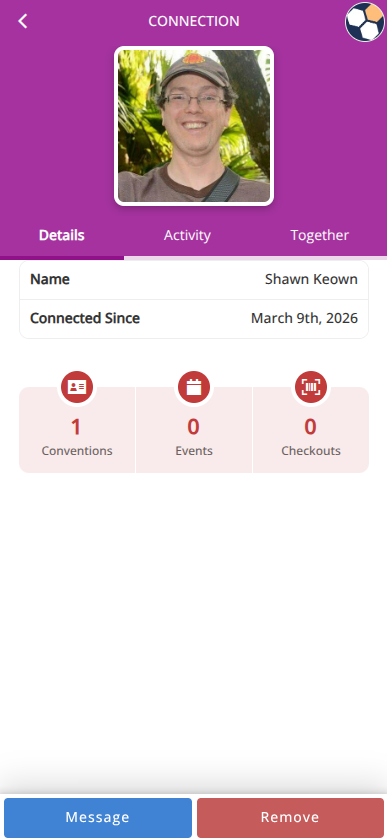
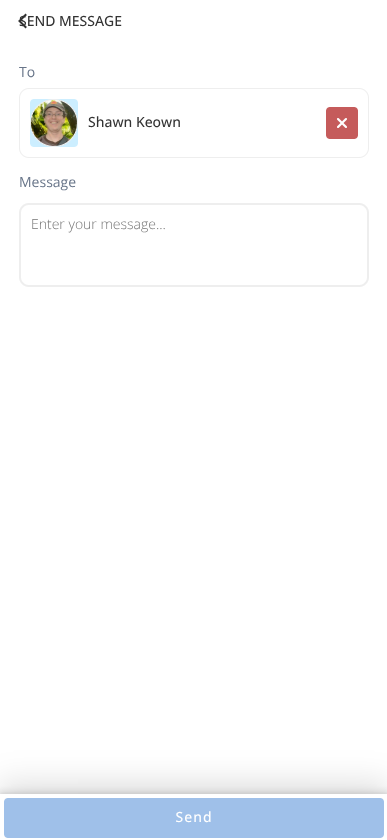
¶ View/Message Connections
- Click tab
- Select the connection and click
- Click
- Enter your message and click
¶ View Suggestions
- Click tab.
- Click on a suggested contact.
- Click
- The recipient will be notified and must accept the request to finalize the connection.
¶ Friends Playing
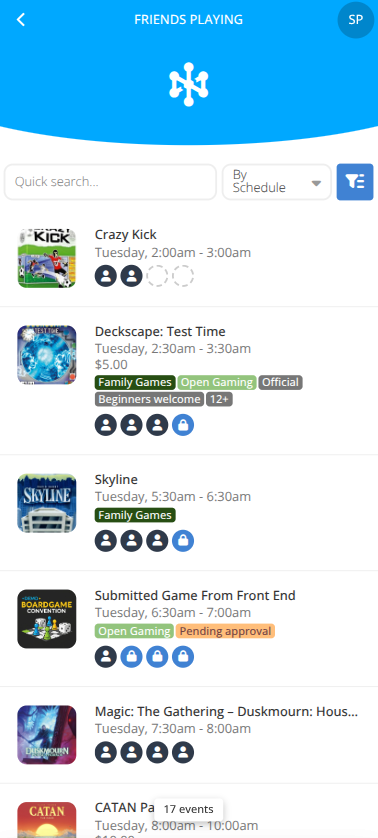
If you have Connections that are attending the same convention as you, you may see the events they are hosting or signed up for to quickly find events you may want to join.
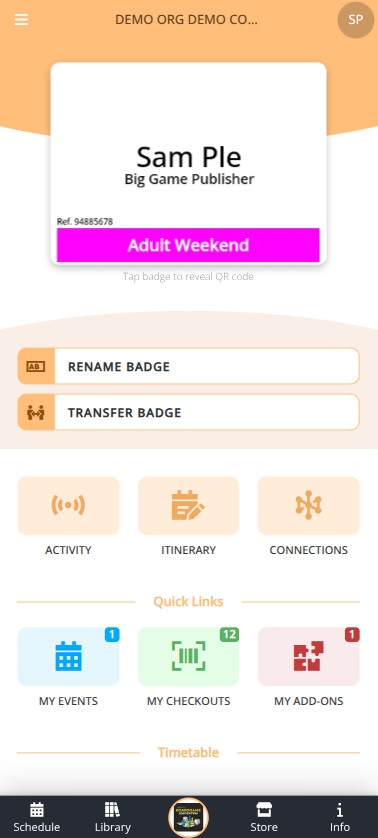
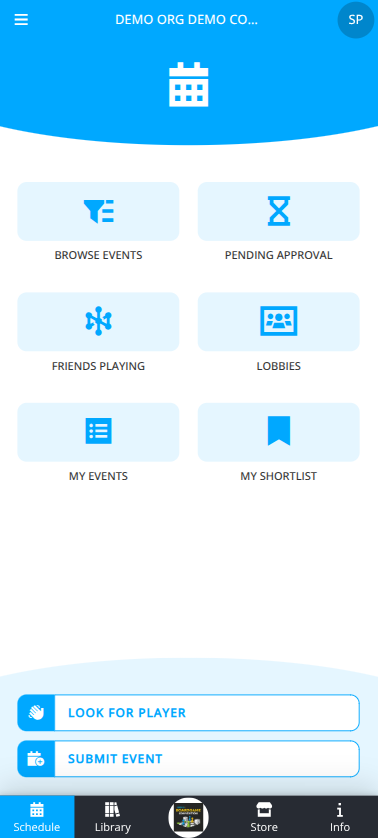
- From the dashboard of your current convention click the button to navigate to the Schedule Area.
- Click the button to see a list of the events your Connections are attending or hosting at this convention.
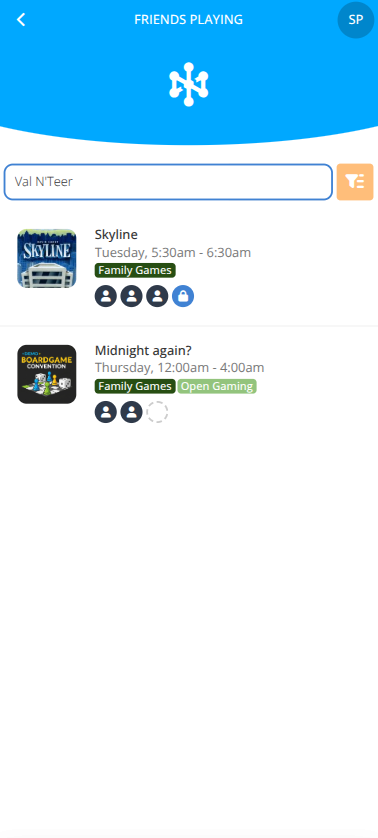
- Type their name in the Quick Search to filter the list by their name.
- Click on the event and click to join, see the details, view the attendees, or chat at the event.