¶ Convention Survival Guide
Level up your convention experience. No rulebook required! 
Everything you need is in the Cardboard Connect app: your badge, the schedule, the game library and the people you play with. Take five minutes with this guide and you'll be ready to play.
¶ Before You Arrive
- Get the app for
AndroidoriOS, or use the web app atcardboardconnect.com. - Click and sign in with the account that holds your badge.
- Select your convention and badge from .
- Browse the schedule and Add to Shortlist anything that catches your eye.
Tip: If your convention uses digital badges, tap your badge to show its QR code. That's what gets scanned at check-in, at the library desk and into Play to Win games.
¶ Find Your Way Around
The top corners and the bar at the bottom of every screen help you find your way to everything in the app:
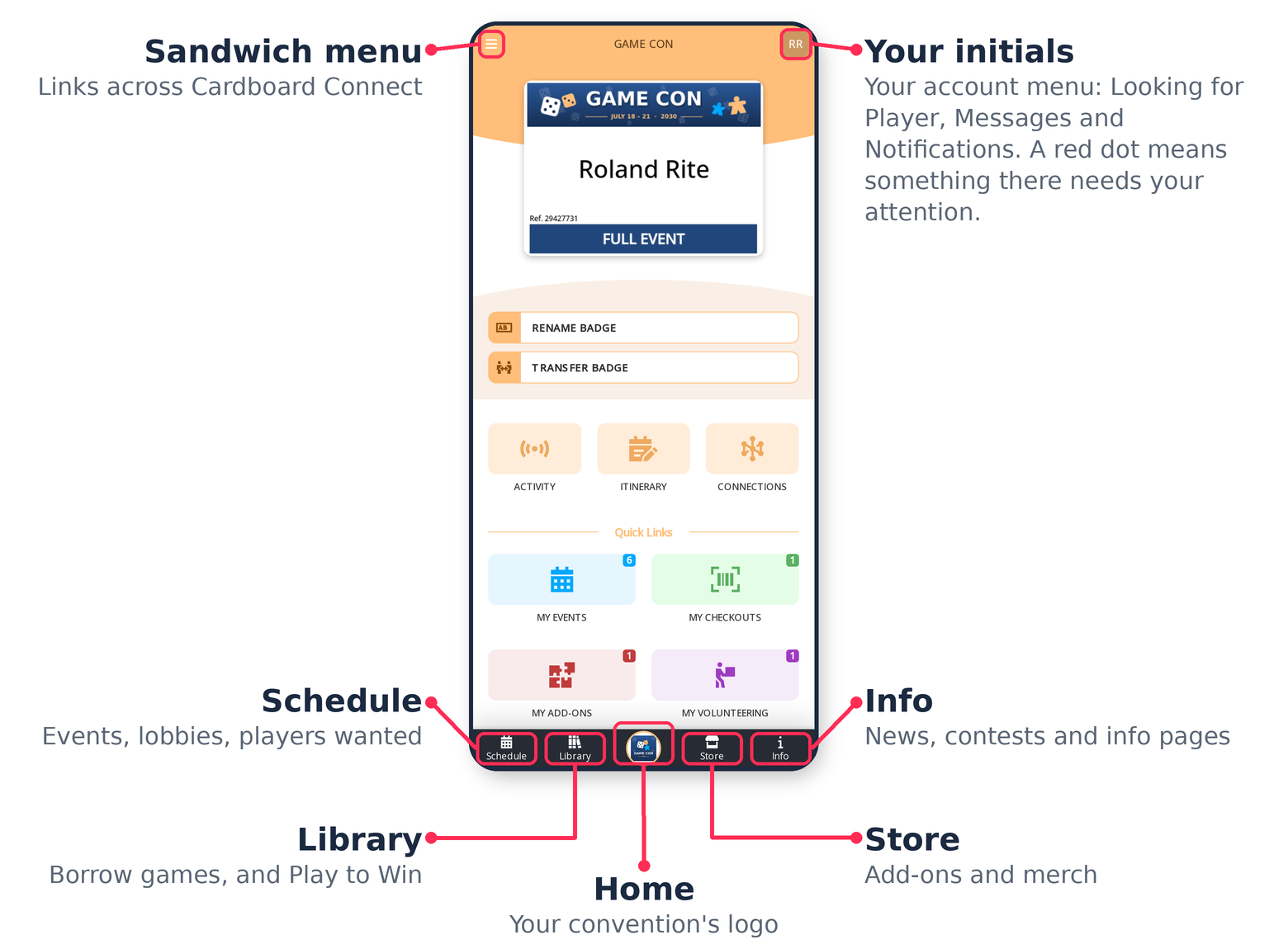
¶ Take the Tour
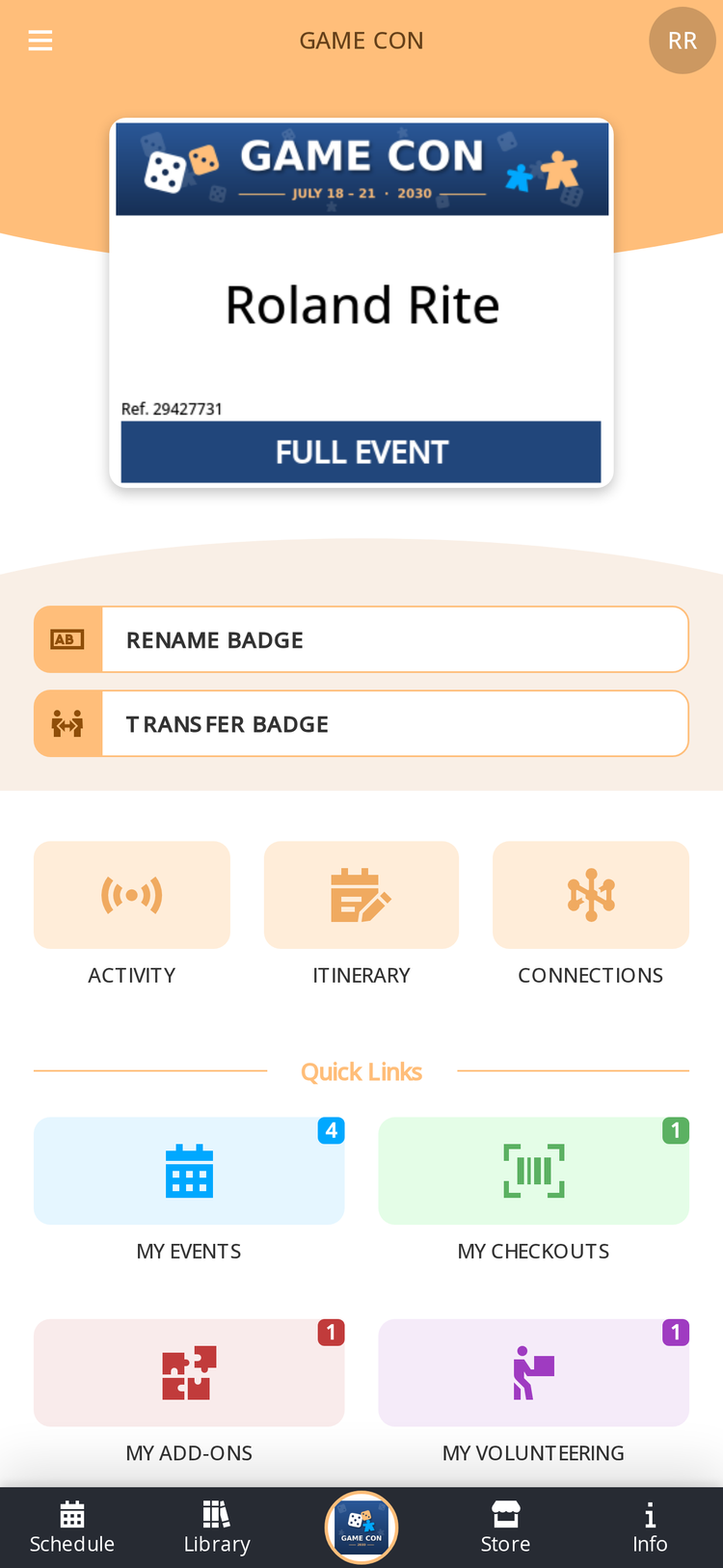
Your convention home has everything about you:
- Your badge - If your convention uses digital badges, tap it to show your QR code. Rename or Transfer it here, if your convention allows.
- Itinerary and Connections - Your plans and your people.
- Quick Links - Your events, game checkouts, add-ons and volunteer shifts, with a count of each.
- Timetable - Your day at a glance.
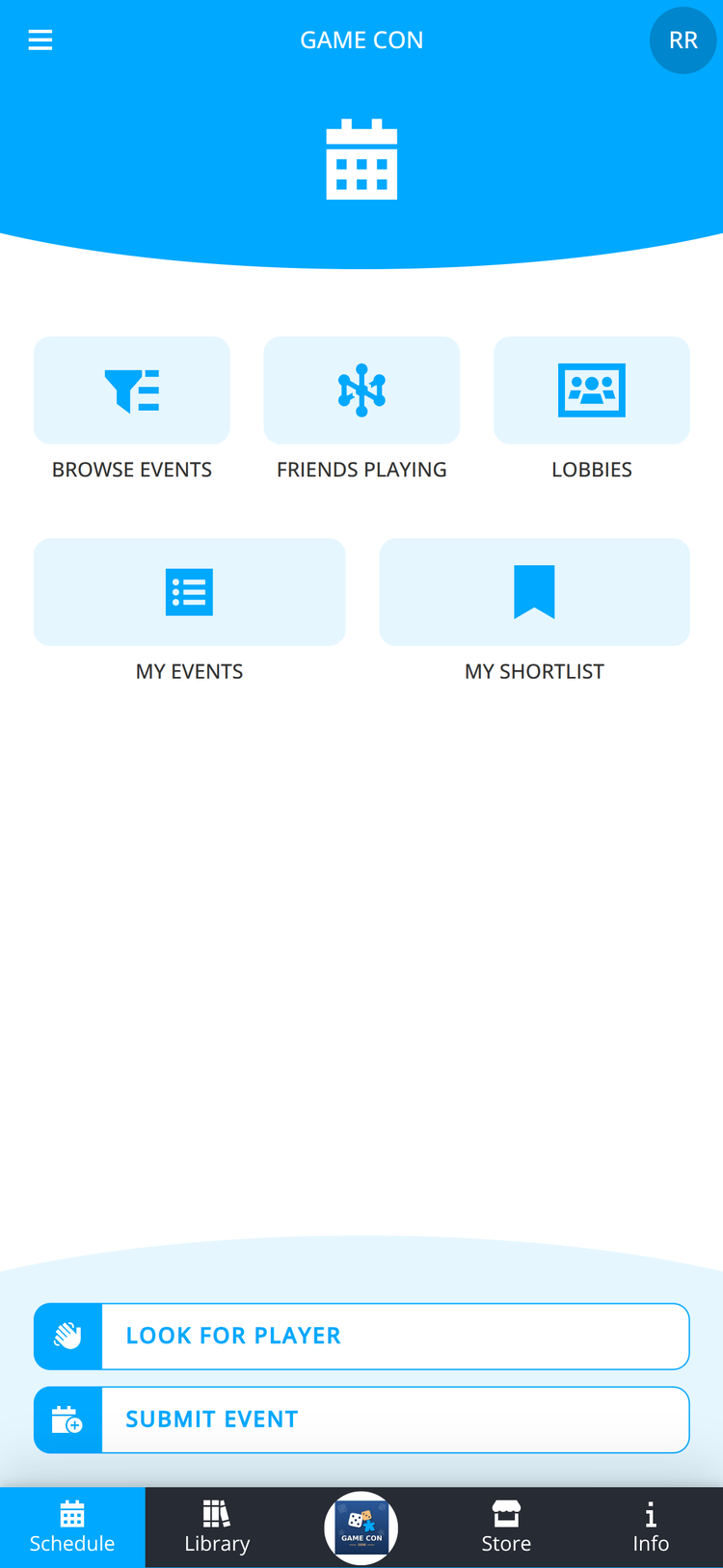
The home for everything you can play:
- Browse Events - Every event, with filters to find what you want.
- Lobbies - Curated collections of events, and a place to connect on a topic.
- Friends Playing - See what your connections have signed up for.
- My Events and My Shortlist - What you've joined and what you're considering.
- Look for Player and Submit Event - Find players now, or host your own event.
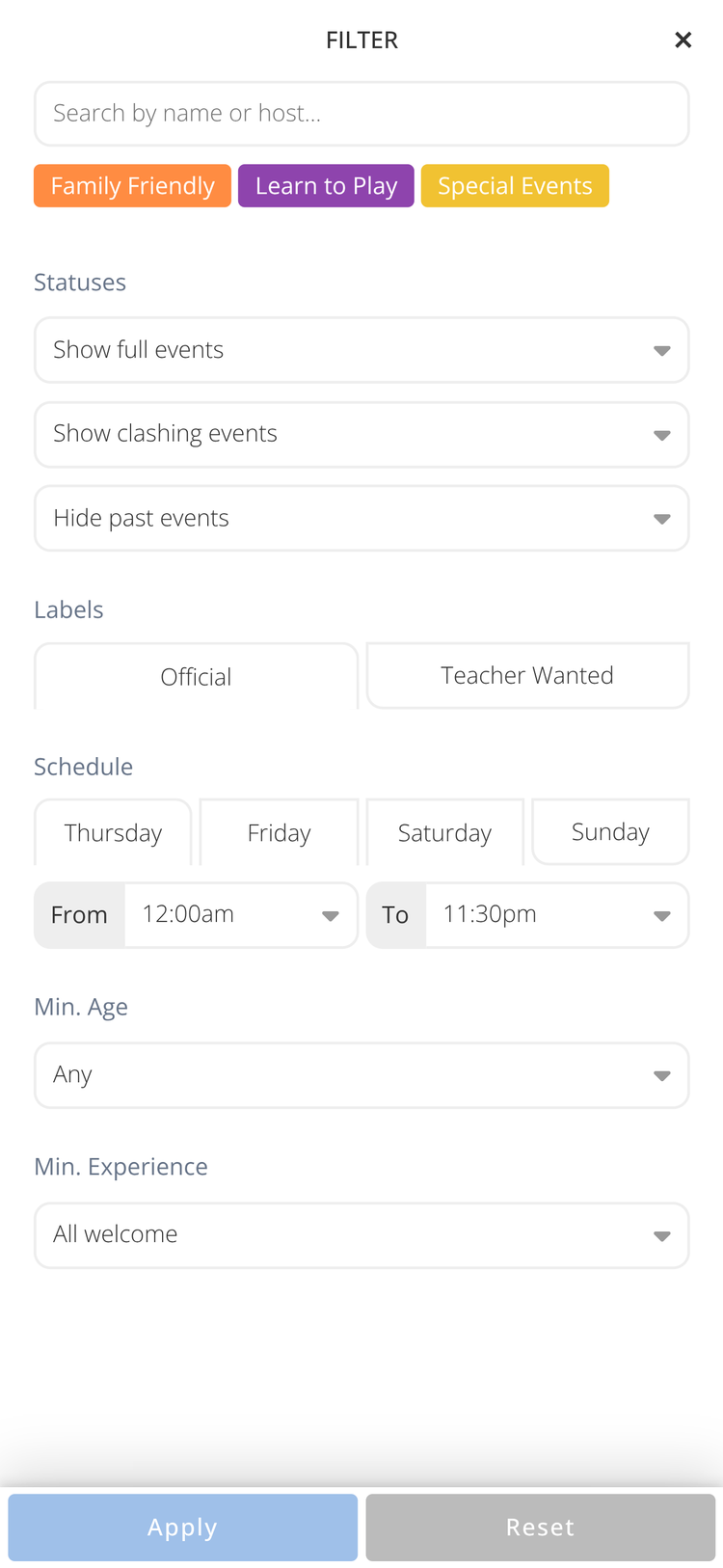
From Browse Events, tap the filter to narrow the list by:
- Name or host
- Lobby - Tap a coloured lobby, such as Family Friendly or Learn to Play, to see only its events
- Status - Show or hide full, clashing and past events
- Labels, such as Official or Teacher Wanted
- Day and time, minimum age and experience
Each event in the list shows its lobby in the lobby's colour. Events marked Clashing with Schedule overlap something you've already joined.
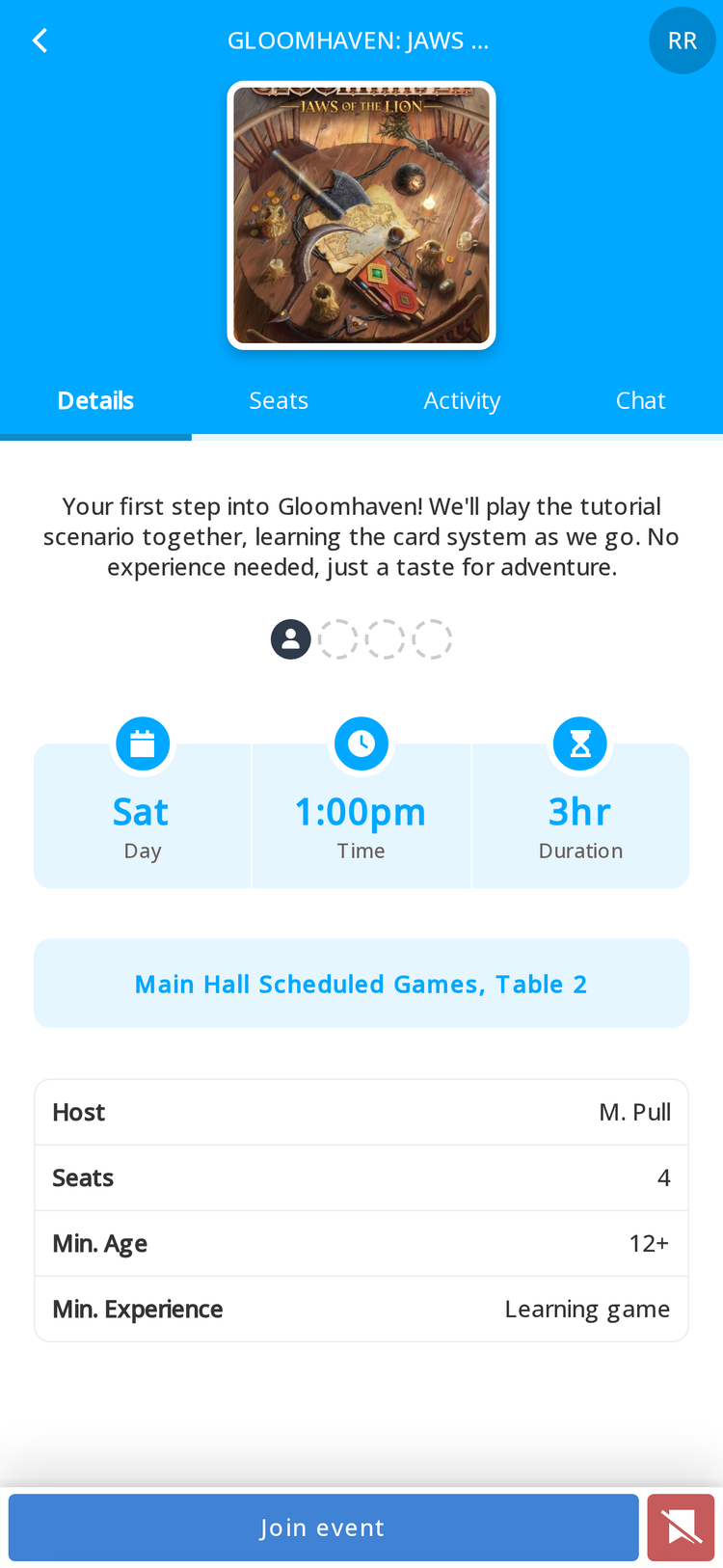
Each event has four tabs:
- Details - When, where, who's hosting, age and experience.
- Seats - Who's playing and how many seats are left.
- Activity - What has changed.
- Chat - Talk to the host and other players.
Tap Join event to take a seat. Tap the  bookmark beside it to add the event to your shortlist. If it's already on your shortlist, the bookmark is crossed out, and tapping it removes the event.
Be thoughtful of others! Can't make it? Tap Leave event so someone else can have your seat.
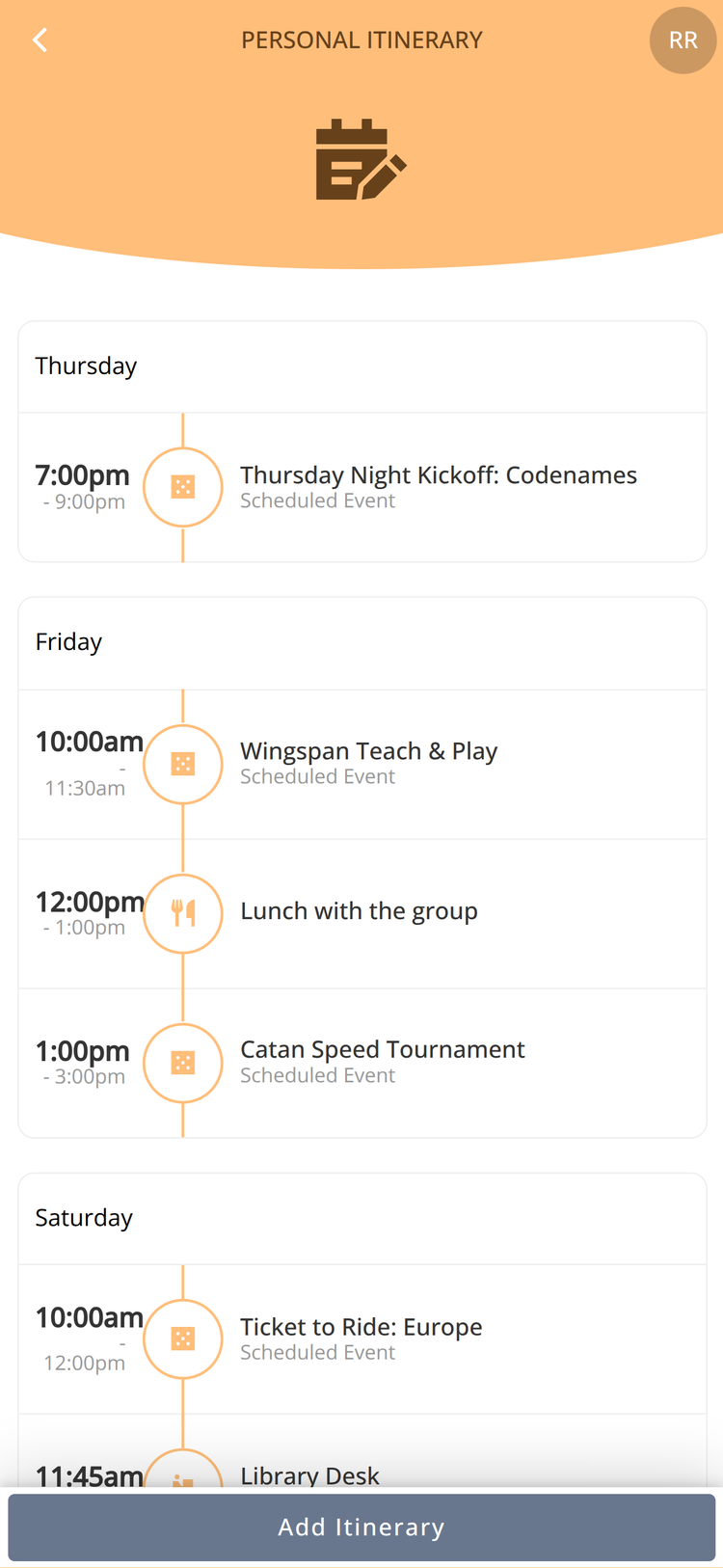
Your day-by-day schedule in one place:
- Events you're hosting or have joined
- Volunteer shifts
- Private entries you add yourself, like Lunch with the group or Arrive at airport
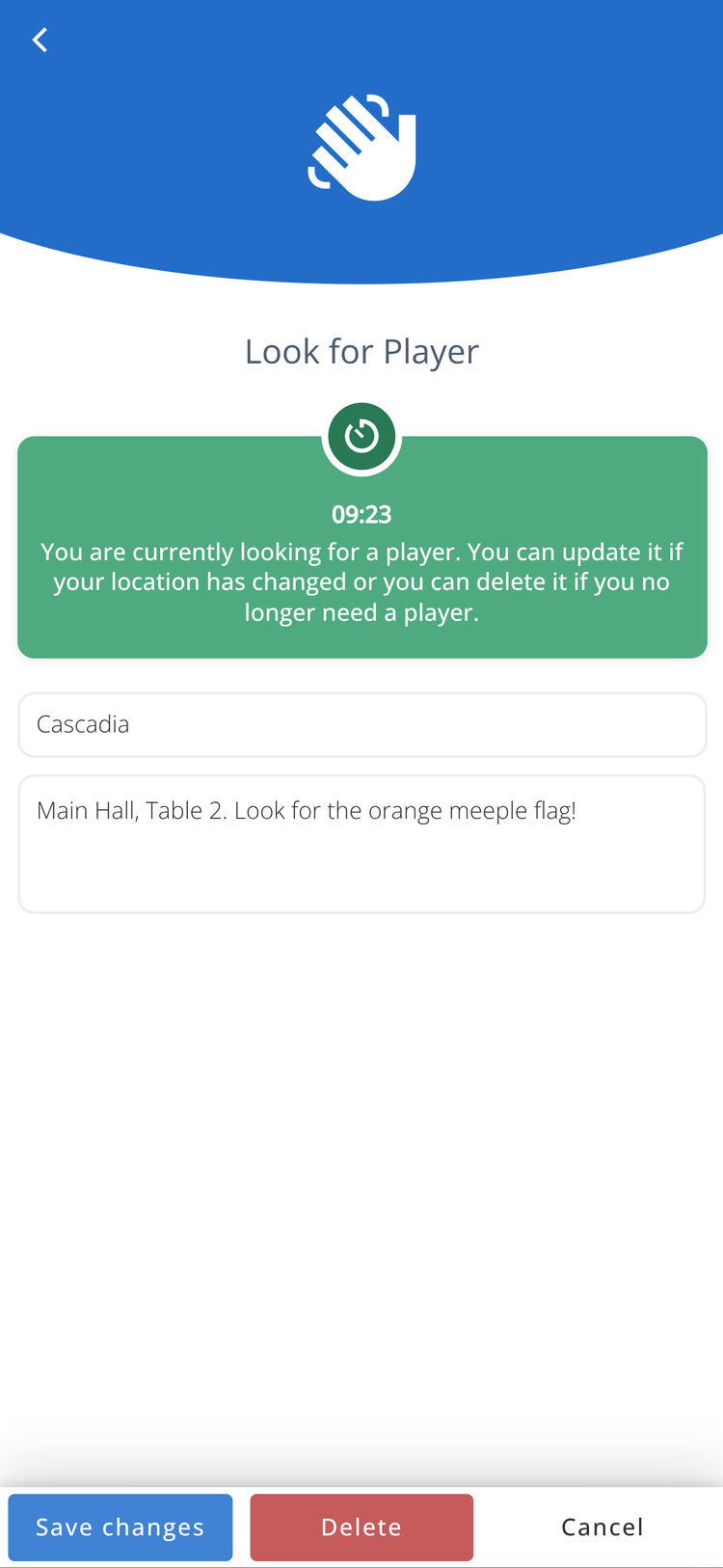
Need one more player? Raise your hand!
- Tap your profile picture or initials at the top right, then the Looking for Player button at the top of the menu.
- Tap Look for Player at the bottom of the screen.
- Enter the game you're playing and where your table is, as exactly as you can, then tap Confirm.
- Your sign shows in Looking for Player for 10 minutes, for everyone to find. A countdown shows how long is left, and a red dot appears on your profile picture or initials while it's up.
To change where you are, open your sign, edit it and tap Save changes.
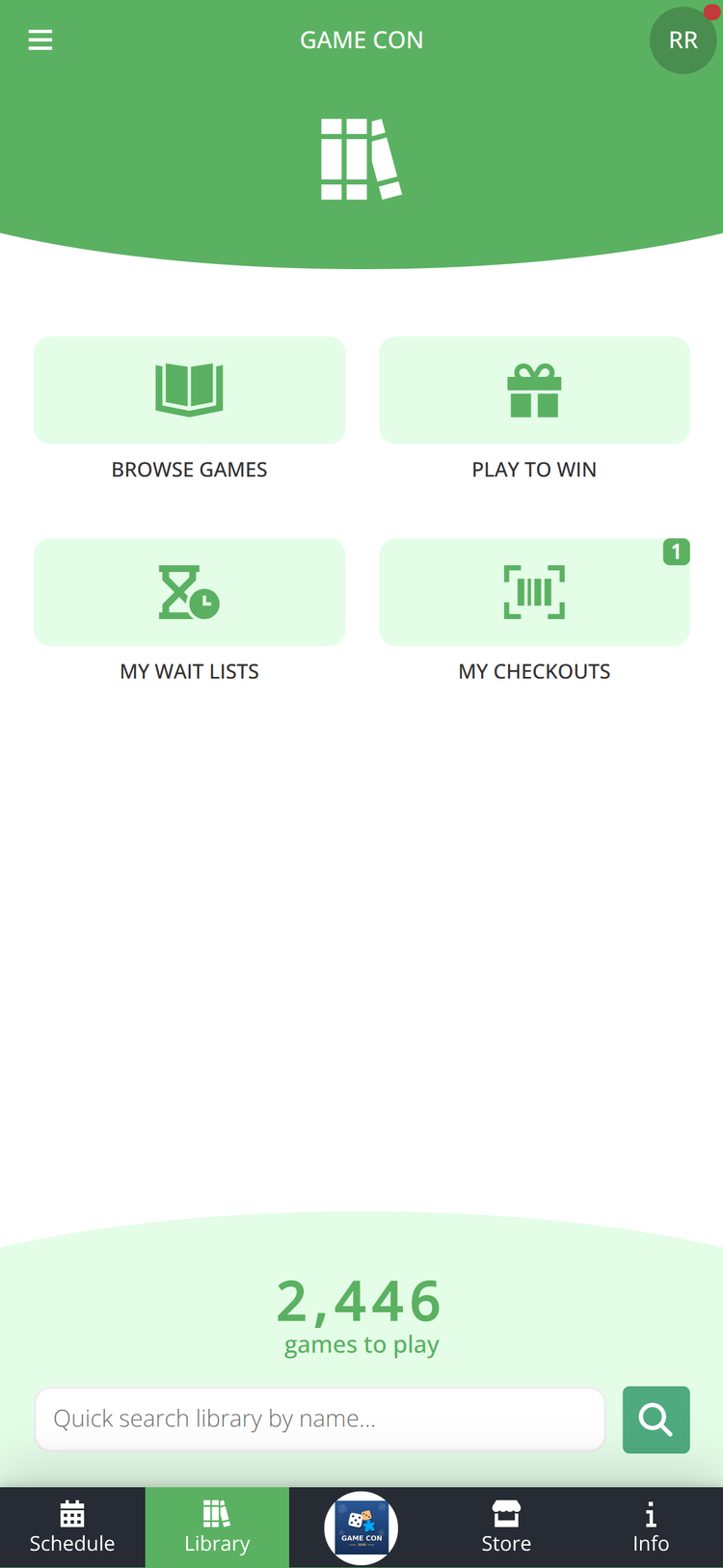
Borrow games to play right at the convention:
- Browse Games - Search the library and see where each game is and whether it's available or checked out.
- My Wait Lists - Join the wait list for a game that's checked out. It's not a hold, so it doesn't reserve the game for you.
- My Checkouts - The games you have out right now.
- Play to Win - Play a Play to Win game for a chance to take it home.
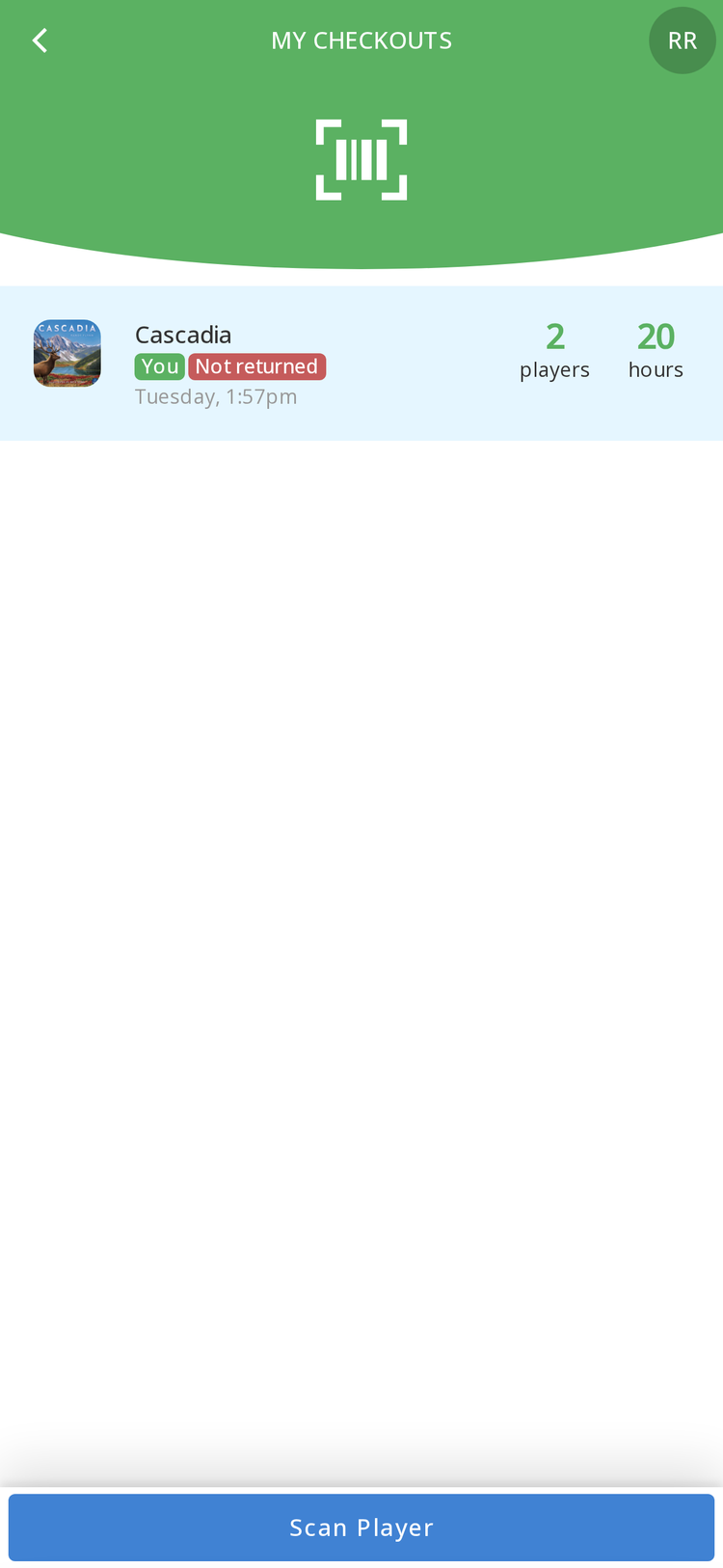
Everyone who is scanned into a Play to Win game is entered in its draw.
- Have the librarian scan every player when you check the game out, or
- Add players yourself at the table: open My Checkouts, tap the game, then tap Scan Player and scan each player's badge.
Bonus: the people you play with show up in your Connection Suggestions, so you can stay in touch.
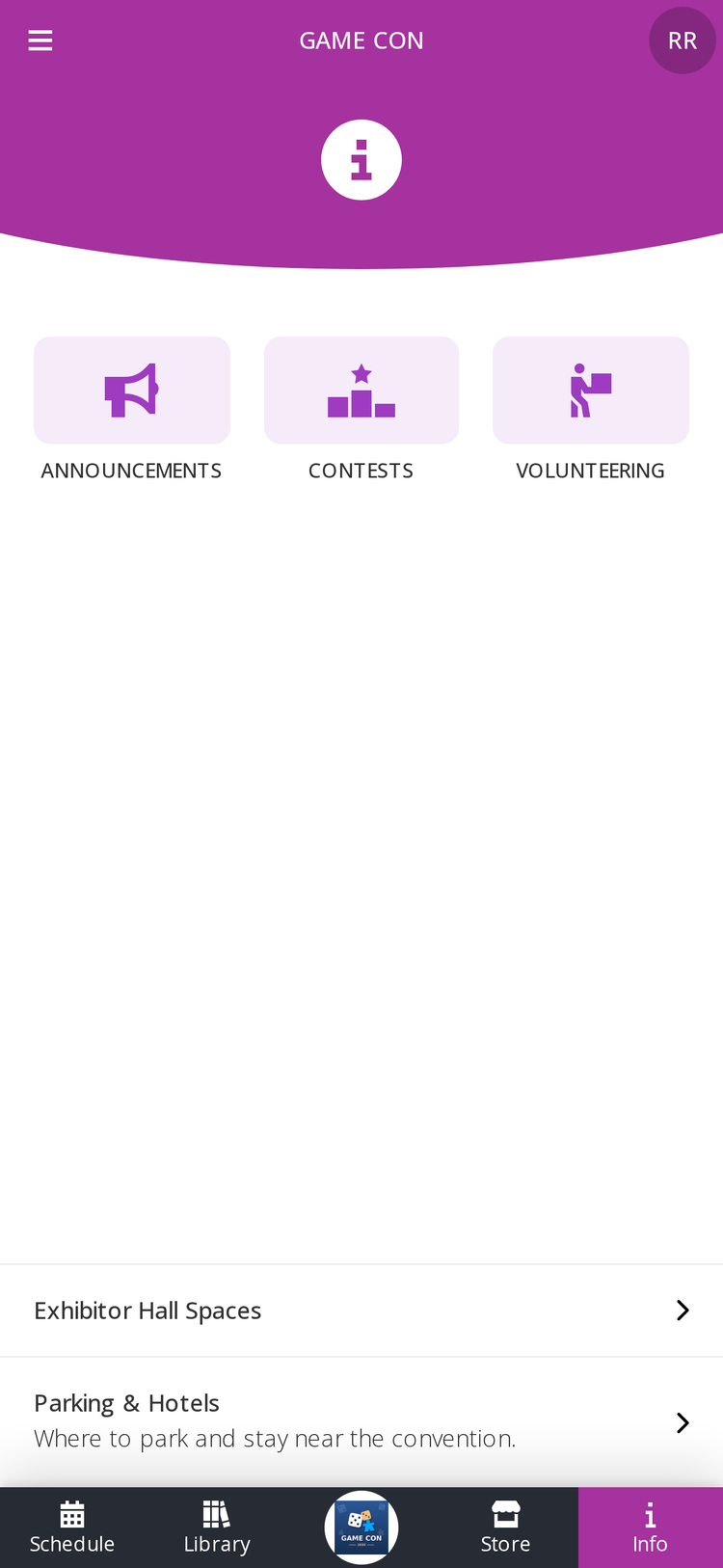
Tap Info for:
- Announcements - The latest news from your convention.
- Info Pages - Maps, rules, FAQs and anything else your convention shares.
- Contests - Look for QR codes around the venue and scan them with the app or your phone's camera to enter.
Note: Contests are separate from Play to Win. Scanning a contest QR code enters the contest, not a game draw.
¶ Survival Tips
 Keep your badge handy. It gets you checked in, and gets you games from the library.
- Shortlist early. Popular events fill fast. Shortlist now and decide later.
 No group? No problem. Check Looking for Players for a game that needs you right now.
 Scan everyone in. Every player scanned into a Play to Win game gets a chance to win it.
 Plans changed? Leave events you can't make, and delete your player sign once your table is full.
¶ Need More Help?
Step-by-step guides for every part of the app:
Still stuck? Ask at your convention's help desk, or contact support.